> ## Documentation Index
> Fetch the complete documentation index at: https://help.revenuehero.io/llms.txt
> Use this file to discover all available pages before exploring further.
# How to integrate Attio CRM?
> Connect Attio to RevenueHero so inbound meetings route to the right owner and every booking syncs back to your Attio records.
Your team tracks account and contact ownership in Attio, and every inbound meeting should reach the right rep whether or not the prospect is already a record. Connecting Attio to RevenueHero makes both cases work. It qualifies each inbound prospect, routes the meeting to the right rep, and writes the booking back to Attio the moment it is made. Known accounts go to their existing owner. New prospects get assigned through your distribution rules. Either way, the record reflects the meeting without anyone updating it by hand.
**BEFORE YOU BEGIN**
Only RevenueHero admins can connect a CRM. You will also need access to the Attio workspace you want to sync.
## How RevenueHero works with Attio
RevenueHero is the inbound conversion layer for your revenue team. When a prospect fills out a form, RevenueHero qualifies them, routes the meeting to the right rep, and books it on that rep's live calendar in seconds.
The connection runs both ways:
* **RevenueHero reads from Attio** to route each meeting: Workspace Members, People (matched by email), Companies (matched by domain), Deals, and the custom fields on each. You can build routing rules against the Attio schema you already have.
* **RevenueHero writes back to Attio** after every booking: the meeting, its status, and the assigned owner land on the Person and Company records.
RevenueHero decides who gets the meeting using three kinds of rules:
* **Matching rules** route a prospect to the owner of their existing Attio record, so known accounts stay with the rep who already owns them. You can match on the Person, Company, Associated Company, or a related Deal.
* **Distribution rules** qualify a prospect and assign the meeting when there is no existing owner, or whenever you want to share meetings across a team. They can round robin among team members and qualify on conditions built from form inputs, Attio fields, and enrichment data.
* **Redistribution rules** step in when an assigned prospect does not book within a set time. Rather than let the lead go cold, RevenueHero reassigns it, either to the prospect's existing Attio owner or through the redistribution rules you choose, so another rep can pick it up and follow up.
Here is what happens when a prospect submits a form:
1. RevenueHero looks up the Person by email and the Company by domain inside your Attio workspace.
2. If a matching record is found, the meeting routes to that record's existing owner. If there is no match, your distribution rules qualify the prospect and assign the meeting to the right rep, for example by round robin across the team.
3. RevenueHero creates the Person and Company if they do not already exist.
4. The qualified prospect sees the assigned rep's available slots and books in real time.
5. Within seconds, the Person and Company records in Attio reflect the meeting, the assigned owner, and every RevenueHero attribute.
RevenueHero connects to one CRM per account. Once Attio is connected, the other CRM options are disabled.
## Connect Attio
### Step 1: Open the CRM connection
You can connect Attio in two places:
* During onboarding, on the **Integrate your CRM** step.
* Any time after, from **Settings → Integrations**, in the **CRM** section.
### Step 2: Choose Attio
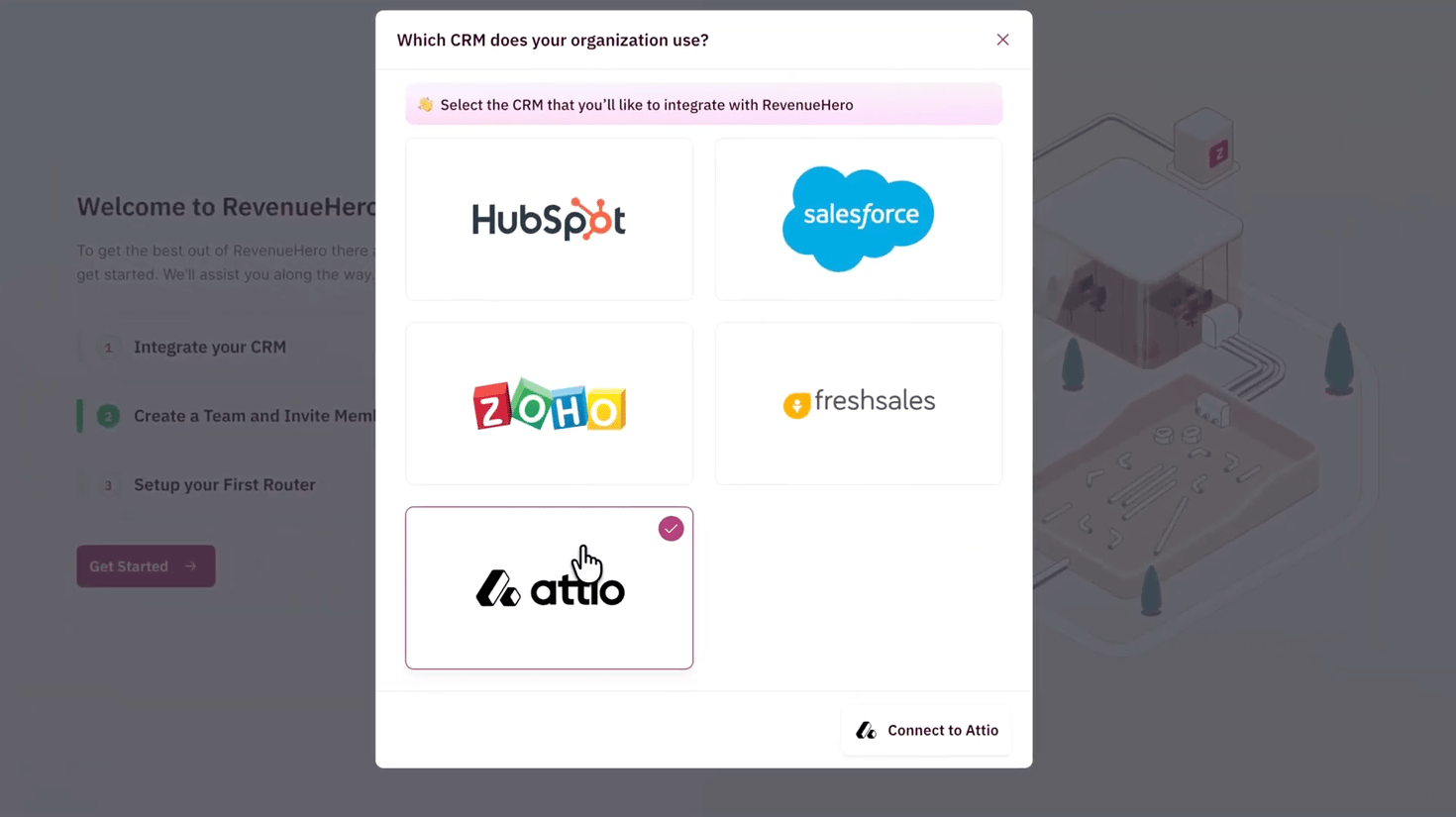
Select **Attio** from the CRM list and click **Connect to Attio**.
 ### Step 3: Authorize RevenueHero in Attio
RevenueHero opens Attio's authorization screen. Choose the **workspace** you want to sync, review the access RevenueHero needs, and click **Confirm**.
RevenueHero requests read and write access to your People, Companies, Deals, and Workspace Members. It needs this to look up records for routing, assign meetings to the right owner, and write booking details back.
### Step 4: Confirm the connection
Once you authorize, RevenueHero shows a success screen and the Attio card in **Settings → Integrations** shows a **Connected** status.
### Step 3: Authorize RevenueHero in Attio
RevenueHero opens Attio's authorization screen. Choose the **workspace** you want to sync, review the access RevenueHero needs, and click **Confirm**.
RevenueHero requests read and write access to your People, Companies, Deals, and Workspace Members. It needs this to look up records for routing, assign meetings to the right owner, and write booking details back.
### Step 4: Confirm the connection
Once you authorize, RevenueHero shows a success screen and the Attio card in **Settings → Integrations** shows a **Connected** status.
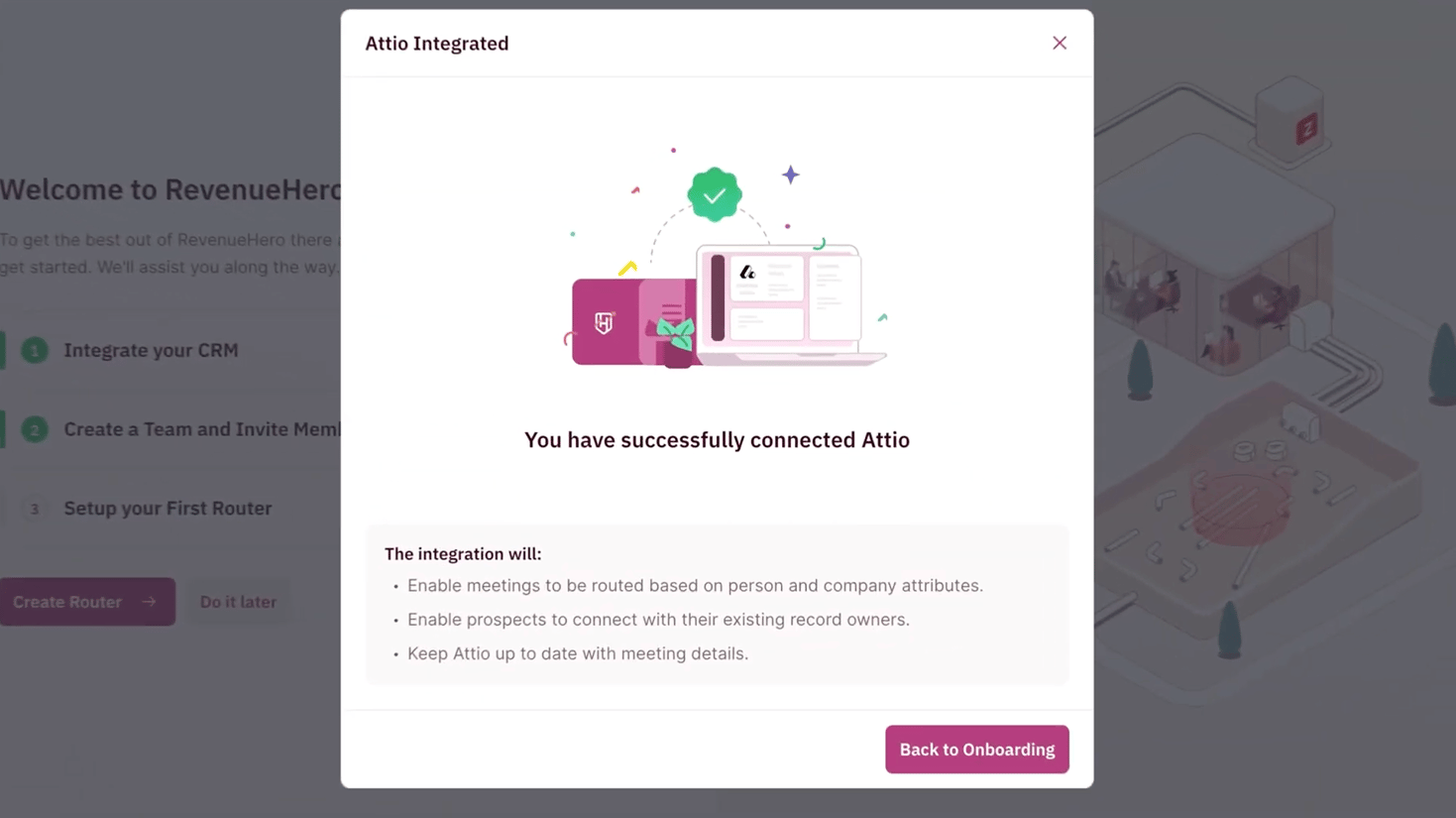 Attio is now connected. Next, set up how RevenueHero matches prospects to your Attio records and distributes meetings to your team.
***
You have successfully connected your Attio account with RevenueHero. 🎉🎉🎉
See every field RevenueHero writes to your Person and Company records.
Map enriched fields, sync meeting types, and enable deal-owner matching.
Match inbound prospects to the right Attio record.
Qualify and assign meetings using your Attio fields.
Attio is now connected. Next, set up how RevenueHero matches prospects to your Attio records and distributes meetings to your team.
***
You have successfully connected your Attio account with RevenueHero. 🎉🎉🎉
See every field RevenueHero writes to your Person and Company records.
Map enriched fields, sync meeting types, and enable deal-owner matching.
Match inbound prospects to the right Attio record.
Qualify and assign meetings using your Attio fields.