> ## Documentation Index
> Fetch the complete documentation index at: https://help.revenuehero.io/llms.txt
> Use this file to discover all available pages before exploring further.
# How to setup Apollo enrichment in RevenueHero?
> Connect with Apollo to instantly enrich leads and route them based on job titles, company info, and more.
**Before we begin**
There are a couple of pre-requisites to create your first Inbound Router:
1. You must be an **admin in Apollo** with permission to generate API keys.
2. You must be an **admin in RevenueHero** to access the enrichment settings and complete the integration.
### Navigate to Enrichment Settings
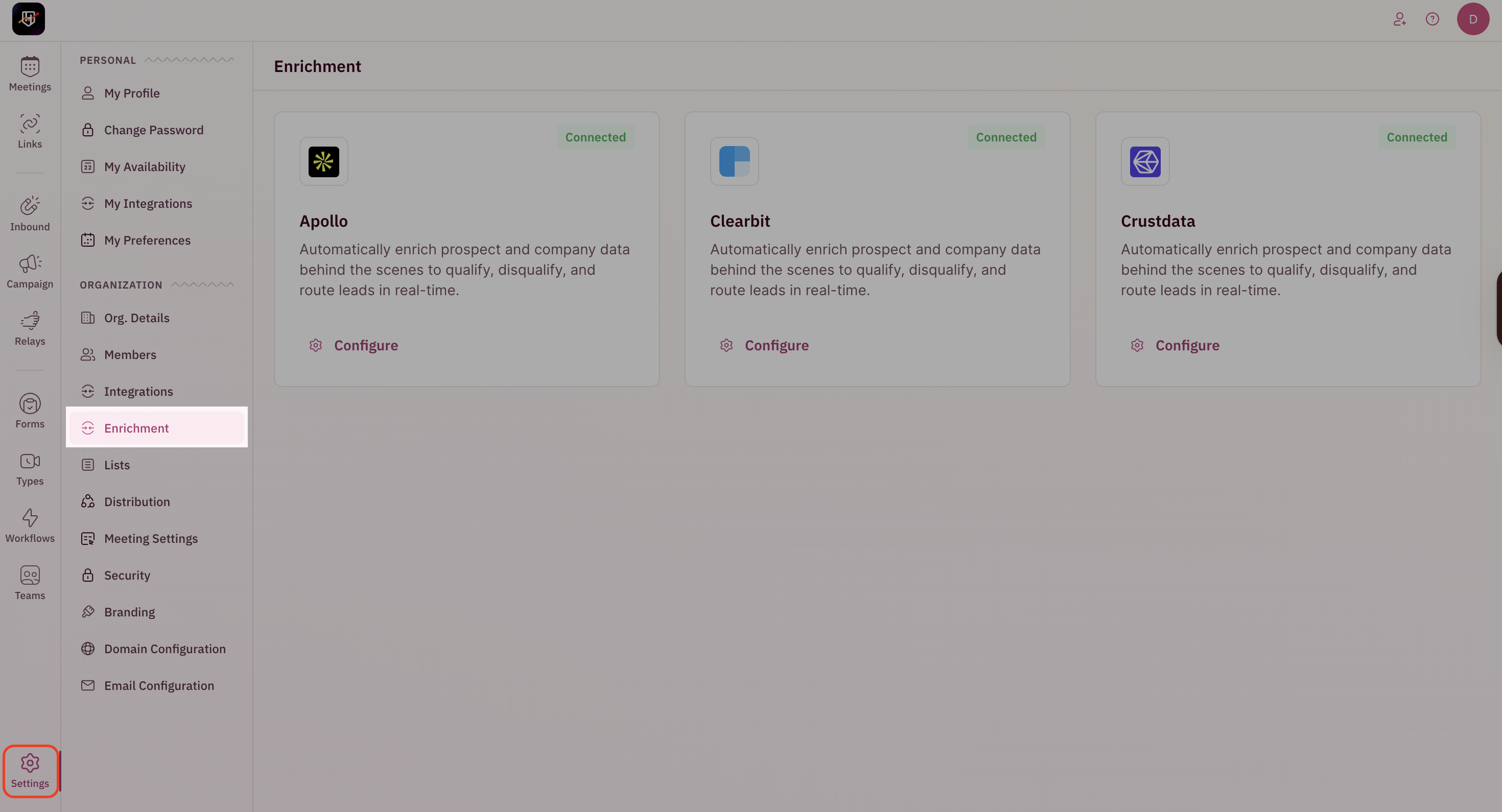
1. Go to **Settings → Enrichment** from the left-hand navigation.
 ## Configure Apollo Enrichment
To use Apollo for enrichment, you’ll need to connect your Apollo account to RevenueHero using an API key.
#### How to generate your Apollo API key
1. Log in to your [**Apollo.io**](http://Apollo.io) account.
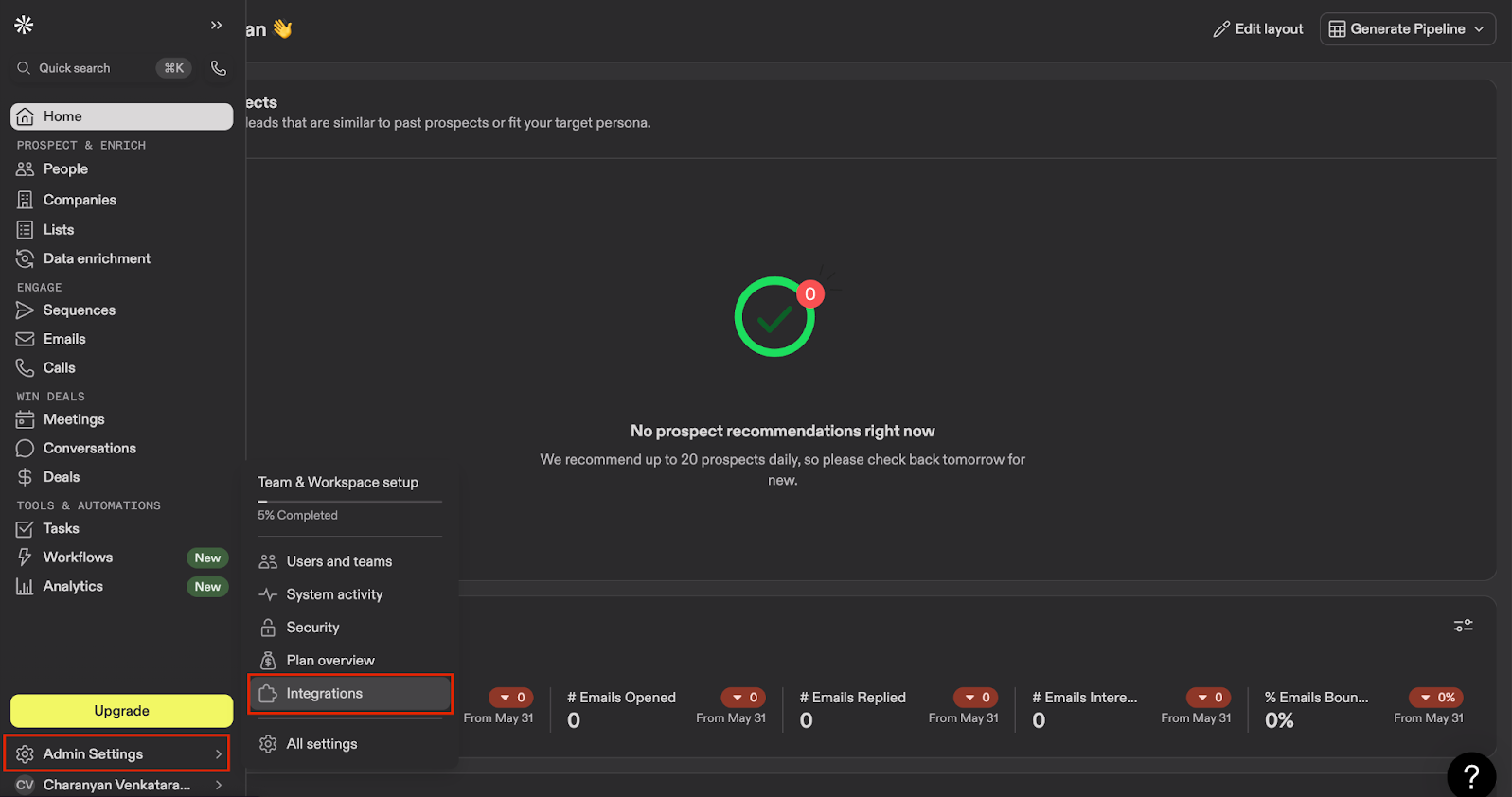
2. Go to **Admin Settings → Team and Workspace Setup → Integrations**.
## Configure Apollo Enrichment
To use Apollo for enrichment, you’ll need to connect your Apollo account to RevenueHero using an API key.
#### How to generate your Apollo API key
1. Log in to your [**Apollo.io**](http://Apollo.io) account.
2. Go to **Admin Settings → Team and Workspace Setup → Integrations**.
 3. Scroll to the bottom of the integrations list and find the **API** section.
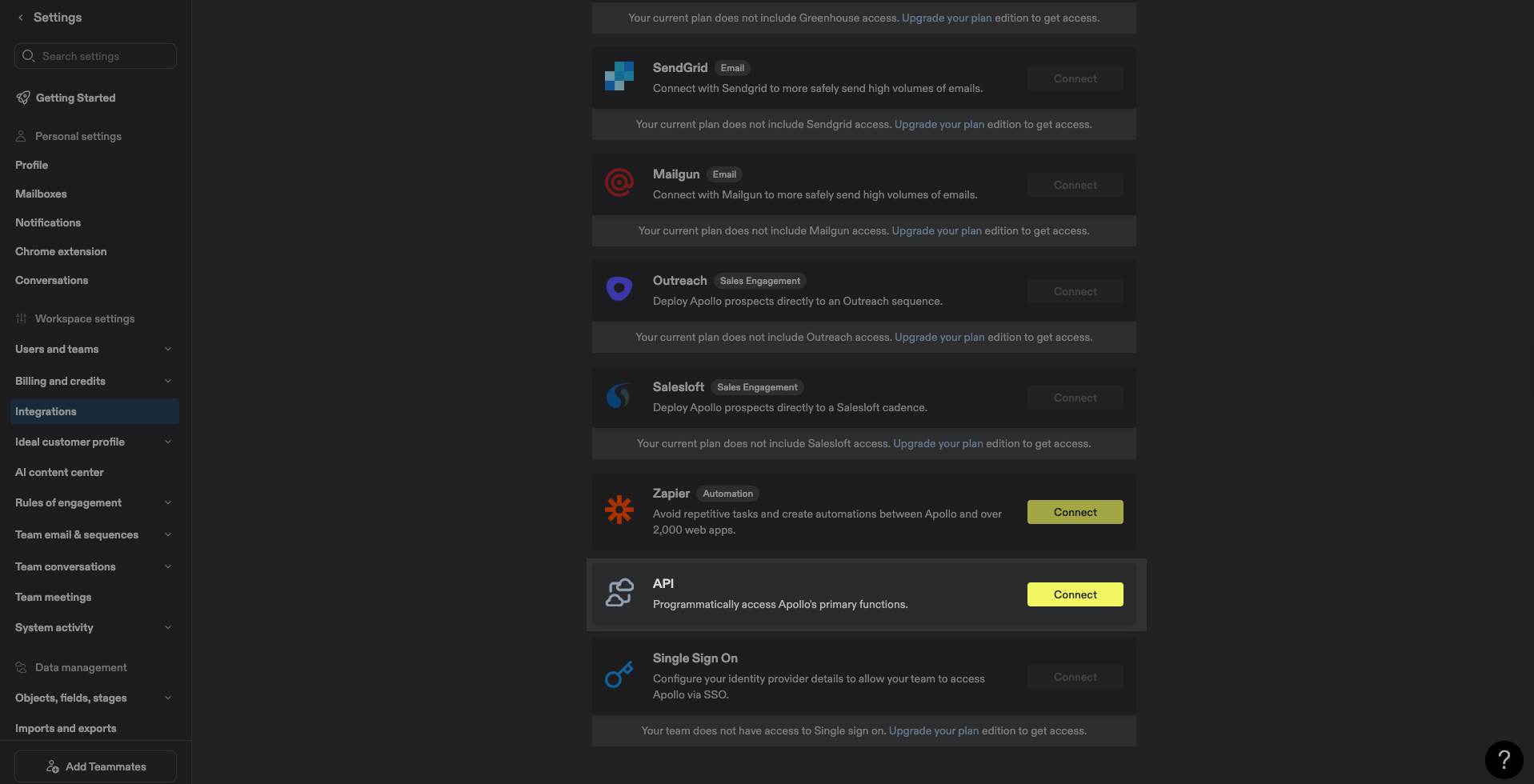 4. Click on **Connect** to be redirected to [developer.apollo.io](http://developer.apollo.io).
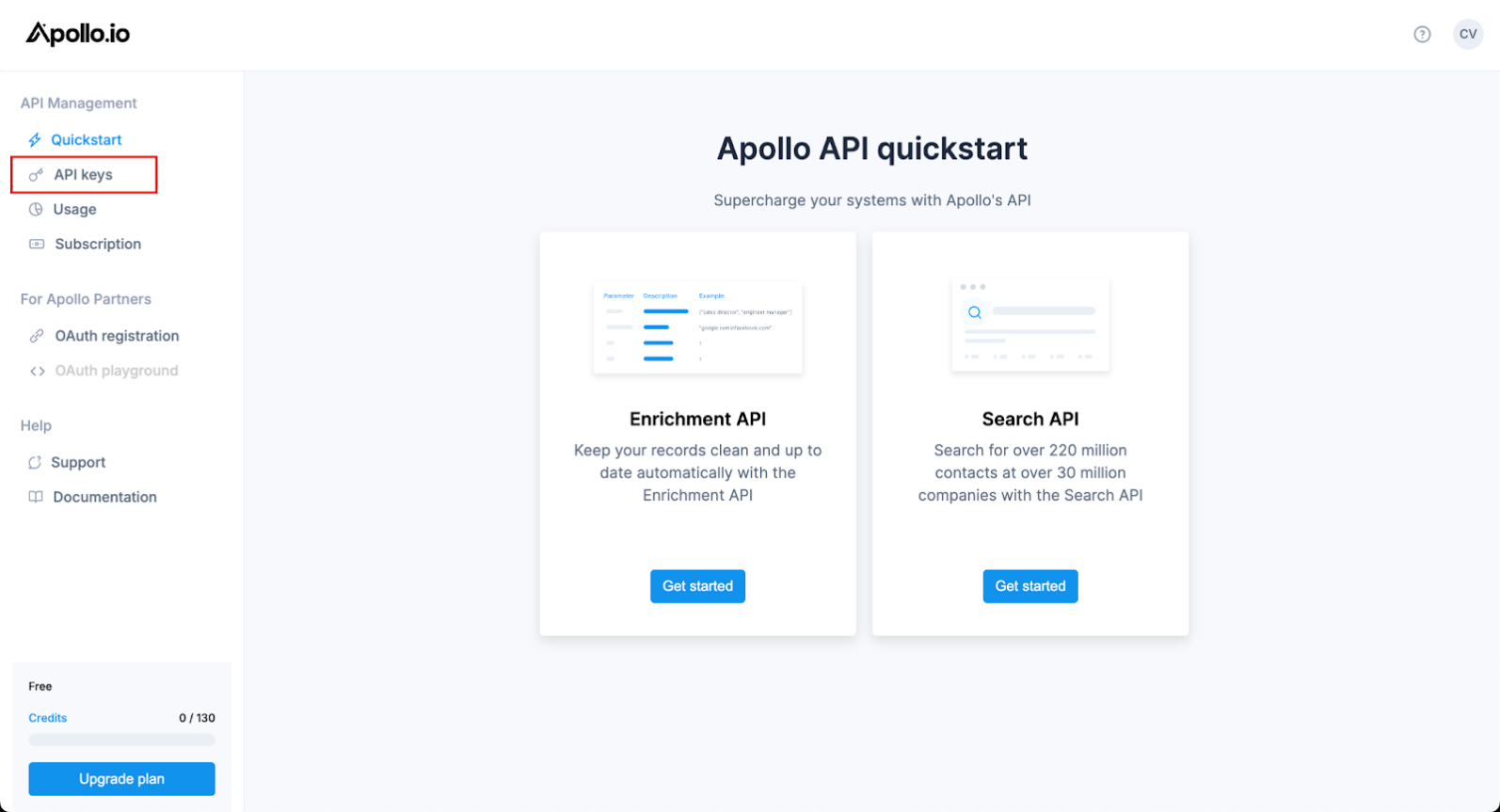
5. Under **API Management**, go to **API Keys**.
4. Click on **Connect** to be redirected to [developer.apollo.io](http://developer.apollo.io).
5. Under **API Management**, go to **API Keys**.
 6. Click on **Create New Key**.
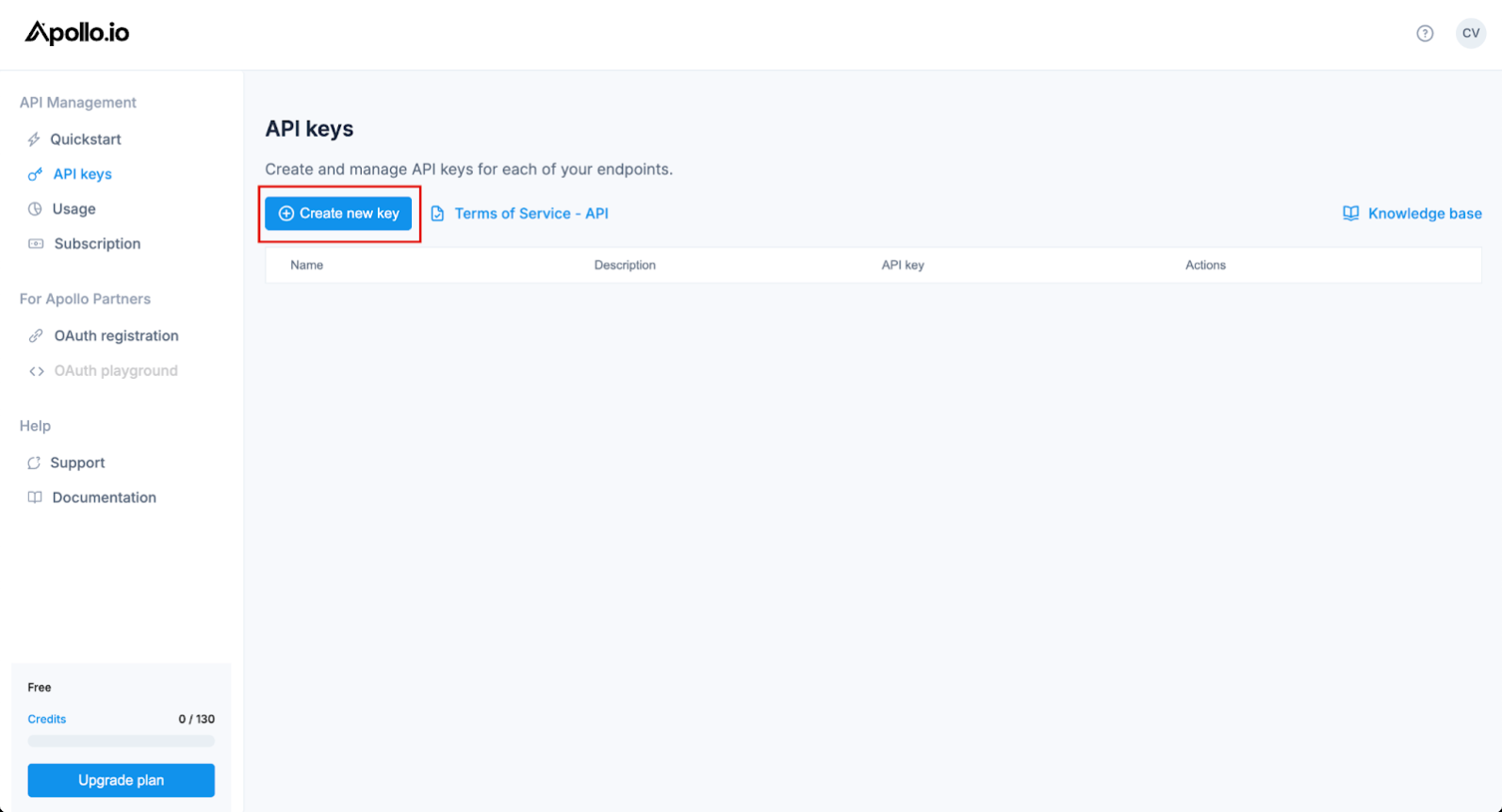 7. Give the key a name, generate it, and copy the key to your clipboard.
### Connect Apollo to RevenueHero
1. In RevenueHero, go to **Settings → Enrichment**.
7. Give the key a name, generate it, and copy the key to your clipboard.
### Connect Apollo to RevenueHero
1. In RevenueHero, go to **Settings → Enrichment**.
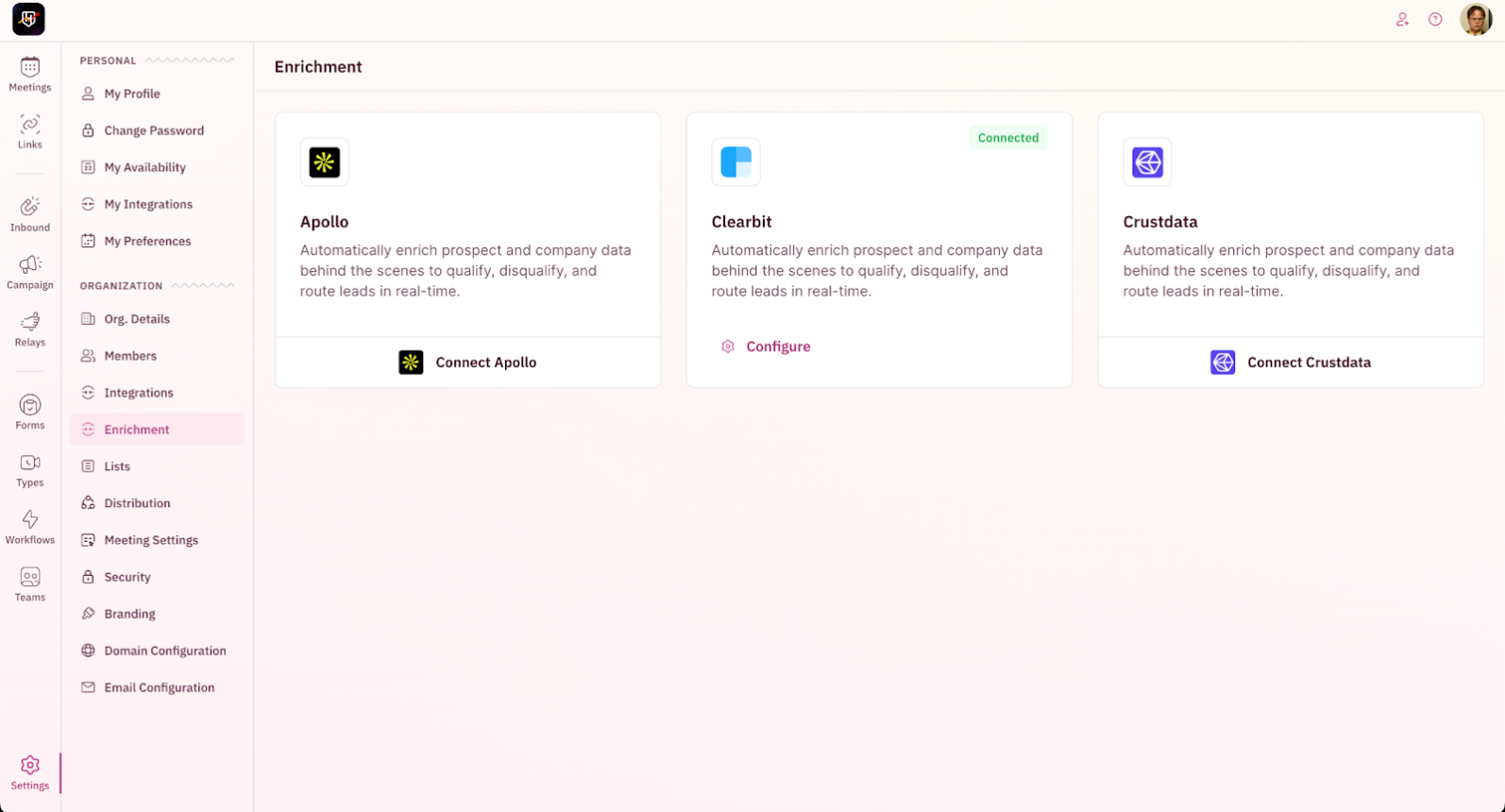 2. Click on **Connect Apollo** to open the integration setup screen.
3. Paste your **Apollo API key** and enter a valid **email address** to send a test API call.
2. Click on **Connect Apollo** to open the integration setup screen.
3. Paste your **Apollo API key** and enter a valid **email address** to send a test API call.
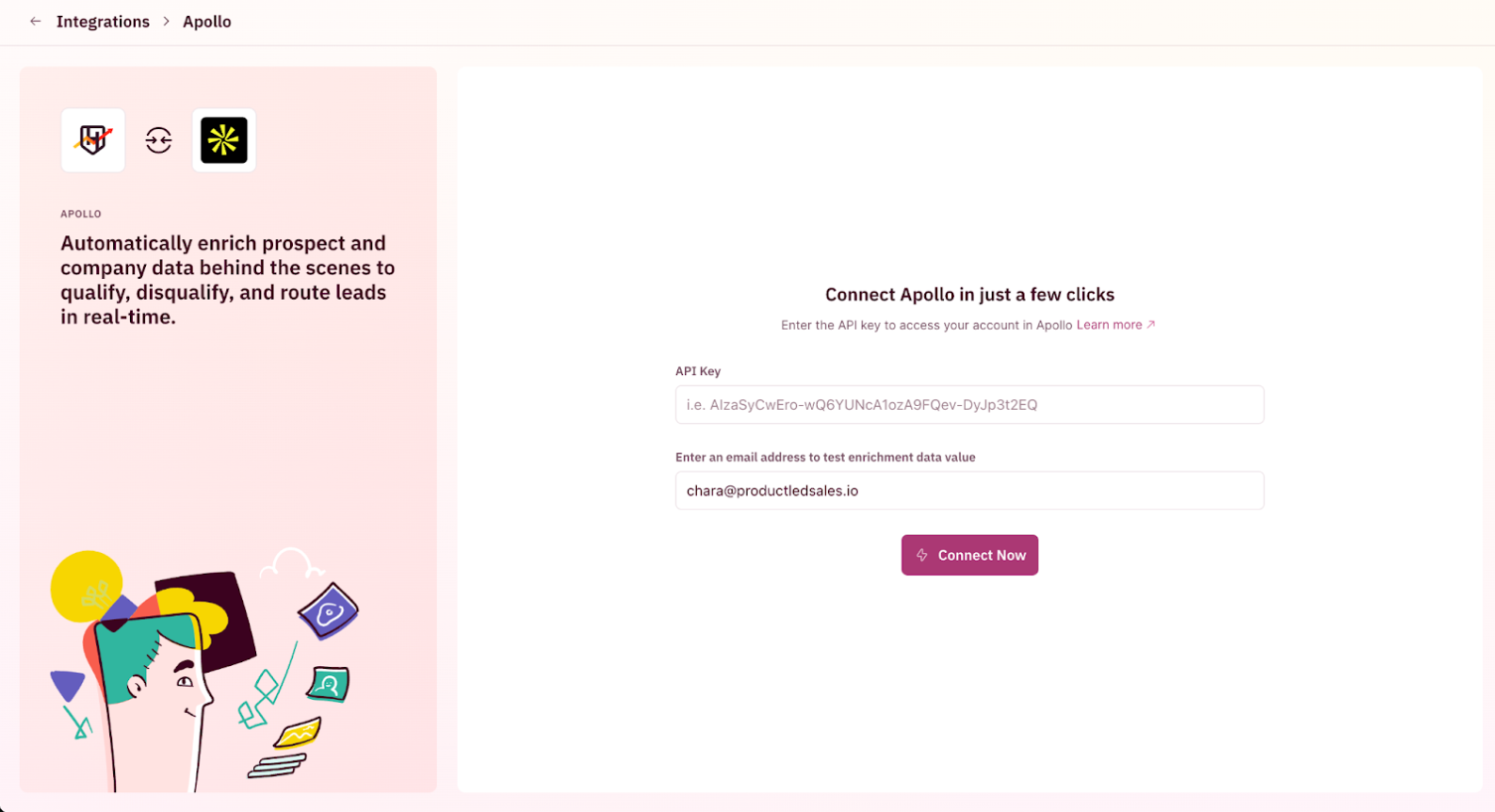 4. Click on **Connect Now**.
Once connected successfully, you can start using Apollo’s enrichment fields in your routing and qualification rules.
That’s it! You’ve successfully set up Apollo enrichment. 🎉🎉🎉
4. Click on **Connect Now**.
Once connected successfully, you can start using Apollo’s enrichment fields in your routing and qualification rules.
That’s it! You’ve successfully set up Apollo enrichment. 🎉🎉🎉