> ## Documentation Index
> Fetch the complete documentation index at: https://help.revenuehero.io/llms.txt
> Use this file to discover all available pages before exploring further.
# How to set up ZoomInfo enrichment in RevenueHero?
> Connect ZoomInfo so RevenueHero can enrich every form submission with firmographics and use that data to qualify and route leads.
If your outbound team runs on ZoomInfo, your inbound routing should too. Connecting ZoomInfo as an enrichment provider means a prospect who fills out a form gets enriched with the same person and company data you use everywhere else, so your routing decisions are built on numbers you already trust instead of whatever the form happened to capture.
**BEFORE YOU BEGIN**
1. You need a **ZoomInfo subscription that includes API access**. This is an Enterprise API add-on. Standard packages like Elite Plus do not include API access by default. Confirm with your ZoomInfo account manager before you start.
2. You need to be a **RevenueHero admin** to access enrichment settings.
3. Generate a **Client ID** and **Client Secret** from your ZoomInfo Admin Portal (Integrations → API).
## How ZoomInfo enrichment works
When a lead submits a form, RevenueHero calls ZoomInfo with the submitted email and domain. ZoomInfo returns matched contact and company data, which RevenueHero then uses to:
* Qualify the lead (run disqualification rules against industry, employee count, etc.)
* Route the lead (distribution and matching rules can read any enriched attribute)
* Write enriched fields back to your CRM if you map them in [Enrichment field mapping](/enrichment/enrichment-crm)
If you connect more than one enrichment provider, RevenueHero runs them as a waterfall. The first provider that returns a match wins for that lead.
## Generate your ZoomInfo API credentials
### Step 1: Open the ZoomInfo DevPortal
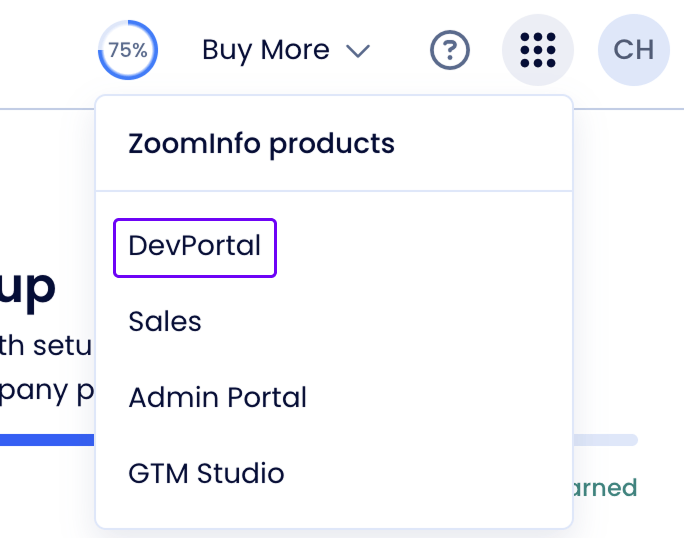
Sign in to ZoomInfo as an admin. Open the product switcher in the top-right corner, and under **ZoomInfo products** select **DevPortal**.
 ### Step 2: Create an API app
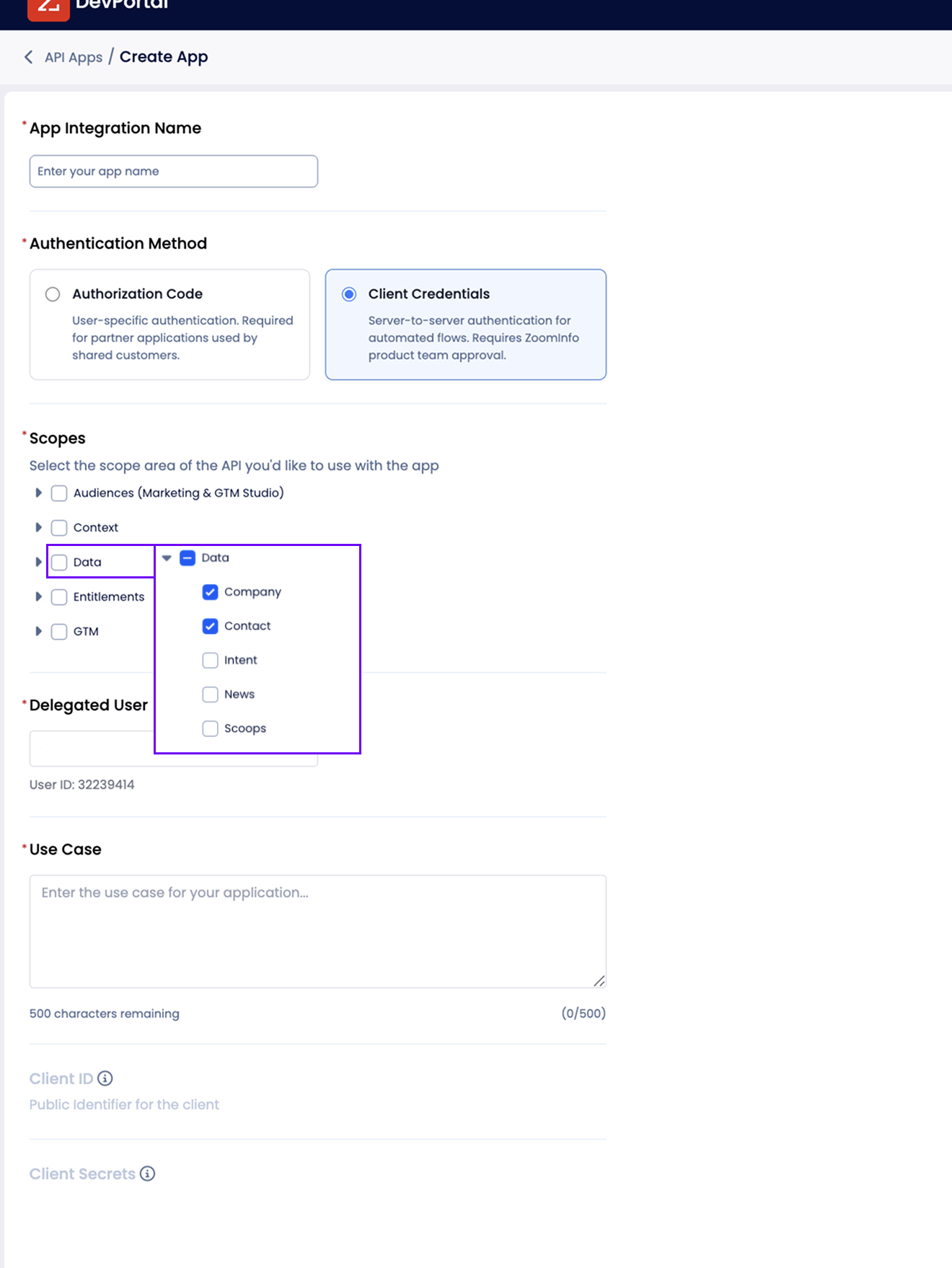
In DevPortal, go to **API Apps** and click **Create App**. Fill in the form:
1. **App Integration Name**: enter `RevenueHero` so the app is easy to find later.
2. **Authentication Method**: choose **Client Credentials**. This is the server-to-server method RevenueHero uses for automated enrichment. The other option, Authorization Code, is for user-specific partner apps and won't work here.
3. **Scopes**: expand **Data** and check both **Company** and **Contact**. These two scopes are what let RevenueHero pull firmographics for the person and their company.
4. **Use Case**: enter `Enrich prospect data for qualification and routing in RevenueHero`.
### Step 2: Create an API app
In DevPortal, go to **API Apps** and click **Create App**. Fill in the form:
1. **App Integration Name**: enter `RevenueHero` so the app is easy to find later.
2. **Authentication Method**: choose **Client Credentials**. This is the server-to-server method RevenueHero uses for automated enrichment. The other option, Authorization Code, is for user-specific partner apps and won't work here.
3. **Scopes**: expand **Data** and check both **Company** and **Contact**. These two scopes are what let RevenueHero pull firmographics for the person and their company.
4. **Use Case**: enter `Enrich prospect data for qualification and routing in RevenueHero`.
 ### Step 3: Copy your Client ID and Client Secret
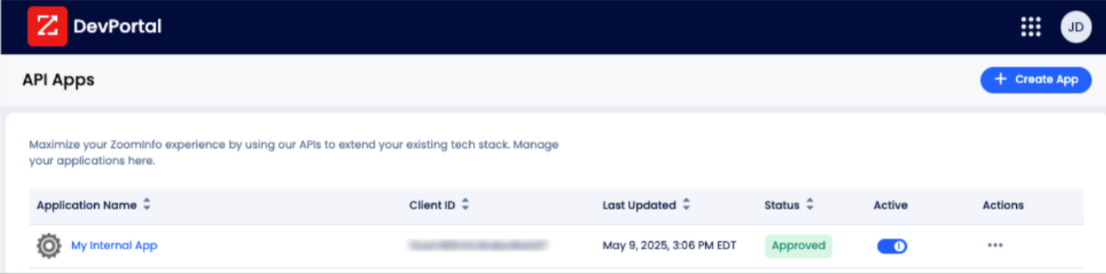
The app is created and approved right away. It appears in the **API Apps** list with an **Approved** status.
### Step 3: Copy your Client ID and Client Secret
The app is created and approved right away. It appears in the **API Apps** list with an **Approved** status.
 Click the app name to open it. Copy the two values RevenueHero needs:
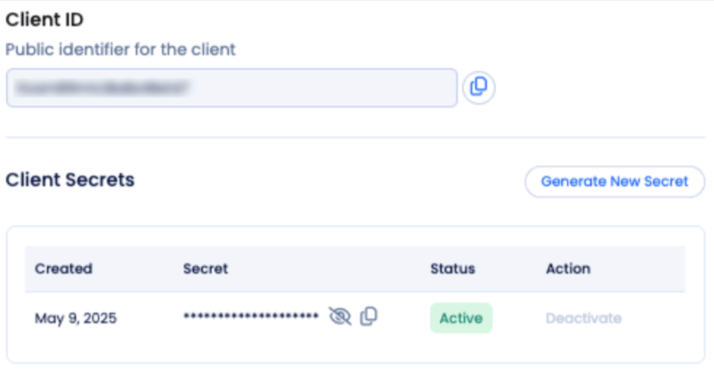
* **Client ID**: the public identifier for the app. Use the copy icon next to it.
* **Client Secret**: under **Client Secrets**, click the reveal icon to show the secret, then copy it.
Click the app name to open it. Copy the two values RevenueHero needs:
* **Client ID**: the public identifier for the app. Use the copy icon next to it.
* **Client Secret**: under **Client Secrets**, click the reveal icon to show the secret, then copy it.
 ## Connect ZoomInfo to RevenueHero
### Step 4: Open the Enrichment settings
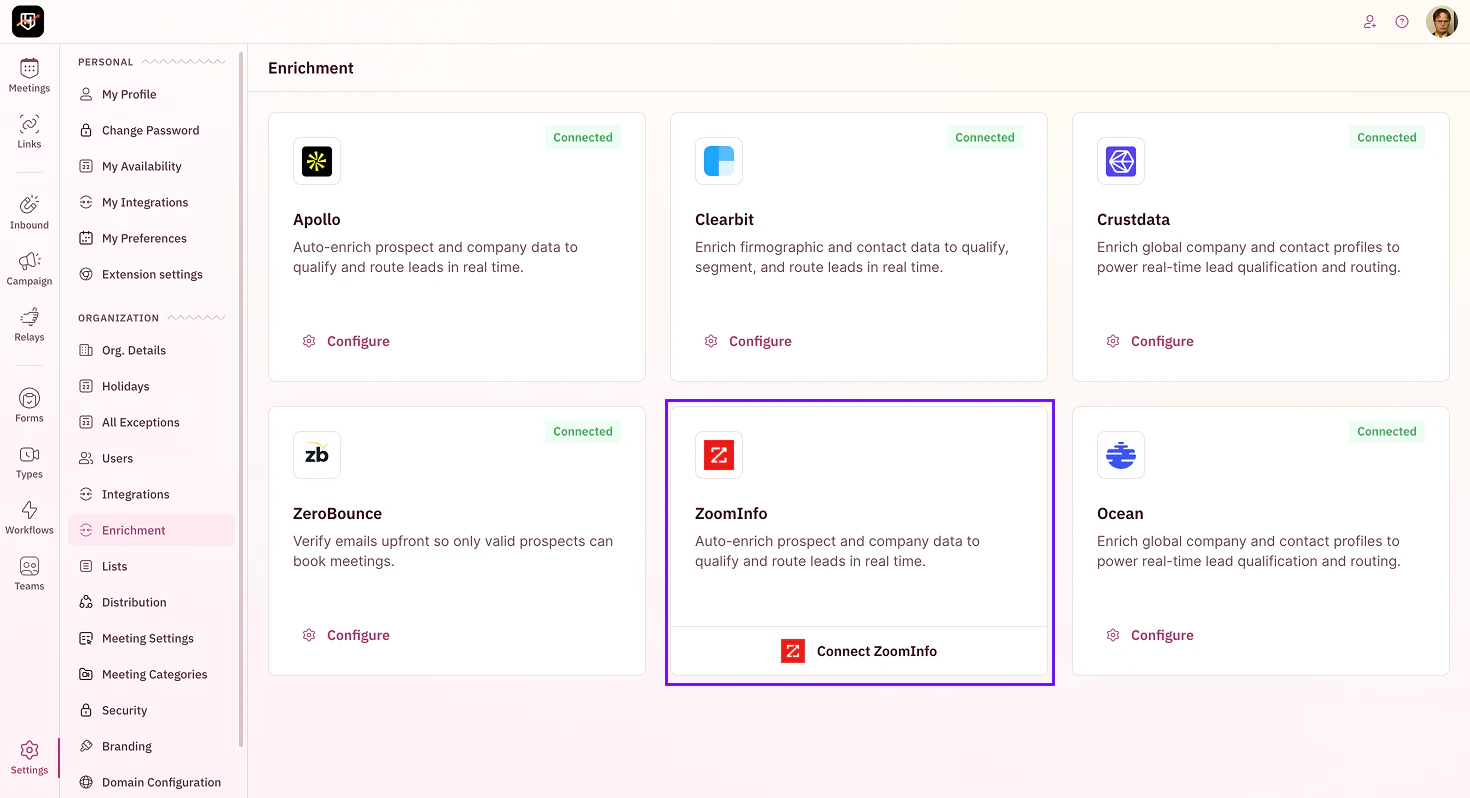
In RevenueHero, click **Settings → Enrichment** in the left sidebar. You'll see a grid of provider cards. Find the ZoomInfo card.
## Connect ZoomInfo to RevenueHero
### Step 4: Open the Enrichment settings
In RevenueHero, click **Settings → Enrichment** in the left sidebar. You'll see a grid of provider cards. Find the ZoomInfo card.
 ### Step 5: Start the connection
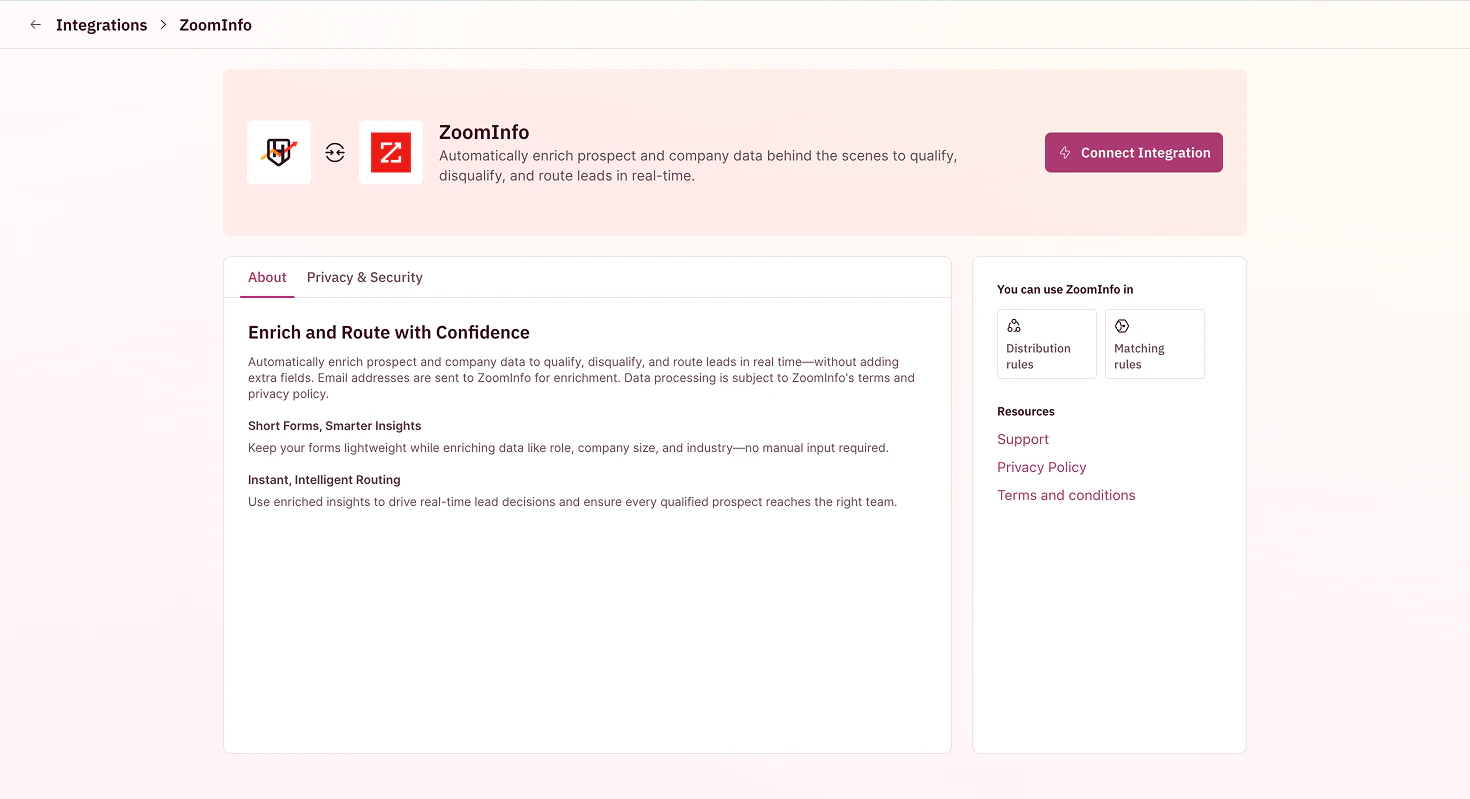
Click **Connect ZoomInfo** on the ZoomInfo card. This opens the ZoomInfo intro page with an overview of what data RevenueHero pulls, how it's used, and a privacy summary.
### Step 5: Start the connection
Click **Connect ZoomInfo** on the ZoomInfo card. This opens the ZoomInfo intro page with an overview of what data RevenueHero pulls, how it's used, and a privacy summary.
 ### Step 6: Enter your credentials
Click through to the connection form. Paste in three values:
1. **Client ID** from your ZoomInfo Admin Portal
2. **Client Secret** from your ZoomInfo Admin Portal
3. **Email address to test the connection** — use a real address on a corporate domain. RevenueHero runs a live enrichment against this email so you'll know immediately whether your credentials work.
{/* 📸 SCREENSHOT NEEDED: ZoomInfo connection form filled with sample values (atlas recipe settings-enrichment::connect-zoominfo-filled). */}
### Step 6: Enter your credentials
Click through to the connection form. Paste in three values:
1. **Client ID** from your ZoomInfo Admin Portal
2. **Client Secret** from your ZoomInfo Admin Portal
3. **Email address to test the connection** — use a real address on a corporate domain. RevenueHero runs a live enrichment against this email so you'll know immediately whether your credentials work.
{/* 📸 SCREENSHOT NEEDED: ZoomInfo connection form filled with sample values (atlas recipe settings-enrichment::connect-zoominfo-filled). */}
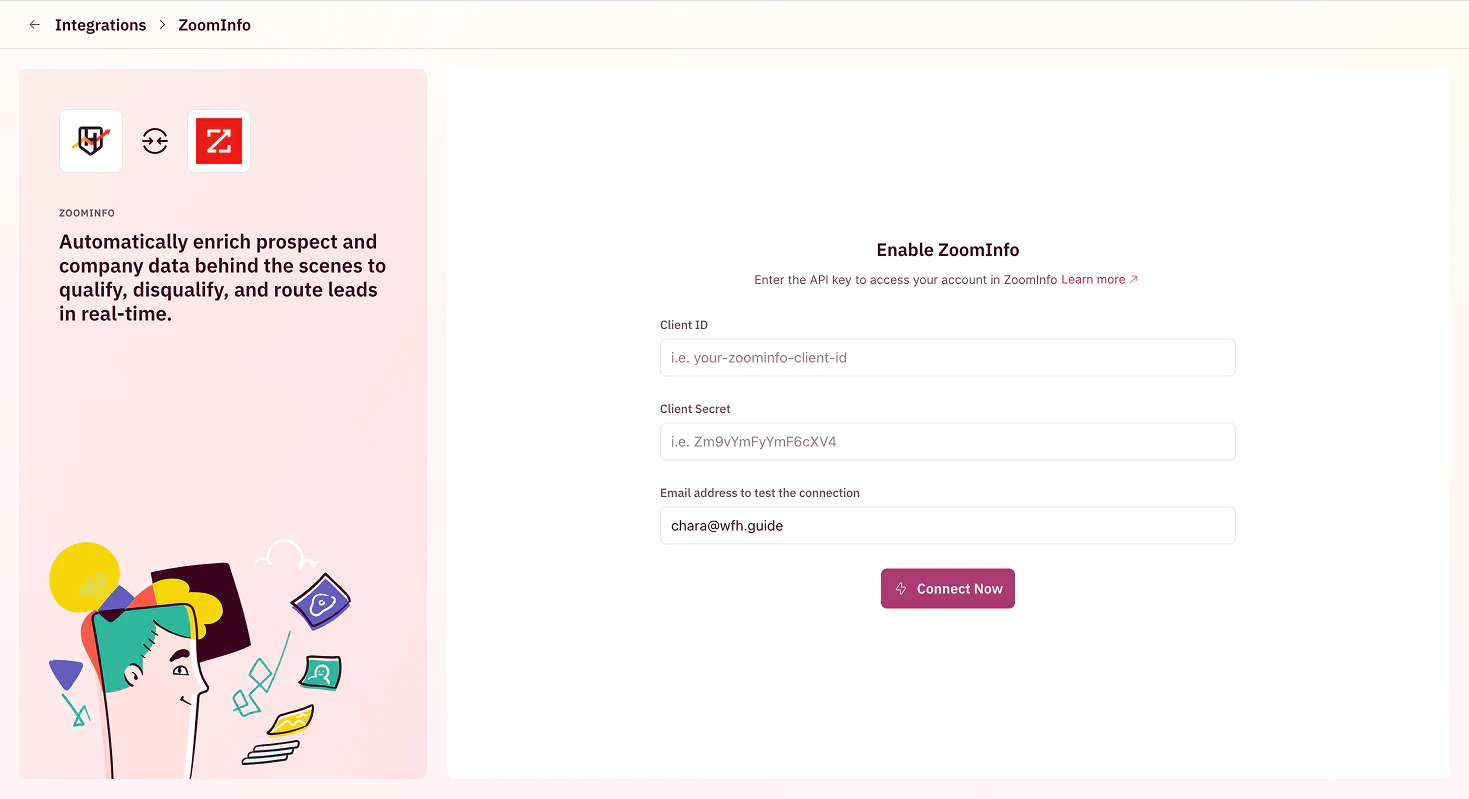 Click **Connect Now**. RevenueHero validates the credentials, runs the test enrichment, and shows `Connected with ZoomInfo successfully` when it works.
If the test fails, the error message comes directly from ZoomInfo. The most common cause is a Client Secret pasted with leading or trailing whitespace. The second most common is an API user that's been deactivated. Regenerate the secret in the ZoomInfo Admin Portal if neither of those is the issue.
## Use ZoomInfo data in your rules
ZoomInfo enrichment runs automatically for every form submission once connected. To act on the data:
* **Disqualify leads** by industry, employee count, or domain — set this up in your [matching rules](/rules/matching/create-matching-rule)
* **Route by firmographics** — use enriched fields as conditions in [distribution rules](/rules/distribution/create-distribution-rule)
* **Pass data to your CRM** — map ZoomInfo fields to Salesforce or HubSpot fields under [Enrichment field mapping](/enrichment/enrichment-crm)
Disconnecting ZoomInfo while it's part of a live waterfall stops enrichment for that provider immediately. Any disqualification or distribution rule that references a ZoomInfo-only field stops returning data and may start dropping leads to a default route. If you're swapping providers, connect the replacement first so the waterfall still resolves.
***
Your ZoomInfo enrichment is connected and feeding your routing logic. 🎉🎉🎉
Map ZoomInfo fields to Salesforce or HubSpot so enriched data writes back automatically.
Use ZoomInfo's industry, employee count, and revenue fields as routing conditions.
Disqualify leads in real time based on enriched firmographics.
See the full list of enrichment providers and how the waterfall decides which one wins.
Click **Connect Now**. RevenueHero validates the credentials, runs the test enrichment, and shows `Connected with ZoomInfo successfully` when it works.
If the test fails, the error message comes directly from ZoomInfo. The most common cause is a Client Secret pasted with leading or trailing whitespace. The second most common is an API user that's been deactivated. Regenerate the secret in the ZoomInfo Admin Portal if neither of those is the issue.
## Use ZoomInfo data in your rules
ZoomInfo enrichment runs automatically for every form submission once connected. To act on the data:
* **Disqualify leads** by industry, employee count, or domain — set this up in your [matching rules](/rules/matching/create-matching-rule)
* **Route by firmographics** — use enriched fields as conditions in [distribution rules](/rules/distribution/create-distribution-rule)
* **Pass data to your CRM** — map ZoomInfo fields to Salesforce or HubSpot fields under [Enrichment field mapping](/enrichment/enrichment-crm)
Disconnecting ZoomInfo while it's part of a live waterfall stops enrichment for that provider immediately. Any disqualification or distribution rule that references a ZoomInfo-only field stops returning data and may start dropping leads to a default route. If you're swapping providers, connect the replacement first so the waterfall still resolves.
***
Your ZoomInfo enrichment is connected and feeding your routing logic. 🎉🎉🎉
Map ZoomInfo fields to Salesforce or HubSpot so enriched data writes back automatically.
Use ZoomInfo's industry, employee count, and revenue fields as routing conditions.
Disqualify leads in real time based on enriched firmographics.
See the full list of enrichment providers and how the waterfall decides which one wins.