> ## Documentation Index
> Fetch the complete documentation index at: https://help.revenuehero.io/llms.txt
> Use this file to discover all available pages before exploring further.
# Branding and customizations
> Customize your prospect's experience to relect your branding.
Providing a branded scheduling experience for your prospects reinforces brand identity and elevates your conversion rates.
You can customize/brand the following:
1. [Scheduler Widget](/guides/customizations#scheduler-widget-customization)
2. [Email Domain](/guides/customizations#email-domain-customization)
3. [Scheduler Domain](/guides/customizations/customizations#meeting-link-customization)
## Scheduler Widget customization
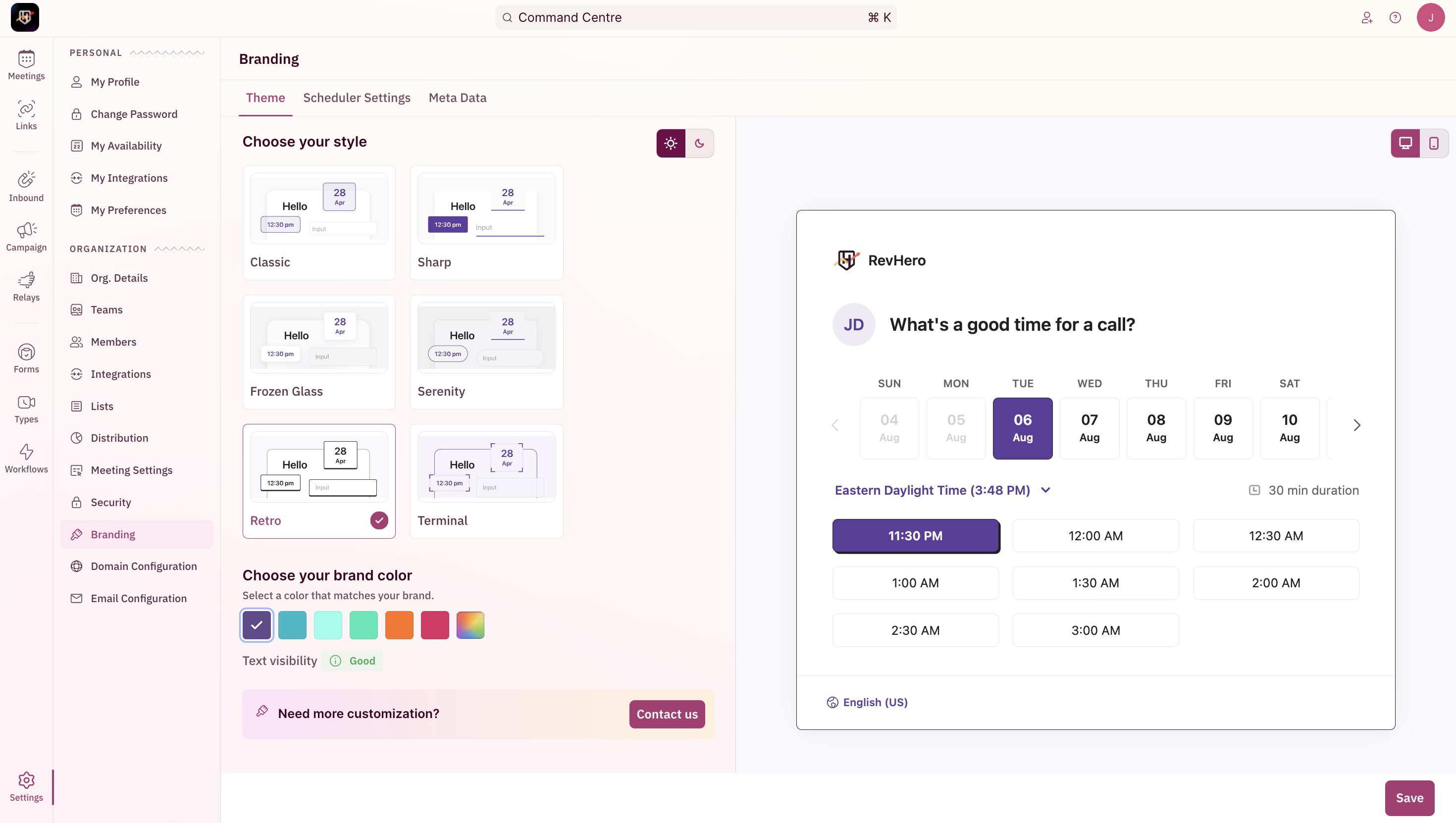
You can access the **Branding** section by heading to "**Settings**" from the left navigation menu and by clicking on "**Branding**" under the "**Organization Settings**".
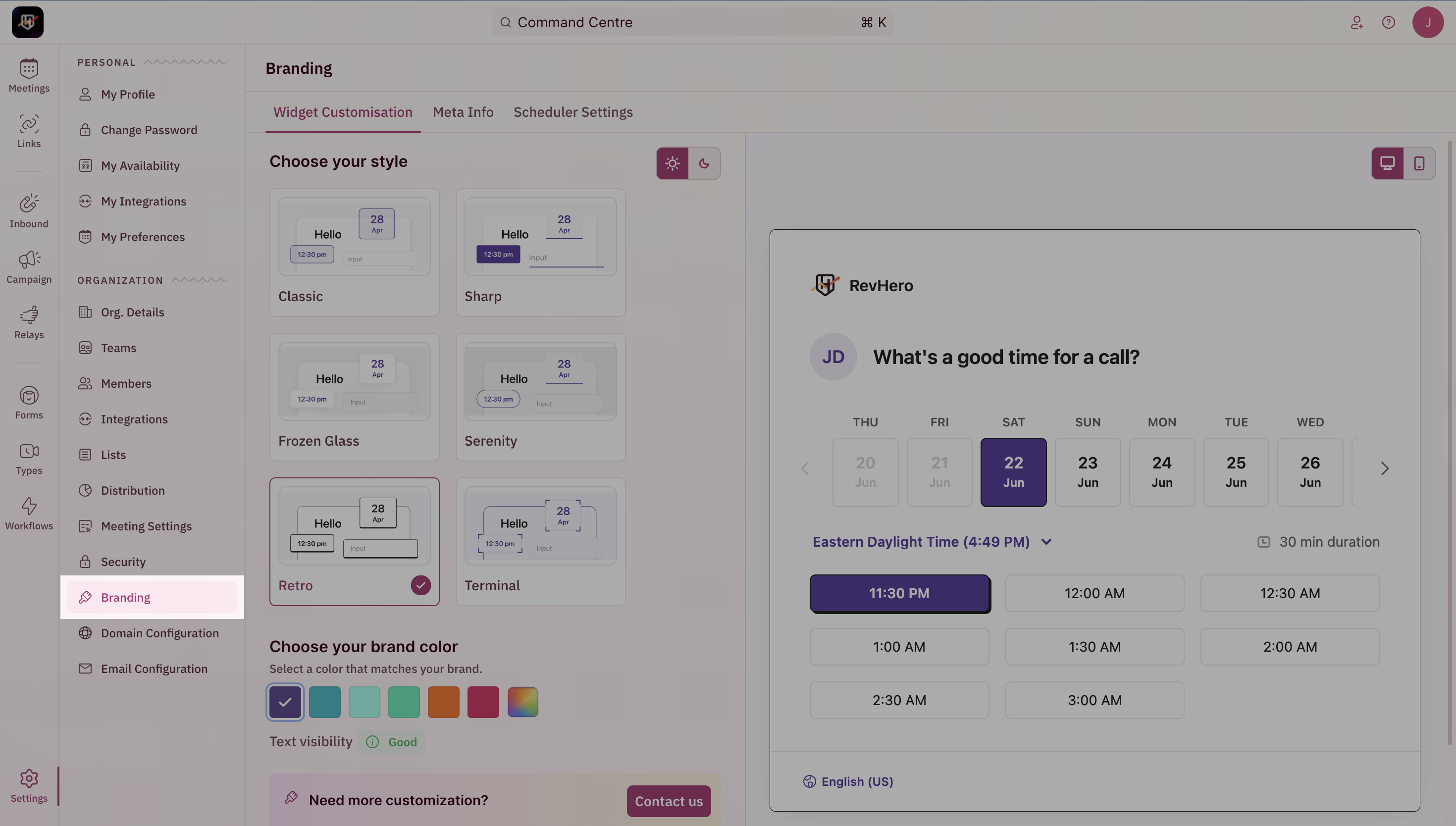 ### Select your theme
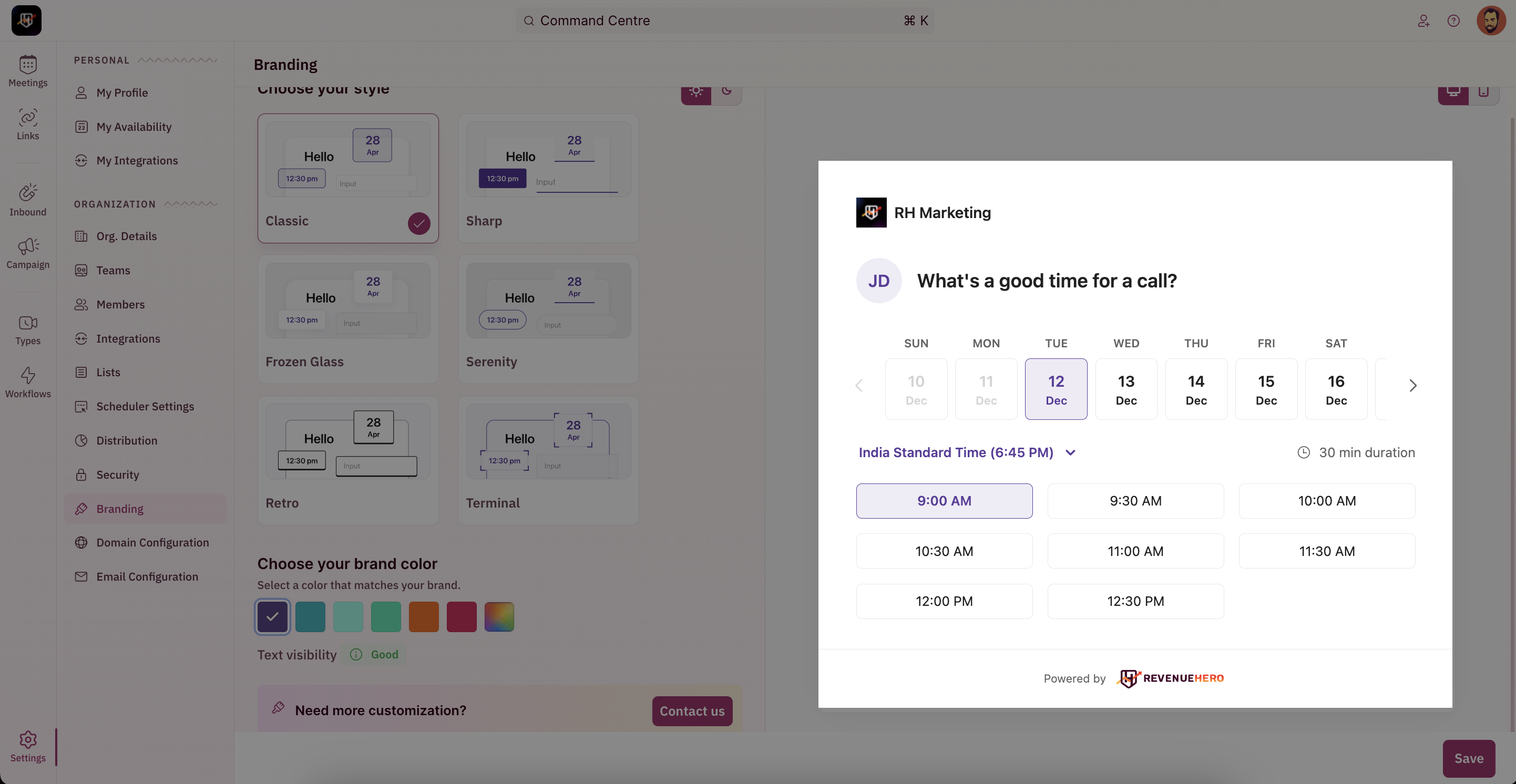
Pick the theme that best suits your organization's design language. We've 6 unique themes that you can choose from to make your scheduler look chic.
**Classic**
### Select your theme
Pick the theme that best suits your organization's design language. We've 6 unique themes that you can choose from to make your scheduler look chic.
**Classic**
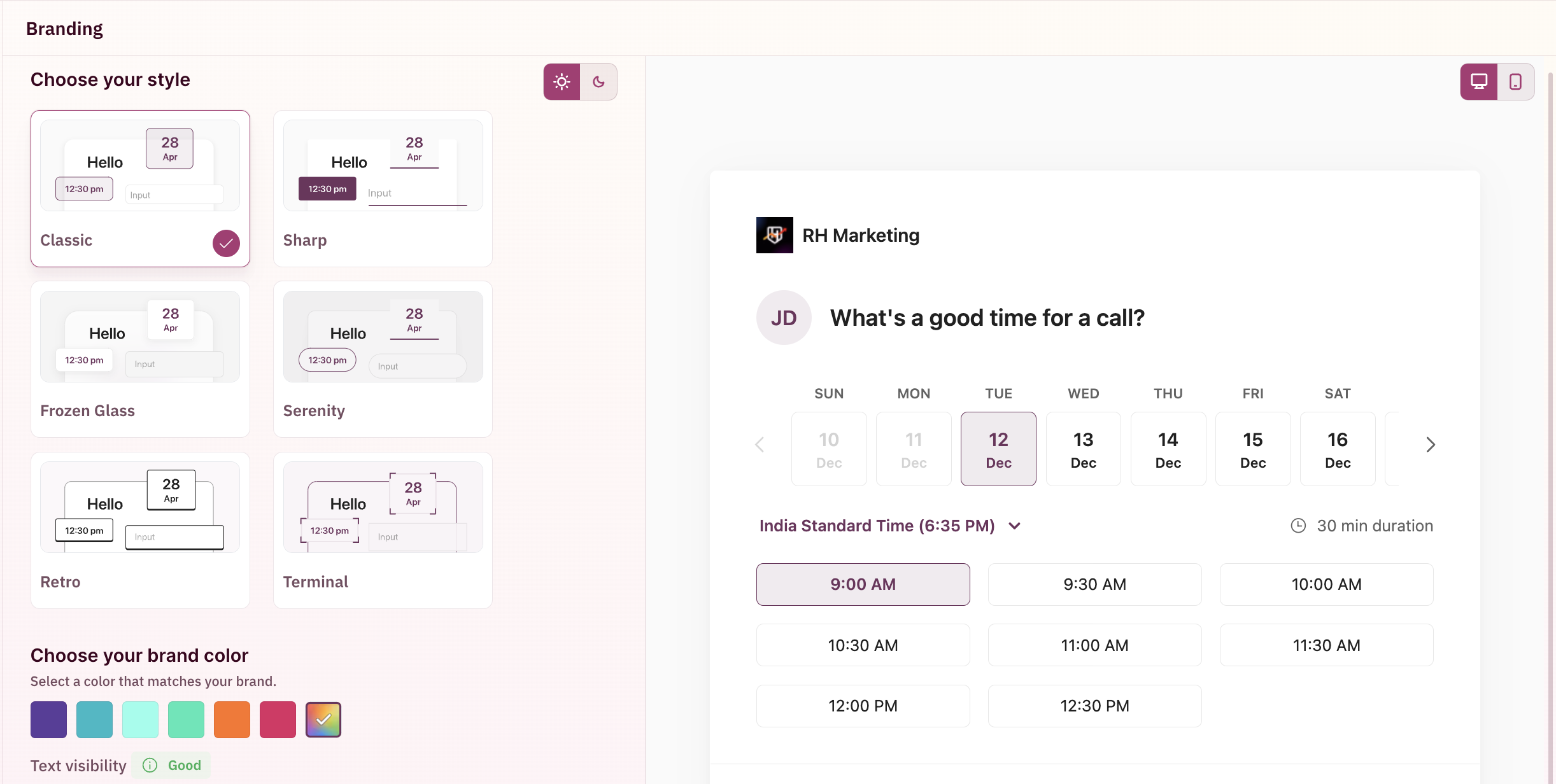 **Sharp**
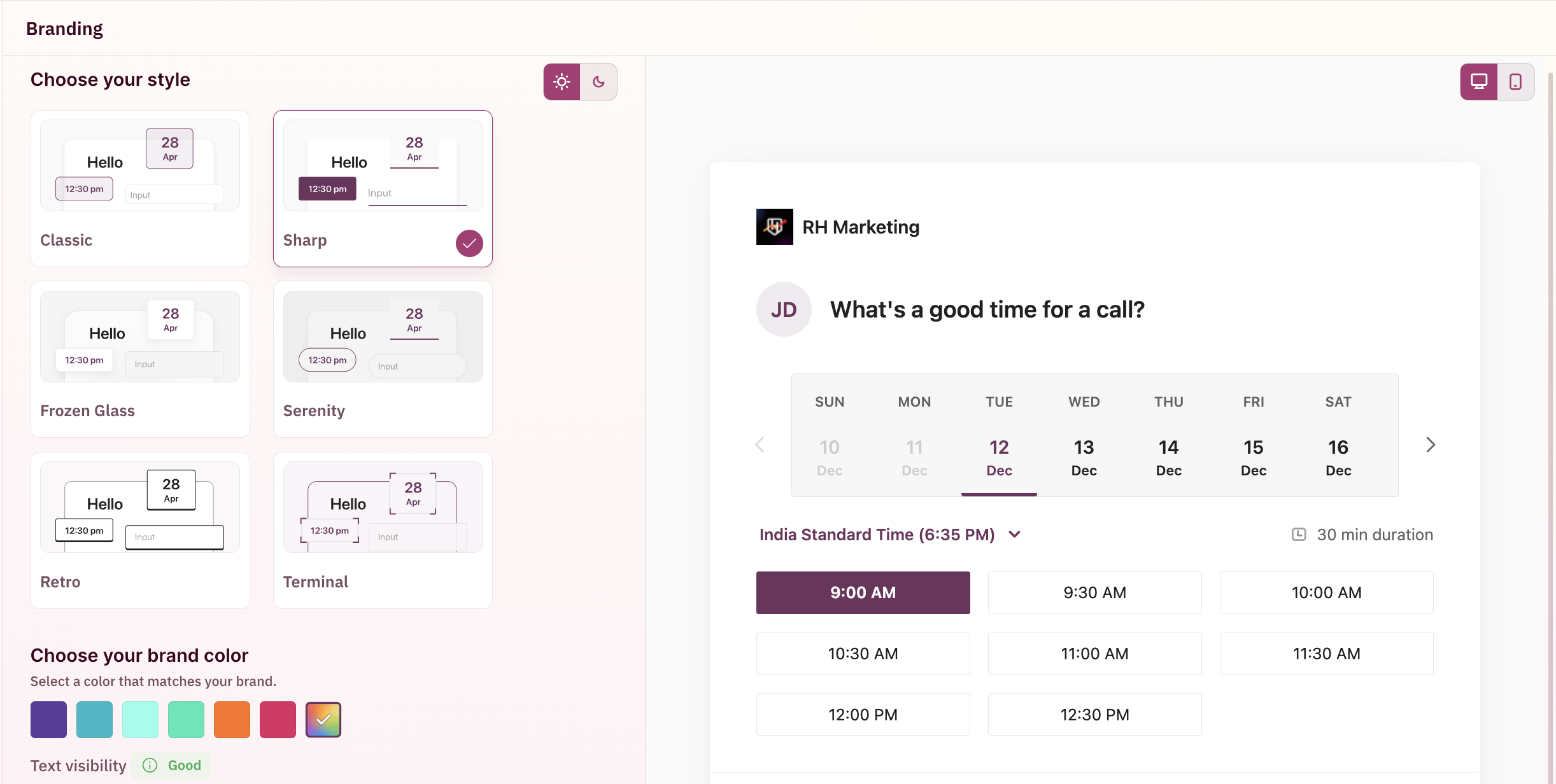 **Frozen Glass**
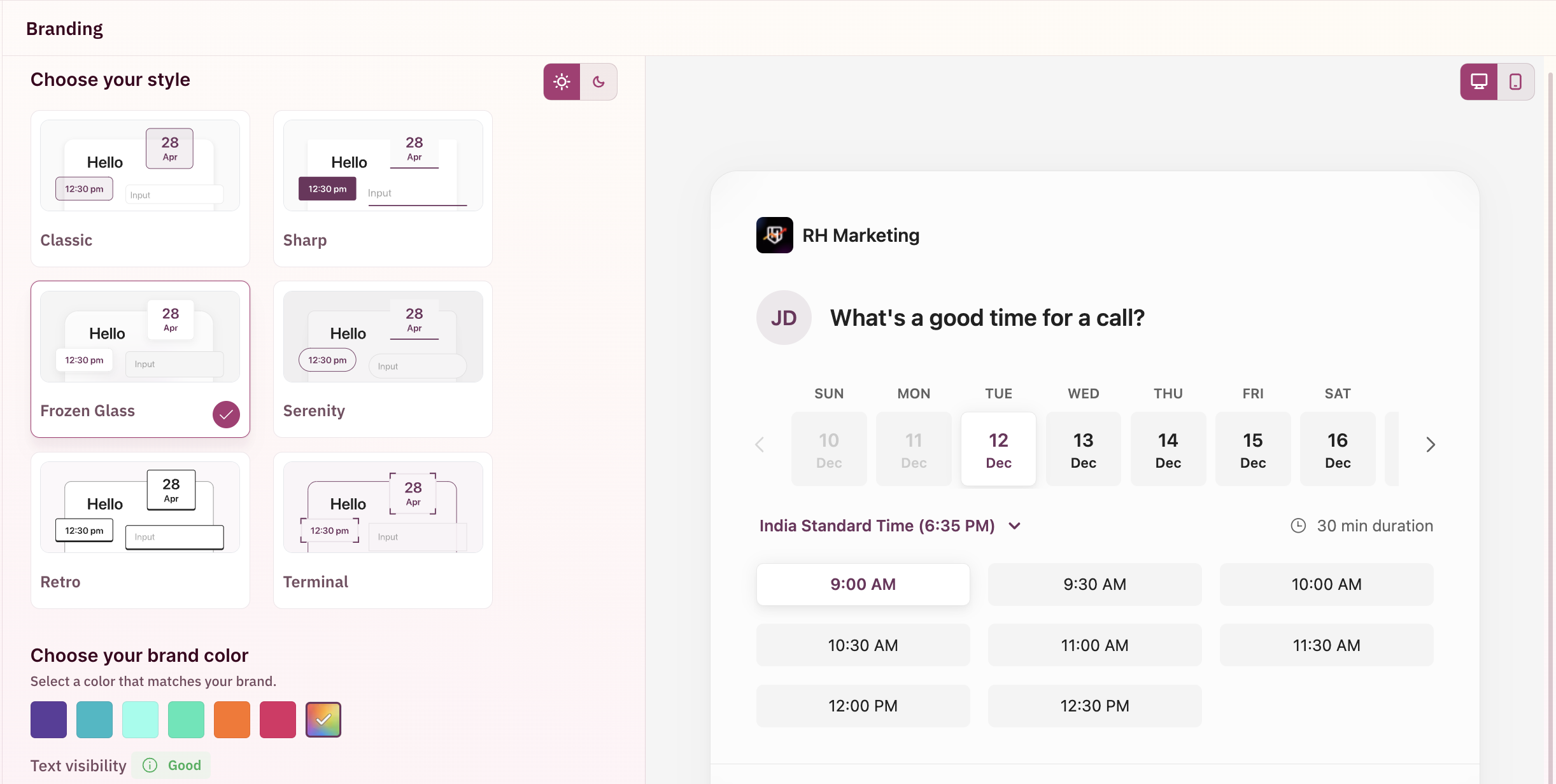 **Serenity**
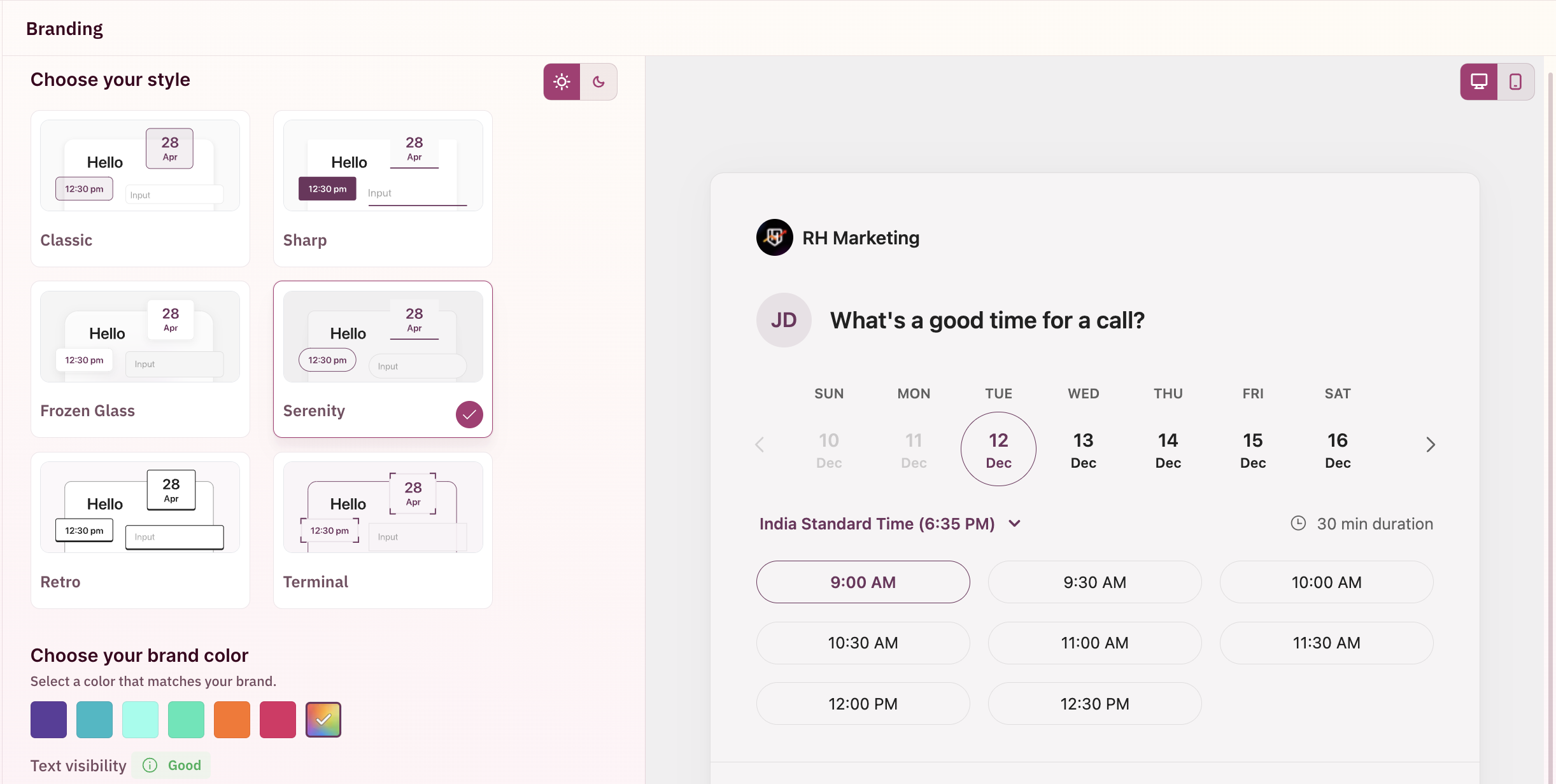 **Retro**
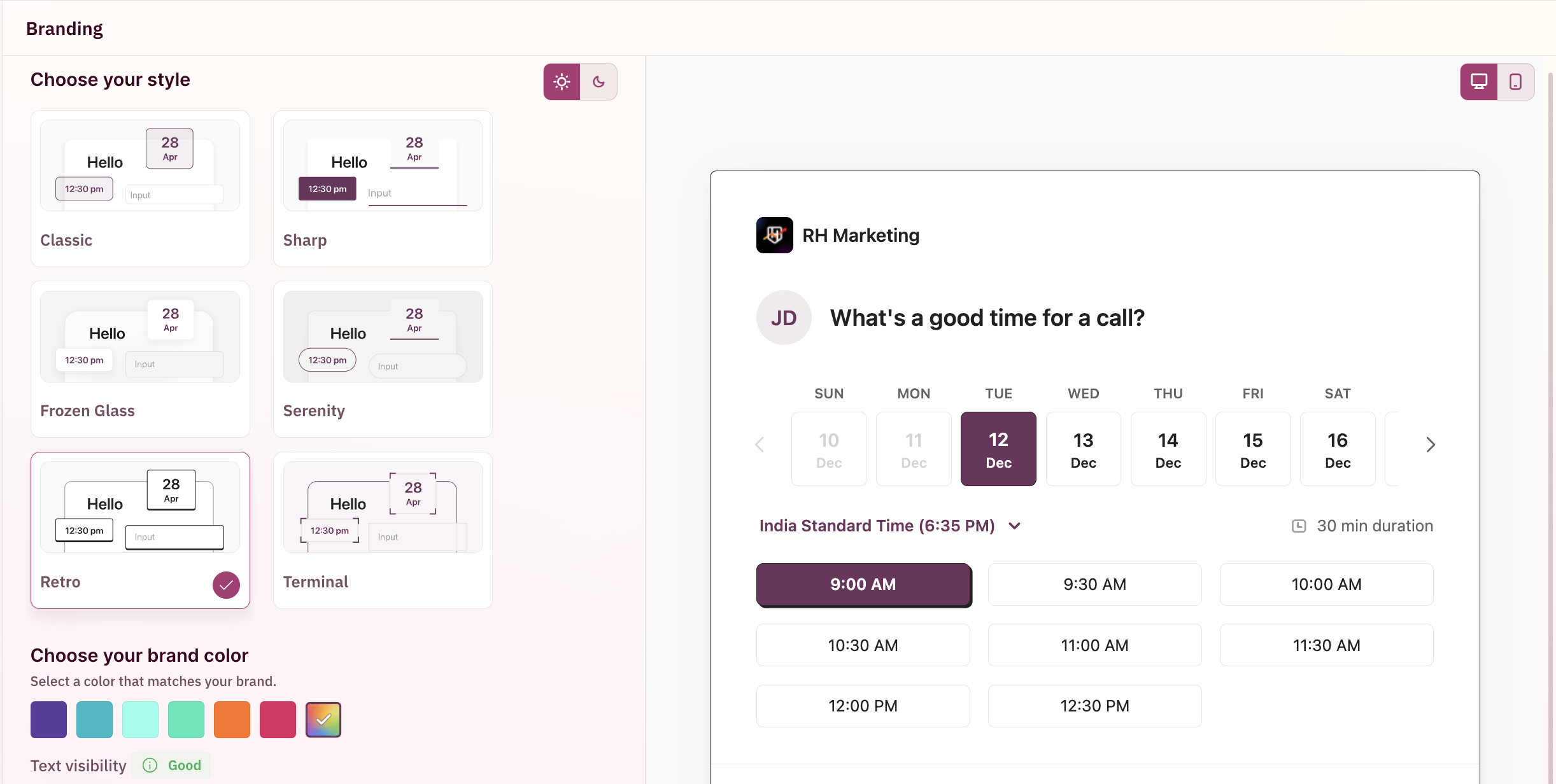 **Terminal**
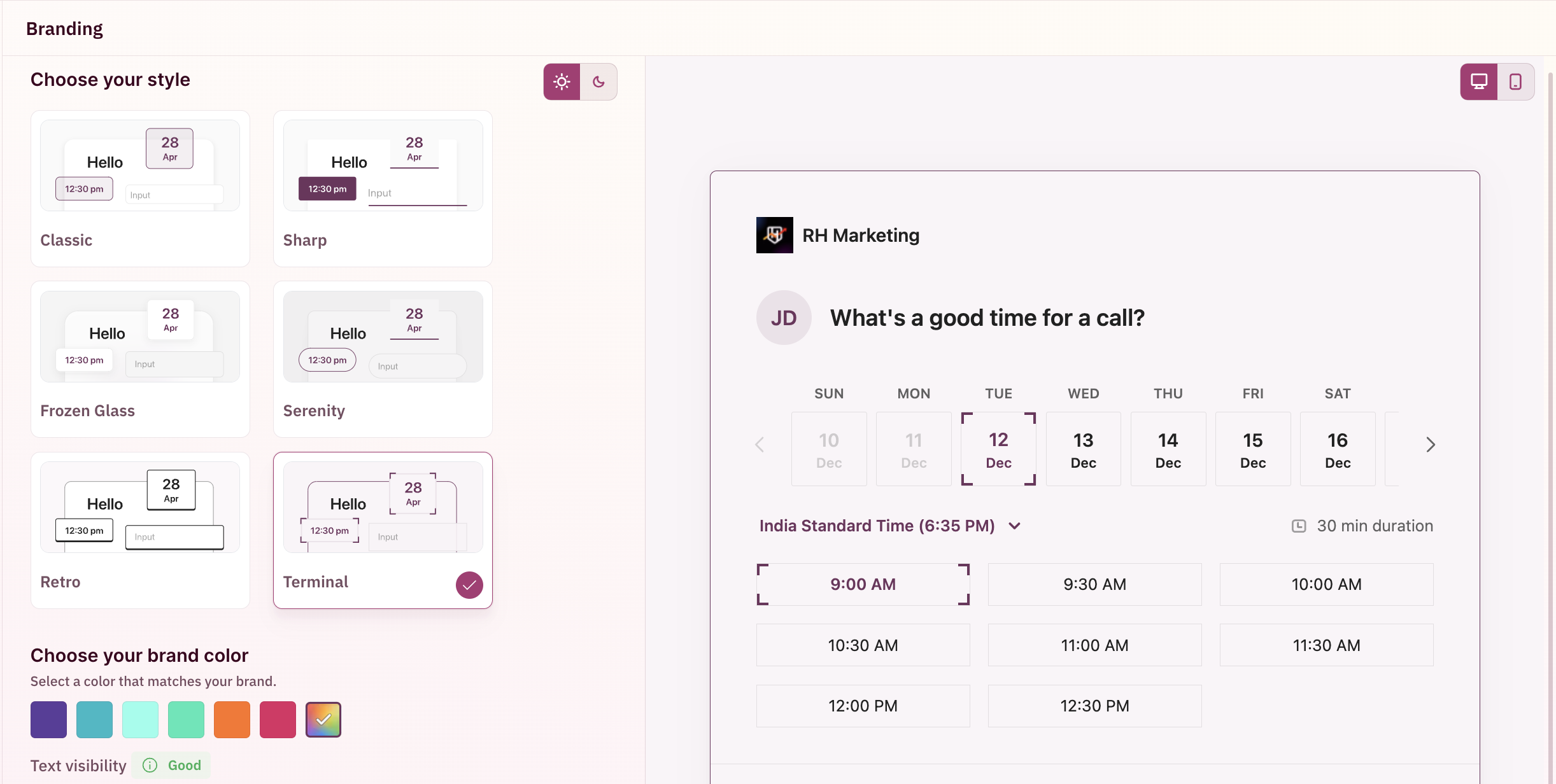 You can also toggle between light and darker themes using the icon highlighted in the screenshot in the top-right corner of the themes section.
 ### Choose your colors
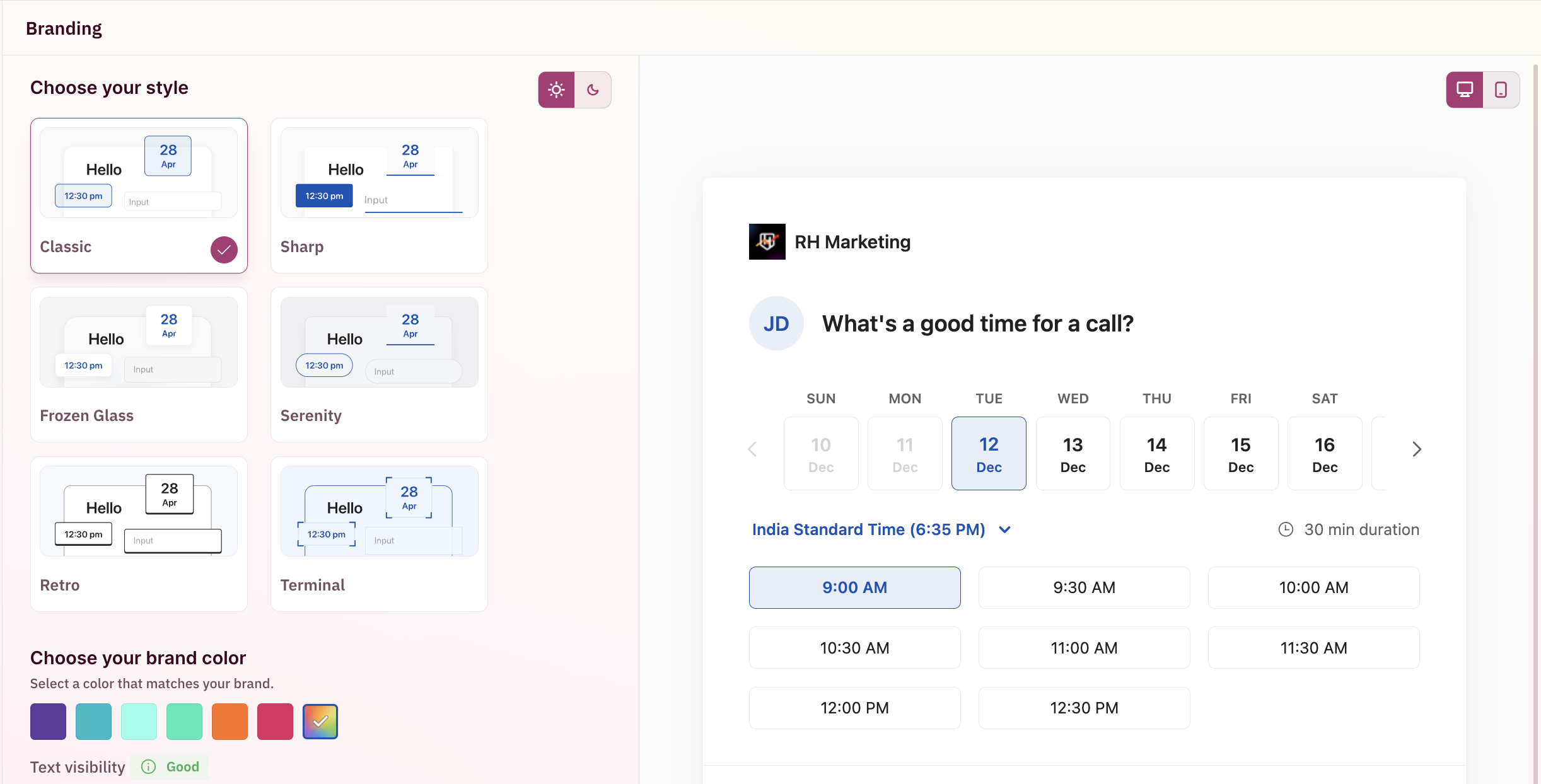
You can configure the color scheme of the RevenueHero booking widget by using the color-picker option. A real-time preview of the color changes can be seen on the right.
### Choose your colors
You can configure the color scheme of the RevenueHero booking widget by using the color-picker option. A real-time preview of the color changes can be seen on the right.
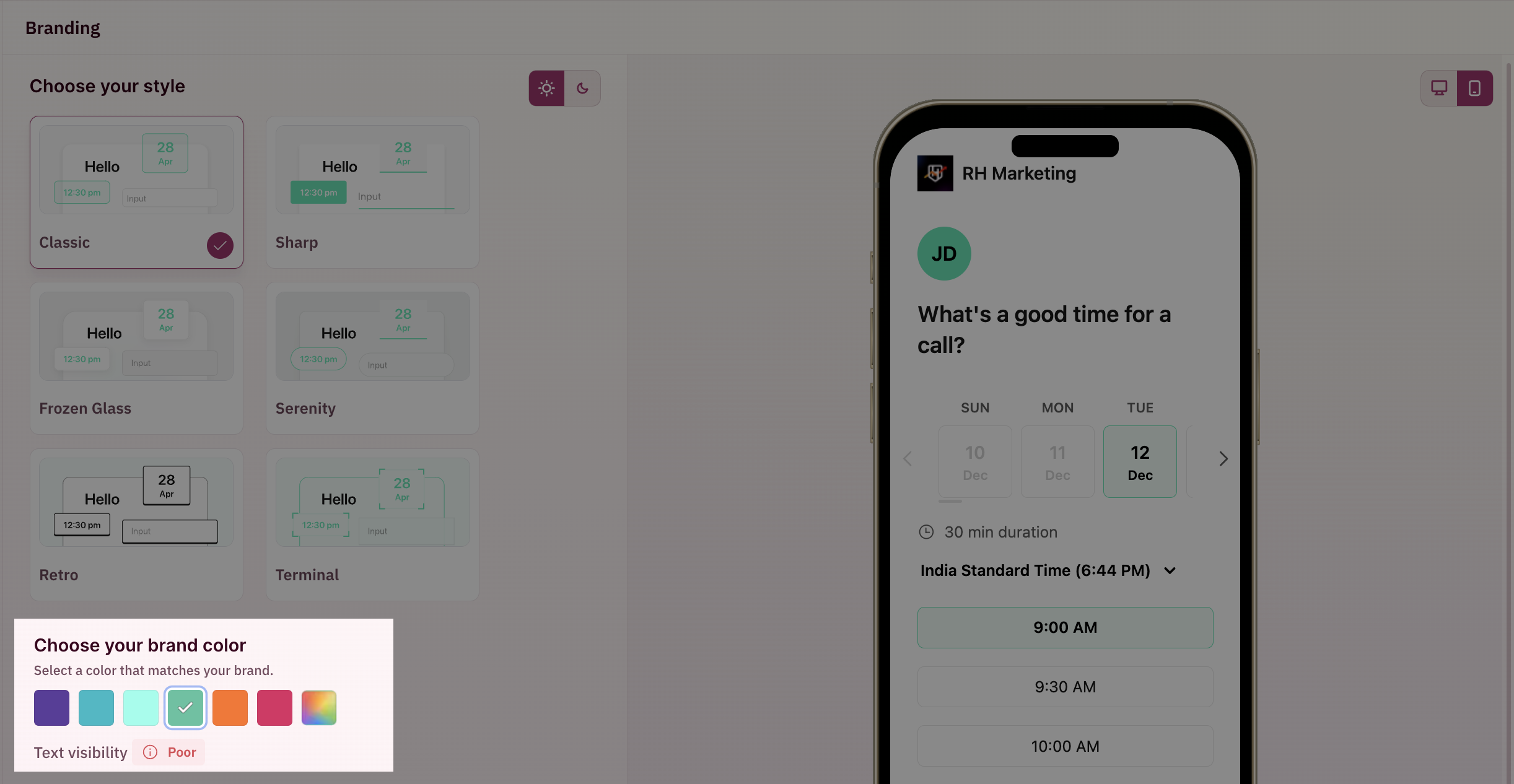
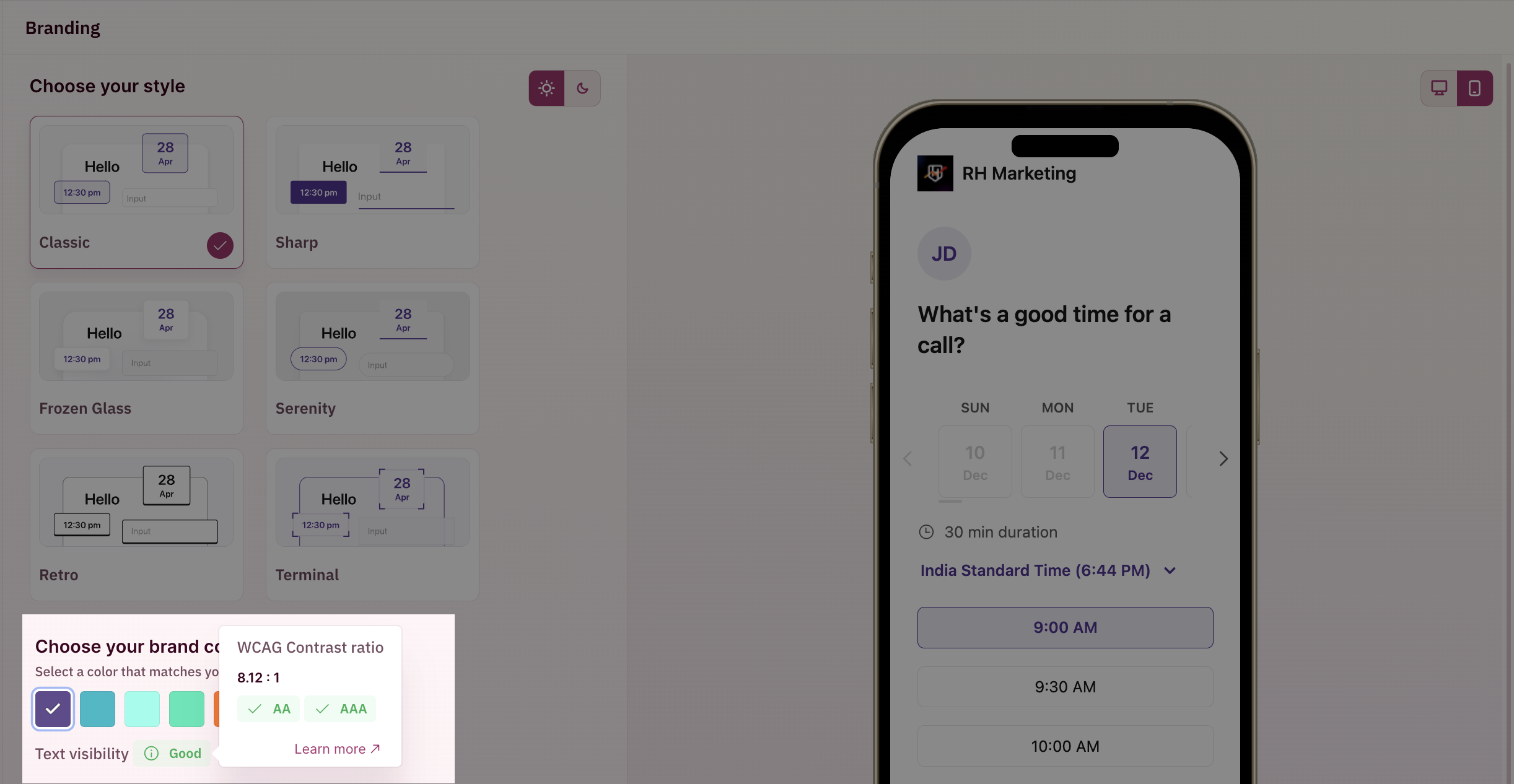
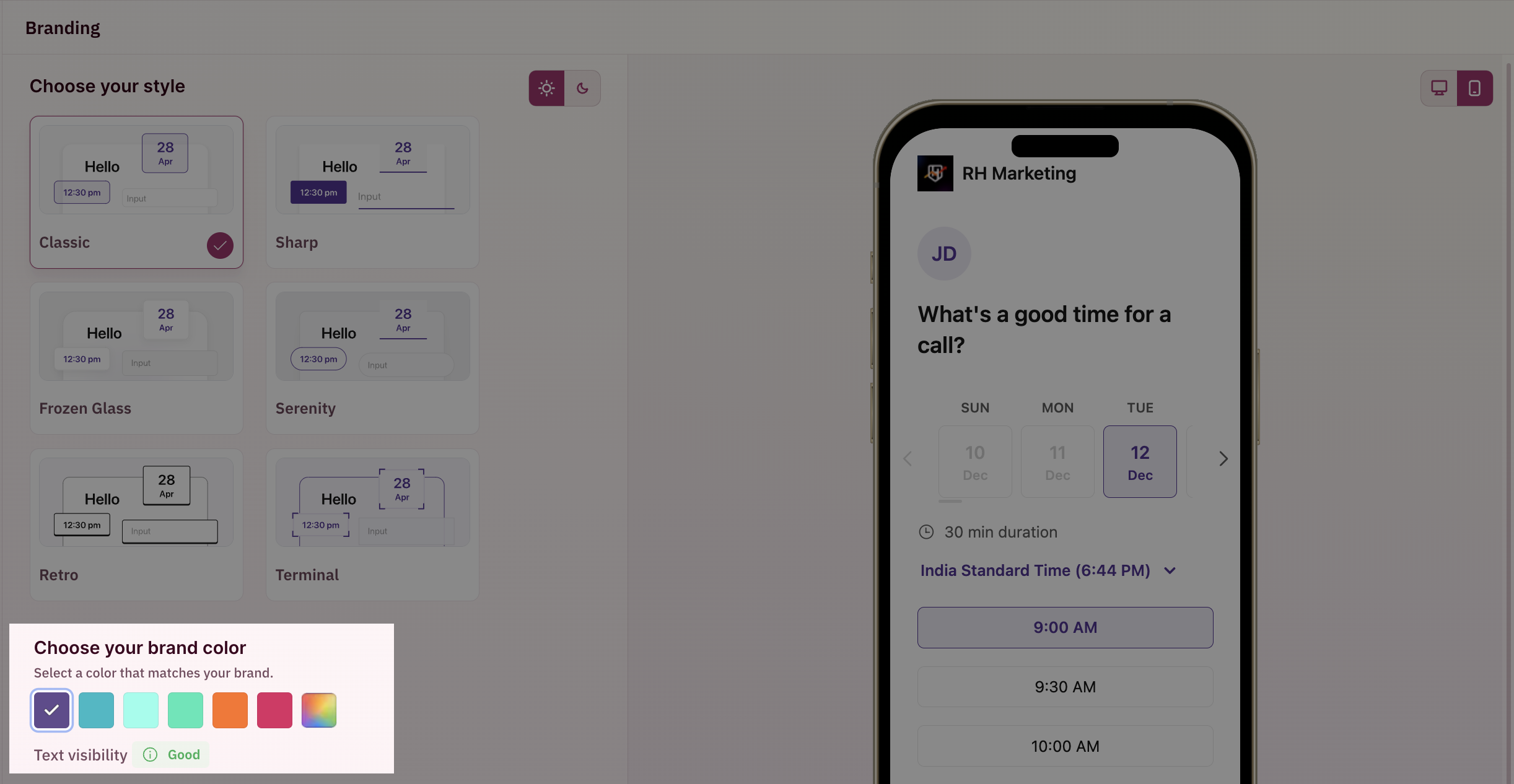 There's also a text visibility indicator that indicates the readability of text in chosen color based on a [standard measure](https://www.w3.org/WAI/WCAG21/Understanding/contrast-minimum.html). You can see that for **Light Green**, the readability indication for **Poor**, whereas for **Purple** the readability indication was **Good** in the previous screenshots.
 Your Organization's name and logo that you have updated in the "[Organization Details](/settings/organization/details)" section will be displayed on the booking widget.
 ## Email Domain customization
The email domain from which reminder emails are sent to your prospects can be customized by following these steps.
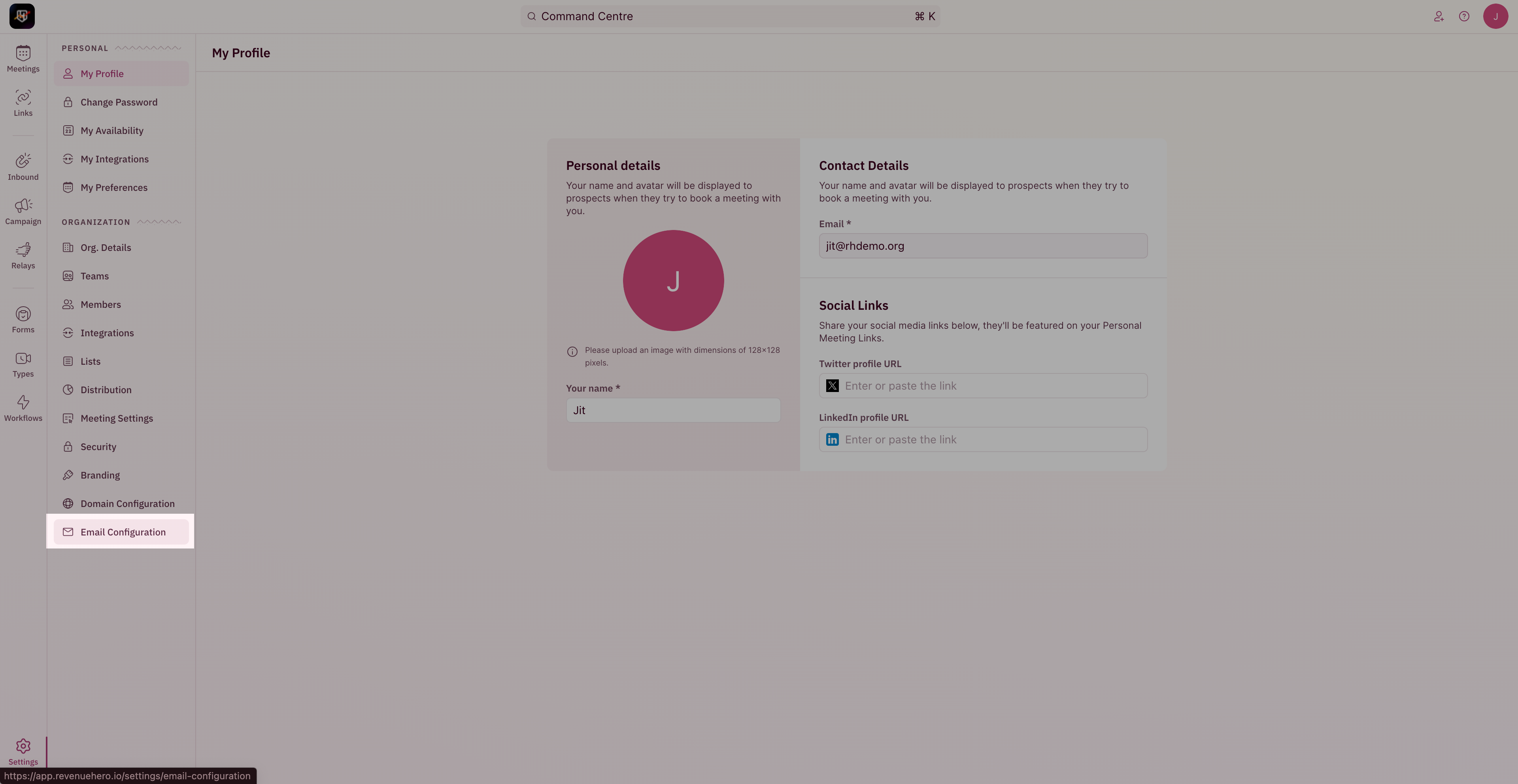
1. To update your email domain, head to "**Settings**" from the left navigation menu and click on "**Email Configuration**" under "Organization Settings".
## Email Domain customization
The email domain from which reminder emails are sent to your prospects can be customized by following these steps.
1. To update your email domain, head to "**Settings**" from the left navigation menu and click on "**Email Configuration**" under "Organization Settings".
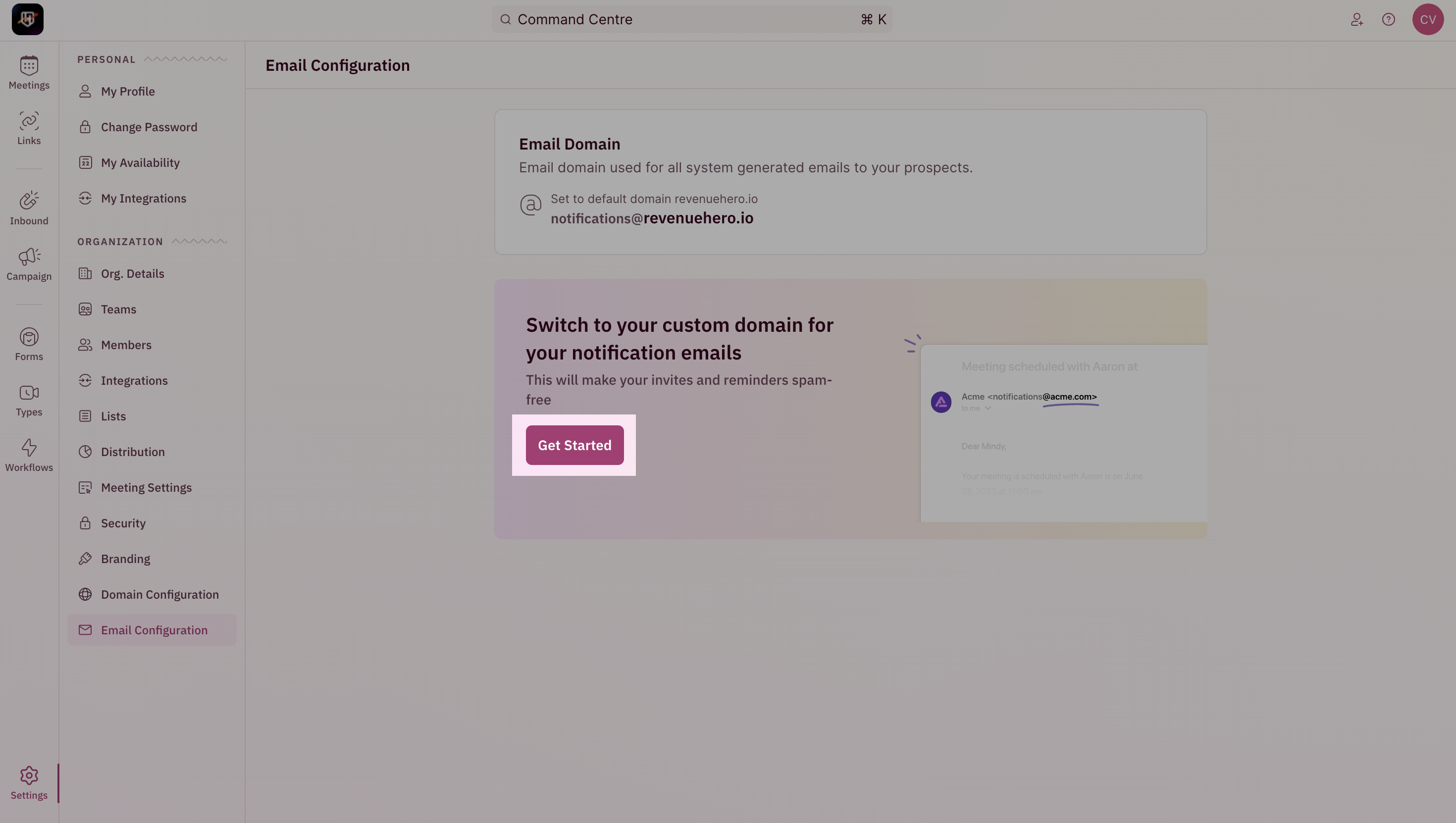
 2. Click on "**Get Started**"
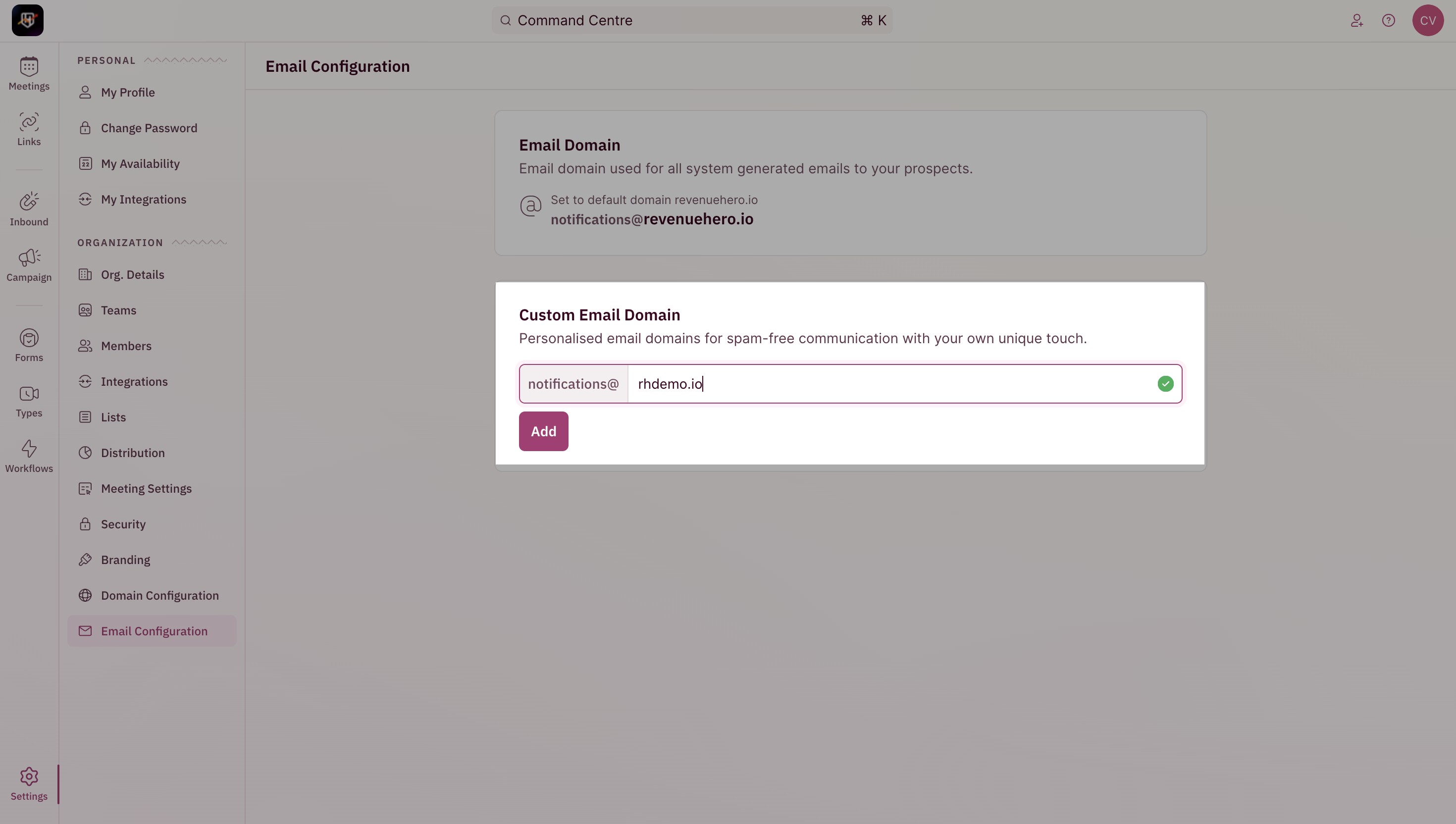
 3. Enter the name of your domain and click on "**Setup Now**".
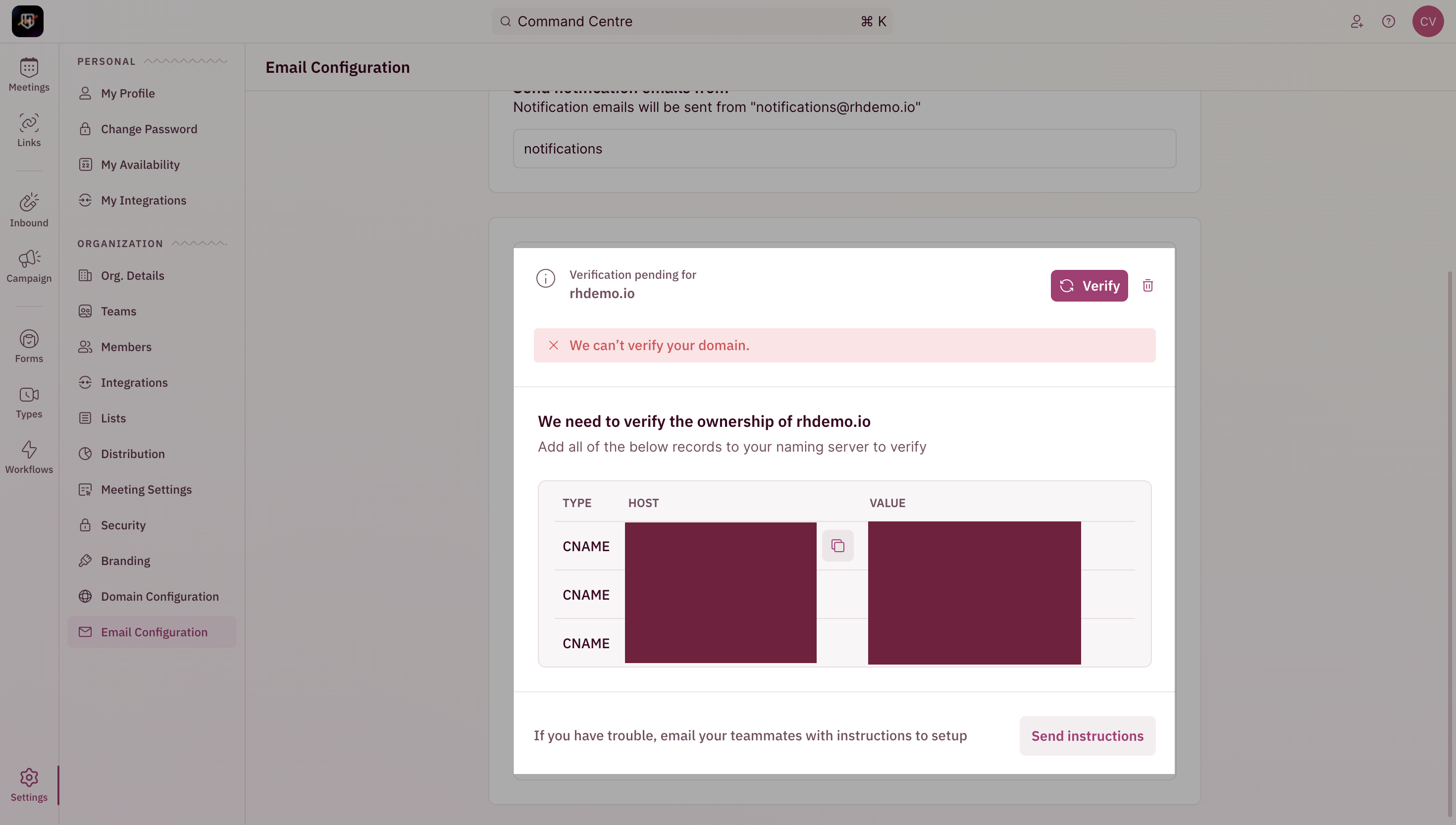
 4. Add the three CNAME records in your DNS settings and click verify once done.
 5. Once verified, you would be able to customize the phrase/string before the @
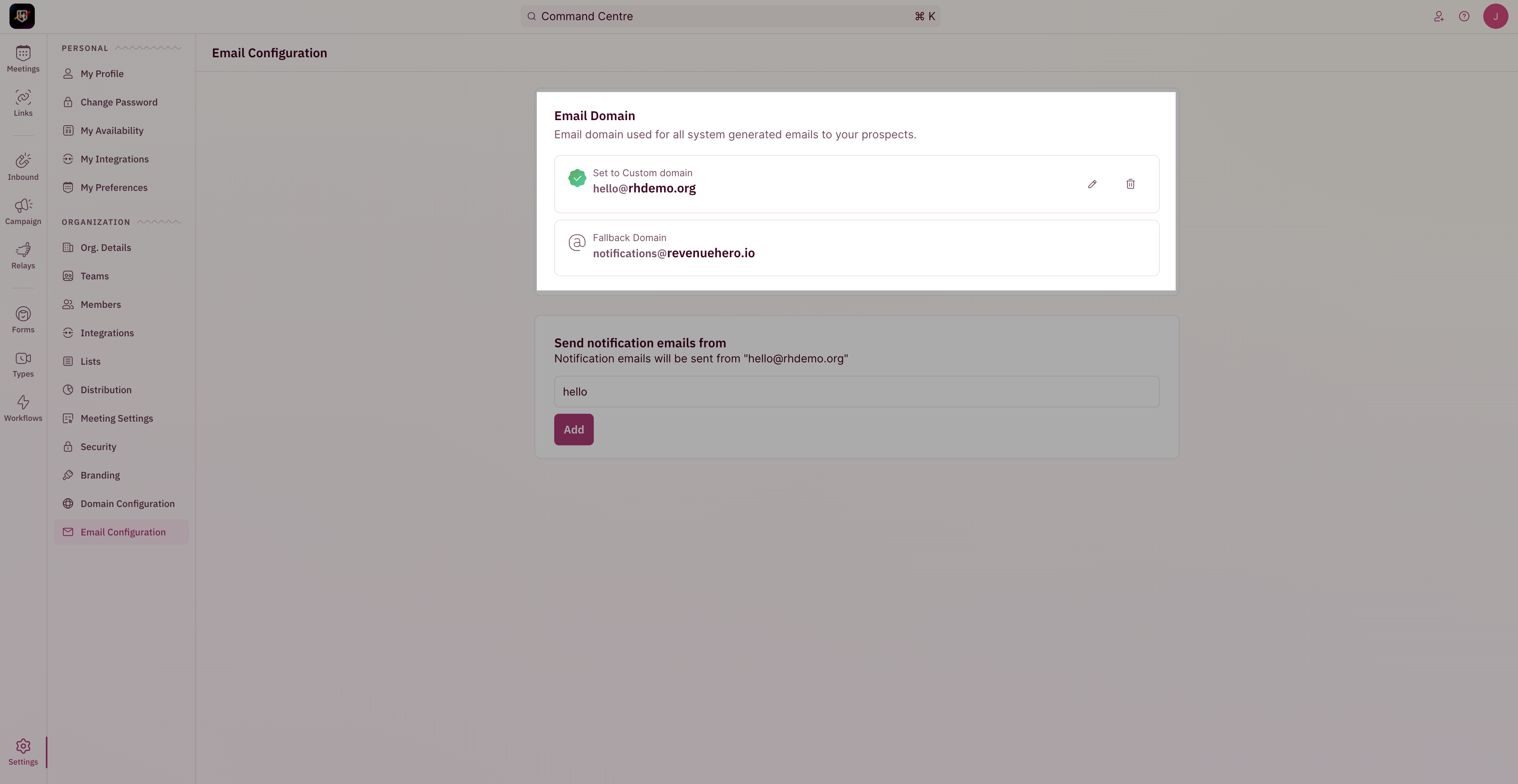
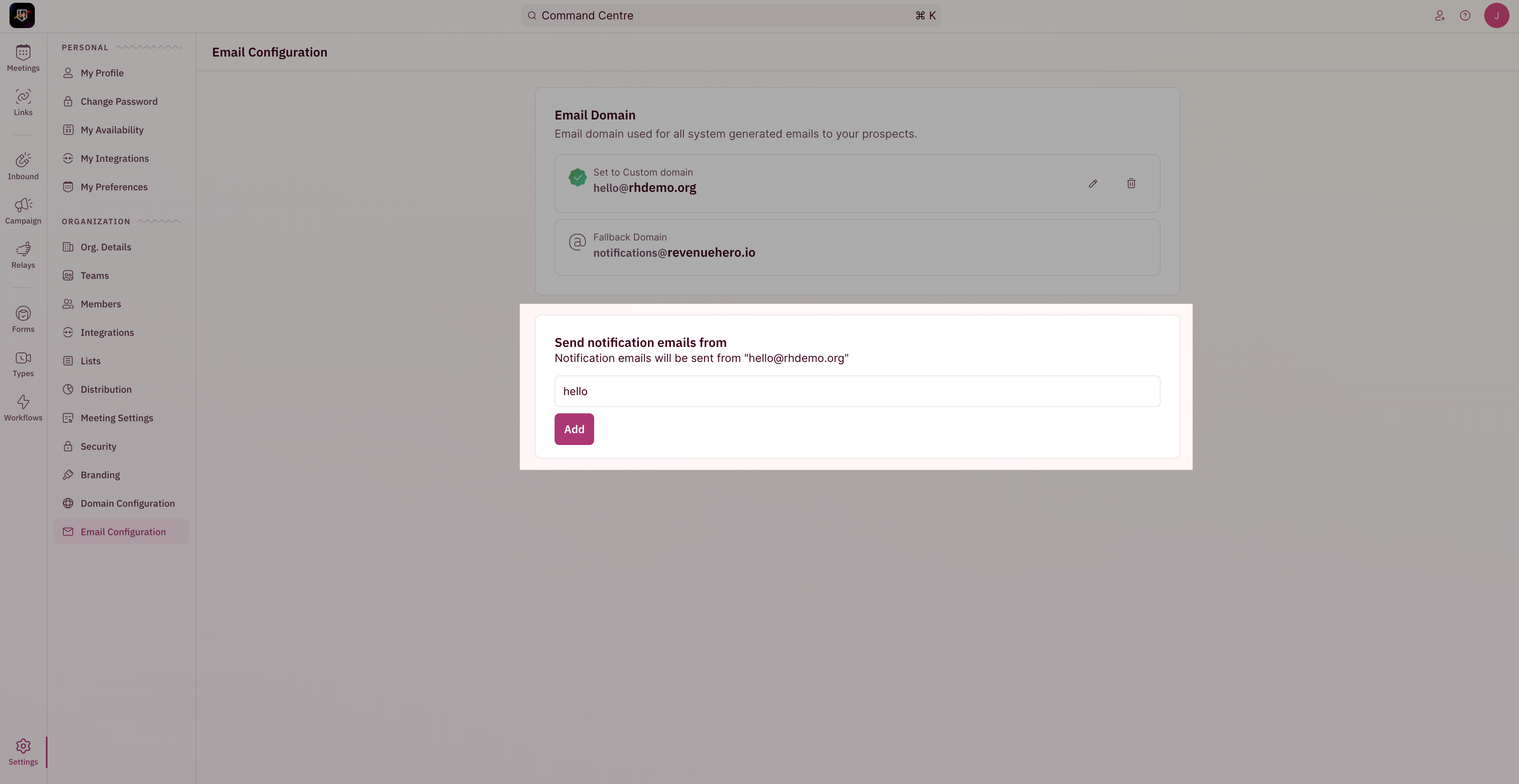 6. You're all set!
In case your domain is down/inaccessable, the fallback domain will be used.
 ## Meeting Link customization
The scheduler domain can be customized with your domain name in RevenueHero. This domain is used for all the booking links from [Inbound Routers](/routers/inbound/create-inbound-router), [Campaign Routers](/routers/campaign/create-campaign-router), and Personal Meeting links.
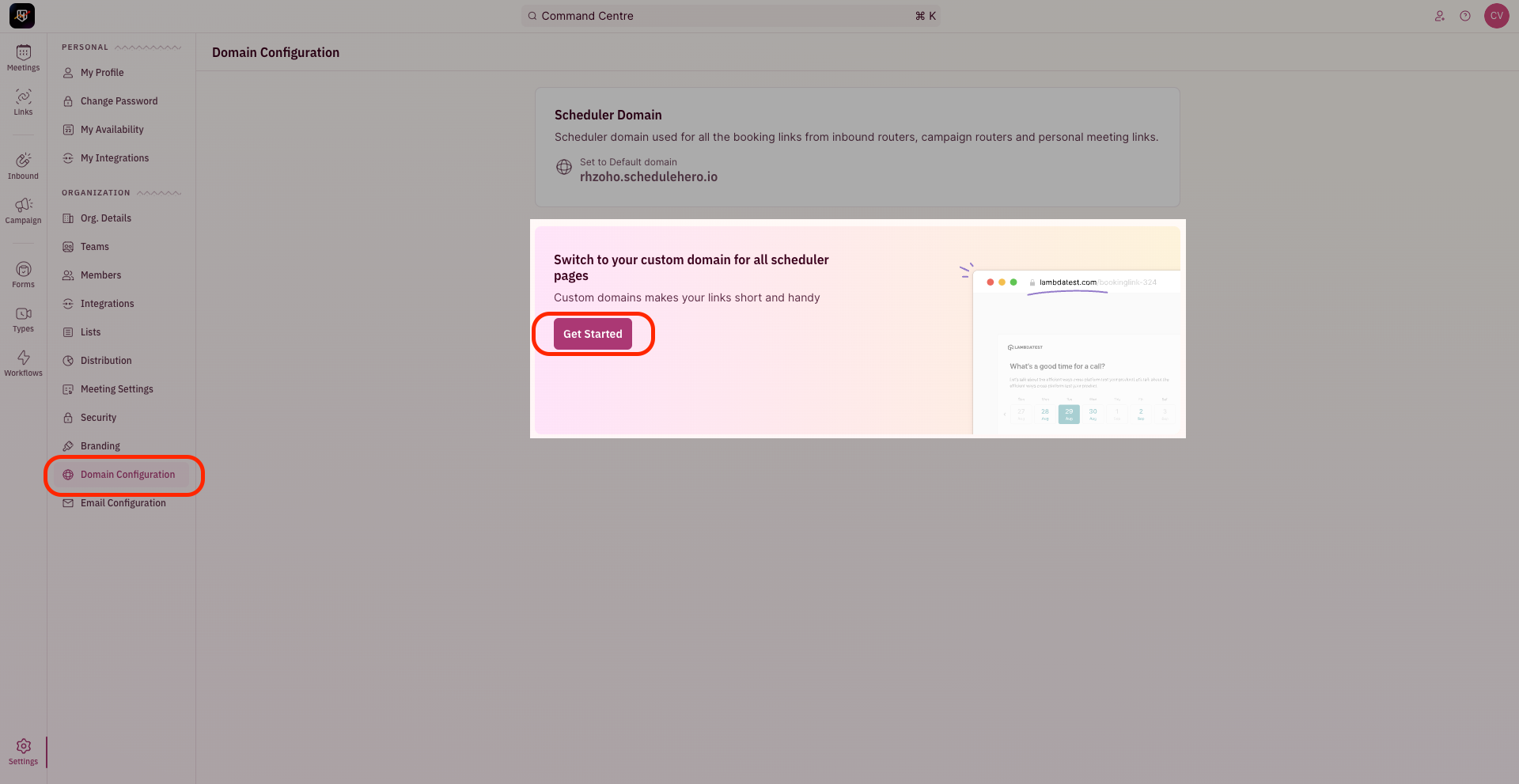
1. To update your Custom Domain, head to "**Settings**" from the left navigation menu and click on "**Scheduler Configuration**" under "Organization Settings".
## Meeting Link customization
The scheduler domain can be customized with your domain name in RevenueHero. This domain is used for all the booking links from [Inbound Routers](/routers/inbound/create-inbound-router), [Campaign Routers](/routers/campaign/create-campaign-router), and Personal Meeting links.
1. To update your Custom Domain, head to "**Settings**" from the left navigation menu and click on "**Scheduler Configuration**" under "Organization Settings".
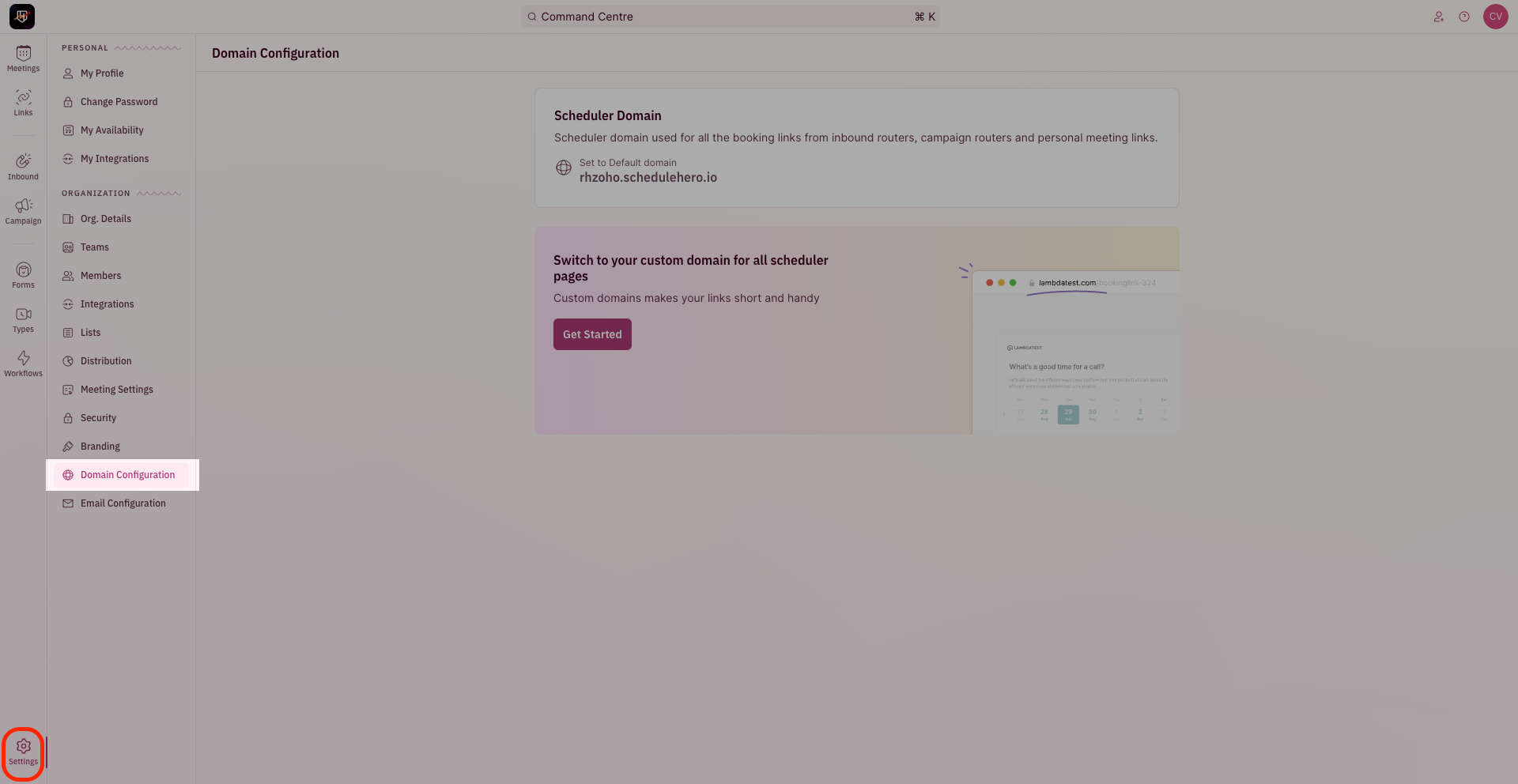 2. Click on "**Get Started**"
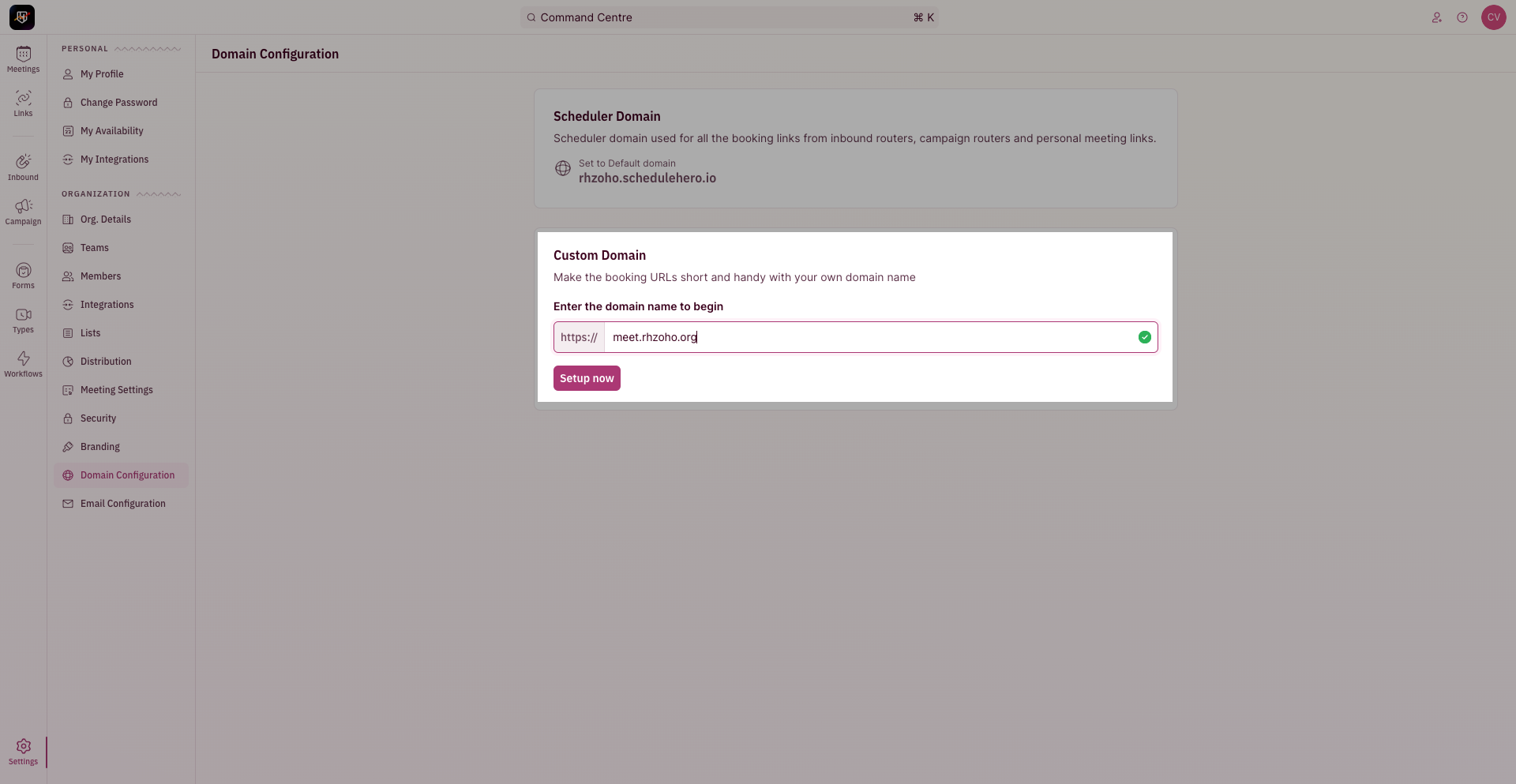
 3. Enter the name of your domain and click on "**Setup Now**".
The correct format is to add a word before your domain.
3. Enter the name of your domain and click on "**Setup Now**".
The correct format is to add a word before your domain.
Eg: if your domain is **[www.revenuehero.io](http://www.revenuehero.io)** an appropriate customization would be **meet.revenuehero.io** or **hello.revenuehero.io**.
 4. You will be asked to verify ownership of the domain. Once done, all your links will have your custom domain. In case the domain is down, the fallback domain will be used.