> ## Documentation Index
> Fetch the complete documentation index at: https://help.revenuehero.io/llms.txt
> Use this file to discover all available pages before exploring further.
# How to install the scheduler script?
> Here are the steps that would help you embed the RevenueHero widget on your page.
**Embedded widget on a page**
Let's look at how to install the script:
To add the booking widget as an embed directly on your page:
**NOTE**
Ensure that the page where you want to embed the RevenueHero booking widget has a container/div to accommodate the booking widget.
1. In the choices for "**Where would you like to install this router?**", select **Embed on a page**.
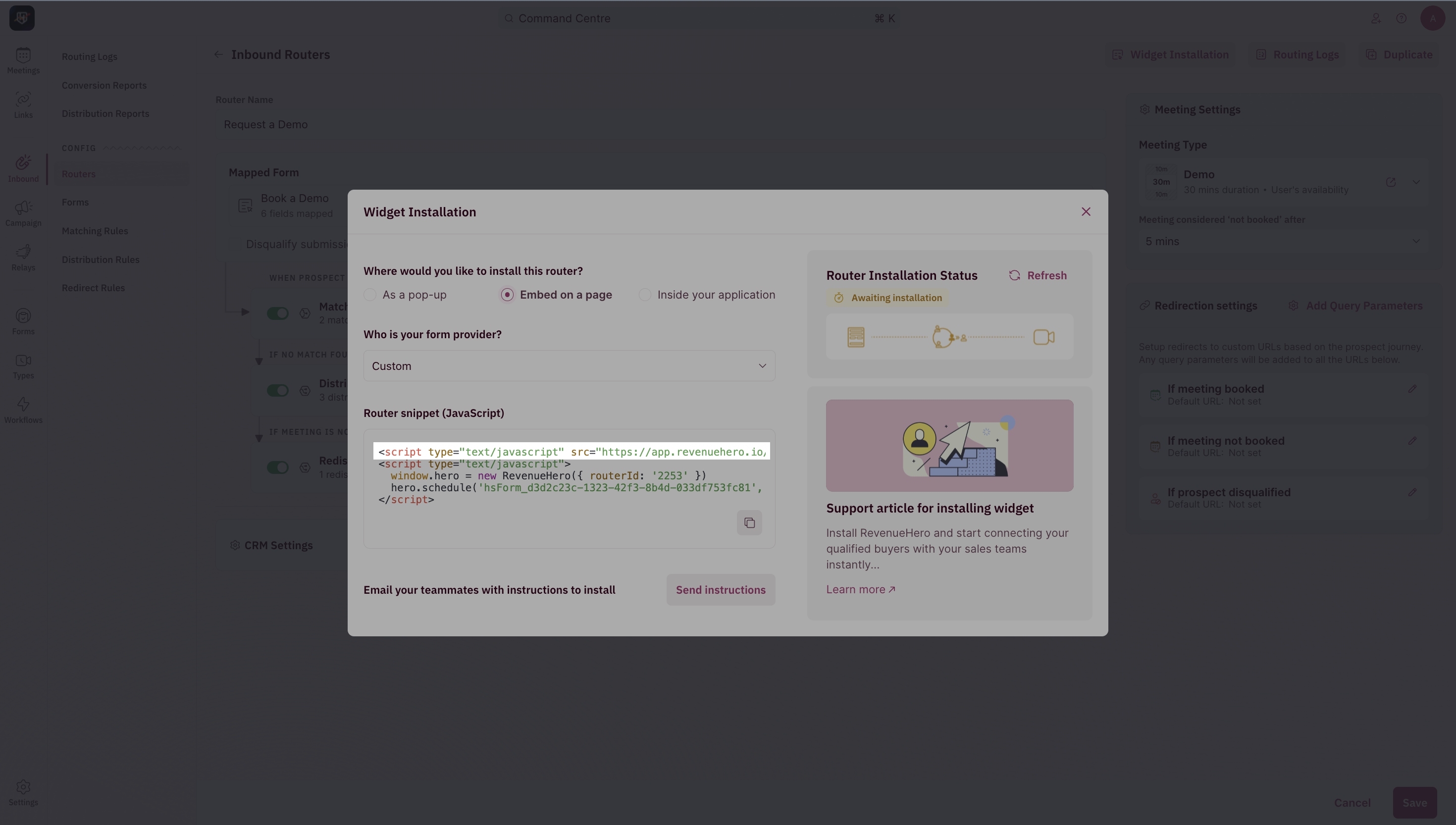 2. **Choose your form provider** (Custom/Hubspot/Formspree) from the drop-down list. This ensures that we generate the most compatible version of the JavaScript code snippet.
3. In the **Router Snippet (JavaScript)**, look out for the line with **hero.schedule** and **replace the #embedDivId with the id value of your container/div in which you want the booking widget to be embedded**.
4. Now, **copy** the router snippet. You'll find two parts to this script.
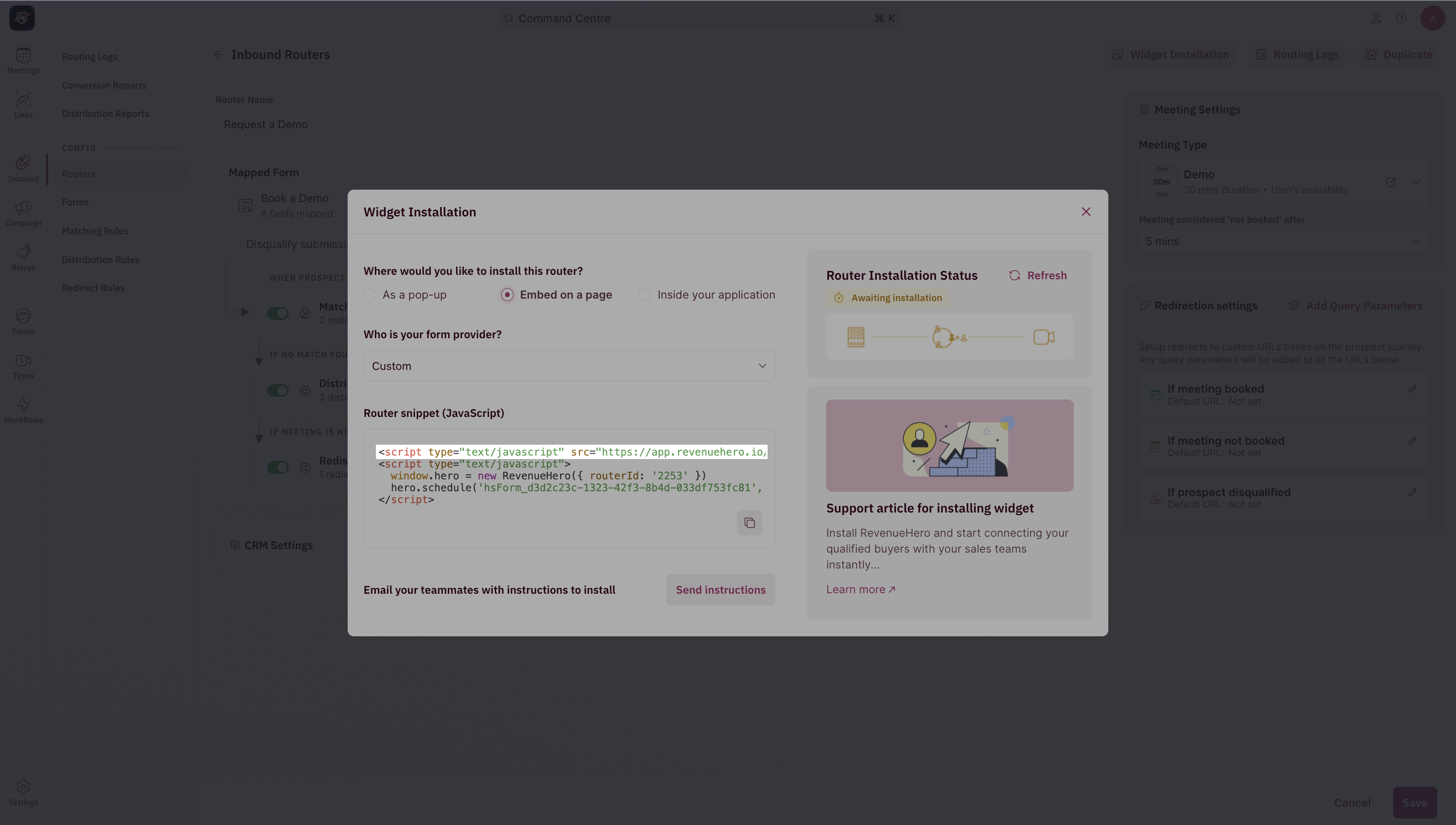
Add the first script to the `` section in your website builder/CMS.
2. **Choose your form provider** (Custom/Hubspot/Formspree) from the drop-down list. This ensures that we generate the most compatible version of the JavaScript code snippet.
3. In the **Router Snippet (JavaScript)**, look out for the line with **hero.schedule** and **replace the #embedDivId with the id value of your container/div in which you want the booking widget to be embedded**.
4. Now, **copy** the router snippet. You'll find two parts to this script.
Add the first script to the `` section in your website builder/CMS.
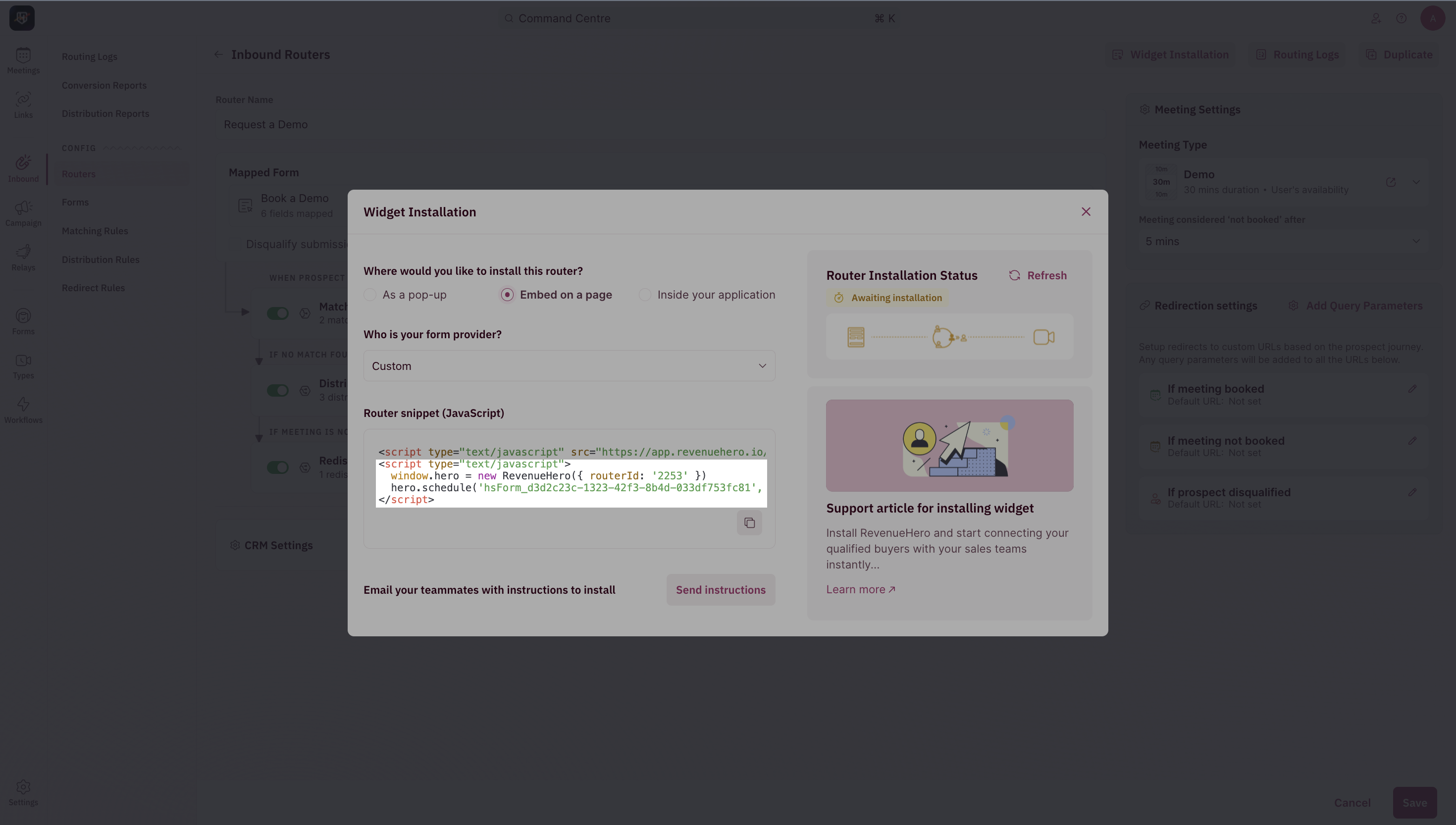
 In the second part of the script replace #embedDivID with the Id value of the container/div where the widget should be embedded.
Now, paste the code before the closing body tag on your page. Depending on your CMS/Website builder, you can also add this to the footer section.
In the second part of the script replace #embedDivID with the Id value of the container/div where the widget should be embedded.
Now, paste the code before the closing body tag on your page. Depending on your CMS/Website builder, you can also add this to the footer section.
**NOTE**
Ensure that you add the appropriate height and width properties to your container/div that holds the booking widget to ensure that the scheduler is in full view on all devices.
You're all set!