> ## Documentation Index
> Fetch the complete documentation index at: https://help.revenuehero.io/llms.txt
> Use this file to discover all available pages before exploring further.
# How to install the scheduler on a Hubspot page?
> Here are the steps that would help you set-up the RevenueHero widget on your page.
1. Copy the script from **Widget Installation** inside the router you wish to install.
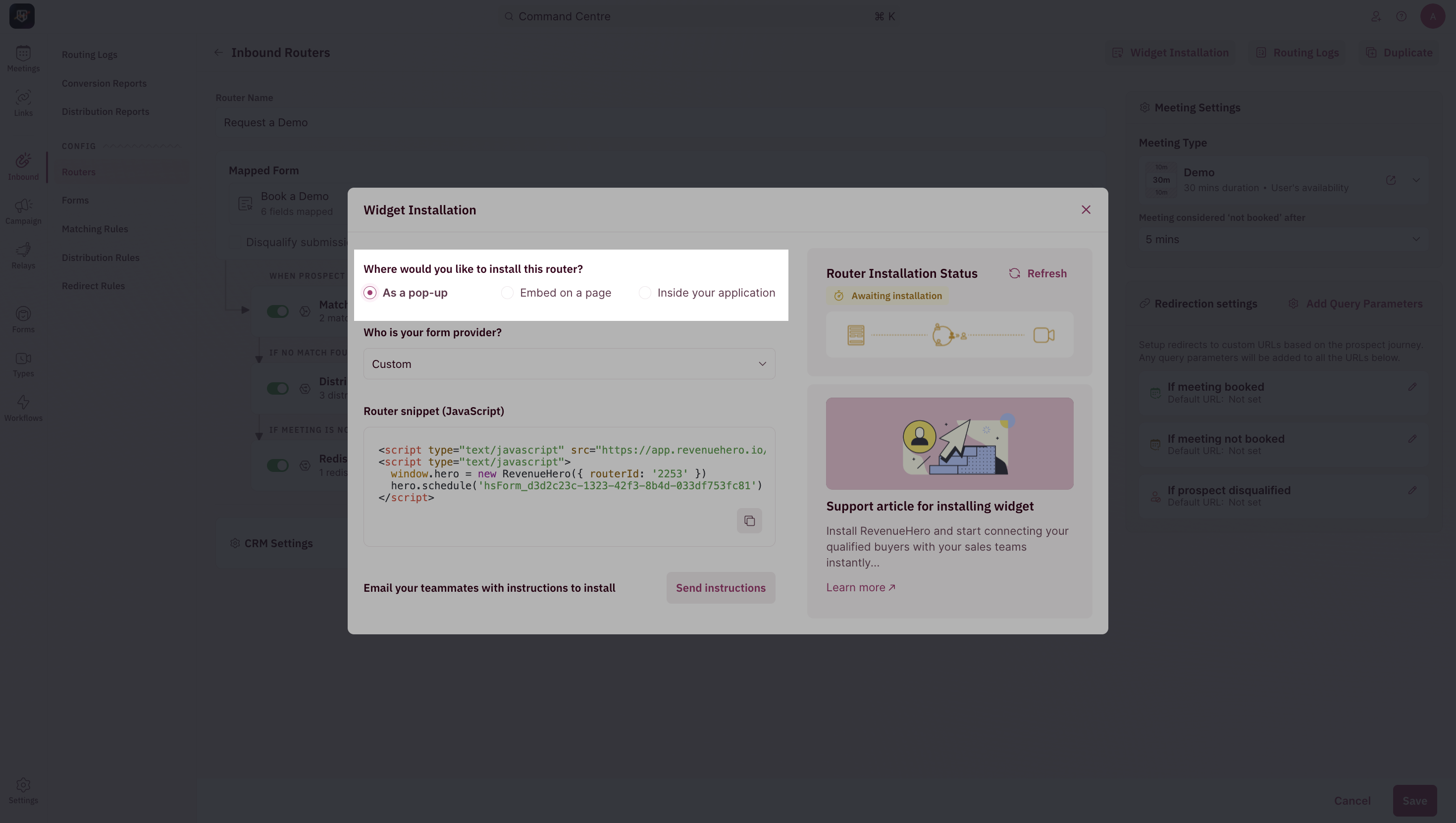 The example on this help doc is for a pop-up scheduler. [Here's how to embed the scheduler on your page.](/installation/embed-widget)
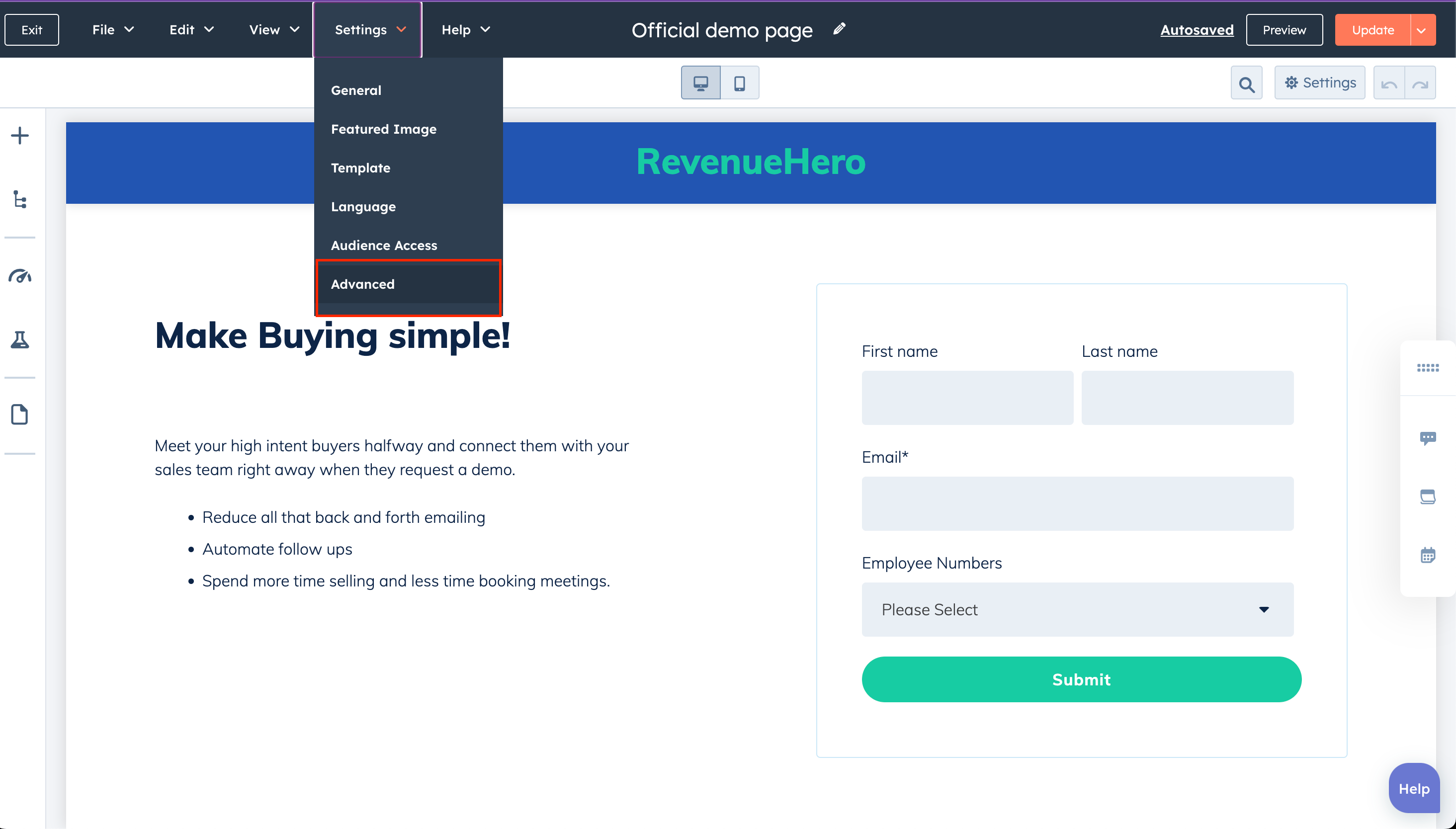
2. Open the page edit in Hubspot. Click on **Settings** and pick **Advanced**.
The example on this help doc is for a pop-up scheduler. [Here's how to embed the scheduler on your page.](/installation/embed-widget)
2. Open the page edit in Hubspot. Click on **Settings** and pick **Advanced**.
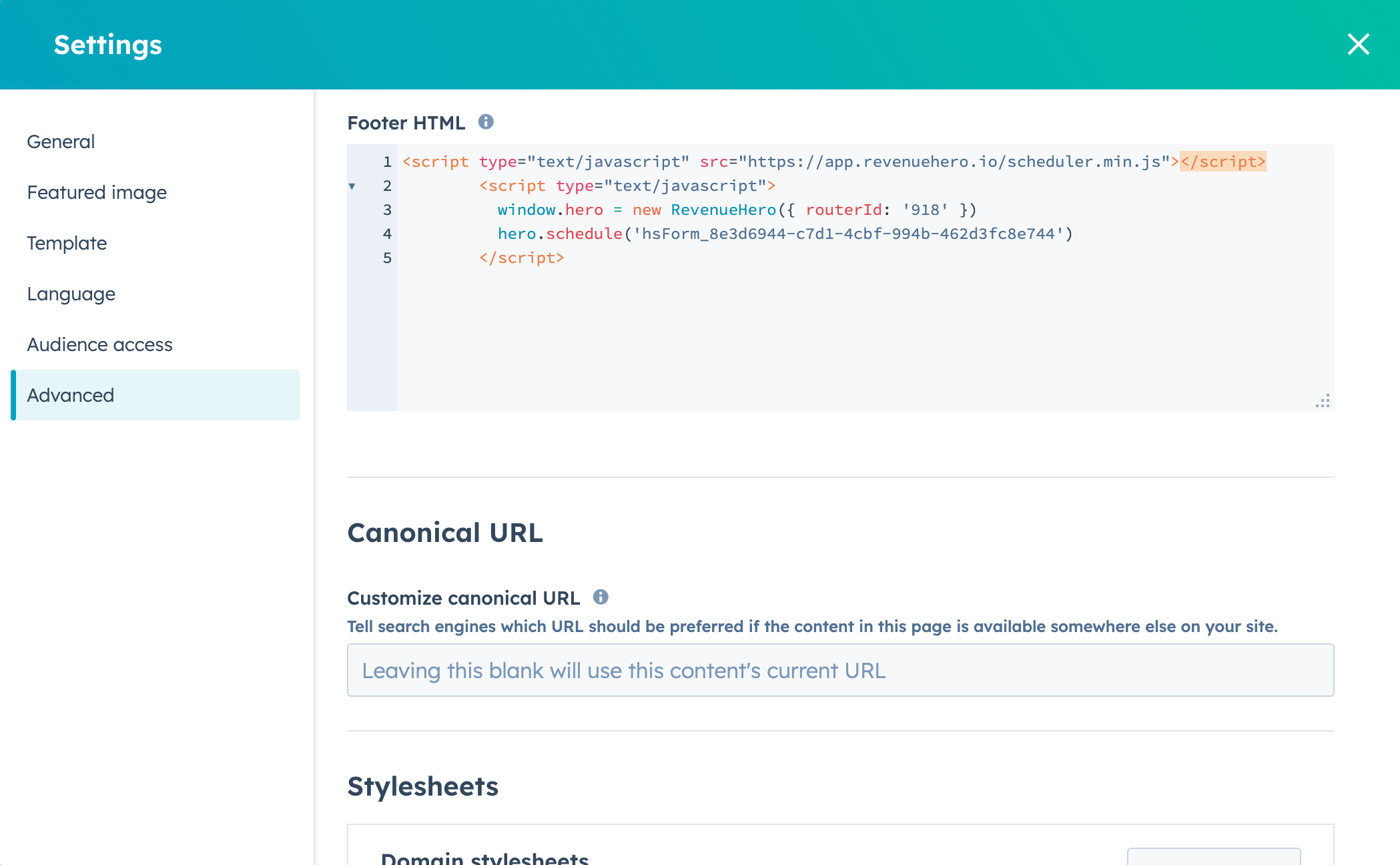
 3. Scroll to **Footer HTML** section and paste the script.
 4. Publish the page and you're all set!
Ensure that your form doesn't have a redirect URL setup in Hubspot or on the Hubspot page.
4. Publish the page and you're all set!
Ensure that your form doesn't have a redirect URL setup in Hubspot or on the Hubspot page.