> ## Documentation Index
> Fetch the complete documentation index at: https://help.revenuehero.io/llms.txt
> Use this file to discover all available pages before exploring further.
# How to integrate my conference link?
> Integrate any conference tool link to RevenueHero and add them to your meeting invites automatically.
To connect with any conference tool of your choice, follow the below steps:
1. Click on Settings --> My Integrations.
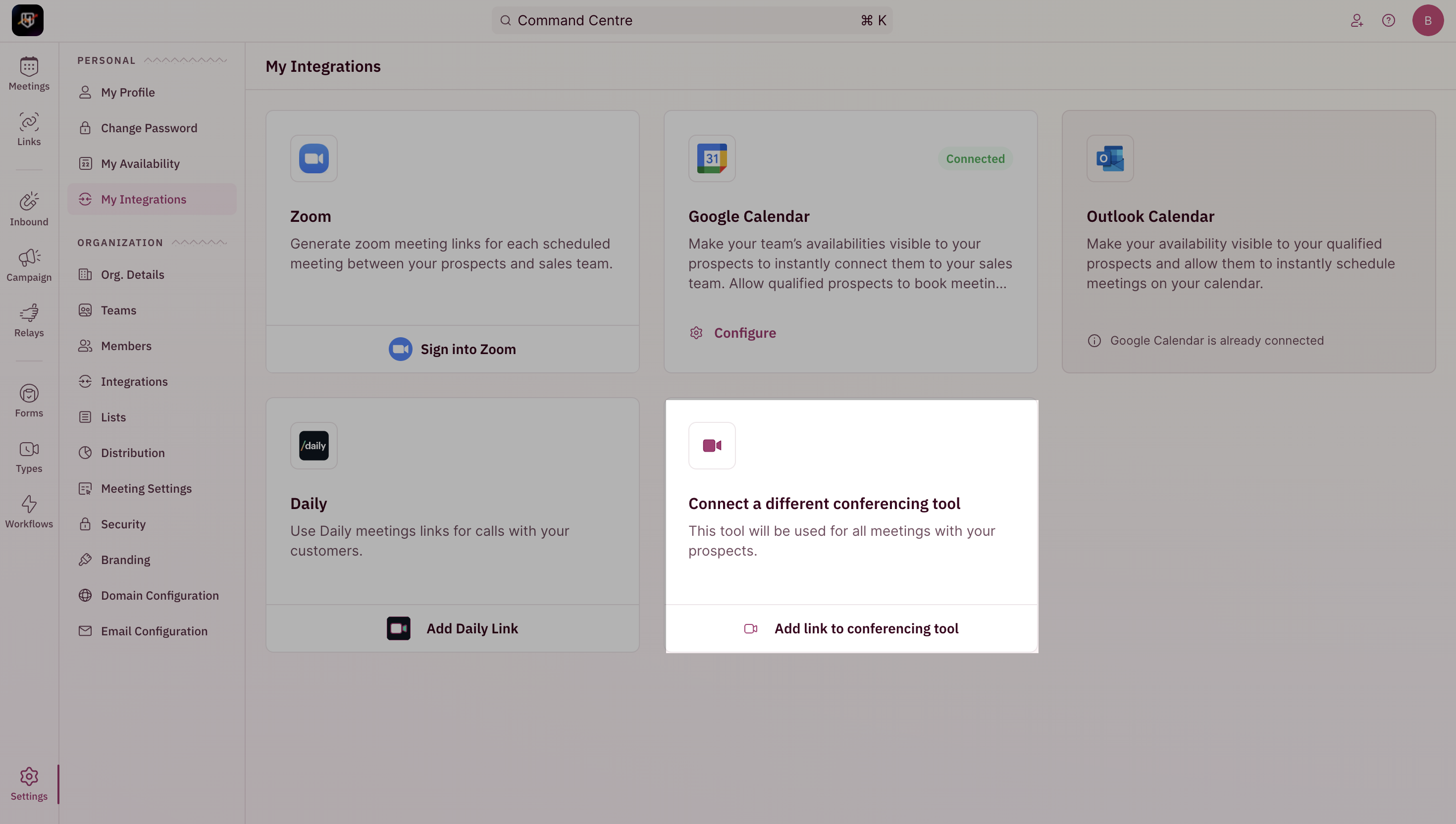 2. Click on **Connect a different conferencing tool**
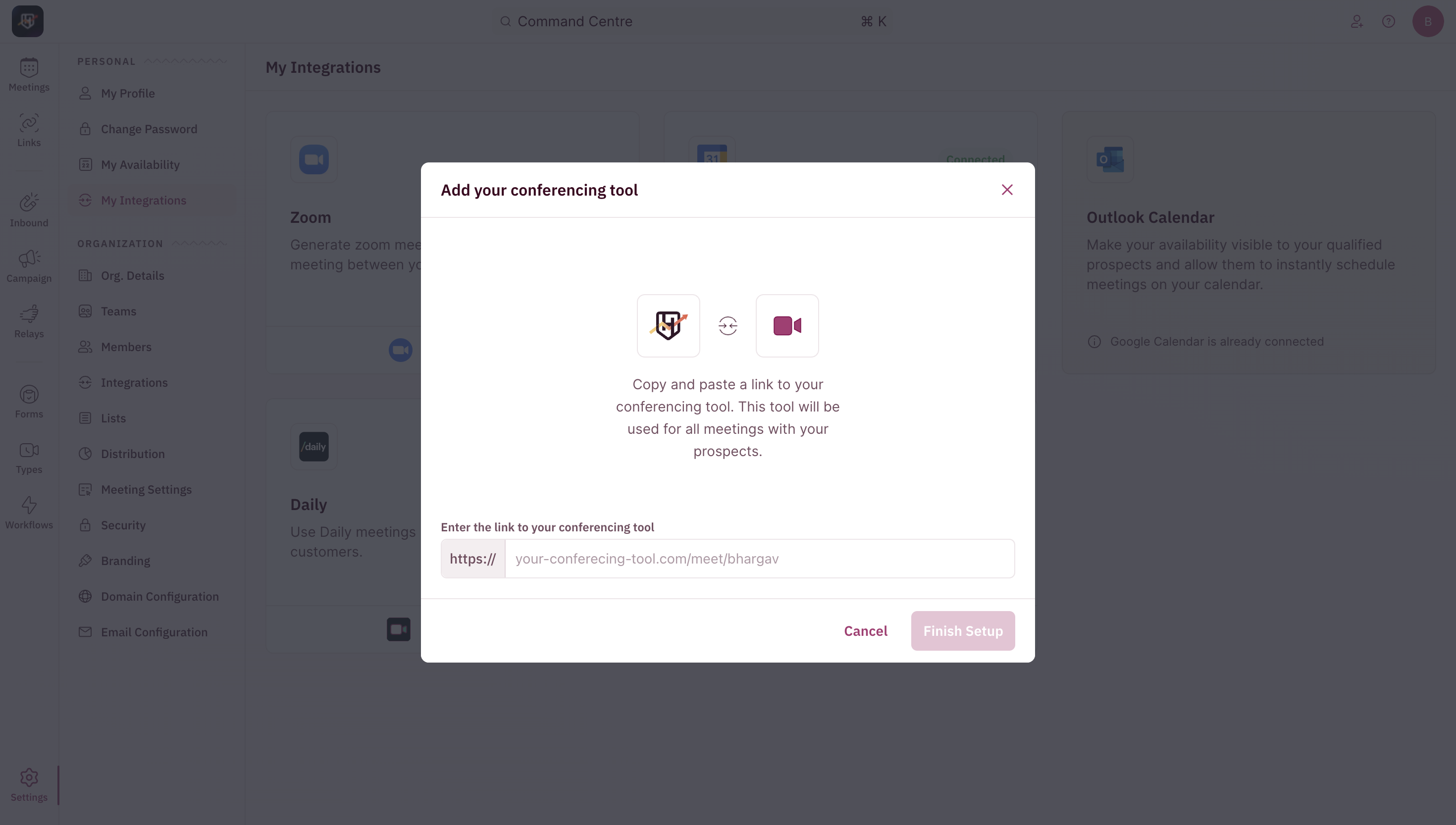 3. Add the meeting link you want to be added to your meeting invites.
This is a static link that would be added to all your meeting invites.
3. Add the meeting link you want to be added to your meeting invites.
This is a static link that would be added to all your meeting invites.
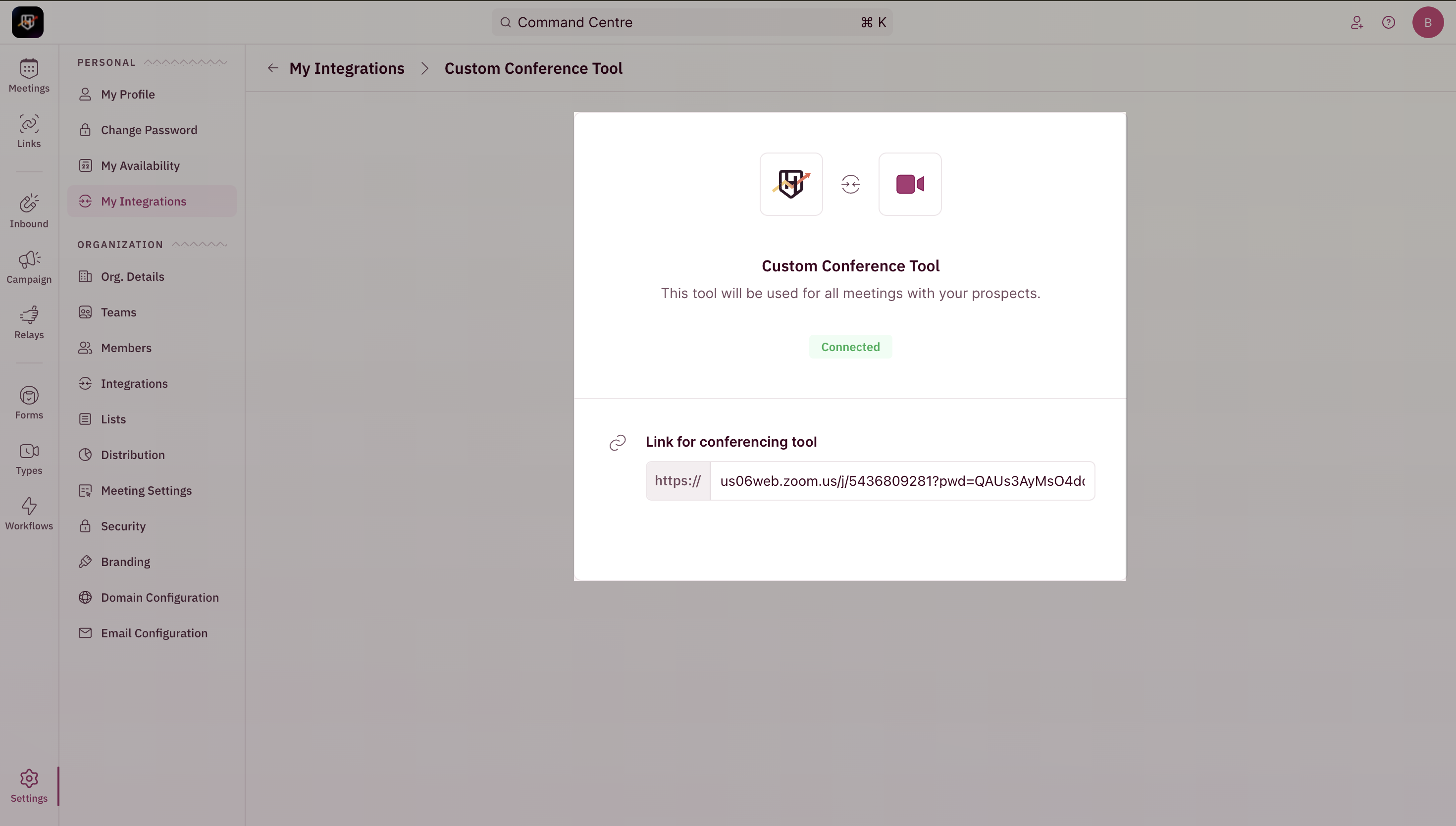 4. You're all set!