> ## Documentation Index
> Fetch the complete documentation index at: https://help.revenuehero.io/llms.txt
> Use this file to discover all available pages before exploring further.
# How to integrate Google Calendar?
> Integrate your Google calendar with RevenueHero in 6 simple steps
To connect your Google Calendar, follow the below steps:
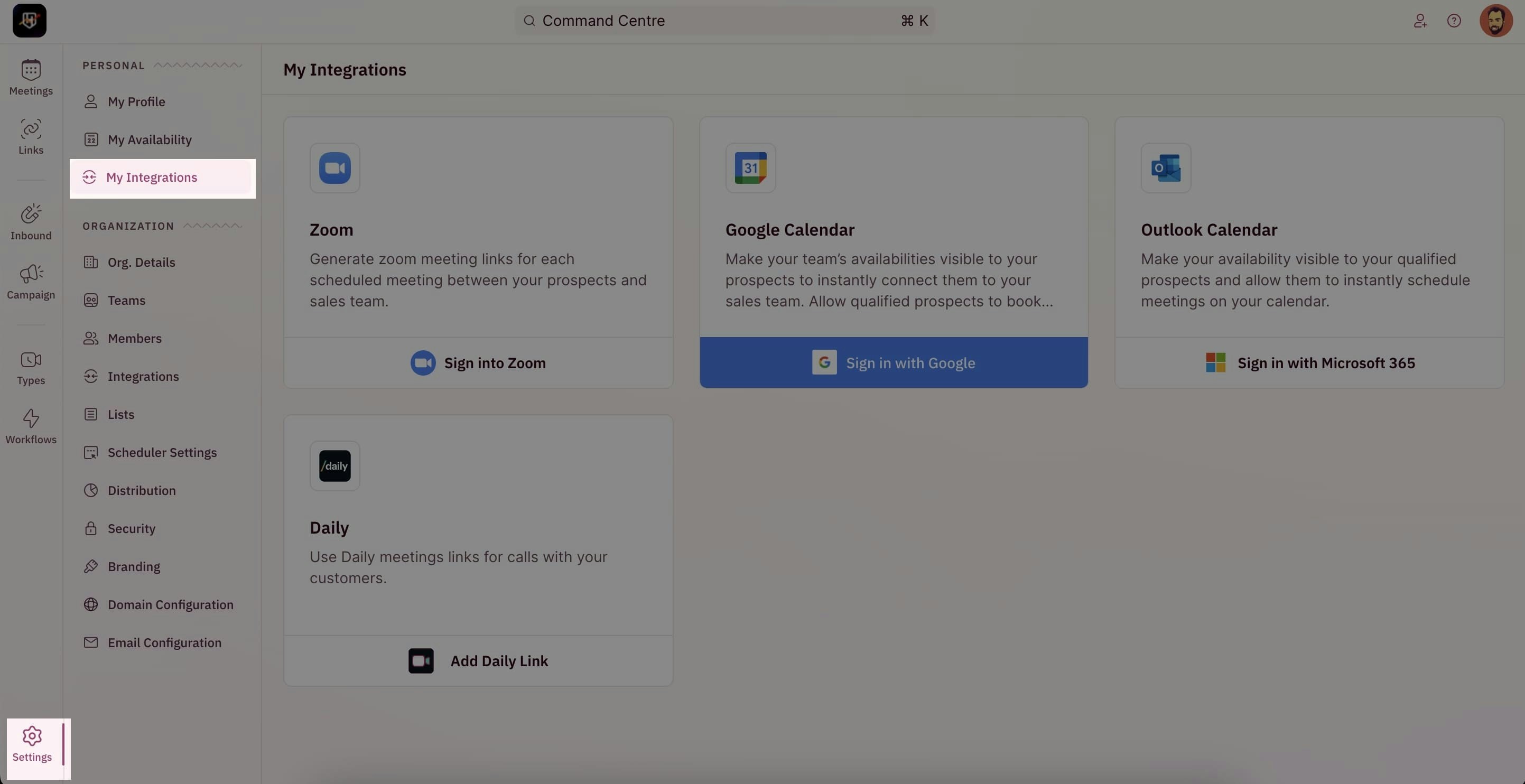
1. To begin your integration, click on "**Settings**" from the side nav bar and click on "**My Integrations**" under "**Personal Settings**".
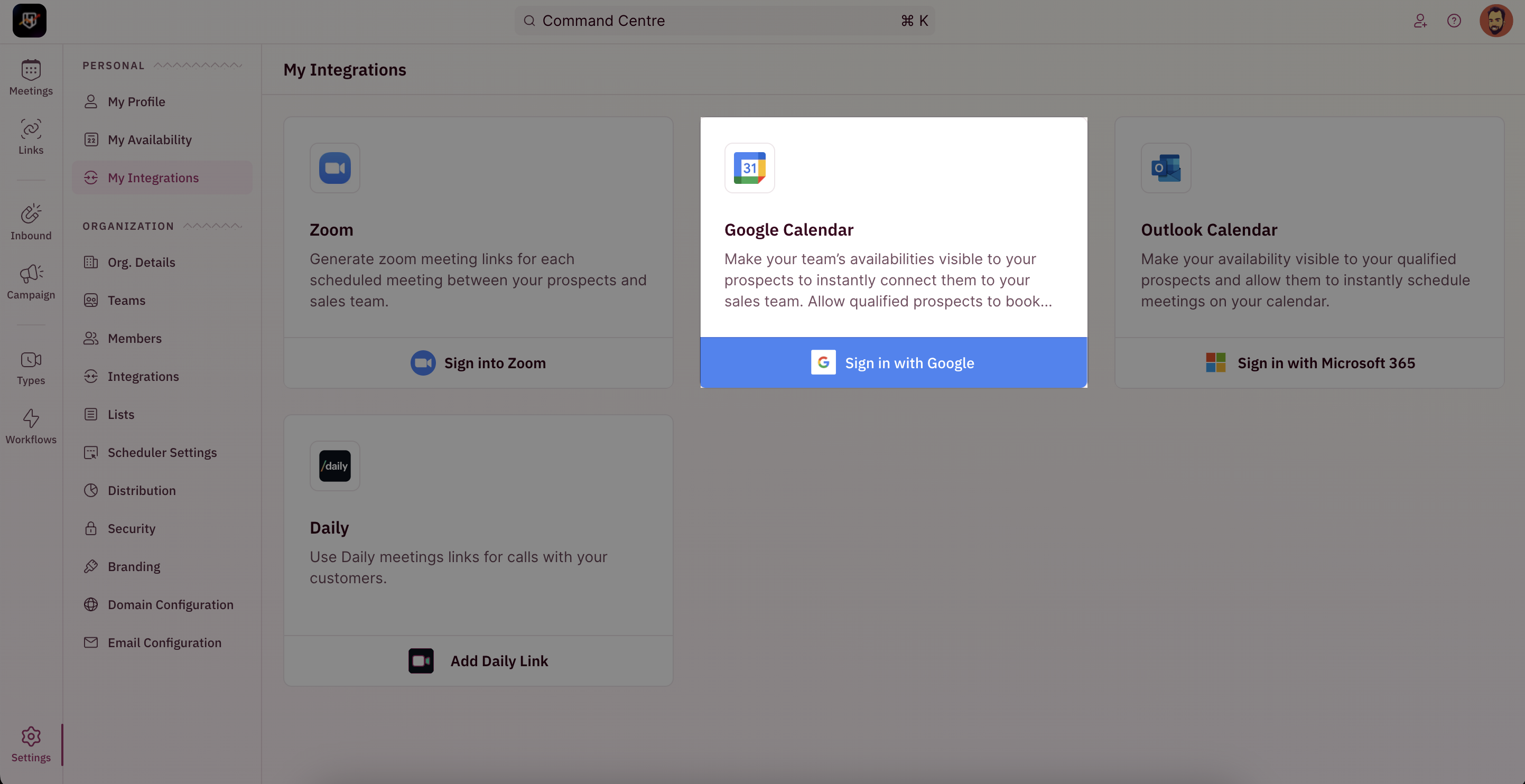
 2. On the Google Calendar integration card, Click on "**Sign in with Google**".
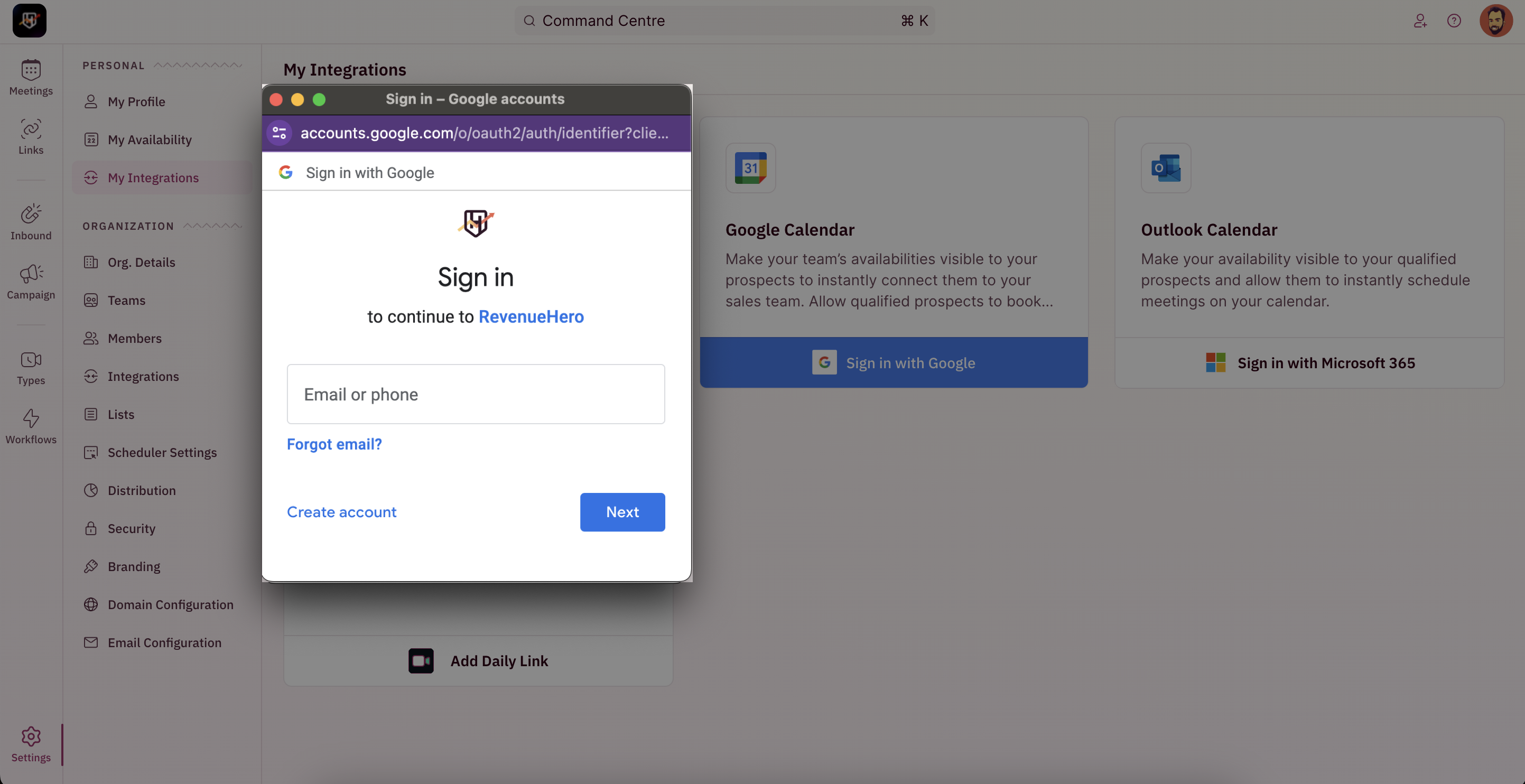
 3. You will be redirected to a new tab/a pop-up to choose the Google account that you want to sync with RevenueHero.
If you're unable to see the pop-up, check your browser and enable pop-ups from RevenueHero.
Click here to learn how to enable for [Chrome](https://support.google.com/chrome/answer/95472) or [Edge](https://support.microsoft.com/en-us/microsoft-edge/block-pop-ups-in-microsoft-edge-1d8ba4f8-f385-9a0b-e944-aa47339b6bb5).
3. You will be redirected to a new tab/a pop-up to choose the Google account that you want to sync with RevenueHero.
If you're unable to see the pop-up, check your browser and enable pop-ups from RevenueHero.
Click here to learn how to enable for [Chrome](https://support.google.com/chrome/answer/95472) or [Edge](https://support.microsoft.com/en-us/microsoft-edge/block-pop-ups-in-microsoft-edge-1d8ba4f8-f385-9a0b-e944-aa47339b6bb5).
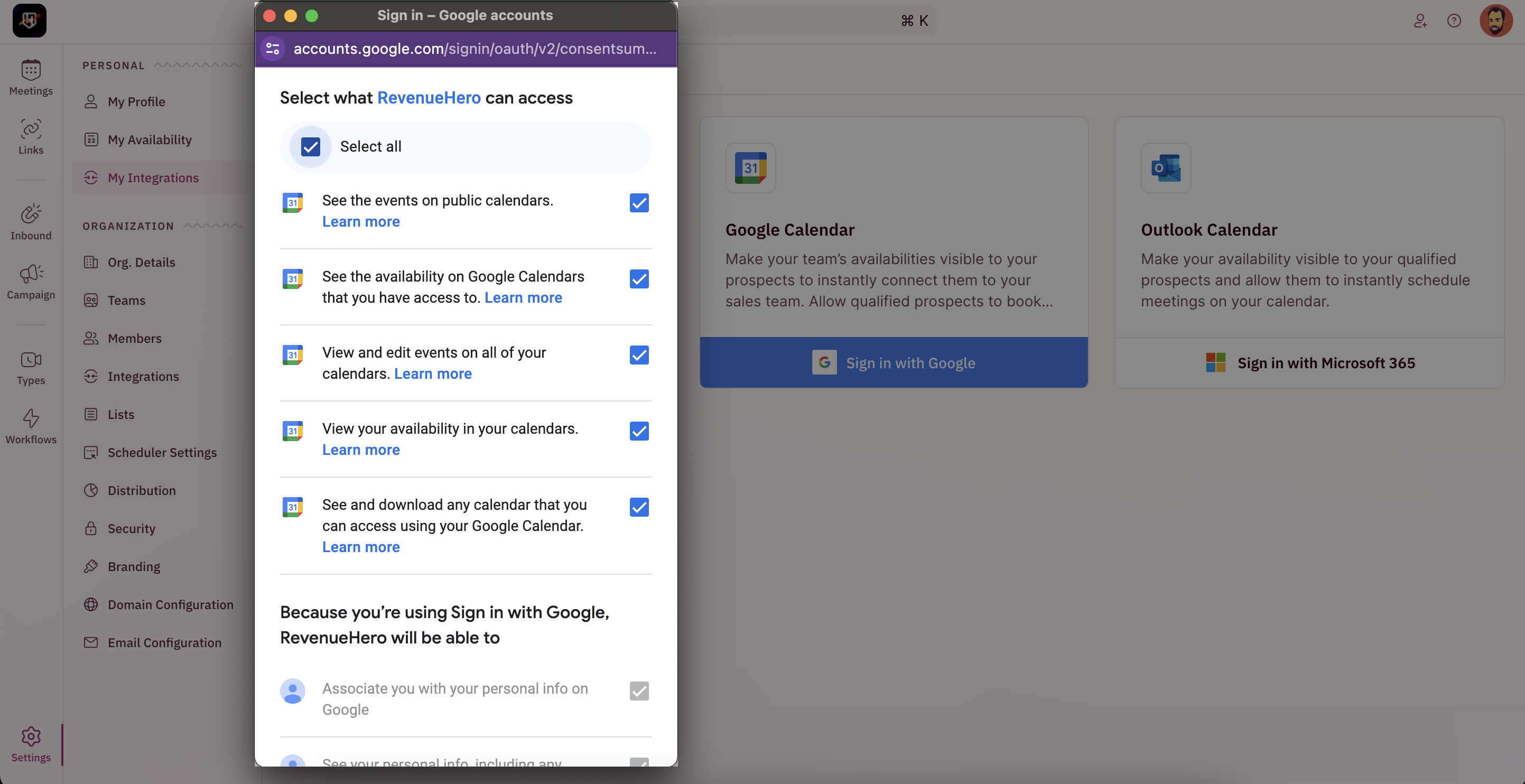
 4. Once you choose the account, you will be displayed a confirmation page.
**NOTE**
Make sure to check all boxes so that RevenueHero has full access to your Calendar to send meeting invites.
5. Click on "**Continue**" to proceed.
4. Once you choose the account, you will be displayed a confirmation page.
**NOTE**
Make sure to check all boxes so that RevenueHero has full access to your Calendar to send meeting invites.
5. Click on "**Continue**" to proceed.
 6. Congratulation! You have successfully integrated your Google Calendar with RevenueHero.