> ## Documentation Index
> Fetch the complete documentation index at: https://help.revenuehero.io/llms.txt
> Use this file to discover all available pages before exploring further.
# How to integrate Intercom with RevenueHero?
> Set up RevenueHero scheduling within Intercom's chat widget.
Integrate RevenueHero’s scheduler with your Intercom widget in 6 simple steps
1. Log in to your Intercom account and go to Settings.
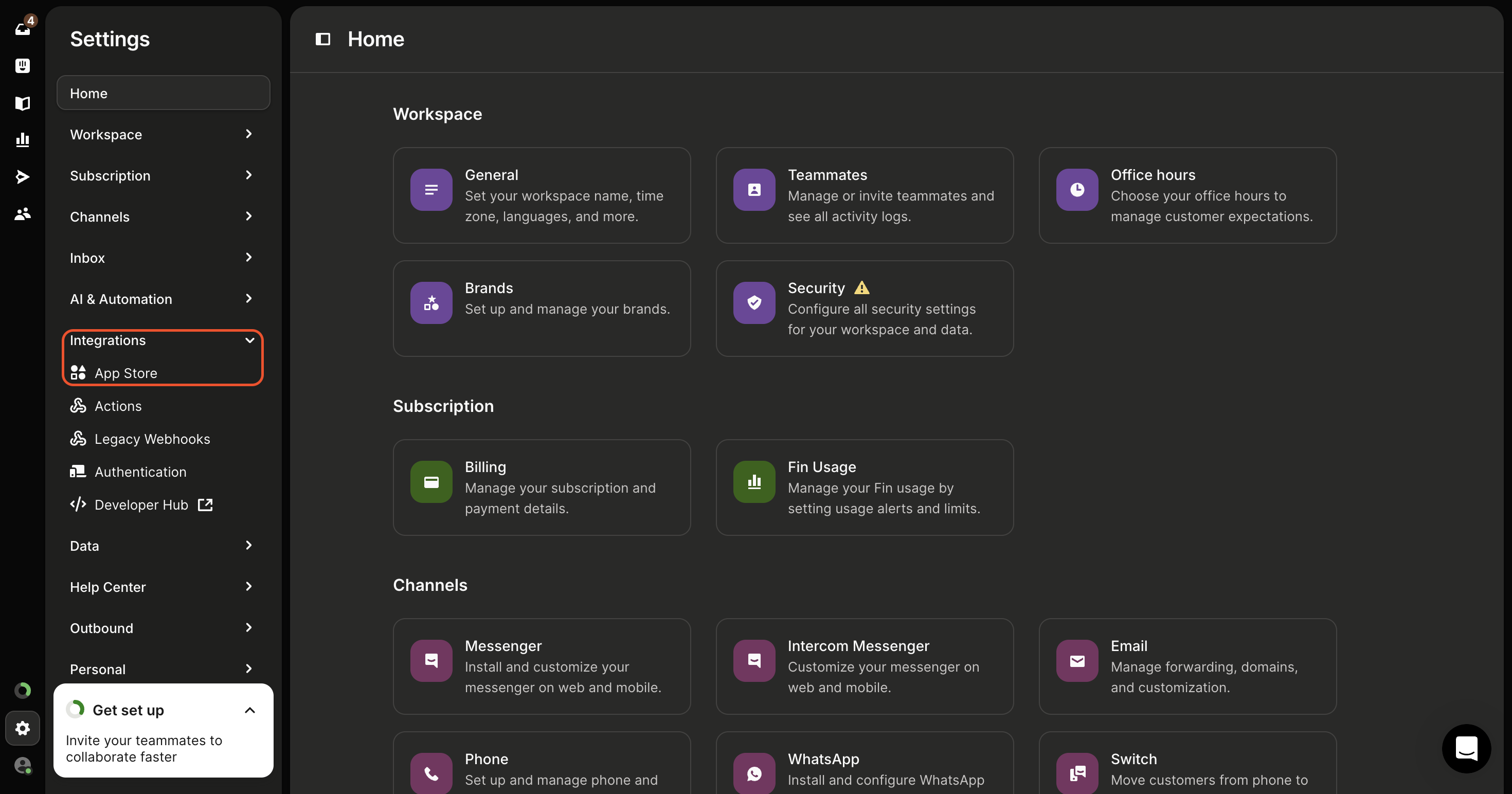
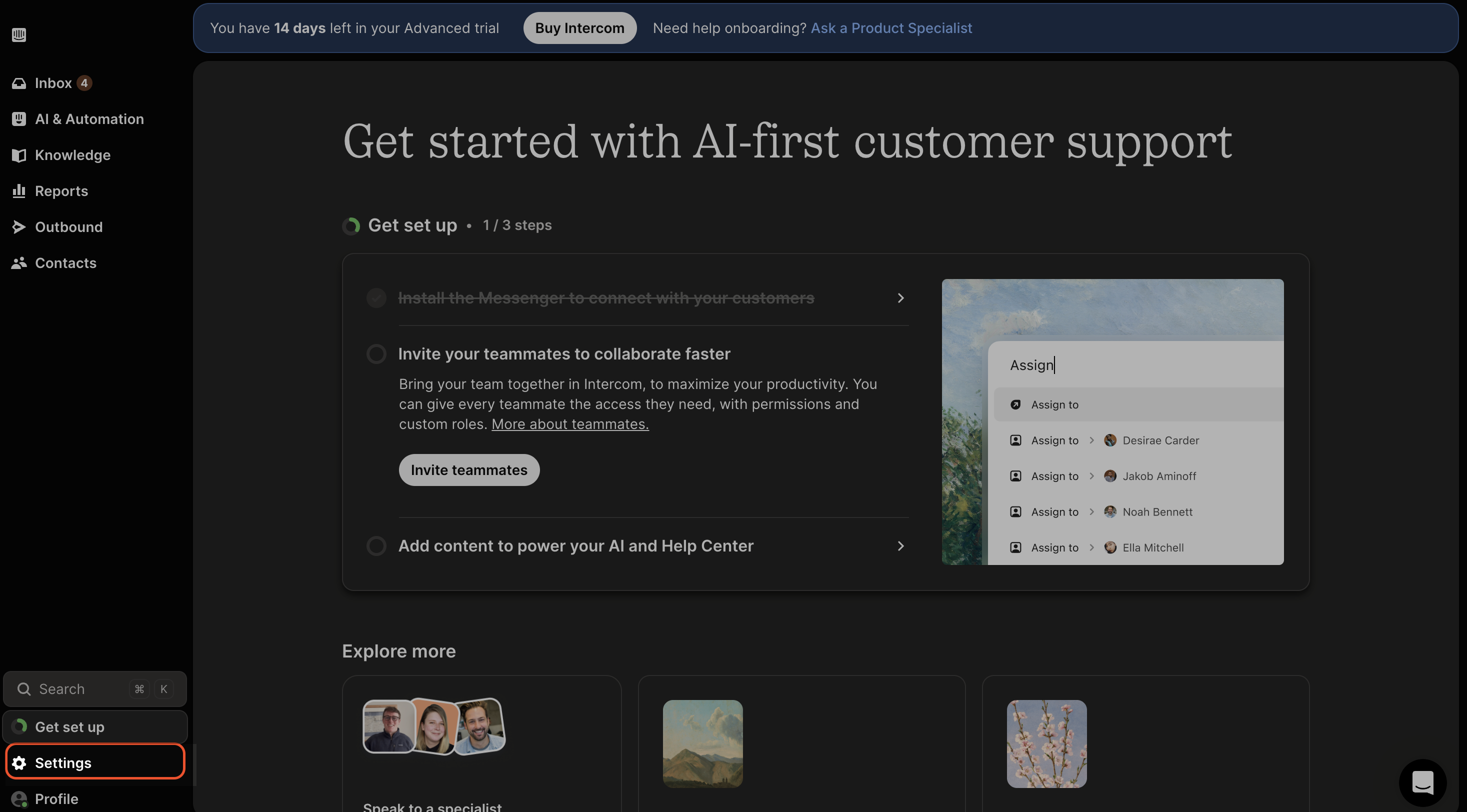 2. Click on Integrations, then select App Store.
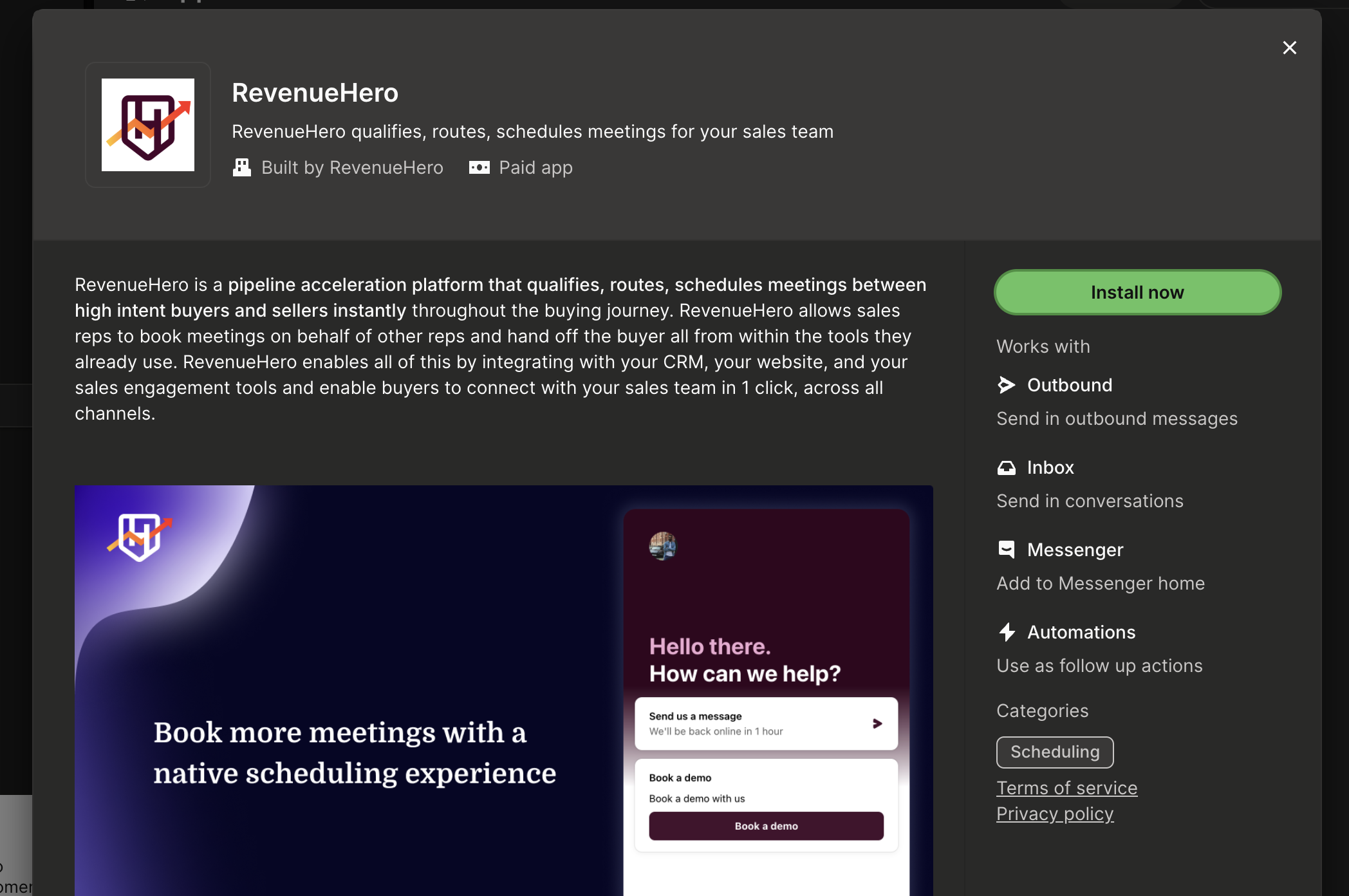
 3. Search for RevenueHero, install it, and grant the necessary permissions to connect with Intercom.
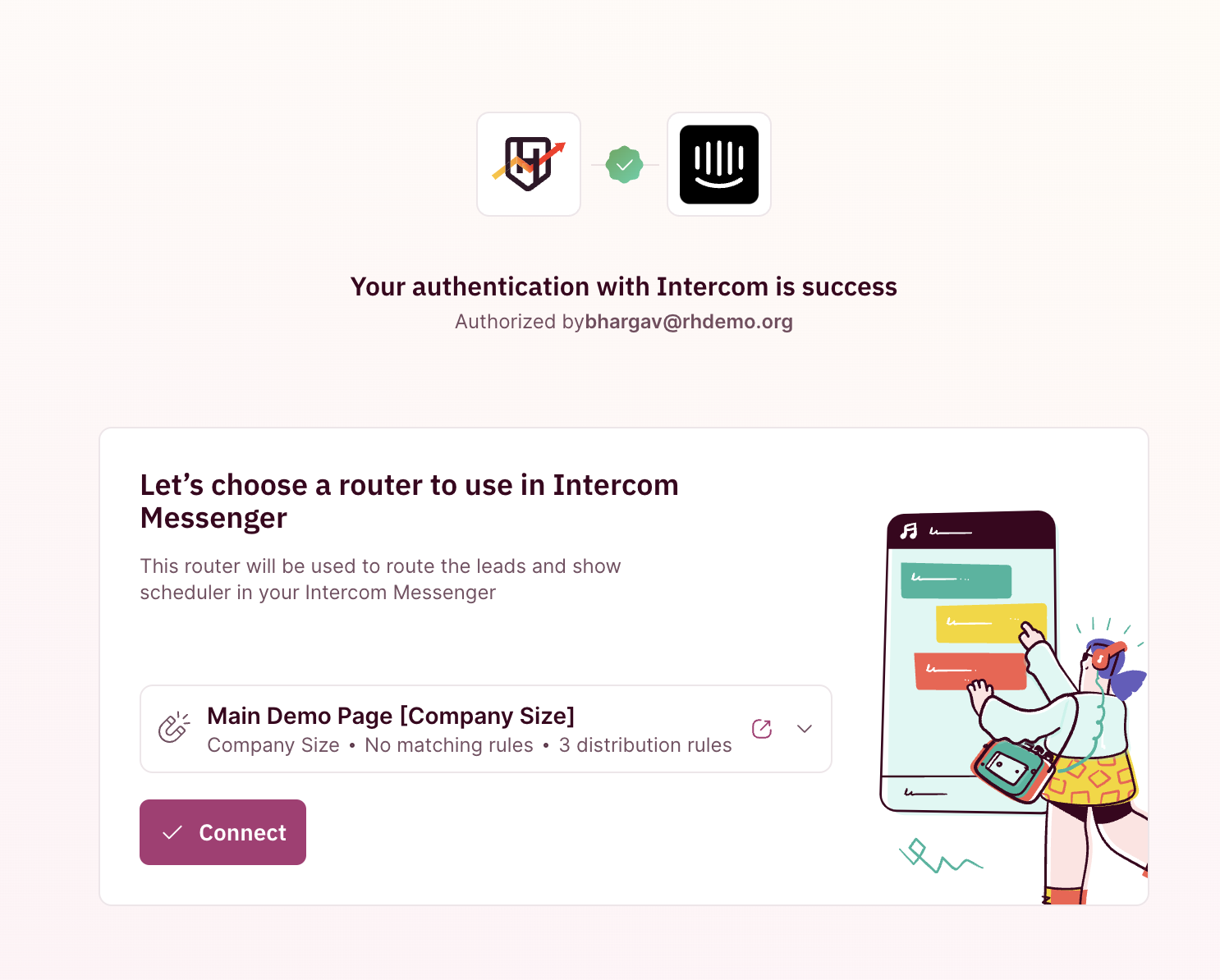
 4. After installing RevenueHero, choose the [router](/routers/inbound/create-inbound-router) you want to link with Intercom.
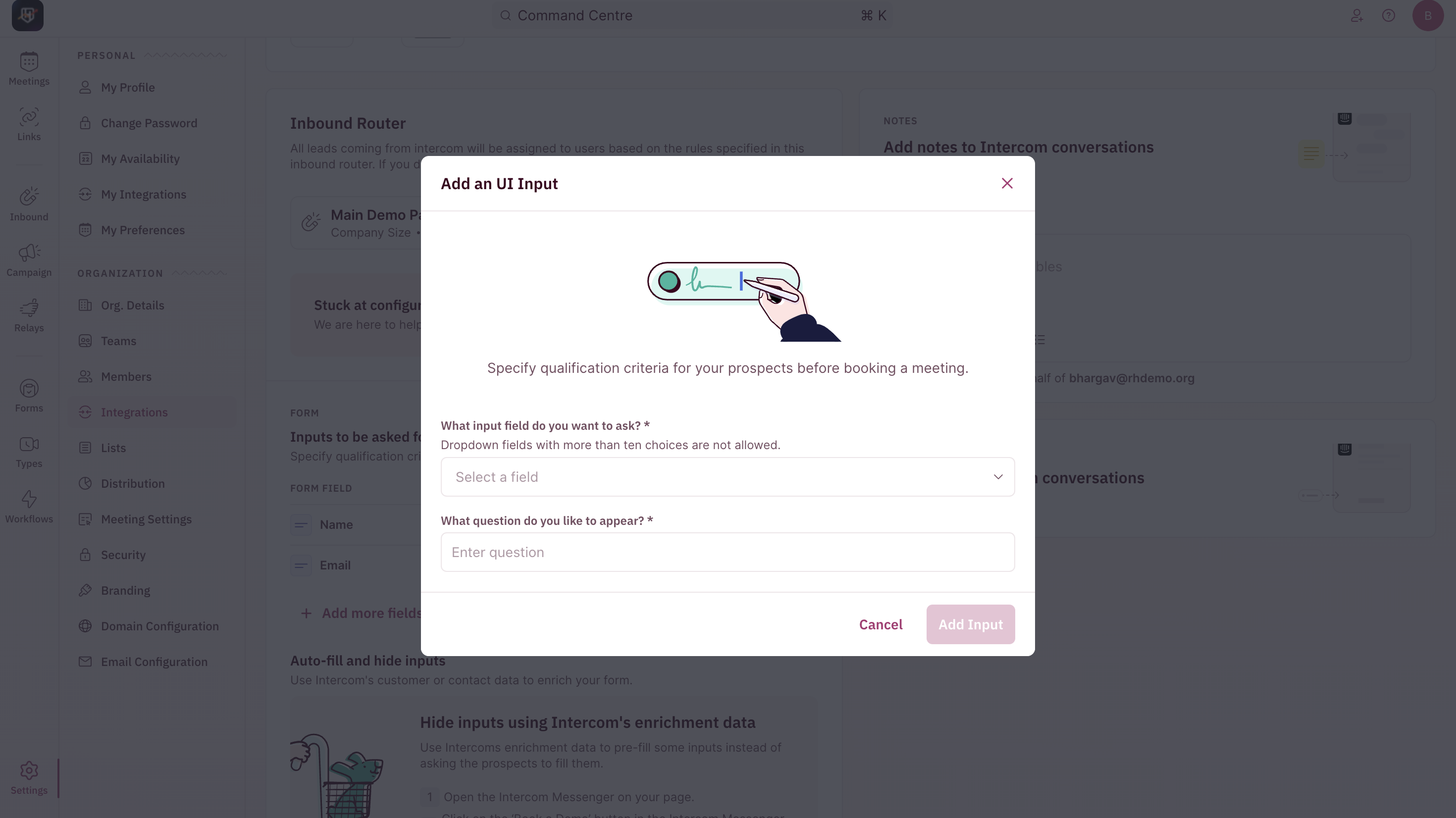
 5. Ensure that the routing-related questions are listed under the Inputs to be Asked section in RevenueHero → Settings → Integrations → Intercom.
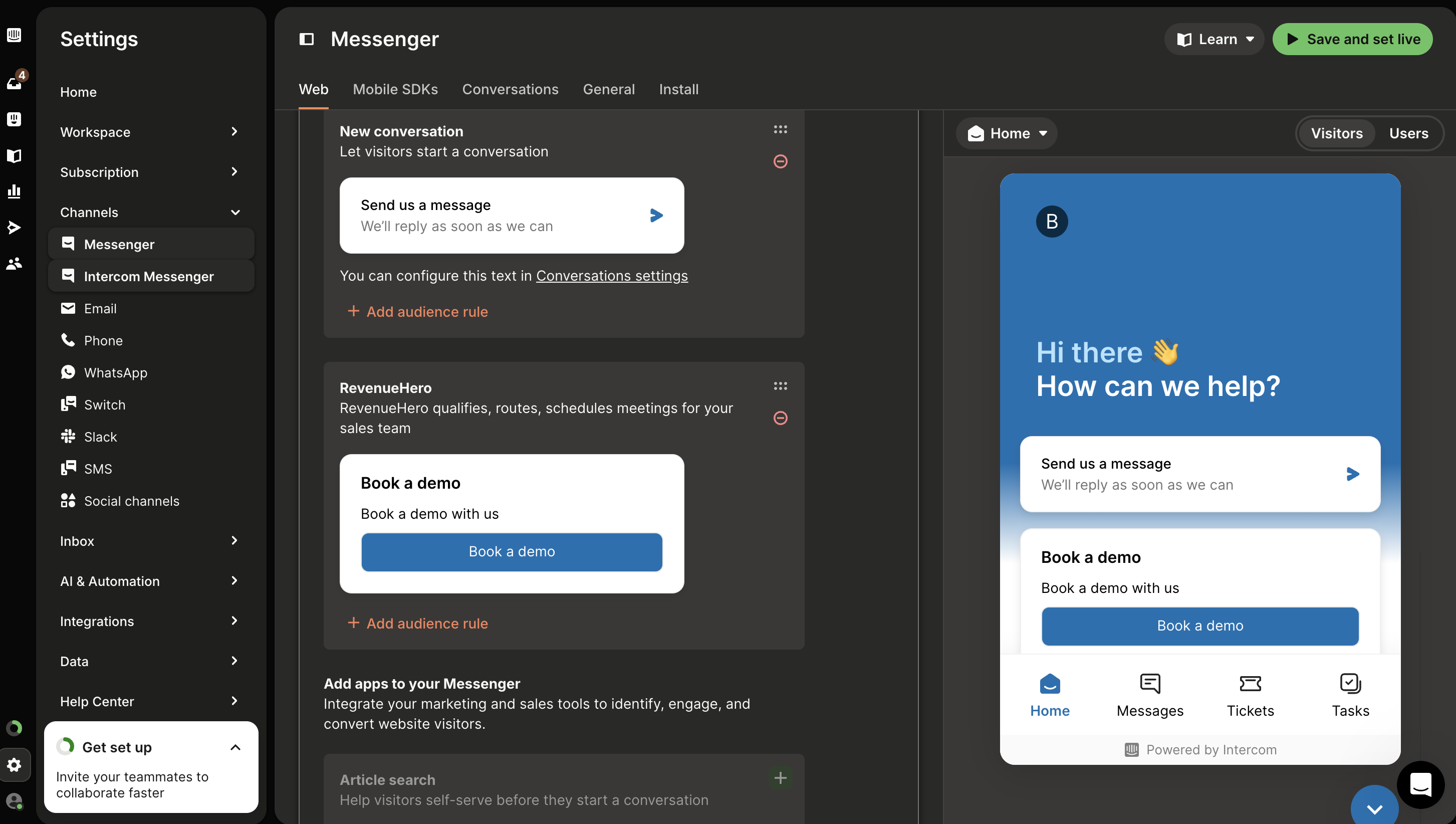
 6. Once you have configured the router tied to Intercom, the final step is to add the RevenueHero widget to the Intercom Messenger. To do this, click on Channels, select Messenger, and add RevenueHero to the Intercom widget.
 That’s it! Your Intercom integration is set up. 🎉🎉🎉