> ## Documentation Index
> Fetch the complete documentation index at: https://help.revenuehero.io/llms.txt
> Use this file to discover all available pages before exploring further.
# How to mark your calendar?
> Mark your calendar accordingly to ensure your out of office and internal slots are read correctly by RevenueHero.
## Marking Out of Office/Vacations
Nobody likes to be bothered with meetings when you're out of office.
Let's mark your calendar accordingly so that RevenueHero can prevent prospects from booking on those times.
### Google Calendar
1. Click on the top-bar right below the date.
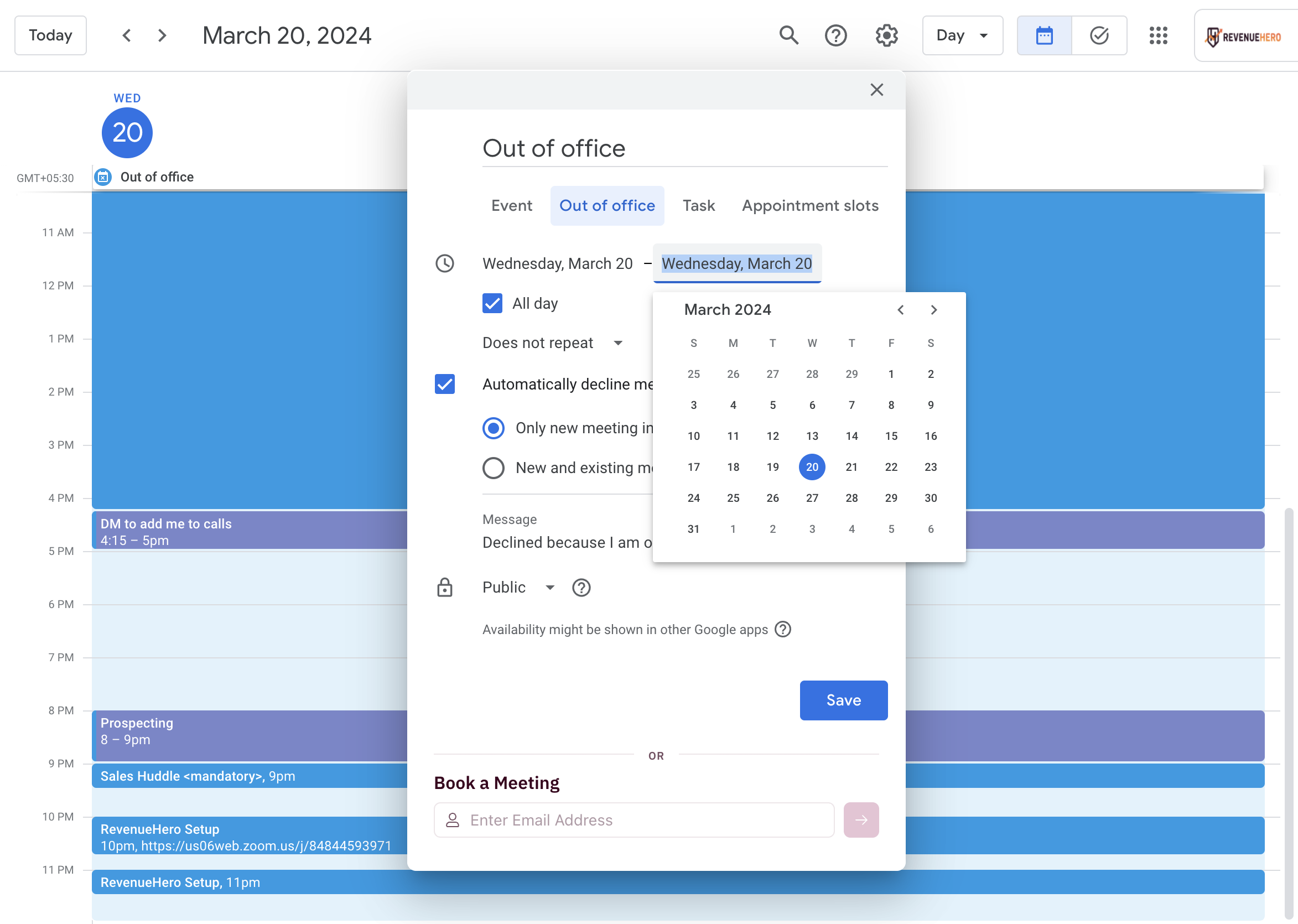
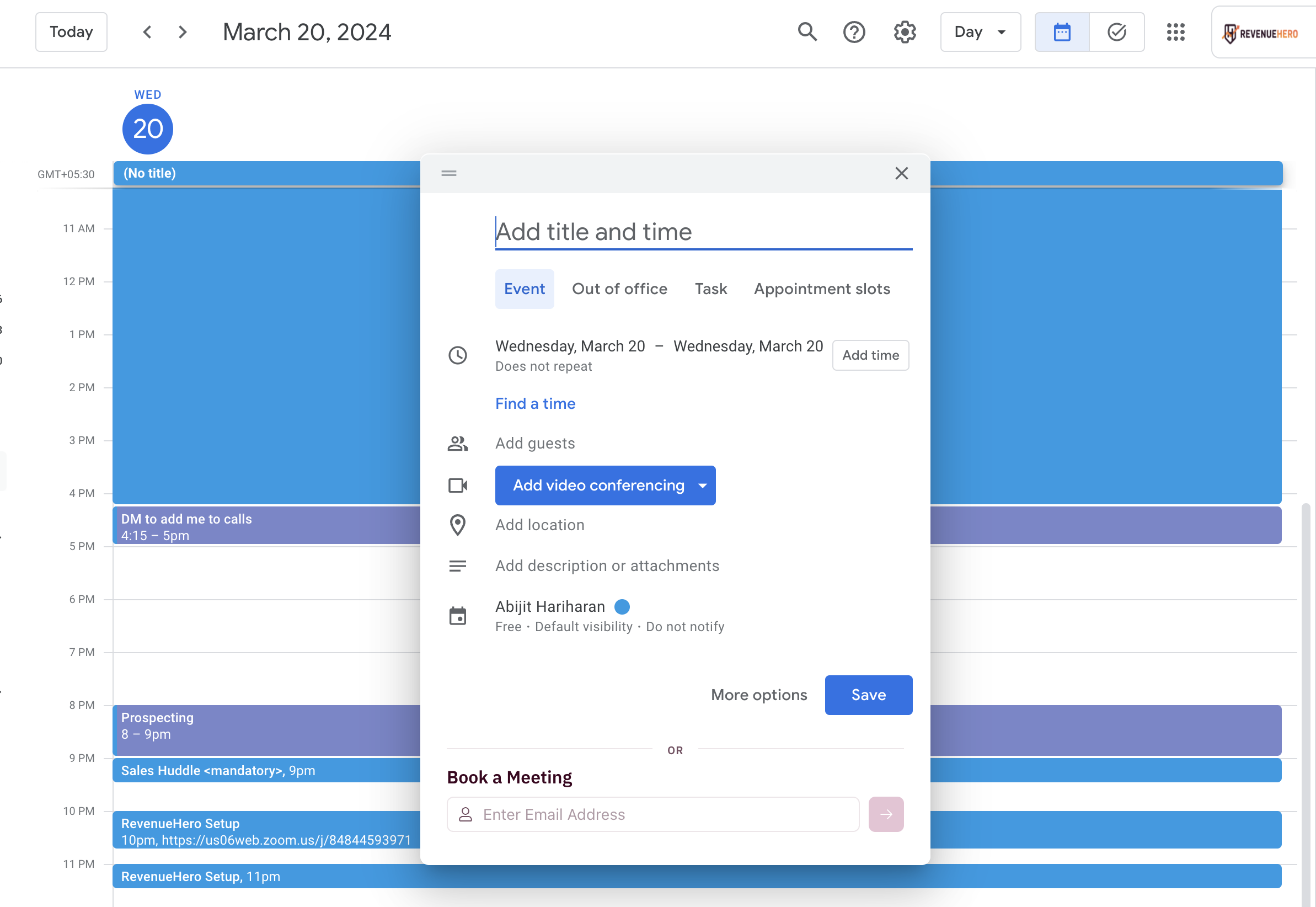 2. Click on **Out of Office** and select the dates that your on vacation for.
 ### Outlook Calendar
1. Click on the top-bar right below the date.
### Outlook Calendar
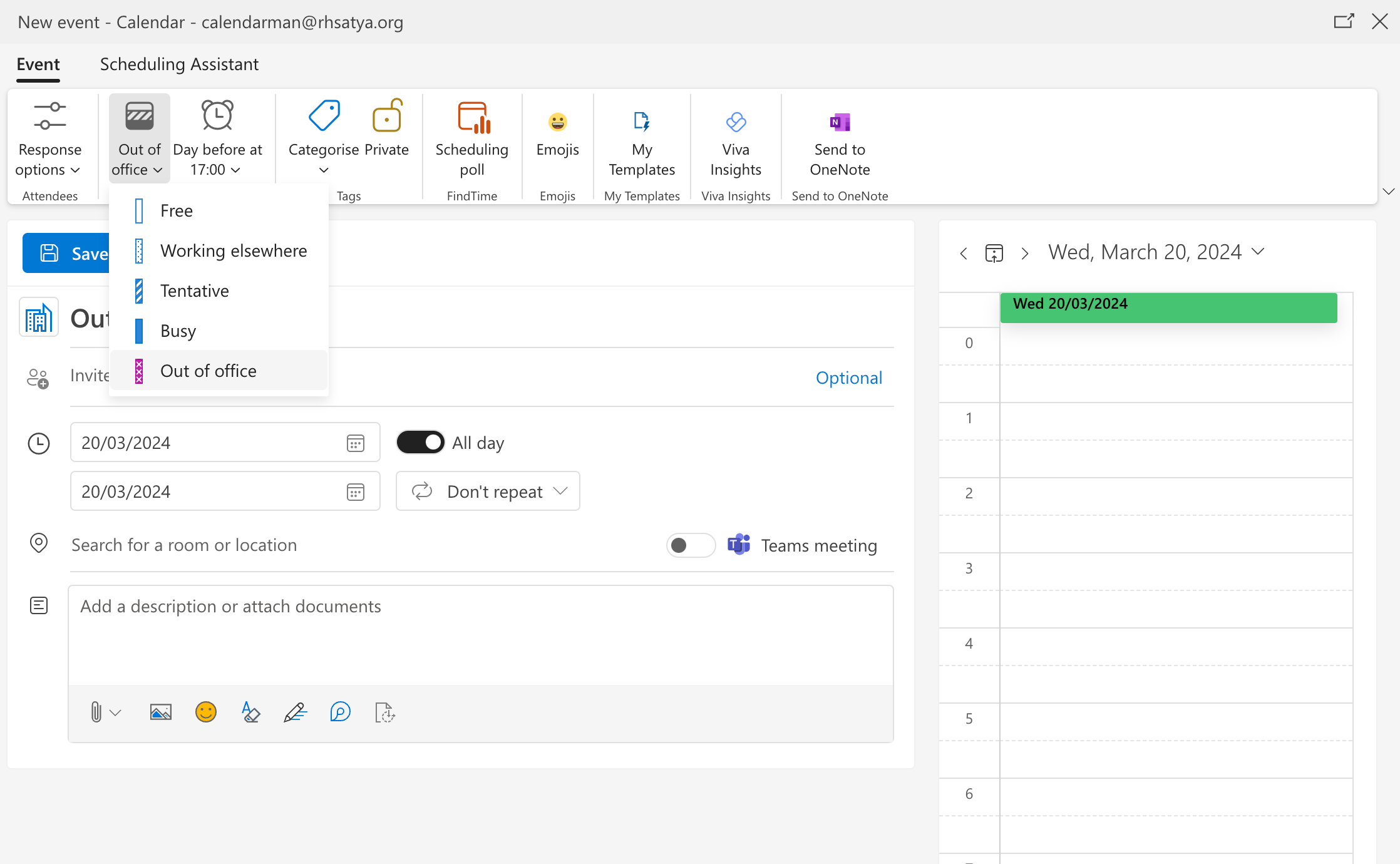
1. Click on the top-bar right below the date.
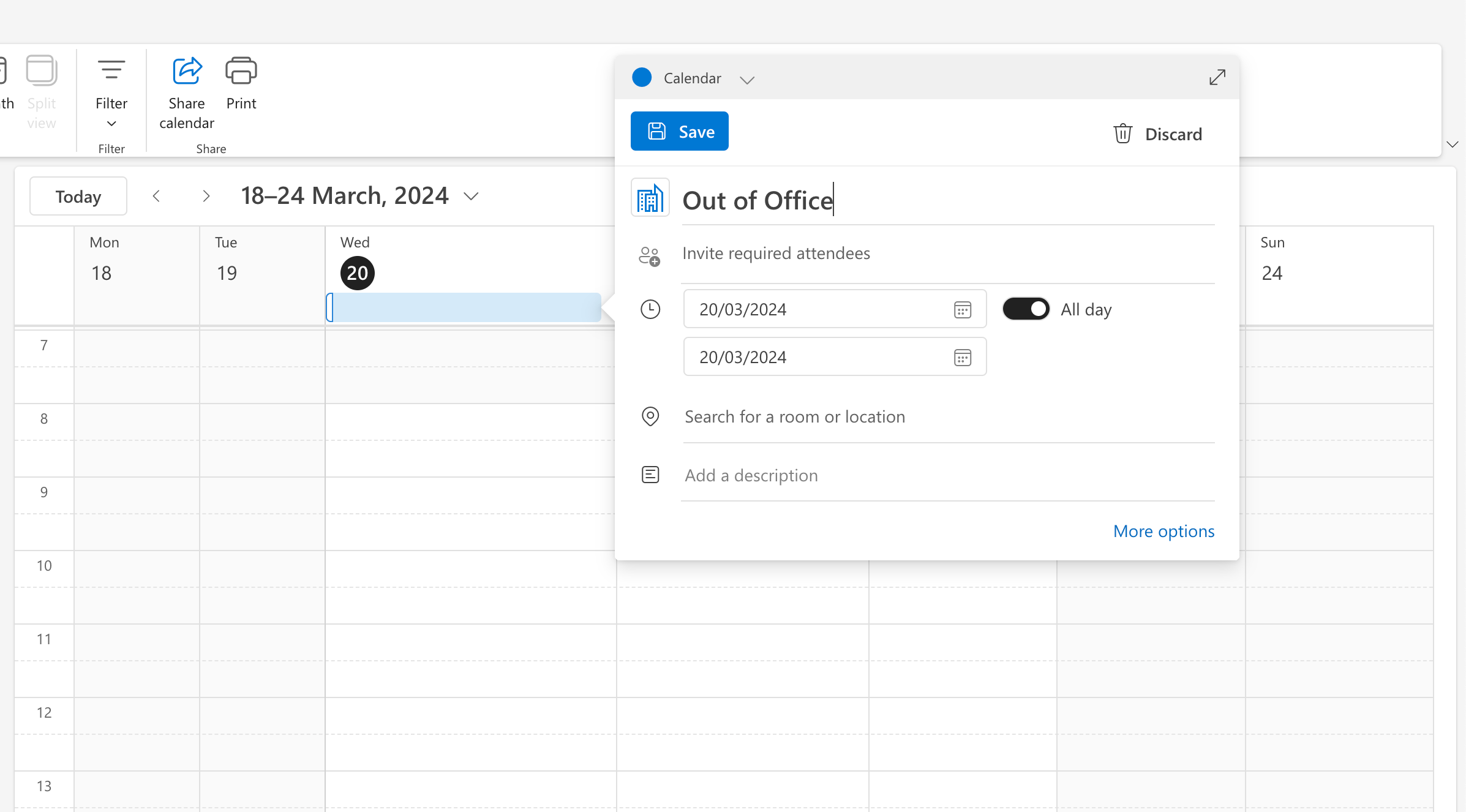 2. Click on **Out of Office** and select the dates that your on vacation for.
 ## Dealing with internal meetings/blocks
RevenueHero considers a slot as available on your calendar if you are free for the pre-meeting buffer, meeting duration and post-meeting buffer.
## Dealing with internal meetings/blocks
RevenueHero considers a slot as available on your calendar if you are free for the pre-meeting buffer, meeting duration and post-meeting buffer.
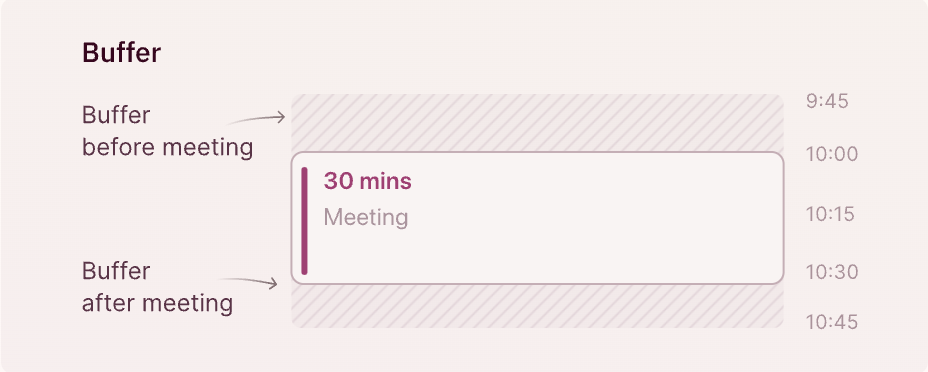 If the meeting buffers overlap with existing meetings, RevenueHero will not consider it as an available slot.
This allows some breathing space for you before/after your meeting and ensures that you will never again have a back-to-back meeting scheduler.
While you may have available slots for the meeting duration, your internal blocks/events might overlap with the pre/post meeting buffers.
To make more slots available for your prospects to book from, you can mark some of your internal slots as Free.
Here's how to do that on:
### Google Calendar
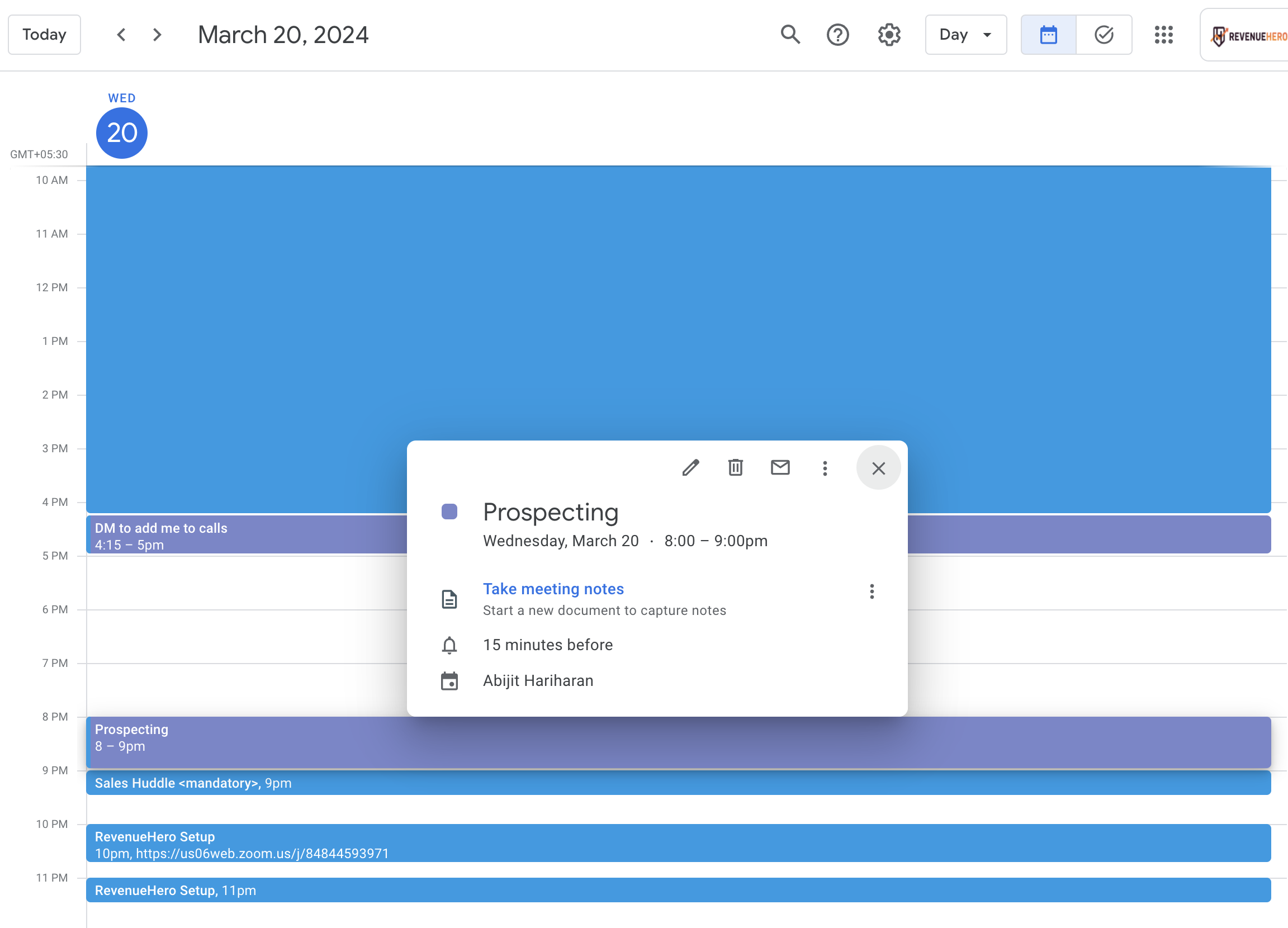
1. Click on the internal event/block that you want to mark as free and edit it.
If the meeting buffers overlap with existing meetings, RevenueHero will not consider it as an available slot.
This allows some breathing space for you before/after your meeting and ensures that you will never again have a back-to-back meeting scheduler.
While you may have available slots for the meeting duration, your internal blocks/events might overlap with the pre/post meeting buffers.
To make more slots available for your prospects to book from, you can mark some of your internal slots as Free.
Here's how to do that on:
### Google Calendar
1. Click on the internal event/block that you want to mark as free and edit it.
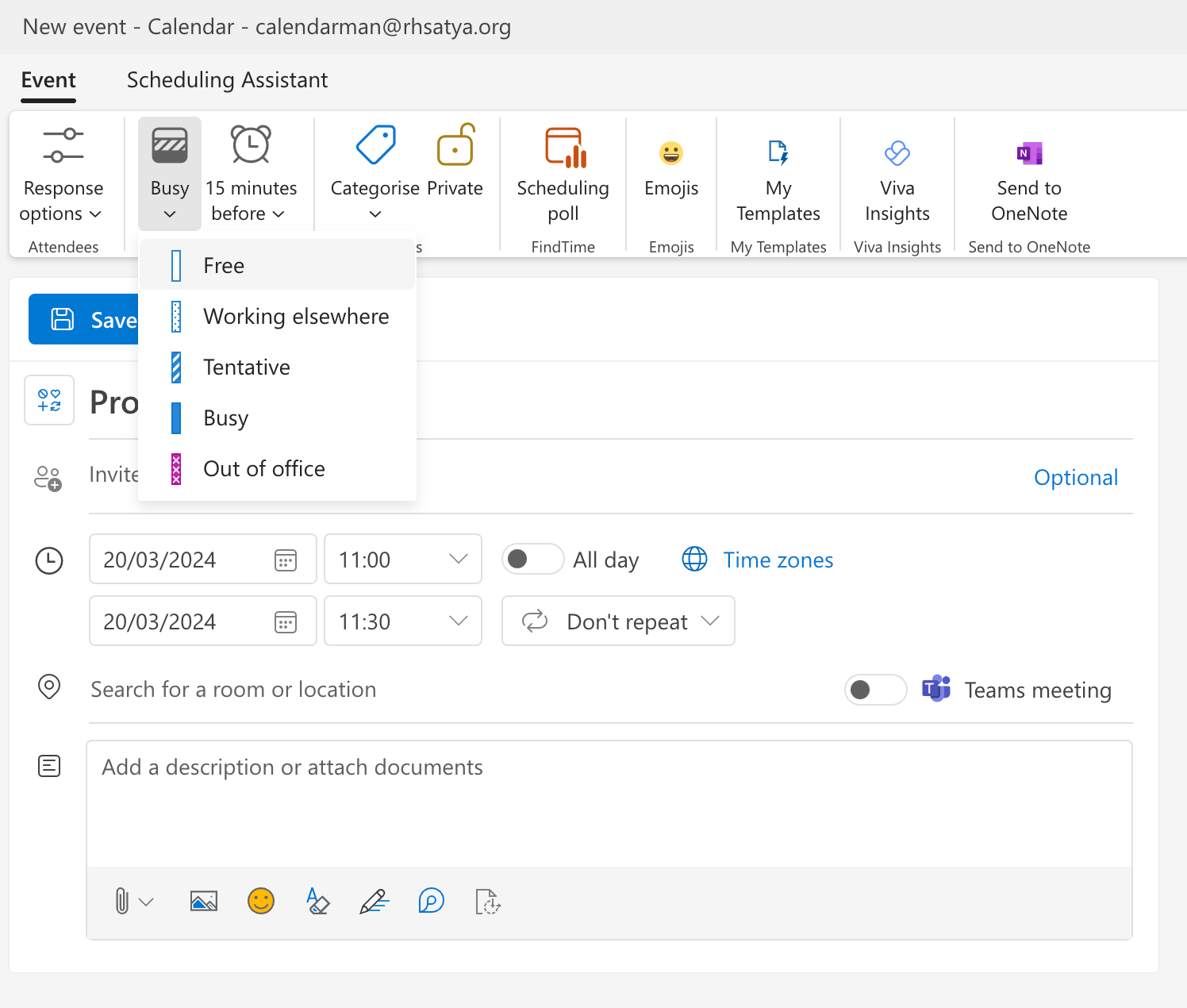
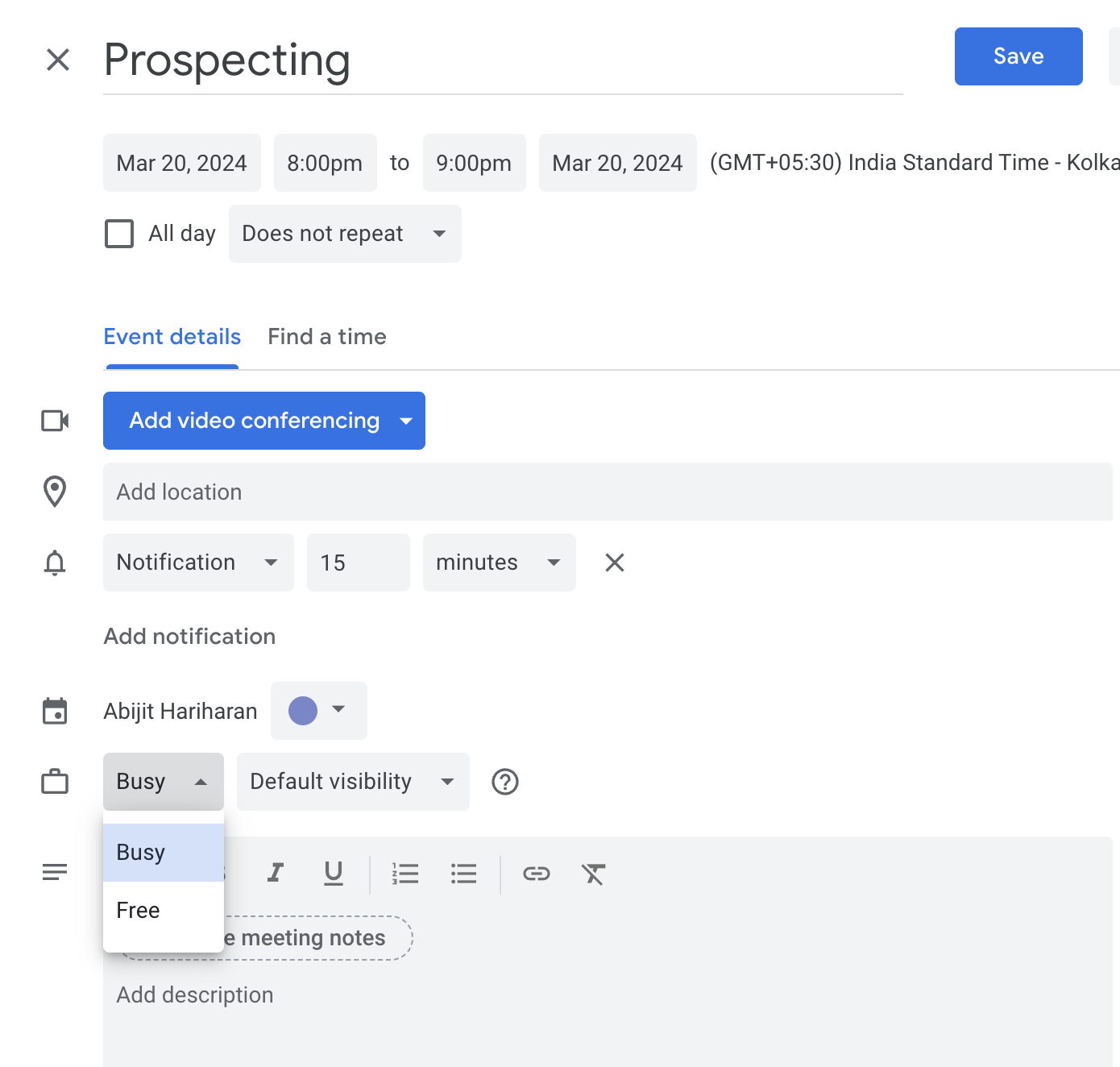
 2. Change the event from **Busy** to **Free**
 ### Outlook Calendar
1. Click on the internal event/block that you want to mark as free and edit it.
### Outlook Calendar
1. Click on the internal event/block that you want to mark as free and edit it.
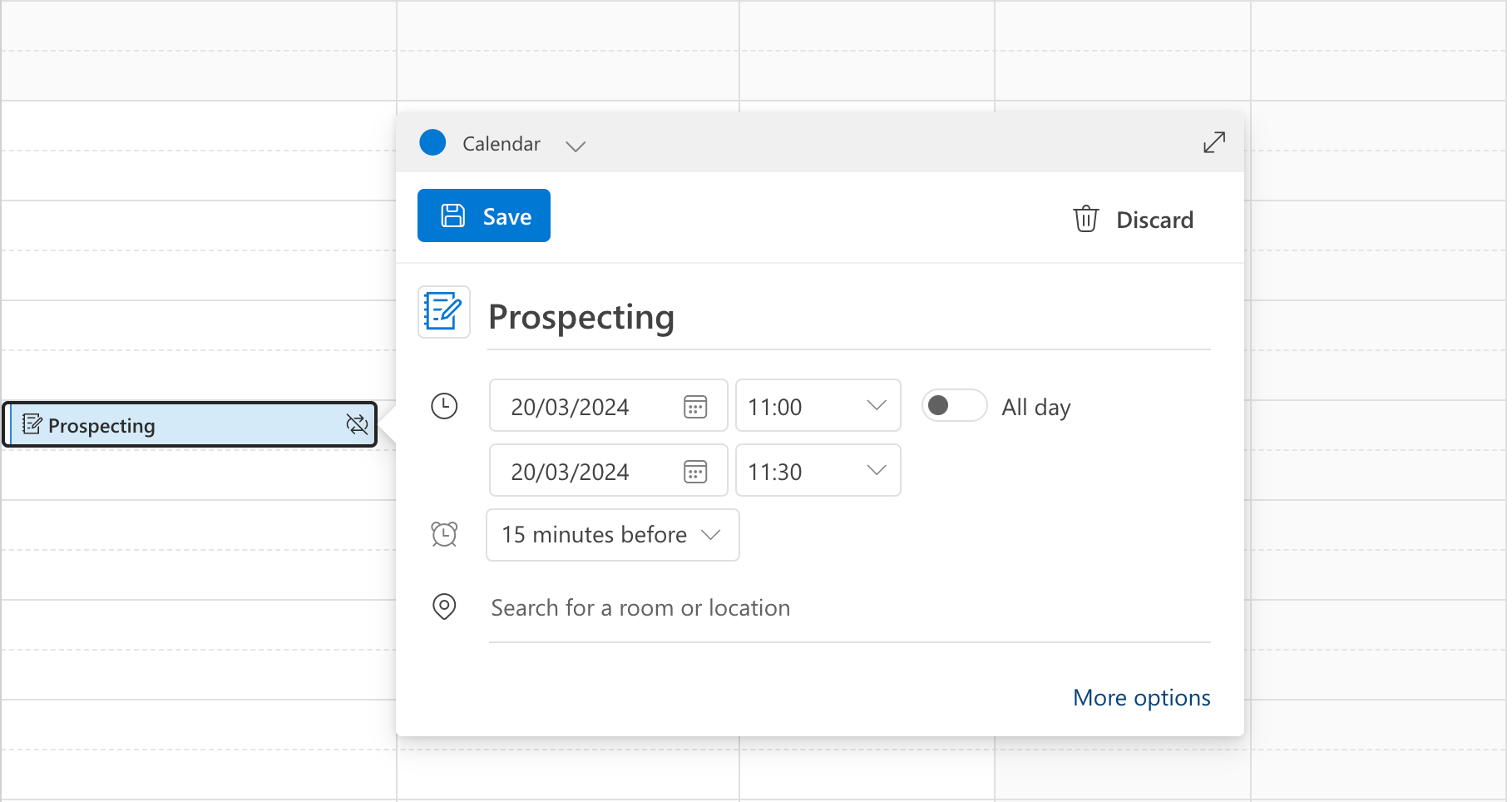 2. Change the event from **Busy** to **Free**