> ## Documentation Index
> Fetch the complete documentation index at: https://help.revenuehero.io/llms.txt
> Use this file to discover all available pages before exploring further.
# How to integrate Microsoft Teams?
> Integrate Microsoft Teams with RevenueHero in 3 simple steps
**NOTE**
If you wish to add a Microsoft Teams web conference link to all your meeting invites sent via RevenueHero, make sure you've already [integrated with Outlook Calendar](/integrations/outlook-calendar)
To connect with Microsoft Teams, follow the below steps:
1. To begin your integration, click on "**Settings**" from the side nav bar and click on "**My Integrations**" under "**Personal Settings**".
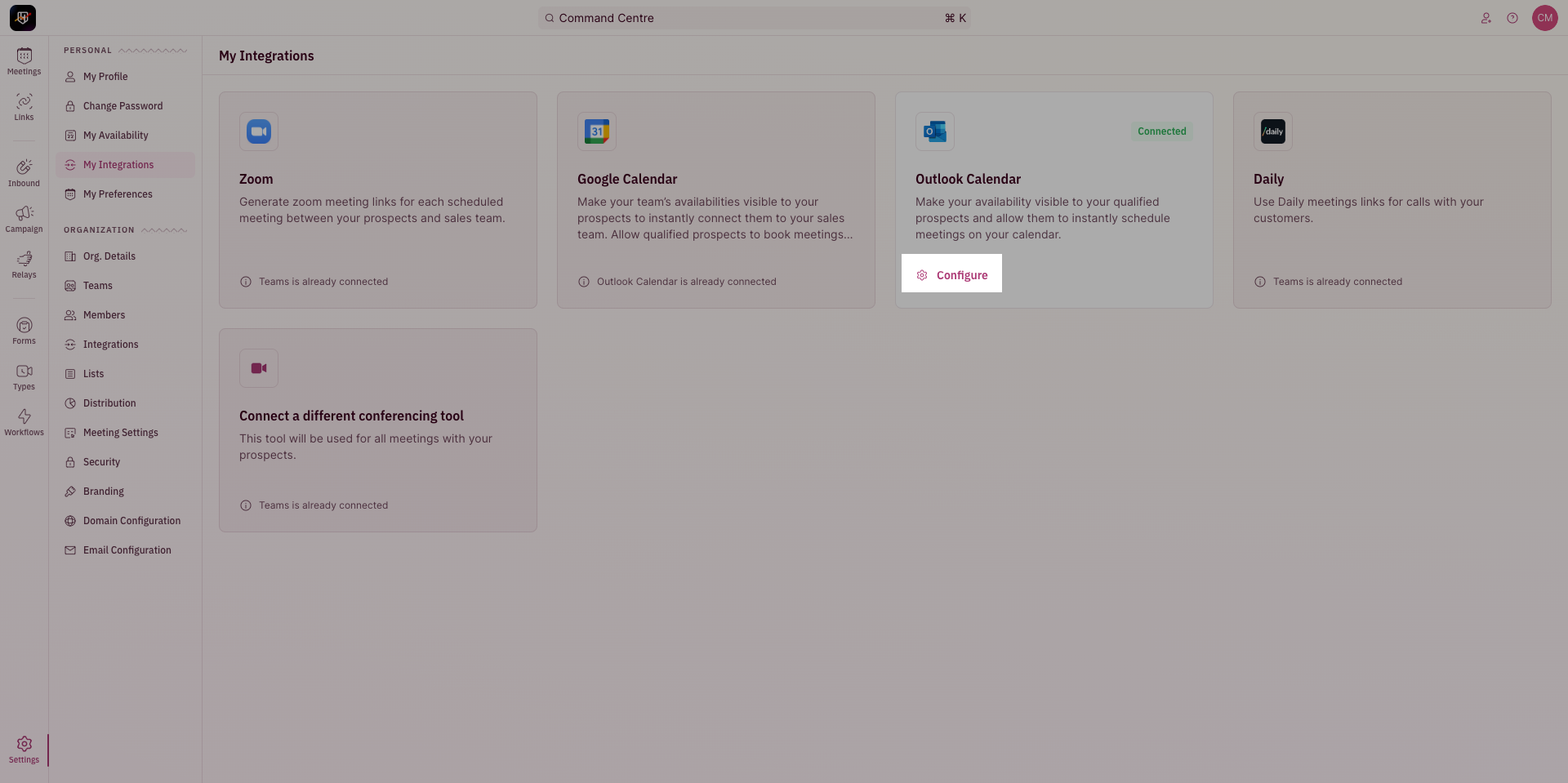
2. On the Outlook Calendar integration card, Click on "**Configure**".
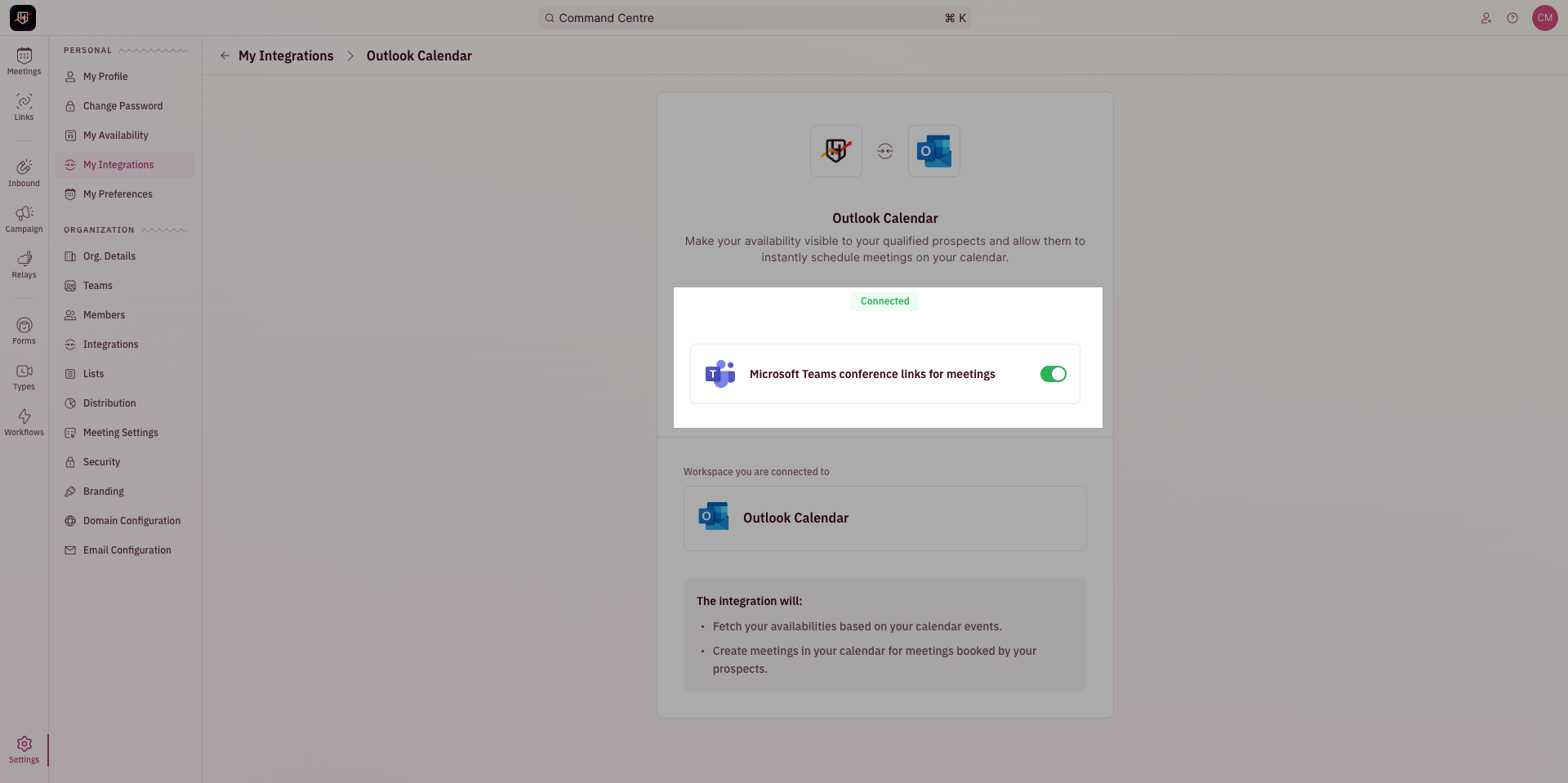
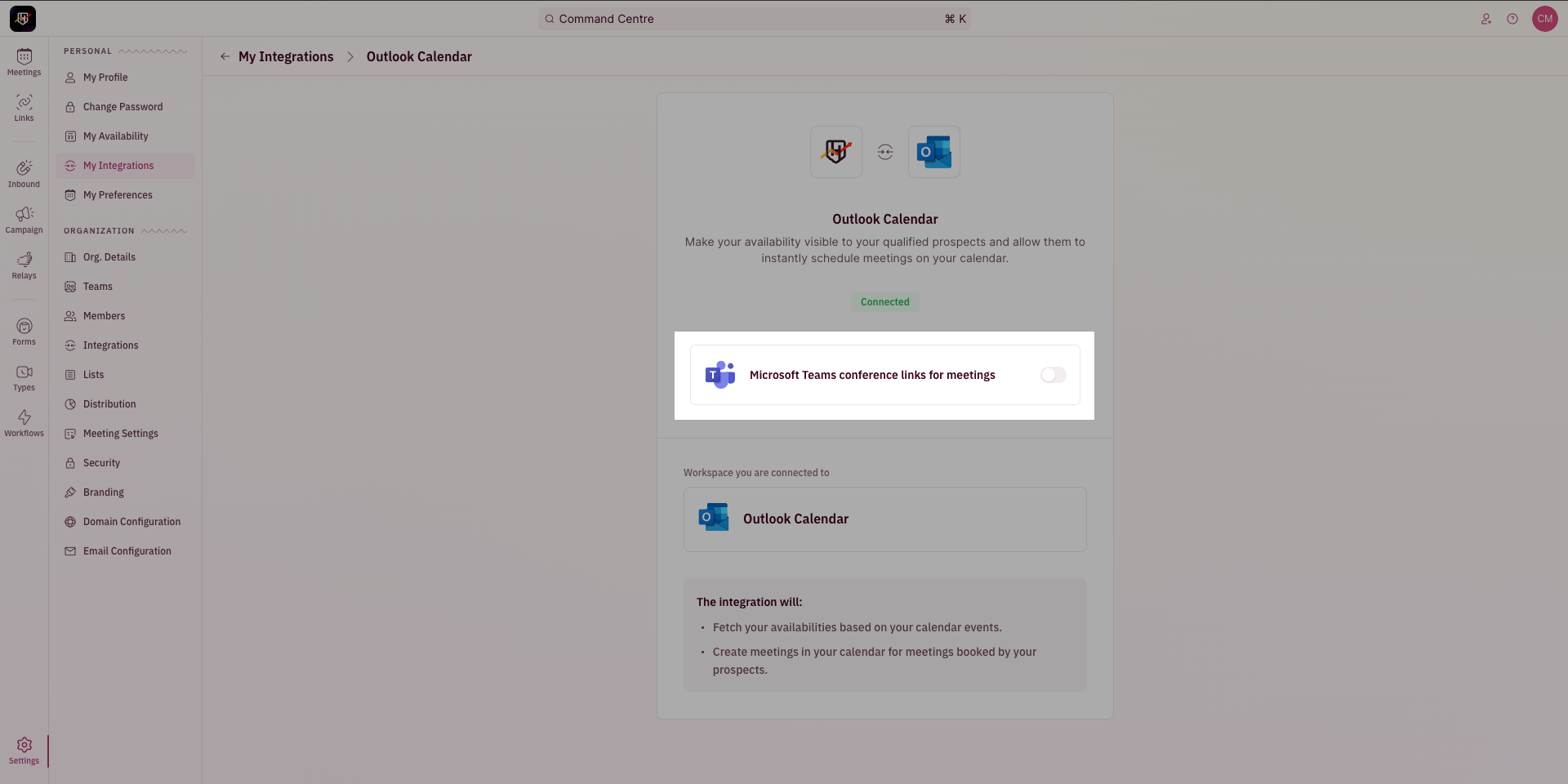
 3. Click on the toggle next to "**Microsoft Teams conference links for meetings**" to turn on Microsoft Teams integration
 Once Microsoft Teams is integrated, all new meeting invites from RevenueHero will have auto-generated Microsoft Teams conference links.