> ## Documentation Index
> Fetch the complete documentation index at: https://help.revenuehero.io/llms.txt
> Use this file to discover all available pages before exploring further.
# How to integrate Outlook calendar?
> Integrate your Outlook calendar with RevenueHero in 5 simple steps
To connect your Outlook Calendar, follow the below steps:
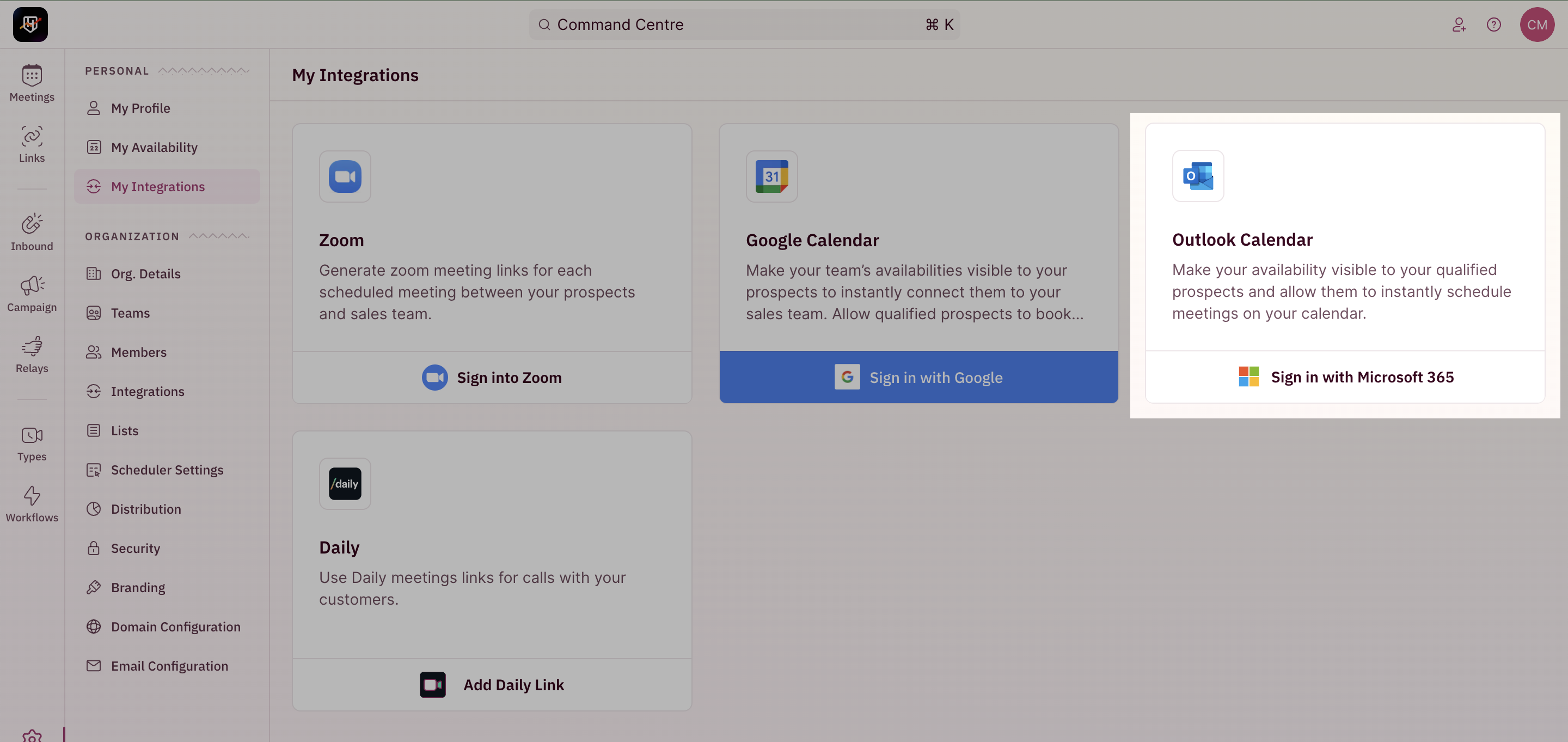
1. To begin your integration, click on "**Settings**" from the side nav bar and click on "**My Integrations**" under "**Personal Settings**".
2. On the Outlook Calendar integration card, Click on "**Sign in with Microsoft 365**".
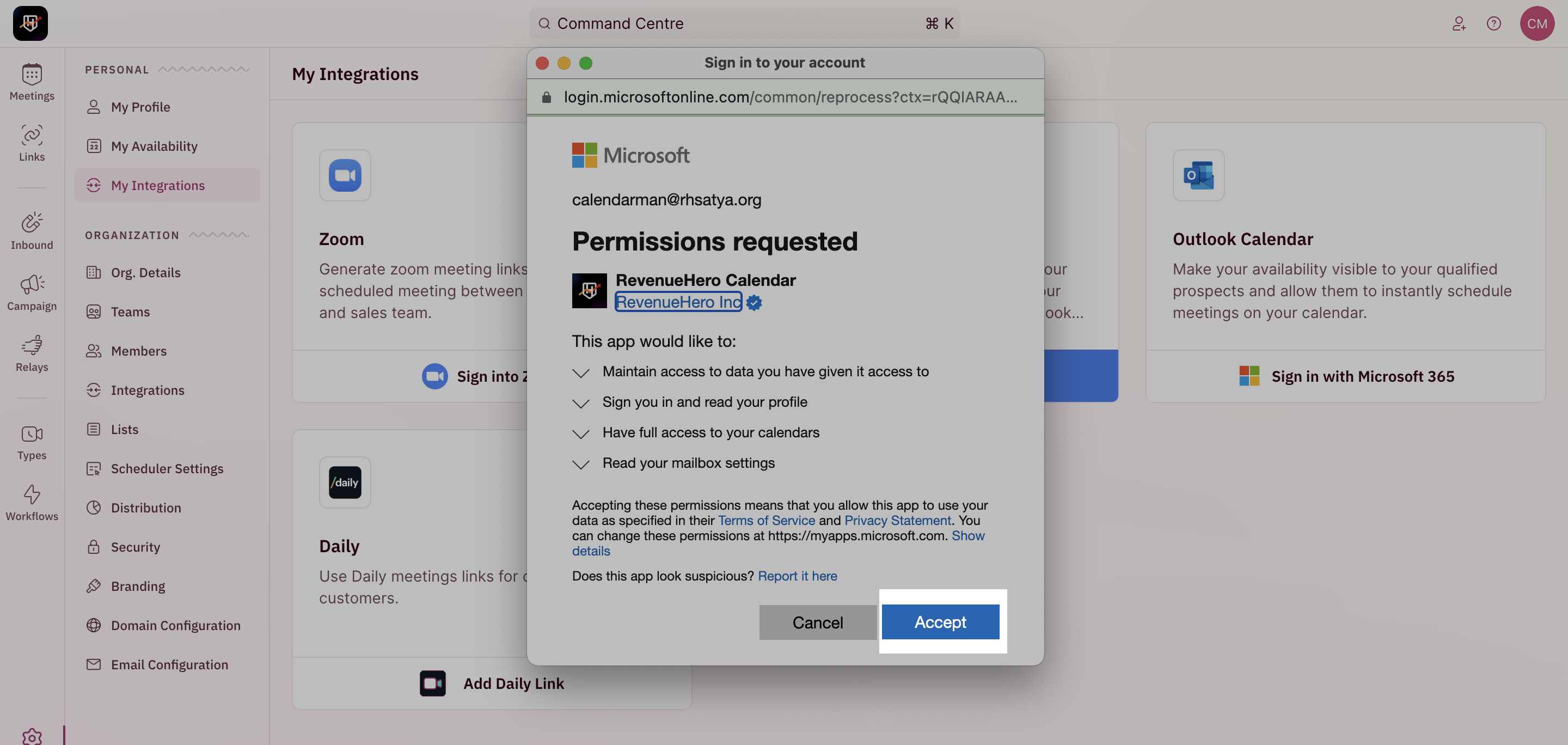
 3. You will be redirected to a new tab to choose the Outlook account that you want to sync with RevenueHero.
4. Once you choose the account, you will be seeing a confirmation page.
5. Click on "**Accept**" to proceed.
3. You will be redirected to a new tab to choose the Outlook account that you want to sync with RevenueHero.
4. Once you choose the account, you will be seeing a confirmation page.
5. Click on "**Accept**" to proceed.
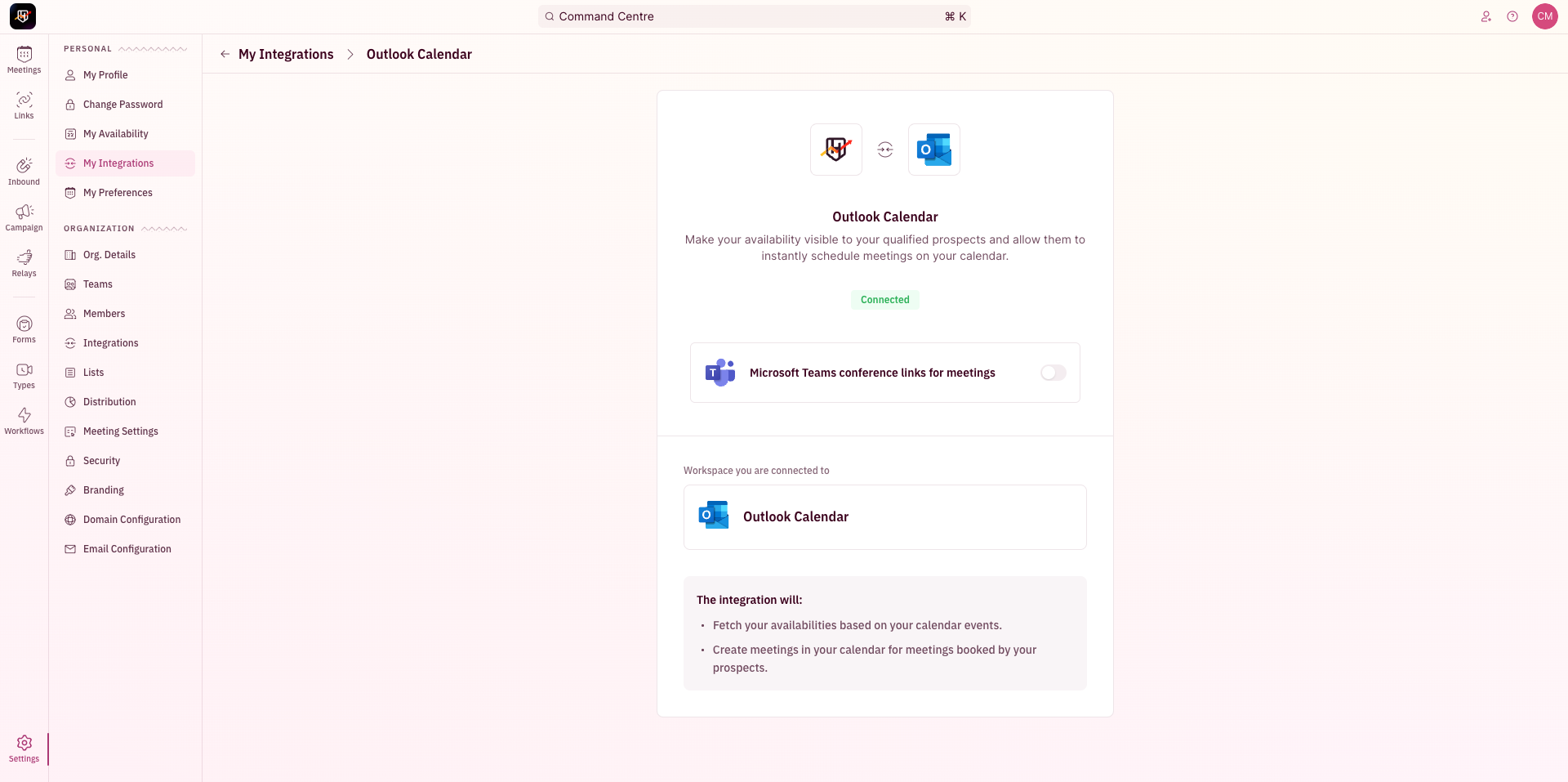
 6. Congratulation! You have successfully integrated your Outlook Calendar with RevenueHero.