> ## Documentation Index
> Fetch the complete documentation index at: https://help.revenuehero.io/llms.txt
> Use this file to discover all available pages before exploring further.
# Meeting Categories in RevenueHero
> Categorize relevant meetings and limit the number of meetings your reps are assigned.
Meeting categories allow you to group related meeting types together and control how many meetings each member is assigned. This ensures fair workload distribution across your team and prevents meeting overload.
# How It Works
* Group related meeting types into categories (e.g., all Discovery calls)
* Choose when limits reset (daily or per round-robin period)
* Set meeting caps for each team member
* RevenueHero automatically enforces these limits during routing
Setting up Meeting Categories is an admin-only function.
**BEFORE WE BEGIN**\
There are a couple of pre-requisites to create your first Meeting Category and setup meeting limits
> * All the **meeting types** you want to include when setting caps on the number of meetings assigned are already created.
> * Each member for whom you want to limit the meetings to has a **connected calendar**.
* Go to **Settings** → Under **Organization Settings**, click **Meeting Categories**
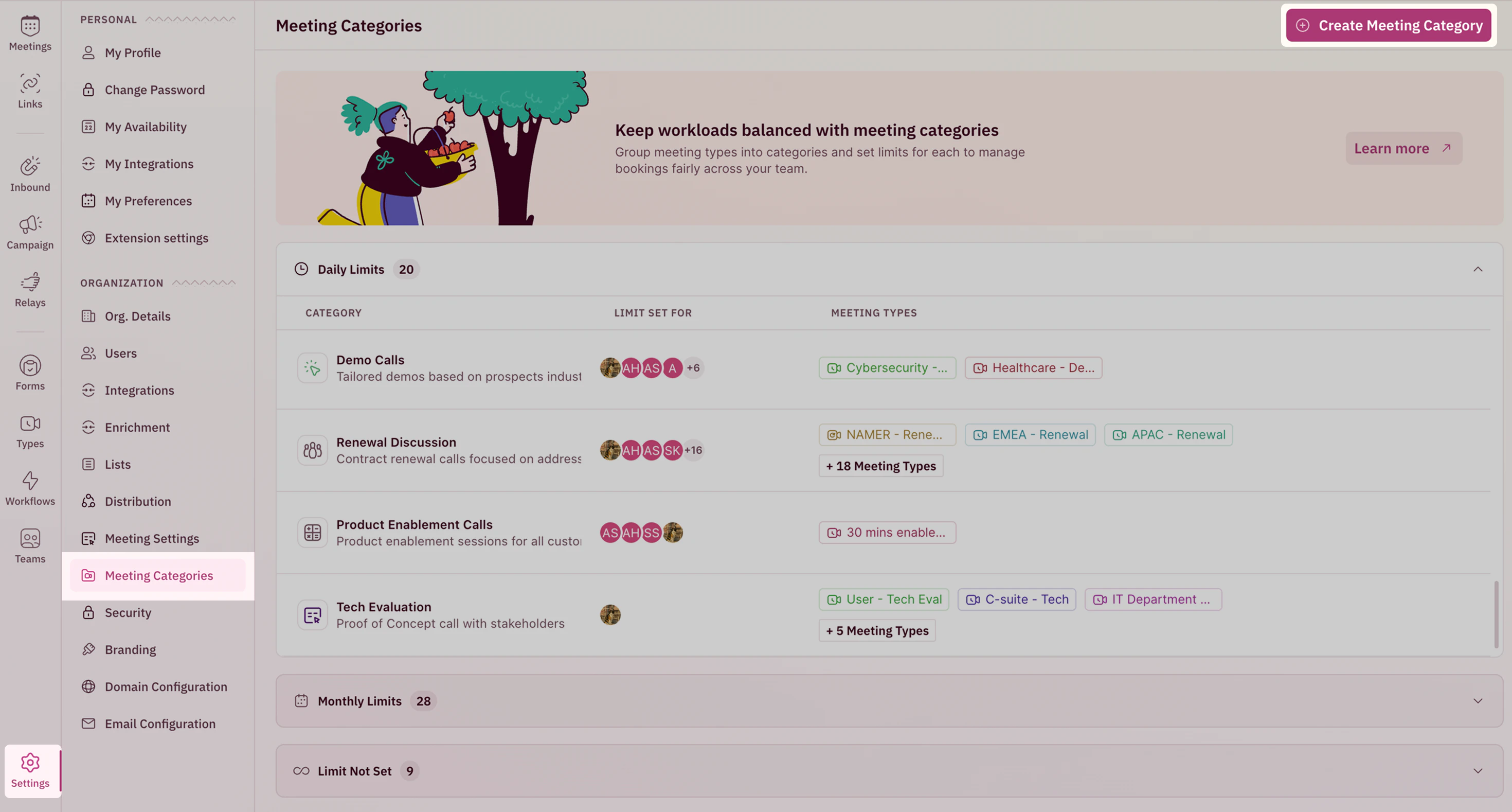 * Click **Create Meeting Category** .
* Add a **Name** and choose a relevant **Icon** and **Description** (optional but recommended) for your meeting category to ensure clarity and easy identification.
* Click **Create Meeting Category** .
* Add a **Name** and choose a relevant **Icon** and **Description** (optional but recommended) for your meeting category to ensure clarity and easy identification.
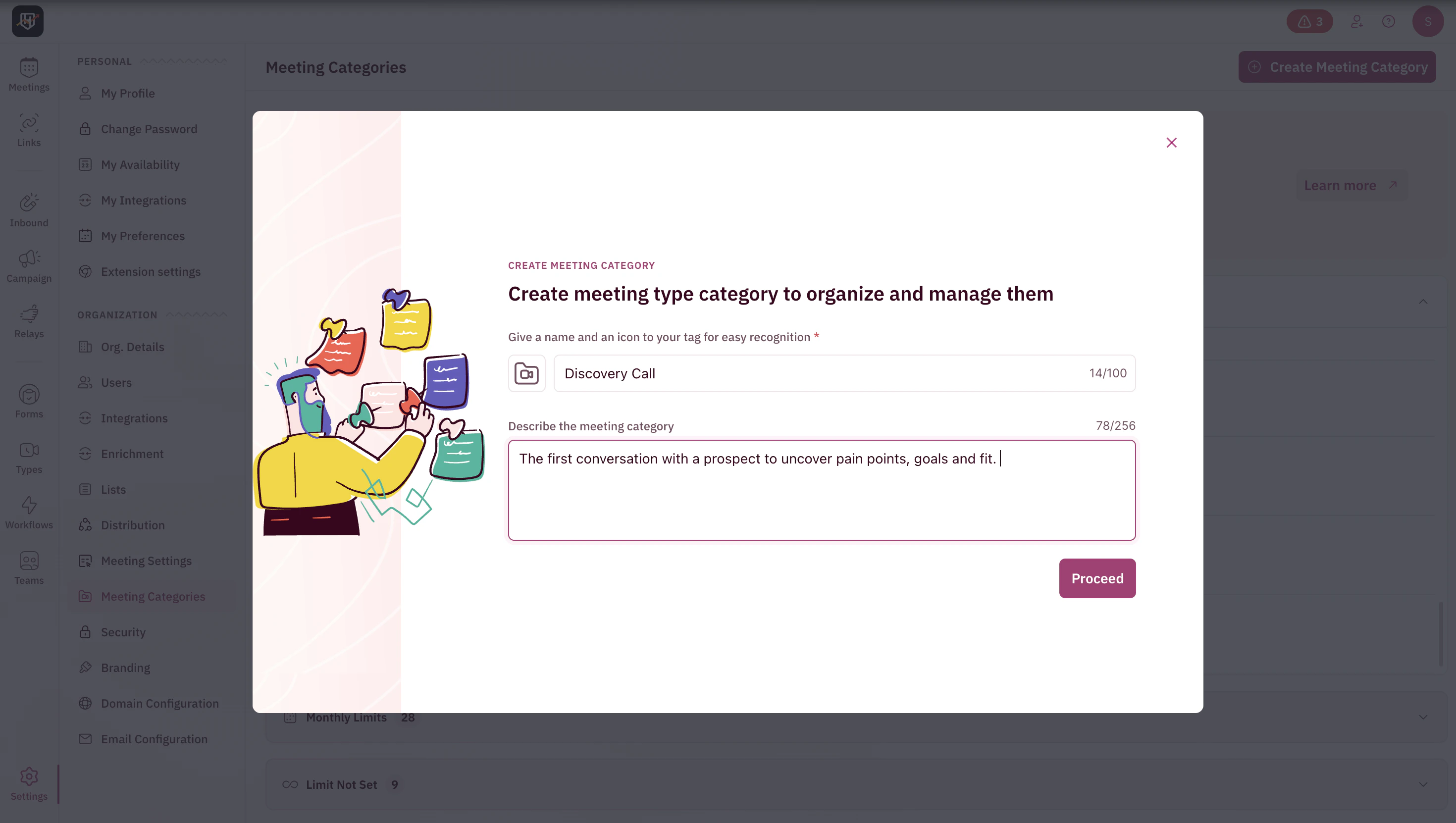 * Once done, click **Proceed** to continue.
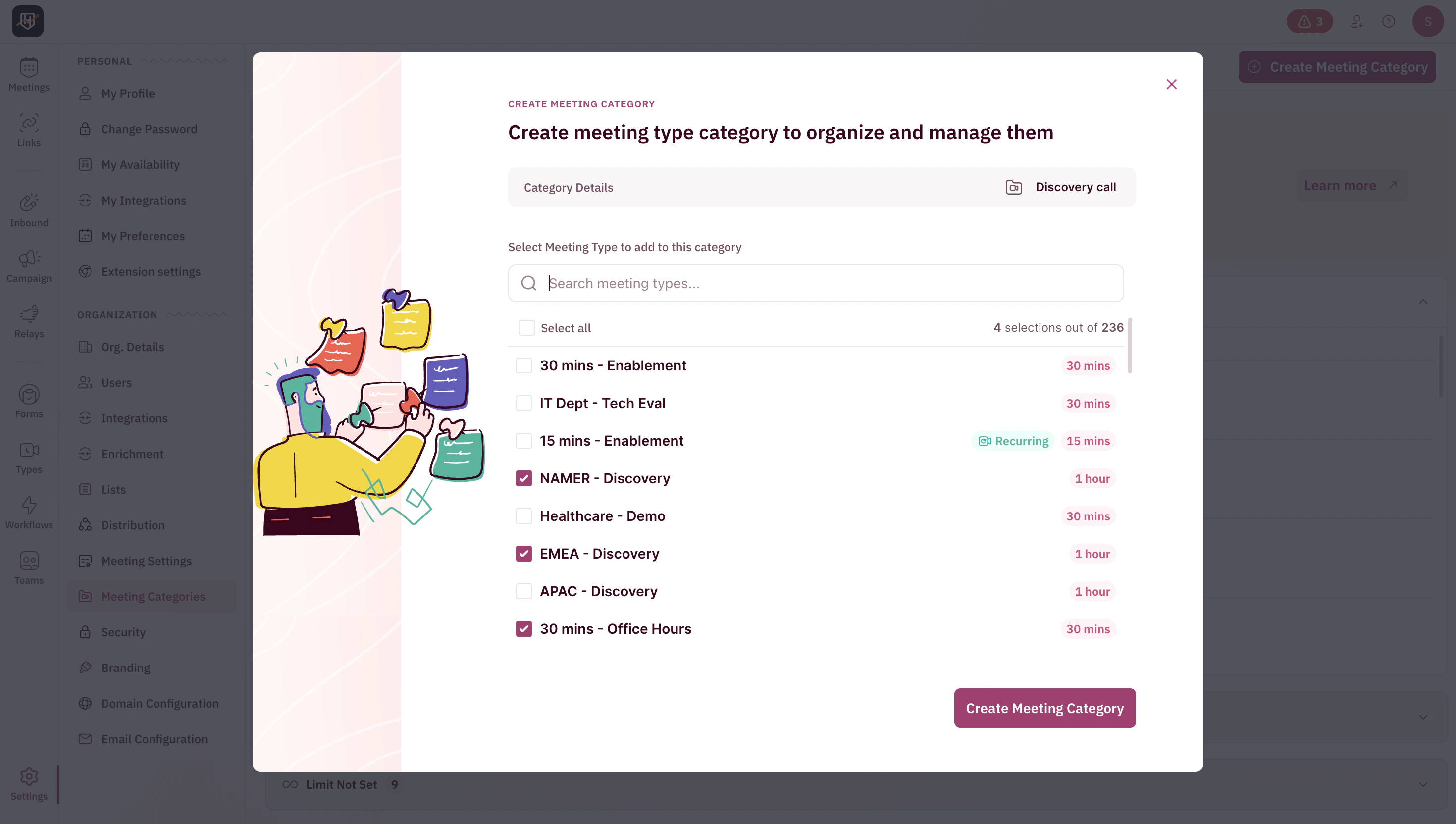
* Select all **meeting types** that belong in this category and click **Create Meeting Category**.
Group logically. Combine all meetings used for the same purpose so single cap applies across all. For example, group Discovery (NAMER), Discovery (EMEA) together.
* Once done, click **Proceed** to continue.
* Select all **meeting types** that belong in this category and click **Create Meeting Category**.
Group logically. Combine all meetings used for the same purpose so single cap applies across all. For example, group Discovery (NAMER), Discovery (EMEA) together.
 🥳 You have now successfully created the meeting category!
Limit type is the period in which you want to cap the meeting assignments to your organization’s members.
* Choose between:
**Set Daily Limit** - Ideal for steady daily inbound volume. Limit gets updated every midnight. \
**Set limit for Round-Robin Period** - Ideal for uneven or monthly/quarterly booking cycles (e.g., end-of-quarter spikes). The meeting limit gets updated at midnight on the last day of the chosen period.
🥳 You have now successfully created the meeting category!
Limit type is the period in which you want to cap the meeting assignments to your organization’s members.
* Choose between:
**Set Daily Limit** - Ideal for steady daily inbound volume. Limit gets updated every midnight. \
**Set limit for Round-Robin Period** - Ideal for uneven or monthly/quarterly booking cycles (e.g., end-of-quarter spikes). The meeting limit gets updated at midnight on the last day of the chosen period.
 You can switch limit types anytime, but changes apply only to new assignments. The past meetings will remain unaffected.
You will then be directed to the **Set Limits** modal.
* Select all the members you want to set limits for and click **Next**.
You can switch limit types anytime, but changes apply only to new assignments. The past meetings will remain unaffected.
You will then be directed to the **Set Limits** modal.
* Select all the members you want to set limits for and click **Next**.
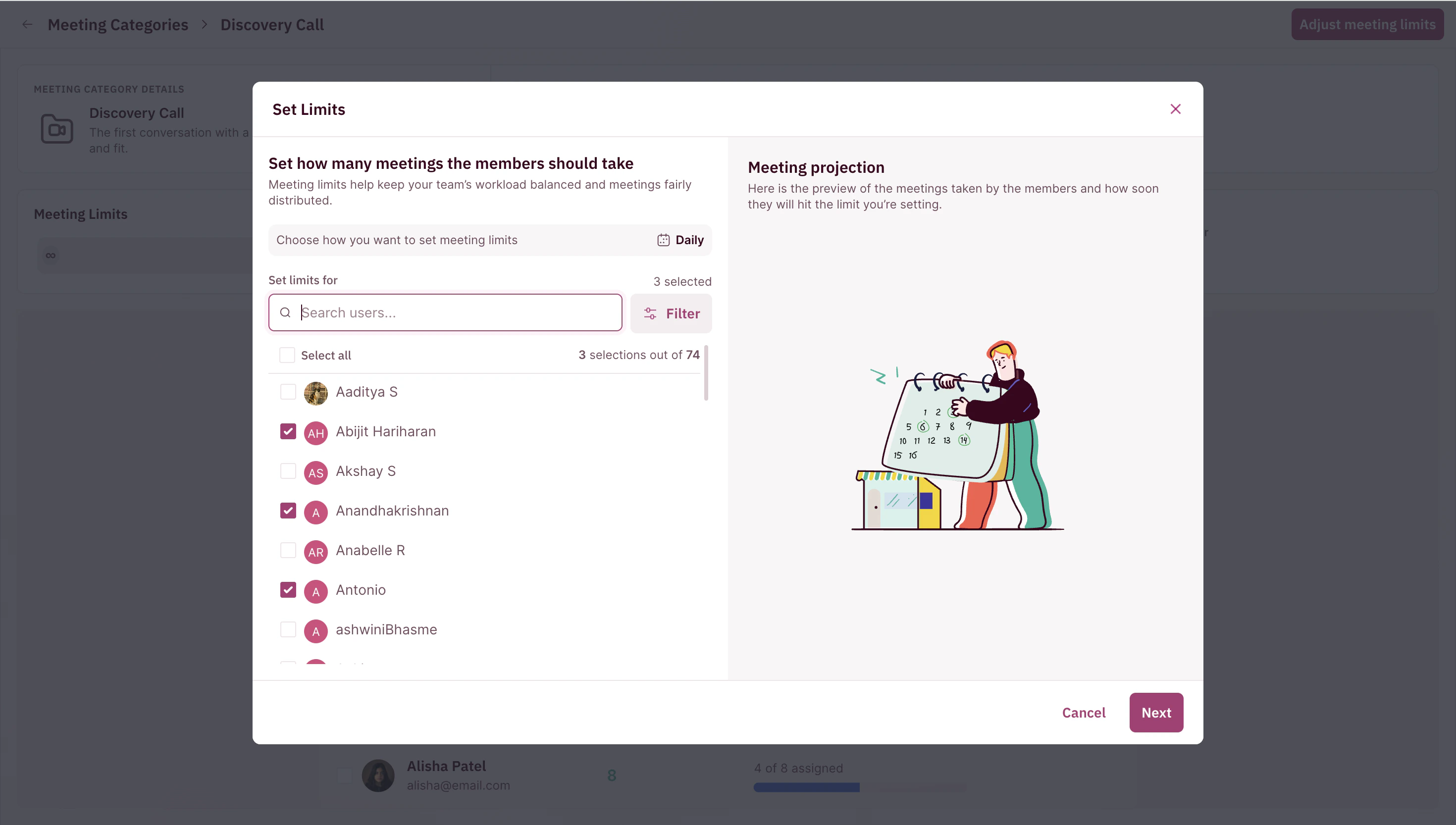 If you want to select members within certain Teams, you can view them by clicking on the **Filter** option and searching for the Team name.
* Enter how many meetings each member can take from this meeting category within the period you selected earlier.
If you want to select members within certain Teams, you can view them by clicking on the **Filter** option and searching for the Team name.
* Enter how many meetings each member can take from this meeting category within the period you selected earlier.
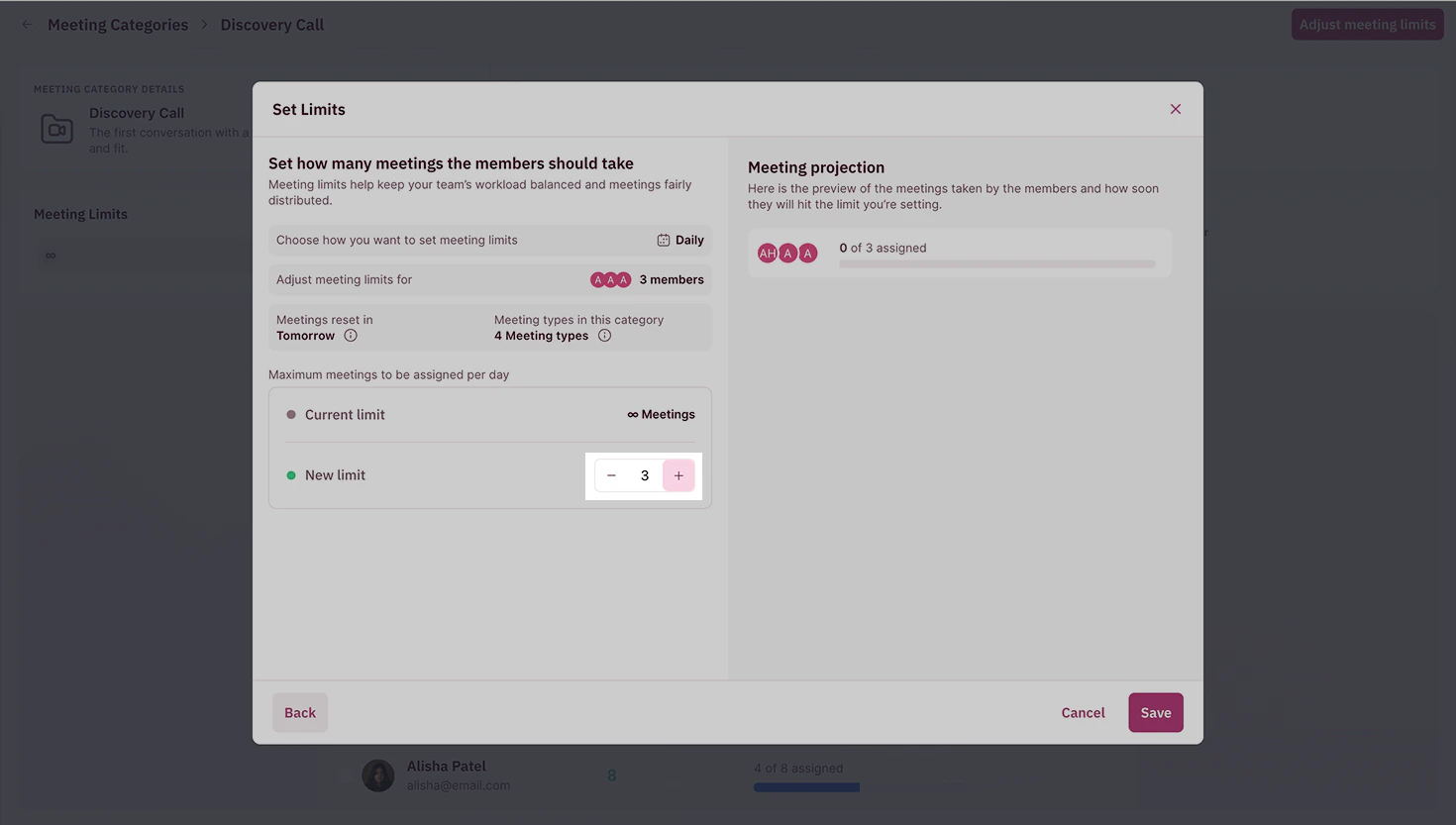 * Review the **live projection panel** to see how close each member is to their cap before saving.
If you want to add different meeting limits for each member, you can do so later once you have finished setting up the Meeting Categories.
* Click **Save**.
* You can choose to add more members if you want, to limit the number of meetings they get assigned in this category or click on **Done.**
* Review the **live projection panel** to see how close each member is to their cap before saving.
If you want to add different meeting limits for each member, you can do so later once you have finished setting up the Meeting Categories.
* Click **Save**.
* You can choose to add more members if you want, to limit the number of meetings they get assigned in this category or click on **Done.**
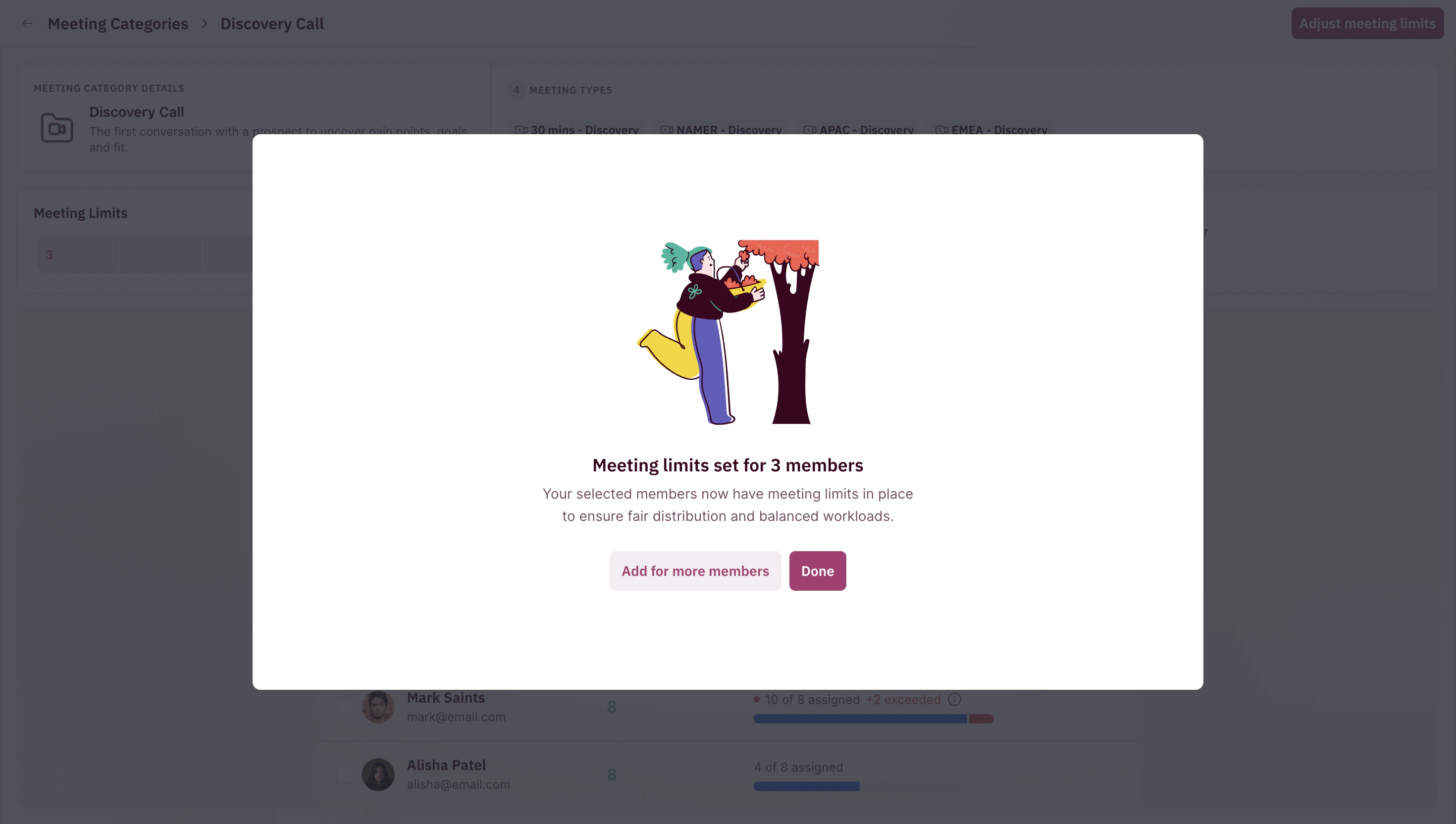 If limits feel too restrictive or loose, you can return anytime to adjust the cap or change the limit. Use the projection panel to preview the effect before saving.
After your limits are set, you can review and adjust them anytime.
* Open your **Meeting Category** to see:
* Category details and included meeting types
* Limit type in use
* Members for whom meeting limits have been set using this Meeting Category
* Each member’s current cap
* You can choose to edit any of the above. Hover over the relevant section and click on the **Edit** button.
If limits feel too restrictive or loose, you can return anytime to adjust the cap or change the limit. Use the projection panel to preview the effect before saving.
After your limits are set, you can review and adjust them anytime.
* Open your **Meeting Category** to see:
* Category details and included meeting types
* Limit type in use
* Members for whom meeting limits have been set using this Meeting Category
* Each member’s current cap
* You can choose to edit any of the above. Hover over the relevant section and click on the **Edit** button.
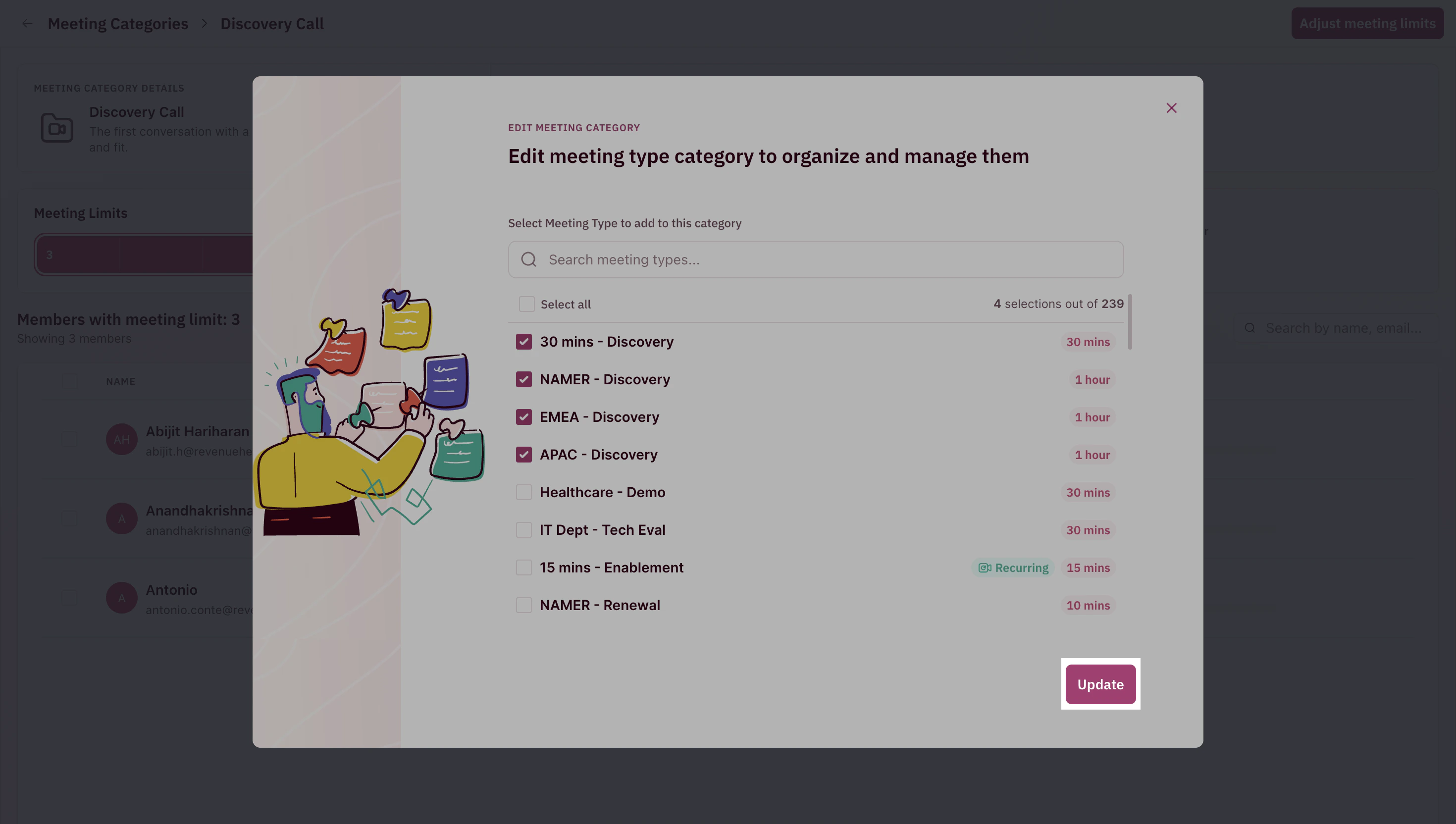
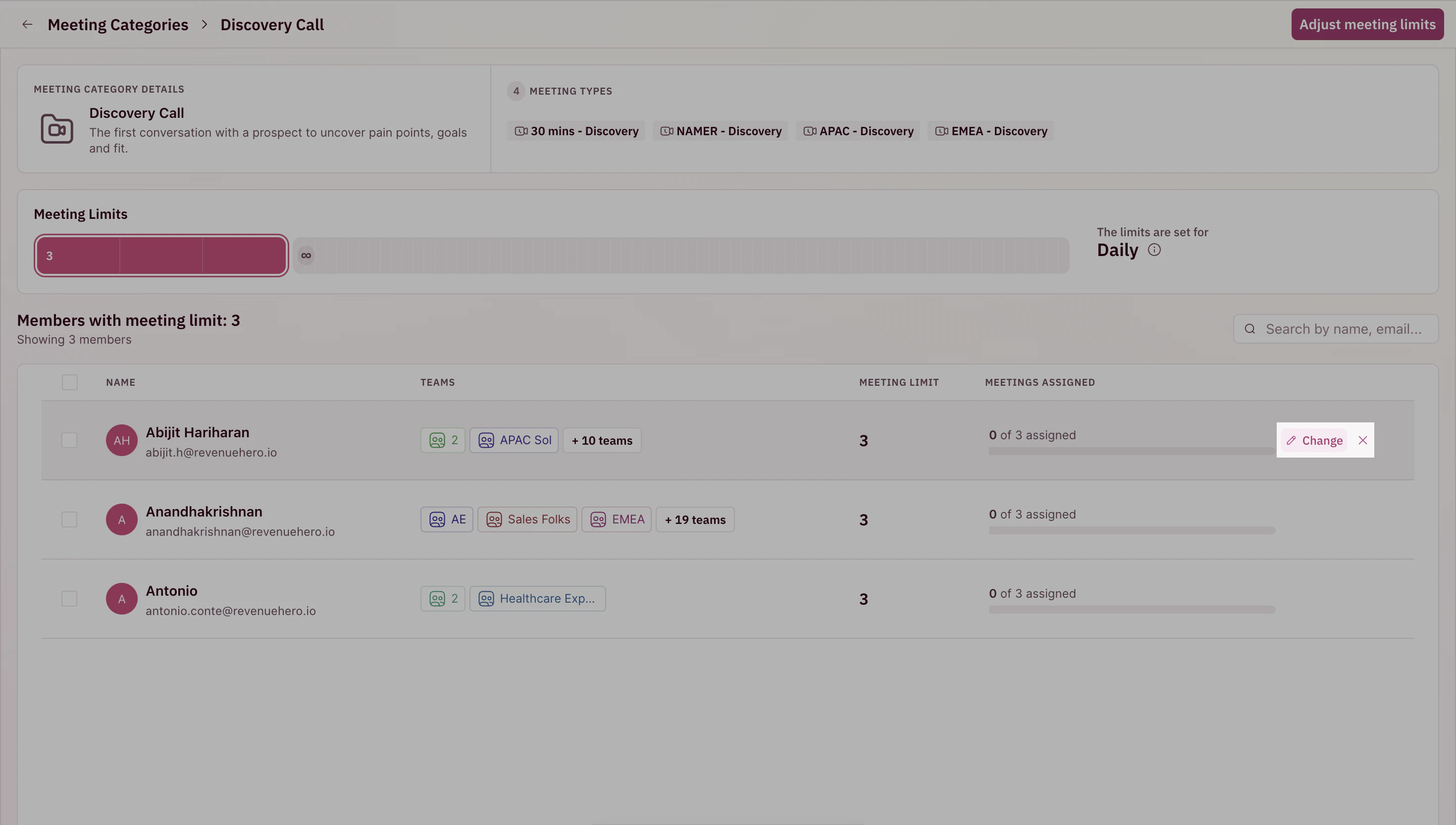 * Always remember to **Update** any changes you make to the settings.
 # **How routing honors limits**
RevenueHero checks limits dynamically every time a meeting is assigned:
| Situation | Behavior |
| ------------------- | -------------------------------------------------- |
| AE is under cap | Eligible for new meeting assignment |
| AE has hit cap | Skipped in routing |
| AE is out-of-office | Automatically removed from queue based on calendar |
If reschedules occur, don’t worry, RevenueHero tracks meetings by assignment, so rescheduled meetings don’t count twice against the cap.
# **Best practices**
* **Start simple**. Most teams begin with daily caps for high-volume meeting types, then refine them based on data.
* **Adjust regularly.** Compare assigned vs. completed meetings monthly and tweak caps as needed.
* Use the **Distribution Report** to see how meetings are currently being assigned across your team. This helps you fine-tune caps for better balance.
* **Leverage projections.** The live projection tool helps prevent over- or under-capping
* **Keep an eye on OOO status.** AEs who are out-of-office are automatically excluded from routing, no manual action required.
If an AE isn’t receiving meetings despite being under their cap, ensure:
* They’re included in an active router rule.
* Their calendar is connected.
* They aren’t marked as *Out of Office*.
# **How routing honors limits**
RevenueHero checks limits dynamically every time a meeting is assigned:
| Situation | Behavior |
| ------------------- | -------------------------------------------------- |
| AE is under cap | Eligible for new meeting assignment |
| AE has hit cap | Skipped in routing |
| AE is out-of-office | Automatically removed from queue based on calendar |
If reschedules occur, don’t worry, RevenueHero tracks meetings by assignment, so rescheduled meetings don’t count twice against the cap.
# **Best practices**
* **Start simple**. Most teams begin with daily caps for high-volume meeting types, then refine them based on data.
* **Adjust regularly.** Compare assigned vs. completed meetings monthly and tweak caps as needed.
* Use the **Distribution Report** to see how meetings are currently being assigned across your team. This helps you fine-tune caps for better balance.
* **Leverage projections.** The live projection tool helps prevent over- or under-capping
* **Keep an eye on OOO status.** AEs who are out-of-office are automatically excluded from routing, no manual action required.
If an AE isn’t receiving meetings despite being under their cap, ensure:
* They’re included in an active router rule.
* Their calendar is connected.
* They aren’t marked as *Out of Office*.