> ## Documentation Index
> Fetch the complete documentation index at: https://help.revenuehero.io/llms.txt
> Use this file to discover all available pages before exploring further.
# How to limit how often a prospect or company can book?
> Cap how many meetings a single prospect or a whole company can book.
When a single prospect books several meetings or multiple prospects from the same company book meetings within a short span of time, they are routed to different reps. Now two or three of your reps are prepping to talk to the same account, and nobody knows who actually owns the conversation. Sometimes it isn't even intentional: a prospect forgets they already have a meeting and books another.
Prospect limits let you control both. You decide how often any one person or company can book a meeting category, and whether someone who already has an active meeting gets a nudge before booking again.
**BEFORE YOU BEGIN**
Prospect limits are set per meeting category, so you need a category with at least one meeting type in it. [Create a meeting category](/meeting-categories/meeting-categories) first if you haven't.
## How prospect limits work
Prospect limits includes two independent controls that live in meeting category.
* **Prevent Duplicate Bookings** checks whether a prospect already has an active meeting. If they do, they're asked whether they really need a new one before they can book.
* **Limit Prospect Bookings** sets a hard cap. Once a prospect (or their company) hits the number you set for the period you choose, they can't book that category again until the period resets.
Because both settings sit on the meeting category, they apply to every meeting type inside it. They work separately from **Adjust meeting limits**, which caps how many meetings each of your *reps* can take. Prospect limits govern the person booking. Meeting limits govern the person being booked.
## Open prospect limits
### Step 1: Open a meeting category
In the left sidebar, click **Settings → Meeting Categories**, then click into the category you want to limit.
### Step 2: Click Manage prospect limits
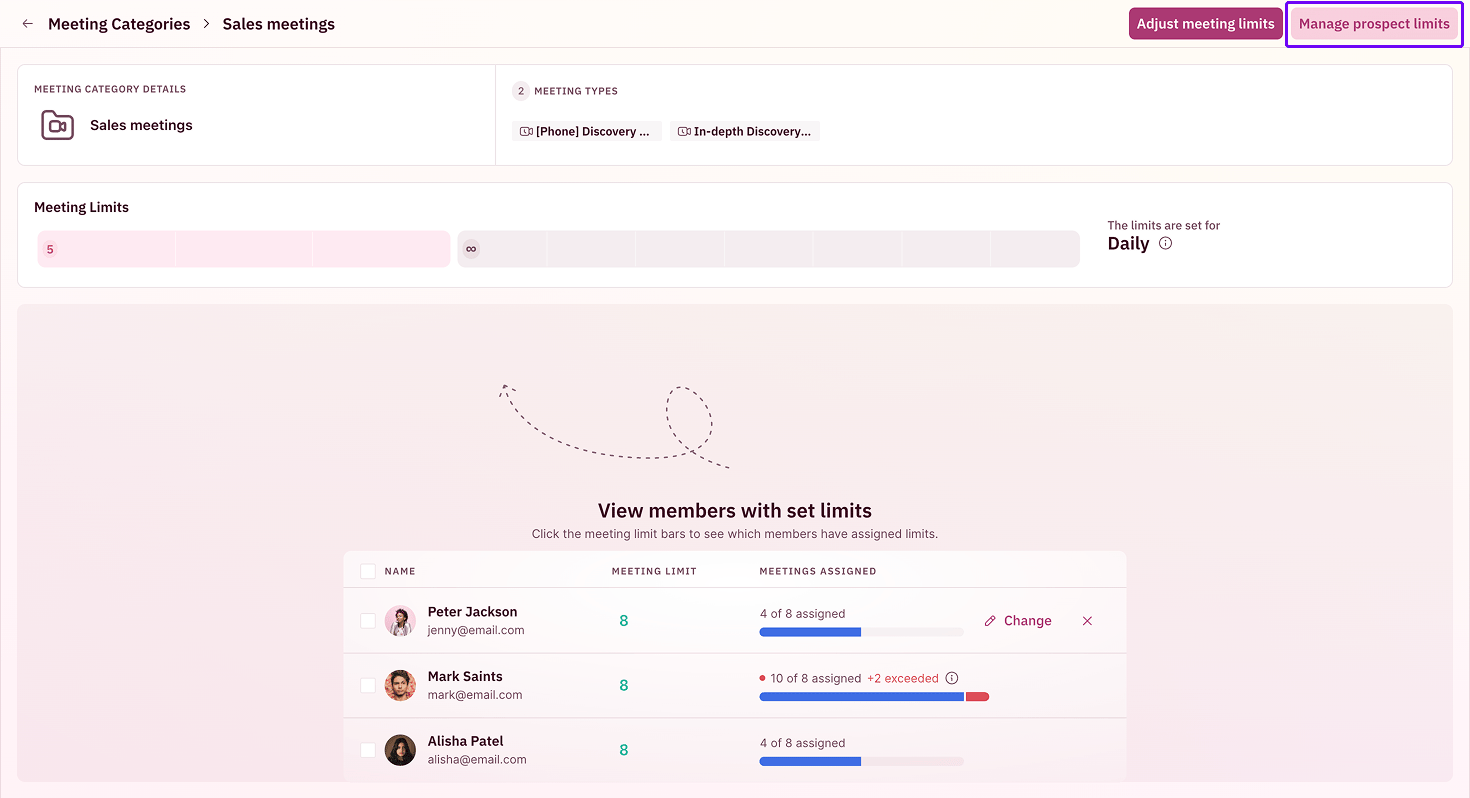
At the top right of the category, click **Manage prospect limits**. This opens the Prospect limits panel where both controls live.
 ## Prevent duplicate bookings
Toggle on **Prevent Duplicate Bookings**. When a prospect who already has an active meeting tries to book again, they're asked whether they actually need a new one instead of silently creating a second booking.
This is the setting that stops accidental double-bookings, the prospect who books, forgets, and books again. It keeps your reps' calendars honest and spares them from showing up to a meeting the prospect didn't mean to take twice.
## Prevent duplicate bookings
Toggle on **Prevent Duplicate Bookings**. When a prospect who already has an active meeting tries to book again, they're asked whether they actually need a new one instead of silently creating a second booking.
This is the setting that stops accidental double-bookings, the prospect who books, forgets, and books again. It keeps your reps' calendars honest and spares them from showing up to a meeting the prospect didn't mean to take twice.
 ## Limit prospect bookings
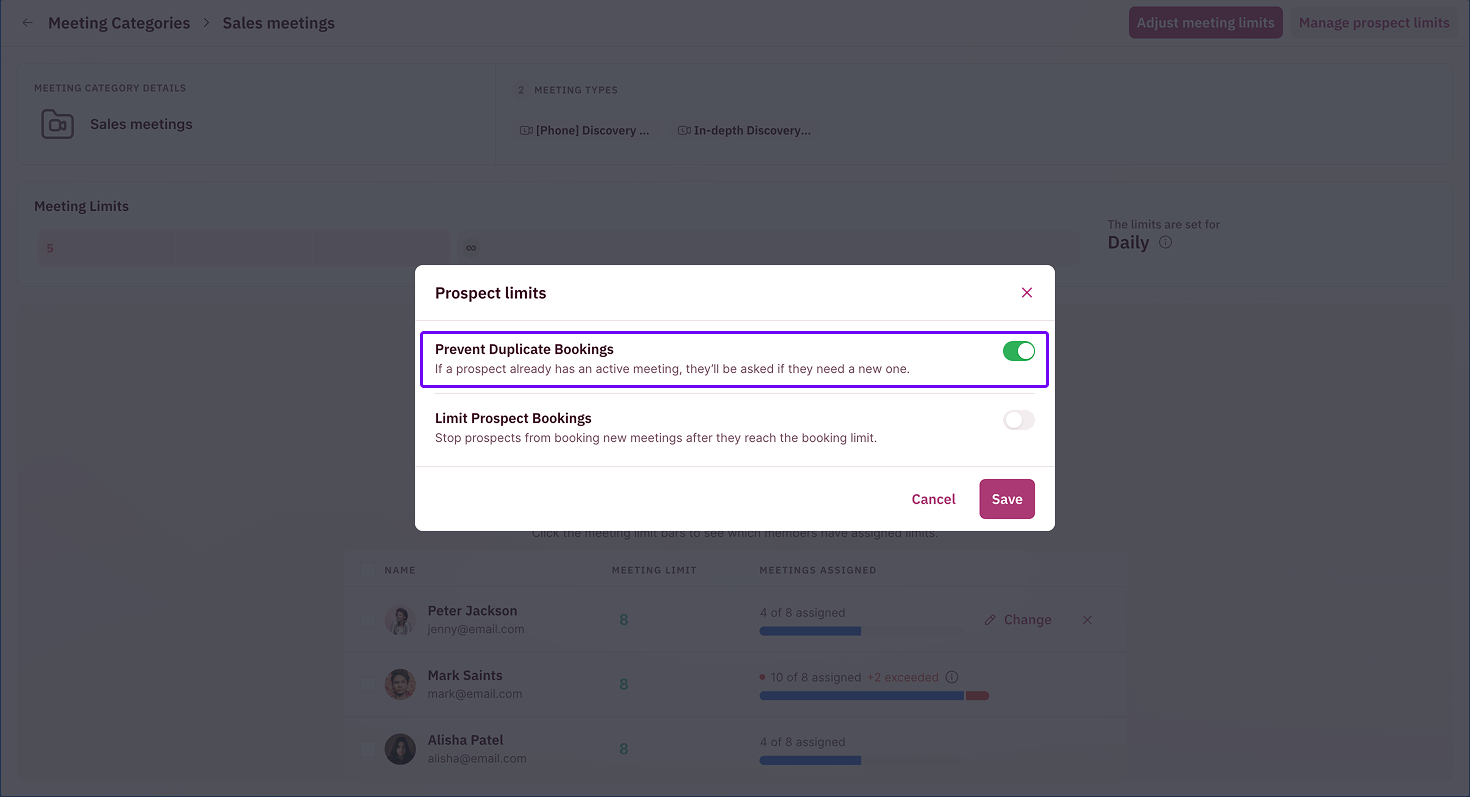
Toggle on **Limit Prospect Bookings** to stop prospects from booking once they reach a number you set.
### Step 1: Choose how to match returning prospects
Under **Match returning prospects by**, pick how RevenueHero recognizes someone who has booked before:
* **Email** caps a single person. Each individual email address gets its own allowance.
* **Domain** caps a whole company. Every booking from the same email domain counts against one shared allowance, so five people from the same account can't each book separately around the limit.
### Step 2: Set the limit and period
Enter the number of meetings you'll allow, then choose the period it applies to: **day**, **week**, **month**, or **quarter**. For example, two per week by domain means one company can book this category twice in a week, no matter how many people from that company try.
## Limit prospect bookings
Toggle on **Limit Prospect Bookings** to stop prospects from booking once they reach a number you set.
### Step 1: Choose how to match returning prospects
Under **Match returning prospects by**, pick how RevenueHero recognizes someone who has booked before:
* **Email** caps a single person. Each individual email address gets its own allowance.
* **Domain** caps a whole company. Every booking from the same email domain counts against one shared allowance, so five people from the same account can't each book separately around the limit.
### Step 2: Set the limit and period
Enter the number of meetings you'll allow, then choose the period it applies to: **day**, **week**, **month**, or **quarter**. For example, two per week by domain means one company can book this category twice in a week, no matter how many people from that company try.
 ### Step 3: Save
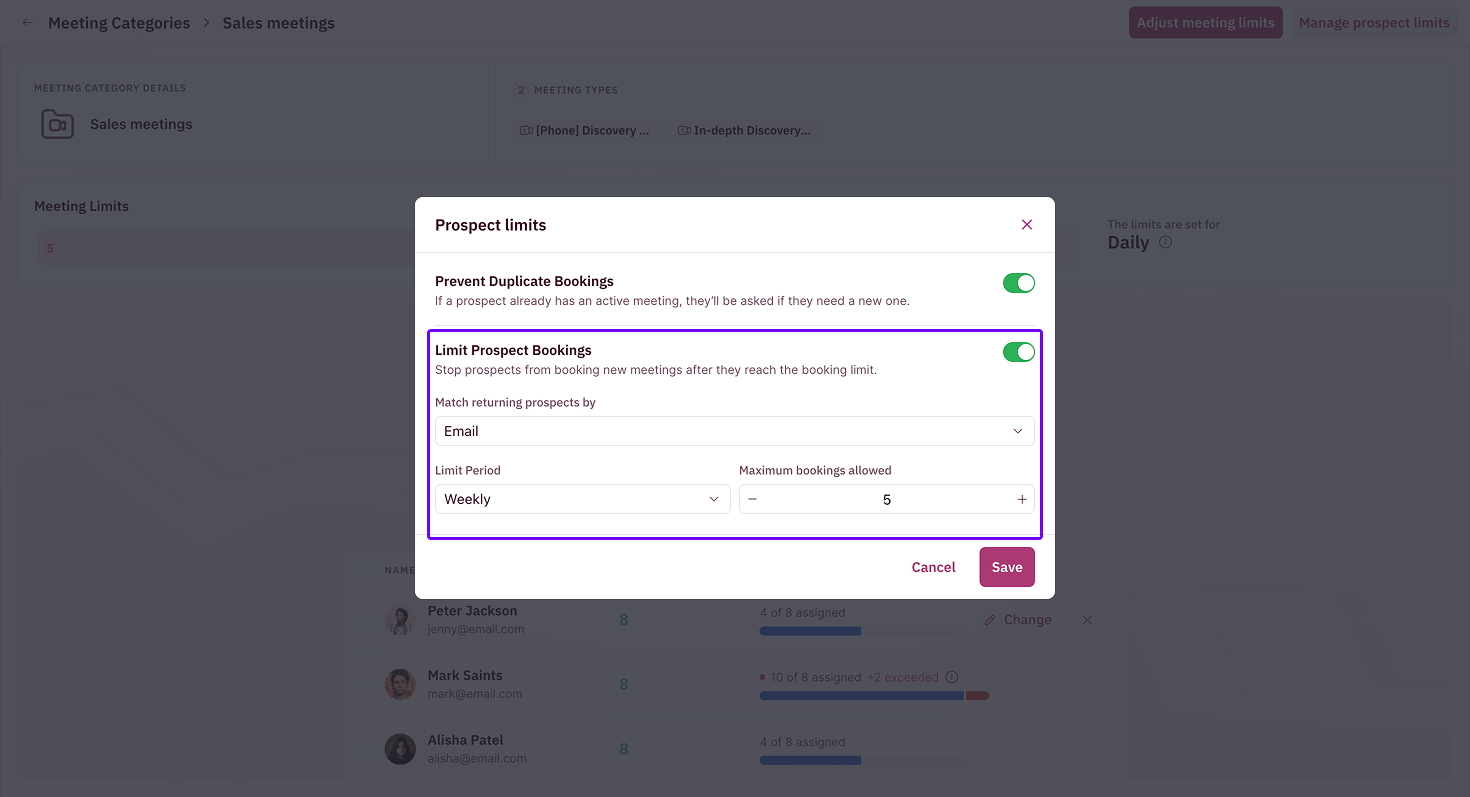
Click **Save**. The limits take effect immediately for new bookings in this category.
Both settings apply to the entire meeting category, across every meeting type inside it. If you need different rules for different meeting types, split them into separate categories.
***
Your prospect limits are configured. Prospects and companies now book on your terms, not theirs. 🎉🎉🎉
Group meeting types into categories and set per-rep meeting limits.
Build the meeting types that go inside a category.
### Step 3: Save
Click **Save**. The limits take effect immediately for new bookings in this category.
Both settings apply to the entire meeting category, across every meeting type inside it. If you need different rules for different meeting types, split them into separate categories.
***
Your prospect limits are configured. Prospects and companies now book on your terms, not theirs. 🎉🎉🎉
Group meeting types into categories and set per-rep meeting limits.
Build the meeting types that go inside a category.