> ## Documentation Index
> Fetch the complete documentation index at: https://help.revenuehero.io/llms.txt
> Use this file to discover all available pages before exploring further.
# Meeting Link Settings
> Meeting Link Settings allow admins to control CRM sync behaviour, configure base link assets, and create themes for all users. These settings apply to personal and group meeting links created within your organization.
Navigate to **Links → Meeting Link Settings**\
\
There you'll find:
### CRM Settings
Here you can decide how meeting bookings update your CRM.
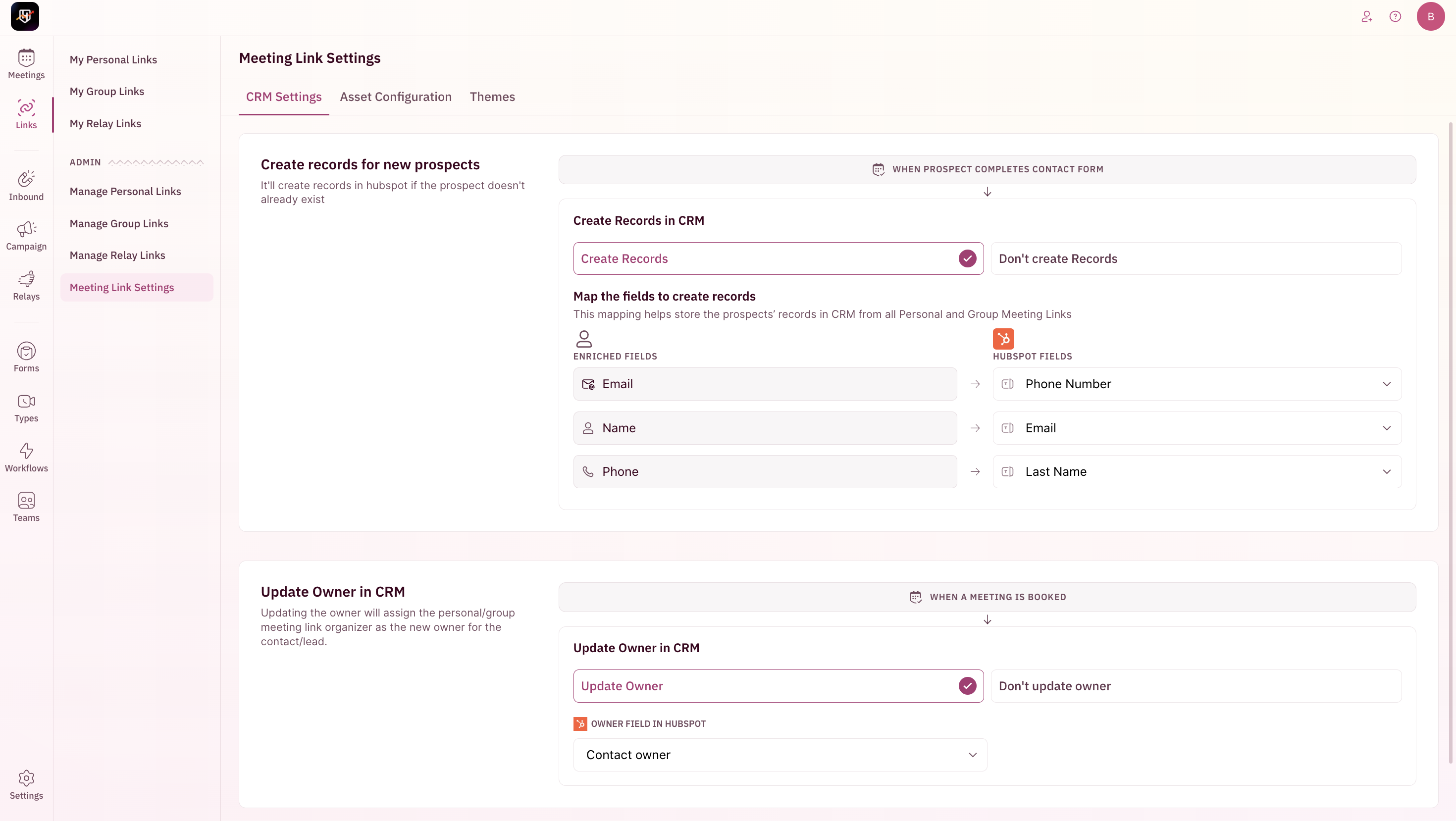
1. **Create Records** – Choose whether a new record is created in your CRM when a meeting is booked via any meeting link. (If there's an existing record with the same email, a duplicate is not created)
– In **HubSpot**, select whether to create a Contact.
 – In **Salesforce**, select whether to create a Lead or Contact.
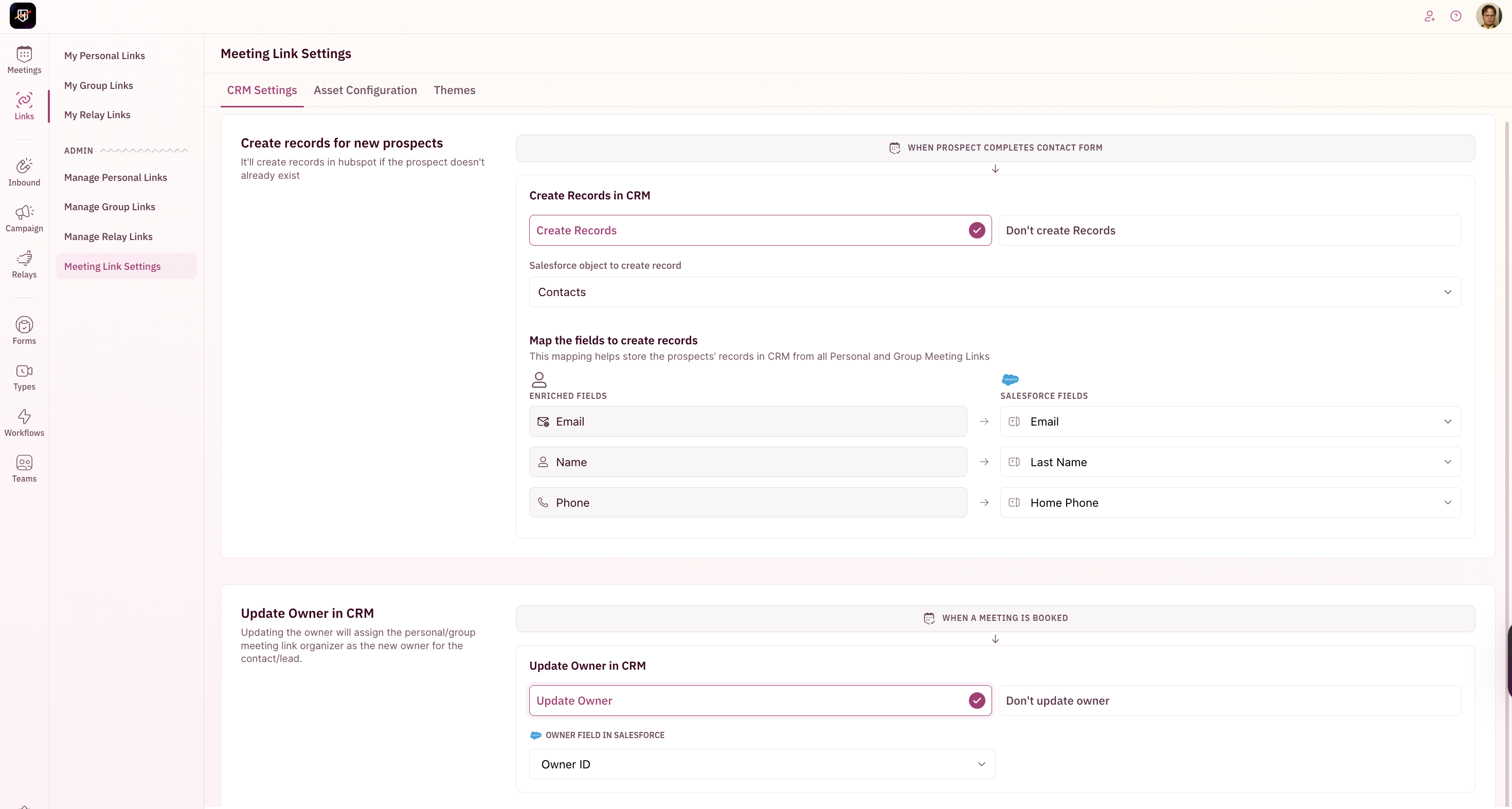 2. **Field Mapping** – Decide which CRM fields are updated with the prospect’s Email, Name, and Phone from the booking form.
3. **Update Owner** in CRM helps assign ownership of the record to the meeting’s host.
Choose which CRM field to update with the owner’s details.
If you don’t want to update the owner, select Don’t update owner.
### Asset Configuration
Set the default appearance for your users' base meeting link.
2. **Field Mapping** – Decide which CRM fields are updated with the prospect’s Email, Name, and Phone from the booking form.
3. **Update Owner** in CRM helps assign ownership of the record to the meeting’s host.
Choose which CRM field to update with the owner’s details.
If you don’t want to update the owner, select Don’t update owner.
### Asset Configuration
Set the default appearance for your users' base meeting link.
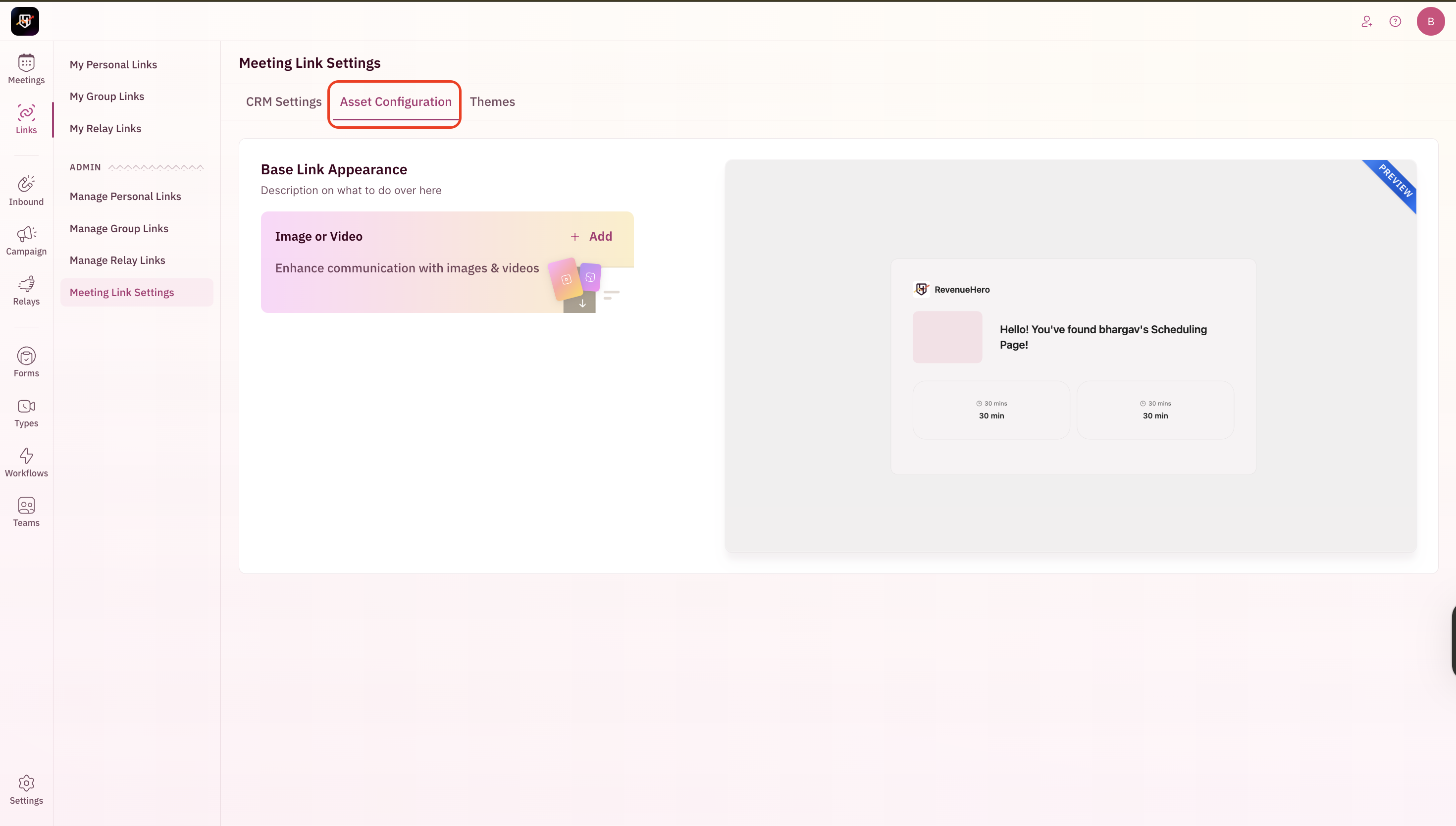 * Upload or embed an **image or video** for the base link.
* This visual will be applied to all users’ base links.
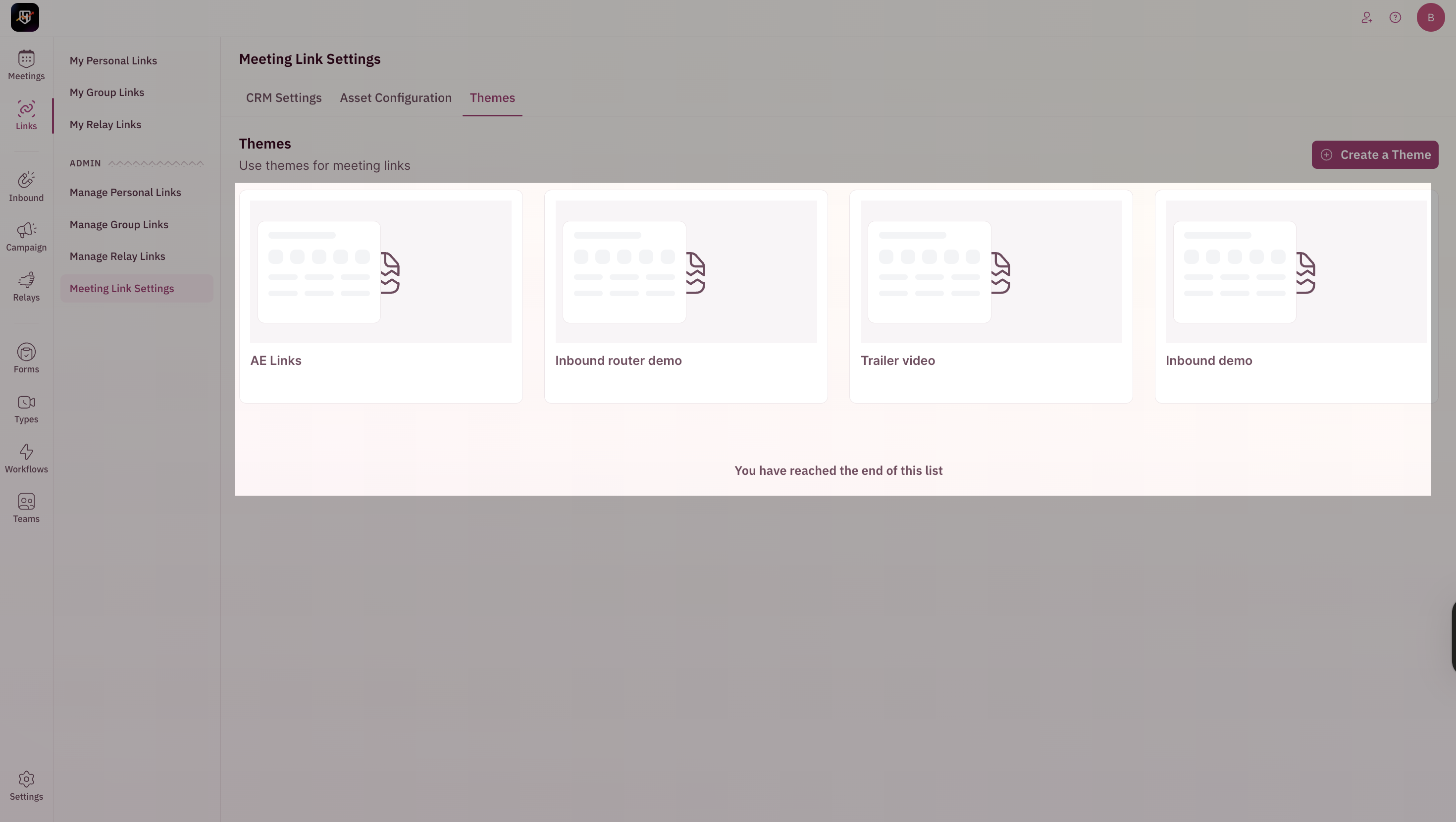
### Themes
Create branded themes for your team to use in their personal or group meeting links.
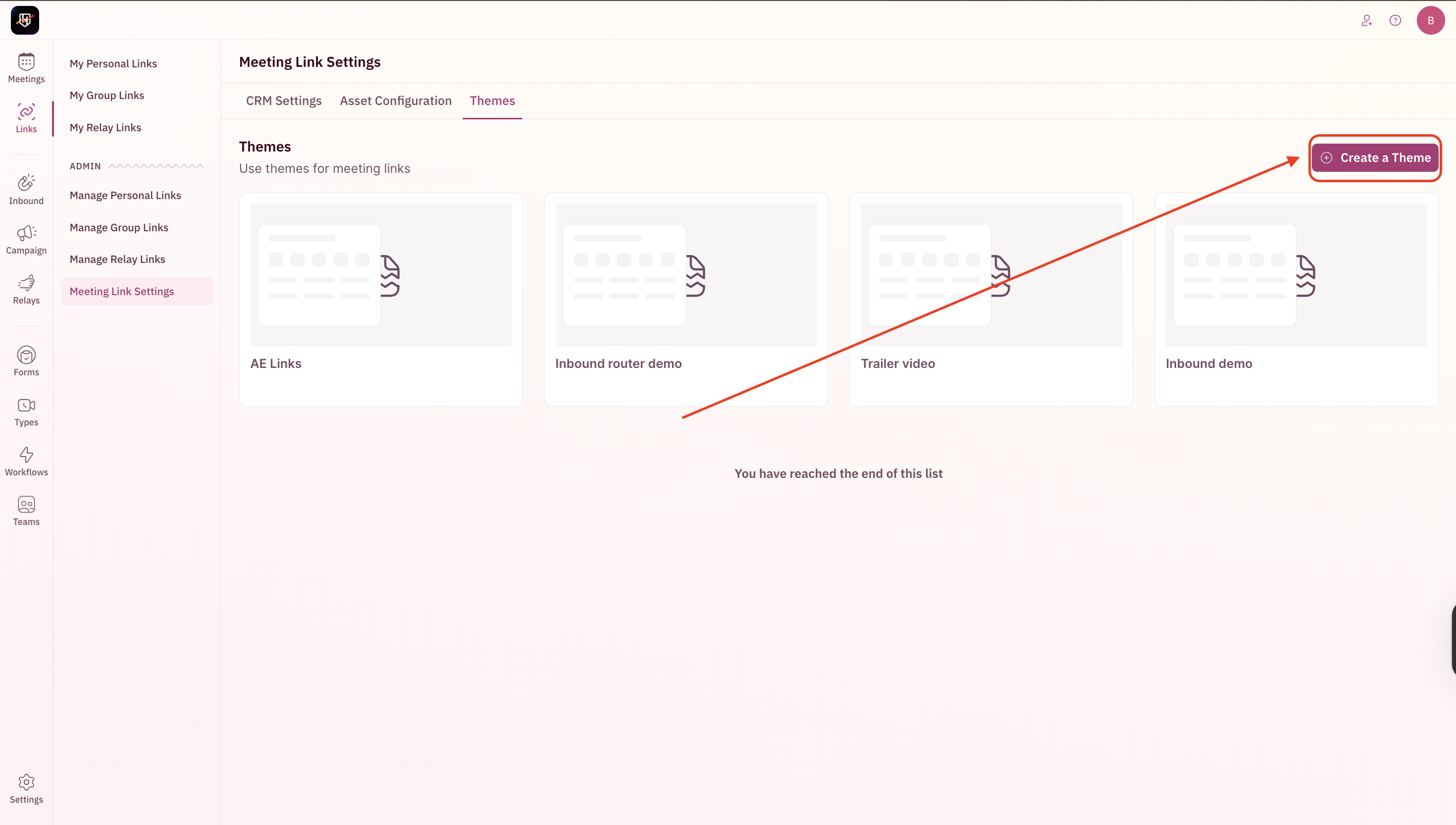
1. Click **Create Theme**.
* Upload or embed an **image or video** for the base link.
* This visual will be applied to all users’ base links.
### Themes
Create branded themes for your team to use in their personal or group meeting links.
1. Click **Create Theme**.
 2. Enter a **Theme Name**.
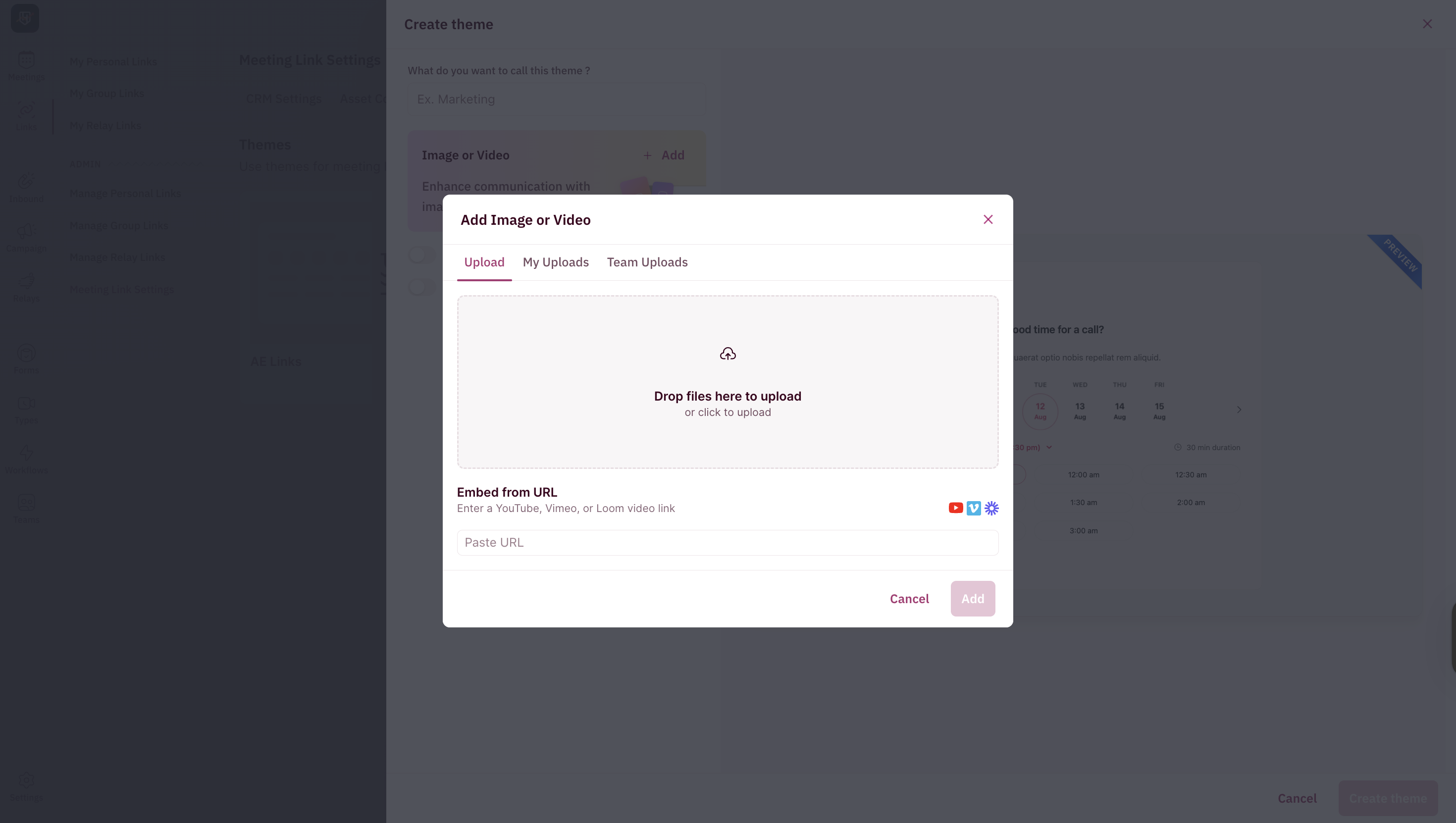
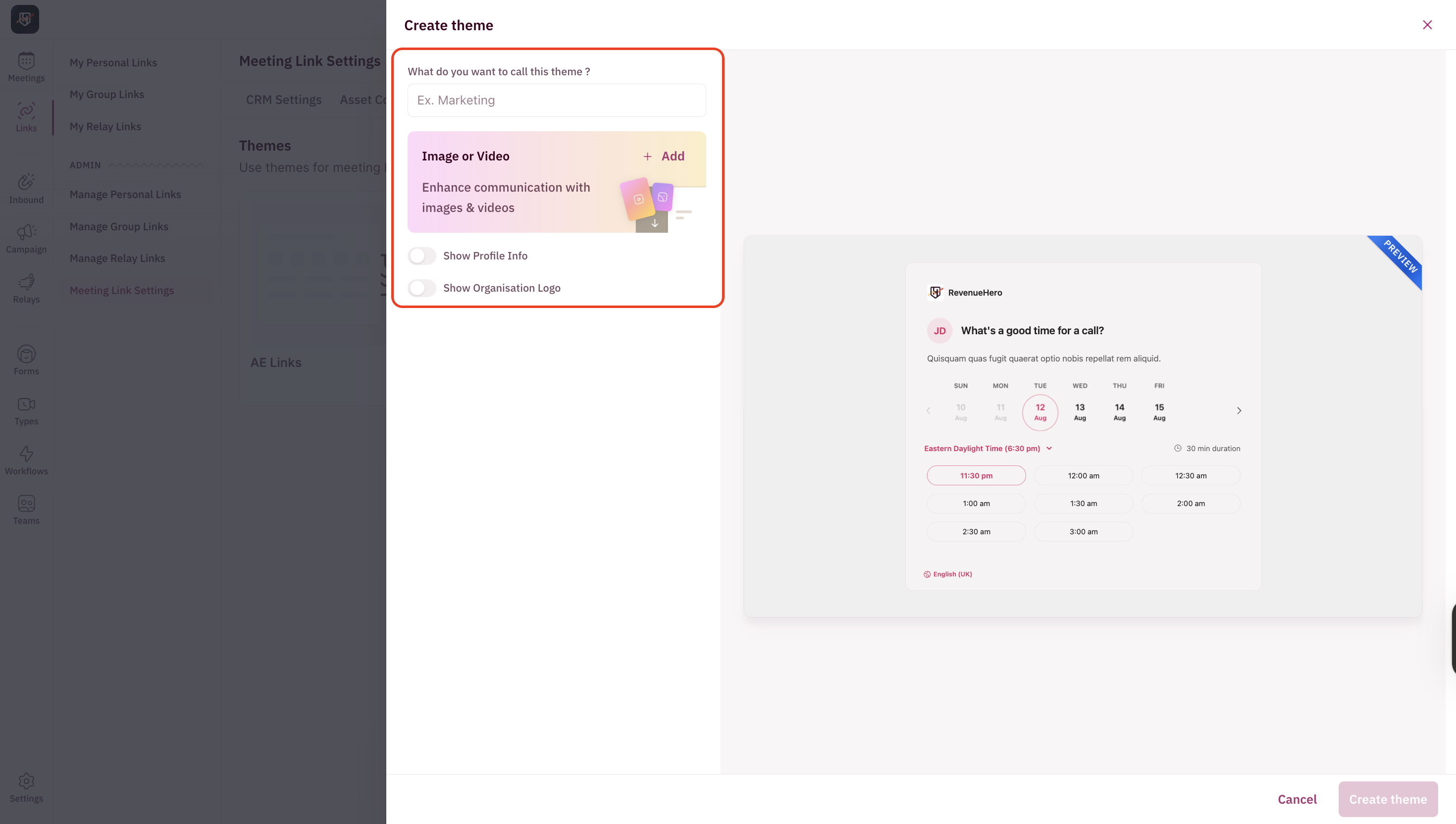 3. Add an **image or video** for the theme.
 4. Choose whether to **show profile info** and/or **show organization logo**.
5. Once created, the theme will be available for all users to select when setting up their meeting links.
4. Choose whether to **show profile info** and/or **show organization logo**.
5. Once created, the theme will be available for all users to select when setting up their meeting links.