> ## Documentation Index
> Fetch the complete documentation index at: https://help.revenuehero.io/llms.txt
> Use this file to discover all available pages before exploring further.

# Cancel RevenueHero meetings

> Learn how to cancel meetings booked through RevenueHero.

<Note>This action can only be performed **before a meeting begins**</Note>

## Cancel through RevenueHero's UI

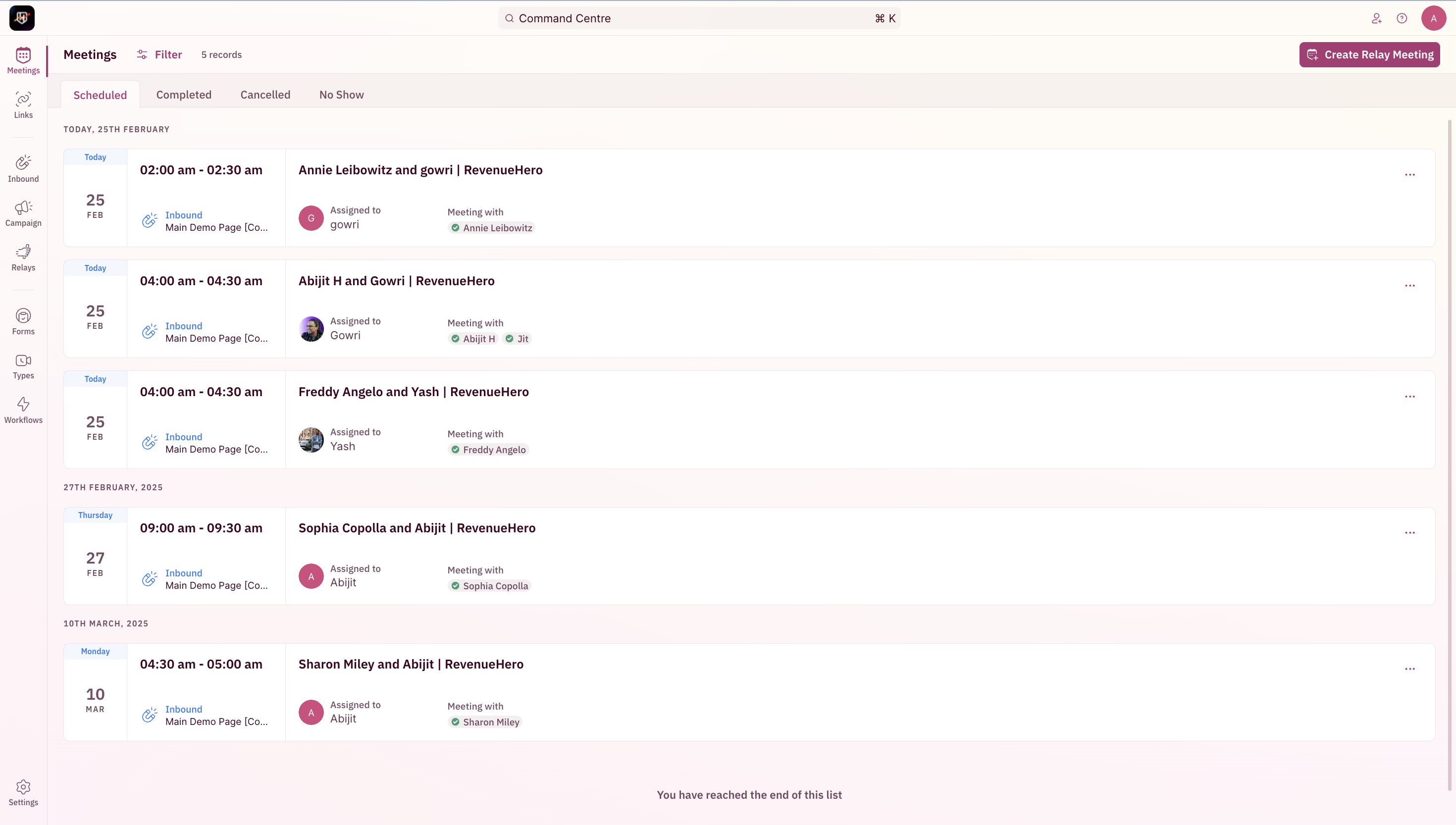
1. Go to Meetings --> Select the specific meeting to be cancelled.
<Frame>
  <img src="https://mintcdn.com/revenuehero/oLQar9Orn1Y0kprB/images/meeting_actions_1.png?fit=max&auto=format&n=oLQar9Orn1Y0kprB&q=85&s=348623bc563e2f34783867a771187203" width="2940" height="1666" data-path="images/meeting_actions_1.png" />
</Frame>

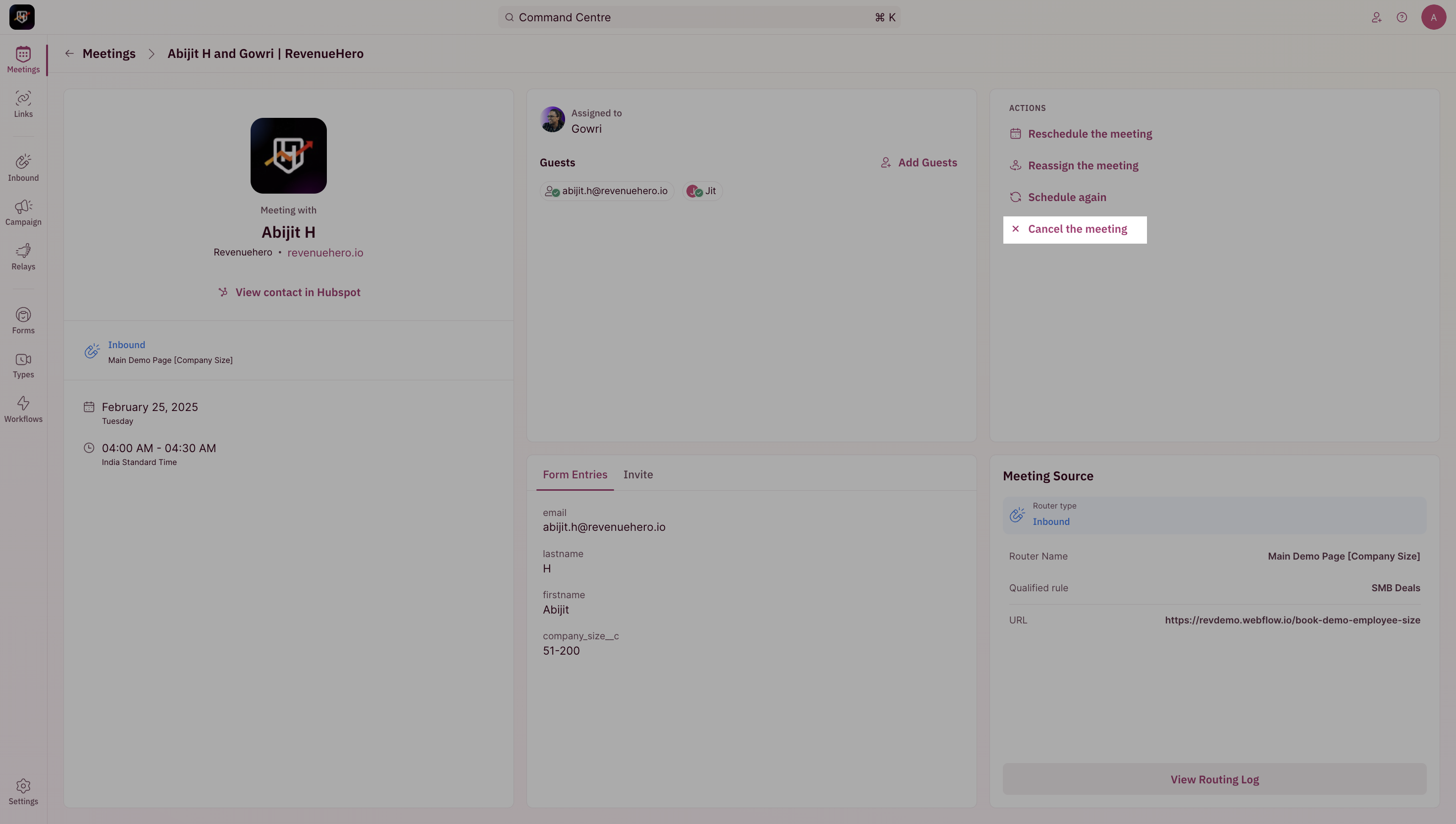
2. Click on cancel.

<Frame>
  <img src="https://mintcdn.com/revenuehero/SkmC-QzMltchvRkn/images/cancel_1.png?fit=max&auto=format&n=SkmC-QzMltchvRkn&q=85&s=2373c0eceb4b3915b9a221de8577b7f9" width="2940" height="1664" data-path="images/cancel_1.png" />
</Frame>

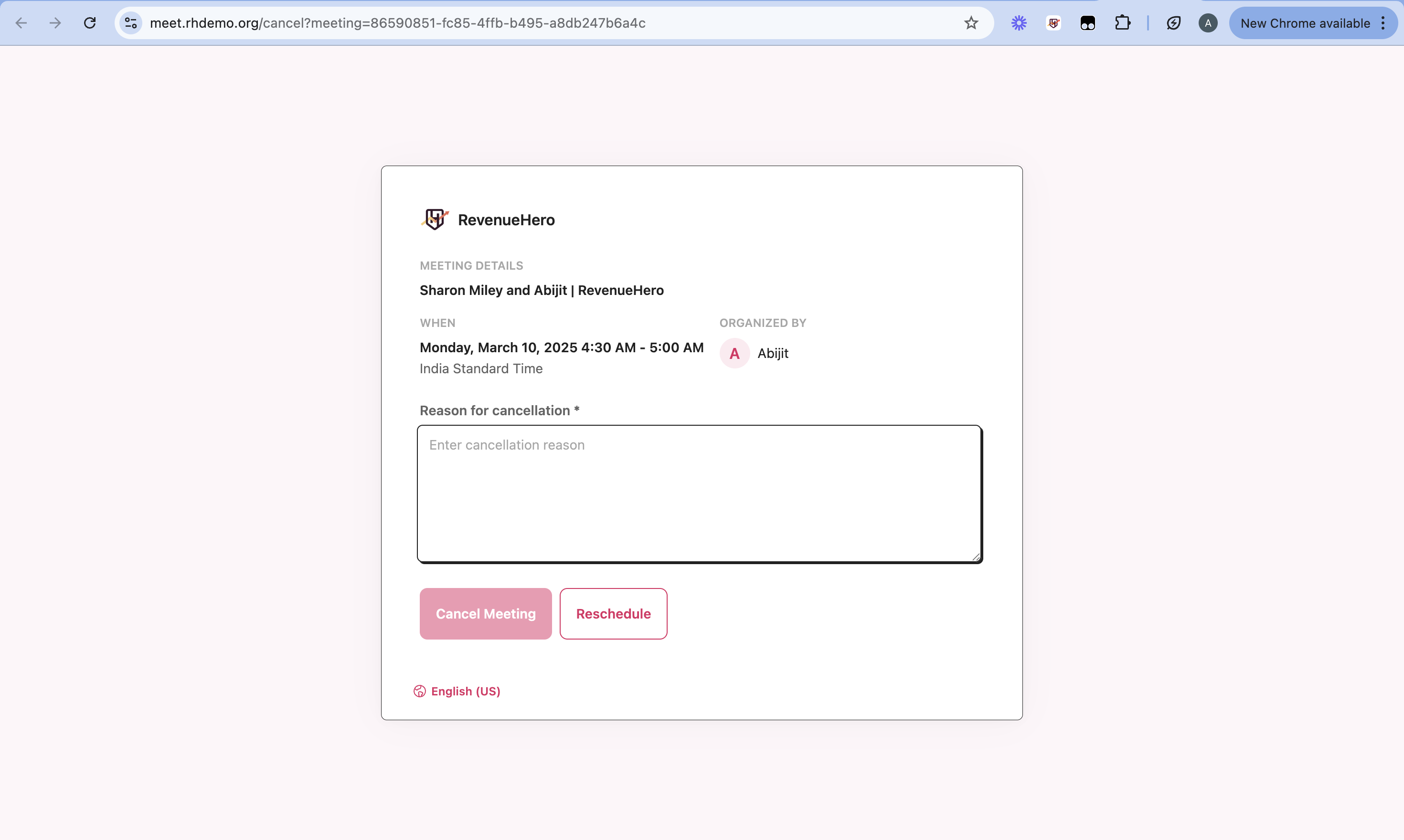
3. Enter cancellation reason and complete the step.
<Frame>
  <img src="https://mintcdn.com/revenuehero/SkmC-QzMltchvRkn/images/cancel_2.png?fit=max&auto=format&n=SkmC-QzMltchvRkn&q=85&s=3d843fb8472c8984c50fe204a995e036" width="2940" height="1760" data-path="images/cancel_2.png" />
</Frame>

***

## Cancel on the calendar invite

The meeting can also be cancelled using the link in the meeting invite.
<Note>This is the recommended method for your prospects to cancel the meeting. </Note>

<Tabs>
  <Tab title="Google Calendar">
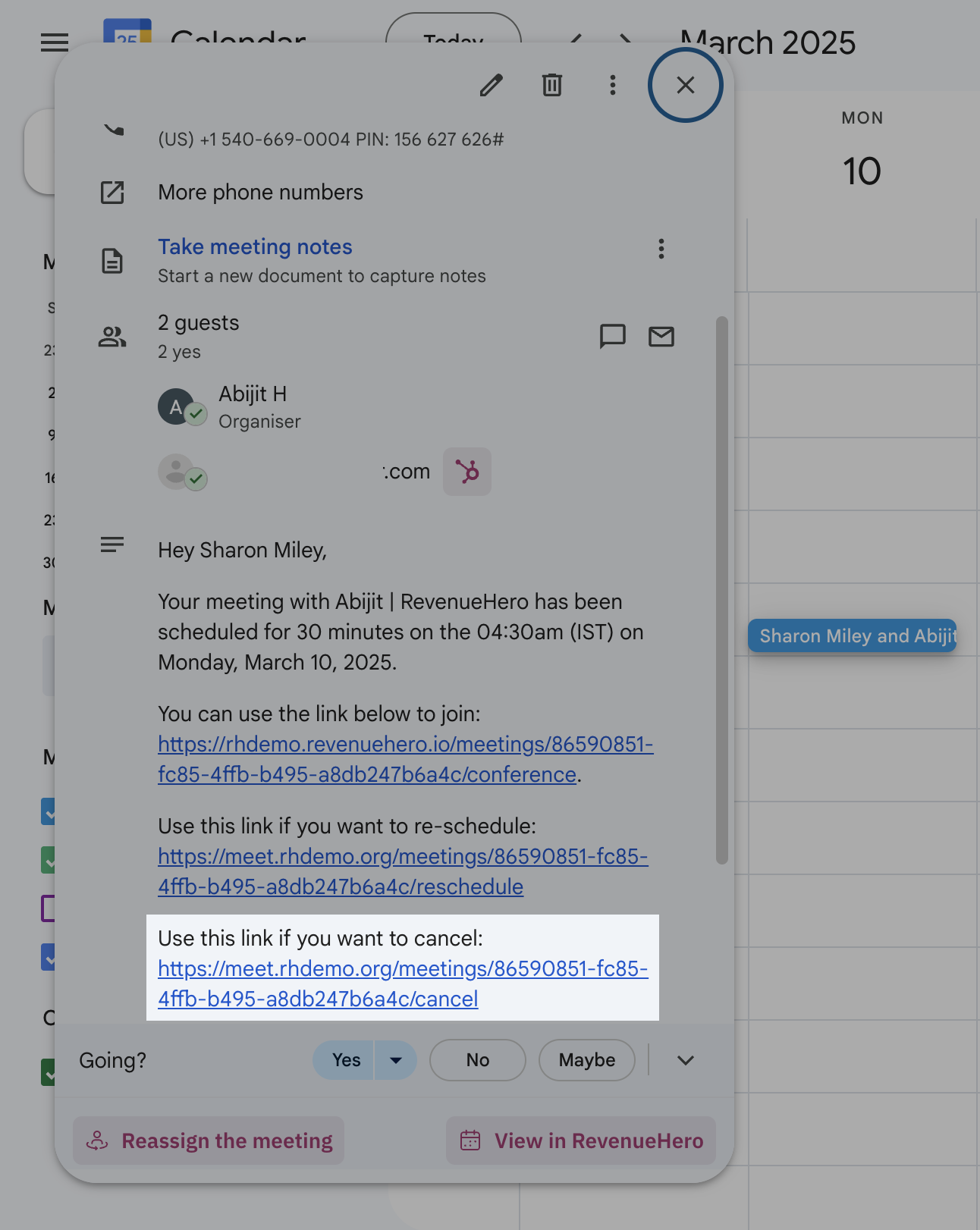
    1. Click on the calendar invite for the meeting that you wish to cancel.
    <Frame>
      <img height="100" width="400" src="https://mintcdn.com/revenuehero/SkmC-QzMltchvRkn/images/cancel_3.png?fit=max&auto=format&n=SkmC-QzMltchvRkn&q=85&s=5adcc2fd12df801746e59254755a7df2" data-path="images/cancel_3.png" />
    </Frame>

    2. Click on the cancel link.

    3. Enter cancellation reason and complete the step.

    <Frame>
      <img src="https://mintcdn.com/revenuehero/SkmC-QzMltchvRkn/images/cancel_2.png?fit=max&auto=format&n=SkmC-QzMltchvRkn&q=85&s=3d843fb8472c8984c50fe204a995e036" width="2940" height="1760" data-path="images/cancel_2.png" />
    </Frame>
  </Tab>

  <Tab title="Outlook Calendar">
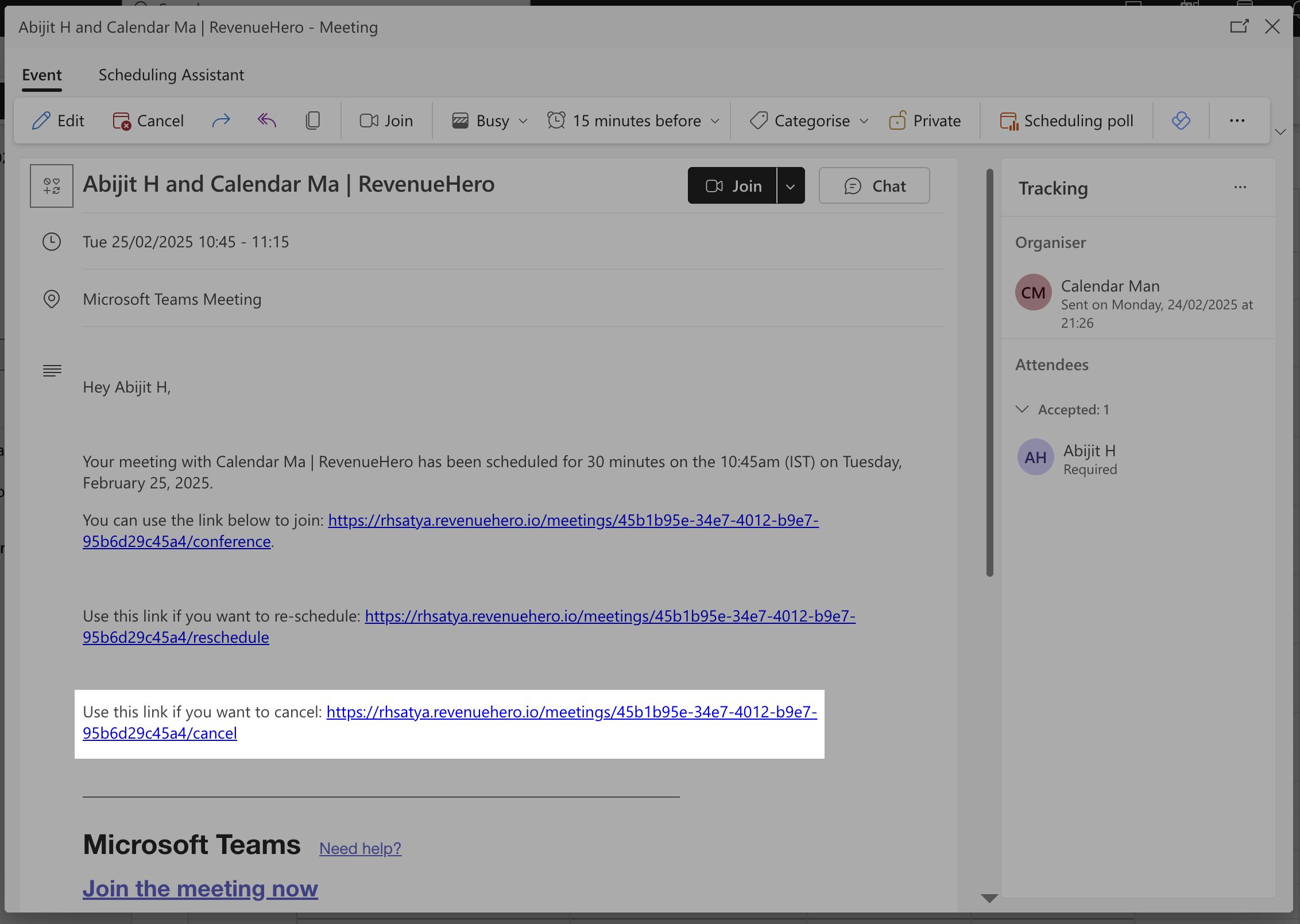
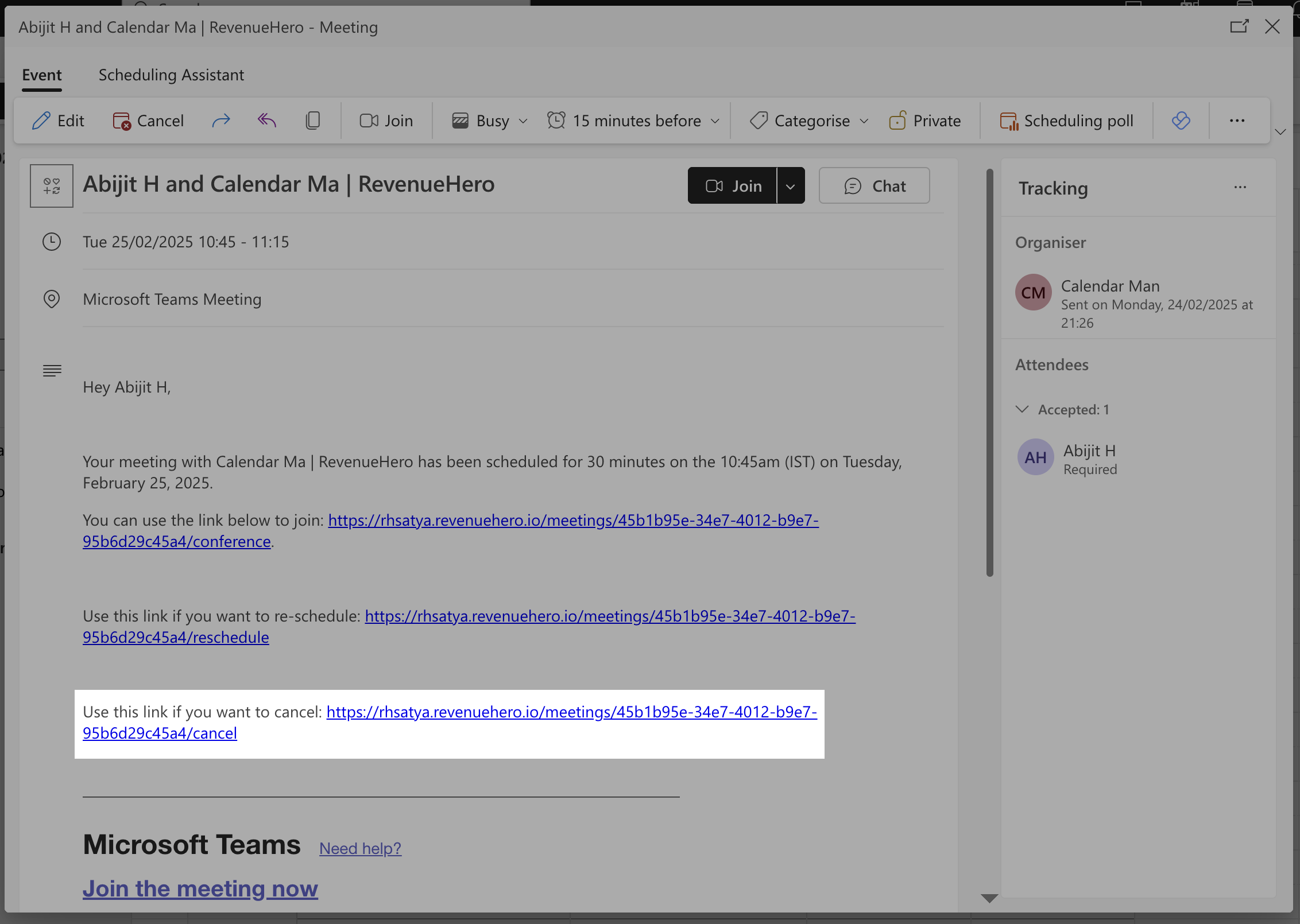
    1. Click on the calendar invite for the meeting that you wish to cancel.
    <Frame>
      <img src="https://mintcdn.com/revenuehero/SkmC-QzMltchvRkn/images/cancel_4.png?fit=max&auto=format&n=SkmC-QzMltchvRkn&q=85&s=2f5765ae33cb3173effb8886d40c75c5" width="2264" height="1610" data-path="images/cancel_4.png" />
    </Frame>

    2. Click on the cancel link.

    <Frame>
      <img src="https://mintcdn.com/revenuehero/SkmC-QzMltchvRkn/images/cancel_5.png?fit=max&auto=format&n=SkmC-QzMltchvRkn&q=85&s=8f95e9007f9b225e6514378792b4af41" width="2264" height="1610" data-path="images/cancel_5.png" />
    </Frame>

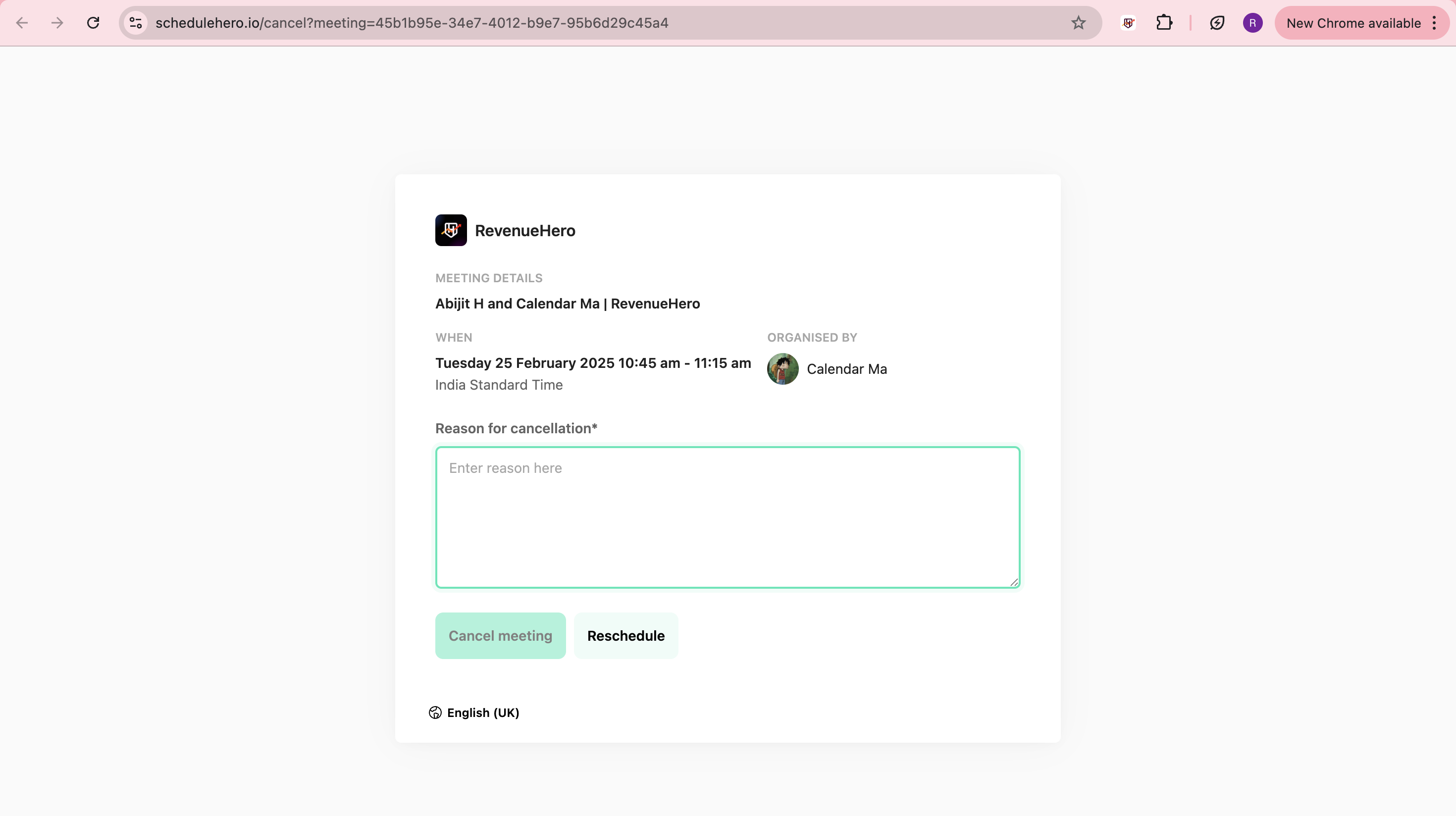
    3. Enter cancellation reason and complete the step.
    <Frame>
      <img src="https://mintcdn.com/revenuehero/SkmC-QzMltchvRkn/images/cancel_6.png?fit=max&auto=format&n=SkmC-QzMltchvRkn&q=85&s=1e9cbd48a709e0fcc69d6306ca0e09ea" width="2940" height="1648" data-path="images/cancel_6.png" />
    </Frame>
  </Tab>
</Tabs>

***