> ## Documentation Index
> Fetch the complete documentation index at: https://help.revenuehero.io/llms.txt
> Use this file to discover all available pages before exploring further.
# Mark a meeting as a no-show
> Learn how to mark meetings booked through RevenueHero if the prospect didn't turn up.
This action can only be performed **after a meeting begins**. RevenueHero will automatically mark a meeting as completed when the meeting time elapes.
## Mark a no-show in RevenueHero's UI
1. Go to Meetings --> Select the specific meeting to be marked as a no-show.
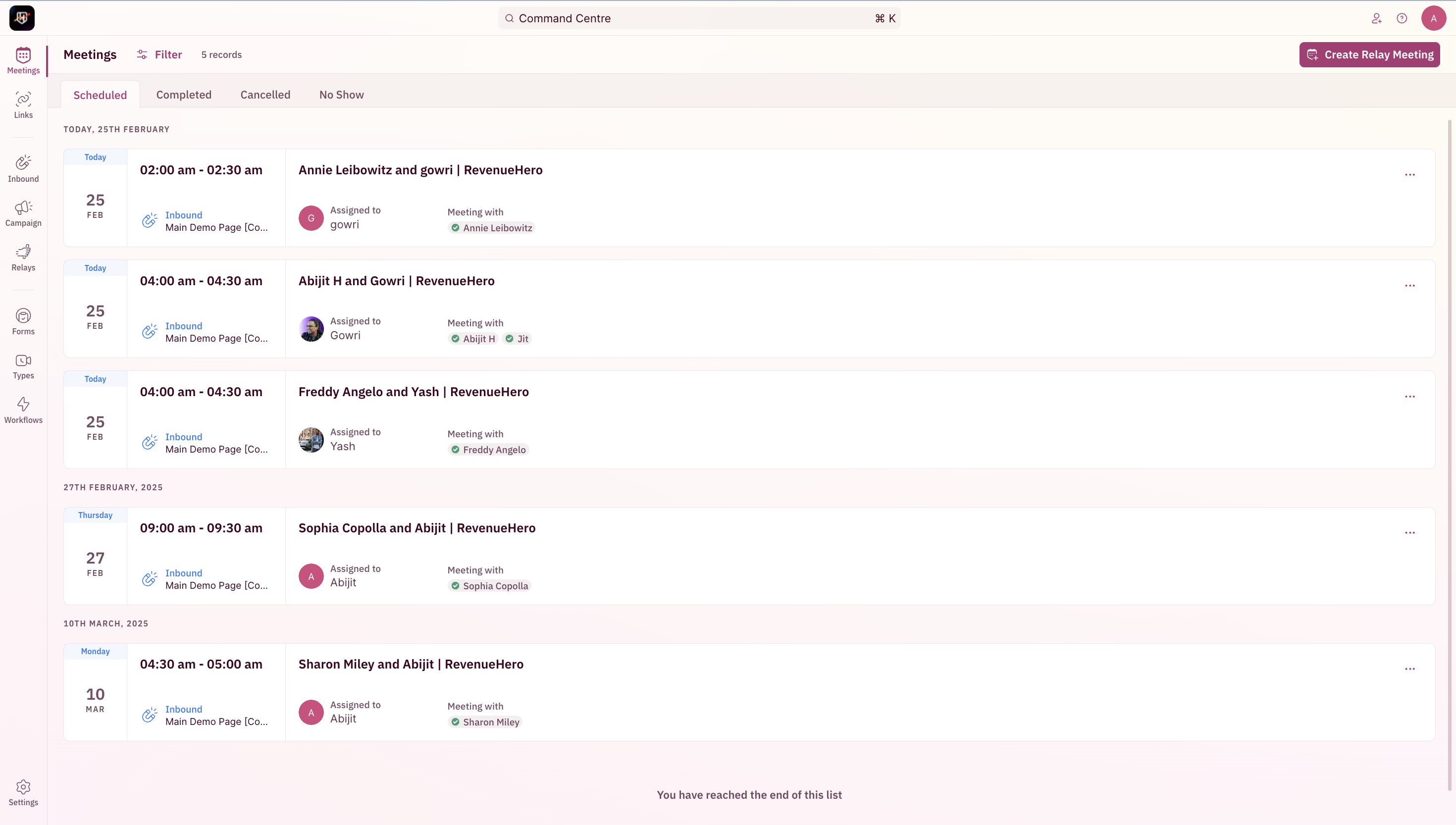 2. Click on **Mark as no-show**.
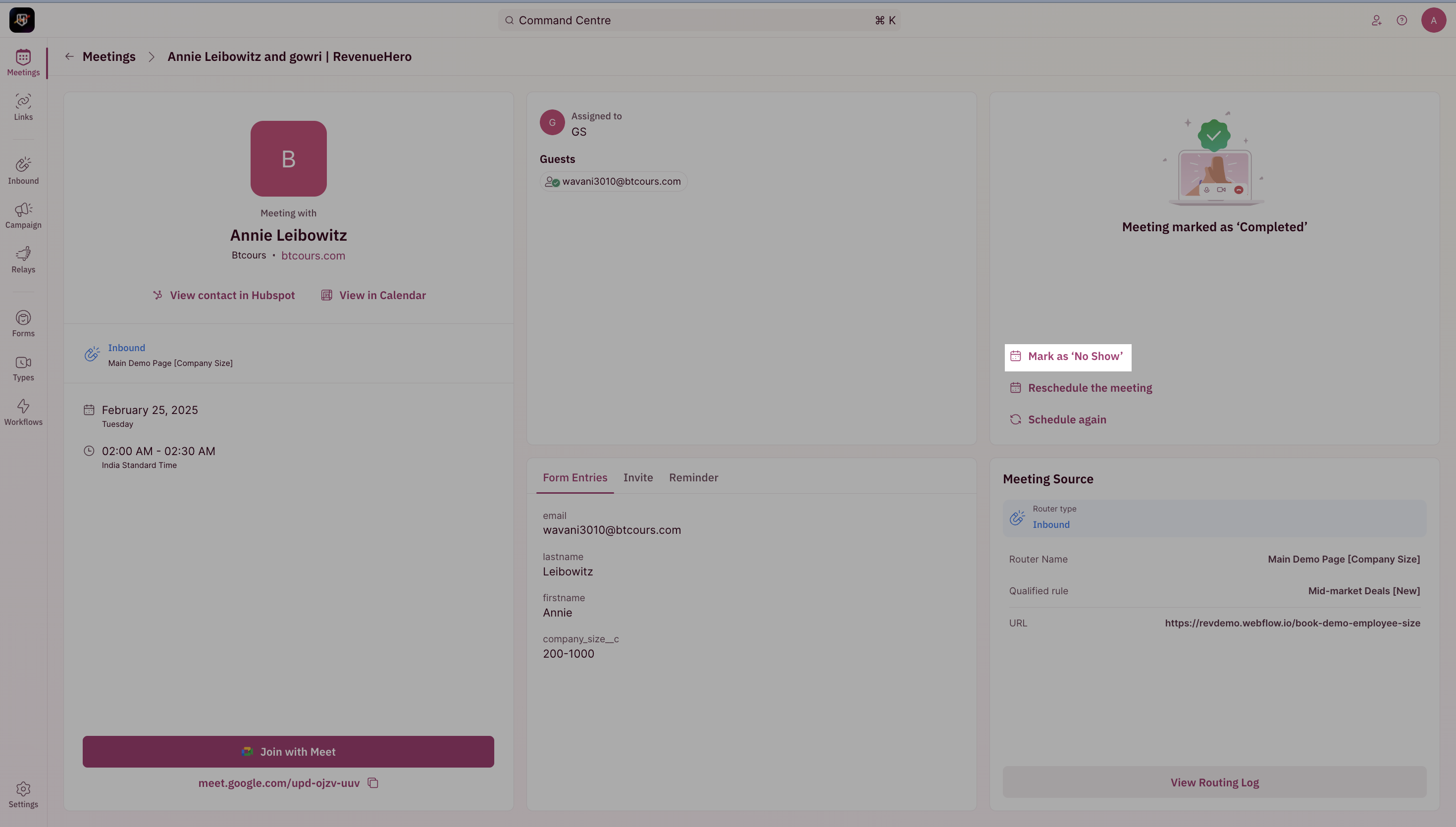 3. The meeting status will now reflect that it was a no-show.
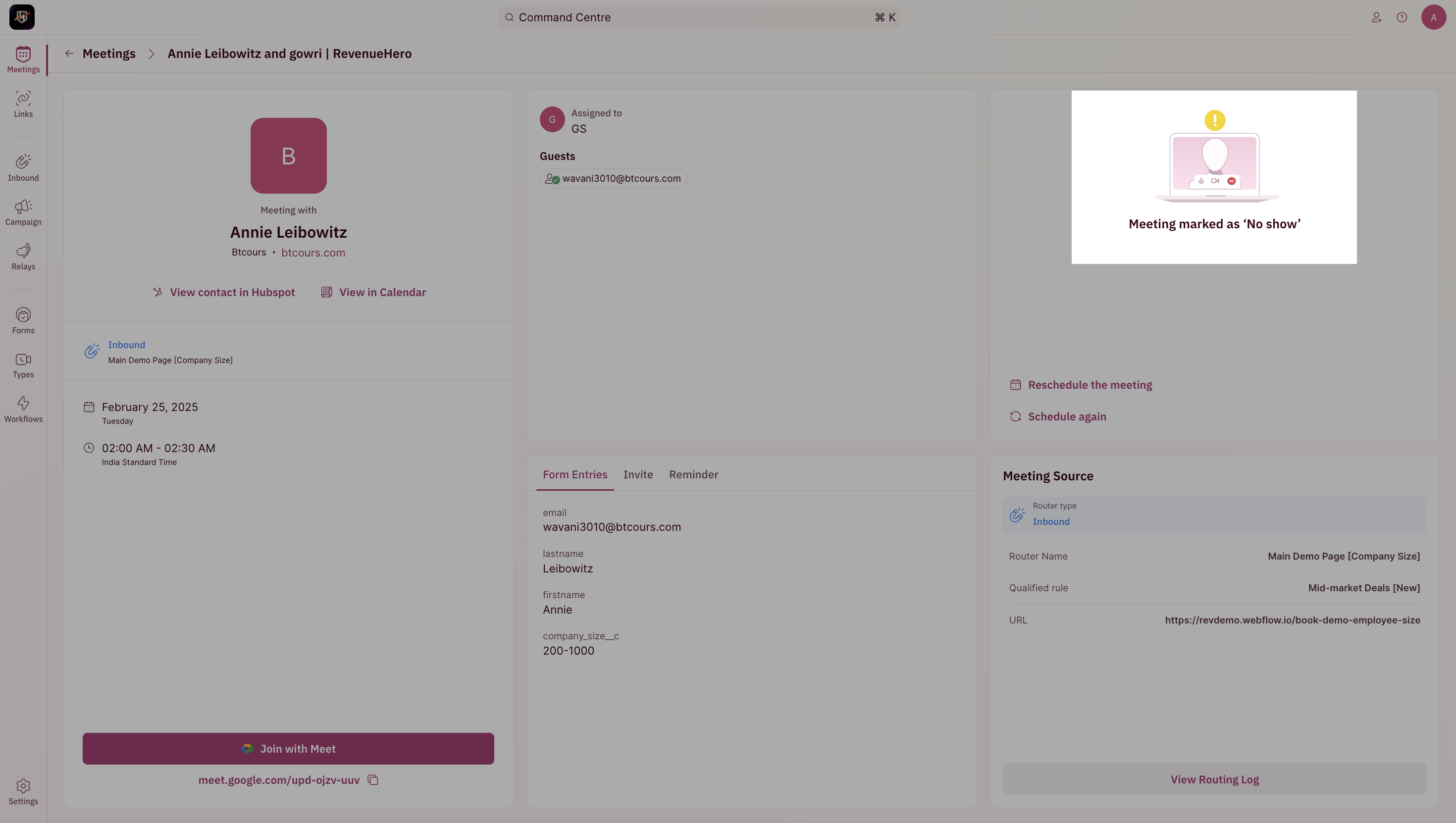 This will also be reflected in the CRM, in the RevenueHero properties and in the outcome of the meeting
***
## Mark a no-show on the calendar
A pre-requisite is to install the [chrome extension](/integrations/chrome-extension) which powers this feature.
1. Click on the calendar invite for the meeting that you wish to mark as a no-show and click on the button.
This will also be reflected in the CRM, in the RevenueHero properties and in the outcome of the meeting
***
## Mark a no-show on the calendar
A pre-requisite is to install the [chrome extension](/integrations/chrome-extension) which powers this feature.
1. Click on the calendar invite for the meeting that you wish to mark as a no-show and click on the button.
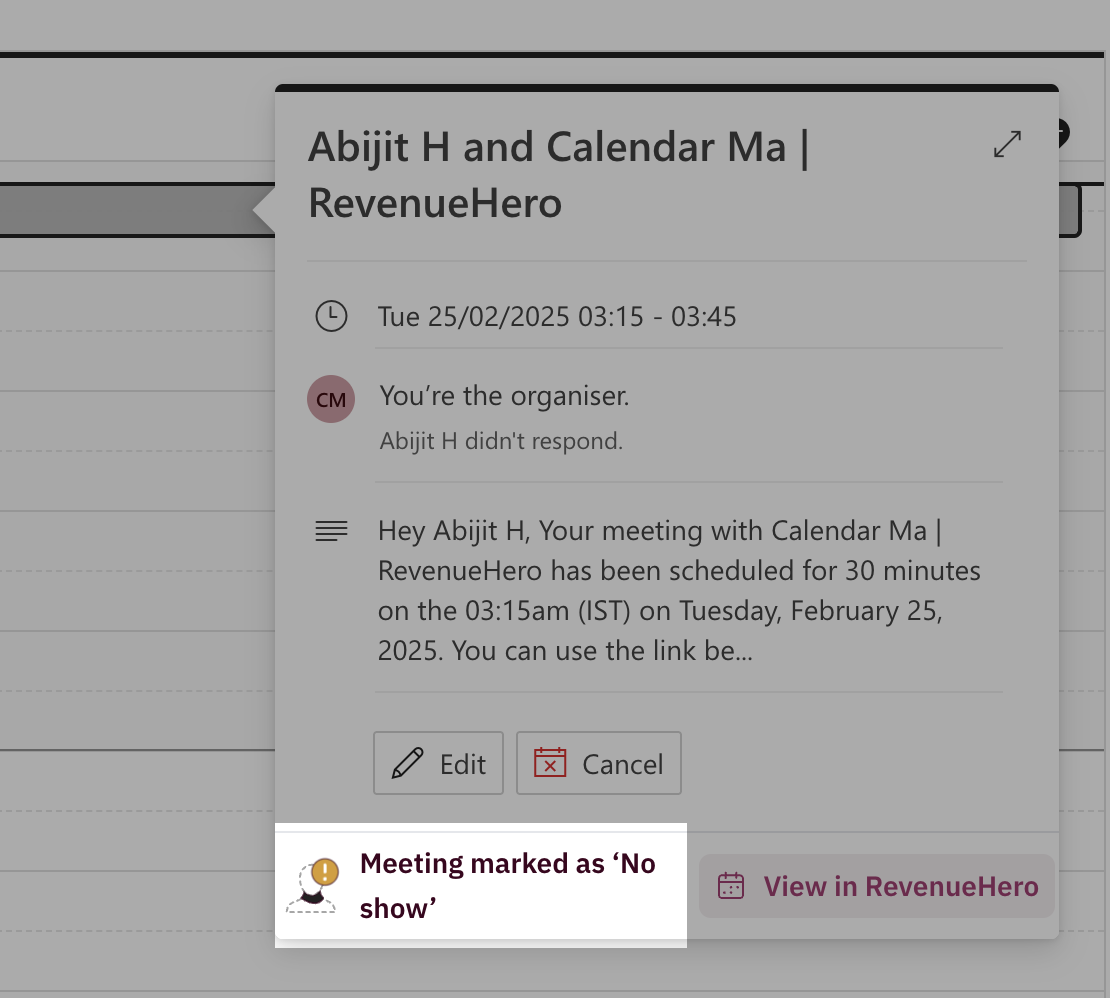
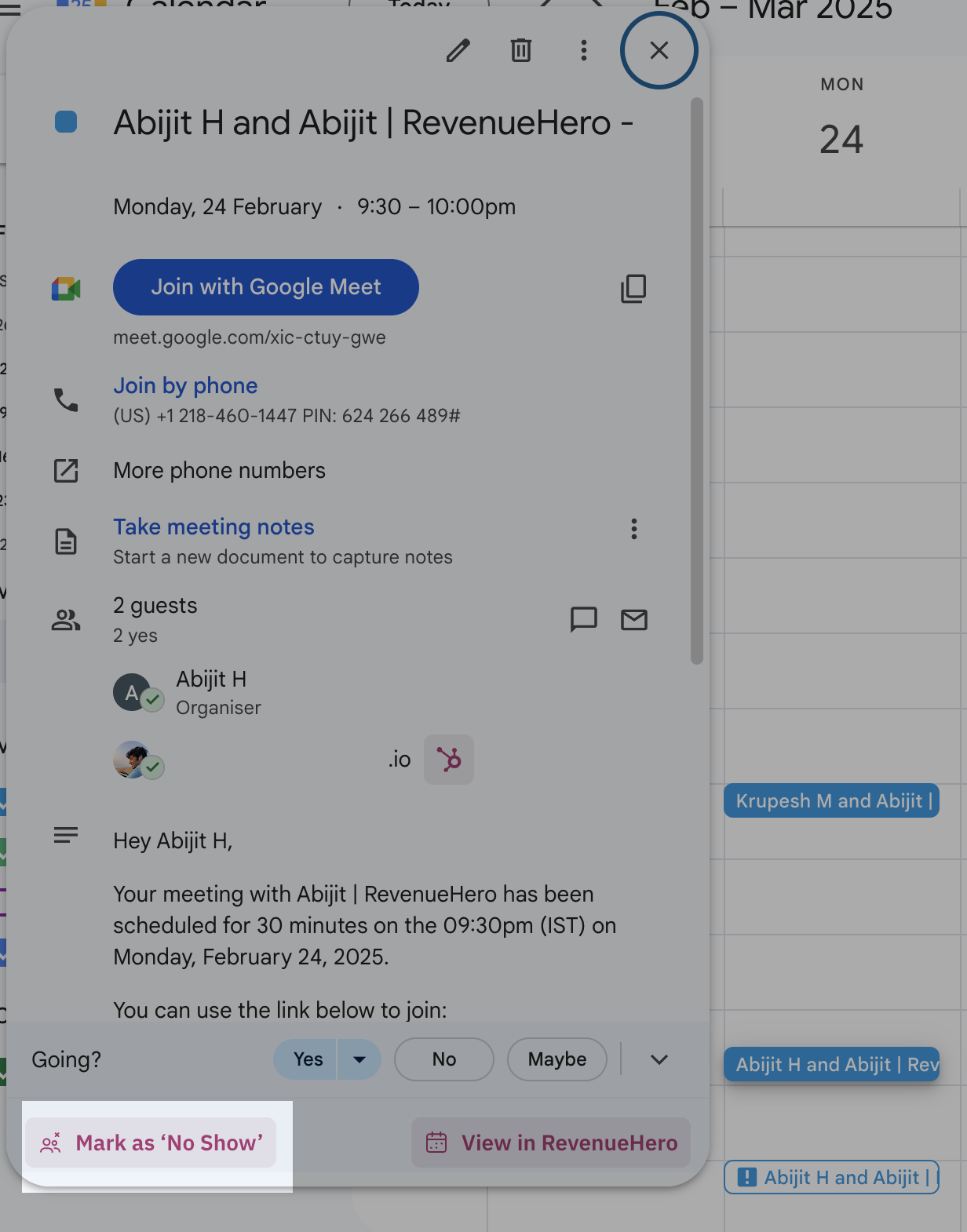 2. The invite will now reflect that it was a no-show.
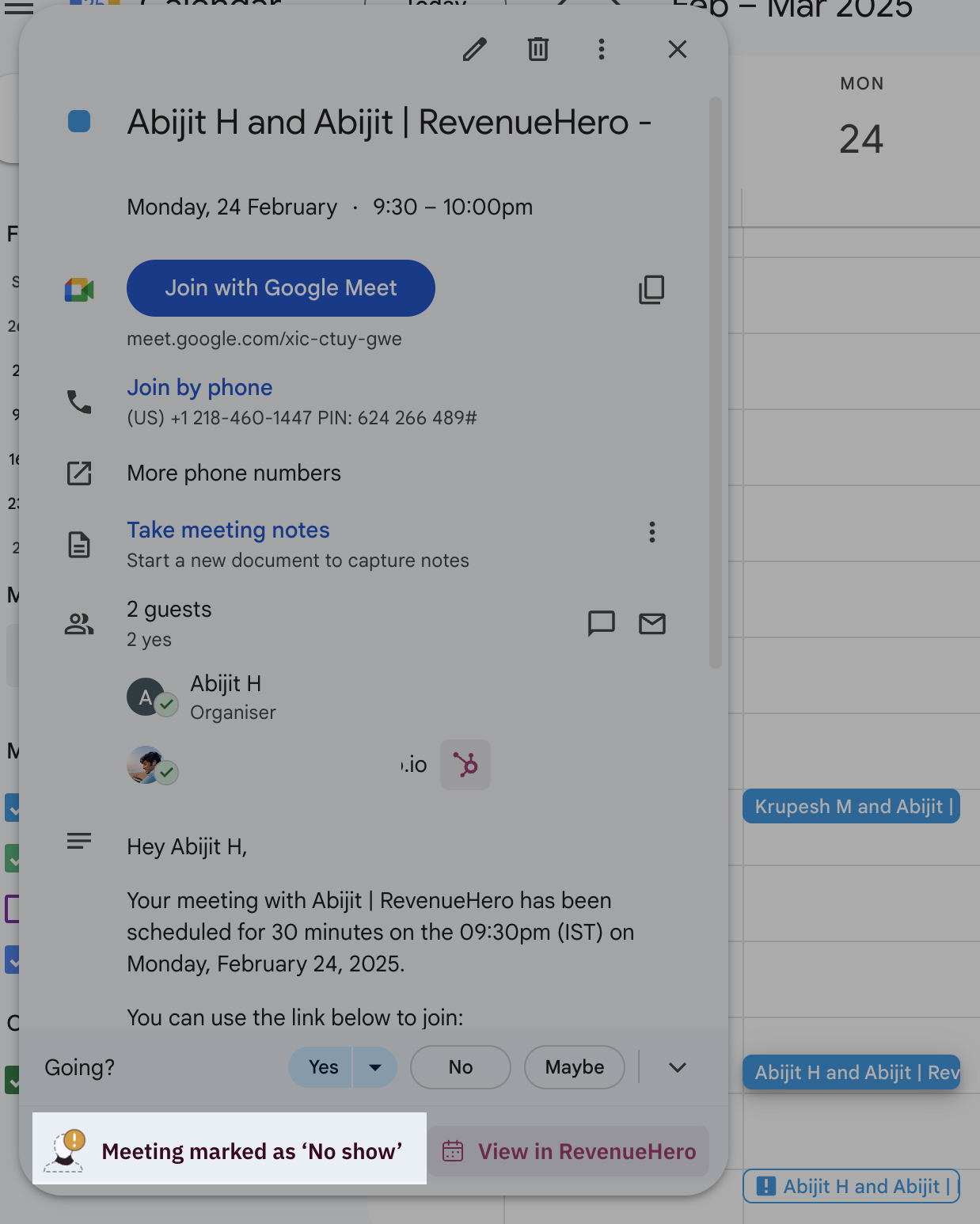 1. Click on the calendar invite for the meeting that you wish to mark as a no-show and click on the button.
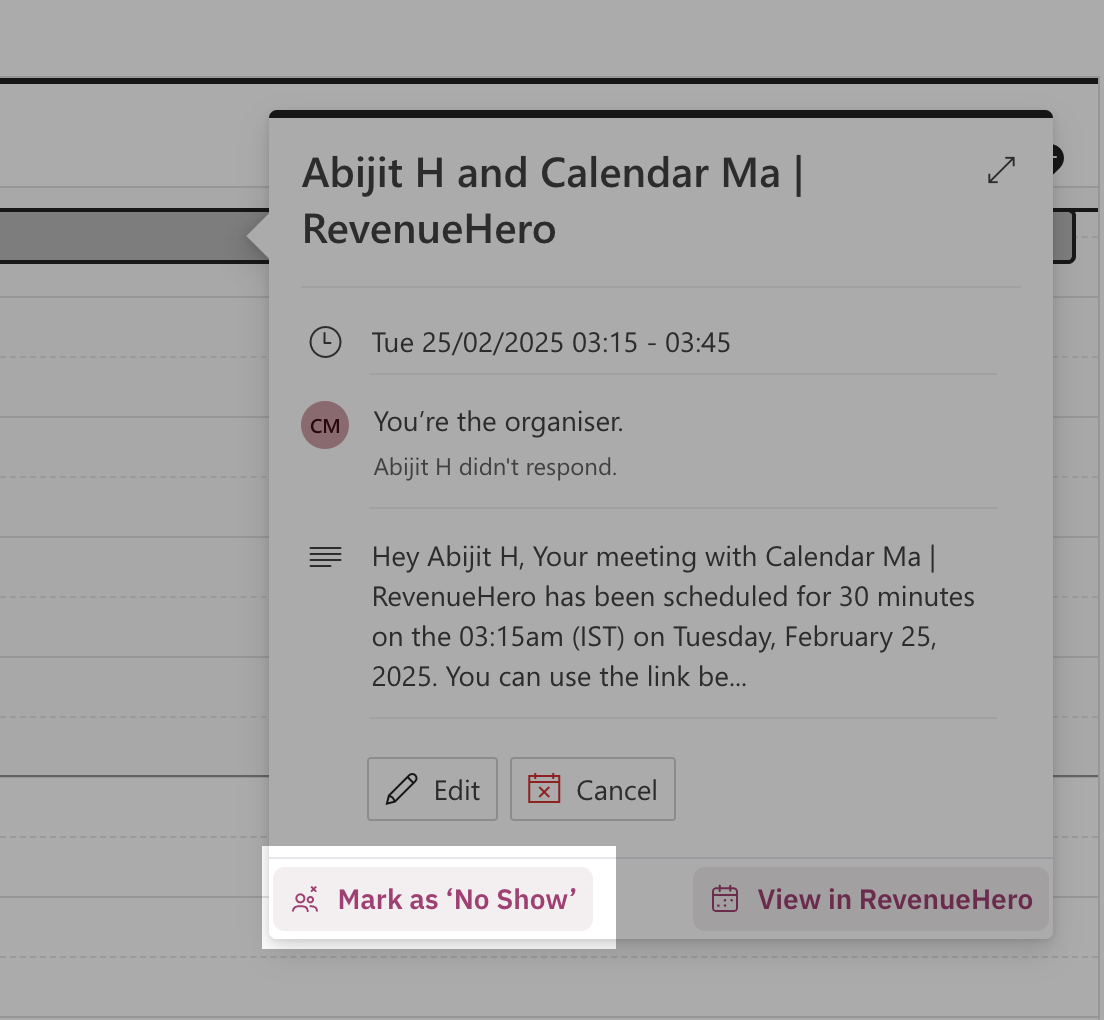 2. The invite will now reflect that it was a no-show.
 ***
## Mark a no-show on slack
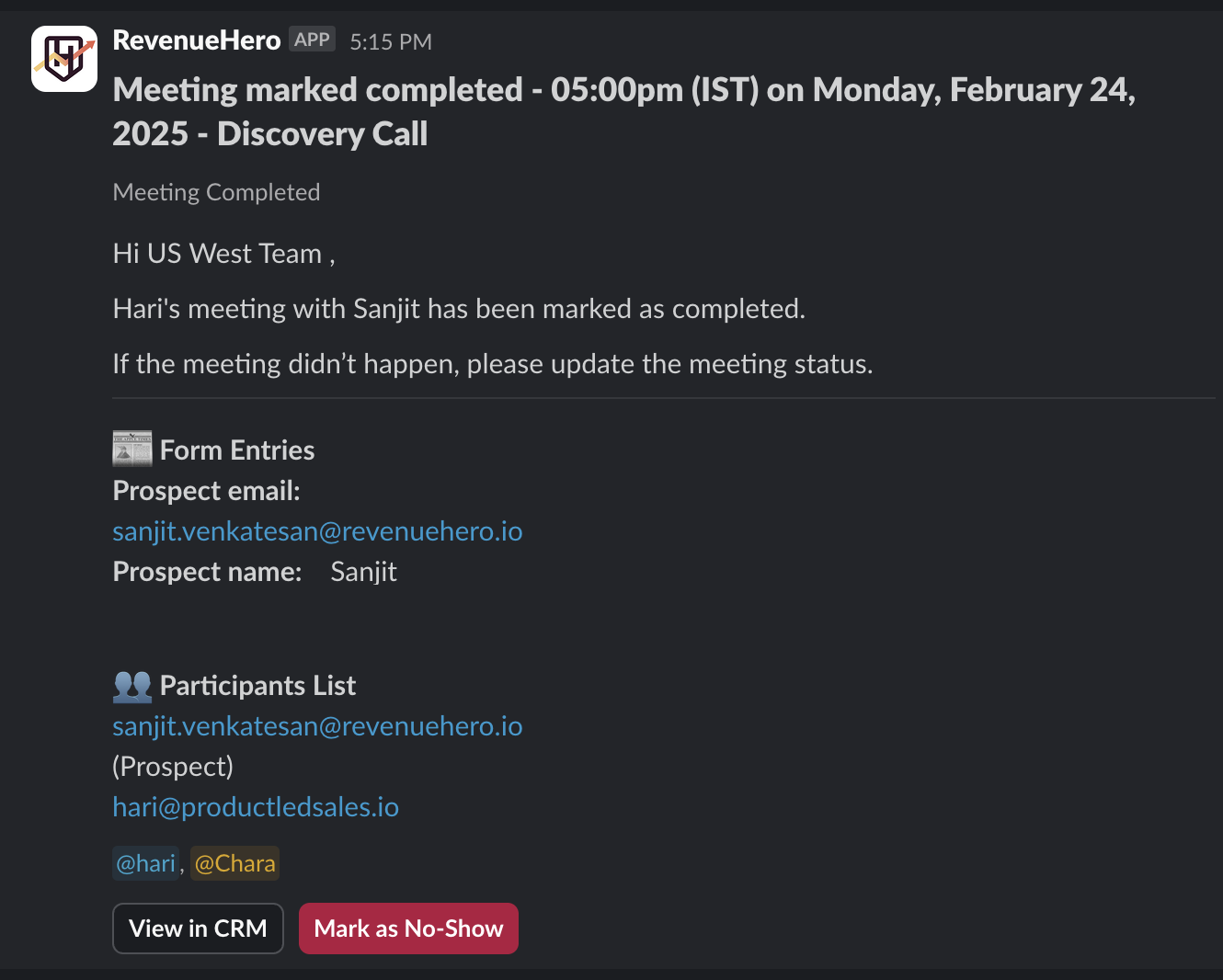
Once a [workflow](/workflows/examples/meeting-completed-slack-notification#mark-as-no-show-in-slack) has been set to send a slack notifcation for meetings that have been completed, you can mark a no-show from within Slack.
***
## Mark a no-show on slack
Once a [workflow](/workflows/examples/meeting-completed-slack-notification#mark-as-no-show-in-slack) has been set to send a slack notifcation for meetings that have been completed, you can mark a no-show from within Slack.
 ***
***