> ## Documentation Index
> Fetch the complete documentation index at: https://help.revenuehero.io/llms.txt
> Use this file to discover all available pages before exploring further.
# Reassign RevenueHero meetings
> Learn how to reassign meetings booked through RevenueHero.
This action can only be performed:
* **Before** a meeting begins.
* By an admin.
Reassigning a meeting will have the following impact:
* Transfer the meeting from the original rep to the reassigned one.
* Automatically change the conference link in the invite.
* Will **not** notify the prospect about the change.
## Reassign through RevenueHero's UI
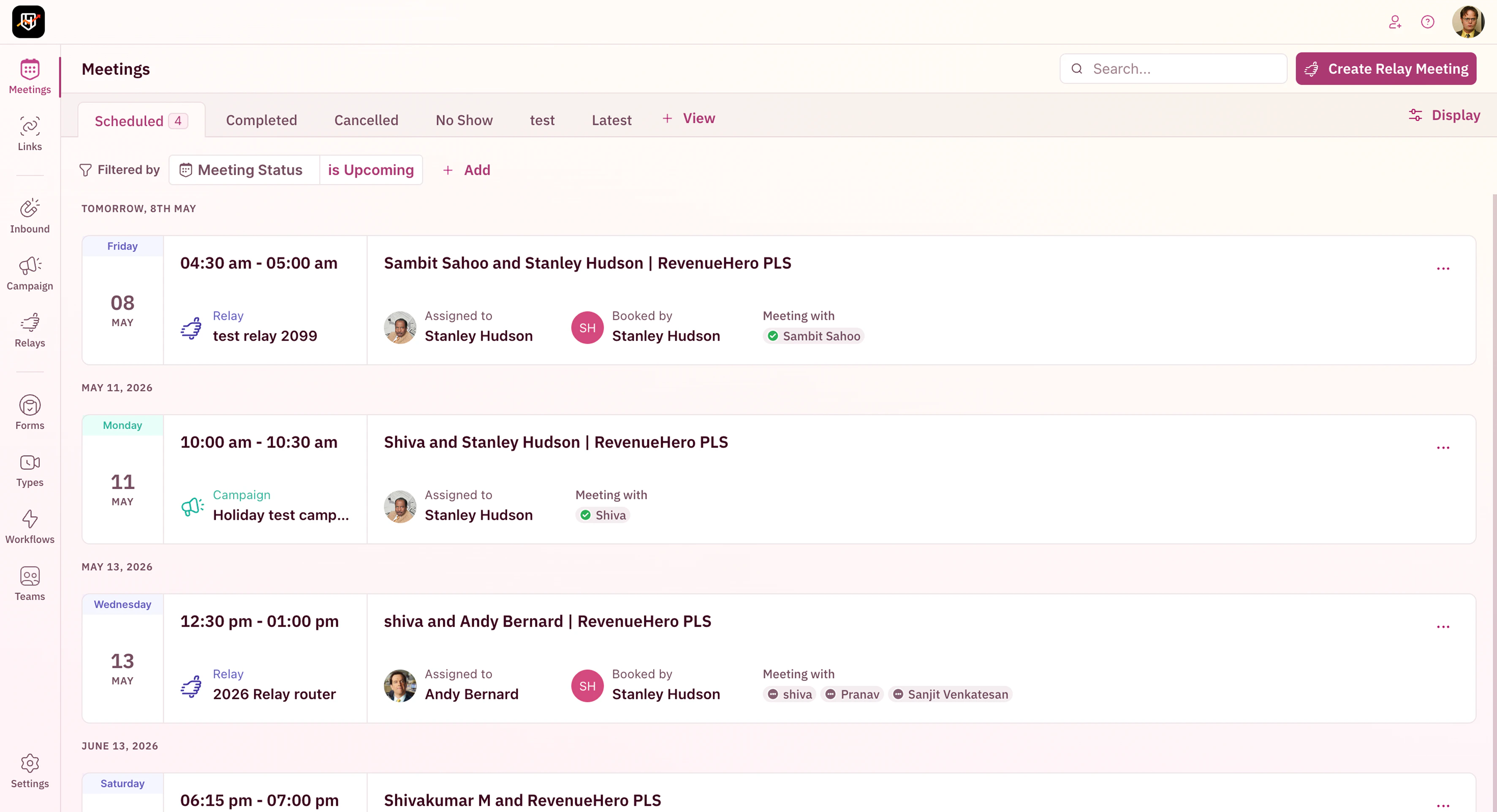
1. Go to Meetings --> Select the specific meeting to be reassigned.
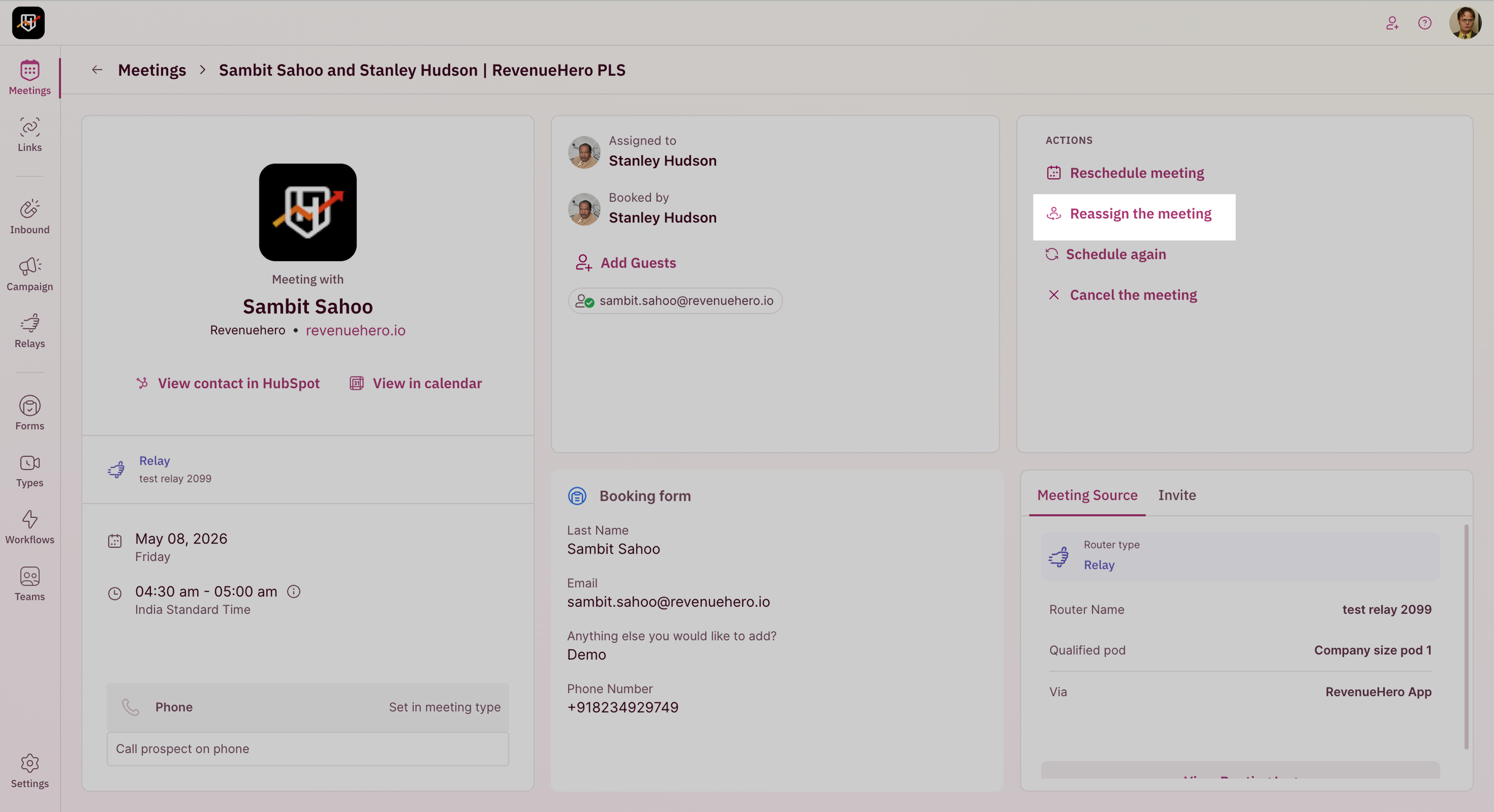
 2. Click on Reassign.
 ### Steps
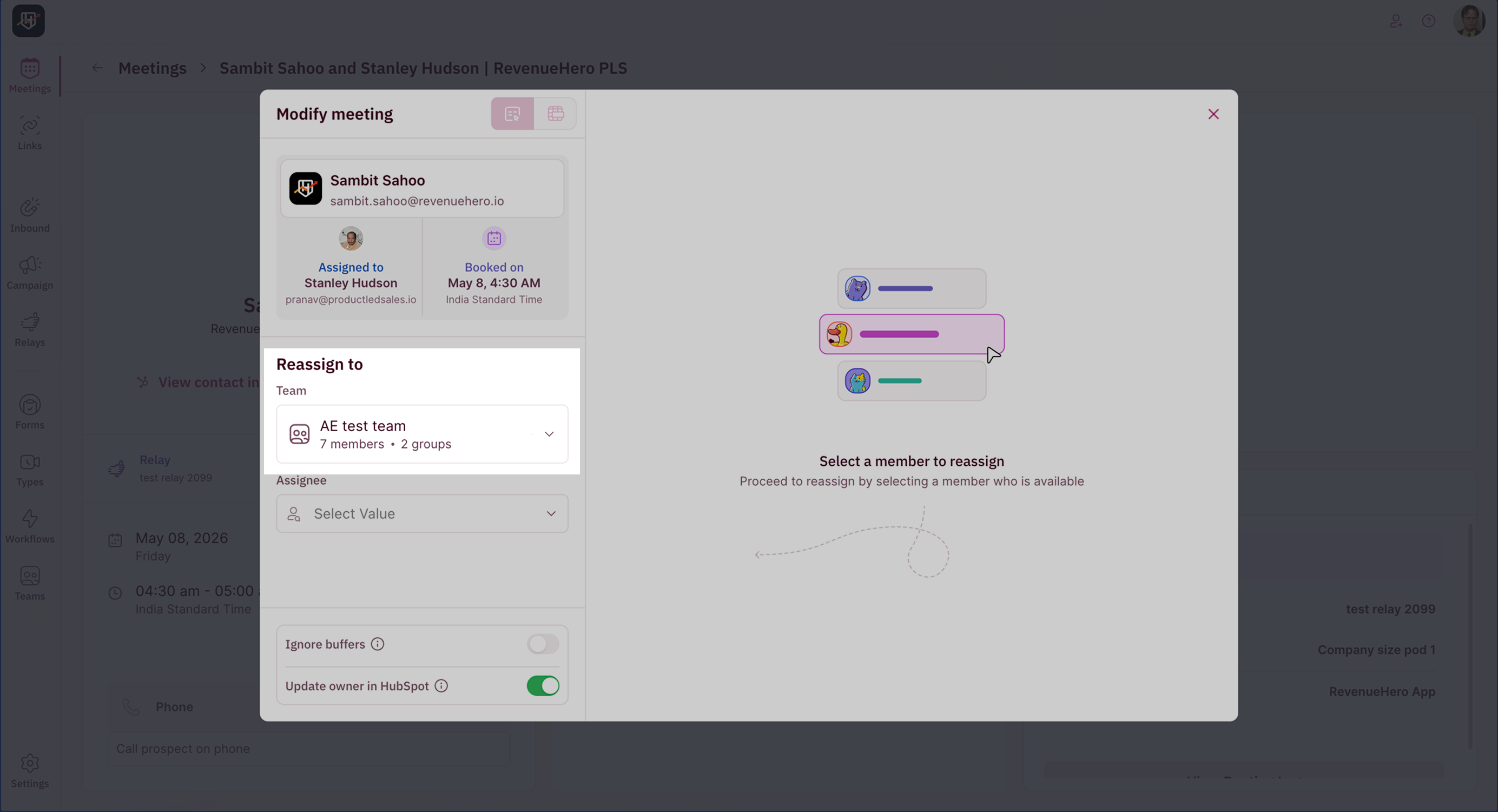
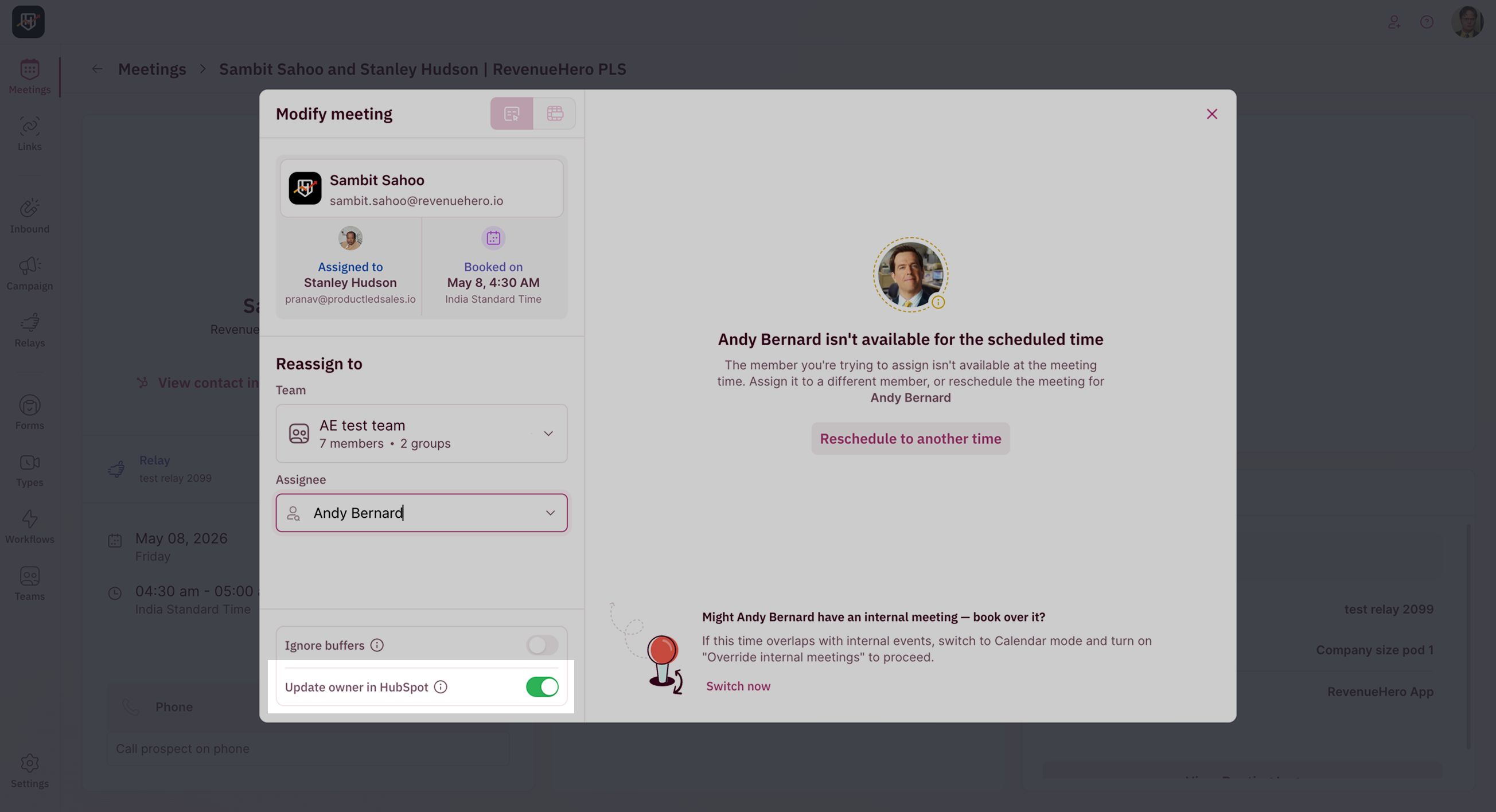
1. Select the team which the rep you want to reassign the meeting to.
### Steps
1. Select the team which the rep you want to reassign the meeting to.
 2. Select the rep you want to reassign the meeting to. You can now reassign a meeting to a rep even if they aren't available by overriding their calendar. Just click on **Switch now**, navigate to the meeting slot on their calendar and click **Book now**. The rep will now see two bookings on their calendar and can attend the one they are needed the most in.
> This is particularly helpful to include reps who may have more context or are required in a meeting even if they are unavailable during the slot that was booked for. Conversely, if they are available during in the meeting slot, the process is pretty straightforward. Just select the rep you want to reassign the meeting to, navigate to the meeting slot and click on **Book now**.
2. Select the rep you want to reassign the meeting to. You can now reassign a meeting to a rep even if they aren't available by overriding their calendar. Just click on **Switch now**, navigate to the meeting slot on their calendar and click **Book now**. The rep will now see two bookings on their calendar and can attend the one they are needed the most in.
> This is particularly helpful to include reps who may have more context or are required in a meeting even if they are unavailable during the slot that was booked for. Conversely, if they are available during in the meeting slot, the process is pretty straightforward. Just select the rep you want to reassign the meeting to, navigate to the meeting slot and click on **Book now**.
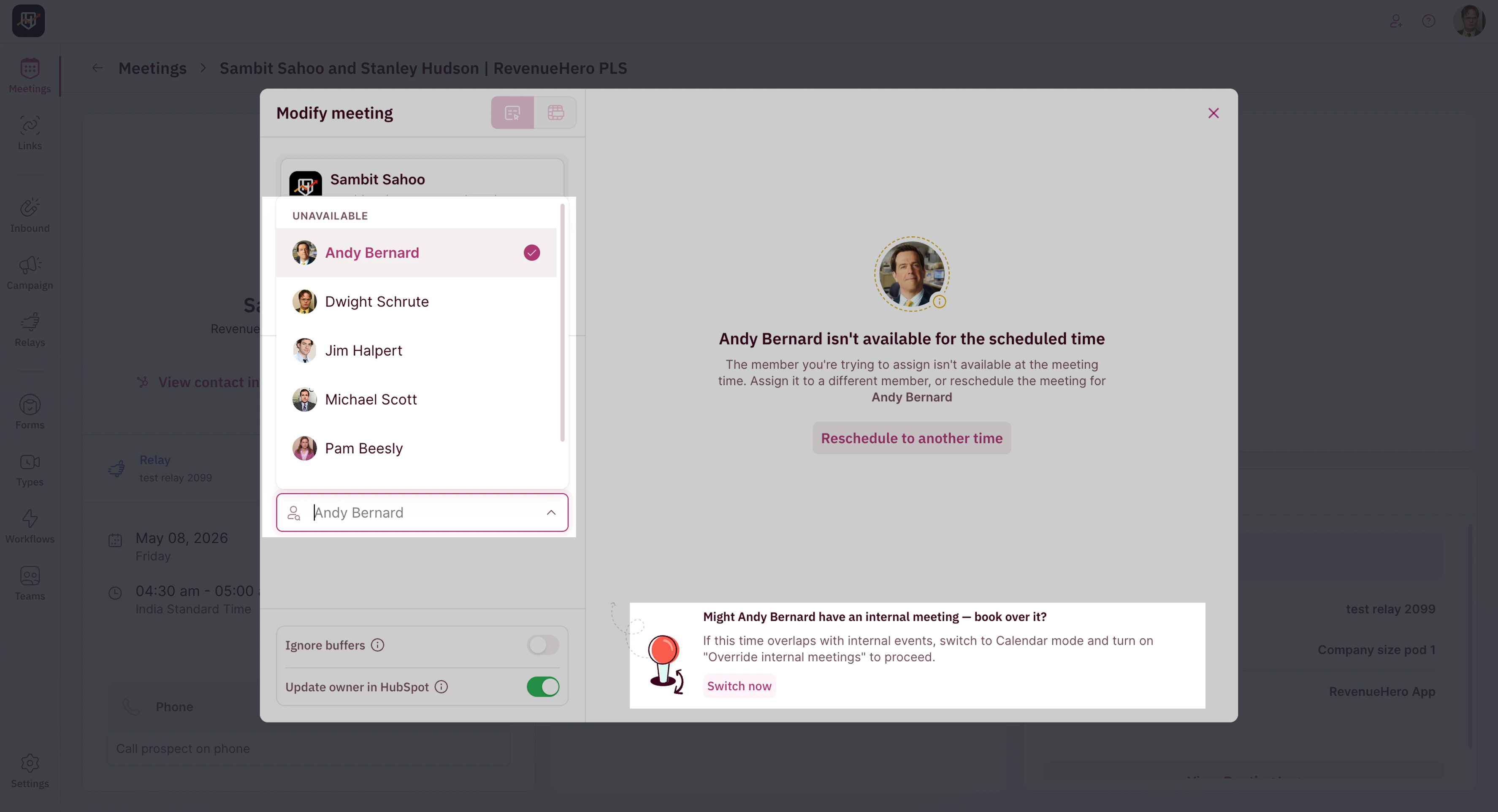 If the rep you wish to reassign it to is unavailable in the list, check their calendar to see if they have a free slot.
3. Toggle the switch ON if you wish to update the new assignee as the CRM owner of the prospect.
If the rep you wish to reassign it to is unavailable in the list, check their calendar to see if they have a free slot.
3. Toggle the switch ON if you wish to update the new assignee as the CRM owner of the prospect.
 ***
## Reassign on the calendar invite
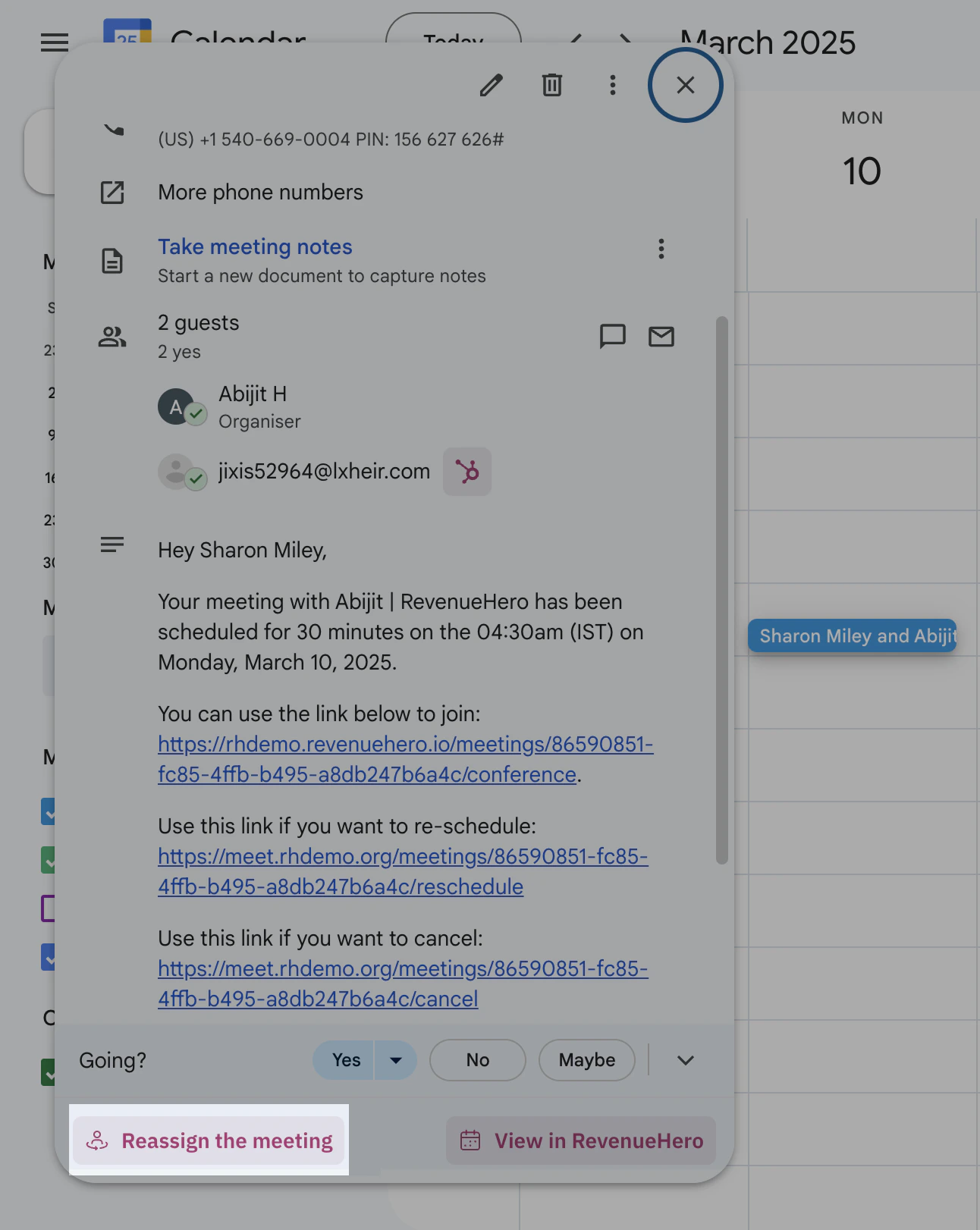
As an admin, you could also reassign meeting from the calendar invite.
1. Open your Google calendar and select the meeting you wish to reassign.
2. Click on **Reassign the meeting** and follow the above steps.
***
## Reassign on the calendar invite
As an admin, you could also reassign meeting from the calendar invite.
1. Open your Google calendar and select the meeting you wish to reassign.
2. Click on **Reassign the meeting** and follow the above steps.
 A pre-requisite is to install the [chrome extension](/integrations/chrome-extension) which powers this feature.
***
A pre-requisite is to install the [chrome extension](/integrations/chrome-extension) which powers this feature.
***