> ## Documentation Index
> Fetch the complete documentation index at: https://help.revenuehero.io/llms.txt
> Use this file to discover all available pages before exploring further.
# Reschedule RevenueHero meetings
> Learn how to reschedule meetings booked through RevenueHero.
## Reschedule Settings
While any meeting can be rescheduled before it starts, you need to enable and specify the window within which it can be rescheduled after it starts. To enable this:
1. Go to Settings --> Meeting Settings --> Meeting Window.
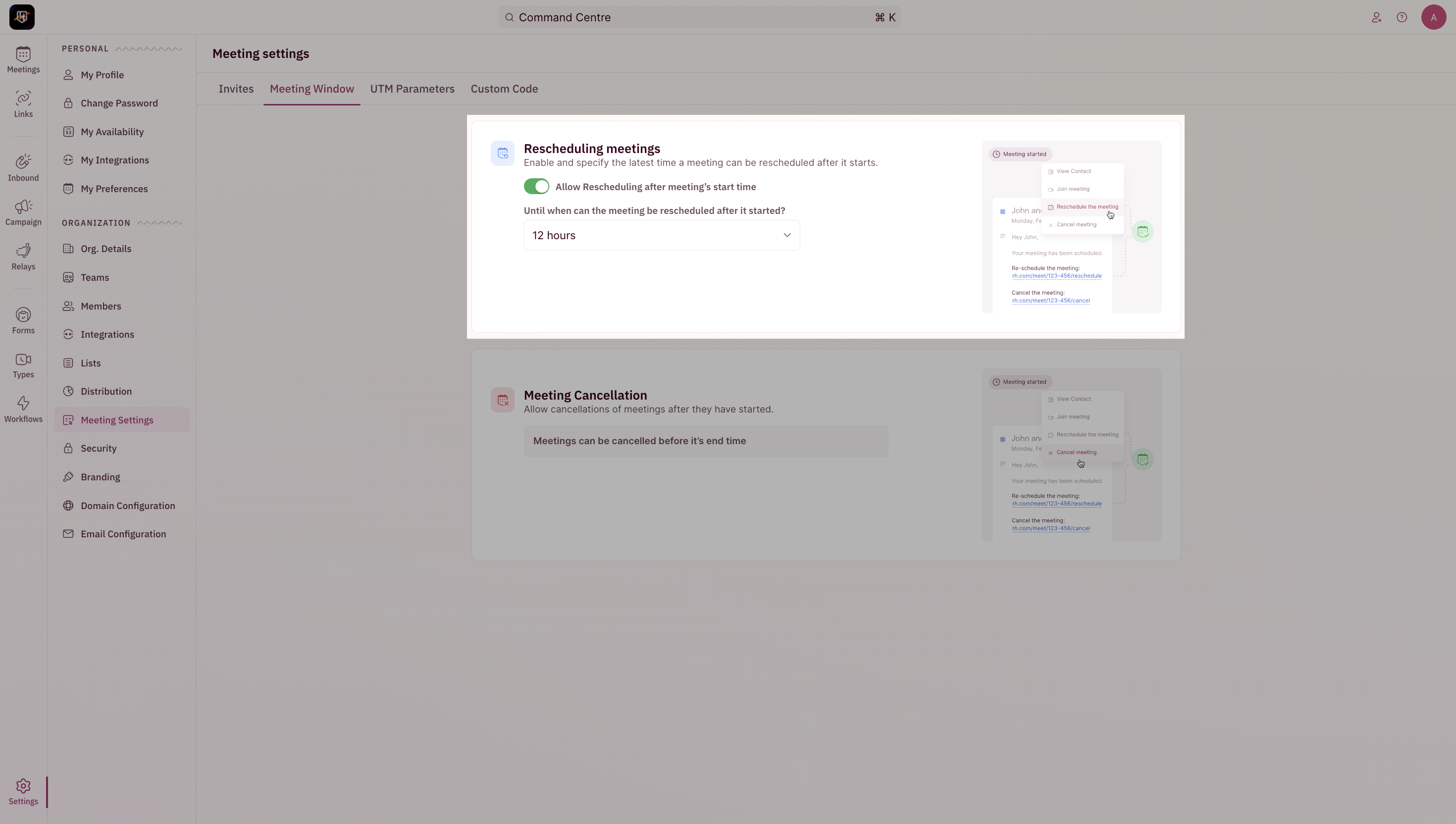 2. Toggle **Allow reschedule after meeting's start time** and specify the time period.
## Reschedule through RevenueHero's UI
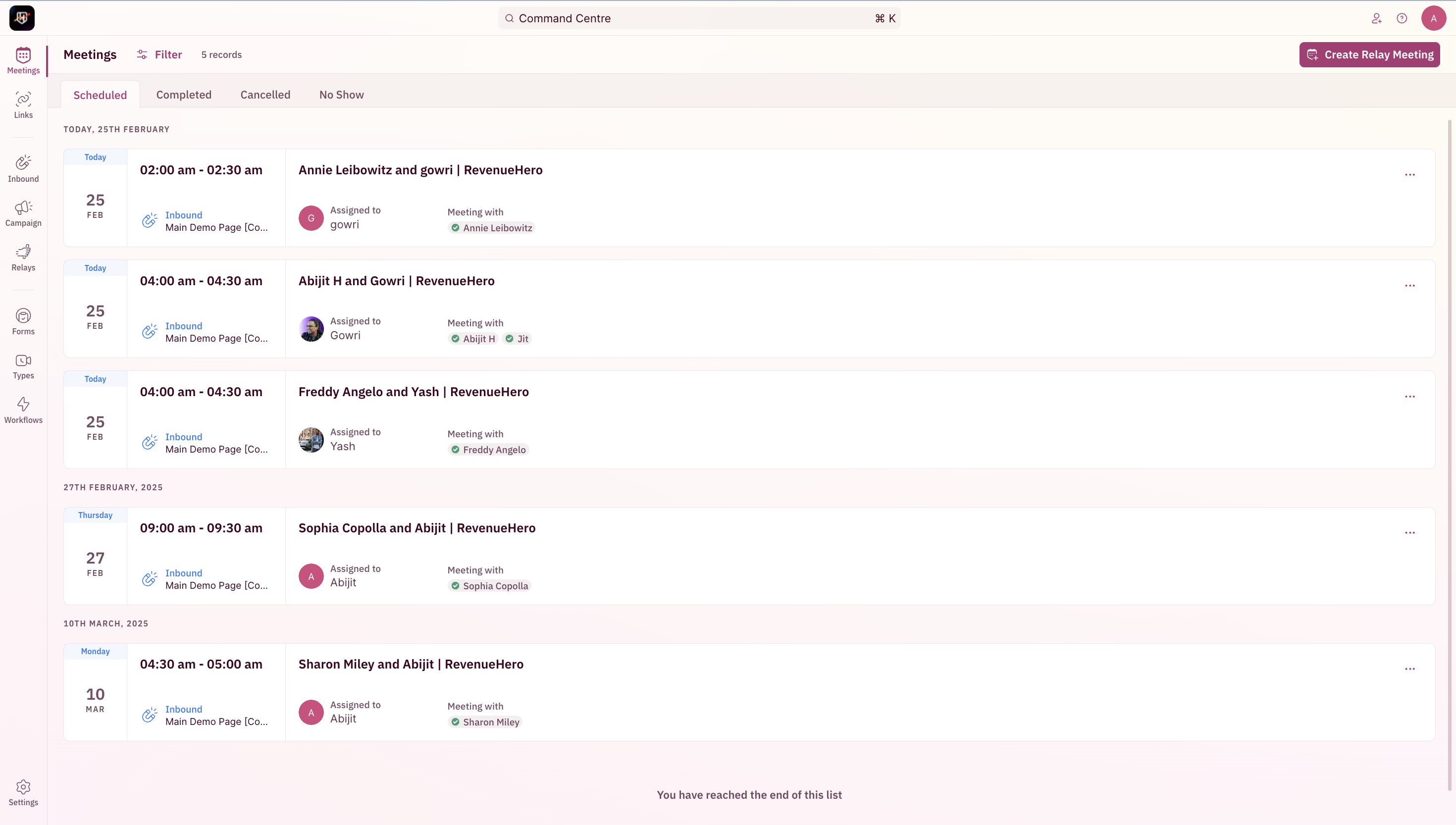
1. Go to Meetings --> Select the specific meeting to be rescheduled.
2. Toggle **Allow reschedule after meeting's start time** and specify the time period.
## Reschedule through RevenueHero's UI
1. Go to Meetings --> Select the specific meeting to be rescheduled.
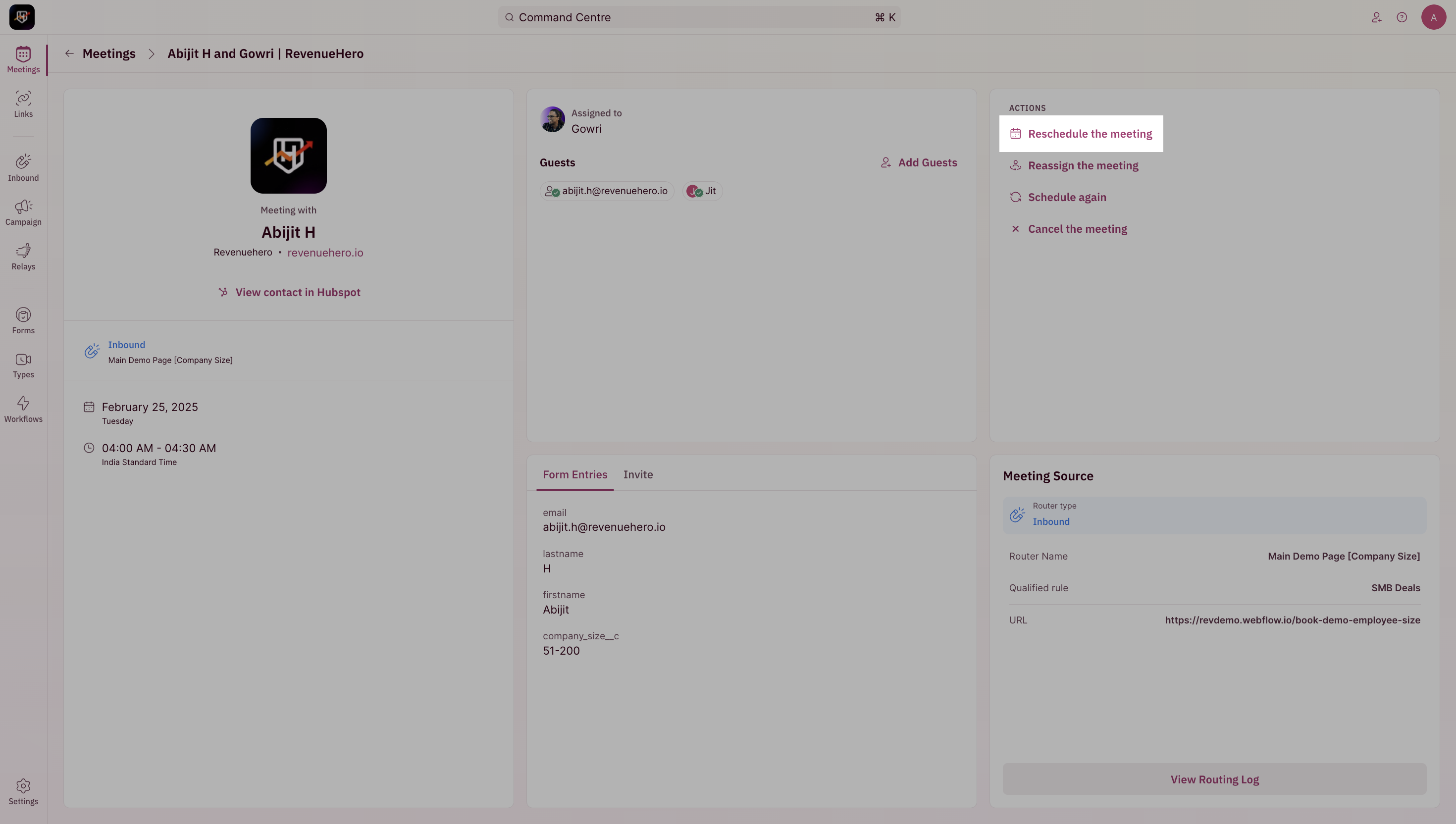
 2. Click on reschedule.
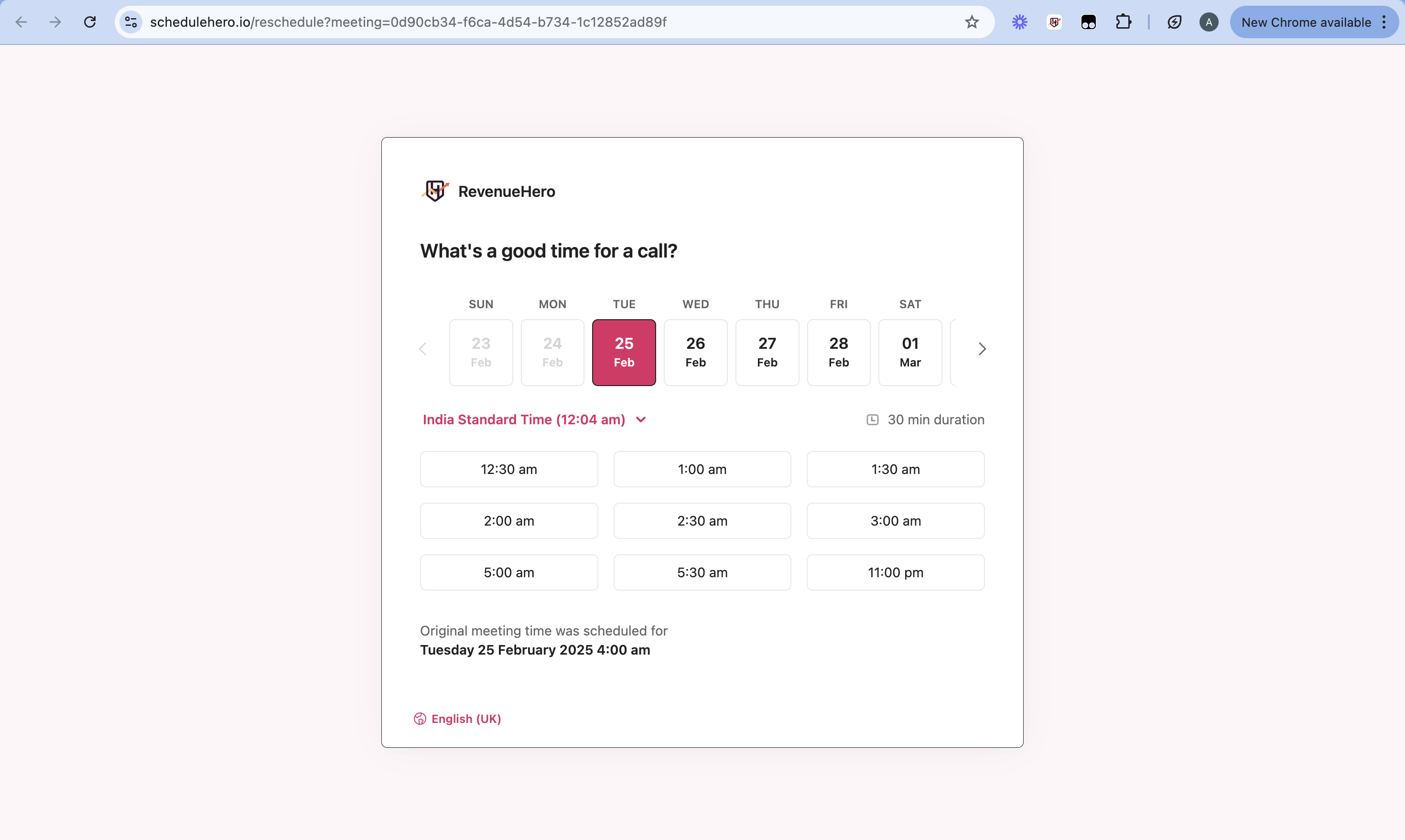
 3. Pick the time you'd like to reschedule the meeting to.
 ***
## Reschedule on the calendar invite
The meeting can also be rescheduled using the link in the meeting invite.
This is the recommended method for your prospects to reschedule the meeting.
1. Click on the calendar invite for the meeting that you wish to reschedule.
***
## Reschedule on the calendar invite
The meeting can also be rescheduled using the link in the meeting invite.
This is the recommended method for your prospects to reschedule the meeting.
1. Click on the calendar invite for the meeting that you wish to reschedule.
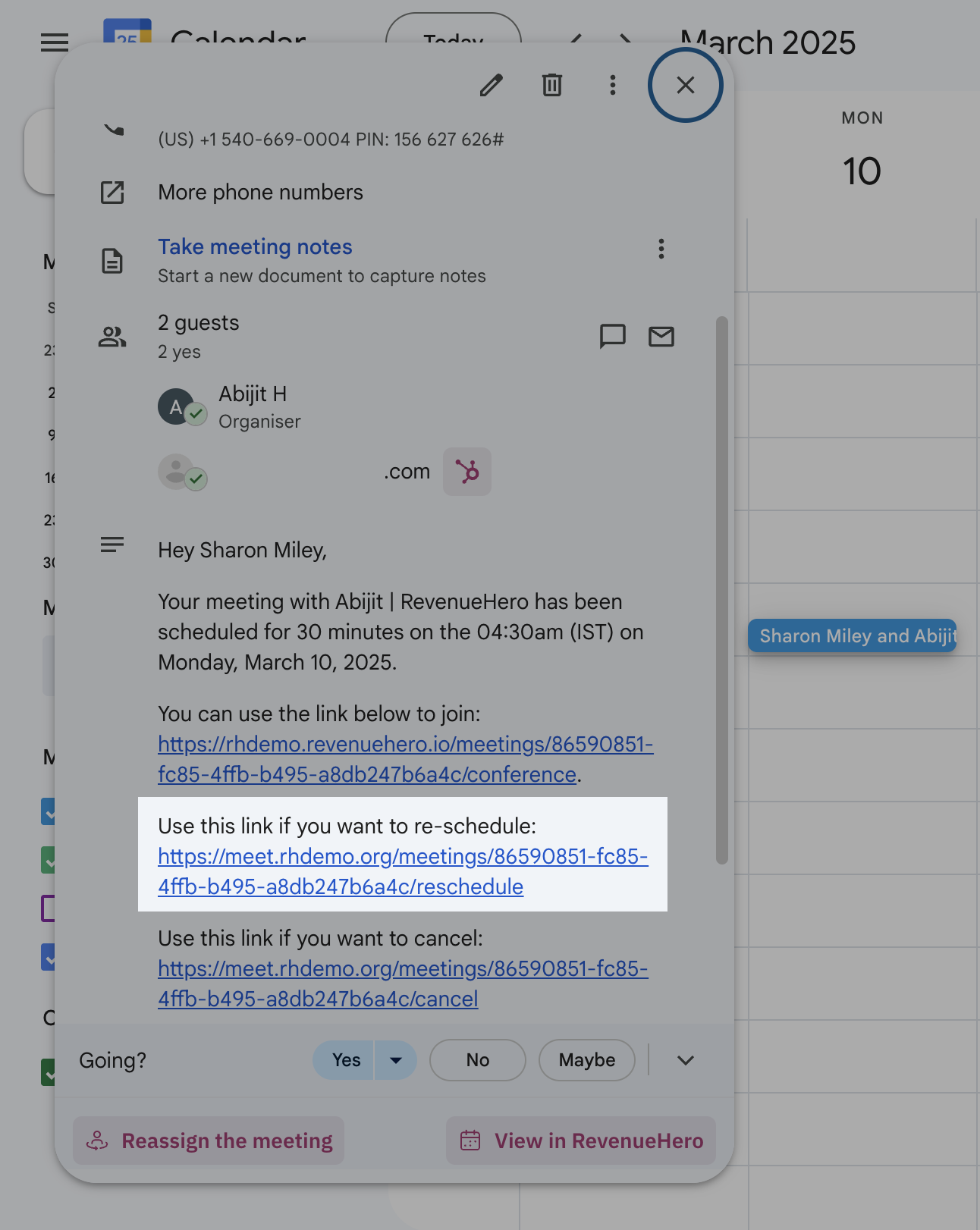 2. Click on the reschedule link.
3. Pick the time you wish to reschedule to.
1. Click on the calendar invite for the meeting that you wish to reschedule and expand.
2. Click on the reschedule link.
3. Pick the time you wish to reschedule to.
1. Click on the calendar invite for the meeting that you wish to reschedule and expand.
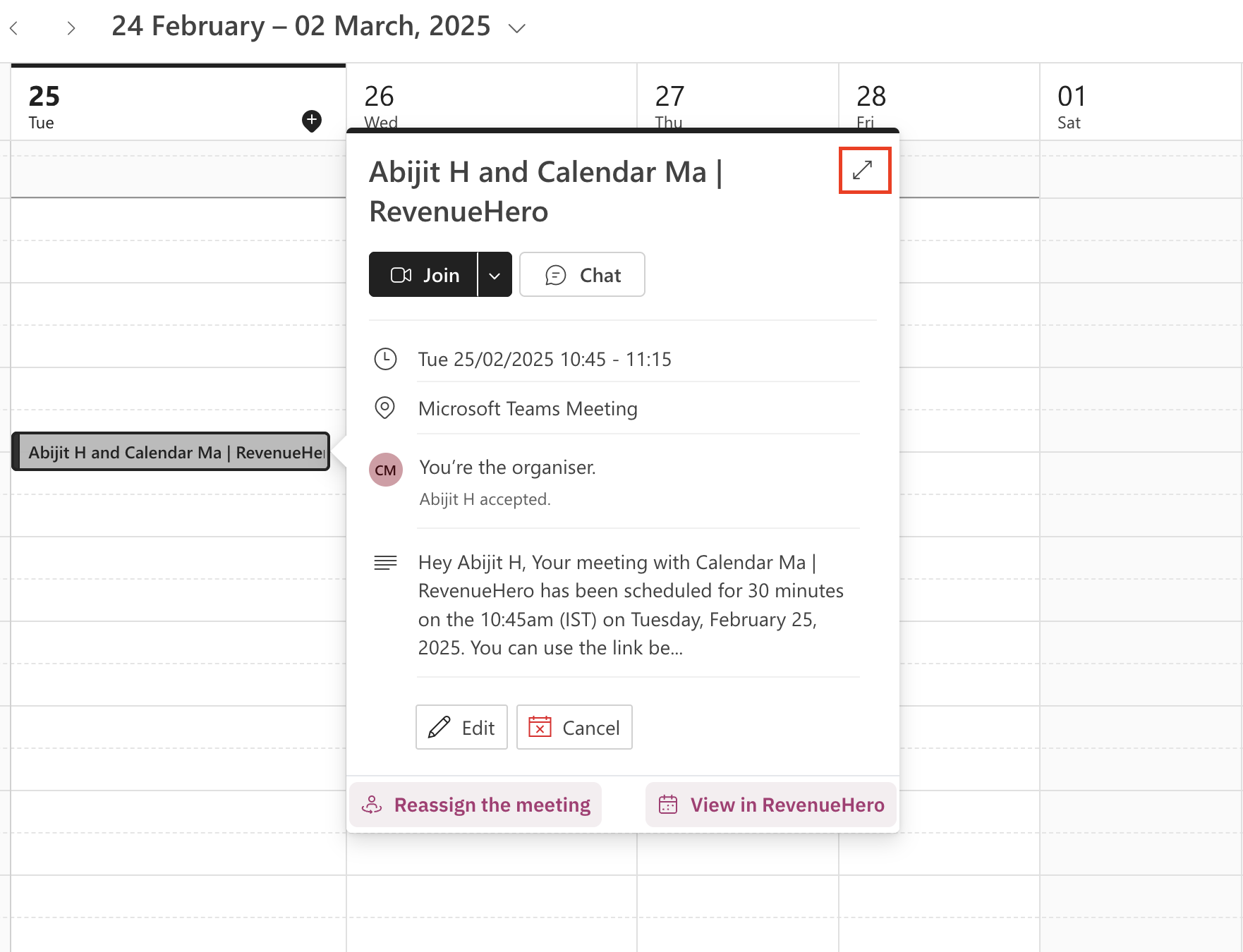 2. Click on the reschedule link.
 3. Pick the time you wish to reschedule to.
***
3. Pick the time you wish to reschedule to.
***