> ## Documentation Index
> Fetch the complete documentation index at: https://help.revenuehero.io/llms.txt
> Use this file to discover all available pages before exploring further.
# Book a follow-up meeting
> Learn how to book your second meeting with the same prospect.
This action can only be performed **after a meeting is completed**.
In order to enable reps to schedule another meeting with the same prospect, you will need to set up a [relay](/routers/relays/create-relays).
1. Go to Meetings --> Select the specific meeting where you'd like to schedule with them once again.
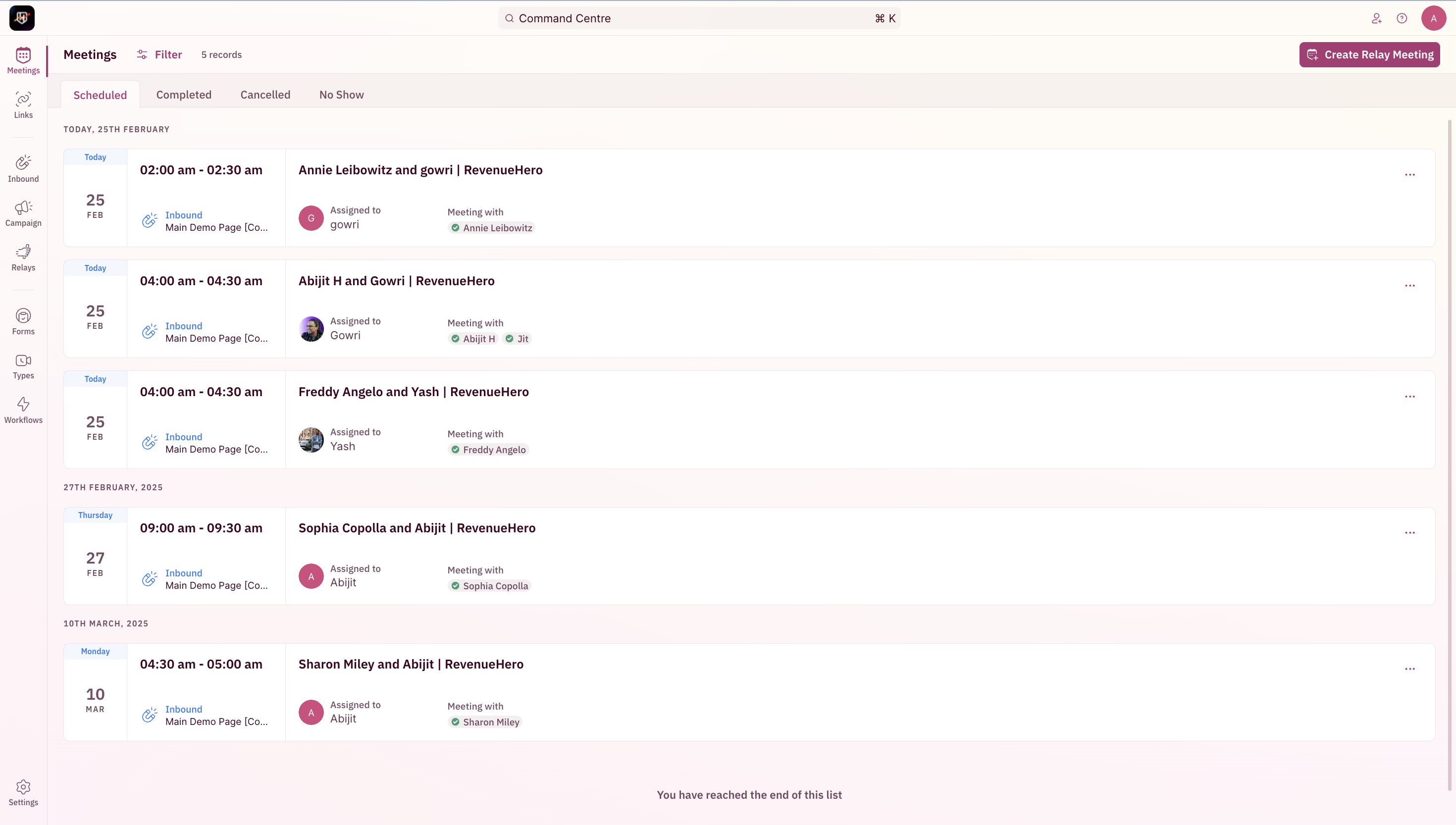 2. Click on **Schedule Again**.
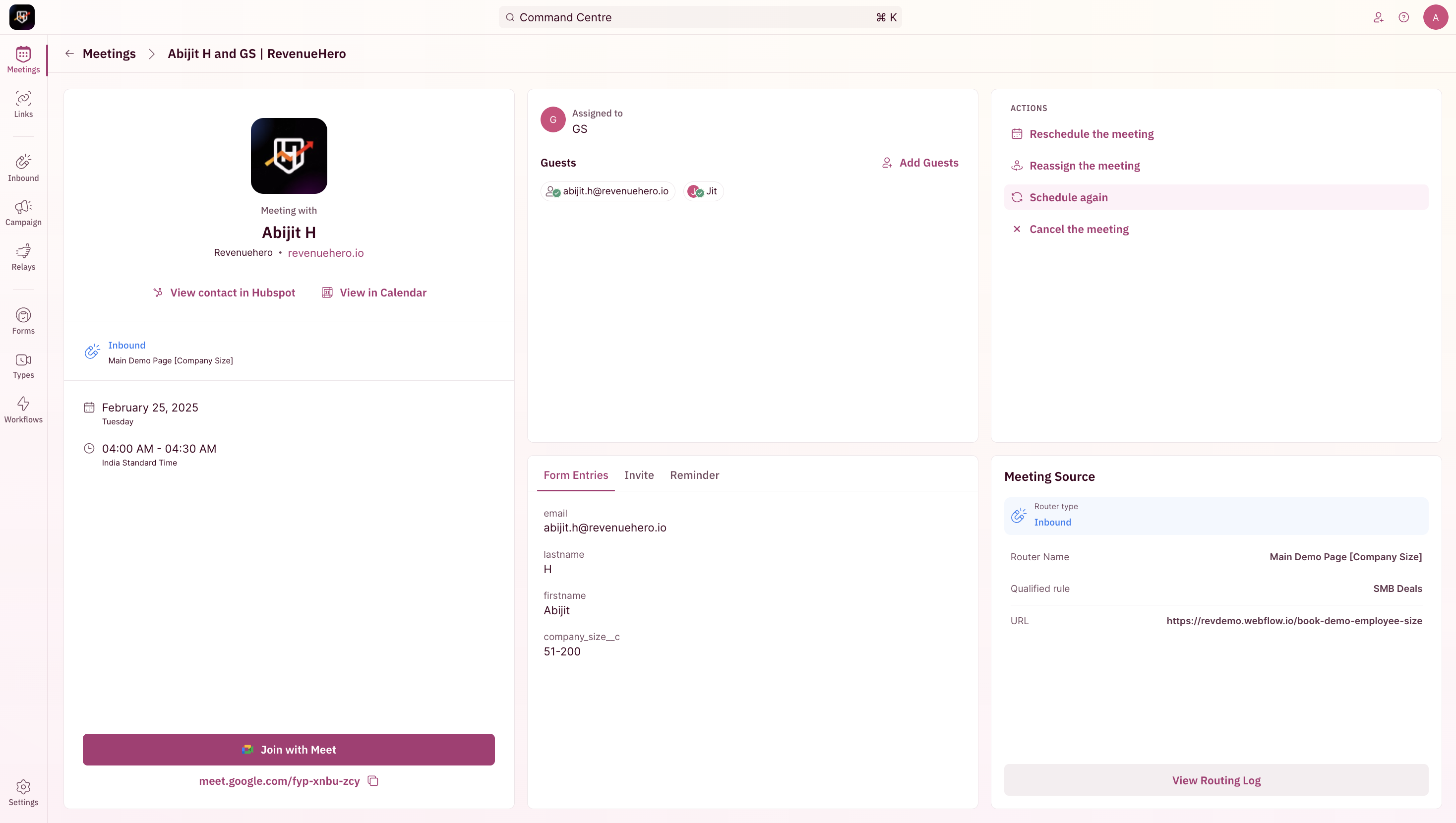 3. Ensure that it's the right contact and the right relay that's selected.
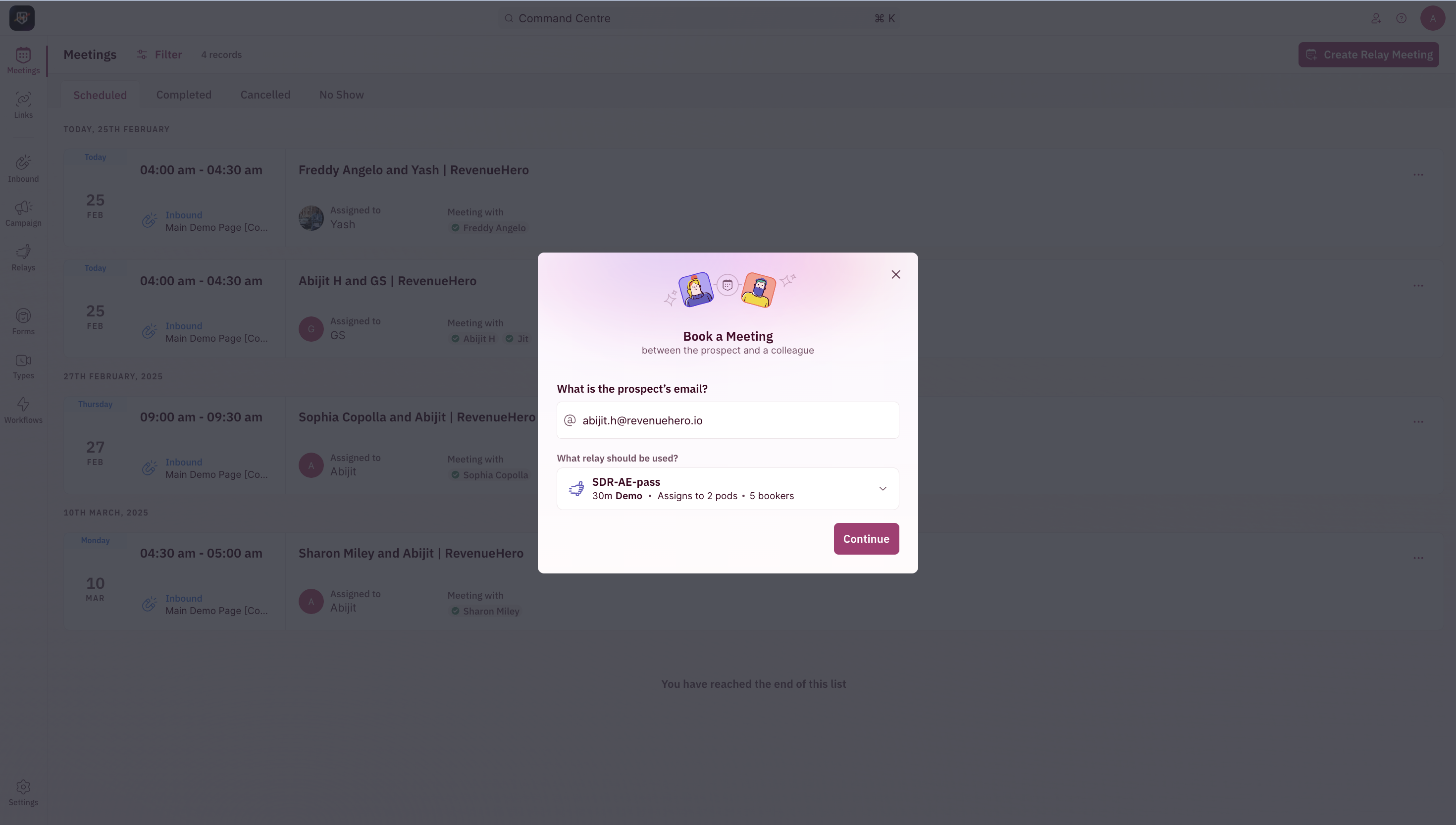 4. Click on **Assign to me** if the meeting if you're the meeting organizer, else select **Relay to a Colleague**. Also ensure that the prospect's timezone is set correctly.
 5. Browse the timeslots for the desired one. Ensure it's the right assignee in the sidebar (on the left side).
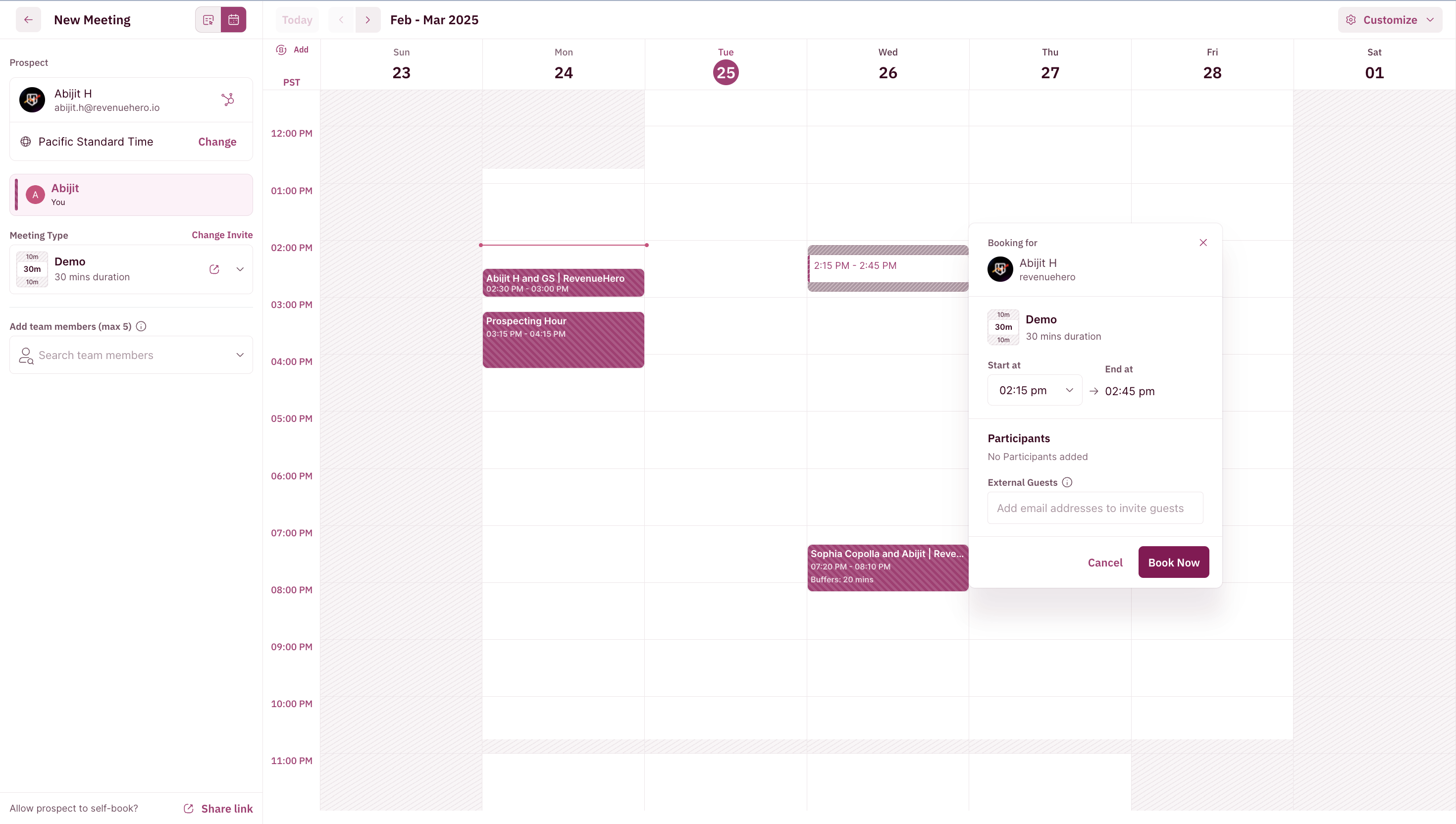
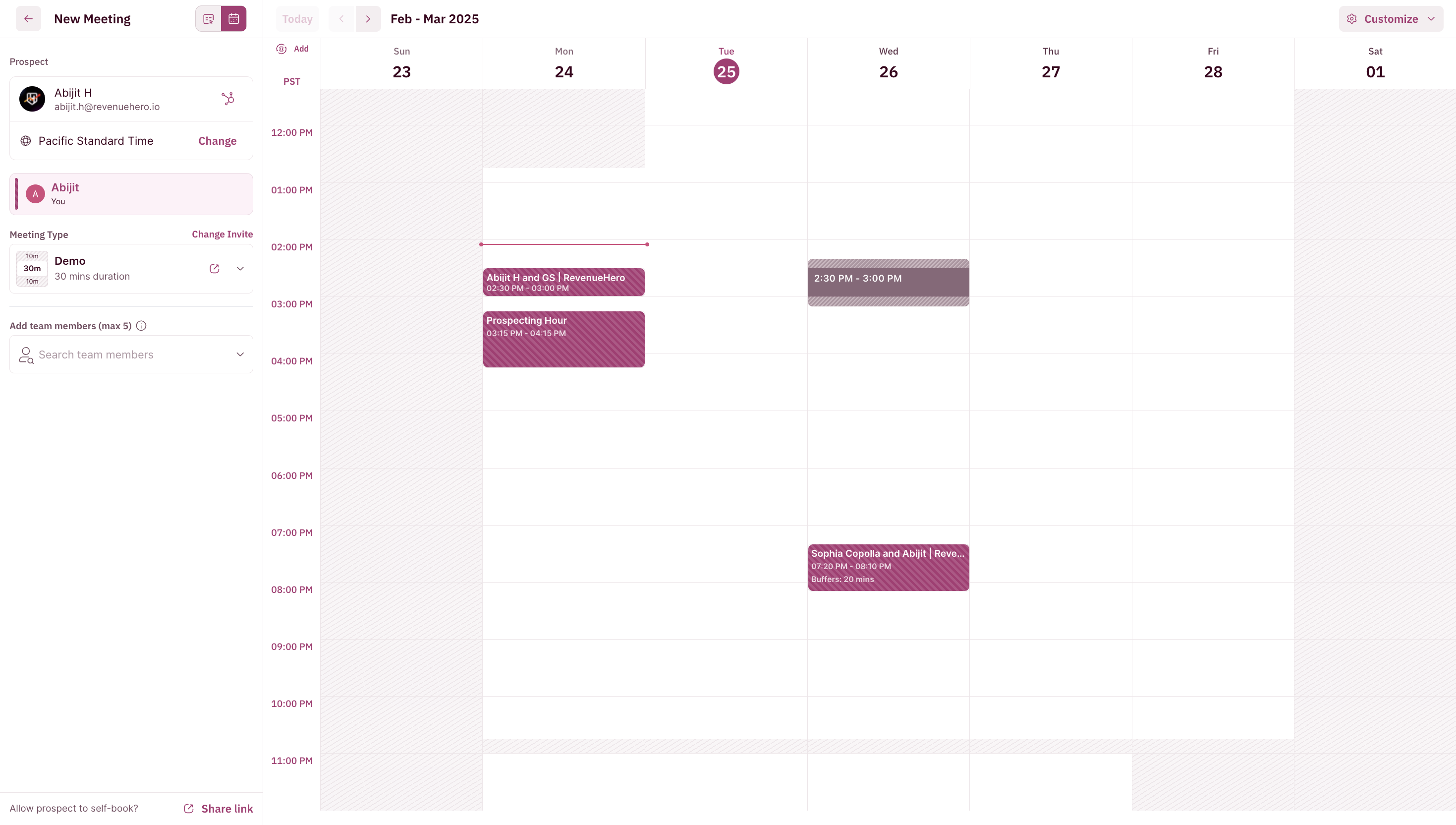 6. Click on the time slot, add additional guests if applicable and select **Book Now**.
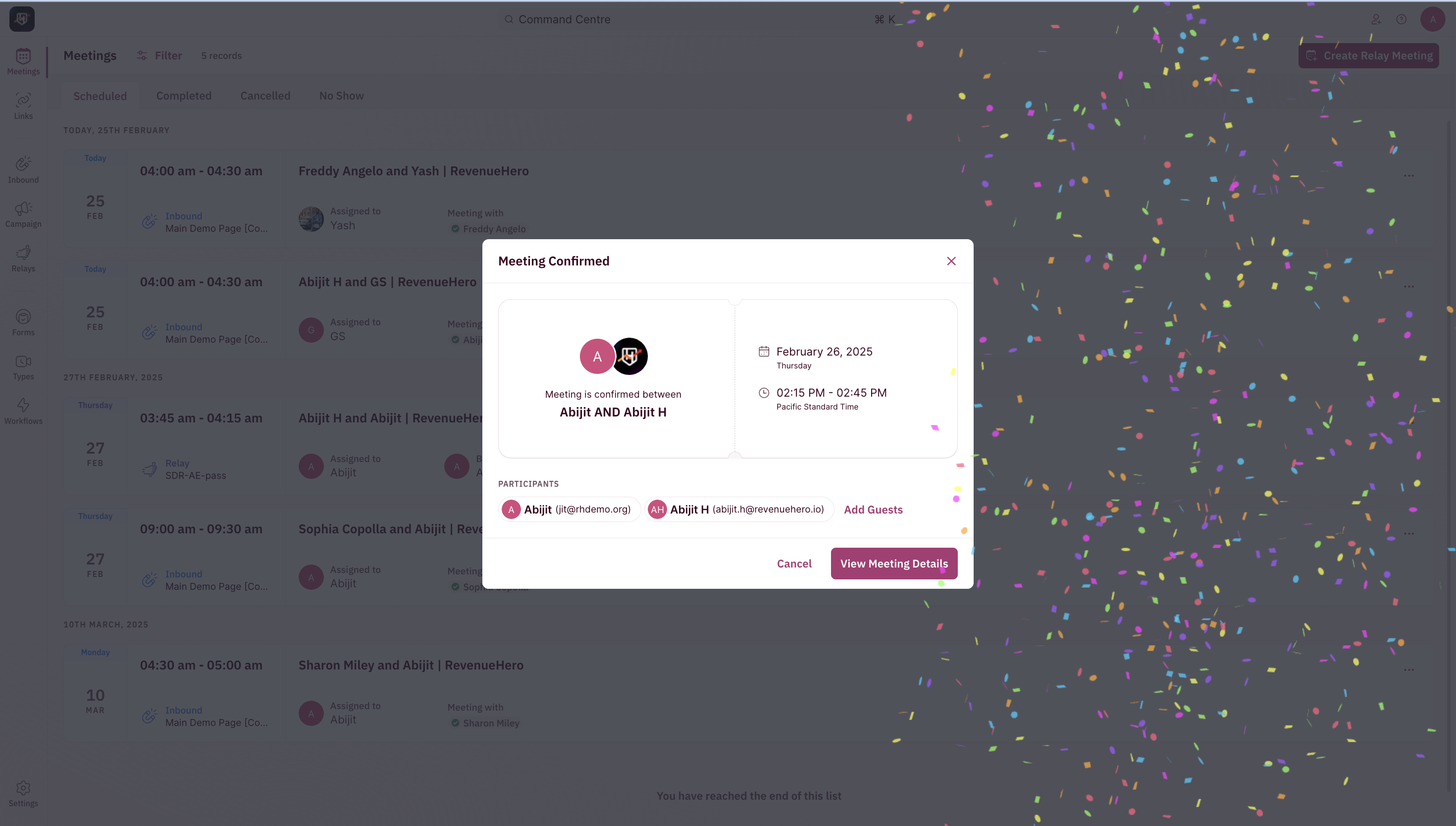
 7. You're all set!
 ***
***