> ## Documentation Index
> Fetch the complete documentation index at: https://help.revenuehero.io/llms.txt
> Use this file to discover all available pages before exploring further.
# How to filter, search, and organize your resources?
> Find any router, rule, meeting type, or team in seconds with filters, search, and custom view options across every page in RevenueHero.
When you have five routing rules and two teams, scrolling through a page is fine. When you have fifty routing rules across six regions, it's not. Resource filters, search, and list views give you instant access to any item across every management page in RevenueHero.
Resource filters are available on every resource page in RevenueHero: **Meeting Types**, **Inbound Routers**, **Inbound Forms**, **Matching Rules**, **Distribution Rules**, **Redirect Rules**, **Campaign Routers**, **Handoff Routers**, **Distribution Pods**, **Handoff Matching Rules**, **Marketing Forms**, **Routing Workflows**, **Teams**, and **Lists**.
## How it works
Every resource page has a unified toolbar with four capabilities:
1. **Search** — The search bar (top right) instantly narrows results as you type
2. **Filter** — The **Filter** button (below the tabs) opens a property-based filter panel
3. **Display** — The **Display** button (top right) controls sort order
4. **Views** — Tabs let you save and switch between different filter/display combinations
These controls work the same way on every page. Once you learn them on Meeting Types, you know them everywhere.
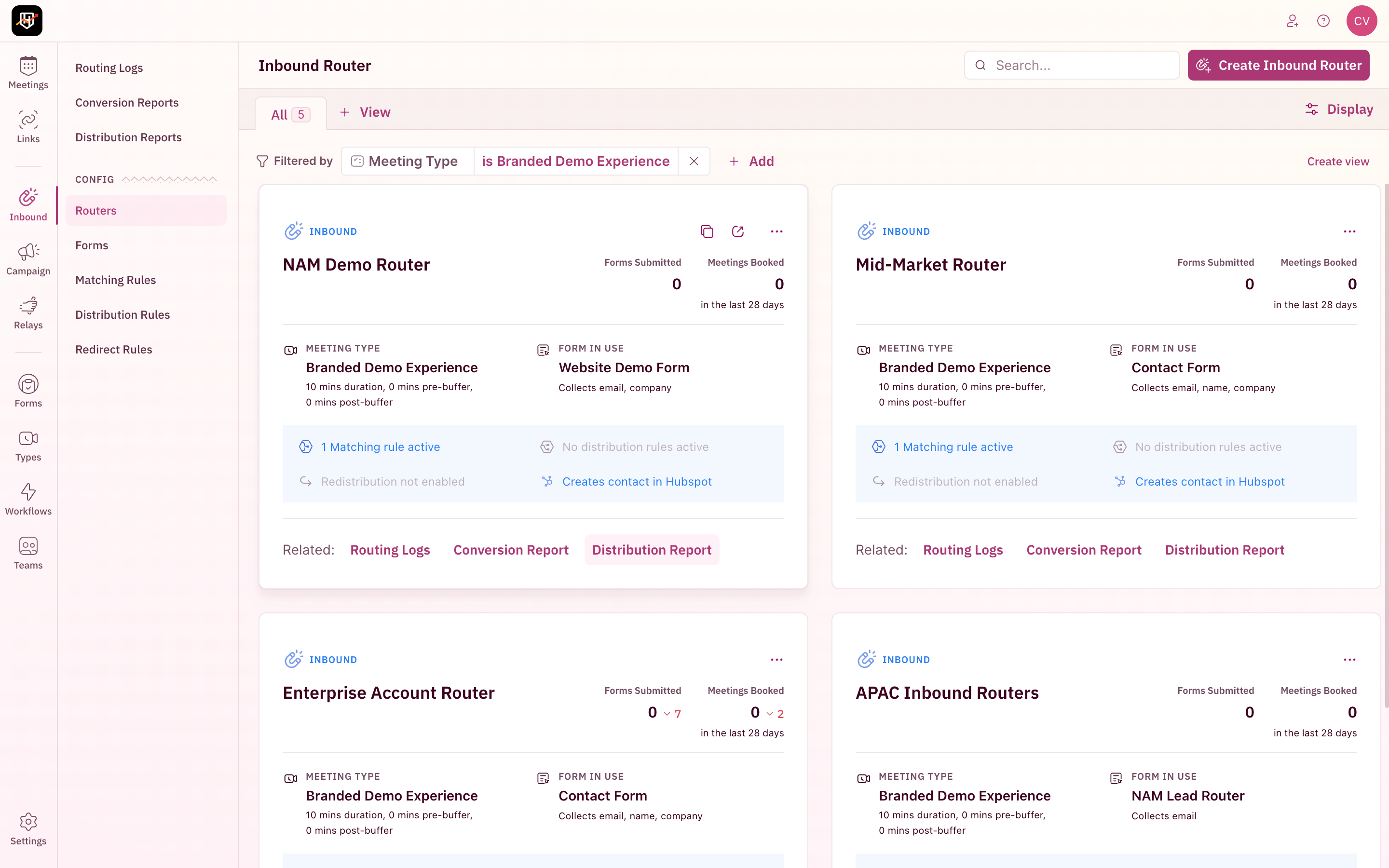
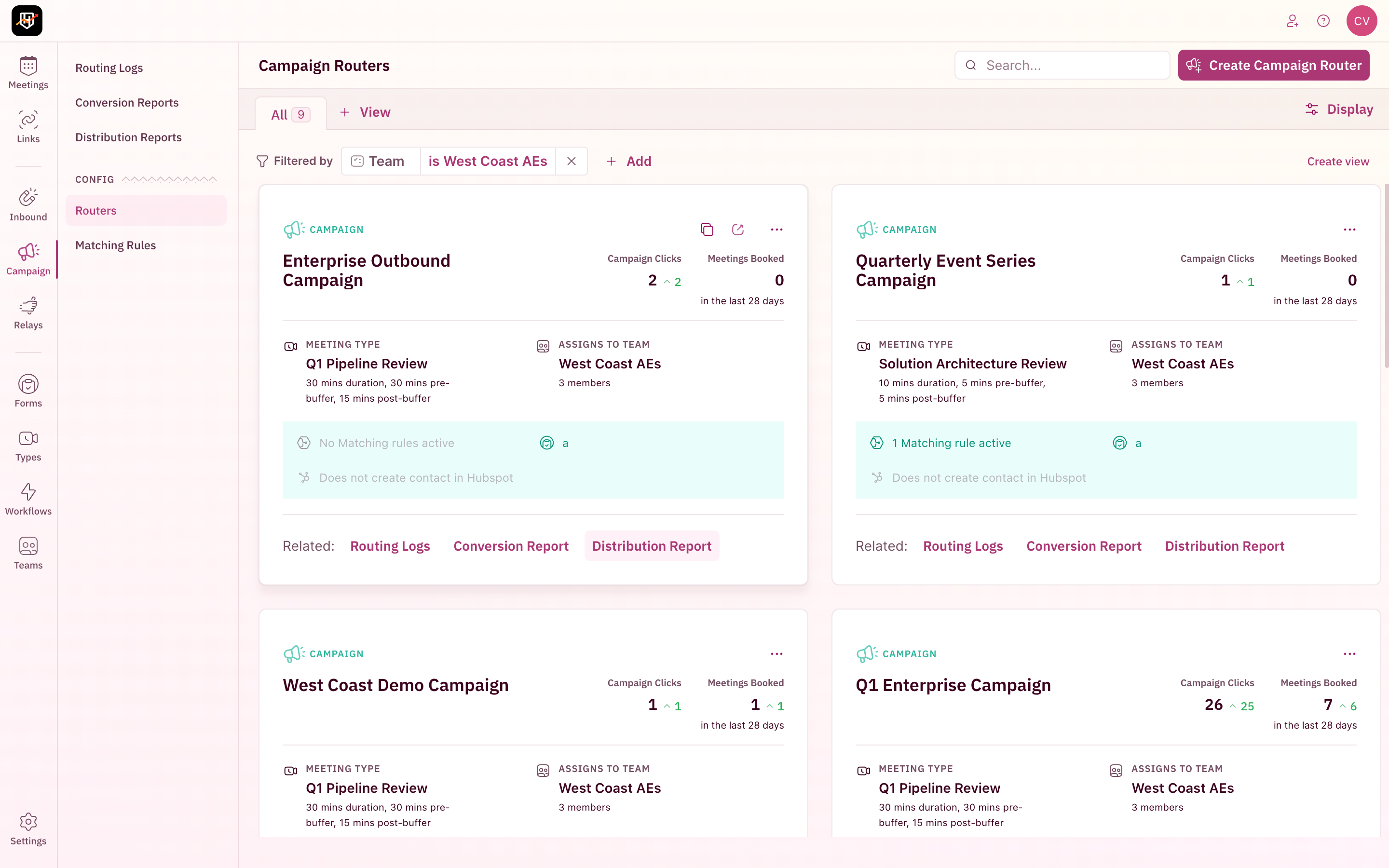
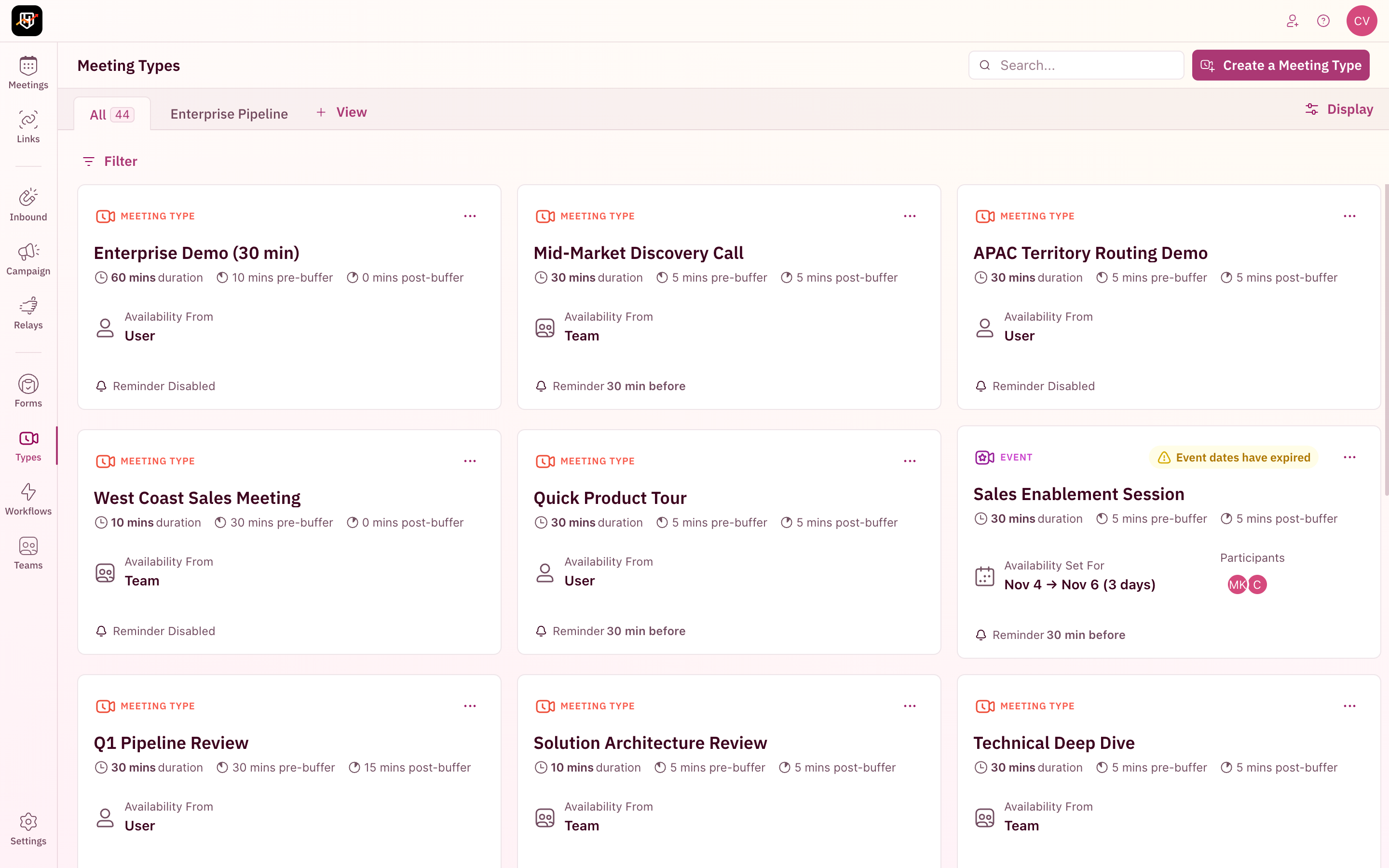 The same toolbar appears on router pages, team management, workflows, and every other resource list.
 ## Search for a resource
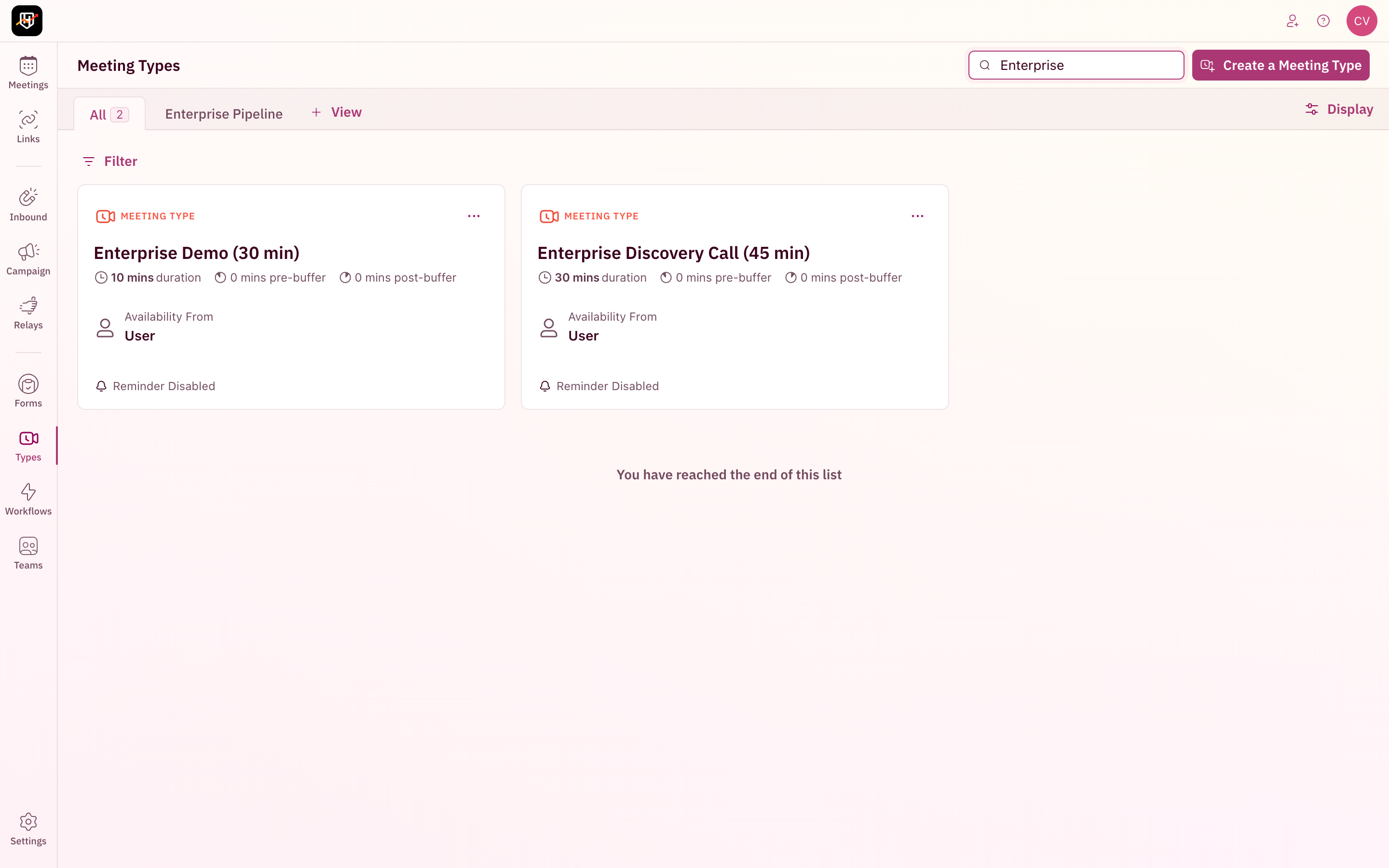
The **Search...** bar sits in the top right of every resource page. Start typing and results narrow in real-time. Search matches against the resource name, so typing "Enterprise" instantly surfaces only the meeting types with that term.
## Search for a resource
The **Search...** bar sits in the top right of every resource page. Start typing and results narrow in real-time. Search matches against the resource name, so typing "Enterprise" instantly surfaces only the meeting types with that term.
 Use search when you know the name of what you're looking for. Use filters when you want to browse a subset (e.g., "all meeting types assigned to a specific user").
## Filter resources
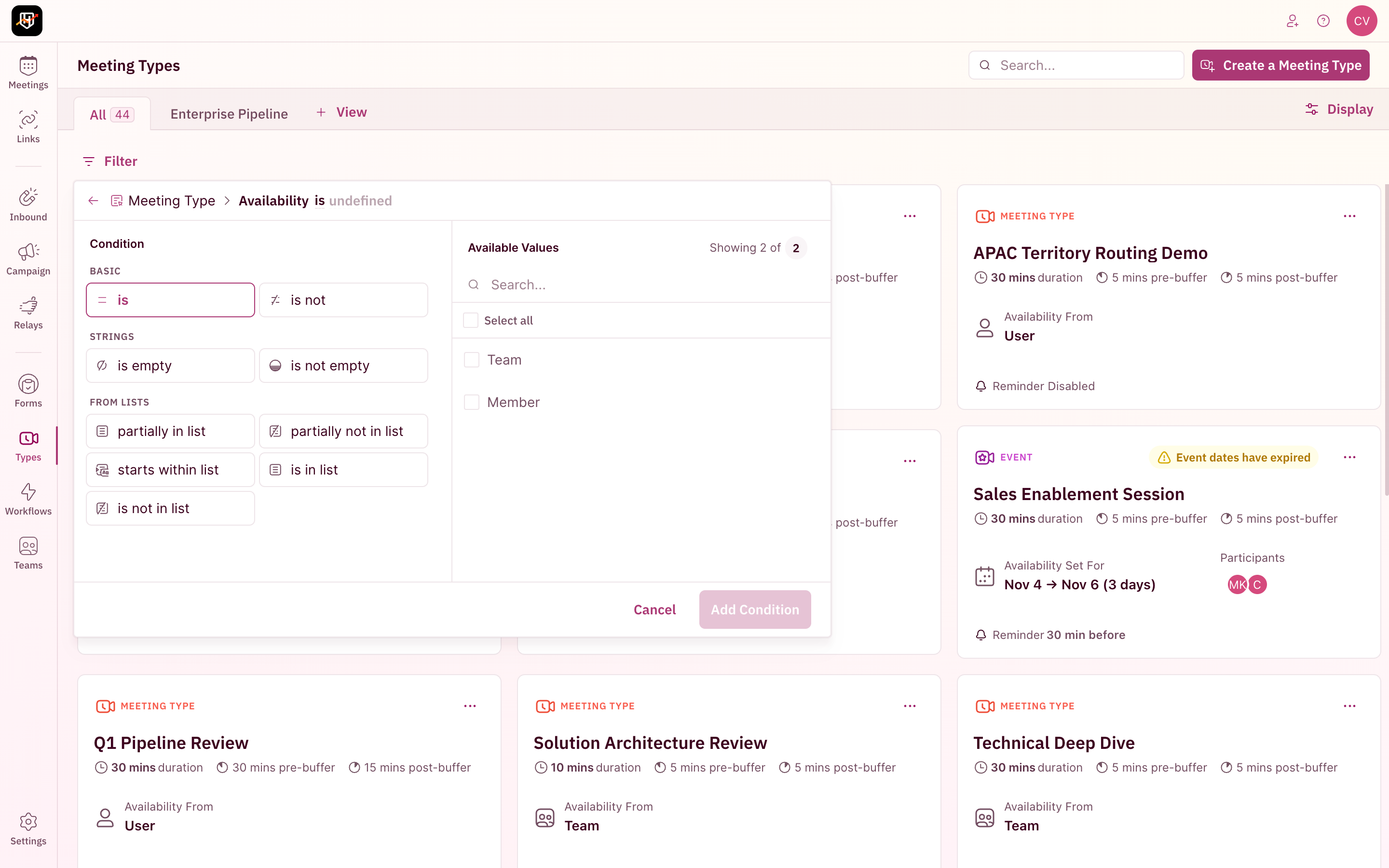
Click **Filter** (below the tabs, left side) to open the filter panel. Each page offers filter properties specific to its resource type.
Use search when you know the name of what you're looking for. Use filters when you want to browse a subset (e.g., "all meeting types assigned to a specific user").
## Filter resources
Click **Filter** (below the tabs, left side) to open the filter panel. Each page offers filter properties specific to its resource type.
 ### How to apply a filter
1. Click **Filter** to open the dropdown
2. Select a **property** from the list (e.g., Duration, Assigned User, Meeting Category)
3. Choose a **value** or condition
4. The results update immediately
You can add multiple filters. All conditions are combined with AND logic, meaning a resource must match every active filter to appear.
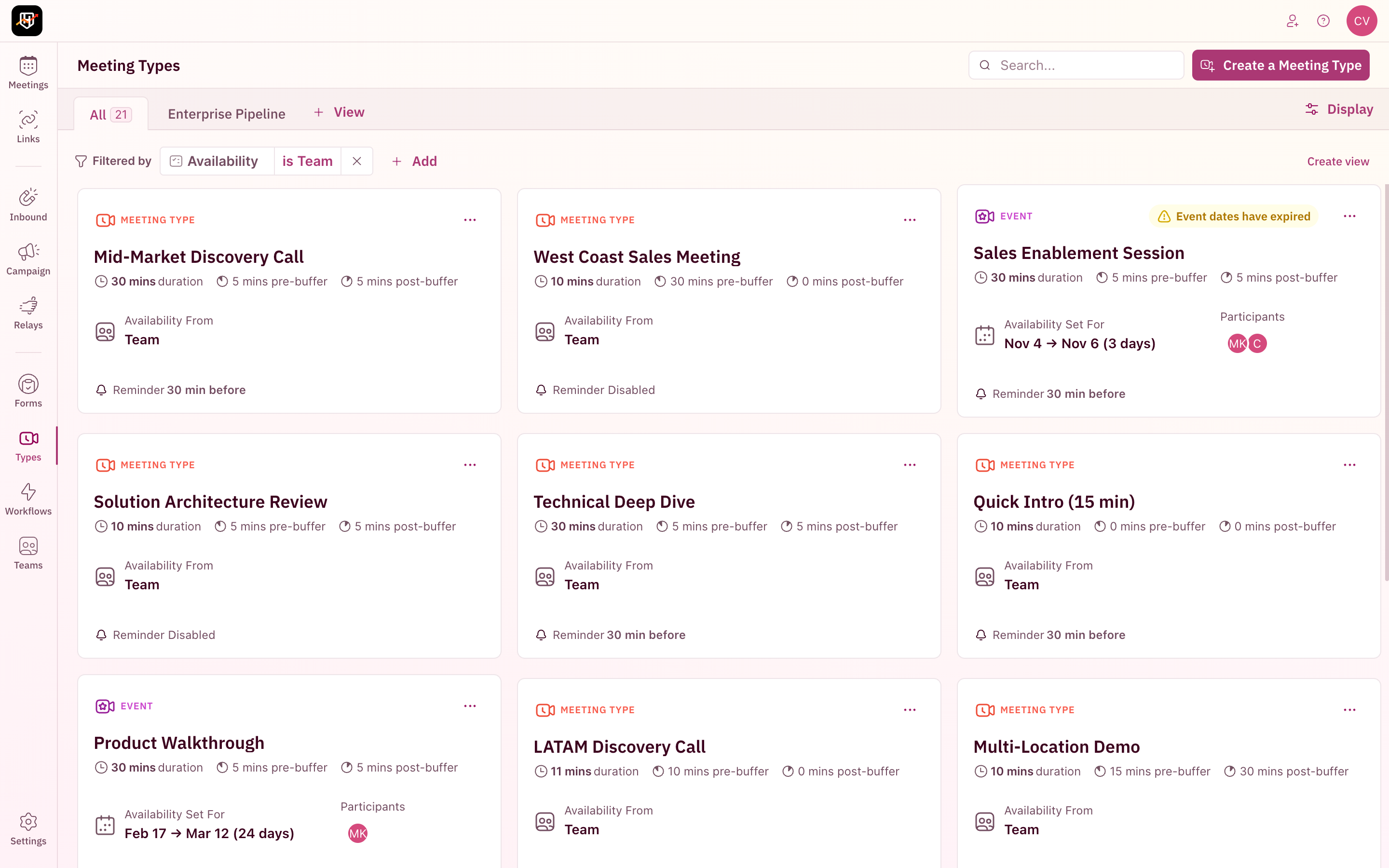
Once applied, a **Filtered by** pill appears below the tabs showing your active conditions. Click the **x** on any pill to remove that filter, or use **+ Add** to layer on more.
### How to apply a filter
1. Click **Filter** to open the dropdown
2. Select a **property** from the list (e.g., Duration, Assigned User, Meeting Category)
3. Choose a **value** or condition
4. The results update immediately
You can add multiple filters. All conditions are combined with AND logic, meaning a resource must match every active filter to appear.
Once applied, a **Filtered by** pill appears below the tabs showing your active conditions. Click the **x** on any pill to remove that filter, or use **+ Add** to layer on more.
 ### Filter properties by page
The filter dropdown shows different properties depending on which page you're on:
| Page | Available filter properties |
| ---------------------- | -------------------------------------------------------------------------------------------------------------------------------------------------------------------------------- |
| **Meeting Types** | Duration, Availability, Day Visibility, Location Mode, Assigned User, Location, Meeting Category, Conference Allowed, Has Reminder Template, Created At |
| **Inbound Routers** | Redistribution Enabled, Rule, Meeting Type, Form Mapping, Layout, Create New Contact, Create New Lead, Create New Account, Update Contact Fields, Update Lead Fields, Created At |
| **Campaign Routers** | Distribution, Assign CRM Owner, Team, Meeting Type, Member, Matching Rule, Create Lead, Update Lead Fields, Create Contact, Update Contact Fields, Marketing Form, Created At |
| **Handoff Routers** | Distribution, Organizer, Team, Meeting Type, Marketing Form, Rule, Booker, Override Assignee Availability, Override Booker Slots, Override Assignee Slots, Created At |
| **Distribution Pods** | Distribution, Assign CRM Owner, Team, Meeting Type, Member, Handoff Router, Created At |
| **Matching Rules** | Module Type, Distribution, Assign CRM Owner, Team, Meeting Type, Member, Router, Exact Match, Associated Match, Created At |
| **Distribution Rules** | Distribution, Assign CRM Owner, Team, Meeting Type, Member, Form Router, Used For Redistribution, Created At |
| **Routing Workflows** | Active, Trigger, Action Type, Meeting Type, Created At |
| **Teams** | Time Zone, Member, Rule, Created At |
| **Marketing Forms** | Assigned User, Router, Meeting Link, Kind, Created At |
| **Lists** | List Type, Module Type, CRM Field, Created At |
| **Redirect Rules** | Form Router, Used In Router, Created At |
Every page also supports sorting by **Updated At**, **Created At**, and **Name**.
Filters persist in the URL. If you navigate away and come back, your filters are still active. If you see fewer results than expected, check whether a filter is applied.
## Sort your resources
Click the **Display** button (top right) to open the sort configuration.
### Filter properties by page
The filter dropdown shows different properties depending on which page you're on:
| Page | Available filter properties |
| ---------------------- | -------------------------------------------------------------------------------------------------------------------------------------------------------------------------------- |
| **Meeting Types** | Duration, Availability, Day Visibility, Location Mode, Assigned User, Location, Meeting Category, Conference Allowed, Has Reminder Template, Created At |
| **Inbound Routers** | Redistribution Enabled, Rule, Meeting Type, Form Mapping, Layout, Create New Contact, Create New Lead, Create New Account, Update Contact Fields, Update Lead Fields, Created At |
| **Campaign Routers** | Distribution, Assign CRM Owner, Team, Meeting Type, Member, Matching Rule, Create Lead, Update Lead Fields, Create Contact, Update Contact Fields, Marketing Form, Created At |
| **Handoff Routers** | Distribution, Organizer, Team, Meeting Type, Marketing Form, Rule, Booker, Override Assignee Availability, Override Booker Slots, Override Assignee Slots, Created At |
| **Distribution Pods** | Distribution, Assign CRM Owner, Team, Meeting Type, Member, Handoff Router, Created At |
| **Matching Rules** | Module Type, Distribution, Assign CRM Owner, Team, Meeting Type, Member, Router, Exact Match, Associated Match, Created At |
| **Distribution Rules** | Distribution, Assign CRM Owner, Team, Meeting Type, Member, Form Router, Used For Redistribution, Created At |
| **Routing Workflows** | Active, Trigger, Action Type, Meeting Type, Created At |
| **Teams** | Time Zone, Member, Rule, Created At |
| **Marketing Forms** | Assigned User, Router, Meeting Link, Kind, Created At |
| **Lists** | List Type, Module Type, CRM Field, Created At |
| **Redirect Rules** | Form Router, Used In Router, Created At |
Every page also supports sorting by **Updated At**, **Created At**, and **Name**.
Filters persist in the URL. If you navigate away and come back, your filters are still active. If you see fewer results than expected, check whether a filter is applied.
## Sort your resources
Click the **Display** button (top right) to open the sort configuration.
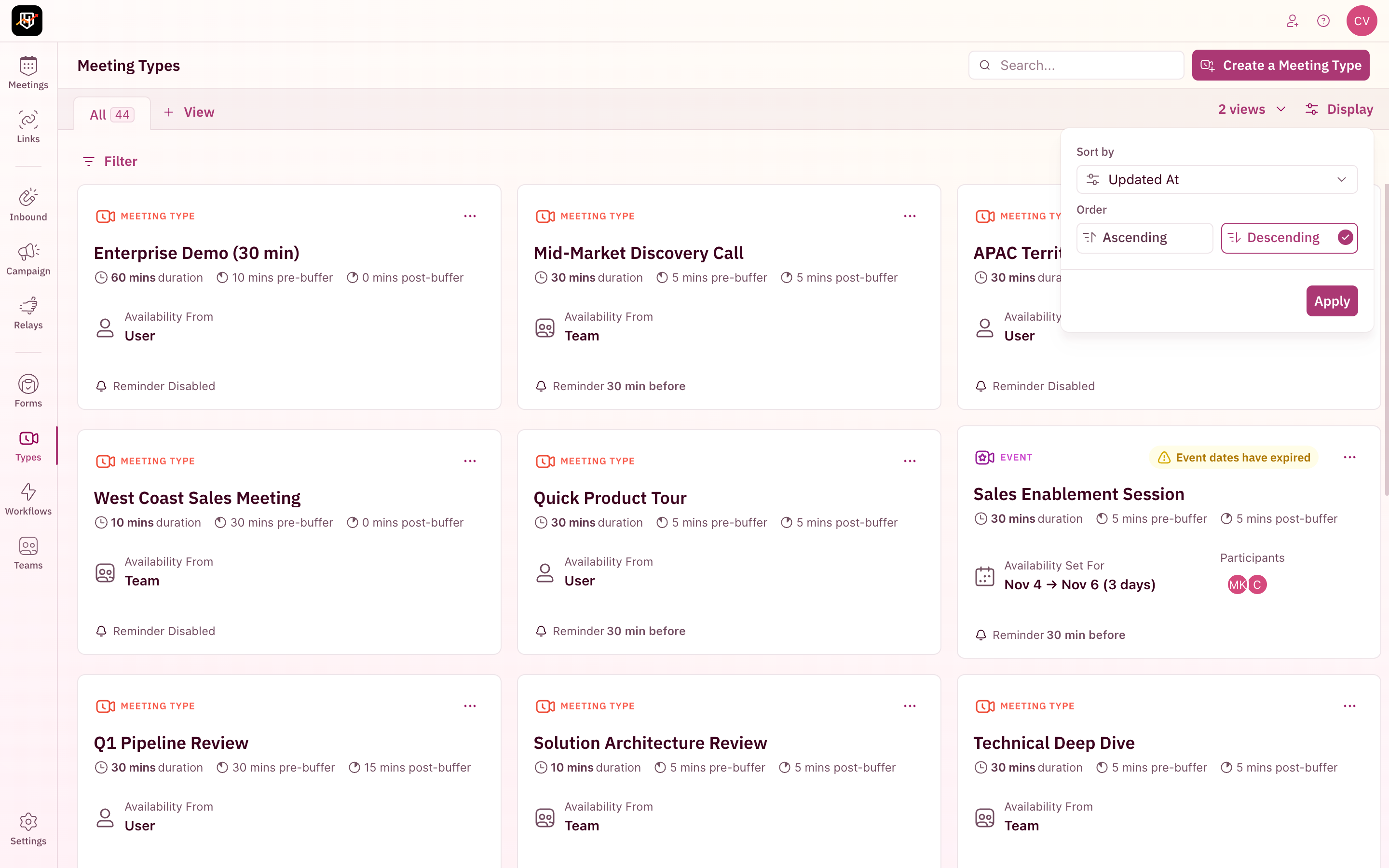 1. Choose a **Sort by** property from the dropdown (e.g., Updated At, Name)
2. Select an **Order**: **Ascending** or **Descending**
3. Click **Apply**
Your sort preference is saved. When you return to the page, it remembers how you last sorted it.
Sort by **Updated At** (descending) to see your most recently modified items first. This is useful when you've just made changes and want to verify them.
## Save custom views
The tab bar at the top of each page lets you save different filter and display combinations as named views. Instead of re-applying the same filters every time, save them once and switch back with a single click.
### How to create a view
1. Apply the filters and sort order you want
2. Click **Create view** (on the right side of the filter bar) or **+ View** (next to the existing tabs)
3. The **Create a view** form opens with your current filters and sort order pre-filled
4. Enter a **Name** for your view (e.g., "Team Availability" or "EMEA Routers")
5. Adjust the filters or sort order if needed
6. Click **Create**
1. Choose a **Sort by** property from the dropdown (e.g., Updated At, Name)
2. Select an **Order**: **Ascending** or **Descending**
3. Click **Apply**
Your sort preference is saved. When you return to the page, it remembers how you last sorted it.
Sort by **Updated At** (descending) to see your most recently modified items first. This is useful when you've just made changes and want to verify them.
## Save custom views
The tab bar at the top of each page lets you save different filter and display combinations as named views. Instead of re-applying the same filters every time, save them once and switch back with a single click.
### How to create a view
1. Apply the filters and sort order you want
2. Click **Create view** (on the right side of the filter bar) or **+ View** (next to the existing tabs)
3. The **Create a view** form opens with your current filters and sort order pre-filled
4. Enter a **Name** for your view (e.g., "Team Availability" or "EMEA Routers")
5. Adjust the filters or sort order if needed
6. Click **Create**
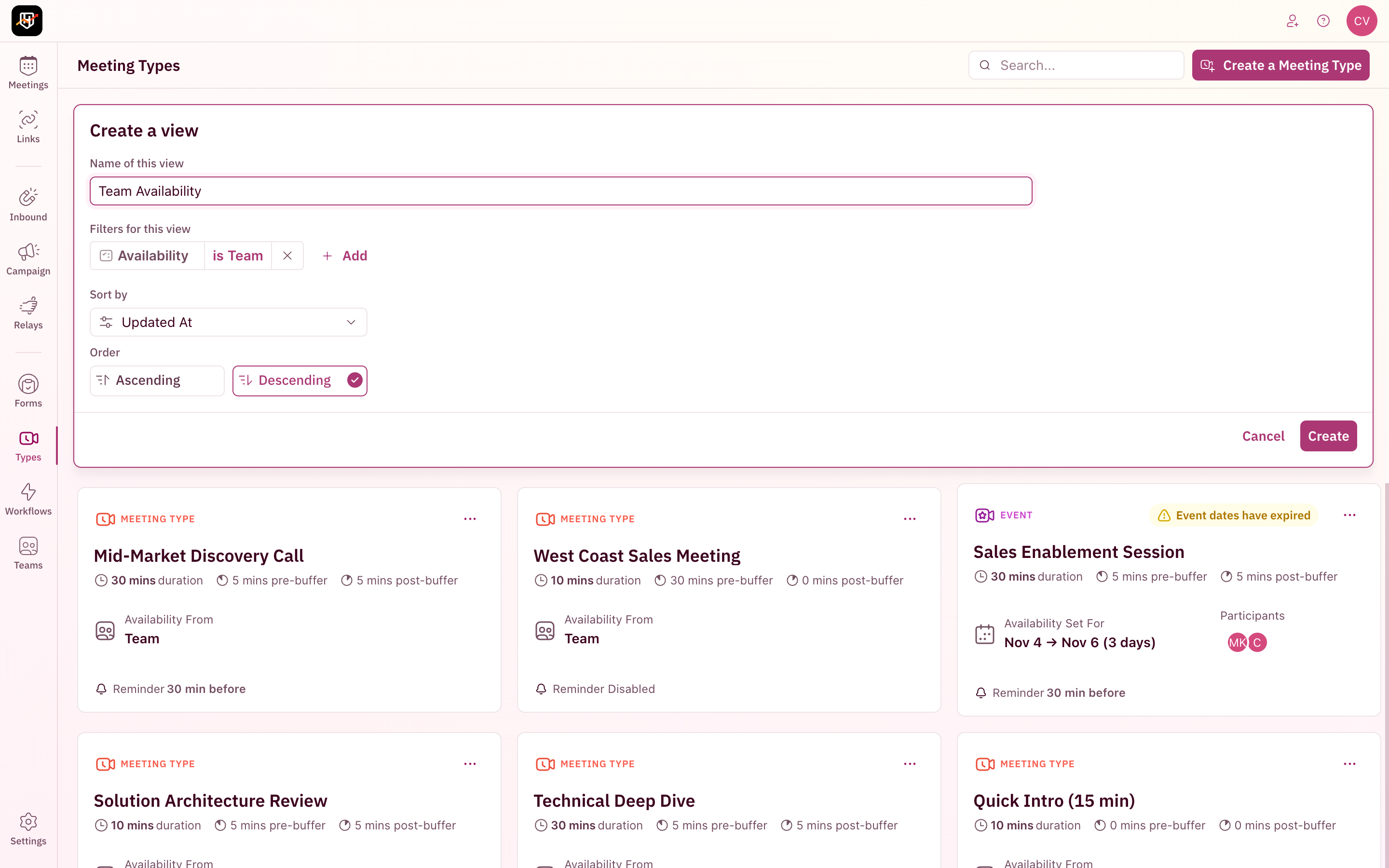 The view appears as a new tab you can switch to anytime. The **All** tab (with a count badge showing the total number of resources) always shows everything unfiltered. Your custom views sit alongside it for quick switching.
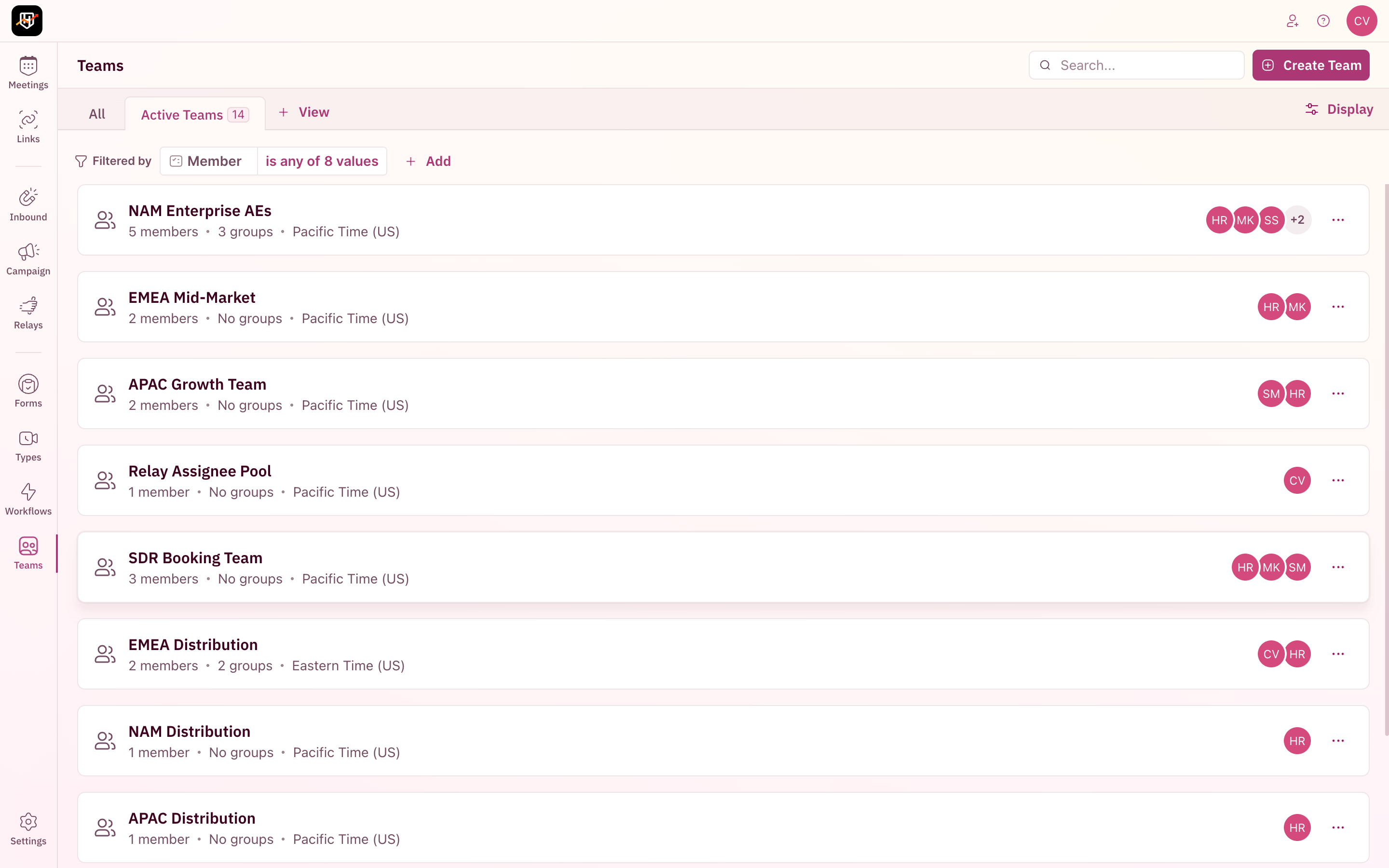 Create views for filter combinations you use repeatedly. For example, "Active Workflows" on the Workflows page or "Enterprise Meeting Types" filtered by a specific category. Each team member can create their own views without affecting anyone else.
## Share filtered views via URL
Every filter, search term, and display setting is reflected in the page URL. Copy the URL from your browser's address bar to share your exact view with a teammate.
If you filter Meeting Types by a specific category and sort by name, the URL encodes that state. Anyone who opens that URL sees the same filtered, sorted view. Useful for sharing specific views in Slack or bookmarking commonly used filter combinations.
***
Your resources are organized. No more scrolling through dozens of items to find the one rule you need to edit. Search, filter, and view your way. 🎉🎉🎉
Set up meeting types with custom durations, availability, and branding.
Route meetings to the right reps based on territory, segment, or custom conditions.
Organize your reps into teams for distribution and management.
Connect your web form to RevenueHero for instant scheduling.
Create views for filter combinations you use repeatedly. For example, "Active Workflows" on the Workflows page or "Enterprise Meeting Types" filtered by a specific category. Each team member can create their own views without affecting anyone else.
## Share filtered views via URL
Every filter, search term, and display setting is reflected in the page URL. Copy the URL from your browser's address bar to share your exact view with a teammate.
If you filter Meeting Types by a specific category and sort by name, the URL encodes that state. Anyone who opens that URL sees the same filtered, sorted view. Useful for sharing specific views in Slack or bookmarking commonly used filter combinations.
***
Your resources are organized. No more scrolling through dozens of items to find the one rule you need to edit. Search, filter, and view your way. 🎉🎉🎉
Set up meeting types with custom durations, availability, and branding.
Route meetings to the right reps based on territory, segment, or custom conditions.
Organize your reps into teams for distribution and management.
Connect your web form to RevenueHero for instant scheduling.