> ## Documentation Index
> Fetch the complete documentation index at: https://help.revenuehero.io/llms.txt
> Use this file to discover all available pages before exploring further.
# How to book a Relay meeting with a prospect from within any sales tool?
> You can handoff meetings to the right rep in 2 clicks under 5 seconds. This article covers how you can do that.
BDRs can book a meeting with the prospect for the right Account Executives without even logging into RevenueHero.
In this article we'll look at how to book meetings right from within any of the sales tool you're using.
**BEFORE WE BEGIN**
There are a couple of pre-requisites to create your first Relay:
1. [Set up Relays](/routers/relays/create-relays)
2. [Download the Chrome extension](/integrations/chrome-extension)
## Book Meetings from your sales engagement tools or any screen on your browser
With RevenueHero you can book and manage meetings from wherever you are. Be it your sales tools like Outreach and Salesloft or literally any other screen on your browser.
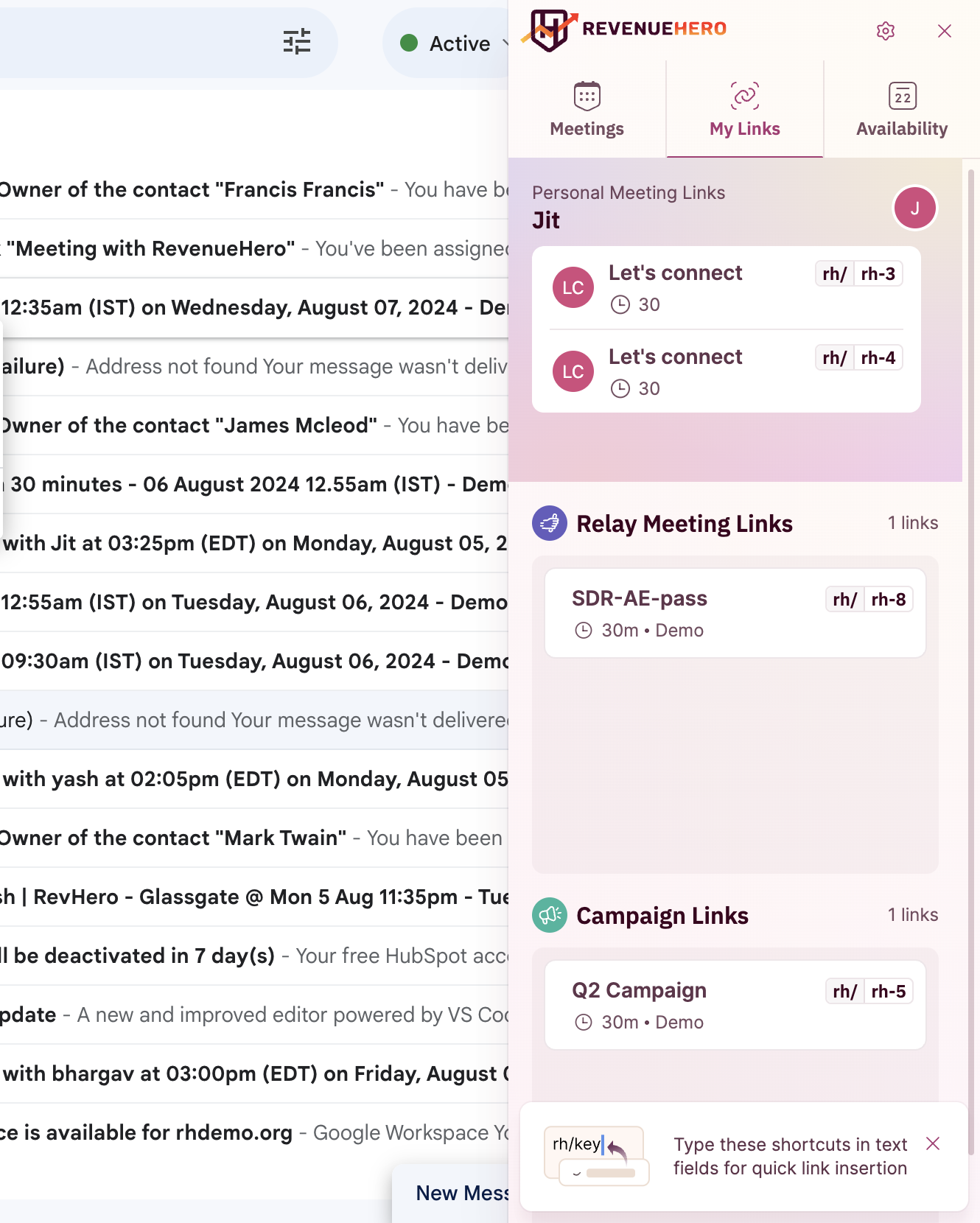
1. Click the RevenueHero extension icon. You will see a pop-up that contains a brief overview of all your meetings, links, and availabilities. Under the "**My Links**" tab, you can find all your existing relay links as well.
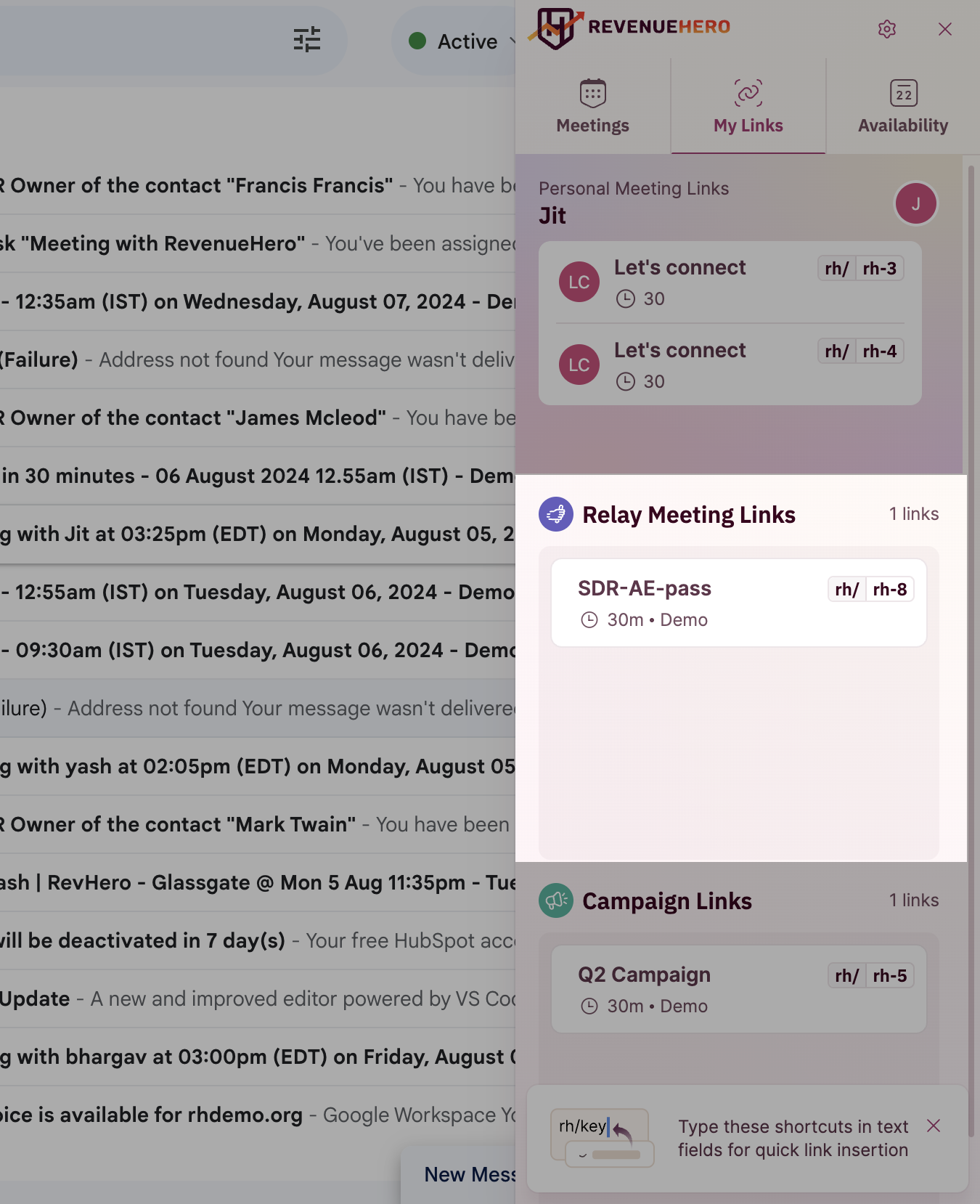
 2. To relay a meeting when you are in another tool or screen in your browser, click the “**Meeting**” tab. You will notice a small calendar icon at the bottom. Click the calendar icon.
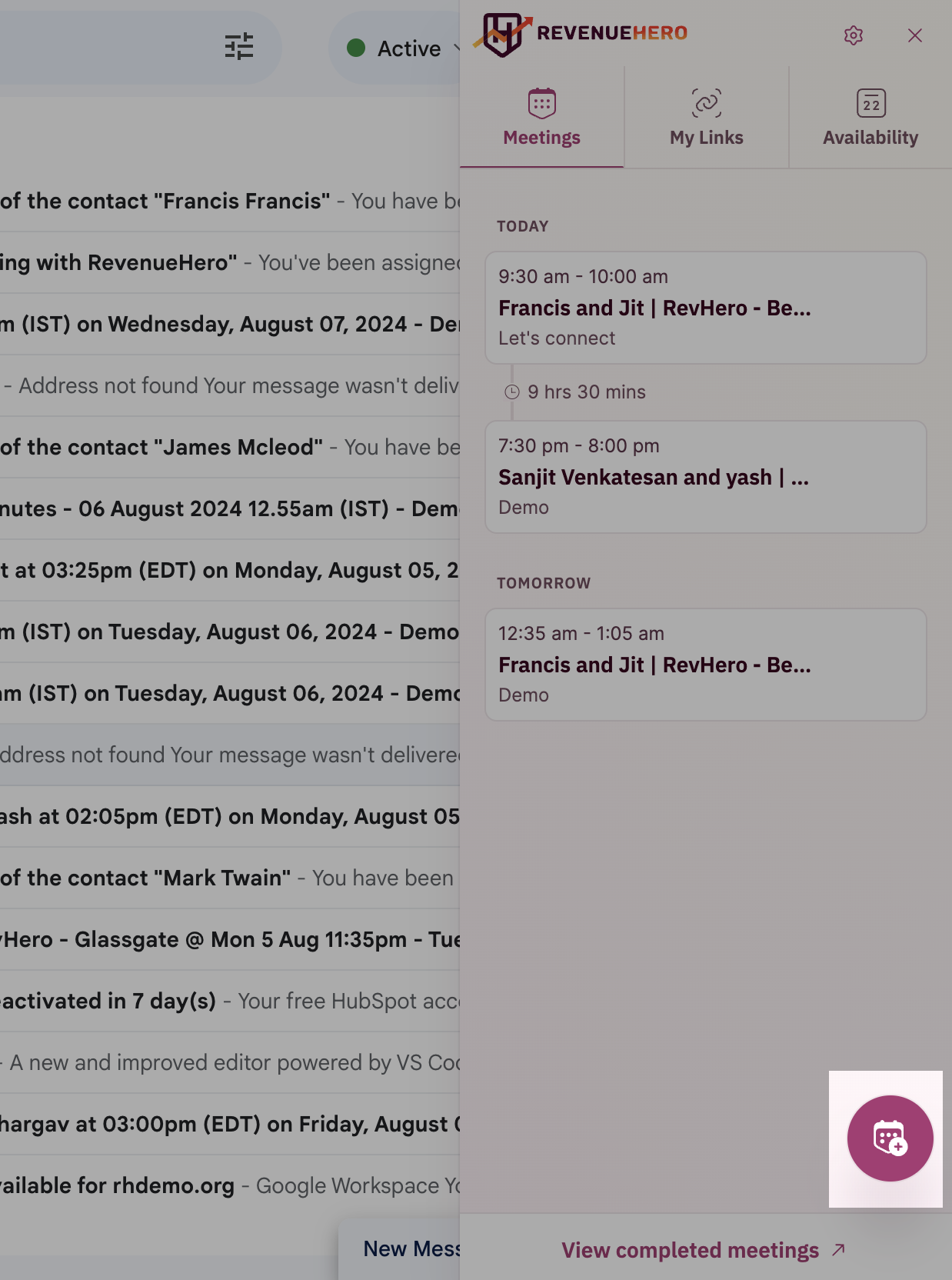
 3. The “**Relay a meeting**” screen will show up. Here you can add in all the details about the meeting you want to relay. This includes choosing the prospect’s name, email, and time zone. Along with this, you’ll need to choose who to assign the meeting to. You can choose between “**Assign to me**” or “**Relay to a colleague**”. Next up, choose the Relay setting you want to use. Going with our example, remember we named our Relay “**US West Handoff**”. You can choose that Relay from the drop-down.
4. Click “**Proceed to book**”.
3. The “**Relay a meeting**” screen will show up. Here you can add in all the details about the meeting you want to relay. This includes choosing the prospect’s name, email, and time zone. Along with this, you’ll need to choose who to assign the meeting to. You can choose between “**Assign to me**” or “**Relay to a colleague**”. Next up, choose the Relay setting you want to use. Going with our example, remember we named our Relay “**US West Handoff**”. You can choose that Relay from the drop-down.
4. Click “**Proceed to book**”.
 5. Here you will be able to see the meeting type, the AE who has been assigned, and their calendar availability. You can also choose to add team members and invite external guests.
6. Next, you will be required to pick the time slots from the ones available in the AEs calendar. You can move your cursor and choose one for the desired date.
5. Here you will be able to see the meeting type, the AE who has been assigned, and their calendar availability. You can also choose to add team members and invite external guests.
6. Next, you will be required to pick the time slots from the ones available in the AEs calendar. You can move your cursor and choose one for the desired date.
 7. There are 2 ways you can proceed from here.
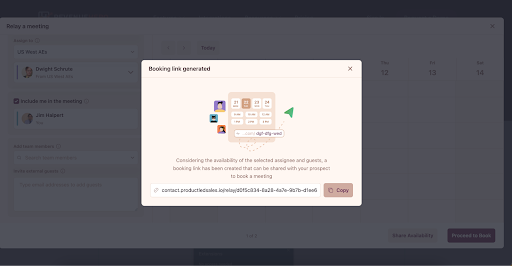
* You can click on “**Share Availability**” which generates a booking link that you can share with your prospect via email for them to confirm and book the meeting directly.
7. There are 2 ways you can proceed from here.
* You can click on “**Share Availability**” which generates a booking link that you can share with your prospect via email for them to confirm and book the meeting directly.
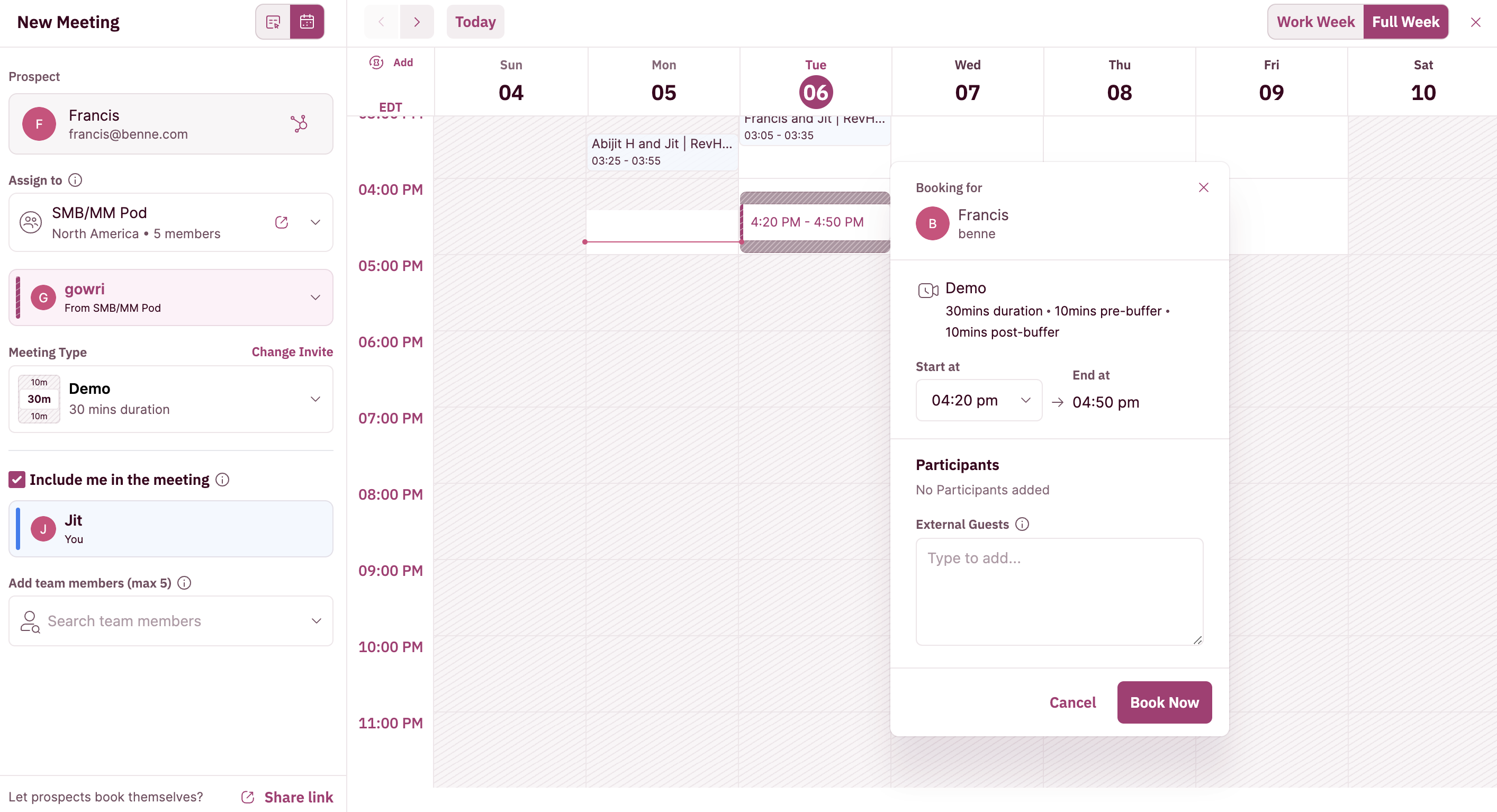 * Or you can click “**Proceed to Book**” which shows you the meeting summary including all the participants, date, time, and duration. It also gives you a meeting invite email template that you can use as is or edit as required for that extra personal touch.
8. Once you review all the details, click “**Create Meeting**” and the meeting is booked. It will automatically get added to all the participants’ calendars and they will also receive the meeting invite email.
* Or you can click “**Proceed to Book**” which shows you the meeting summary including all the participants, date, time, and duration. It also gives you a meeting invite email template that you can use as is or edit as required for that extra personal touch.
8. Once you review all the details, click “**Create Meeting**” and the meeting is booked. It will automatically get added to all the participants’ calendars and they will also receive the meeting invite email.
 ***
***