> ## Documentation Index
> Fetch the complete documentation index at: https://help.revenuehero.io/llms.txt
> Use this file to discover all available pages before exploring further.
# How to create a new Distribution Rule?
> Route meetings to new owners for lead or contact via Round Robin with Distribution rules
Distribution rules help assign a new owner to an incoming lead and their meeting. You can route based on a round-robin or your custom logic. You can keep it as simple or complex as you'd like and distribute it across all or specific members of a team.
Once created, Distribution rules can be used to route meetings that come through your Inbound or Campaign router.
## Steps to create a Distribution Rule
**BEFORE WE BEGIN**
There are a couple of pre-requisites to create your first Inbound Router:
1. [Integrate one of your CRM tools](/settings/organization/integrations#crm-integrations)
2. [Create a Team to distribute leads and meetings](/teams/create-teams)
### Navigate to Distribution Rules
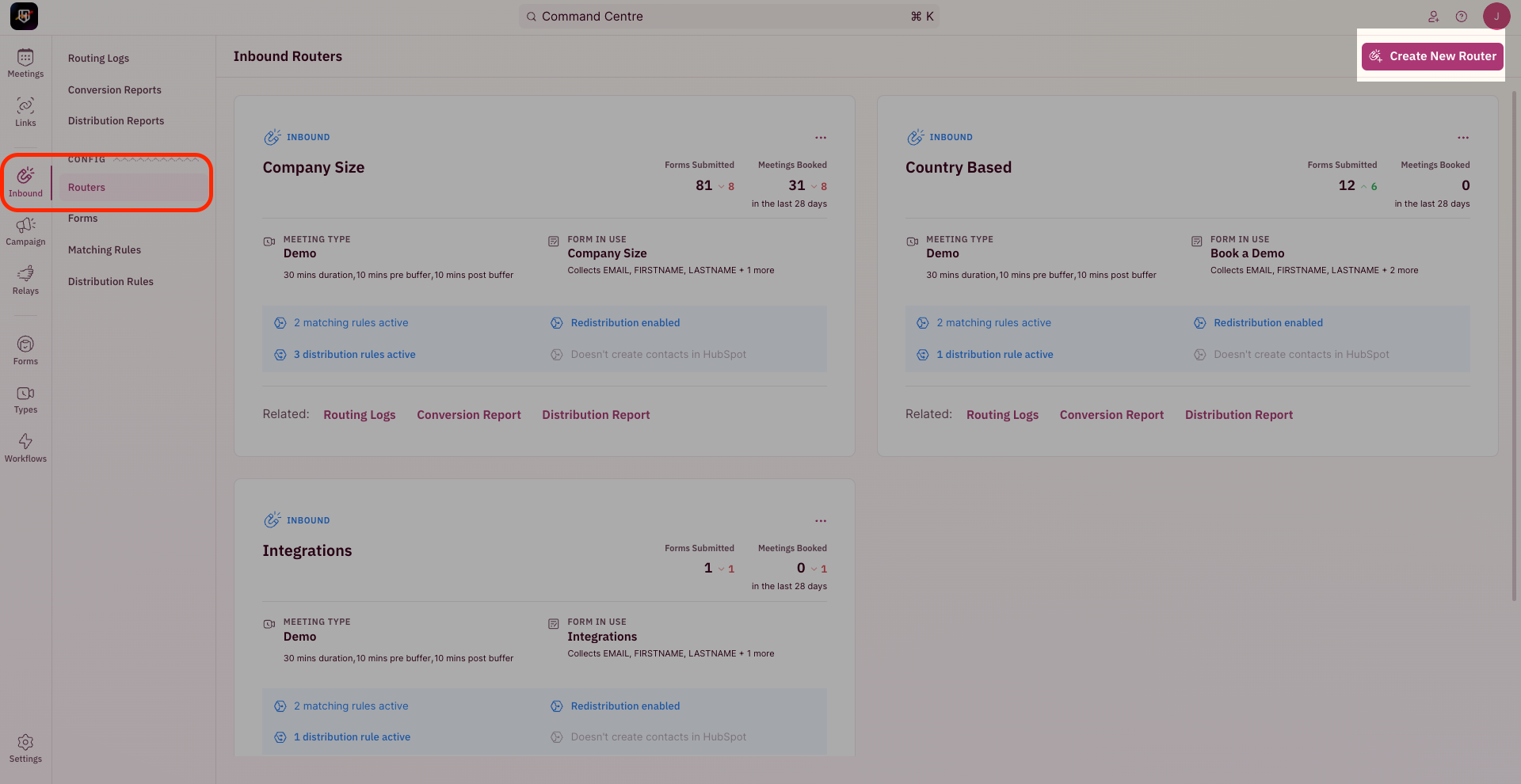
1. To create a Distribution Rule, use the side nav bar and click on **Inbound → Distribution Rules.**
2. Now, click the ”**Create New Rule**” button on the top-right corner of your screen.
 3. The pop-up for Distribution Rule Setup requires you to first choose who should the meetings be assigned to.
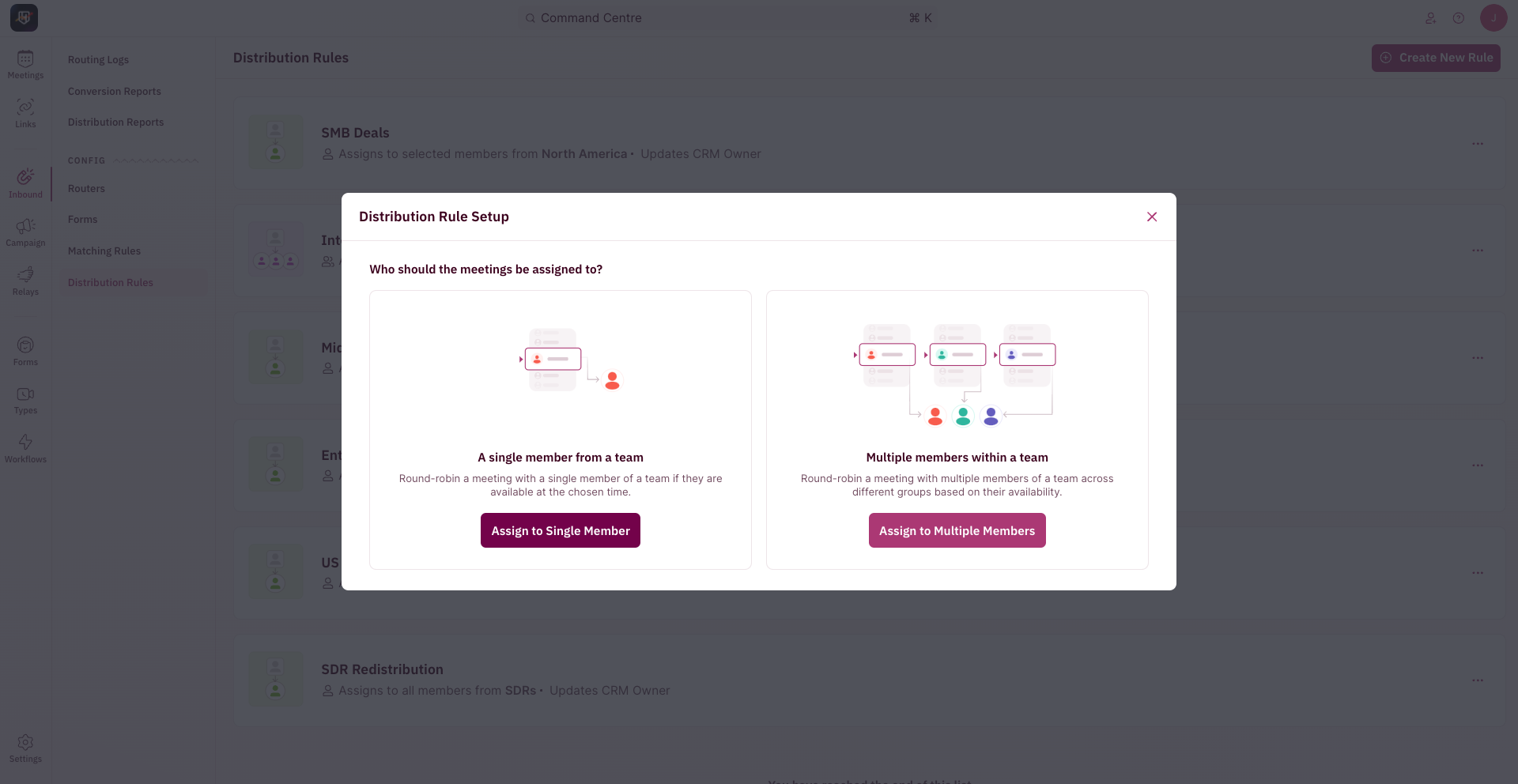 4. Click on “Assign to Single Member” in the pop-up for Distribution Rule Setup.
Which means the meeting gets assigned to a single member who is available at the chosen time, from a single Round Robin group.
If you'd like to assign the meeting to members from two different teams, click here for [steps to set-up Group Round Robin.](/rules/distribution/group-round-robin)
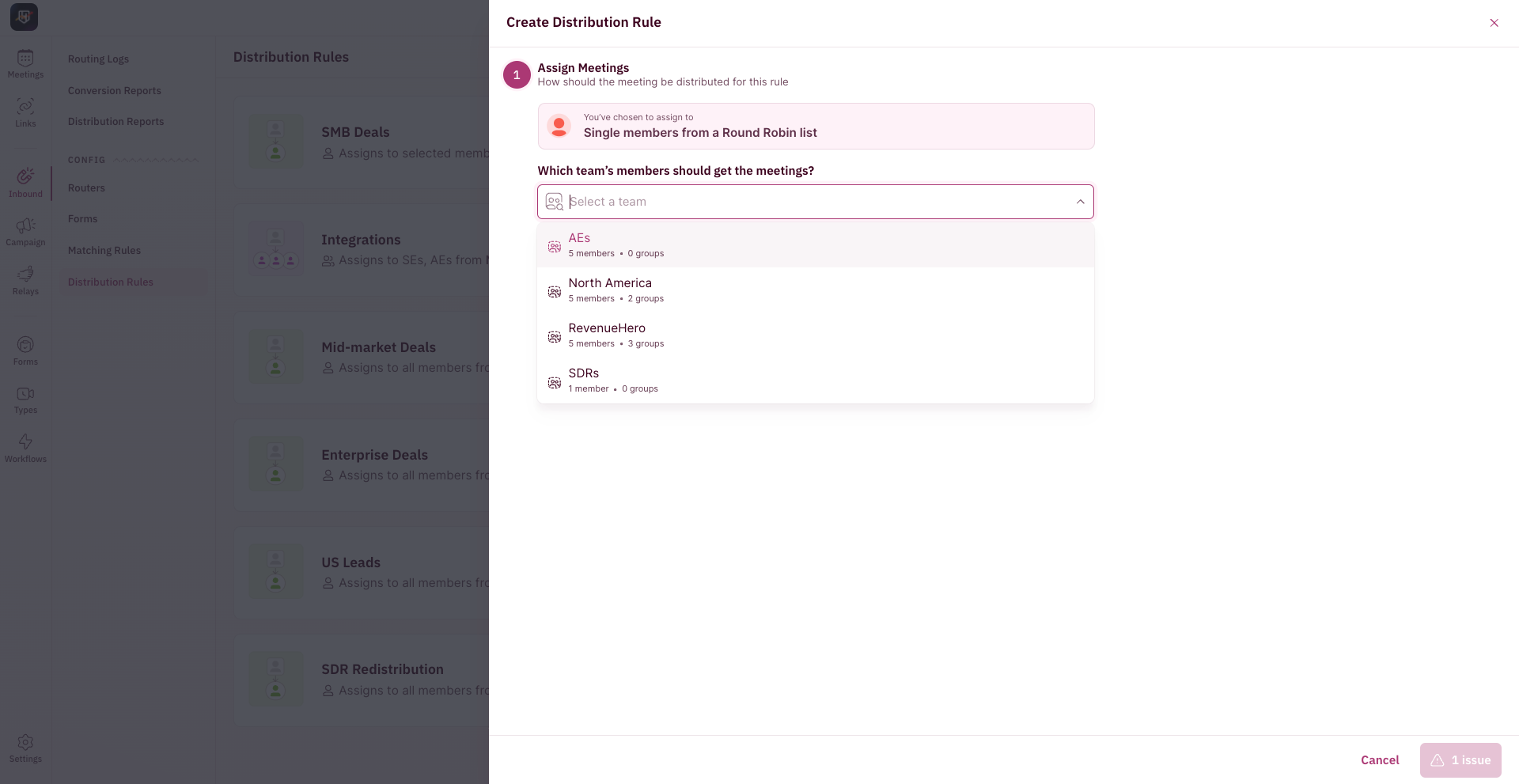
5. Now, you need to decide how you want meetings to be distributed for this particular rule.
6. In the drop-down choose the Team from which a single member will be assigned the meeting based on a flexible round-robin.
4. Click on “Assign to Single Member” in the pop-up for Distribution Rule Setup.
Which means the meeting gets assigned to a single member who is available at the chosen time, from a single Round Robin group.
If you'd like to assign the meeting to members from two different teams, click here for [steps to set-up Group Round Robin.](/rules/distribution/group-round-robin)
5. Now, you need to decide how you want meetings to be distributed for this particular rule.
6. In the drop-down choose the Team from which a single member will be assigned the meeting based on a flexible round-robin.
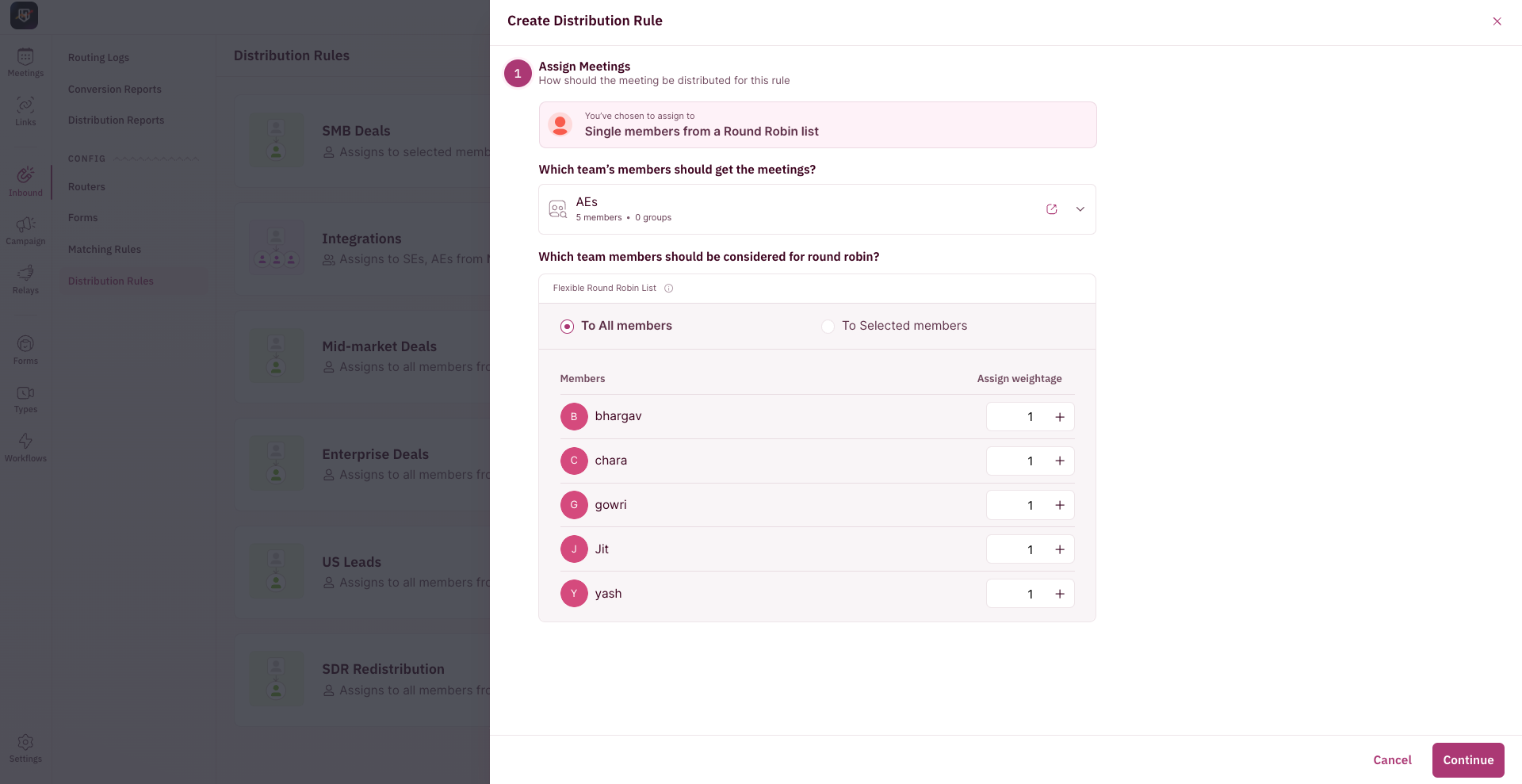
 7. Next, choose the team members who should be considered for round-robin. It can either be all team members or select team members.
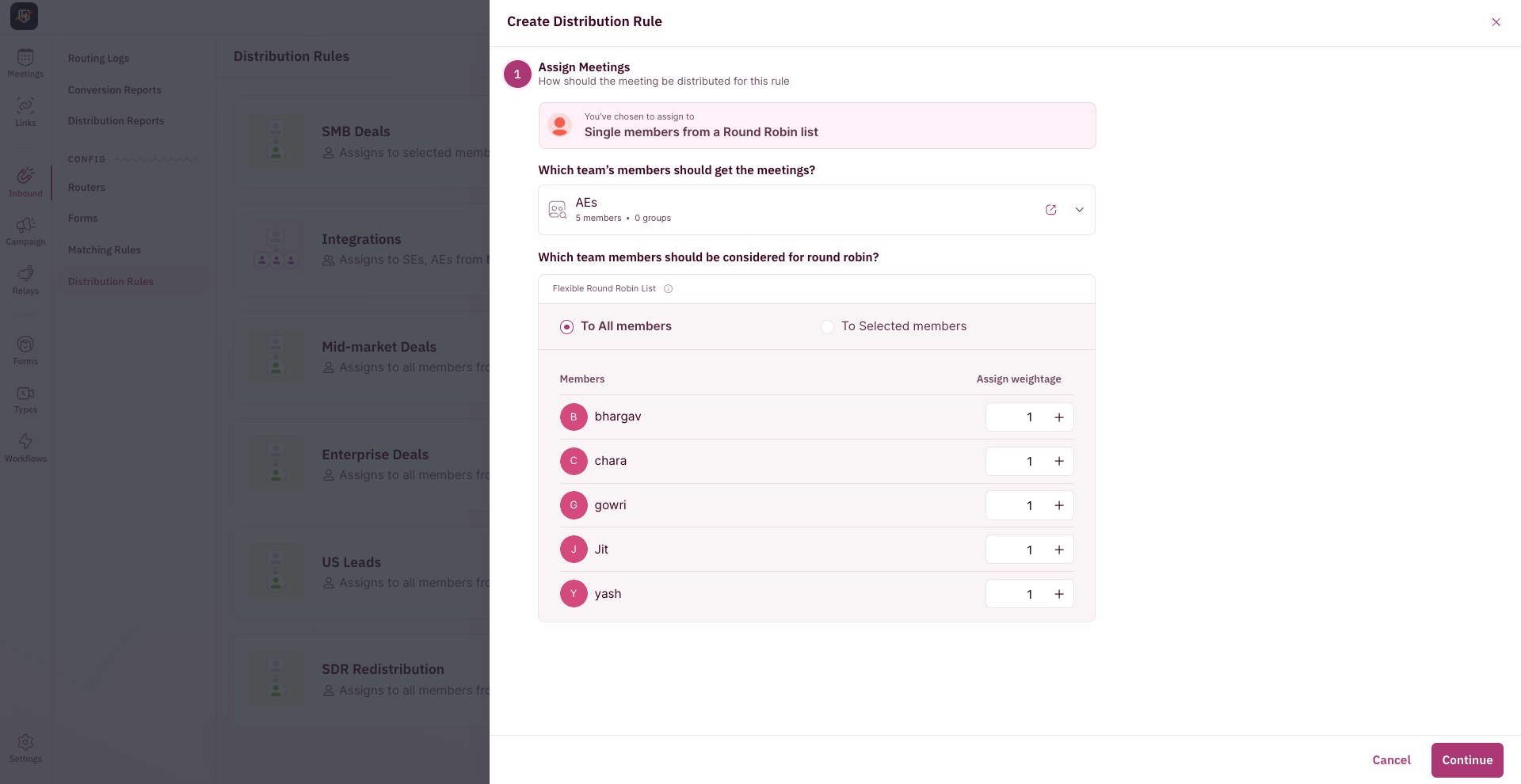 8. When you choose to distribute meetings ”To all members”, you can create and build your own logic for how the meetings should be distributed between team members.
 When you choose to distribute meetings only ”To selected members”, you can add specific members instead of the entire team and create your own distribution logic.
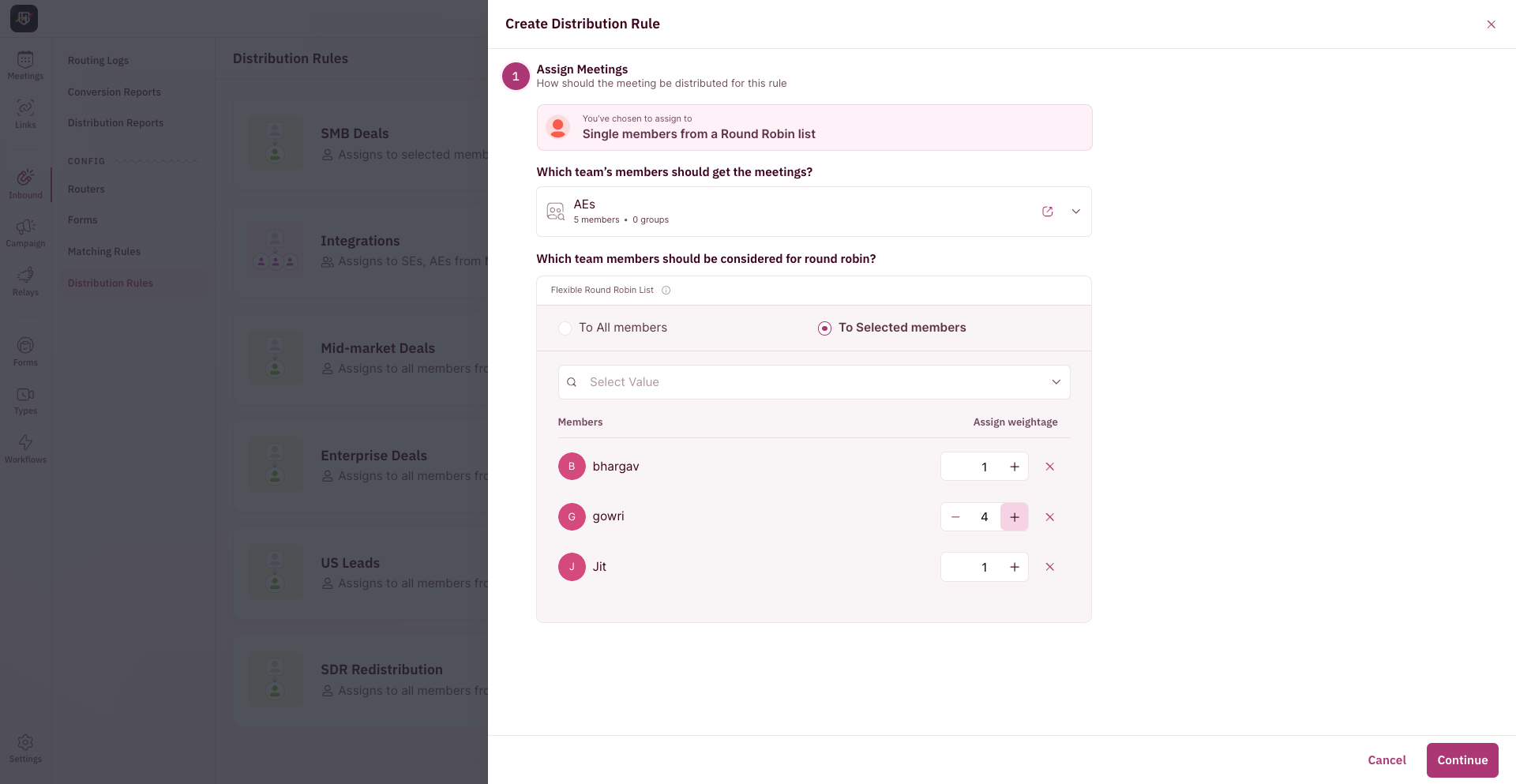 9. Once selected, you can adjust the meeting weightage for each team member.
10. Click “Continue”.
#### Set Conditions to Check
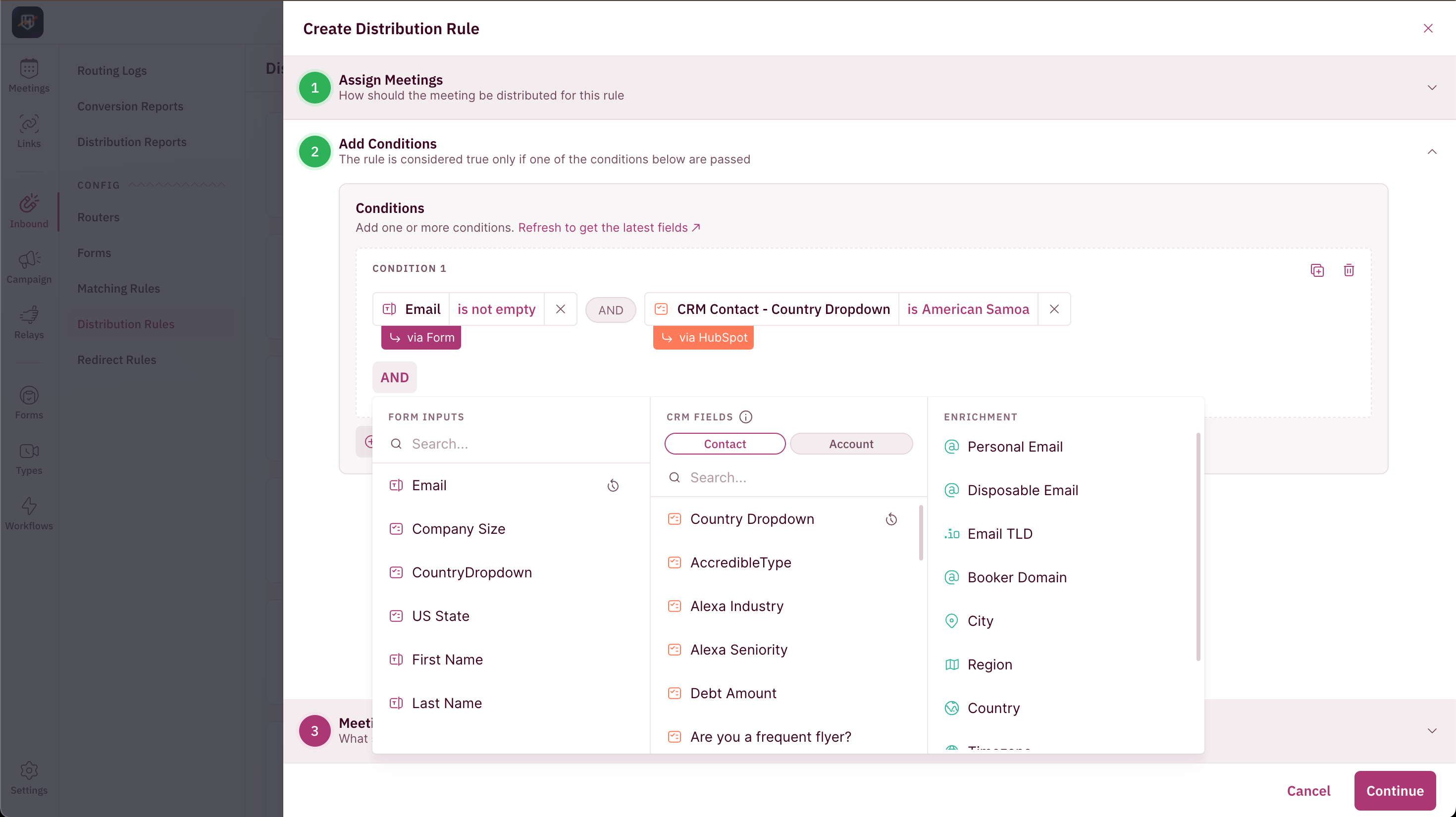
This is where you tell RevenueHero which input to look up to set this condition - a form field, a CRM field or RevenueHero enrichment.
9. Once selected, you can adjust the meeting weightage for each team member.
10. Click “Continue”.
#### Set Conditions to Check
This is where you tell RevenueHero which input to look up to set this condition - a form field, a CRM field or RevenueHero enrichment.
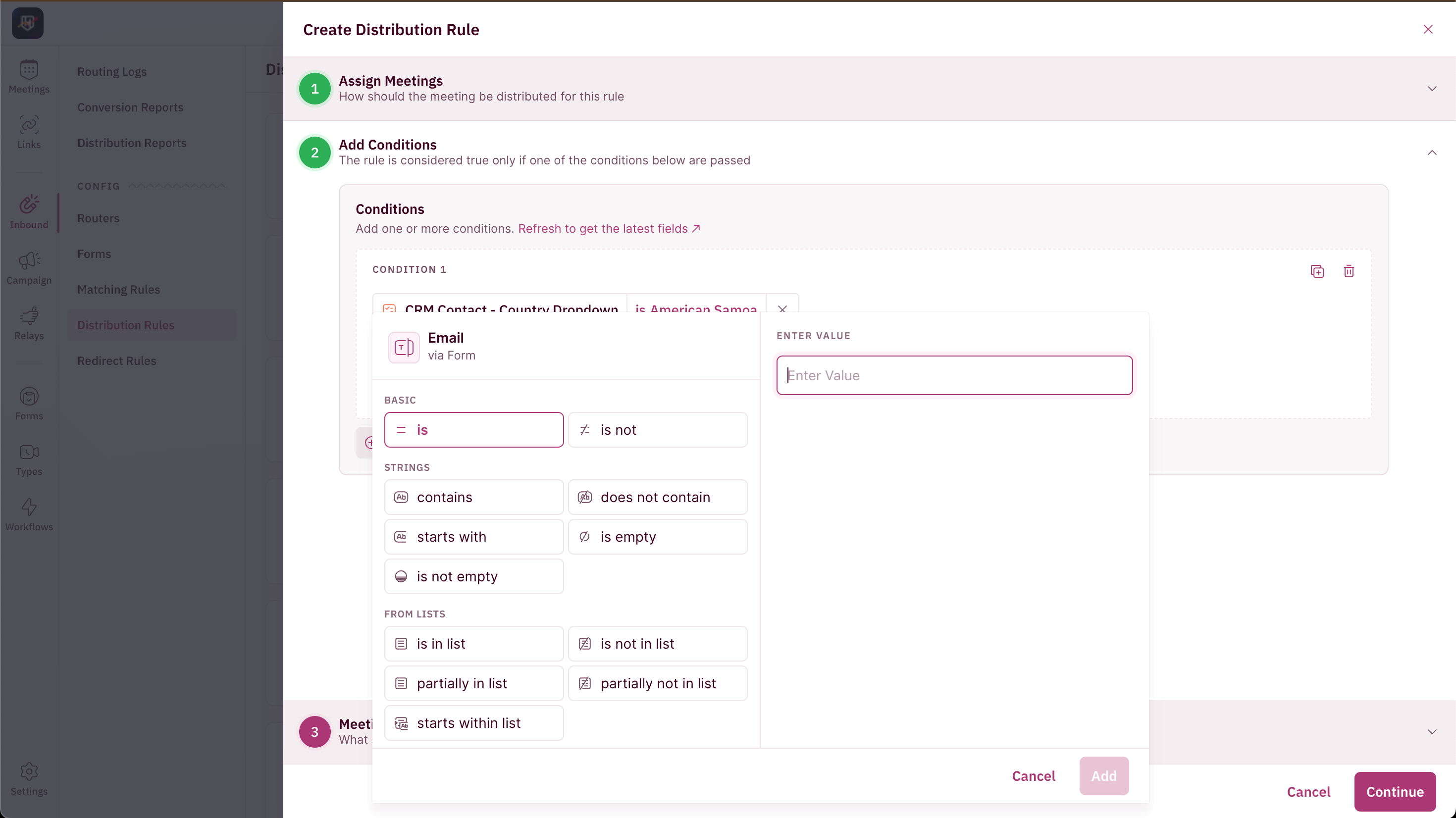 You can add multiple conditions with a combination of AND or OR for the Distribution Rule to check before meetings are assigned.
Click “**Continue**”.
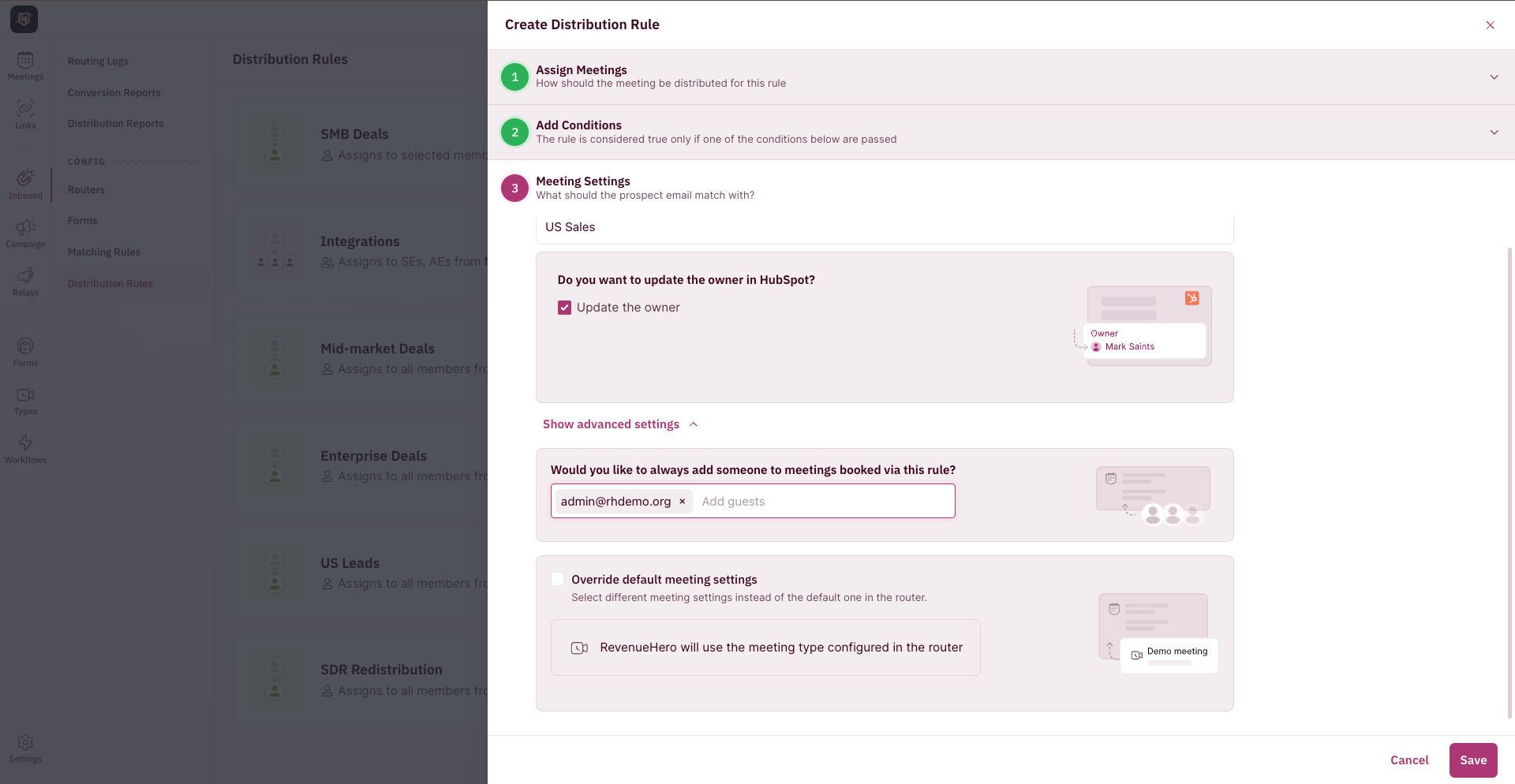
#### Understanding Meeting Settings
There are a couple of settings that you can tweak and change in your distribution rule.
You can add multiple conditions with a combination of AND or OR for the Distribution Rule to check before meetings are assigned.
Click “**Continue**”.
#### Understanding Meeting Settings
There are a couple of settings that you can tweak and change in your distribution rule.
 **Rule name**
Give your Distribution Rule a name.
For example, if you’re creating a Distribution Rule for your USA sales team, you can name it US sales.
**Update account owner**
You can choose to update the account owner in your CRM by checking the tickbox.
**Add guests for all meetings**
You can add guests to meetings every time a meeting is booked through this Distribution Rule. This is particularly helpful if you’ve recently onboarded a new sales rep and you want their manager to be on calls to guide them, for example.
**Override default meeting settings**
This is particularly helpful if you want to add a different meeting type to your router and override the meeting type that is selected in the router.
**Rule name**
Give your Distribution Rule a name.
For example, if you’re creating a Distribution Rule for your USA sales team, you can name it US sales.
**Update account owner**
You can choose to update the account owner in your CRM by checking the tickbox.
**Add guests for all meetings**
You can add guests to meetings every time a meeting is booked through this Distribution Rule. This is particularly helpful if you’ve recently onboarded a new sales rep and you want their manager to be on calls to guide them, for example.
**Override default meeting settings**
This is particularly helpful if you want to add a different meeting type to your router and override the meeting type that is selected in the router.
 ## Click “**Save**".
Your distribution rule is set and ready to be used in your Inbound Router. 🎉
## Click “**Save**".
Your distribution rule is set and ready to be used in your Inbound Router. 🎉