> ## Documentation Index
> Fetch the complete documentation index at: https://help.revenuehero.io/llms.txt
> Use this file to discover all available pages before exploring further.
# How to create a Group Round Robin?
> Route meetings to multiple folks via Group Round Robin with Distribution rules.
Consider a scenario where you want both an AE and a SE to be on the same call.
With Group Round robin, we can automatically assign a meeting with reps from different functions.
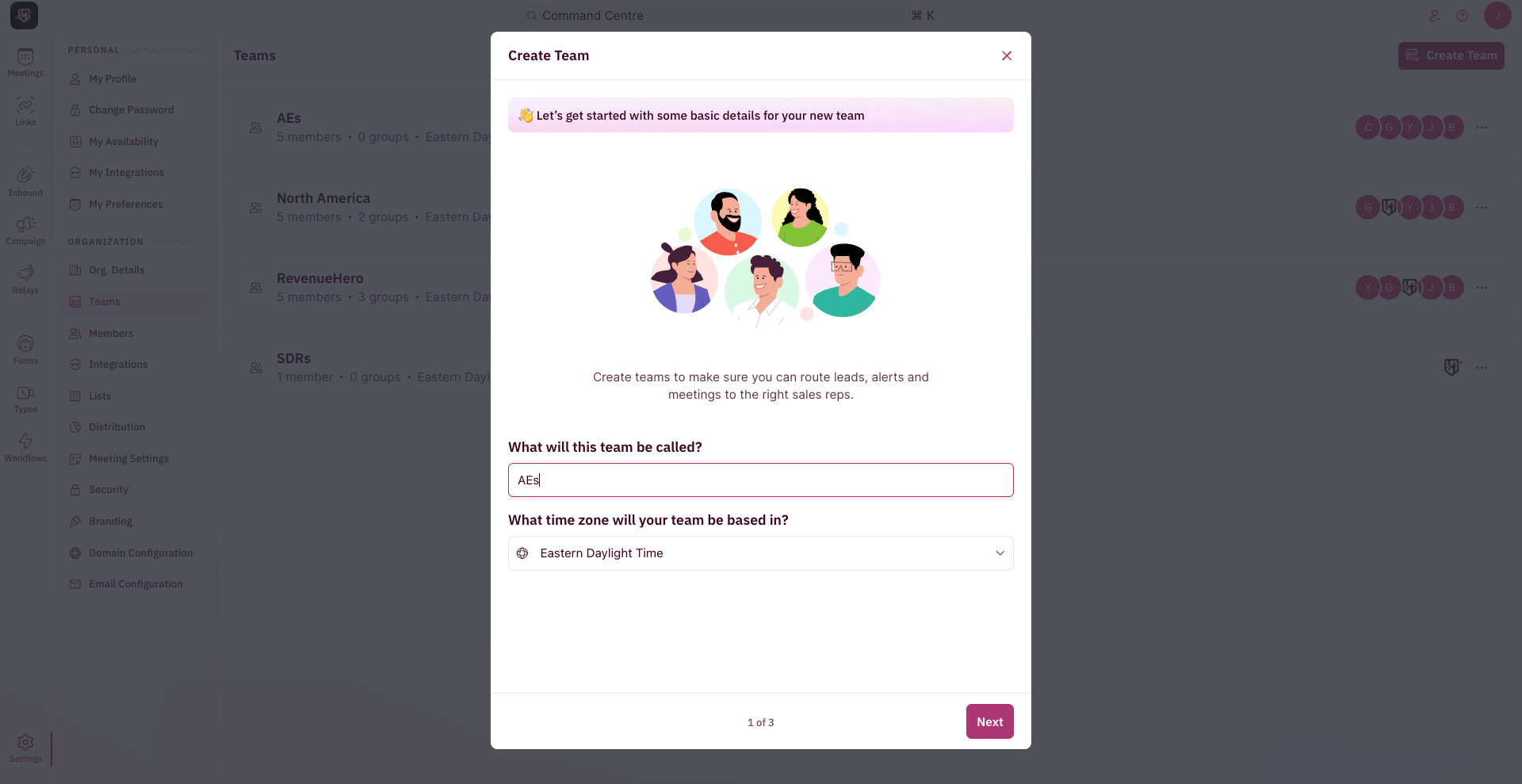
The first step is for us to create the different groups within the same team in RevenueHero
## Steps to Create Groups
1. Go to **Settings → Teams.**
2. Create a new team and add all members from the different functions combined (eg: add all AEs and SEs)
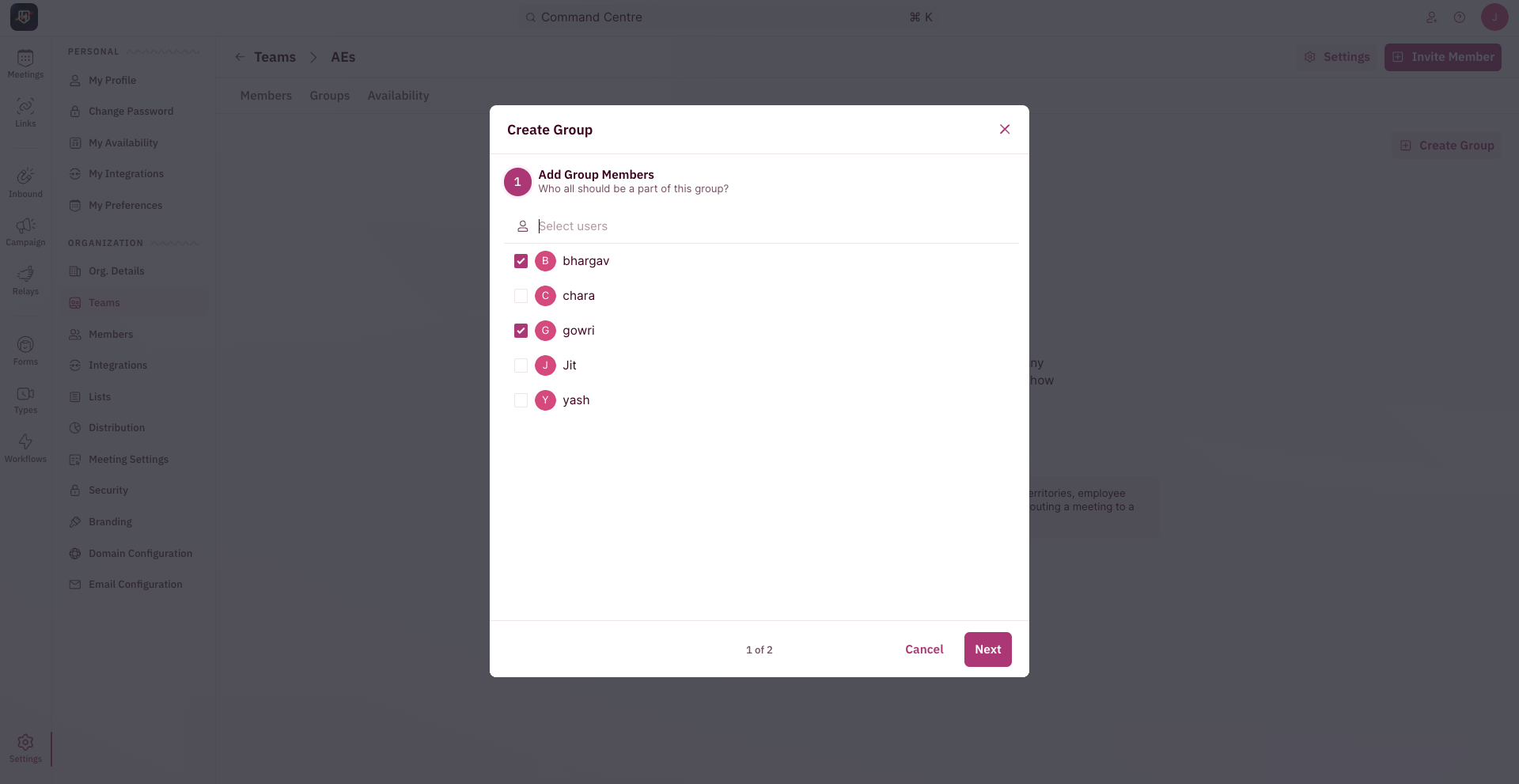
3. Create a group for each function
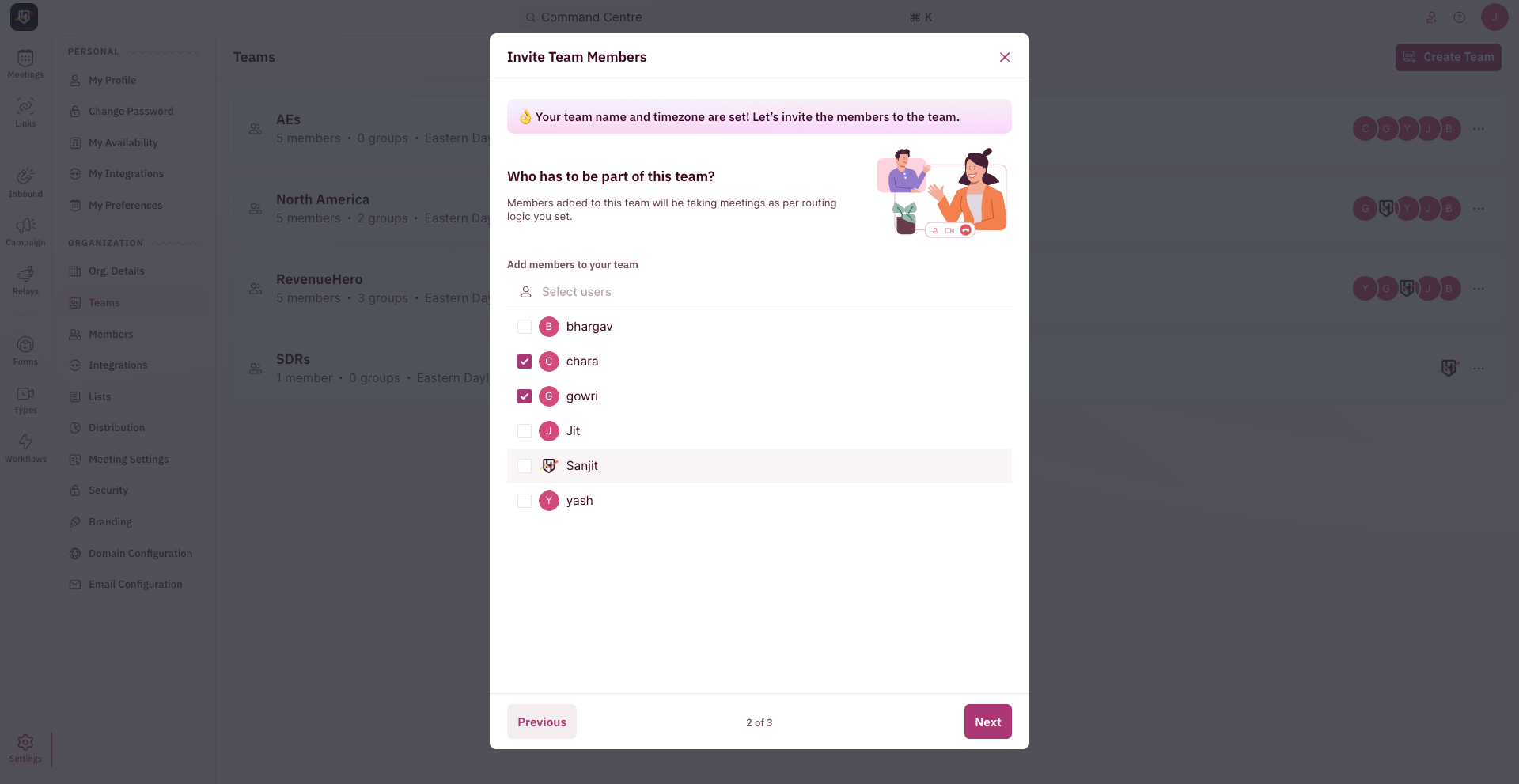 4. Add all members part of the function and create the group.
 A team member can be part of only one group.
 ### Navigate to Distribution Rules
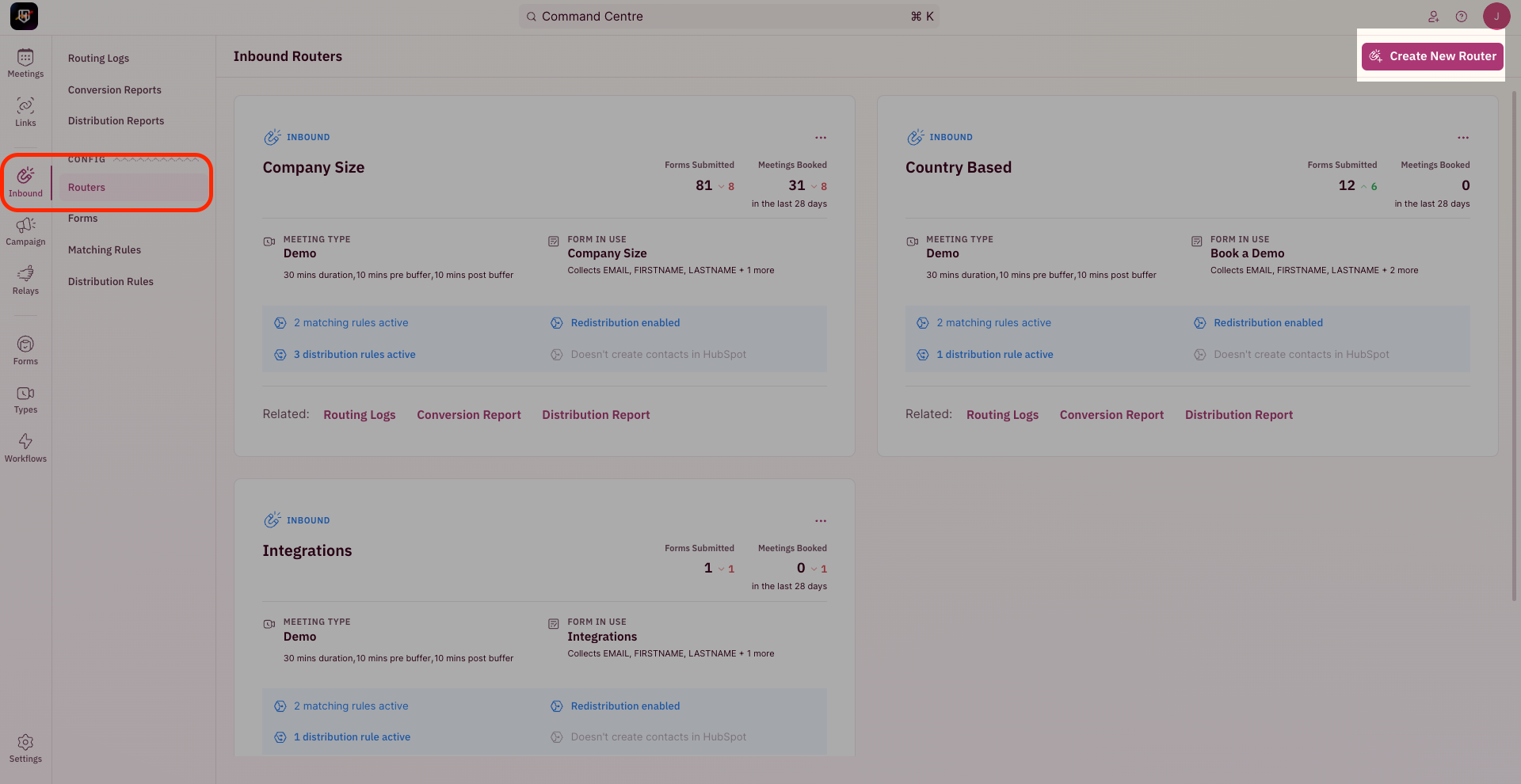
1. To create a Distribution Rule, use the side nav bar and click on **Inbound → Distribution Rules.**
2. Now, click the ”**Create New Rule**” button on the top-right corner of your screen.
### Navigate to Distribution Rules
1. To create a Distribution Rule, use the side nav bar and click on **Inbound → Distribution Rules.**
2. Now, click the ”**Create New Rule**” button on the top-right corner of your screen.
 3. The pop-up for Distribution Rule Setup requires you to first choose who should the meetings be assigned to.
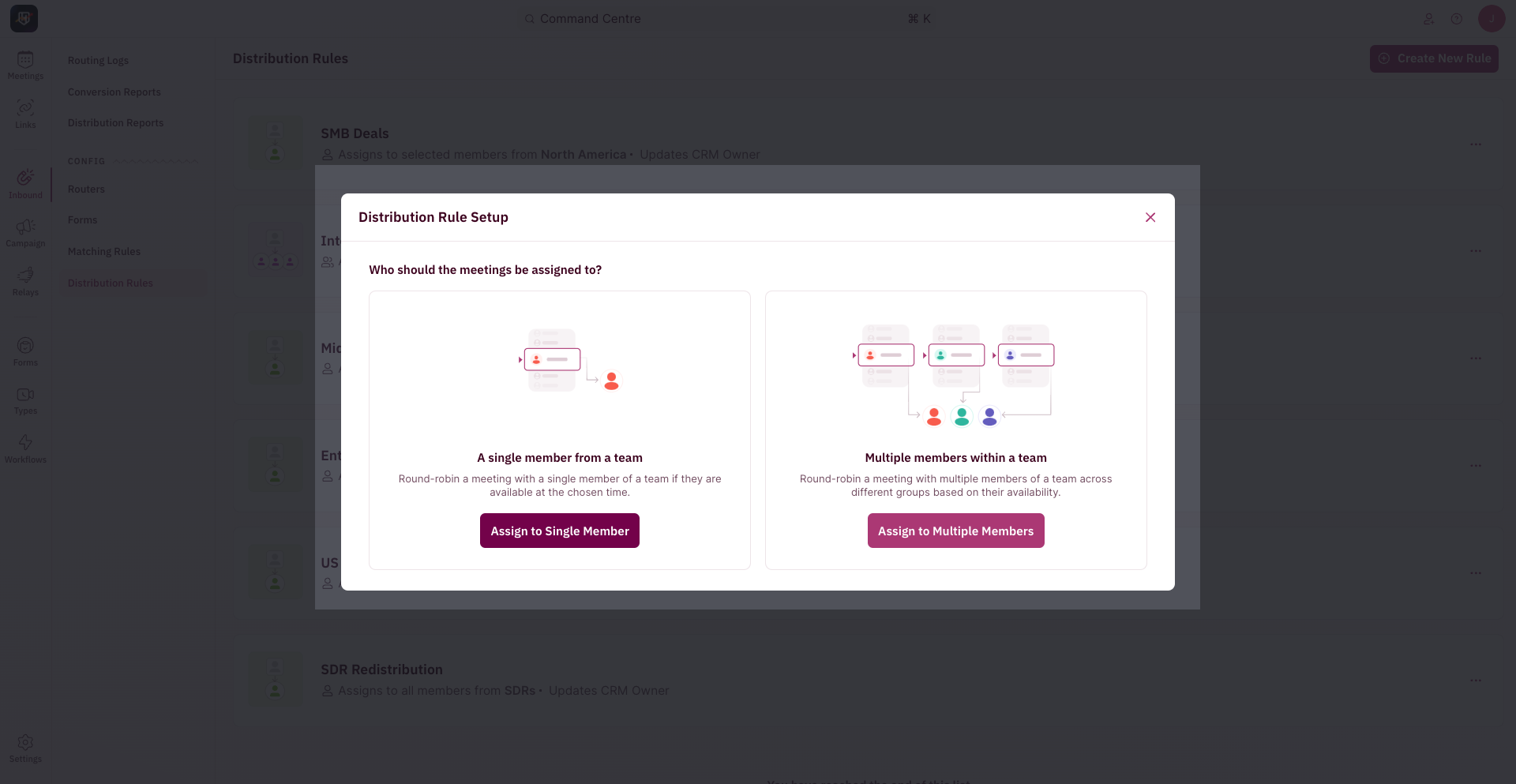 4. Click on “Assign to Multiple Members” in the pop-up for Distribution Rule Setup.
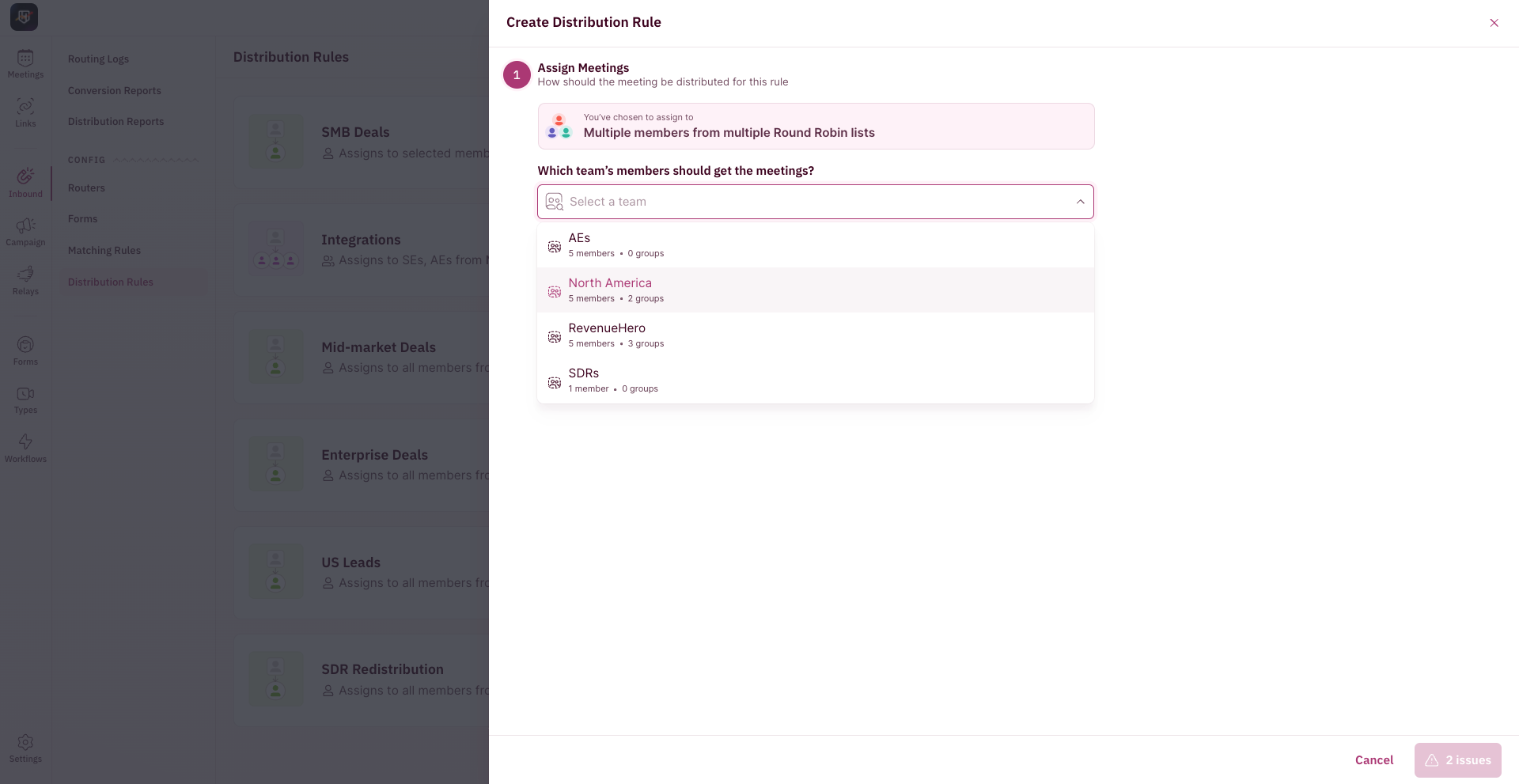 5. Pick the group that would be the primary participant. This is the group that would be round robin-ed based on the account setting i.e Strict/Flexible Round Robin.
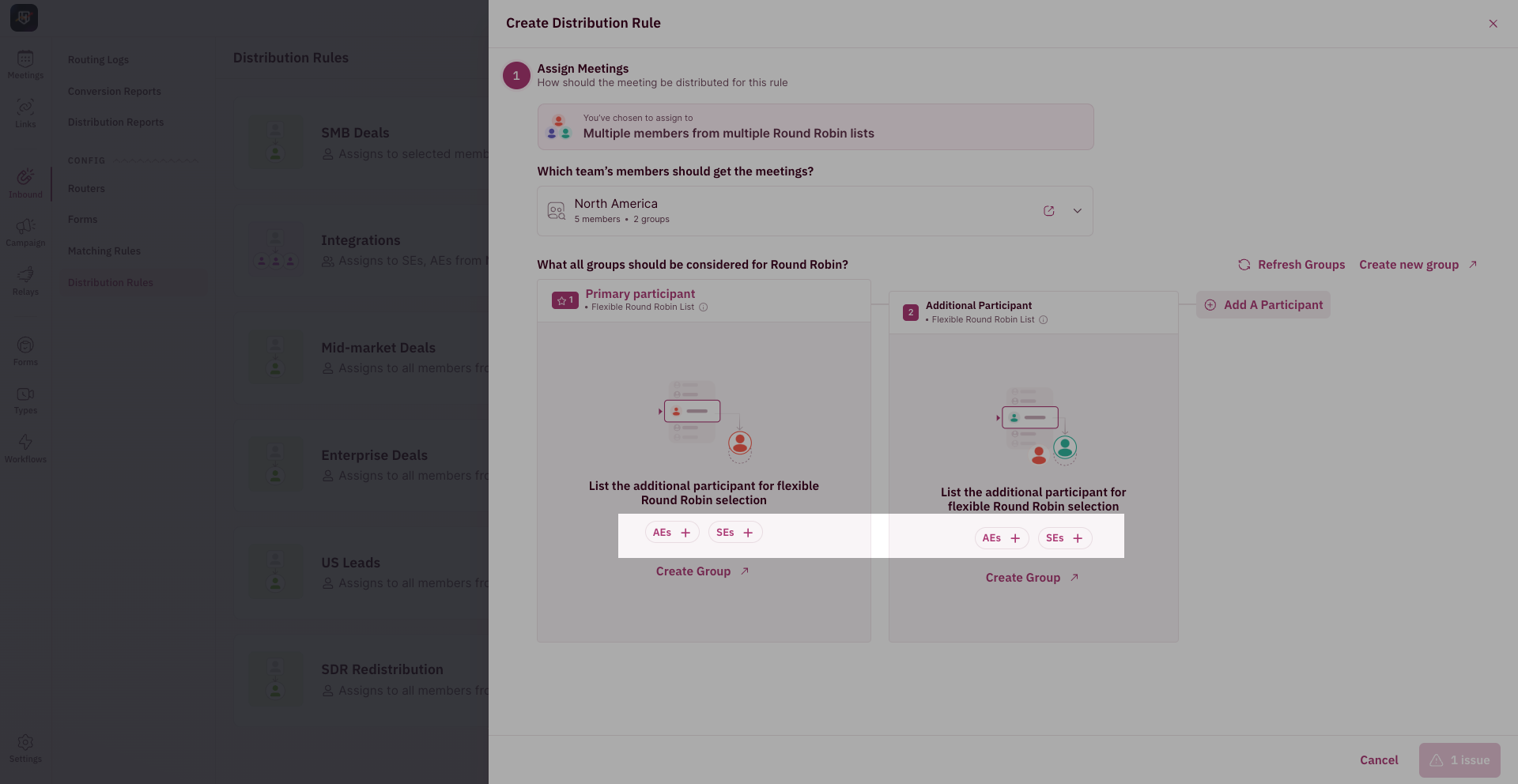 6. The members from the second/third group will be added based on availability.
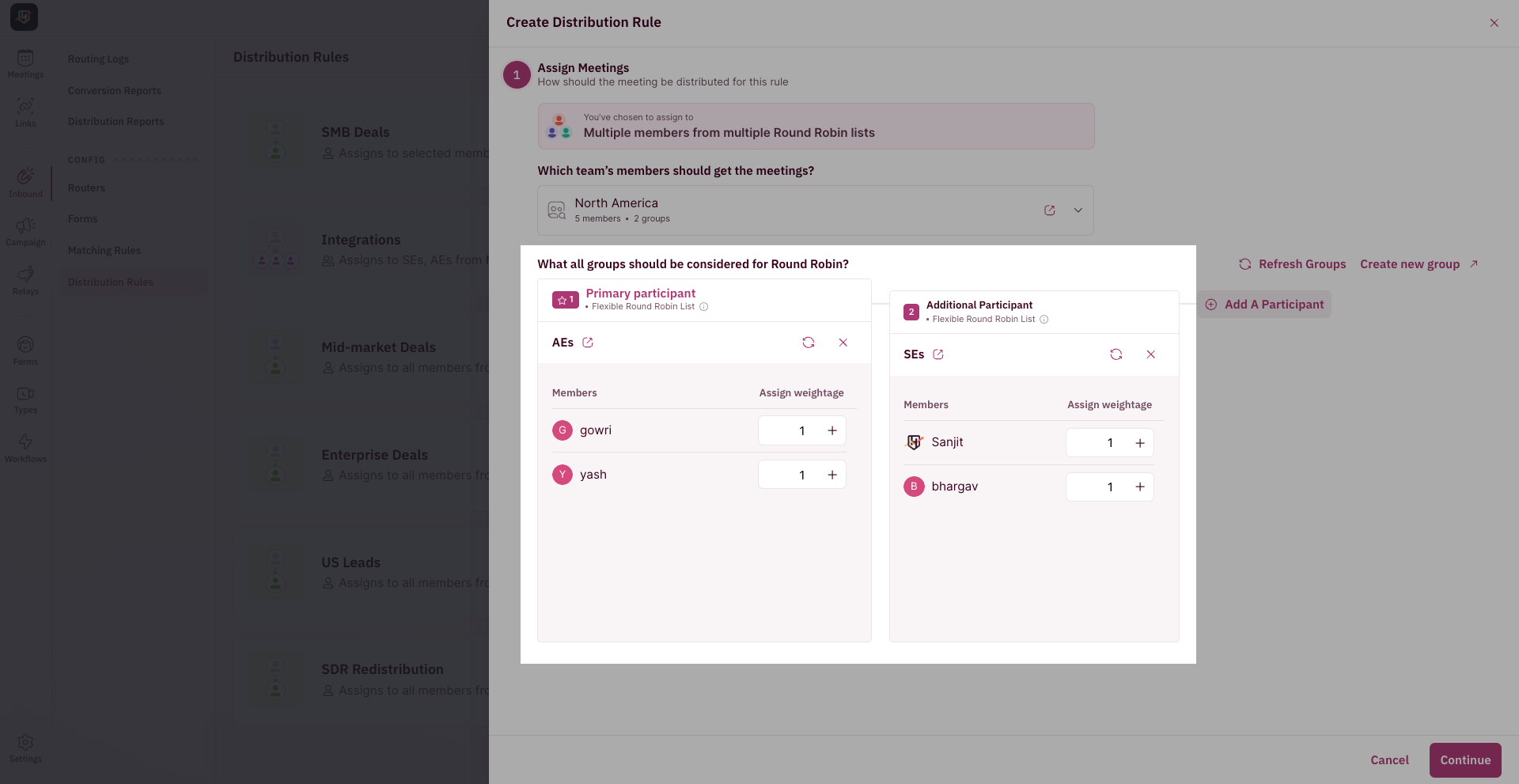 7. Once selected, you can adjust the meeting weightage for each team member.
8. Click “Continue”.
#### Set Conditions to Check
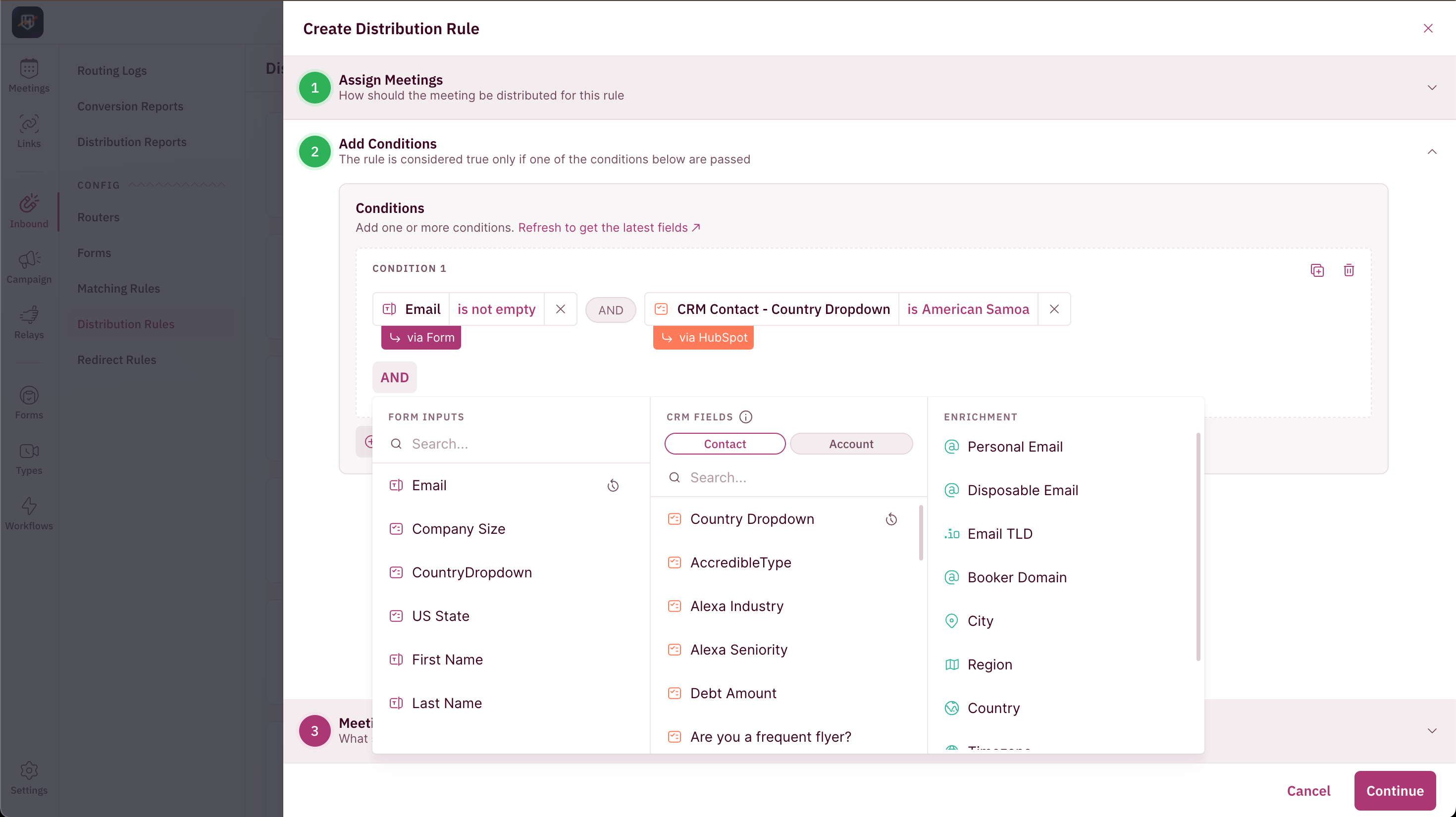
This is where you tell RevenueHero which property in your CRM to look up to set this condition.
7. Once selected, you can adjust the meeting weightage for each team member.
8. Click “Continue”.
#### Set Conditions to Check
This is where you tell RevenueHero which property in your CRM to look up to set this condition.
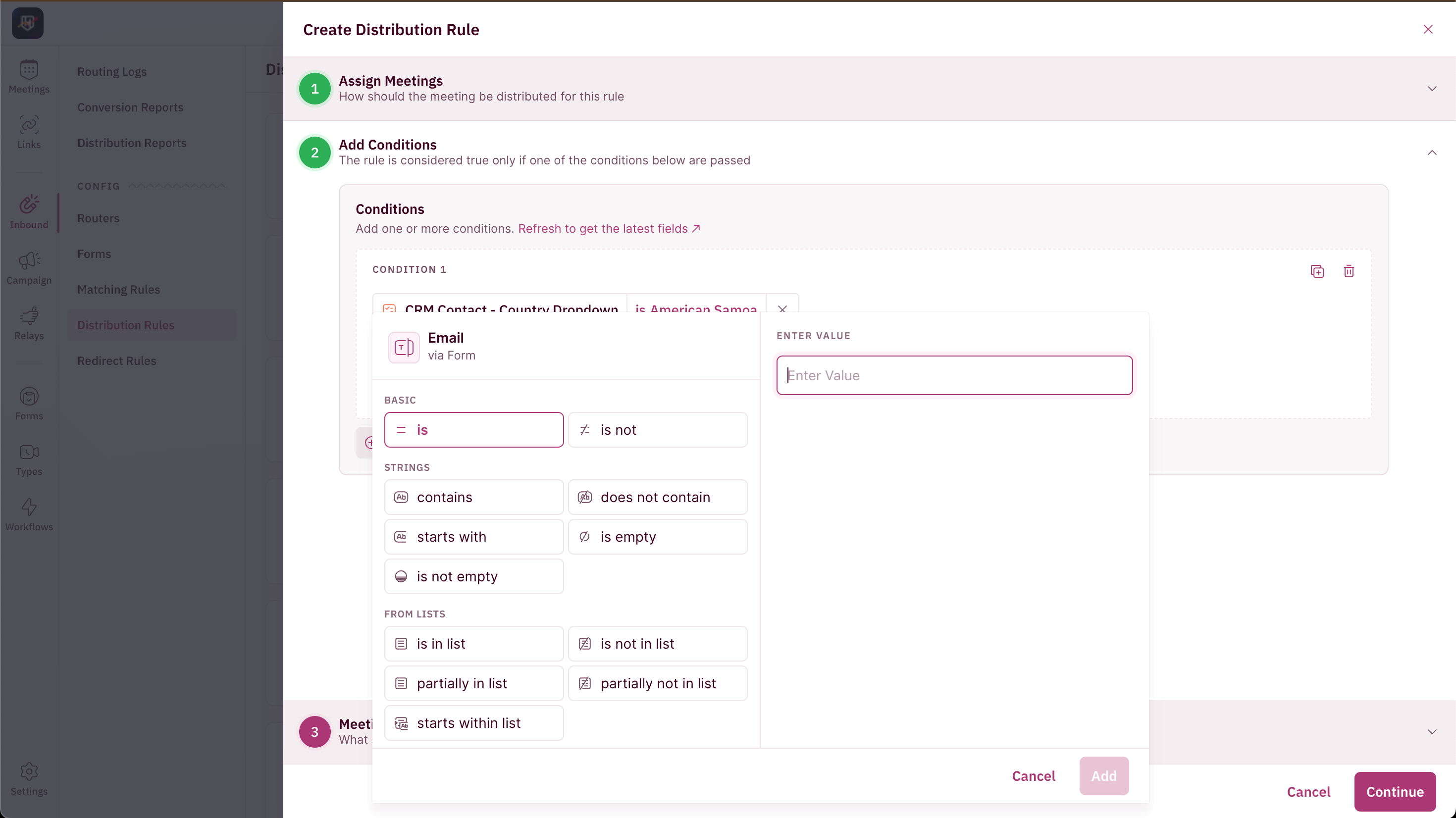 You can add multiple conditions with a combination of AND or OR for the Distribution Rule to check before meetings are assigned.
Click “**Continue**”.
#### Understanding Meeting Settings
There are a couple of settings that you can tweak and change in your distribution rule.
You can add multiple conditions with a combination of AND or OR for the Distribution Rule to check before meetings are assigned.
Click “**Continue**”.
#### Understanding Meeting Settings
There are a couple of settings that you can tweak and change in your distribution rule.
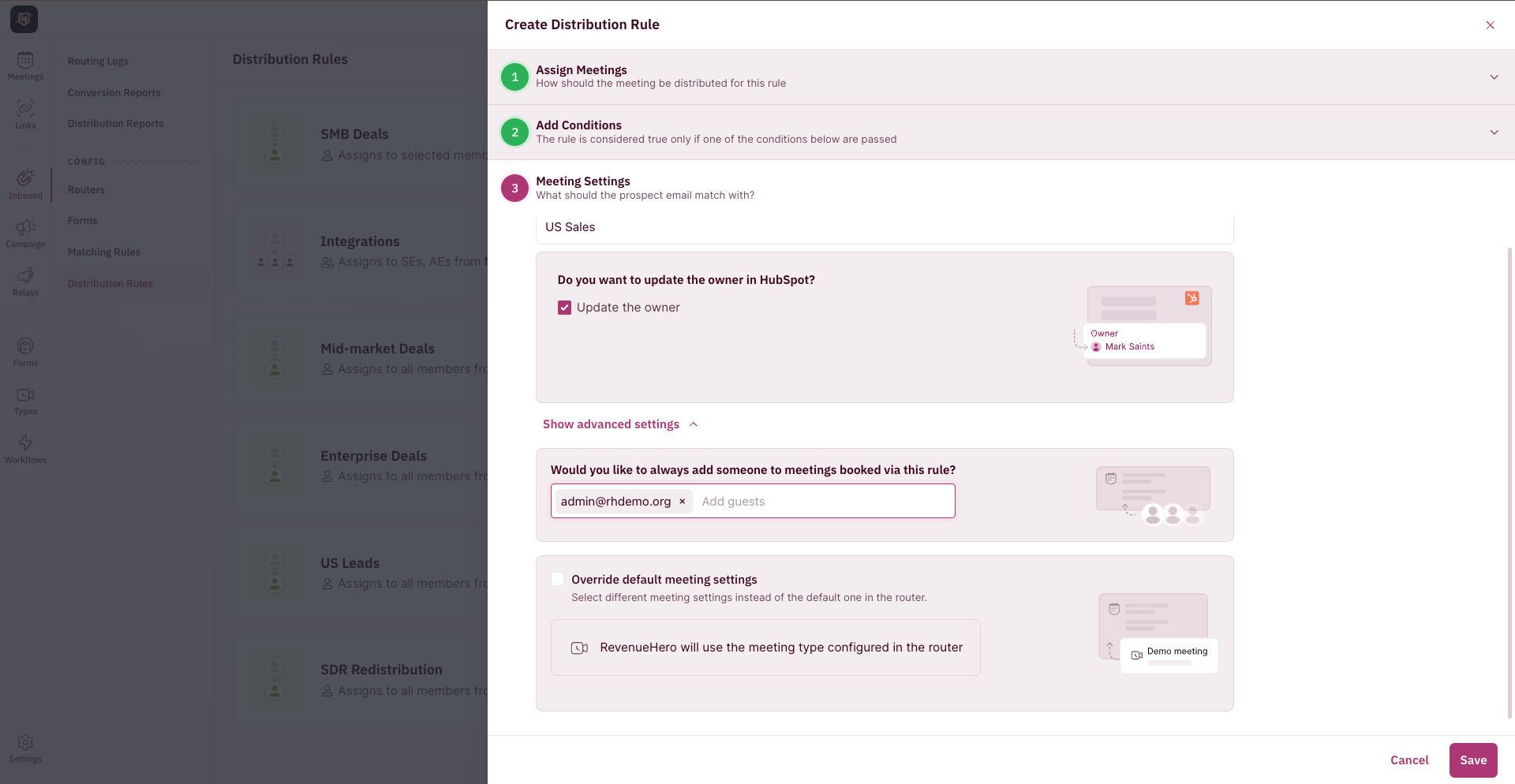
 **Rule name**
Give your Distribution Rule a name.
For example, if you’re creating a Distribution Rule for your USA sales team, you can name it US sales.
**Update account owner**
You can choose to update the account owner in your CRM by checking the tickbox.
**Add guests for all meetings**
You can add guests to meetings every time a meeting is booked through this Distribution Rule. This is particularly helpful if you’ve recently onboarded a new sales rep and you want their manager to be on calls to guide them, for example.
**Override default meeting settings**
This is particularly helpful if you want to add a different meeting type to your router and override the meeting type that is selected in the router.
**Rule name**
Give your Distribution Rule a name.
For example, if you’re creating a Distribution Rule for your USA sales team, you can name it US sales.
**Update account owner**
You can choose to update the account owner in your CRM by checking the tickbox.
**Add guests for all meetings**
You can add guests to meetings every time a meeting is booked through this Distribution Rule. This is particularly helpful if you’ve recently onboarded a new sales rep and you want their manager to be on calls to guide them, for example.
**Override default meeting settings**
This is particularly helpful if you want to add a different meeting type to your router and override the meeting type that is selected in the router.
 Click “**Save**".
***
Your group round robin distribution rule is set and ready to be used in your Inbound Router. 🎉
Click “**Save**".
***
Your group round robin distribution rule is set and ready to be used in your Inbound Router. 🎉