> ## Documentation Index
> Fetch the complete documentation index at: https://help.revenuehero.io/llms.txt
> Use this file to discover all available pages before exploring further.
# Round Robin History
> See what has transpired via Round Robin in your rule and calibrate if necessary
## View Round Robin History for Inbound Router
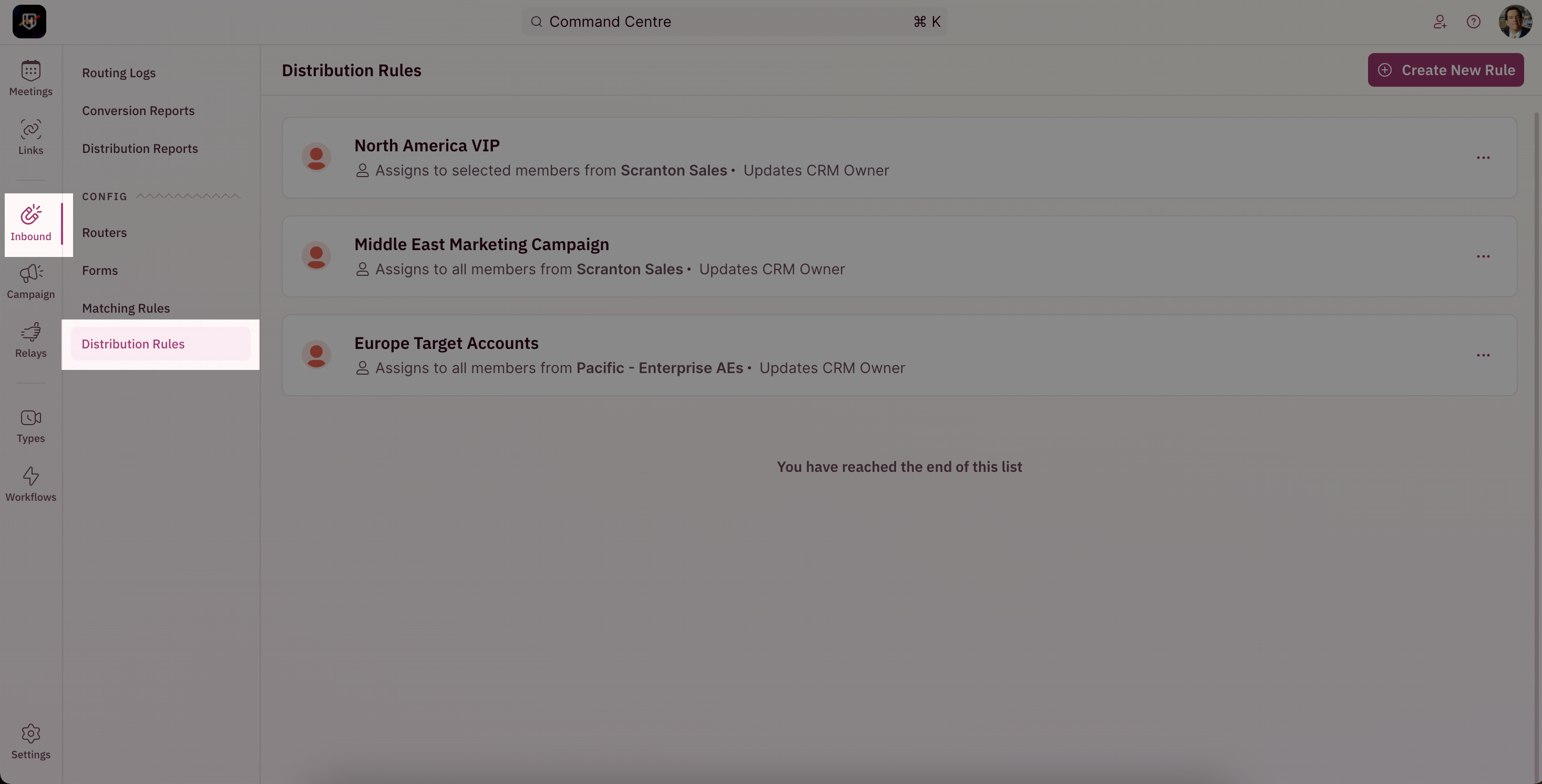
1. To navigate to the Round Robin history page of your distribution rules, go to the sidebar and click on **Inbound → Distribution Rules**.
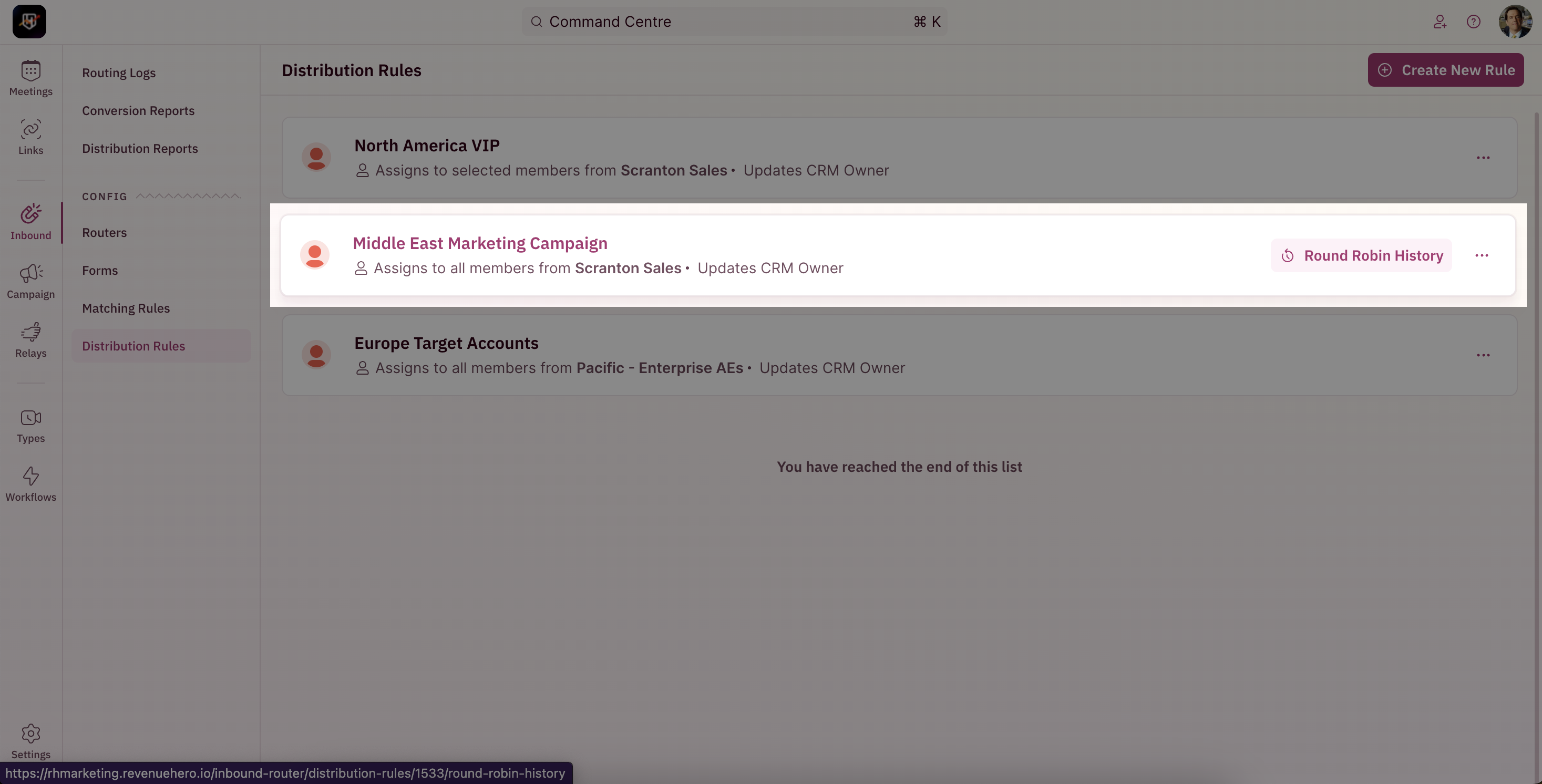
 2. Hover over the rule of your choice and you’ll see **Round Robin History**. Select it to open your rule’s Round Robin progress on a new page.
 ***
## View Round Robin History for Relays
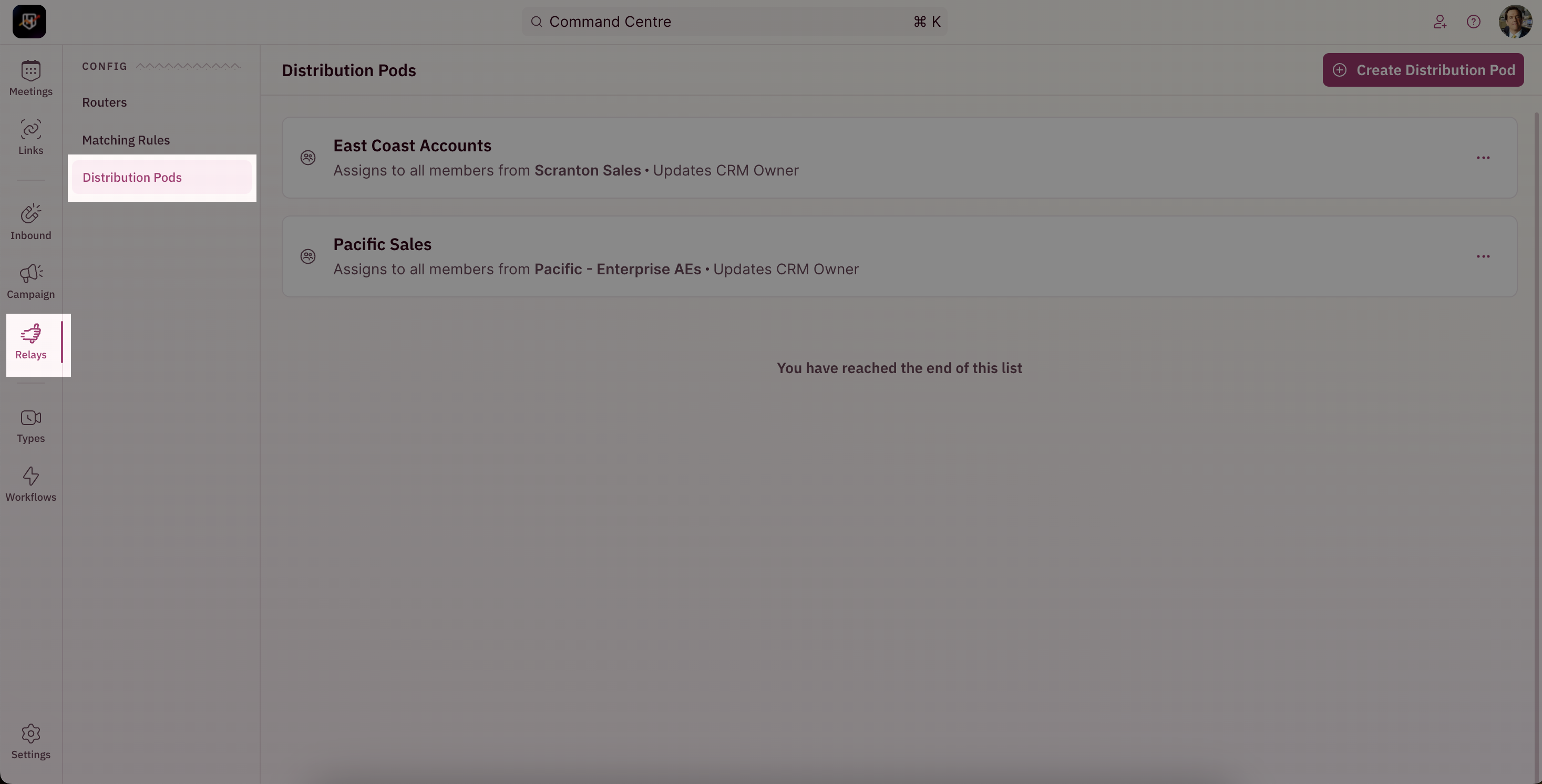
1. To view Round Robin history for Relays, go to the sidebar and click on **Relays → Distribution Pods**.
***
## View Round Robin History for Relays
1. To view Round Robin history for Relays, go to the sidebar and click on **Relays → Distribution Pods**.
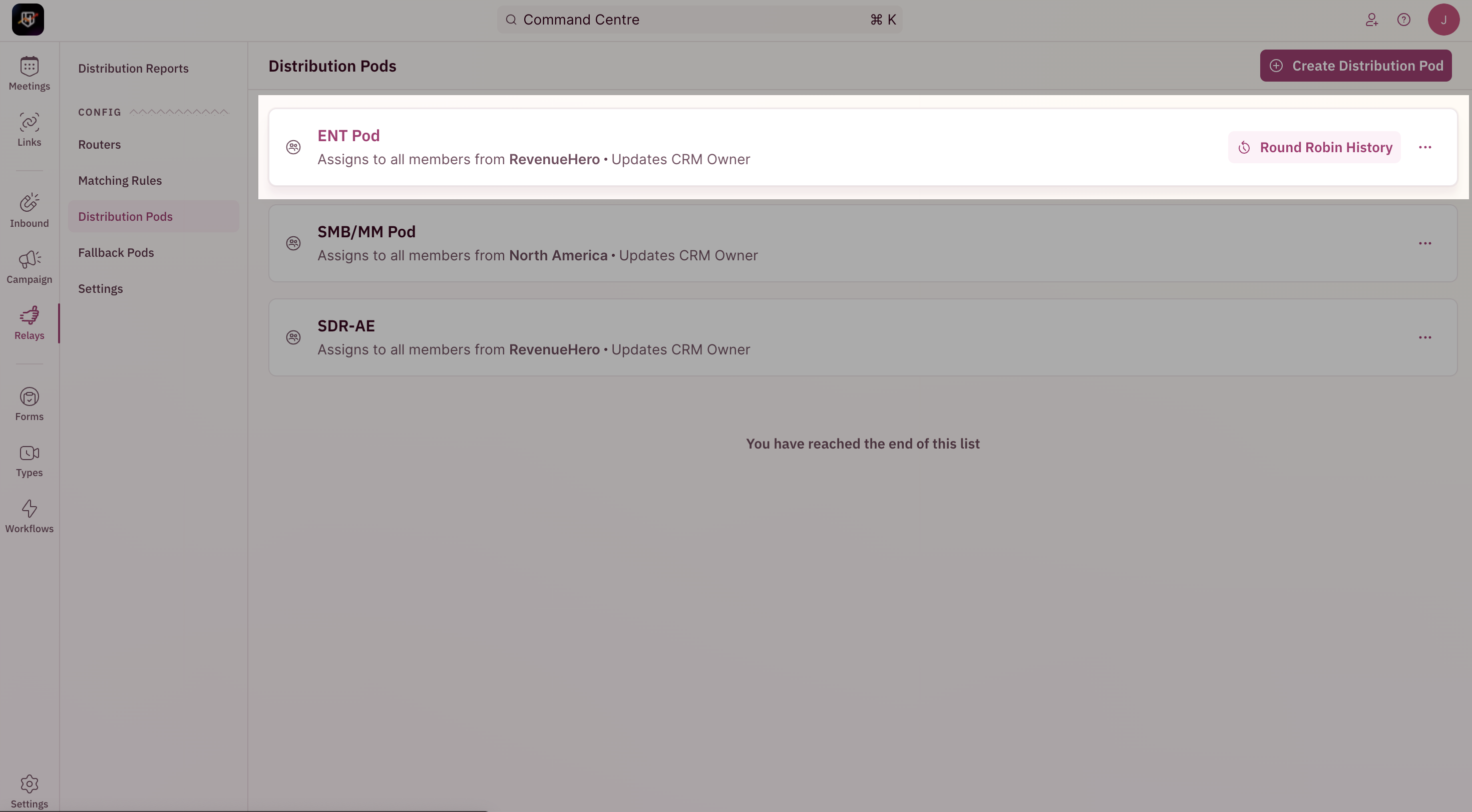
 2. Hover over the rule of your choice and you’ll see **Round Robin History**. Select it to open your rule’s Round Robin progress on a new page.
 ***
## Layout of Page
The history page is designed to provide you with an eagle's eye view of the assignment and distribution enabling you to take sitrep on your rule behavior.
#### Round Robin period
The top-left corner displays the Round Robin period i.e. when this cycle of distribution started till date and the reset period of this cycle. Currently, each cycle resets every month and the distribution starts anew.
***
## Layout of Page
The history page is designed to provide you with an eagle's eye view of the assignment and distribution enabling you to take sitrep on your rule behavior.
#### Round Robin period
The top-left corner displays the Round Robin period i.e. when this cycle of distribution started till date and the reset period of this cycle. Currently, each cycle resets every month and the distribution starts anew.
 #### User information
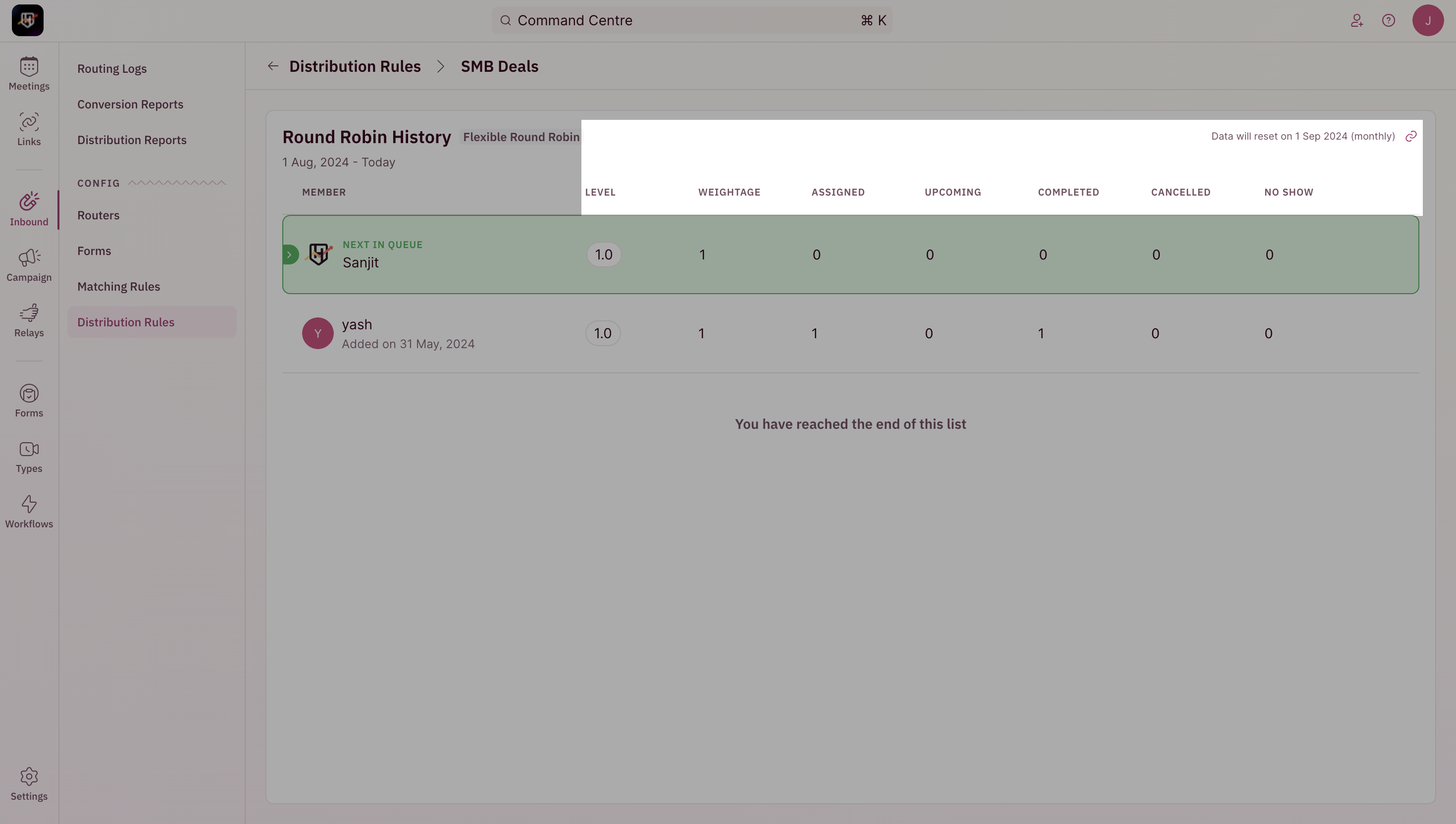
The table displays all the information required to gain insights into where the distribution currently stands. The rows list all the users in this distribution cycle and the columns list the attributes highlighting the stages in the distribution.
1. **Level**
> An internally calculated score for each user in the distribution that indicates where the person currently stands in the distribution queue. If they're at the top, then they are next in line for an upcoming meeting.
2. **Meeting Assigned**
> The number of meetings a person has received in total in this distribution cycle.
3. **Upcoming**
> The number of meetings a person has received that are coming up in the future in this distribution cycle.
4. **Completed**
> The number of meetings a person has received that have been completed in this distribution cycle.
5. **Cancelled or No-show**
> The number of meetings a person has received that have either been canceled or marked as No-Shows in this distribution cycle.
6. **Added to rule**
> The date when this person was added to the Distribution Rule
7. **Weightage**
> The ratio of meetings this person should receive via the Distribution Rule
The table also indicates according to the current progress in distribution, which person would be next in line to be assigned for an upcoming meeting.
#### User information
The table displays all the information required to gain insights into where the distribution currently stands. The rows list all the users in this distribution cycle and the columns list the attributes highlighting the stages in the distribution.
1. **Level**
> An internally calculated score for each user in the distribution that indicates where the person currently stands in the distribution queue. If they're at the top, then they are next in line for an upcoming meeting.
2. **Meeting Assigned**
> The number of meetings a person has received in total in this distribution cycle.
3. **Upcoming**
> The number of meetings a person has received that are coming up in the future in this distribution cycle.
4. **Completed**
> The number of meetings a person has received that have been completed in this distribution cycle.
5. **Cancelled or No-show**
> The number of meetings a person has received that have either been canceled or marked as No-Shows in this distribution cycle.
6. **Added to rule**
> The date when this person was added to the Distribution Rule
7. **Weightage**
> The ratio of meetings this person should receive via the Distribution Rule
The table also indicates according to the current progress in distribution, which person would be next in line to be assigned for an upcoming meeting.
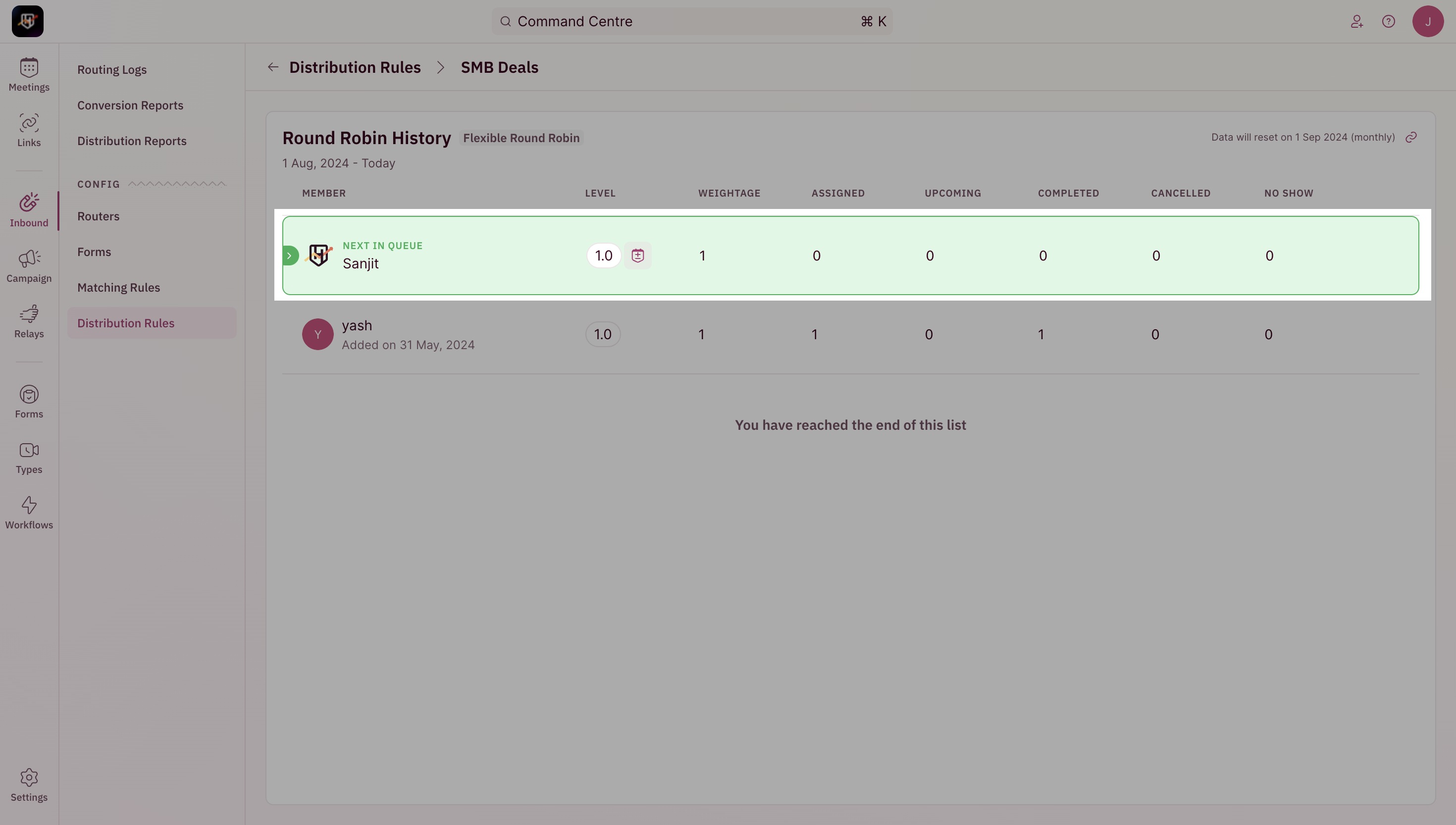 When a particular user in the distribution has an Out-Of-Office All-Day event marked on their calendar or a busy event spanning day(s), then that person is considered to be on vacation for that period. This is also indicated with a grayed-out row with a subtext indicating that the person is on vacation currently.
## Actions
Each person in the Round Robin queue has their meetings calibrated based on the [configured settings](/settings/organization/distribution#round-robin-calibration) and the changes are automatically managed by the product. But, in certain circumstances, one would like to credit back a meeting for a particular user or would like to take credit away for a particular user manually.
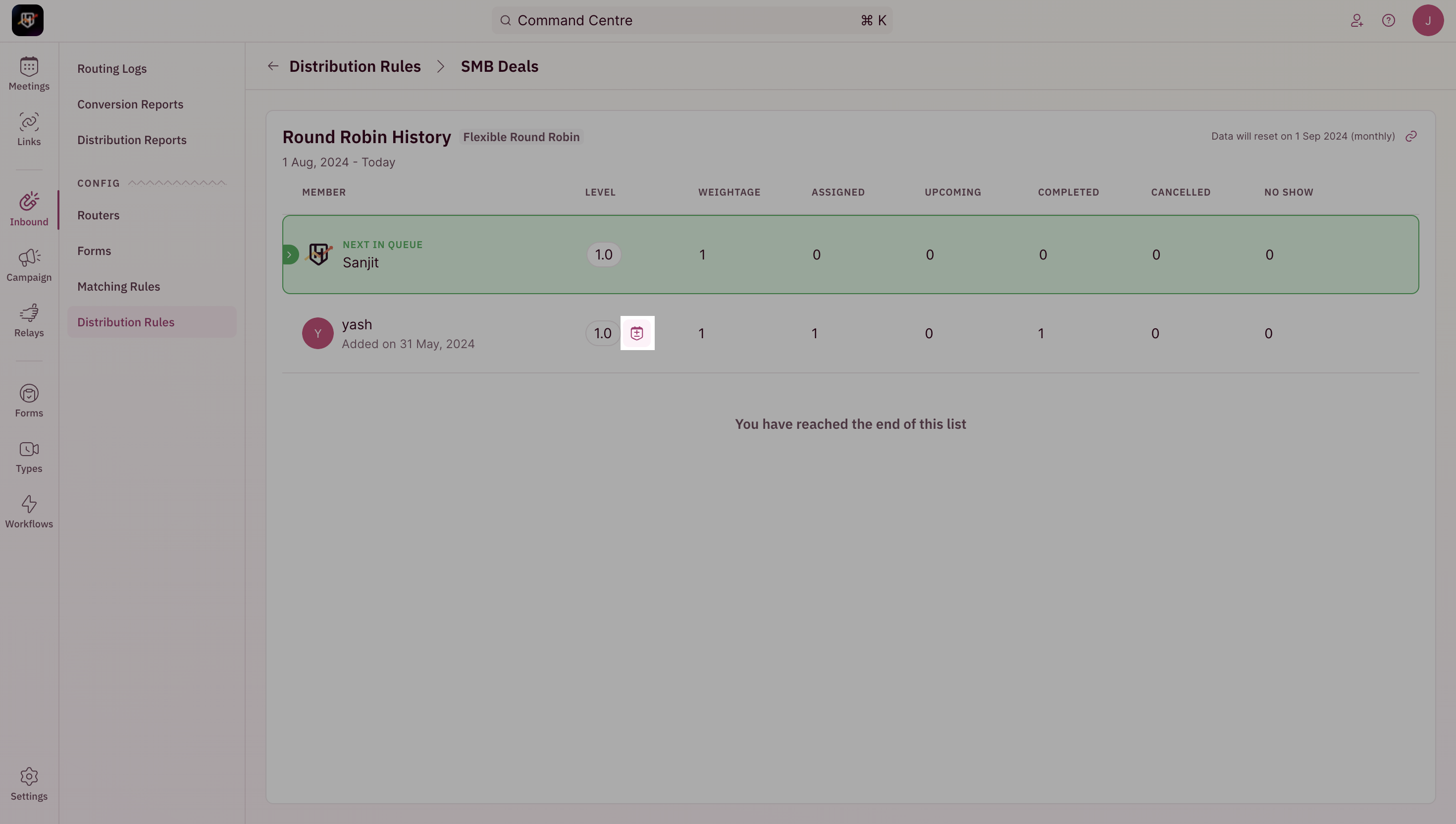
To begin adding or removing credits, hover next to the **Level** number, and click on the icon that appears. This should open a pop-up.
When a particular user in the distribution has an Out-Of-Office All-Day event marked on their calendar or a busy event spanning day(s), then that person is considered to be on vacation for that period. This is also indicated with a grayed-out row with a subtext indicating that the person is on vacation currently.
## Actions
Each person in the Round Robin queue has their meetings calibrated based on the [configured settings](/settings/organization/distribution#round-robin-calibration) and the changes are automatically managed by the product. But, in certain circumstances, one would like to credit back a meeting for a particular user or would like to take credit away for a particular user manually.
To begin adding or removing credits, hover next to the **Level** number, and click on the icon that appears. This should open a pop-up.
 #### Manually add meeting credit
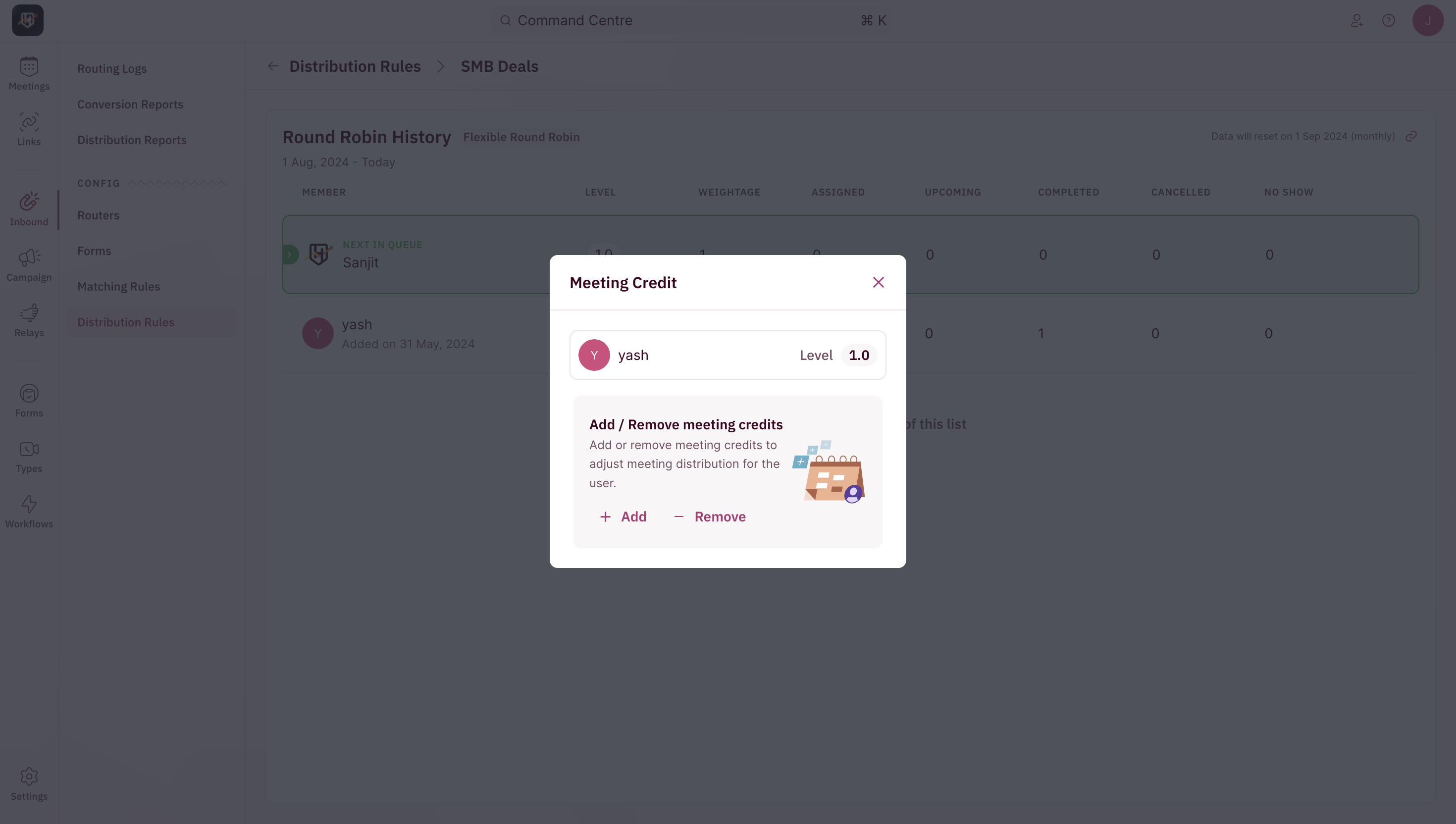
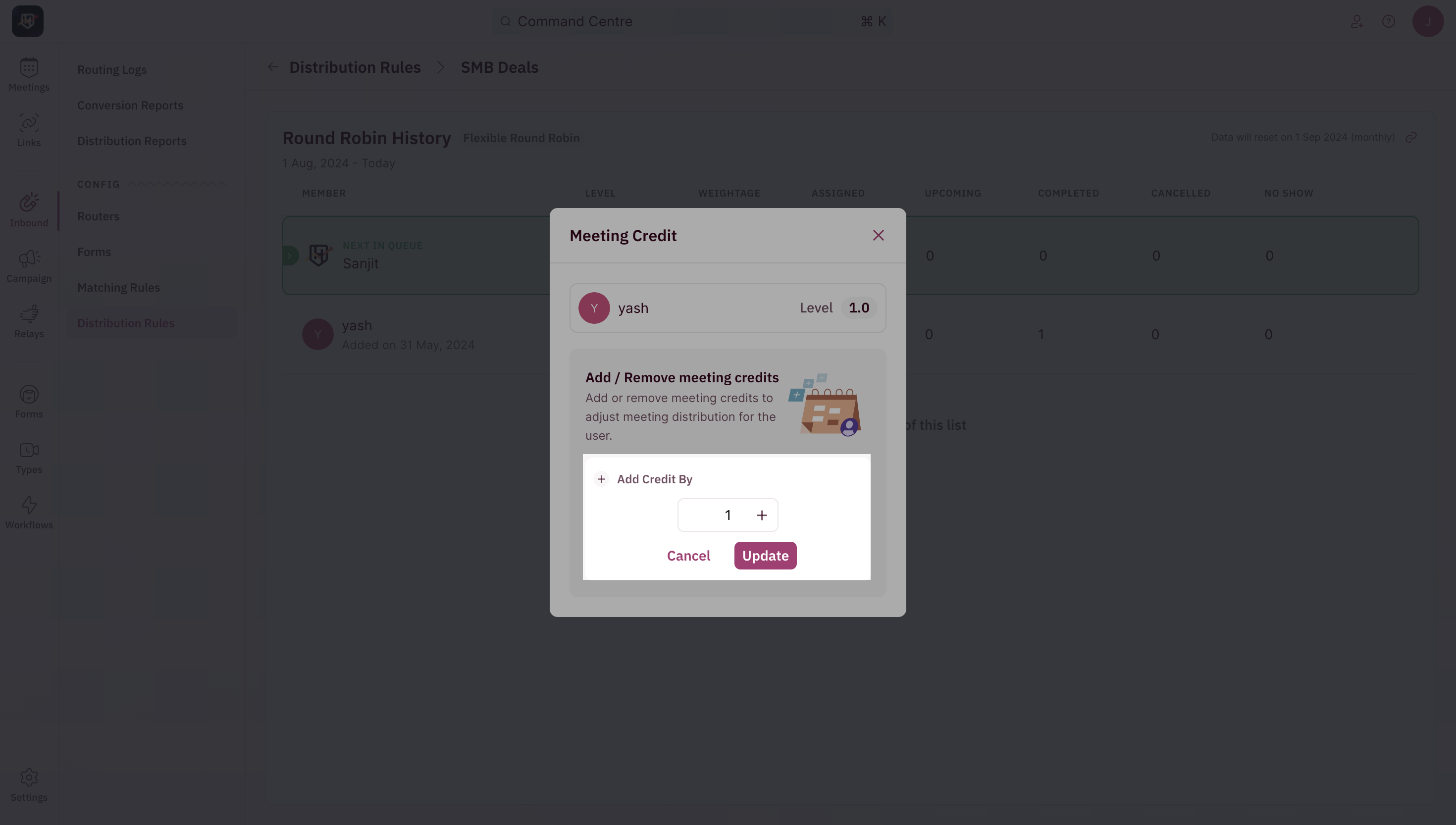
To give back meeting credits, click on **+Add** button in the pop-up window, adjust how many meeting credits you would like to credit a particular user with, and click on **Update** to persist the changes.
#### Manually add meeting credit
To give back meeting credits, click on **+Add** button in the pop-up window, adjust how many meeting credits you would like to credit a particular user with, and click on **Update** to persist the changes.
 You should see it reflected in the **Level** value showing a decrease from the previous value. This indicates the user is in a meeting deficit now, and will assign further meetings to them more frequently to adjust for the deficit.
 #### Manually remove meeting credit
To take back meeting credits, click on **-Remove** button in the pop-up window, adjust how many meeting credits you would to deduct for a particular user, and click on **Update** to persist the changes.
#### Manually remove meeting credit
To take back meeting credits, click on **-Remove** button in the pop-up window, adjust how many meeting credits you would to deduct for a particular user, and click on **Update** to persist the changes.
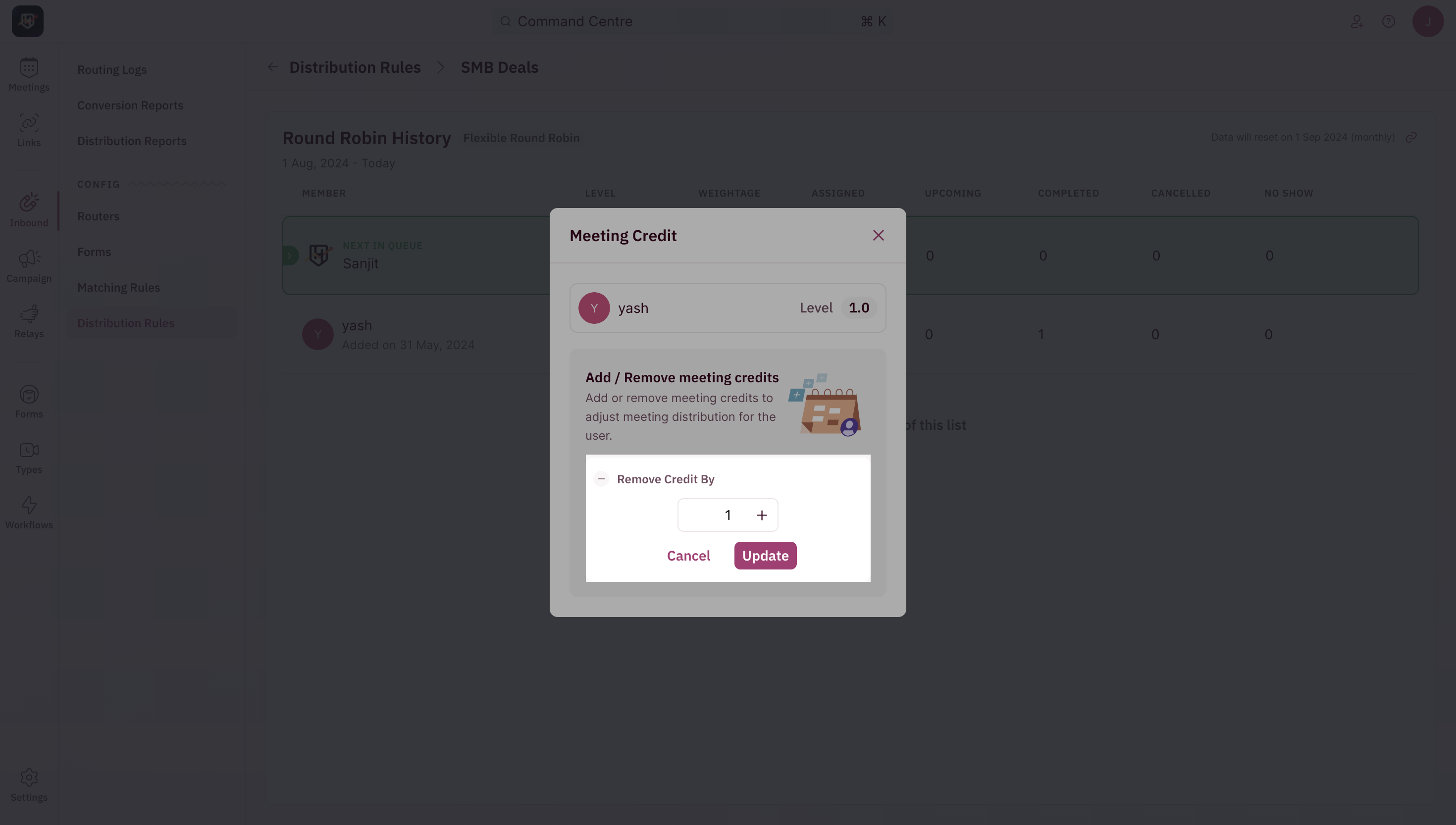 You should see it reflected in the **Level** value showing an increase from the previous value. This indicates the user is in a meeting surplus now, and will not assign further meetings to them as frequently to adjust for the surplus.