> ## Documentation Index
> Fetch the complete documentation index at: https://help.revenuehero.io/llms.txt
> Use this file to discover all available pages before exploring further.
# How to update CRM owner fields when a distribution rule matches?
> Write the assigned rep back as the owner on lead, contact, and account records when a distribution rule matches.
When a distribution rule assigns a meeting, RevenueHero can write that rep back into your CRM as the owner so your records reflect who actually works the deal. You control this for **lead**, **contact**, and **account** records, and you pick which field each one updates. Account-level updates are the newest addition, so the rep who gets the meeting can now own the account too, not just the lead or contact.
**BEFORE YOU BEGIN**
1. [Connect your CRM to RevenueHero](/crm/salesforce/overview)
2. Have a distribution rule you can edit, or [create a new one](/rules/distribution/create-distribution-rule)
## How owner updates work
A distribution rule assigns each qualifying meeting to a rep. When you turn on owner updates, RevenueHero writes that rep's name into an owner field on the matching CRM records. You control this per record type:
* **Lead and Contact records** update the person-level owner.
* **Account records** update the owner at the account level. This is the newest option, and it works with Salesforce and Attio only.
For each type, you pick which field receives the rep's name. It does not have to be the standard `Owner ID`. Any owner-type field on the object is selectable, so you can write to a custom field like `Customer Success Manager` or `Alliance Manager` instead of the default owner.
## Update owner fields on a distribution rule
### Step 1: Open the owner-update panel
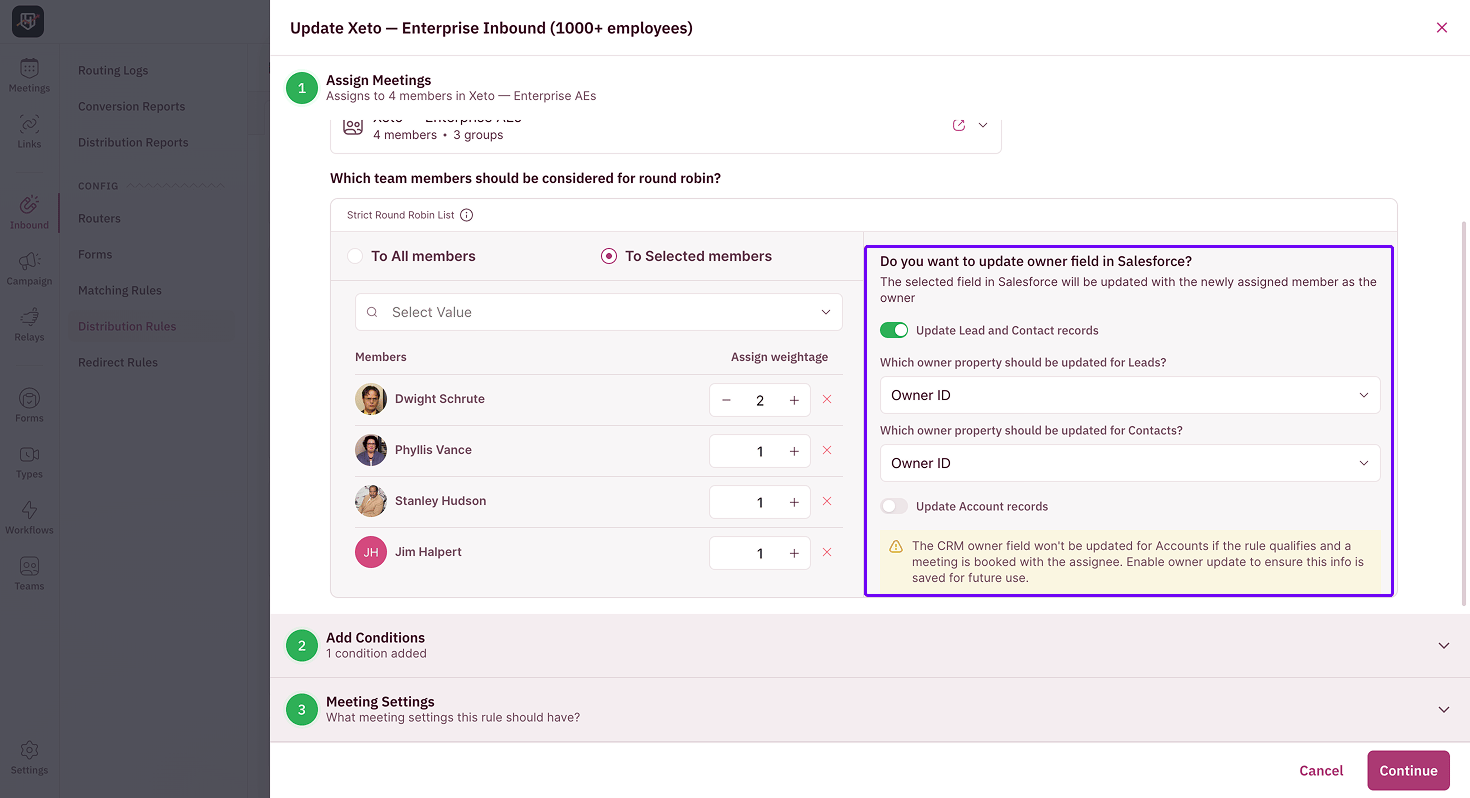
Open your distribution rule in **Inbound Router → Distribution Rules** and go to the **Assign Meetings** step. Find the **Do you want to update owner field in \?** panel next to the round robin list.
 ### Step 2: Turn on the records you want to update
Toggle on **Update Lead and Contact records**, **Update Account records**, or both. **Update Account records** sets the assigned rep as the owner on the account tied to the booking, not just on the lead or contact. Turn on all of them to keep every owner field in sync.
### Step 3: Choose which field to update
Under each **Which owner property should be updated for...?** dropdown, select the field that should hold the rep's name. The list shows every owner-type field on that object, so you can write to a custom field instead of the standard owner if your team tracks ownership somewhere specific.
### Step 2: Turn on the records you want to update
Toggle on **Update Lead and Contact records**, **Update Account records**, or both. **Update Account records** sets the assigned rep as the owner on the account tied to the booking, not just on the lead or contact. Turn on all of them to keep every owner field in sync.
### Step 3: Choose which field to update
Under each **Which owner property should be updated for...?** dropdown, select the field that should hold the rep's name. The list shows every owner-type field on that object, so you can write to a custom field instead of the standard owner if your team tracks ownership somewhere specific.
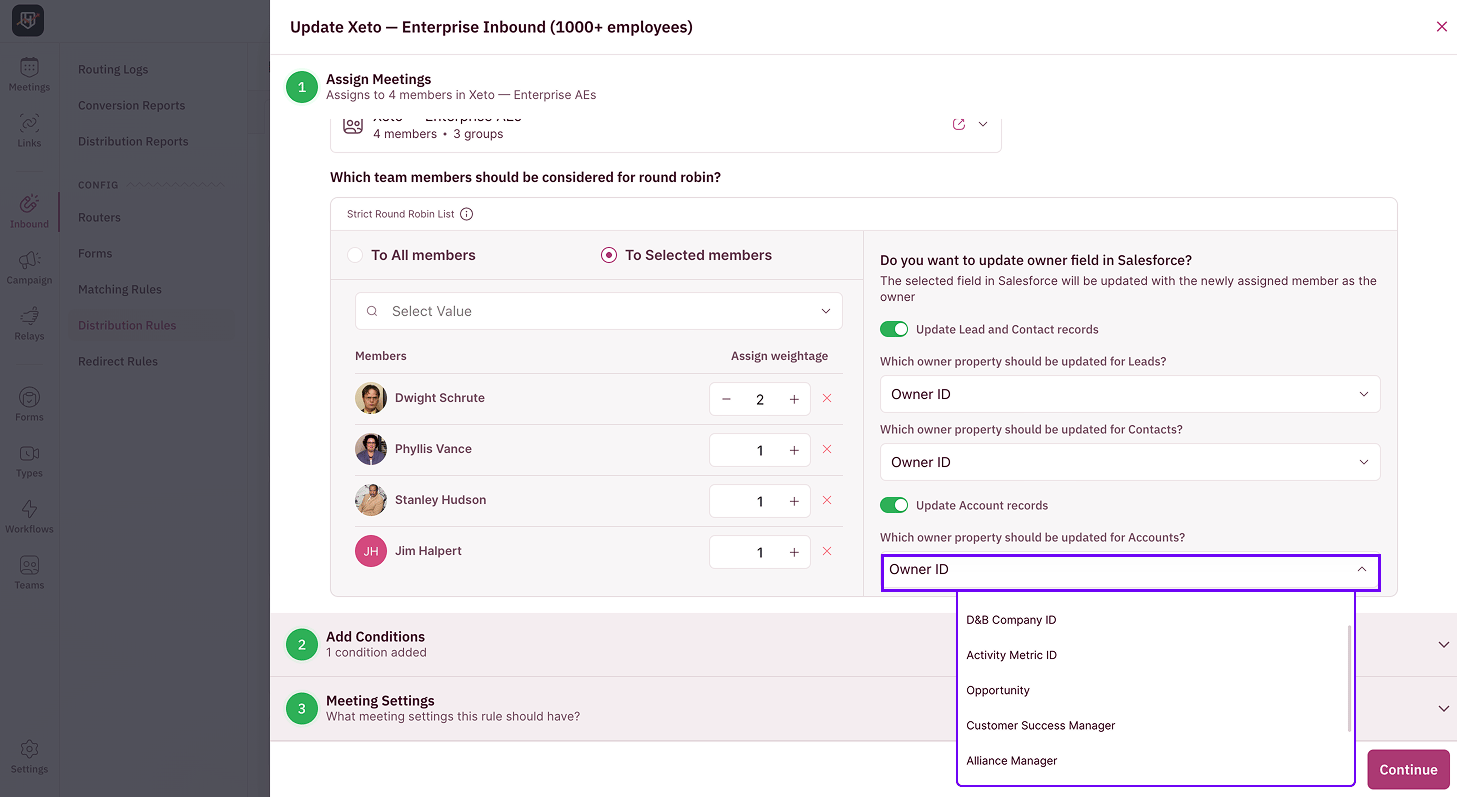 Writing to a custom owner field keeps your standard account owner untouched while still recording who took the meeting. Teams doing named-account or ABM routing use this to log the working rep without overwriting the account's territory owner.
Where you set this depends on the rule's distribution type:
* **Single round robin:** you set the owner fields once for the whole rule as shown in the image above.
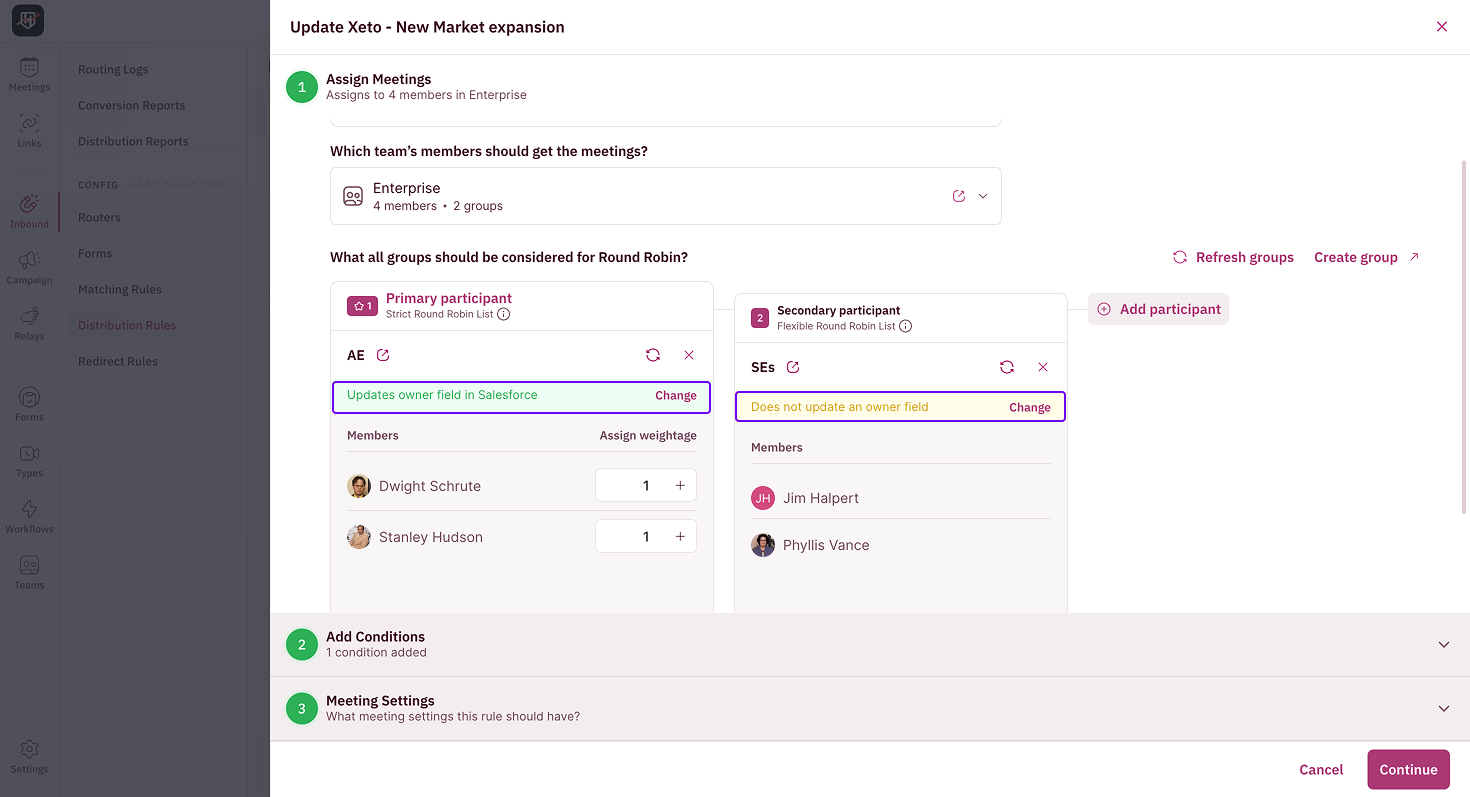
* **Group round robin:** you set them per included group. Each group's card shows **Updates owner field in Salesforce** or **Does not update an owner field** depending on whether or not owner update is setup. Click **Change** to open that group's dialog and choose the records and fields to update in the CRM.
Writing to a custom owner field keeps your standard account owner untouched while still recording who took the meeting. Teams doing named-account or ABM routing use this to log the working rep without overwriting the account's territory owner.
Where you set this depends on the rule's distribution type:
* **Single round robin:** you set the owner fields once for the whole rule as shown in the image above.
* **Group round robin:** you set them per included group. Each group's card shows **Updates owner field in Salesforce** or **Does not update an owner field** depending on whether or not owner update is setup. Click **Change** to open that group's dialog and choose the records and fields to update in the CRM.
 ### Step 4: Save the rule
Click **Continue** on the owner-field dialog, finish the rest of the rule, and save. The next time a meeting matches this rule, the assigned rep is written to the owner fields you chose.
## Which records get updated
| Record type | Toggle | What it sets |
| ----------- | ------------------------------- | ---------------------------------------------- |
| Lead | Update Lead and Contact records | Owner field on the matching lead |
| Contact | Update Lead and Contact records | Owner field on the matching contact |
| Account | Update Account records | Owner field on the account tied to the booking |
## What happens if you leave it off
If a toggle is off, the owner field for that record type is not written when the rule qualifies and a meeting is booked. RevenueHero flags this inline: "The CRM owner field won't be updated if the rule qualifies and a meeting is booked with the assignee." Turn the toggle on if you need the owner saved for reporting or downstream routing.
If a CRM flow or workflow also writes the same owner field, the two can compete and the owner can appear to switch between users after a booking. Pick one system to own the field, or add a short delay to your CRM automation so RevenueHero's update settles first.
***
Your distribution rule now keeps the CRM owner in step with the rep who takes the meeting. 🎉🎉🎉
Route meetings to new owners via round robin.
Route meetings to the existing CRM owner for a lead or contact.
See what prospect and meeting data RevenueHero keeps up to date.
Route meetings across multiple groups of reps.
### Step 4: Save the rule
Click **Continue** on the owner-field dialog, finish the rest of the rule, and save. The next time a meeting matches this rule, the assigned rep is written to the owner fields you chose.
## Which records get updated
| Record type | Toggle | What it sets |
| ----------- | ------------------------------- | ---------------------------------------------- |
| Lead | Update Lead and Contact records | Owner field on the matching lead |
| Contact | Update Lead and Contact records | Owner field on the matching contact |
| Account | Update Account records | Owner field on the account tied to the booking |
## What happens if you leave it off
If a toggle is off, the owner field for that record type is not written when the rule qualifies and a meeting is booked. RevenueHero flags this inline: "The CRM owner field won't be updated if the rule qualifies and a meeting is booked with the assignee." Turn the toggle on if you need the owner saved for reporting or downstream routing.
If a CRM flow or workflow also writes the same owner field, the two can compete and the owner can appear to switch between users after a booking. Pick one system to own the field, or add a short delay to your CRM automation so RevenueHero's update settles first.
***
Your distribution rule now keeps the CRM owner in step with the rep who takes the meeting. 🎉🎉🎉
Route meetings to new owners via round robin.
Route meetings to the existing CRM owner for a lead or contact.
See what prospect and meeting data RevenueHero keeps up to date.
Route meetings across multiple groups of reps.