> ## Documentation Index
> Fetch the complete documentation index at: https://help.revenuehero.io/llms.txt
> Use this file to discover all available pages before exploring further.
# How to invite users to RevenueHero?
There are two ways you can invite a user to RevenueHero. We'll cover them both in this article.
**NOTE**
Only users who have **Administrator Access** will be able to invite other members to RevenueHero
## Invite users from Settings
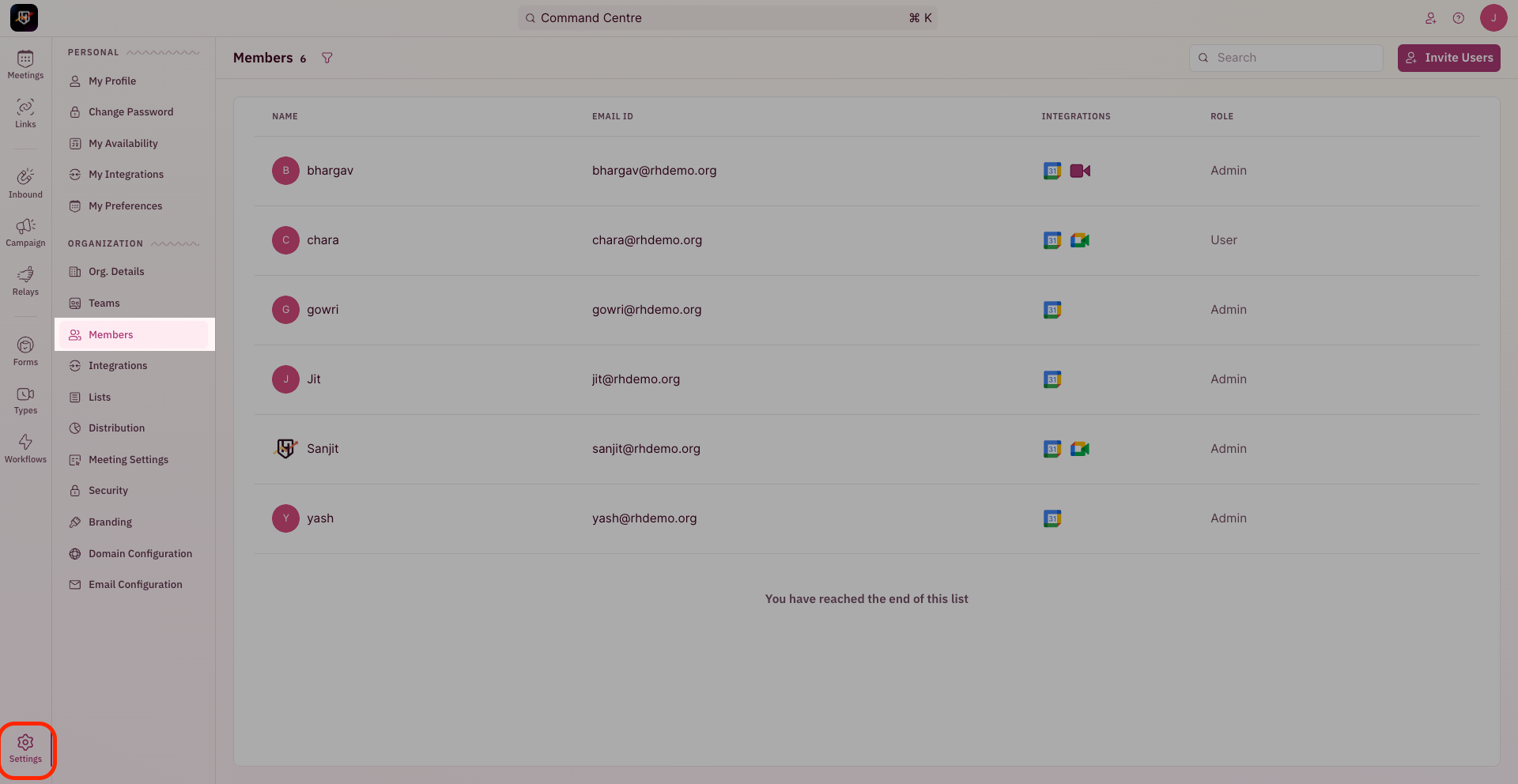
1. Navigate to this section by going to **Sidebar** -> **Settings** -> **All Users**
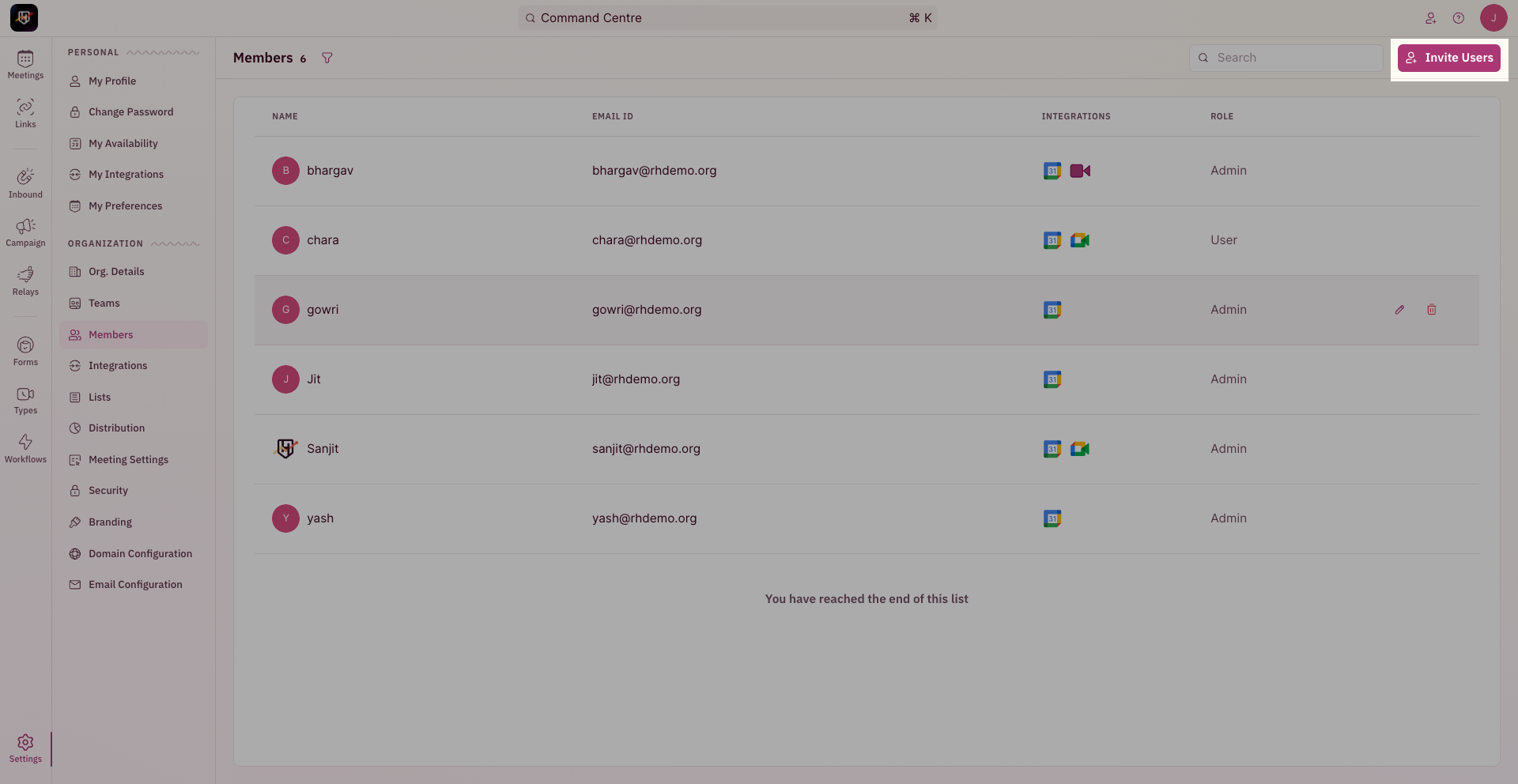
2. Click on **Invite** from the far-right corner of the screen
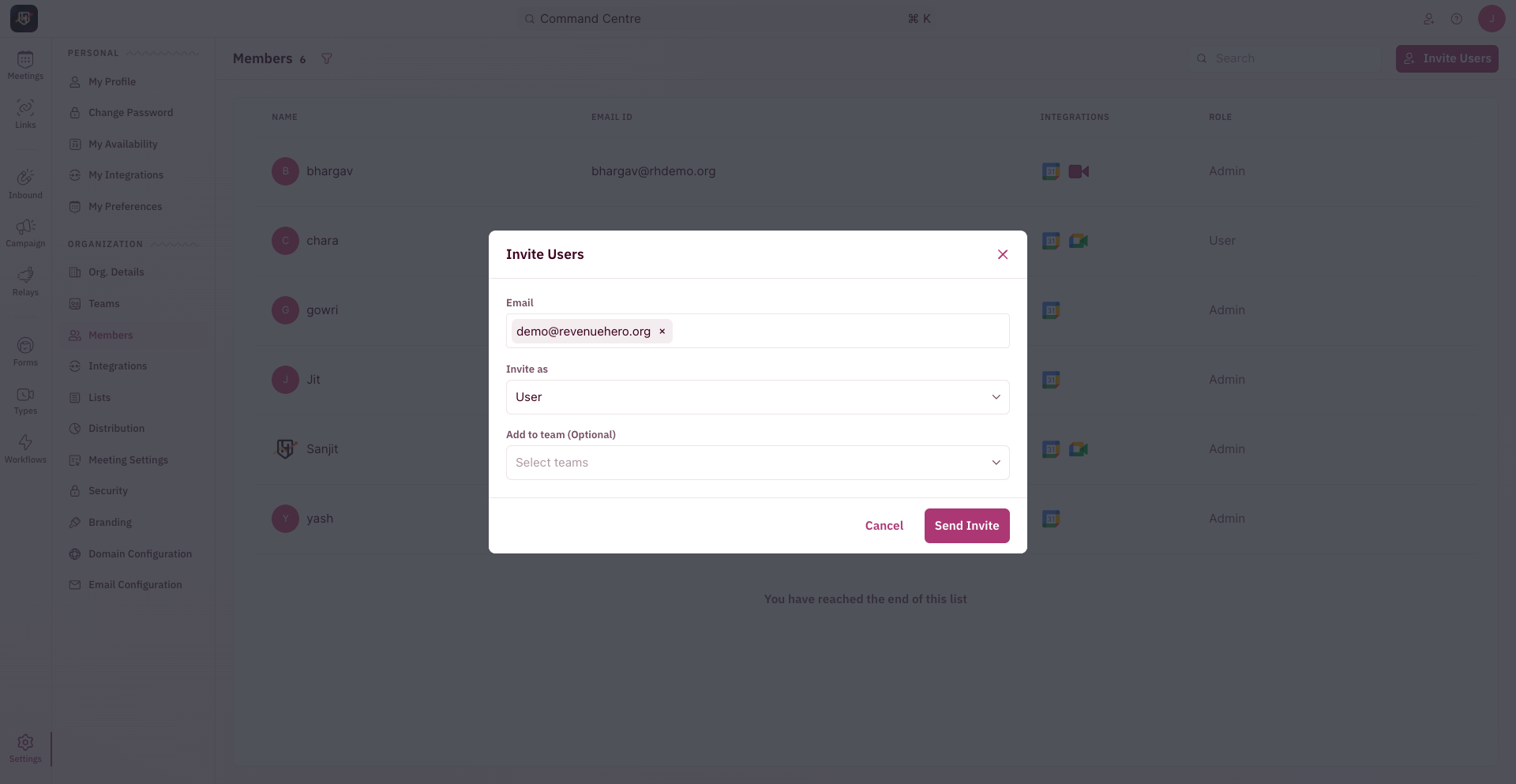
3. Choose the role of the new member - they could be a **User**, **Manager** or an **Administrator**. Once the relevant role has been chosen and the email ID has been entered, click on **Send Invite**. An email invitation gets sent to the inbox.
In case the invite email isn't found in the inbox, try checking under Spam
 ***
## Invite Using Invite Button From Top Nav
The second way to add members is via the **Invite user icon**.
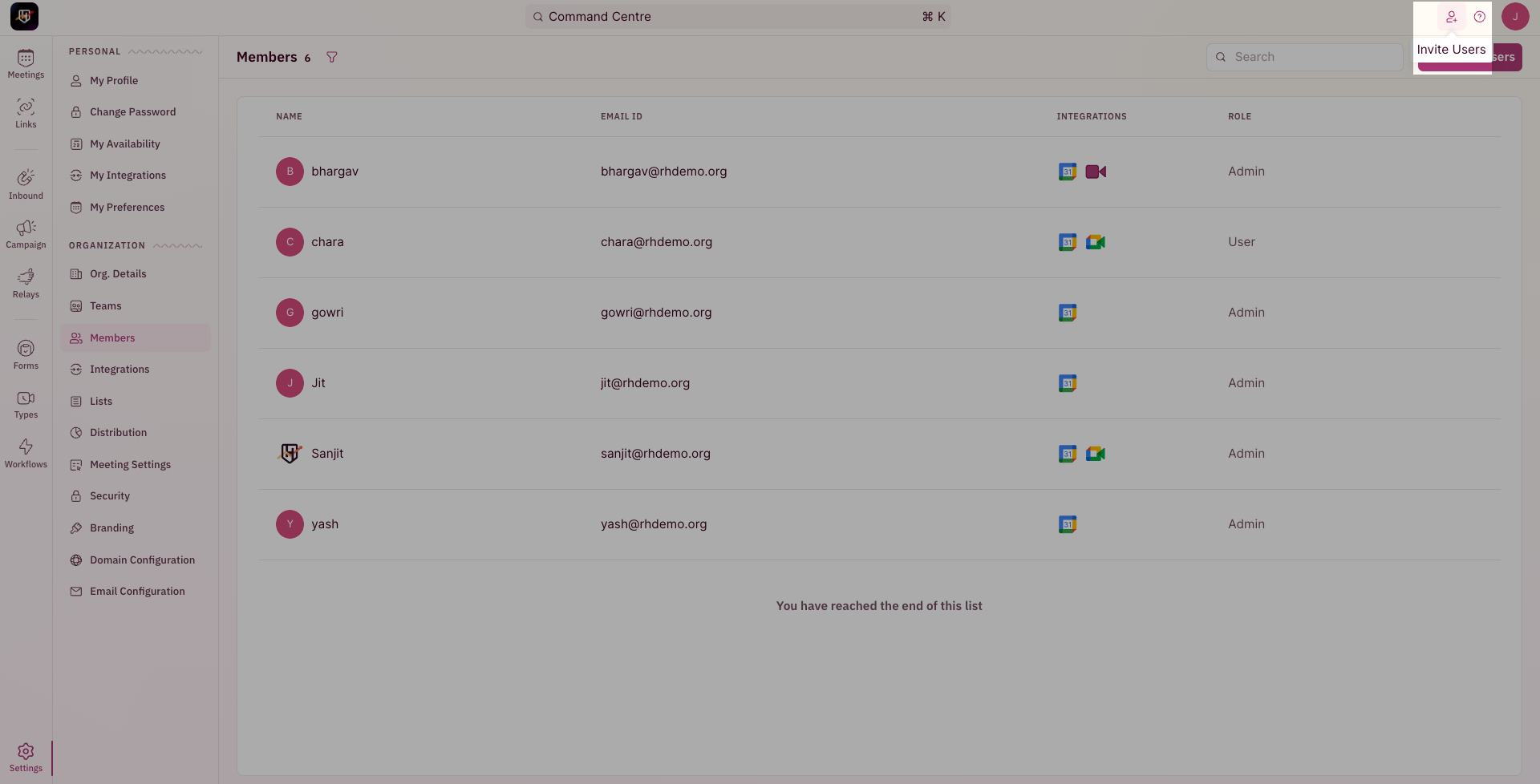
You'll see the invite icon on the top right corner near your profile picture and help button. This lets you invite users to RevenueHero and add them to a team in one go.
1. Click on the **Invite user icon** in the top right corner, from whichever RevenueHero screen you are on.
***
## Invite Using Invite Button From Top Nav
The second way to add members is via the **Invite user icon**.
You'll see the invite icon on the top right corner near your profile picture and help button. This lets you invite users to RevenueHero and add them to a team in one go.
1. Click on the **Invite user icon** in the top right corner, from whichever RevenueHero screen you are on.
 2. In the invite pop-up, enter their email address and choose the User role from the drop-down.
3. You can also choose which team you would like to add this user to. It’s an optional step and can be done later from Settings as well.
2. In the invite pop-up, enter their email address and choose the User role from the drop-down.
3. You can also choose which team you would like to add this user to. It’s an optional step and can be done later from Settings as well.
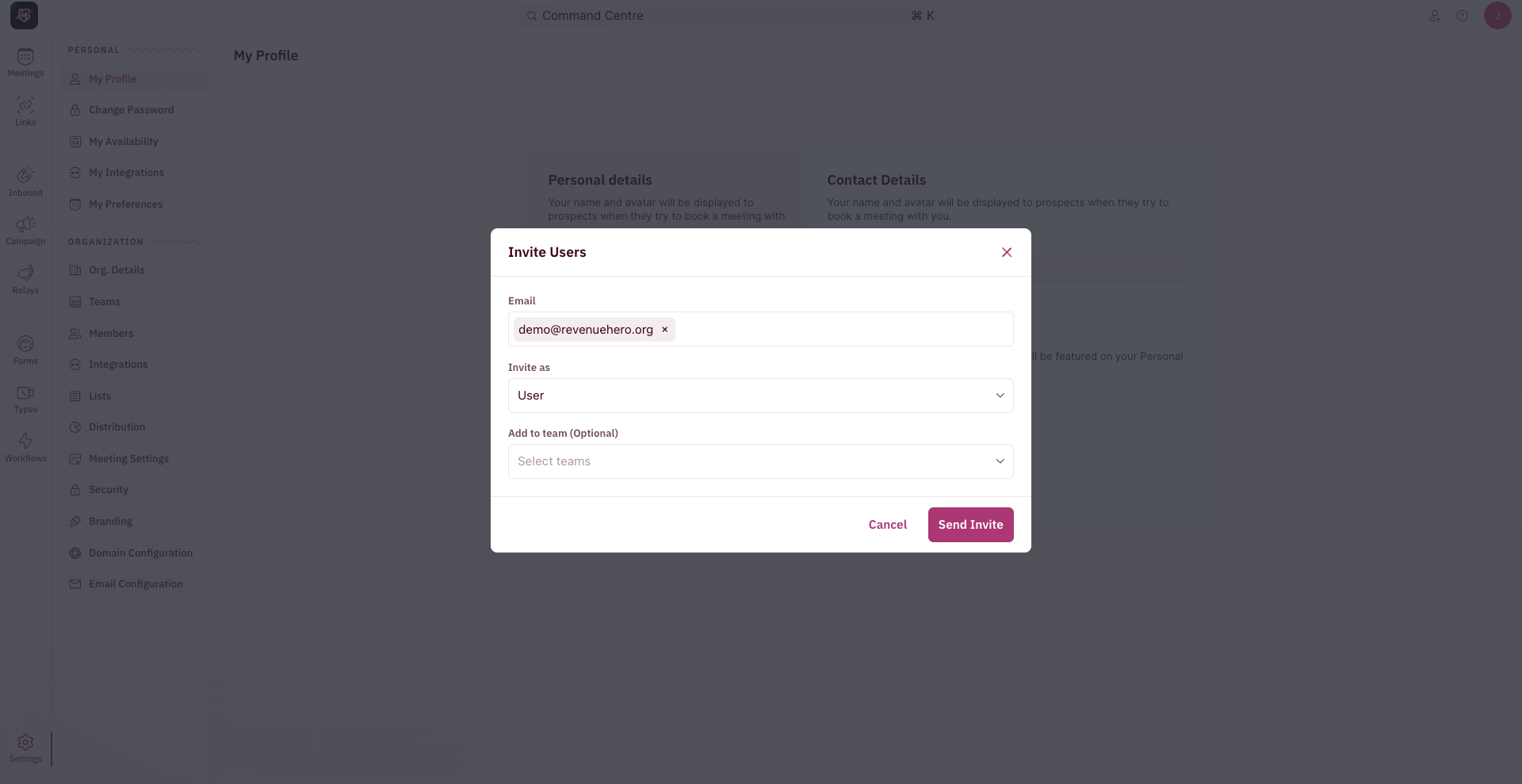 4. Click the **Send Invite** button.