> ## Documentation Index
> Fetch the complete documentation index at: https://help.revenuehero.io/llms.txt
> Use this file to discover all available pages before exploring further.
# How to manage availability exceptions?
> Create one-off blocks and overrides so your team's availability reflects reality, not just their default working hours.
Working hours cover the typical week. But what about the afternoon your team is at an offsite? Or the Saturday morning a rep volunteered for a product launch? Default schedules can't handle one-off changes, and asking reps to manually update their calendars every time creates gaps.
**Exceptions** let you create date-specific availability overrides that sit on top of your team's regular working hours. Block a rep out for a Wednesday afternoon training session, or open up availability on a Sunday for a critical product launch. Exceptions apply per-user, per-date, and can be scoped to specific meeting categories.
**BEFORE YOU BEGIN**
Exceptions build on top of your team's existing availability setup:
1. [Set up working hours](/settings/personal/my-availability) for each user
2. [Create meeting types](/type/create-meeting-type) and group them into [meeting categories](/meeting-categories/meeting-categories) if you want to scope blocks to specific meeting types
## How exceptions work
There are two types of exceptions:
| Type | What it does | Use case |
| ------------------------- | ----------------------------------------------------------------- | -------------------------------------------------------------- |
| **Unavailability Block** | Removes a user from the booking pool for specific hours on a date | Team offsite, training session, dentist appointment |
| **Availability Override** | Adds a user to the booking pool outside their normal hours | Weekend product launch, extended hours for end-of-quarter push |
Both types can be created for a single day or across multiple days. Each block is scoped to a date, a time range, and one or more users.
**Key behaviors:**
* Blocks are applied in each user's local timezone. If you create a block for 2-5 PM and assign it to reps in New York and London, each rep is blocked 2-5 PM in their own timezone.
* Admins can create blocks for any user in the organization. Individual users can only create blocks for themselves.
* Blocks can optionally be scoped to specific **meeting categories**. A block scoped to "Enterprise Demos" won't affect "SDR Screening Calls."
## How to create an exception
Go to **Settings,** under **Organization** Settings, find and click on **All Exceptions**
On the top right corner, you'll find **Create an exception** button. Click on it.
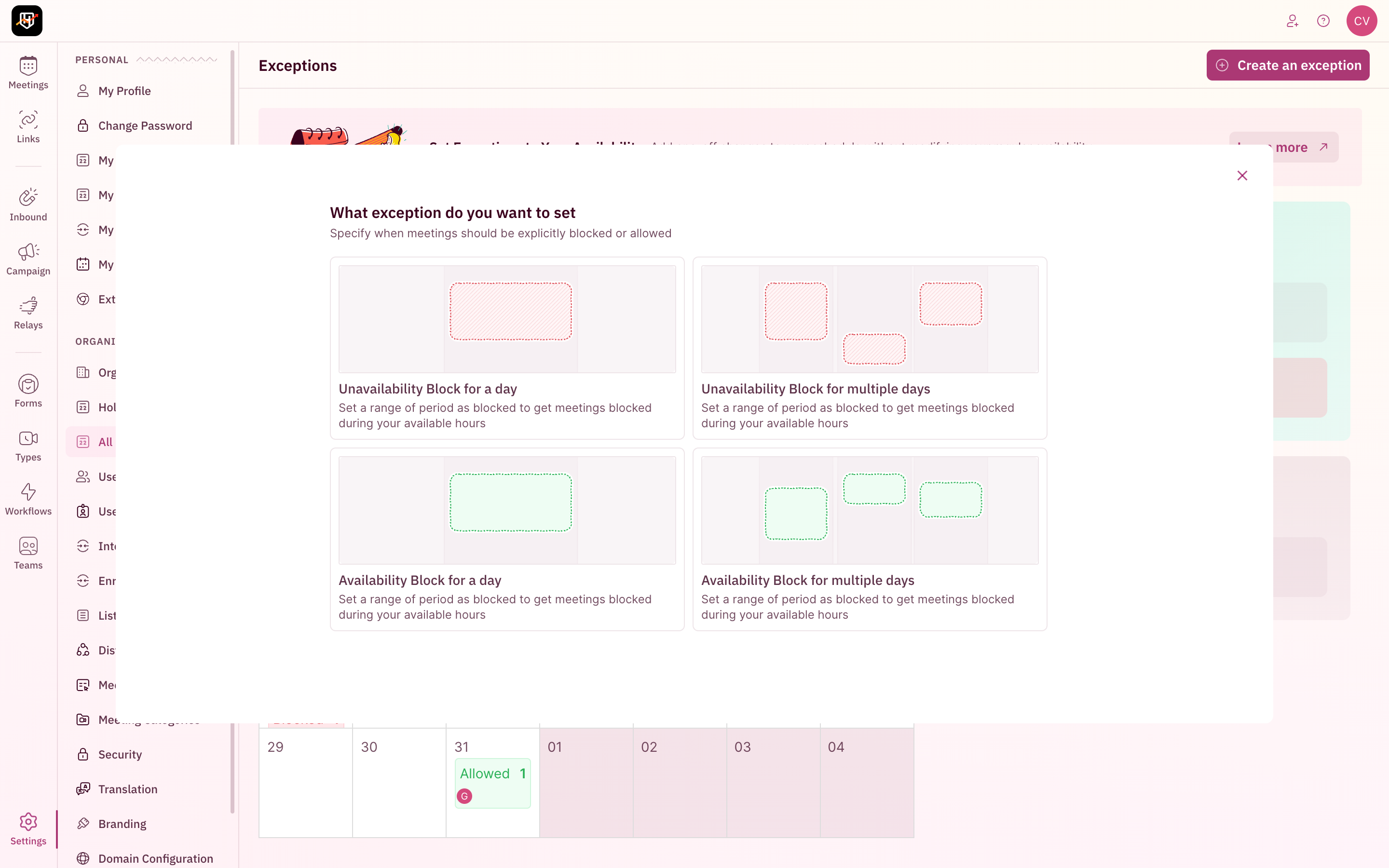 Choose one of the four exception types:
* **Unavailability Block for a day**: Block specific hours on a single date
* **Unavailability Block for multiple days**: Block across a date range
* **Availability Block for a day**: Override hours on a single date
* **Availability Block for multiple days**: Override across a date range
Once you select the exception type you want to set up, click on **Proceed**.
Pick the **date** (or date range for multi-day blocks) for which you want to set up blocks.
Choose one of the four exception types:
* **Unavailability Block for a day**: Block specific hours on a single date
* **Unavailability Block for multiple days**: Block across a date range
* **Availability Block for a day**: Override hours on a single date
* **Availability Block for multiple days**: Override across a date range
Once you select the exception type you want to set up, click on **Proceed**.
Pick the **date** (or date range for multi-day blocks) for which you want to set up blocks.
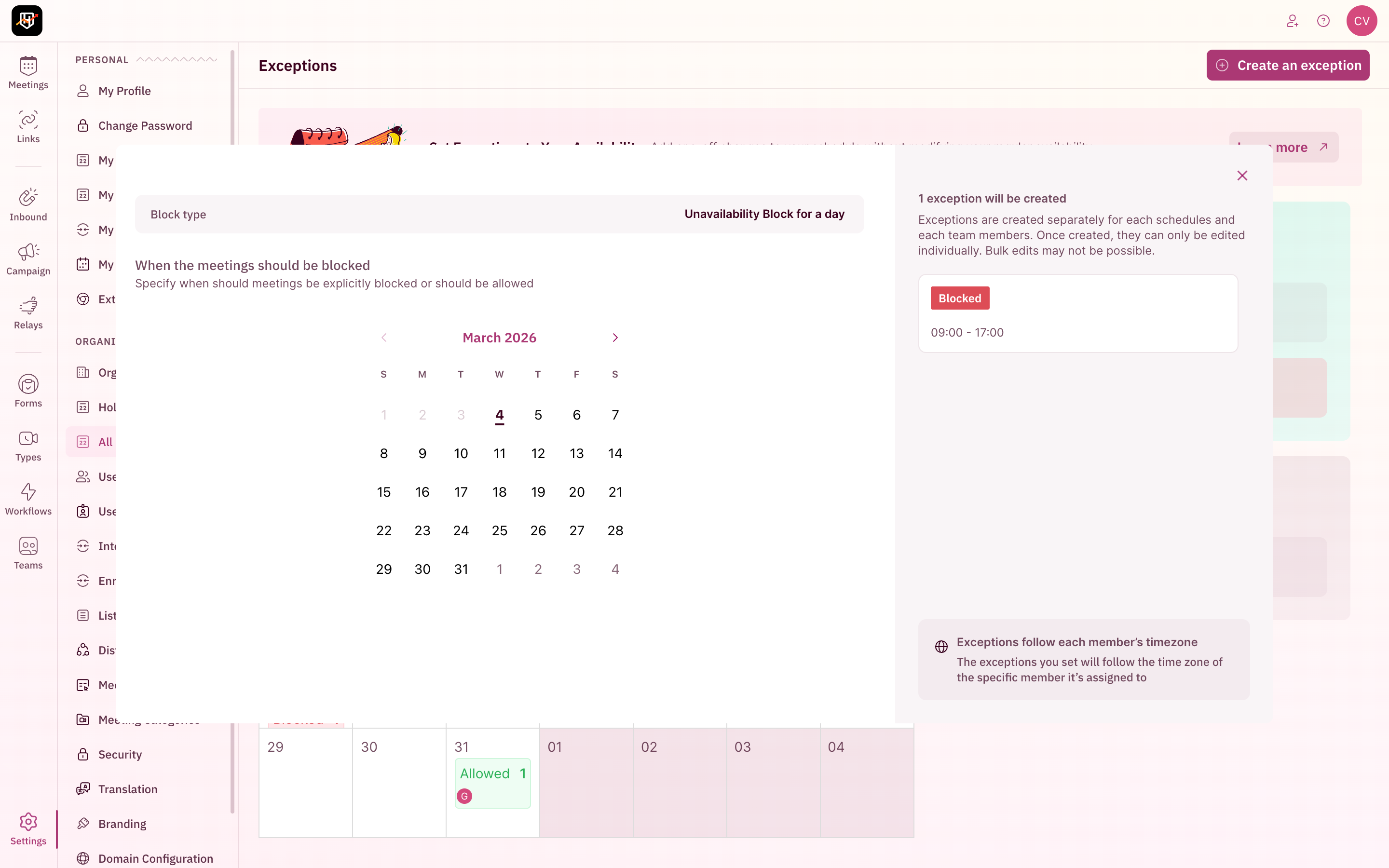 Set the required **time range** (e.g., 2:00 PM to 5:00 PM) you want to create the exception for. Add a note that help you easily identify the purpose of the block and click **Proceed**.
Select all the **Meeting Categories** that you want to be included in this exception and **Proceed**.
Once you have included the meeting categories, select all the users that this exception block must apply to.
If you assigned the block to multiple users, RevenueHero creates individual per-user blocks internally, each applied in the user's own timezone.
Click on **Submit** and your exception block is now succesfully created.
Availability overrides cannot override holidays. If a user is assigned to a holiday on a date, no block can make them bookable. Holidays are a hard stop in the availability chain.
## Admin vs. Personal views
There are two places to manage exceptions:
| View | Sidebar location | Who can use it | Scope |
| ------------------ | -------------------- | -------------- | ---------------------------------------- |
| **All Exceptions** | Organization section | Admins only | Create and view blocks for any user |
| **My Exceptions** | Personal section | All users | Create and view blocks for yourself only |
Admins see the full calendar with all user blocks, user avatars, and aggregate counts. Individual users see a list of their own blocks in the **My Exceptions** view, organized by month.
Reps can use the **My Exceptions** link in the **Personal Settings** to see only their own blocks. They can also manage these exception blocks from here.
Navigate to **Settings -> Organization -> All Exceptions** in the sidebar to see the organization-wide calendar view.
Set the required **time range** (e.g., 2:00 PM to 5:00 PM) you want to create the exception for. Add a note that help you easily identify the purpose of the block and click **Proceed**.
Select all the **Meeting Categories** that you want to be included in this exception and **Proceed**.
Once you have included the meeting categories, select all the users that this exception block must apply to.
If you assigned the block to multiple users, RevenueHero creates individual per-user blocks internally, each applied in the user's own timezone.
Click on **Submit** and your exception block is now succesfully created.
Availability overrides cannot override holidays. If a user is assigned to a holiday on a date, no block can make them bookable. Holidays are a hard stop in the availability chain.
## Admin vs. Personal views
There are two places to manage exceptions:
| View | Sidebar location | Who can use it | Scope |
| ------------------ | -------------------- | -------------- | ---------------------------------------- |
| **All Exceptions** | Organization section | Admins only | Create and view blocks for any user |
| **My Exceptions** | Personal section | All users | Create and view blocks for yourself only |
Admins see the full calendar with all user blocks, user avatars, and aggregate counts. Individual users see a list of their own blocks in the **My Exceptions** view, organized by month.
Reps can use the **My Exceptions** link in the **Personal Settings** to see only their own blocks. They can also manage these exception blocks from here.
Navigate to **Settings -> Organization -> All Exceptions** in the sidebar to see the organization-wide calendar view.
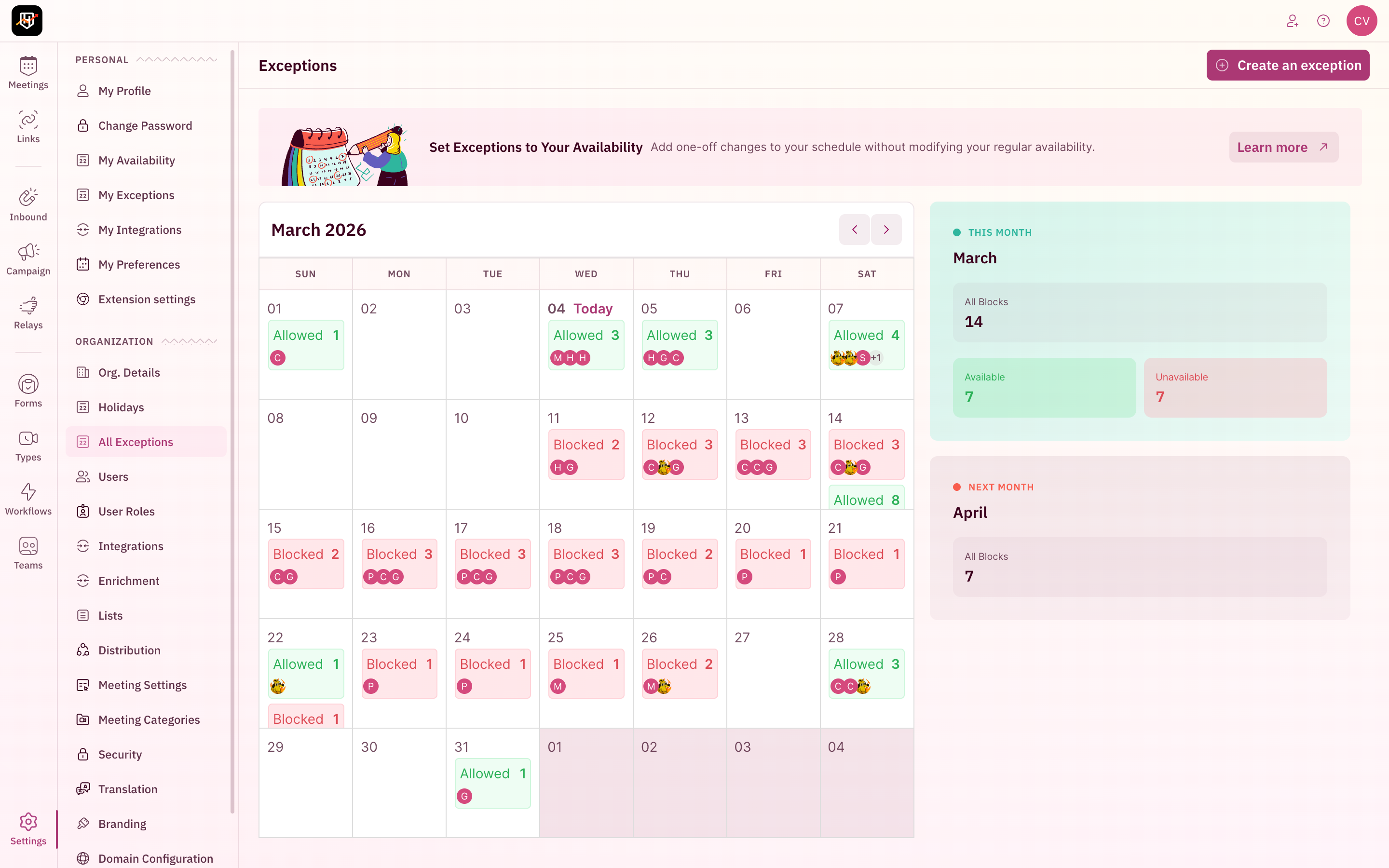 The page shows a monthly calendar with color-coded labels:
* **Blocked** (red): Unavailability blocks. The number shows how many users are blocked on that day.
* **Allowed** (green): Availability override blocks. The number shows how many users have extended availability.
* **User avatars**: Hover to see which specific users are affected.
The right sidebar shows a monthly summary with total block counts, split by Available and Unavailable.
Navigate to **Settings -> Personal -> My Exceptions** in the sidebar to see the individual user calendar view.
The page shows a monthly calendar with color-coded labels:
* **Blocked** (red): Unavailability blocks. The number shows how many users are blocked on that day.
* **Allowed** (green): Availability override blocks. The number shows how many users have extended availability.
* **User avatars**: Hover to see which specific users are affected.
The right sidebar shows a monthly summary with total block counts, split by Available and Unavailable.
Navigate to **Settings -> Personal -> My Exceptions** in the sidebar to see the individual user calendar view.
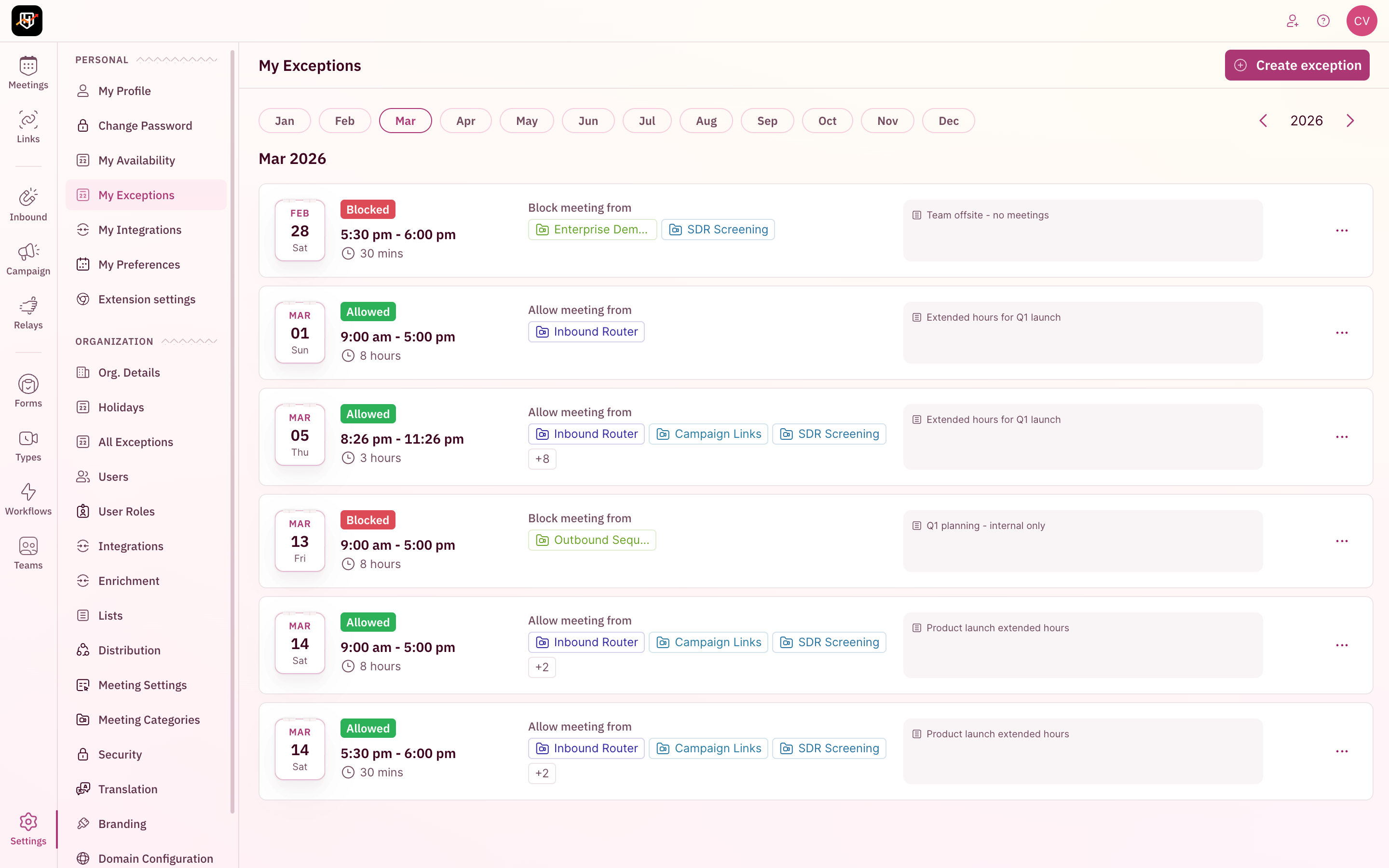 \
Each entry shows the date, time range, duration, whether it's a block or override, the meeting categories it applies to, and any notes. The "**...**" menu on each row lets users edit or delete that exception.
## Conflict detection
When creating or editing a block, RevenueHero checks for conflicts with existing blocks, holidays, and schedules. There are two severity levels:
These prevent you from saving the block:
* **Block overlap**: Another block already exists for the same user on the same date and overlapping time range
* **Holiday overlap**: The user is assigned to a holiday on that date. You cannot create a block over a holiday.
* **Schedule overlap with event meeting type**: The block conflicts with a scheduled event-type meeting
These let you proceed but flag a potential issue:
* **Redundant unavailability**: You're creating an unavailability block during hours the user is already unavailable (outside their working hours)
* **Redundant availability**: You're creating an availability override during hours the user is already available (within their working hours)
## How exceptions interact with other availability controls
Exceptions sit in the middle of the availability priority chain. When RevenueHero checks whether a user is bookable for a specific slot, it evaluates these rules in order:
| Priority | Check | Result if triggered |
| ----------- | ------------------------------- | ----------------------------------- |
| 1 (highest) | Meeting limits hit? | Blocked (no override possible) |
| 2 | Holiday assigned? | Blocked (no override possible) |
| 3 | Availability override block? | Available (overrides working hours) |
| 4 | Unavailability block? | Blocked (overrides working hours) |
| 5 | User on vacation + has nominee? | Use nominee's availability |
| 6 | Outside working hours? | Blocked |
| 7 | None of the above | Available (within working hours) |
**The key takeaway:** Availability overrides can bypass working hours and unavailability blocks, but they cannot override holidays or meeting limits. ***Holidays and meeting limits are absolute.***
Holidays can be created over existing blocks (the holiday takes precedence), but blocks cannot be created over existing holidays. If you need to block a date that has a holiday, remove the holiday first.
## How to delete or edit an exception
1. Navigate to **Settings → Organization → All Exceptions**
2. Click on the day in the calendar that has the block you want to modify
3. Click the block entry to open the edit view
4. Make your changes and click **Save**, or click **Delete** to remove the block
Individual users can edit or delete their own blocks from **My Exceptions**.
Your availability exceptions are configured. Your team's schedules now reflect what's actually happening, not just their default 9-to-5. 🎉🎉🎉
\
Each entry shows the date, time range, duration, whether it's a block or override, the meeting categories it applies to, and any notes. The "**...**" menu on each row lets users edit or delete that exception.
## Conflict detection
When creating or editing a block, RevenueHero checks for conflicts with existing blocks, holidays, and schedules. There are two severity levels:
These prevent you from saving the block:
* **Block overlap**: Another block already exists for the same user on the same date and overlapping time range
* **Holiday overlap**: The user is assigned to a holiday on that date. You cannot create a block over a holiday.
* **Schedule overlap with event meeting type**: The block conflicts with a scheduled event-type meeting
These let you proceed but flag a potential issue:
* **Redundant unavailability**: You're creating an unavailability block during hours the user is already unavailable (outside their working hours)
* **Redundant availability**: You're creating an availability override during hours the user is already available (within their working hours)
## How exceptions interact with other availability controls
Exceptions sit in the middle of the availability priority chain. When RevenueHero checks whether a user is bookable for a specific slot, it evaluates these rules in order:
| Priority | Check | Result if triggered |
| ----------- | ------------------------------- | ----------------------------------- |
| 1 (highest) | Meeting limits hit? | Blocked (no override possible) |
| 2 | Holiday assigned? | Blocked (no override possible) |
| 3 | Availability override block? | Available (overrides working hours) |
| 4 | Unavailability block? | Blocked (overrides working hours) |
| 5 | User on vacation + has nominee? | Use nominee's availability |
| 6 | Outside working hours? | Blocked |
| 7 | None of the above | Available (within working hours) |
**The key takeaway:** Availability overrides can bypass working hours and unavailability blocks, but they cannot override holidays or meeting limits. ***Holidays and meeting limits are absolute.***
Holidays can be created over existing blocks (the holiday takes precedence), but blocks cannot be created over existing holidays. If you need to block a date that has a holiday, remove the holiday first.
## How to delete or edit an exception
1. Navigate to **Settings → Organization → All Exceptions**
2. Click on the day in the calendar that has the block you want to modify
3. Click the block entry to open the edit view
4. Make your changes and click **Save**, or click **Delete** to remove the block
Individual users can edit or delete their own blocks from **My Exceptions**.
Your availability exceptions are configured. Your team's schedules now reflect what's actually happening, not just their default 9-to-5. 🎉🎉🎉