> ## Documentation Index
> Fetch the complete documentation index at: https://help.revenuehero.io/llms.txt
> Use this file to discover all available pages before exploring further.
# How to set up company holidays?
> Create account-level holidays to automatically block your team's availability. No more relying on everyone to manually block their own calendars. Without holidays in RevenueHero, your team has to manually block their calendars for every company holiday. If one person forgets, meetings get booked on Christmas.
# What are holidays in RevenueHero
**Holidays** are account-level dates that administrators create and assign to users. When a user is assigned to a holiday, they're completely removed from the booking pool for that date. No slots generated, no meetings booked.
# How it works
1. An administrator creates a holiday with a name and date (e.g., "Christmas" on December 25th)
2. The admin assigns specific users to that holiday
3. On the holiday date, those users are removed from the candidate pool **before** any slots are generated
Different teams can have different holidays. Your US team gets July 4th, your UK team gets Boxing Day. Each account can have **one holiday per date**.
# The Holidays page
Go to **Settings → Holidays** to see all holidays for your account.
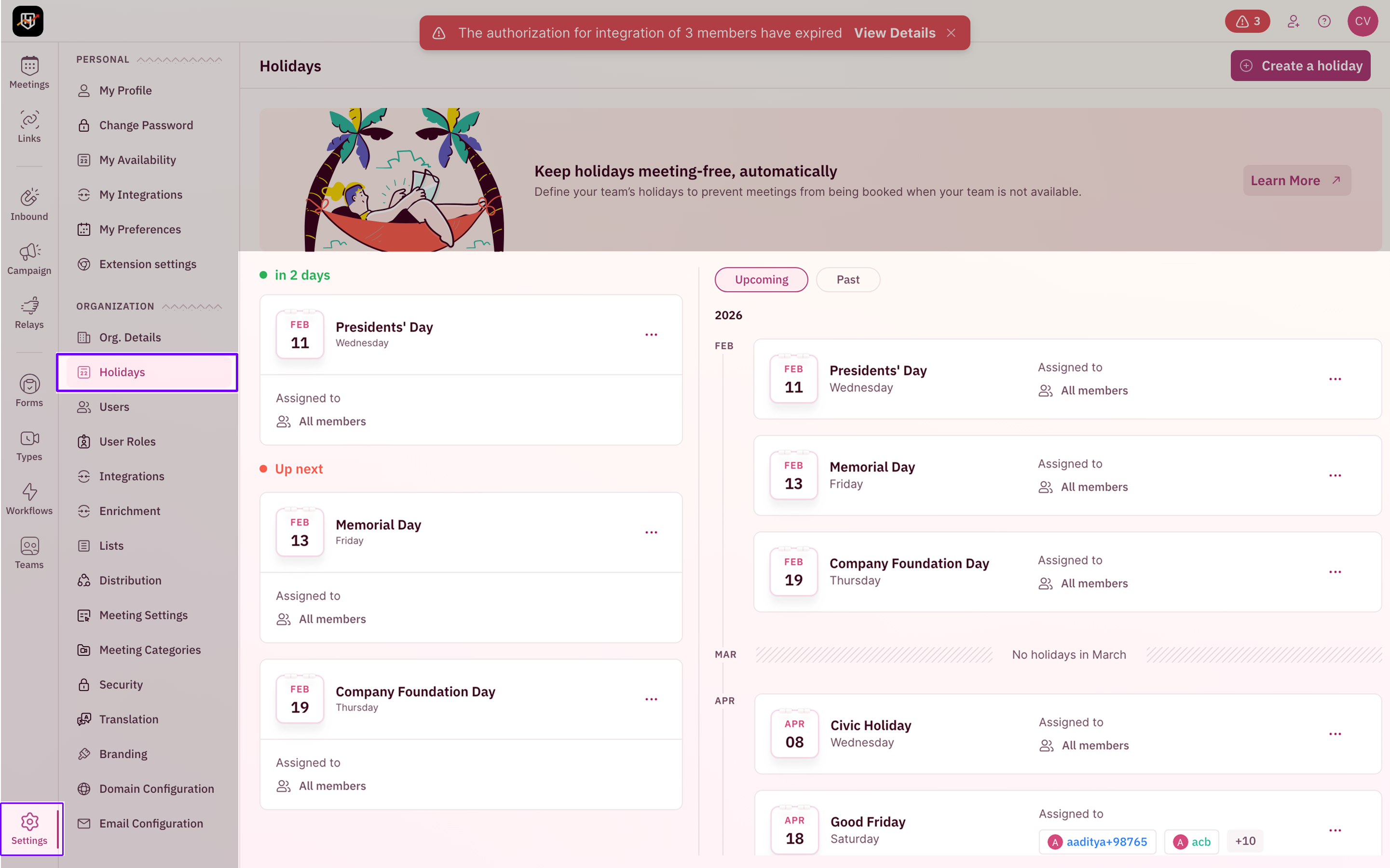 The page is split into two views:
* **Left panel**: Holiday cards showing the date, name, and who's assigned (e.g., "All members" or specific users). The **In 2 days** and **Up next** labels help you see what's coming up for your team
* **Right panel**: A calendar view organized by month, with **Upcoming** and **Past** tabs to filter
## Create holidays
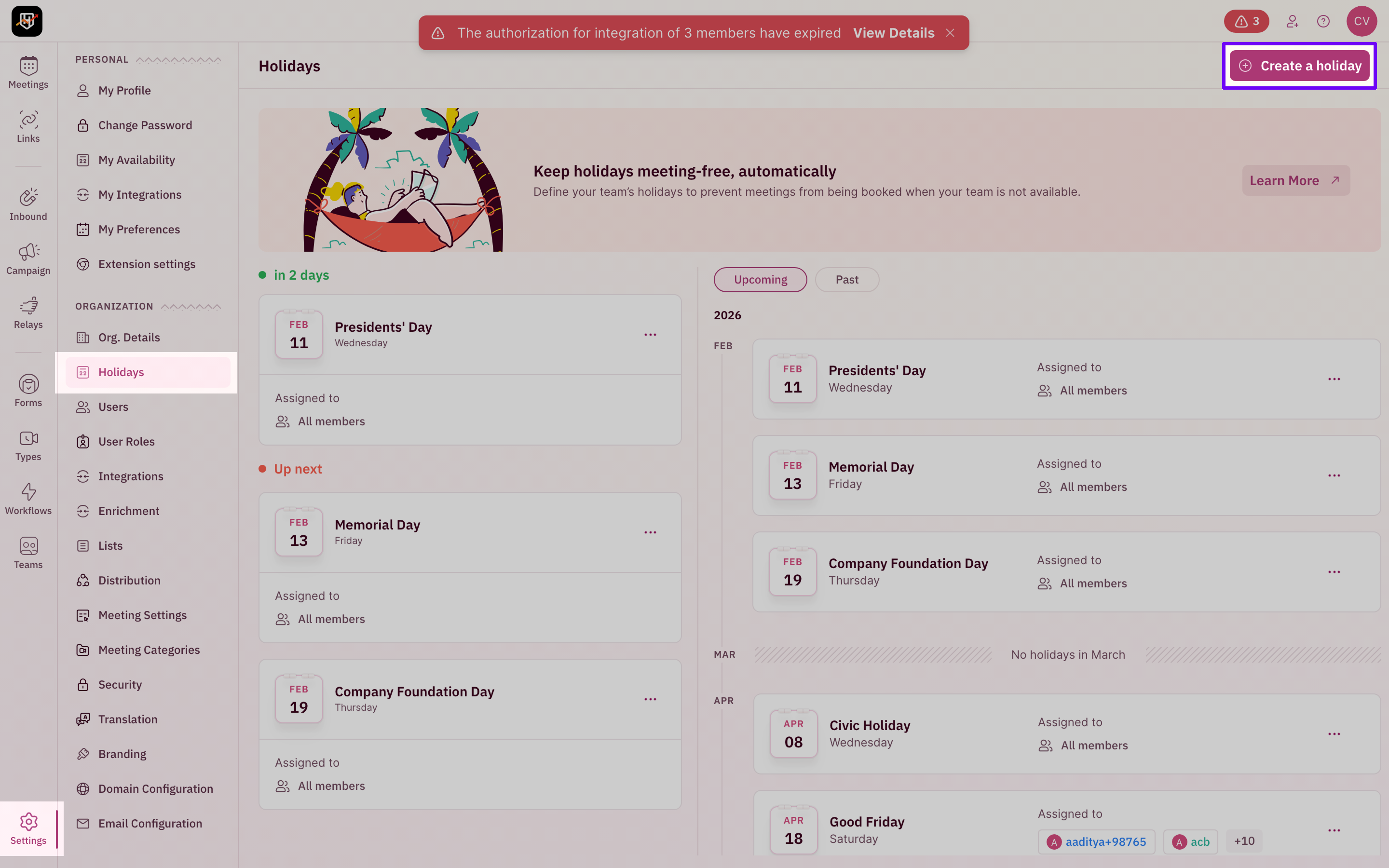
You can choose to create holidays from preset templates or completely from scratch.
The fastest way to get started is to use a pre-built country template.
The page is split into two views:
* **Left panel**: Holiday cards showing the date, name, and who's assigned (e.g., "All members" or specific users). The **In 2 days** and **Up next** labels help you see what's coming up for your team
* **Right panel**: A calendar view organized by month, with **Upcoming** and **Past** tabs to filter
## Create holidays
You can choose to create holidays from preset templates or completely from scratch.
The fastest way to get started is to use a pre-built country template.
 * **United States Federal Holidays 2026** (11 holidays)
* **Canada Federal Holidays 2026** (11 holidays)
* **United Kingdom Bank Holidays 2026** (8 holidays)
* **Australia National Public Holidays 2026** (9 holidays)
* **India National Holidays 2026** (15 holidays)
* **United States Federal Holidays 2026** (11 holidays)
* **Canada Federal Holidays 2026** (11 holidays)
* **United Kingdom Bank Holidays 2026** (8 holidays)
* **Australia National Public Holidays 2026** (9 holidays)
* **India National Holidays 2026** (15 holidays)
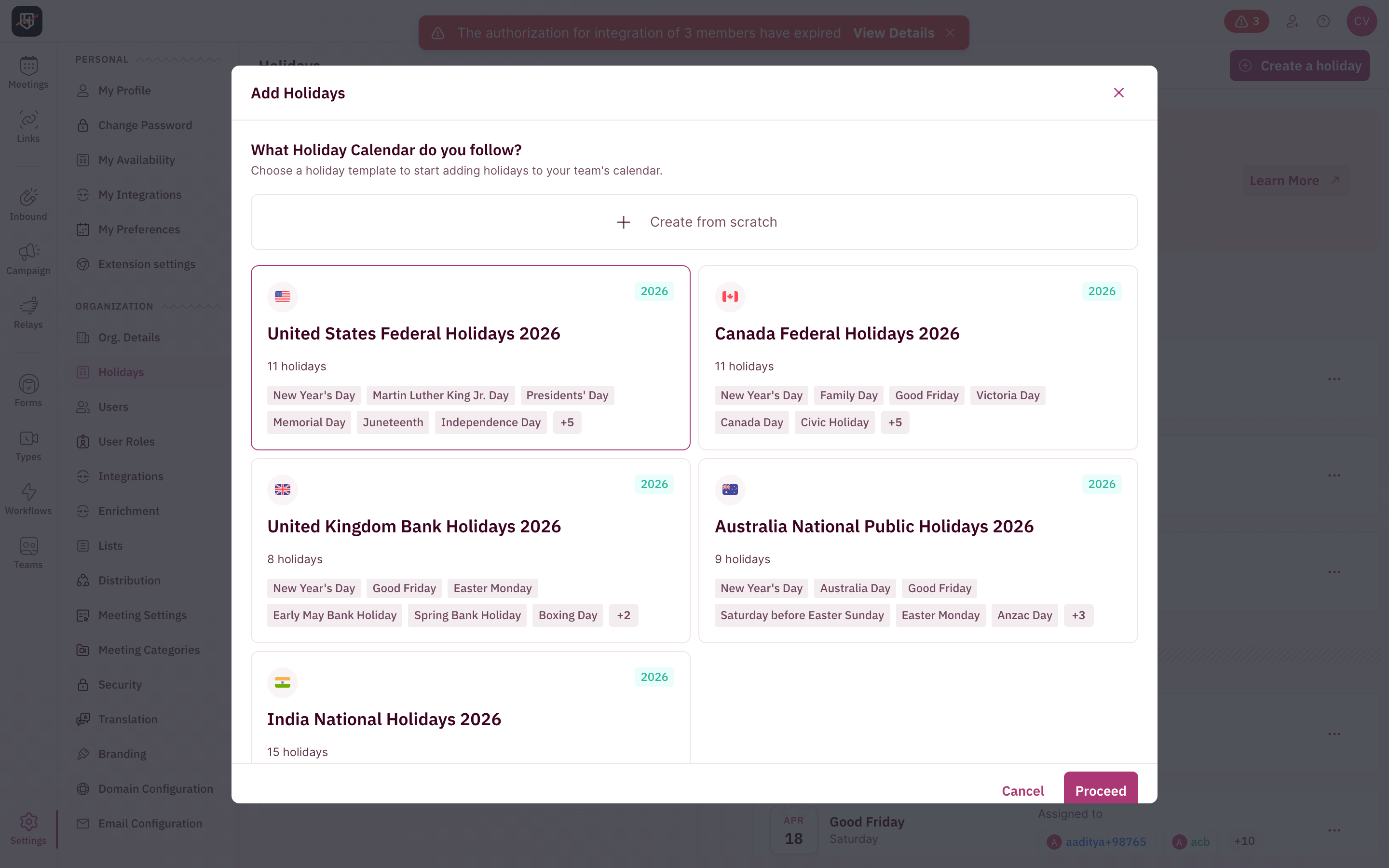 Each template card shows a preview of included holidays (e.g., New Year's Day, Martin Luther King Jr. Day, Presidents' Day for the US template). Once you proceed, all holidays from that template are added to your account at once.
Templates are a one-time import. After importing, you can edit or delete individual holidays. Adding a template won't duplicate holidays that already exist on the same date.
If your company observes holidays not covered by the templates, or you want to add custom company dates (team offsite, company anniversary), create them manually.
Each template card shows a preview of included holidays (e.g., New Year's Day, Martin Luther King Jr. Day, Presidents' Day for the US template). Once you proceed, all holidays from that template are added to your account at once.
Templates are a one-time import. After importing, you can edit or delete individual holidays. Adding a template won't duplicate holidays that already exist on the same date.
If your company observes holidays not covered by the templates, or you want to add custom company dates (team offsite, company anniversary), create them manually.
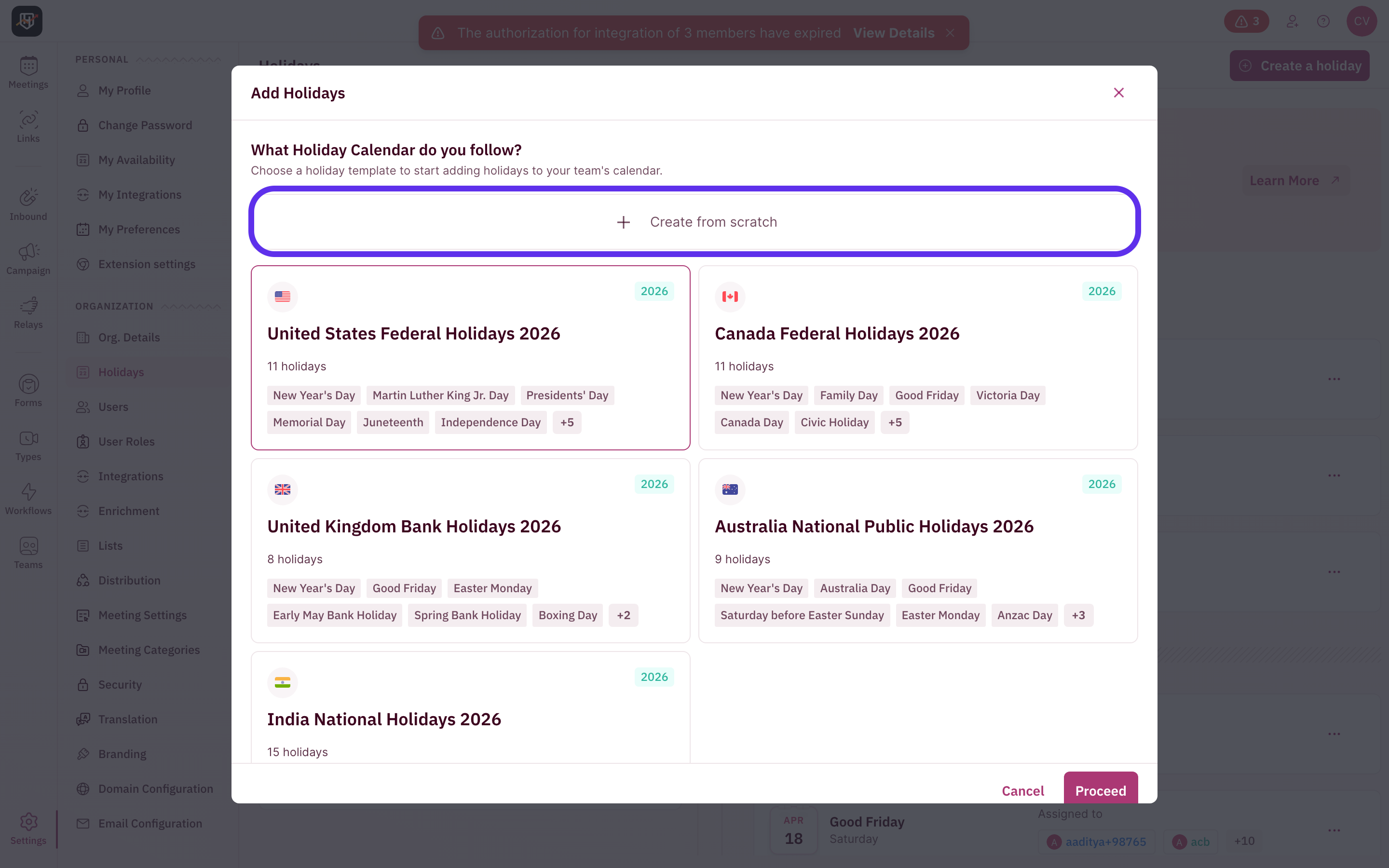
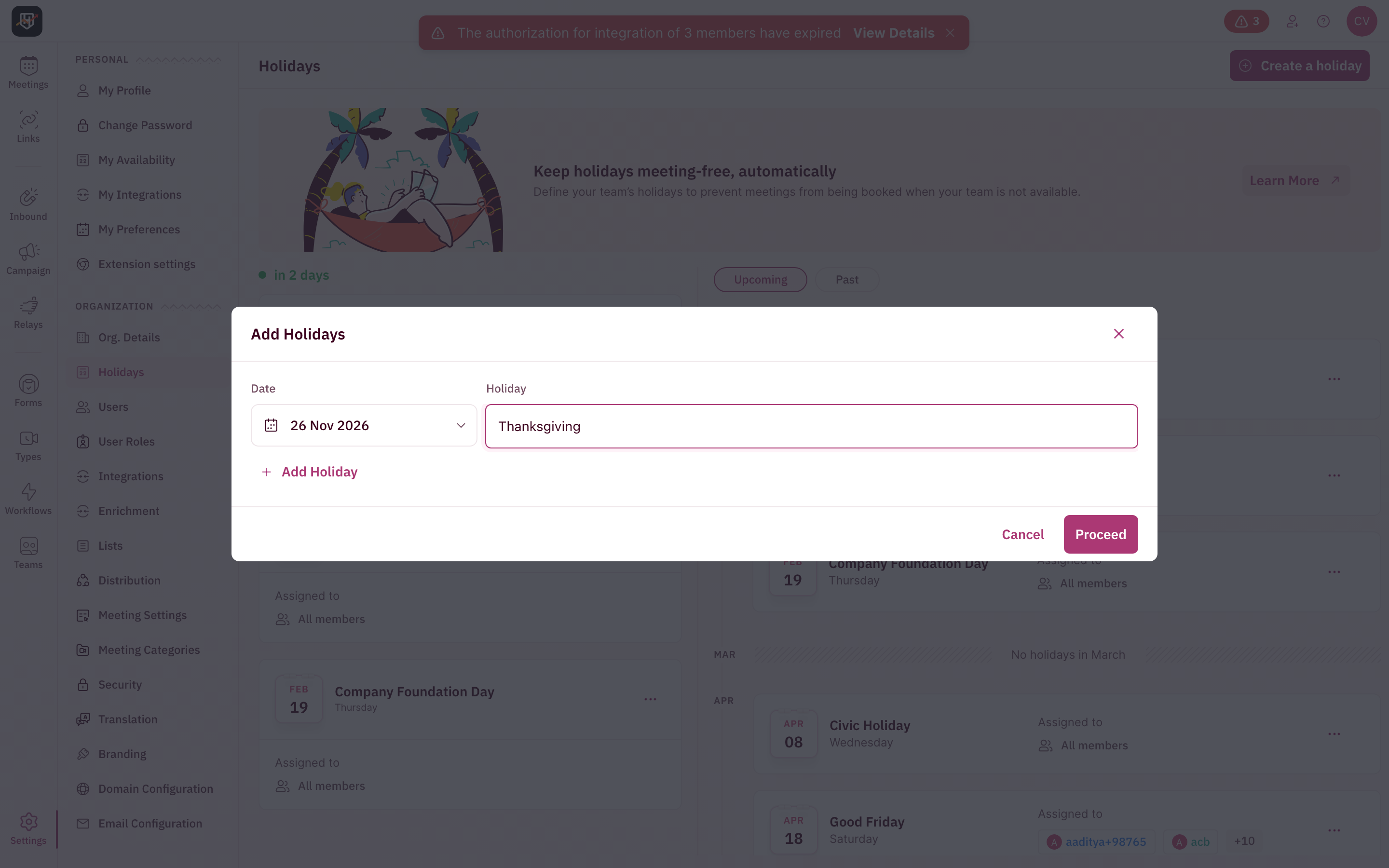 Use \*\*"Add Holiday" \*\*to add multiple holidays in one go
You can add several holidays at once before saving, which is useful when your company has unique dates that aren't in any standard template.
## Assign users to a holiday
Every holiday has an **Applicable to** setting that controls which team members observe it. You can edit this at any time by clicking the **⋯** menu on any holiday and selecting **Edit**.
Use \*\*"Add Holiday" \*\*to add multiple holidays in one go
You can add several holidays at once before saving, which is useful when your company has unique dates that aren't in any standard template.
## Assign users to a holiday
Every holiday has an **Applicable to** setting that controls which team members observe it. You can edit this at any time by clicking the **⋯** menu on any holiday and selecting **Edit**.
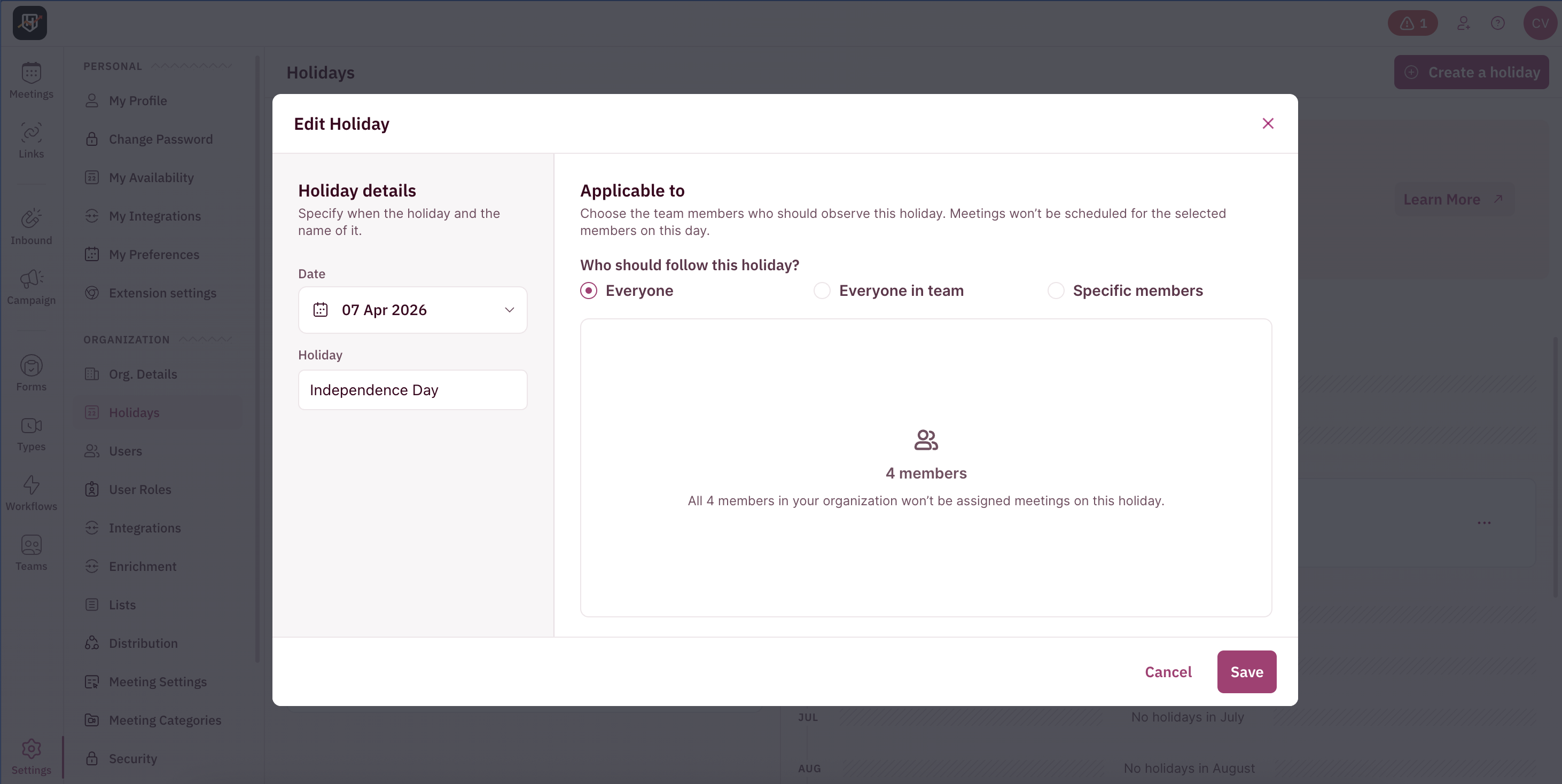 The Edit Holiday modal has two sections:
* **Holiday details** (left): Change the date or rename the holiday
* **Applicable to** (right): Choose who observes this holiday:
* **Everyone** — All members in your organization (default)
* **Everyone in team** — All members of a specific team
* **Specific members** — Hand-pick individual users
In the calendar view, you can see at a glance how each holiday is assigned. Some show "All members" while others show specific user avatars when only a subset of your team observes that holiday.
## Region-specific holidays
Not every team observes the same holidays. Combine templates with selective assignment:
1. **Import the US template** and assign those holidays to your US team
2. **Import the UK template** and assign those holidays to your UK team
3. **Import the India template** and assign those holidays to your India team
Each user only gets blocked on the holidays they're specifically assigned to. Someone on your India team won't be blocked on July 4th unless you explicitly assign them.
You can import multiple country templates. If two templates share a date (e.g., New Year's Day), only one holiday is created for that date.
## Why not just use calendar events?
There are two main reasons why it's better to use Holidays setting instead of just calendar events.
Administrators ensure everyone observes the same holidays without relying on individuals to block their calendars. No more "someone forgot to block Christmas."
The system knows it's a holiday, not just "busy." The Holidays page gives you a centralized calendar view of when your team is unavailable, organized by month with upcoming and past views.
## How to delete a holiday
1. Navigate to **Settings → Holidays**
2. Click the **⋯** menu on the holiday you want to remove
3. Click **Delete**
Deleting a holiday removes all user assignments for that holiday. The deletion is a soft delete, so history is maintained for audit purposes.
A user cannot be deleted from your account if they have holiday assignments. You must remove their holiday assignments first, then delete the user.
## How holidays interact with other availability controls
Holidays are checked early in the availability flow, right after meeting limits:
| Step | Check | Result |
| :--: | :----------------------------- | :------------------------- |
| 1 | Meeting limits hit? | Blocked (No override) |
| 2 | Holiday assigned? | Blocked (No override) |
| 3 | Availability override block? | Available |
| 4 | Unavailability block? | Blocked |
| 5 | User on vacation + has nominee | Use nominee's availability |
| 6 | Outside working hourse? | Blocked |
| 7 | None of the above | Available |
The key thing: **availability override blocks cannot override holidays.**
Override blocks can bypass working hours and unavailability blocks, but holidays and meeting limits are a hard stop. If someone is assigned to a holiday, no block or setting can make them bookable on that date.
The Edit Holiday modal has two sections:
* **Holiday details** (left): Change the date or rename the holiday
* **Applicable to** (right): Choose who observes this holiday:
* **Everyone** — All members in your organization (default)
* **Everyone in team** — All members of a specific team
* **Specific members** — Hand-pick individual users
In the calendar view, you can see at a glance how each holiday is assigned. Some show "All members" while others show specific user avatars when only a subset of your team observes that holiday.
## Region-specific holidays
Not every team observes the same holidays. Combine templates with selective assignment:
1. **Import the US template** and assign those holidays to your US team
2. **Import the UK template** and assign those holidays to your UK team
3. **Import the India template** and assign those holidays to your India team
Each user only gets blocked on the holidays they're specifically assigned to. Someone on your India team won't be blocked on July 4th unless you explicitly assign them.
You can import multiple country templates. If two templates share a date (e.g., New Year's Day), only one holiday is created for that date.
## Why not just use calendar events?
There are two main reasons why it's better to use Holidays setting instead of just calendar events.
Administrators ensure everyone observes the same holidays without relying on individuals to block their calendars. No more "someone forgot to block Christmas."
The system knows it's a holiday, not just "busy." The Holidays page gives you a centralized calendar view of when your team is unavailable, organized by month with upcoming and past views.
## How to delete a holiday
1. Navigate to **Settings → Holidays**
2. Click the **⋯** menu on the holiday you want to remove
3. Click **Delete**
Deleting a holiday removes all user assignments for that holiday. The deletion is a soft delete, so history is maintained for audit purposes.
A user cannot be deleted from your account if they have holiday assignments. You must remove their holiday assignments first, then delete the user.
## How holidays interact with other availability controls
Holidays are checked early in the availability flow, right after meeting limits:
| Step | Check | Result |
| :--: | :----------------------------- | :------------------------- |
| 1 | Meeting limits hit? | Blocked (No override) |
| 2 | Holiday assigned? | Blocked (No override) |
| 3 | Availability override block? | Available |
| 4 | Unavailability block? | Blocked |
| 5 | User on vacation + has nominee | Use nominee's availability |
| 6 | Outside working hourse? | Blocked |
| 7 | None of the above | Available |
The key thing: **availability override blocks cannot override holidays.**
Override blocks can bypass working hours and unavailability blocks, but holidays and meeting limits are a hard stop. If someone is assigned to a holiday, no block or setting can make them bookable on that date.