> ## Documentation Index
> Fetch the complete documentation index at: https://help.revenuehero.io/llms.txt
> Use this file to discover all available pages before exploring further.
# Manage meeting settings in RevenueHero
> Configure how meetings are scheduled, invites are updated, and UTMs are tracked across your meeting channels.
The Meeting Settings page allows you to configure how meetings are scheduled, updated, and tracked across your organization. Below are the available options and what each setting controls.
 ## Meeting Rescheduling and Cancelling Window
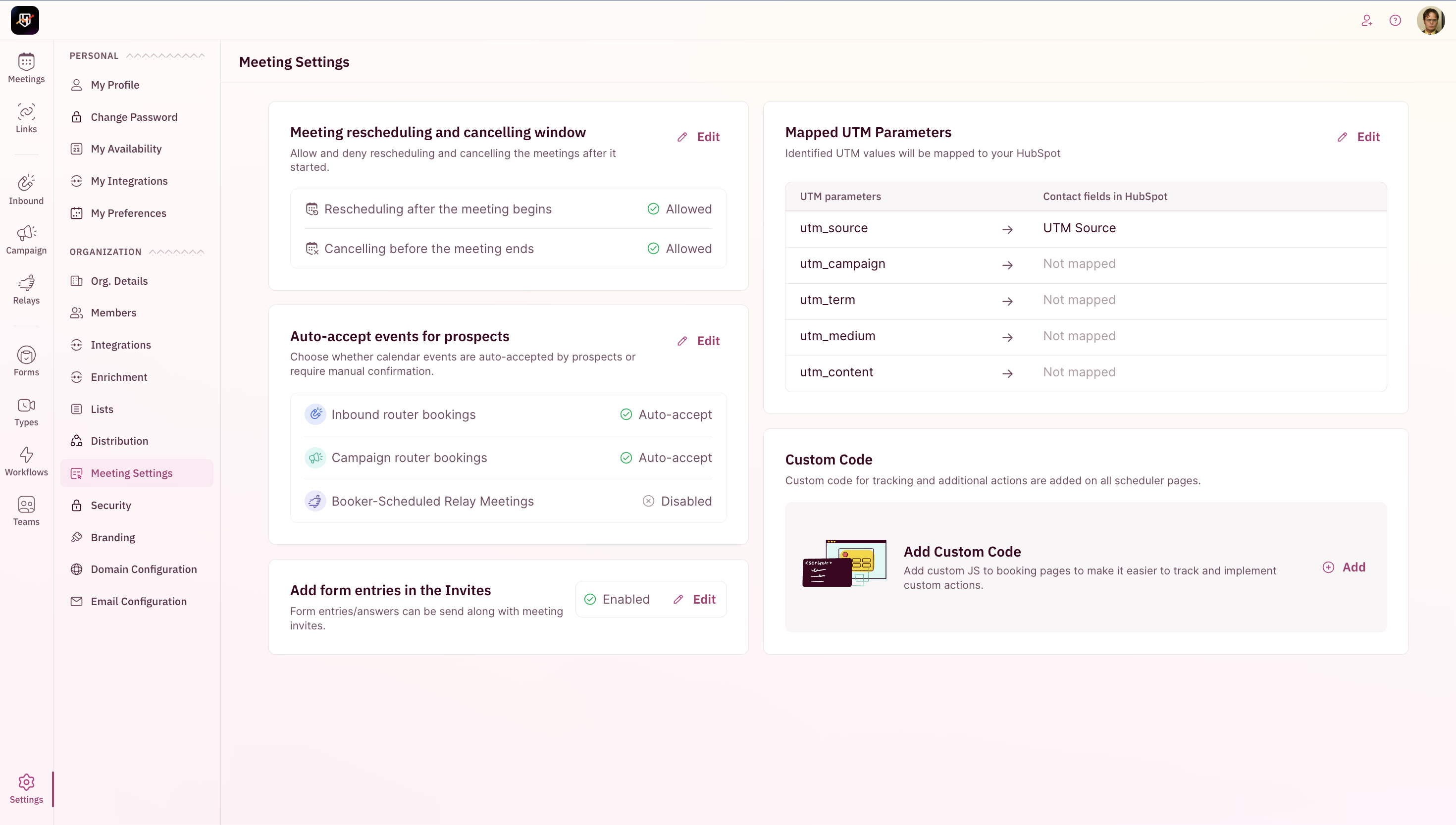
Control whether meetings can be rescheduled or cancelled after their start time. Use this to prevent changes to meetings that have already begun, ensuring your calendar data stays accurate and consistent.
The maximum window within which you can reschedule after a meeting starts is 12hrs.
## Meeting Rescheduling and Cancelling Window
Control whether meetings can be rescheduled or cancelled after their start time. Use this to prevent changes to meetings that have already begun, ensuring your calendar data stays accurate and consistent.
The maximum window within which you can reschedule after a meeting starts is 12hrs.
 ## Auto-Accept Events for Prospects
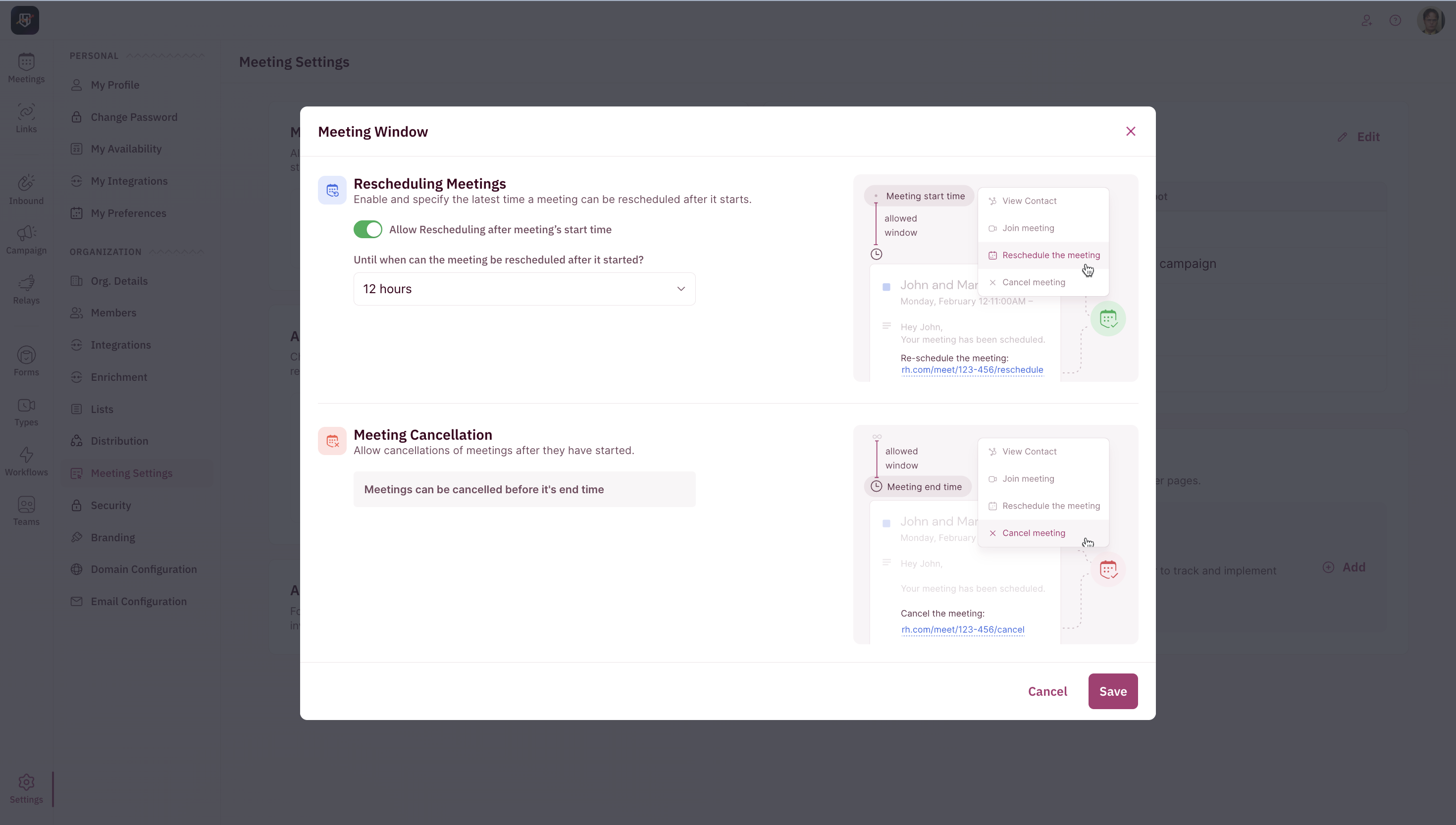
By default, calendar invites are automatically accepted on behalf of prospects. You can choose to toggle this on/off i.e to require the prospect to manually RSVP on the invite.
## Auto-Accept Events for Prospects
By default, calendar invites are automatically accepted on behalf of prospects. You can choose to toggle this on/off i.e to require the prospect to manually RSVP on the invite.
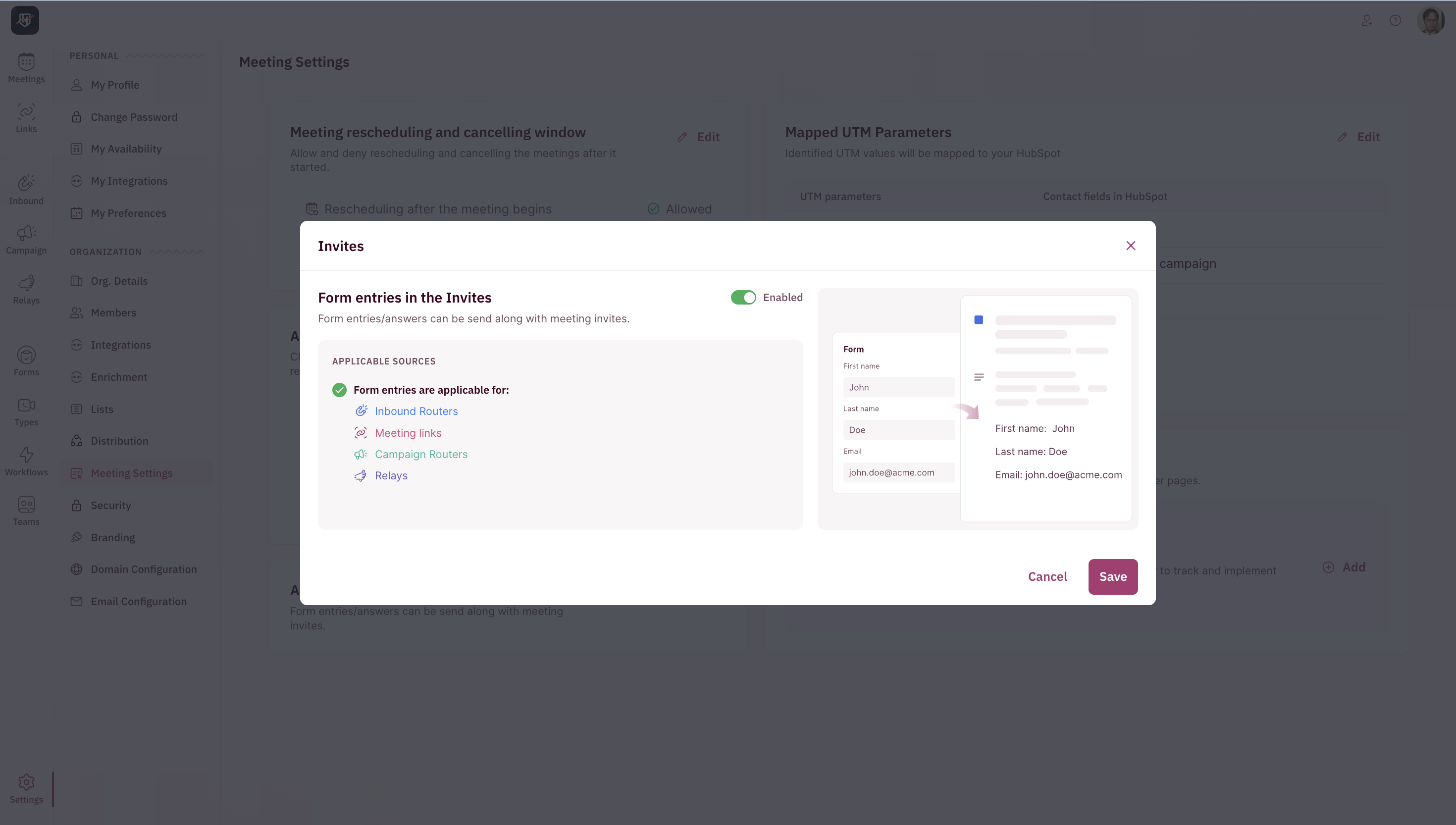
 ## Add Form Entries in Invites
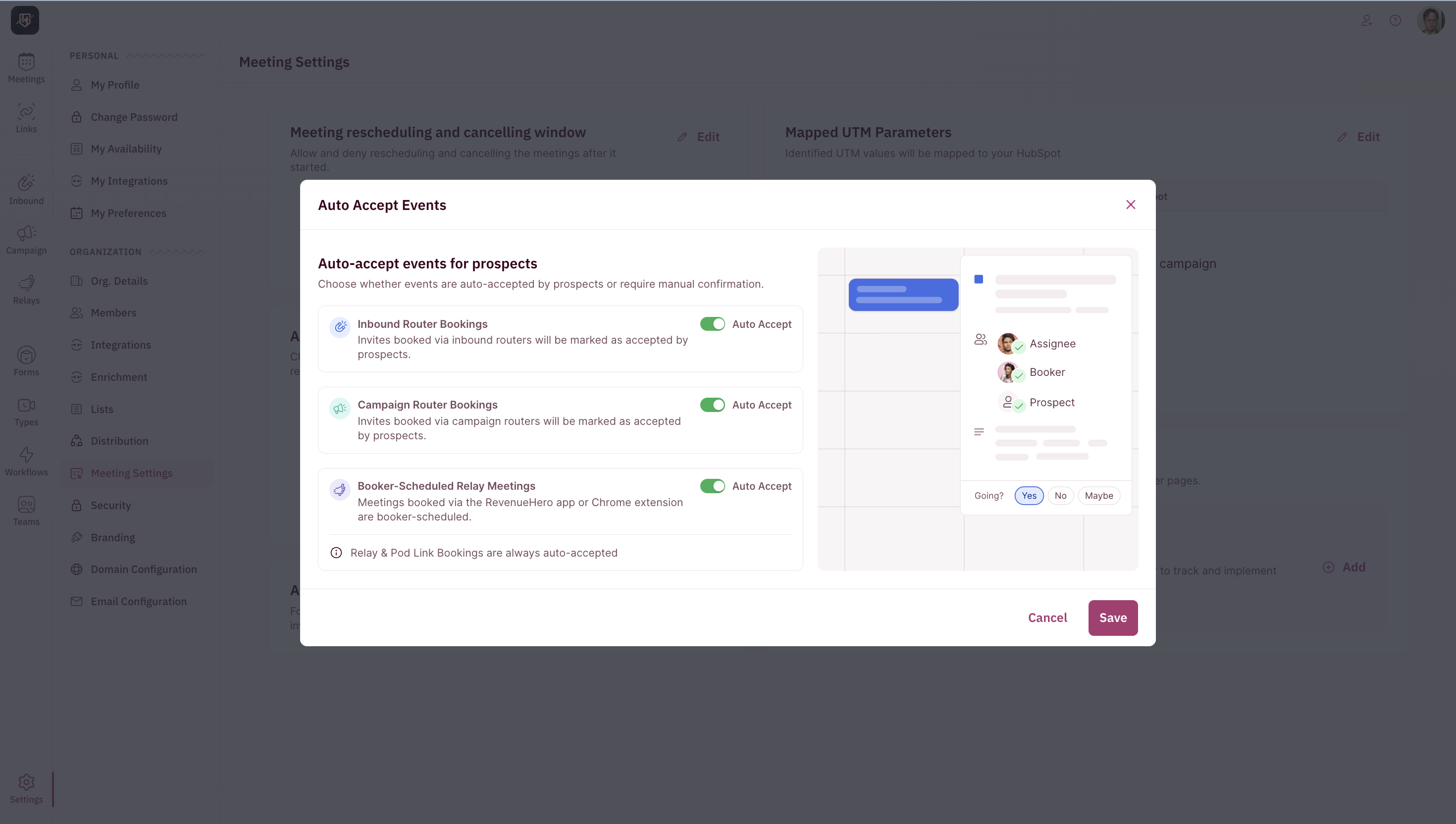
Include form responses collected during the booking process in the calendar invite sent to attendees. This gives reps immediate access to relevant context and helps personalize their meeting preparation.
This will include all mapped form fields and will be visible to the prospect too.
## Add Form Entries in Invites
Include form responses collected during the booking process in the calendar invite sent to attendees. This gives reps immediate access to relevant context and helps personalize their meeting preparation.
This will include all mapped form fields and will be visible to the prospect too.
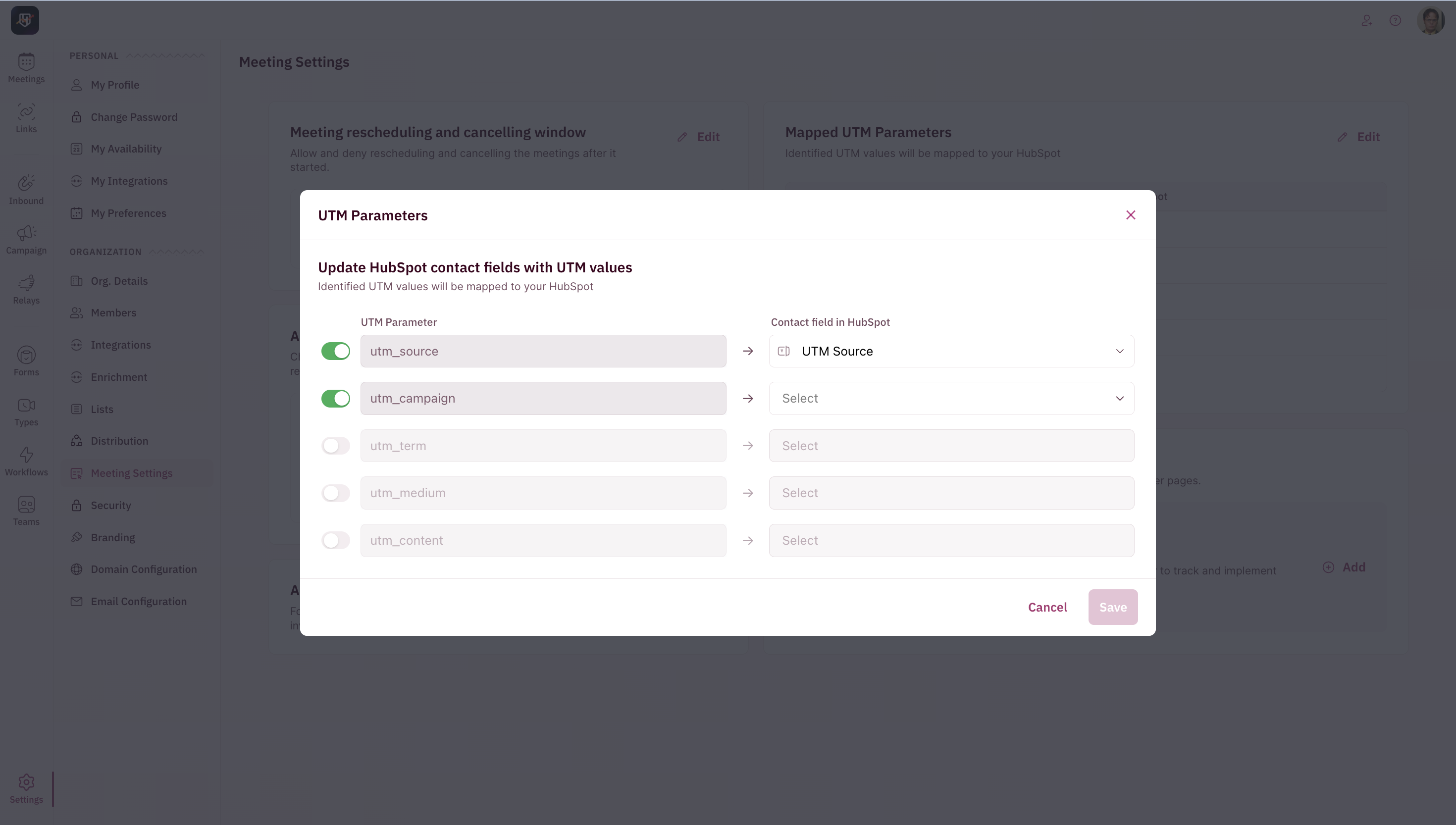
 ## Mapped UTM Parameters
Automatically capture UTM parameters from the source URL and map them to the corresponding fields in your CRM. This applies to both landing pages and RevenueHero meeting links.
When mapping a web-form for the Inbound router, do not include UTMs already mapped here
## Mapped UTM Parameters
Automatically capture UTM parameters from the source URL and map them to the corresponding fields in your CRM. This applies to both landing pages and RevenueHero meeting links.
When mapping a web-form for the Inbound router, do not include UTMs already mapped here
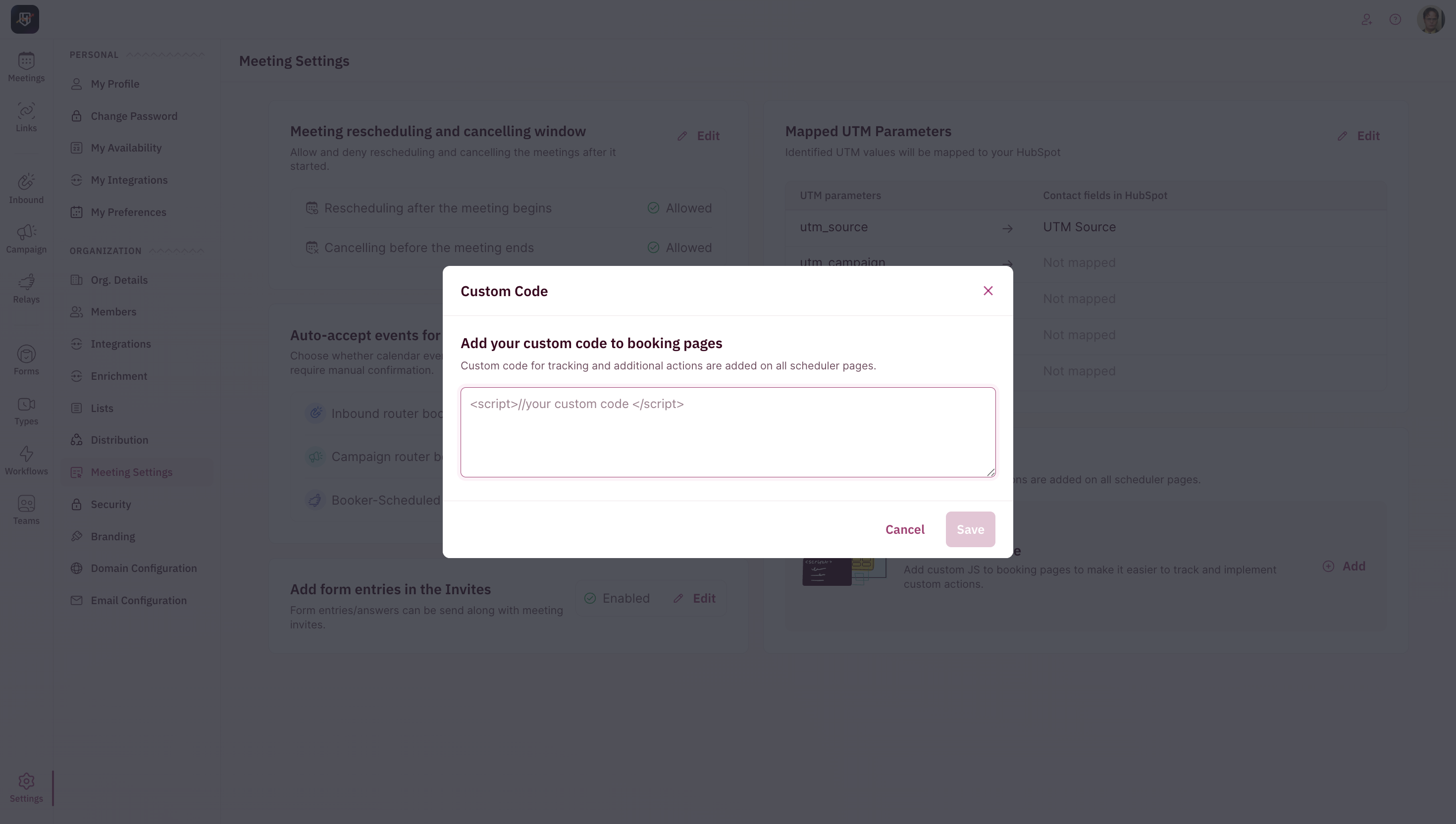
 ## Custom Code
Add custom scripts (like GA4 tags or Meta Ad pixels) to scheduler pages for tracking, analytics, or additional automated actions.
## Custom Code
Add custom scripts (like GA4 tags or Meta Ad pixels) to scheduler pages for tracking, analytics, or additional automated actions.