> ## Documentation Index
> Fetch the complete documentation index at: https://help.revenuehero.io/llms.txt
> Use this file to discover all available pages before exploring further.
# UTM Parameters tracking in RevenueHero
> Capture UTM parameters when prospects book meeting through RevenueHero
UTM tracking in RevenueHero gives you visibility into campaign performance and attribution. When a visitor arrives through a UTM-tagged link and books a meeting, the parameters are captured and passed to your connected CRM.
# How to set up UTM tracking?
Admins can set up UTM mapping between RevenueHero and the CRM used.
If you pass the UTM parameters as hidden fields in your HubSpot form, RevenueHero passes it on to your CRM. You don't need to set up UTM mapping here. Avoid doing both.
In your RevenueHero dashboard, go to **Settings**. Under **Organization Settings**, click on **Meeting Settings.**
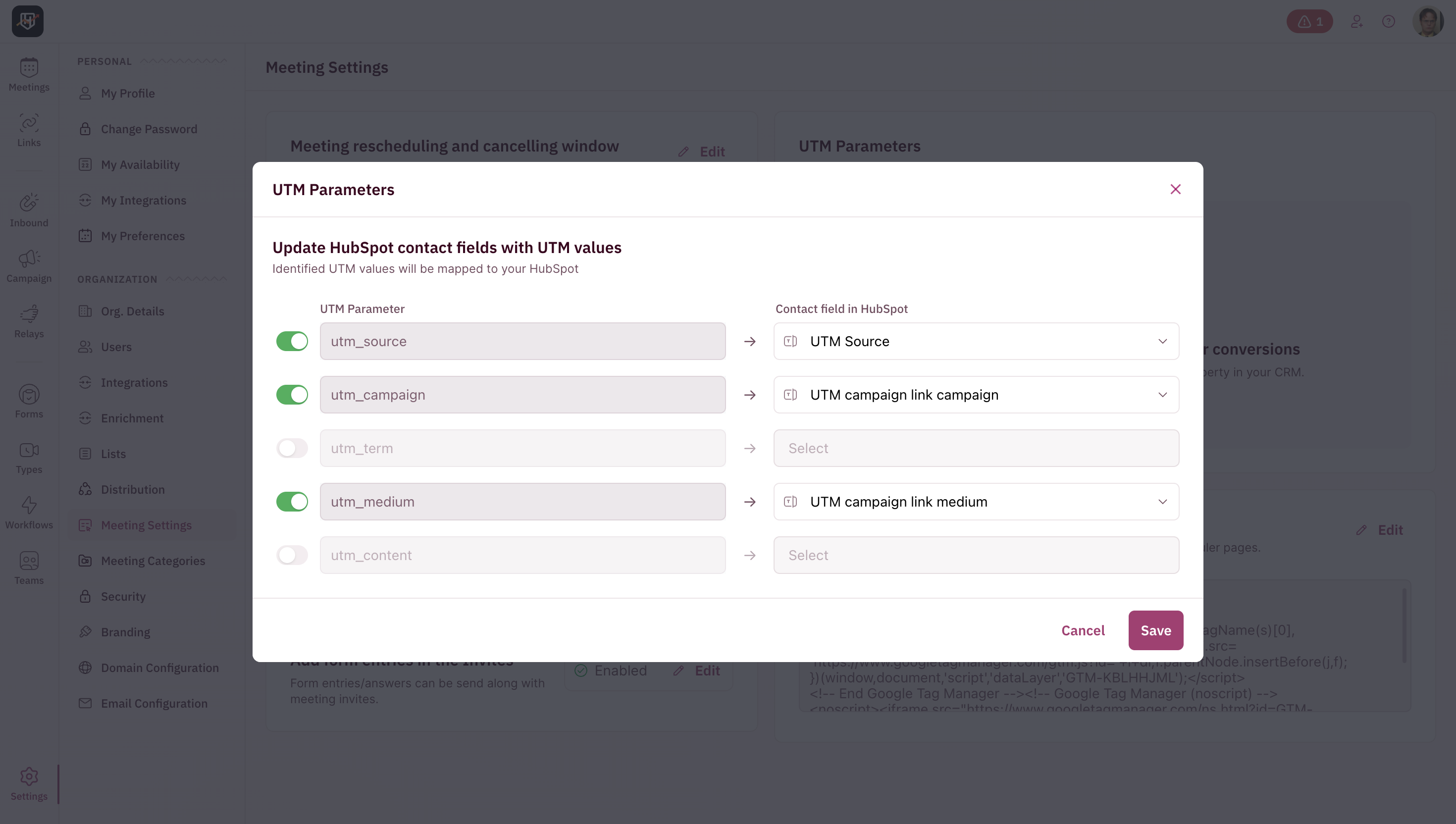
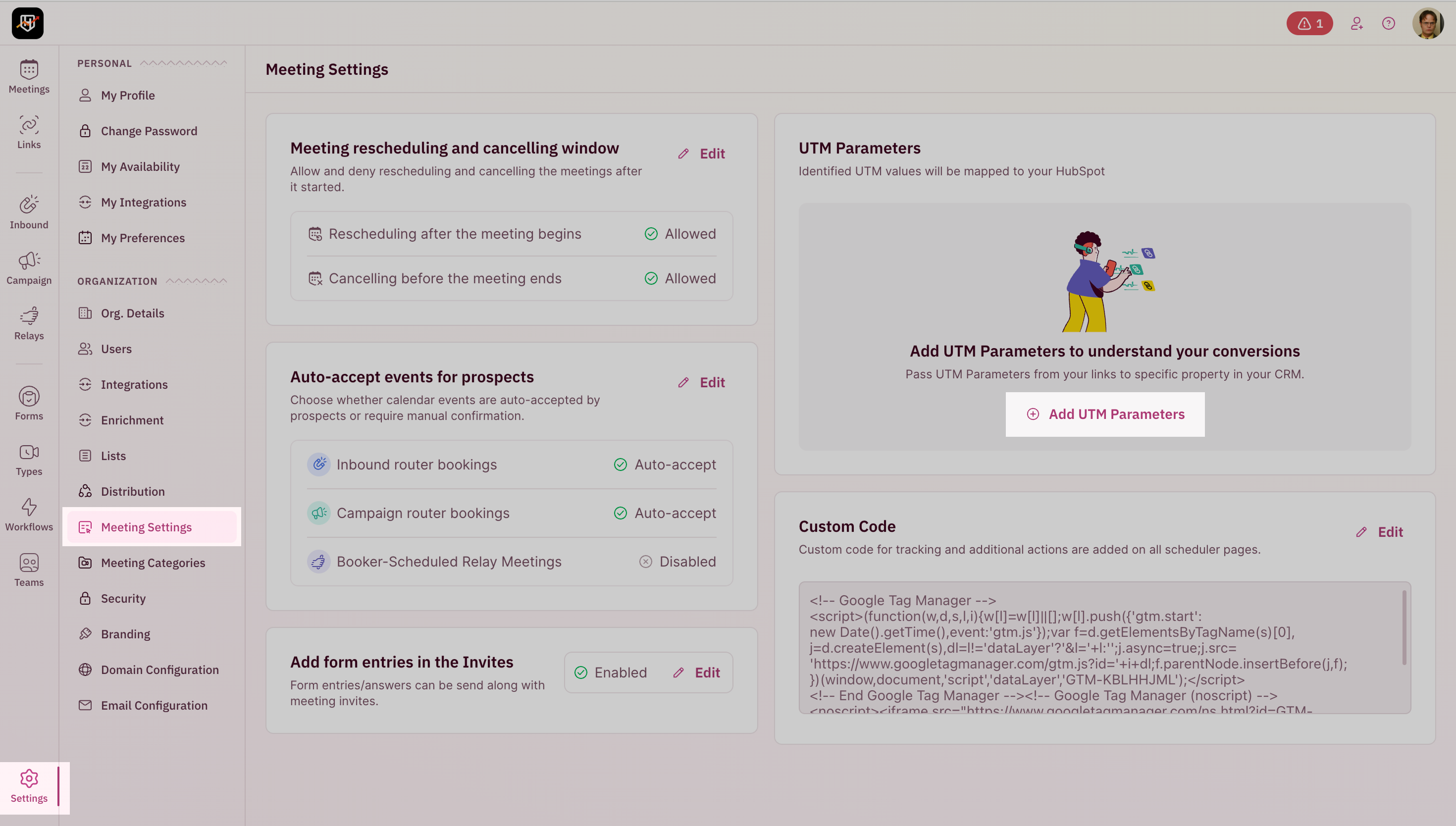 You’ll find a section titled **Mapped UTM Parameters**. Click on **Add UTM Parameters.**
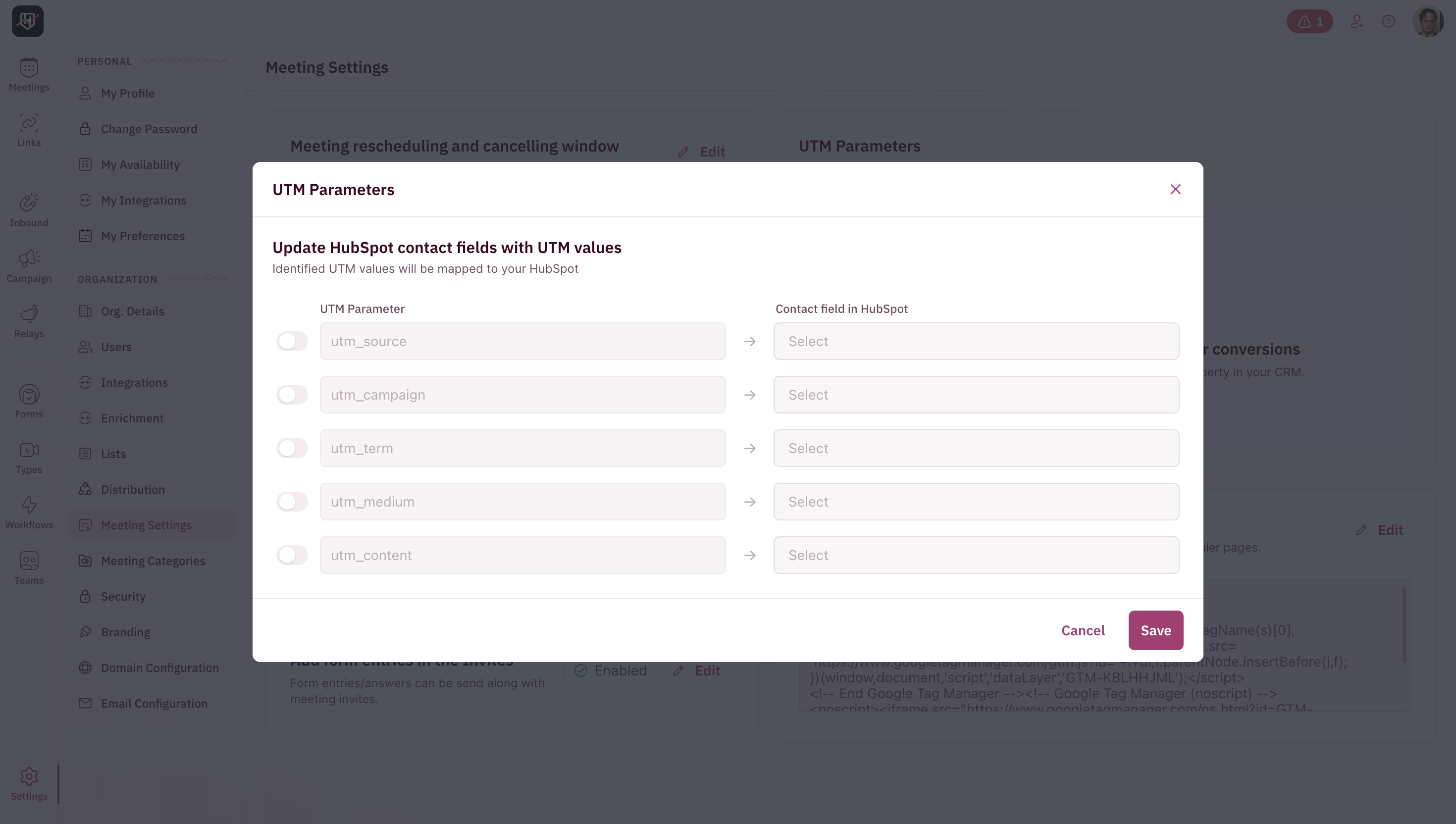 This modal lists the five UTM parameters you can track:
* utm\_source
* utm\_medium
* utm\_campaign
* utm\_term
* utm\_content
Use the toggle beside each parameter to activate tracking for that UTM field.
This modal lists the five UTM parameters you can track:
* utm\_source
* utm\_medium
* utm\_campaign
* utm\_term
* utm\_content
Use the toggle beside each parameter to activate tracking for that UTM field.
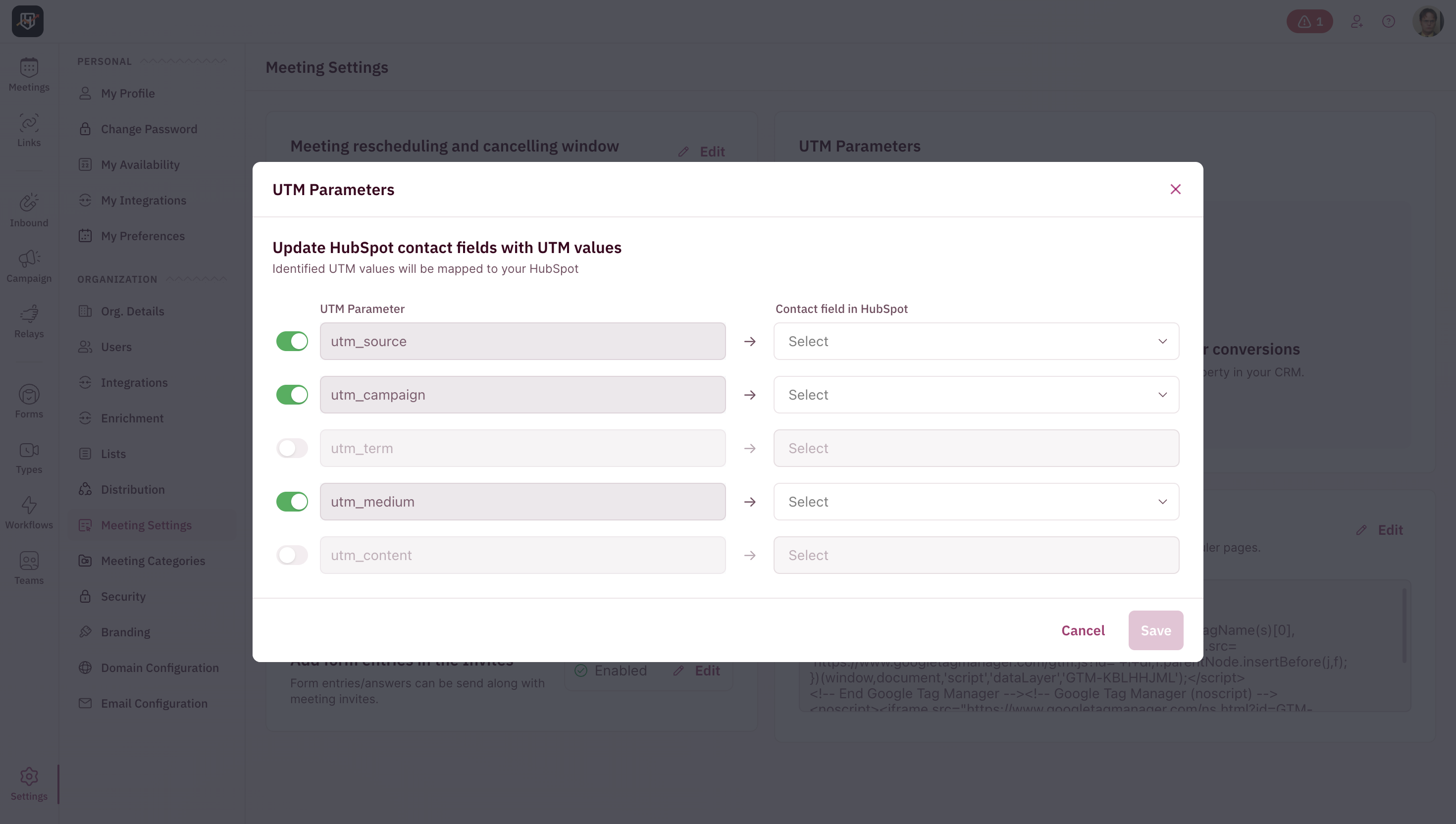 Only the enabled parameters will be captured and synced with your CRM when a lead books a meeting.
For each active UTM parameter, copy paste the name of the **matching contact field** in your connected CRM.
Only the enabled parameters will be captured and synced with your CRM when a lead books a meeting.
For each active UTM parameter, copy paste the name of the **matching contact field** in your connected CRM.
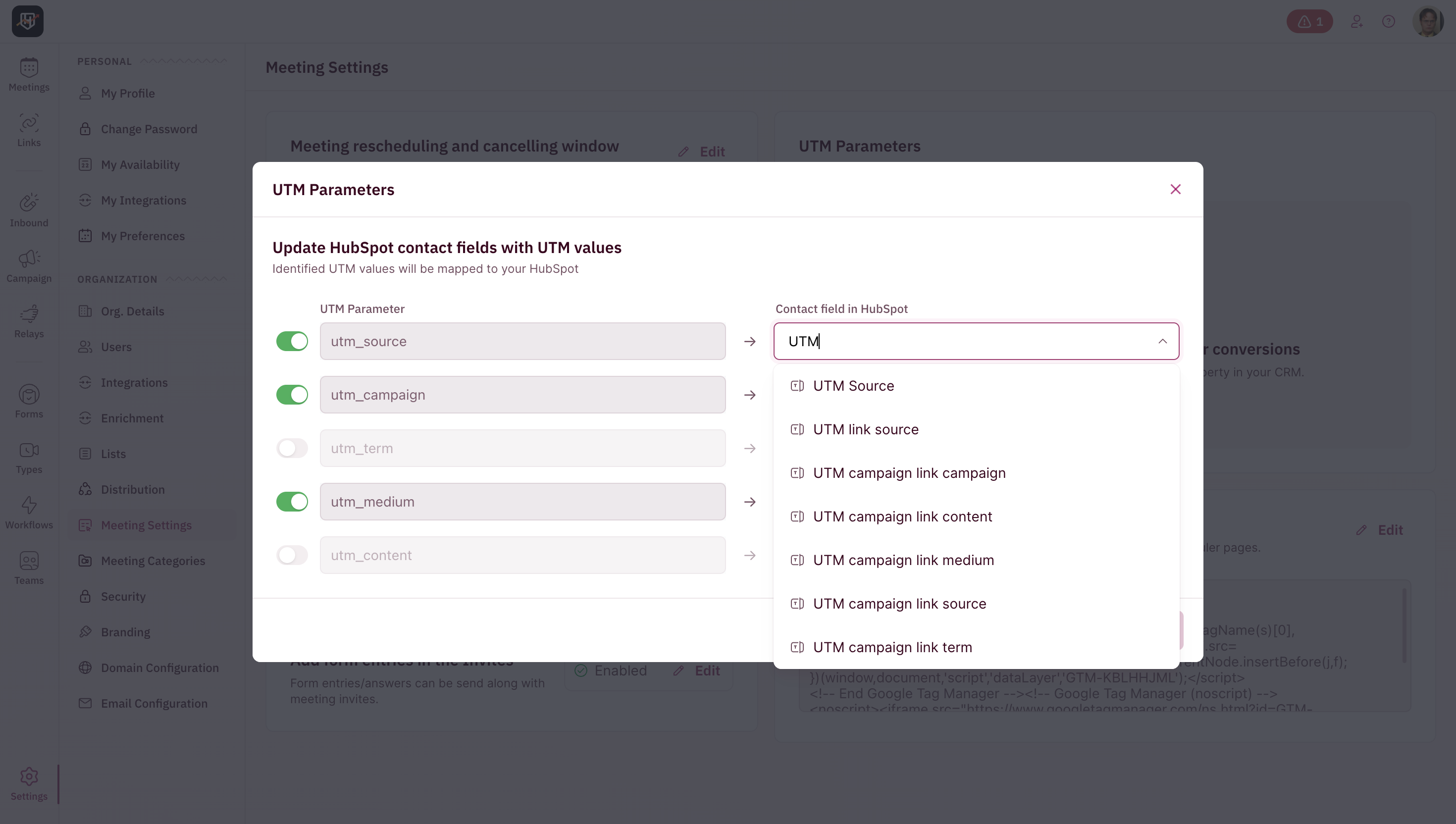 Once you’ve activated and mapped the relevant UTM parameters, click **Save**.
 Make sure the UTM fields already exist in your CRM before mapping them. This ensures smooth sync without data loss.
You’re all set! RevenueHero will now capture UTM parameters for every booked meeting and pass them directly to your CRM.
Make sure the UTM fields already exist in your CRM before mapping them. This ensures smooth sync without data loss.
You’re all set! RevenueHero will now capture UTM parameters for every booked meeting and pass them directly to your CRM.