> ## Documentation Index
> Fetch the complete documentation index at: https://help.revenuehero.io/llms.txt
> Use this file to discover all available pages before exploring further.
# How to set up user profile?
> Let's talk about how you can customize your profile to show off your swag.
The My Profile tab lets you customize your profile and make your RevenueHero account truly yours.
## Navigate to My Profile
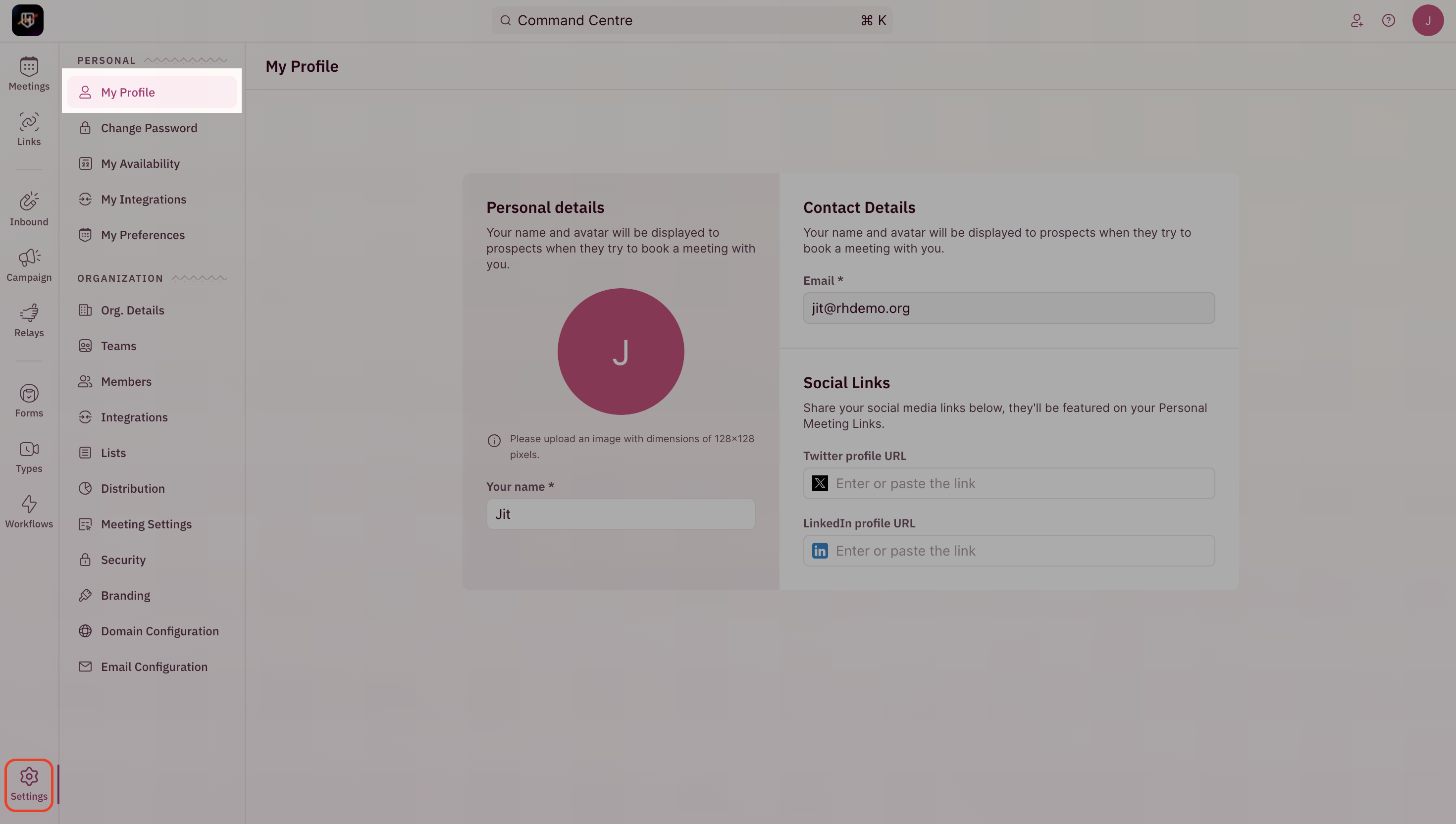
To make changes to your profile, click on "**Settings**" from the side nav bar and click on "**My Profile**" under "**Personal Settings**".
 ### Add Profile Picture
Under the Avatar section, click on the avatar to open the file selector.
### Add Profile Picture
Under the Avatar section, click on the avatar to open the file selector.
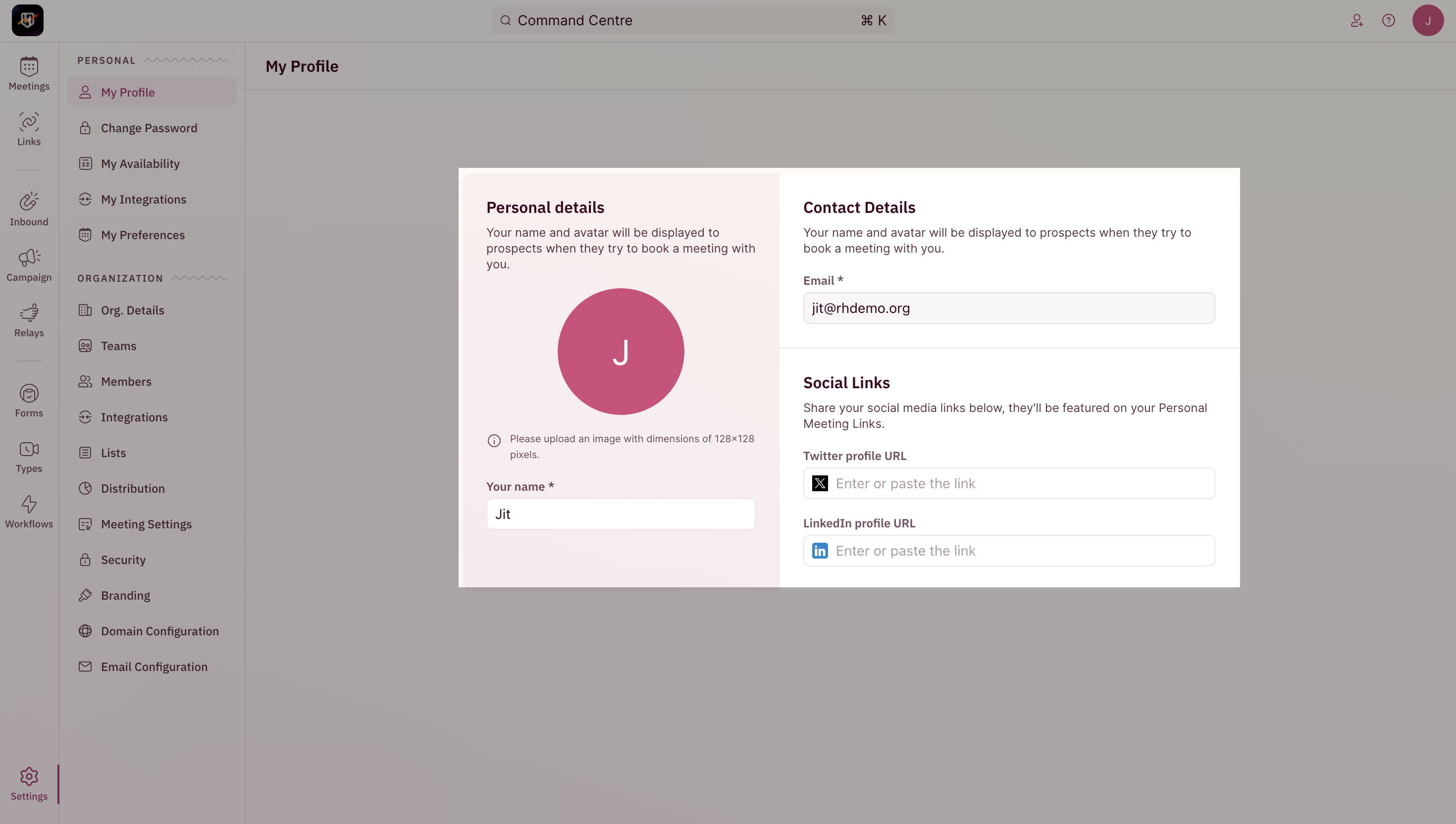 Choose an image of yourself to set it as your profile picture.
**NOTE**
The image you choose as your avatar will be visible to prospects when they book a meeting with you.
***
### Include Social Links
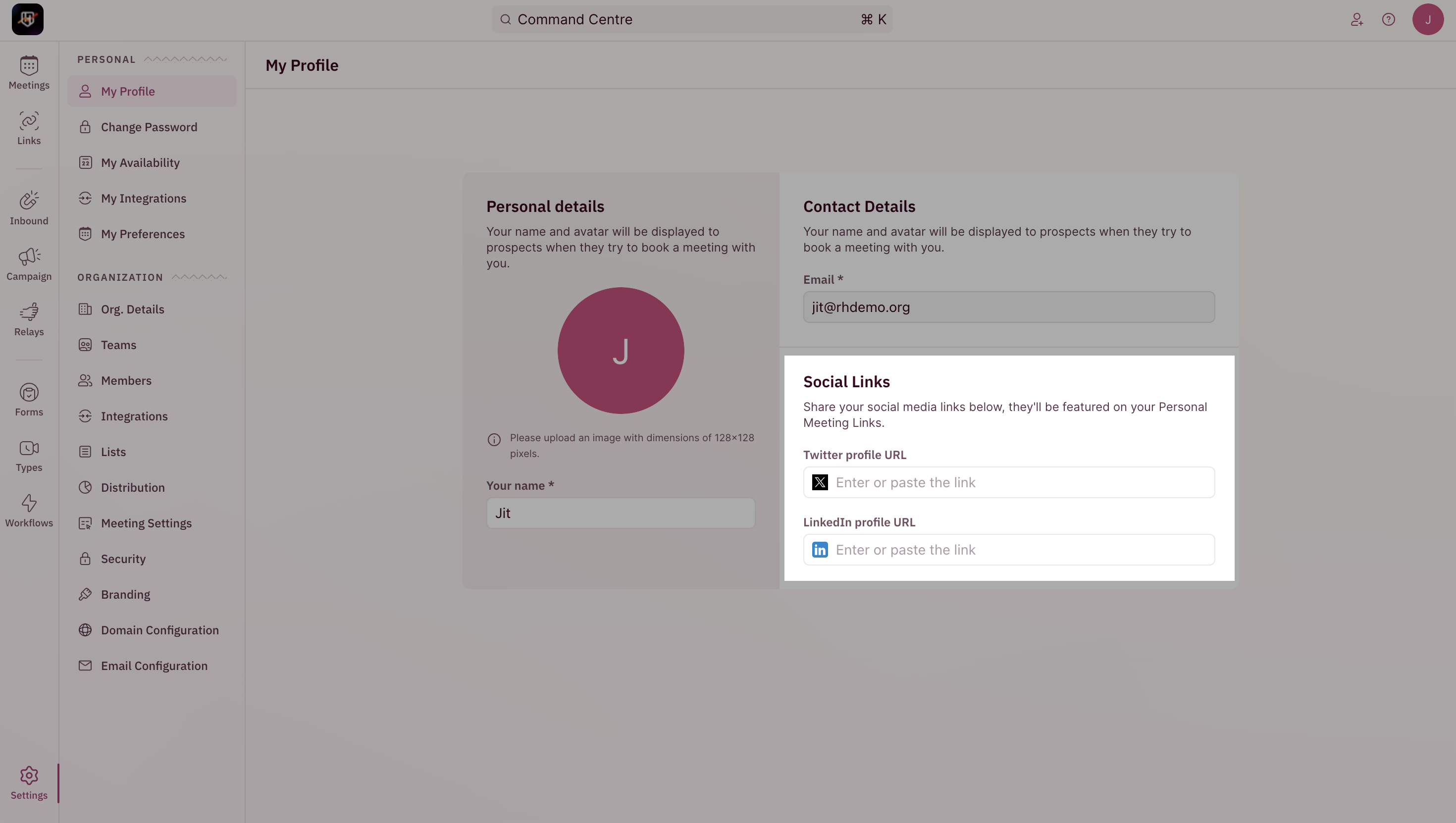
You can add your Twitter and LinkedIn profile links.
Choose an image of yourself to set it as your profile picture.
**NOTE**
The image you choose as your avatar will be visible to prospects when they book a meeting with you.
***
### Include Social Links
You can add your Twitter and LinkedIn profile links.
 **NOTE**
Add full links to your social profiles.
This will also be visible to prospects when they book a meeting with you. Think of it as an easy way for them to get to know you even before the call.
**NOTE**
Add full links to your social profiles.
This will also be visible to prospects when they book a meeting with you. Think of it as an easy way for them to get to know you even before the call.