> ## Documentation Index
> Fetch the complete documentation index at: https://help.revenuehero.io/llms.txt
> Use this file to discover all available pages before exploring further.
# How to create a team?
> Group your sales reps into teams so distribution rules can round-robin meetings between them, assign to selected members, or route to a single rep based on conditions.
A team is how you tell RevenueHero "these are the people who can receive meetings." Every distribution rule points to a team, but how meetings get assigned within that team is flexible. You can round-robin across all members, route to a subset of selected members based on conditions, or assign to a single rep for a specific territory or product line. The team is the container; the distribution rule is the logic.
₹
**BEFORE YOU BEGIN**
1. [Invite your reps to RevenueHero](/settings/organization/all-users) so they appear as selectable members
2. Each rep should [connect their calendar](/settings/personal/my-integrations) before being added to a team. Without a connected calendar, RevenueHero can't check their availability or create meetings on their calendar.
## How teams work
When a prospect submits a form and reaches your scheduler, RevenueHero evaluates your distribution rules to determine who should get the meeting. Each distribution rule points to a team and specifies how to assign within it:
* **All members**: Round-robin across everyone in the team. The simplest setup.
* **Selected members**: Pick specific reps from the team for this rule. You can create multiple distribution rules pointing to the same team, each routing to different members based on conditions like company size, region, or product interest.
* **Single member**: Select one rep. Useful when a specific territory or product line belongs to one person (e.g., all DACH leads go to Frank, or all CLM product inquiries go to Sahana).
Beyond assignment, teams also control:
* **Availability**: The team's working hours define when prospects can book. This is especially important for multi-region setups where US reps should only show availability during US hours and EU reps during EU hours.
* **Groups**: Sub-groups within a team for collective round-robin (e.g., pair an AE with an SE on every call so the prospect meets both).
* **Roles**: Each member has a role (Admin, Manager, or Member) that controls what they can edit within the team.
## Create a team
### Step 1: Open the Teams page
Click **Teams** in the left sidebar. This shows all existing teams in your account with member count, group count, timezone, and member avatars.
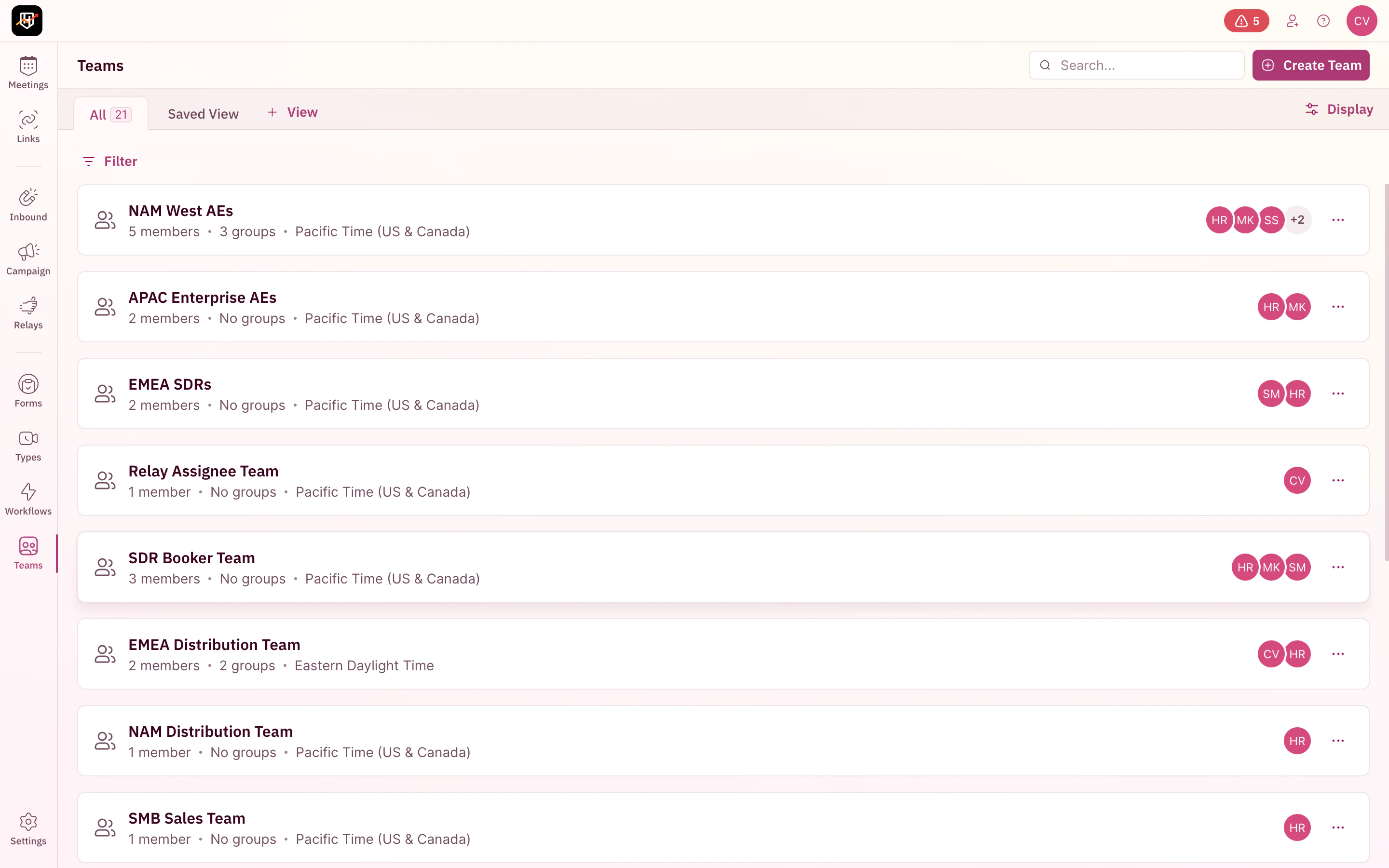 Click **Create Team** in the top-right corner.
### Step 2: Select members
The wizard opens with the question: "Who has to be part of this team?" Search by name or scroll the list and check each member you want to add.
Click **Create Team** in the top-right corner.
### Step 2: Select members
The wizard opens with the question: "Who has to be part of this team?" Search by name or scroll the list and check each member you want to add.
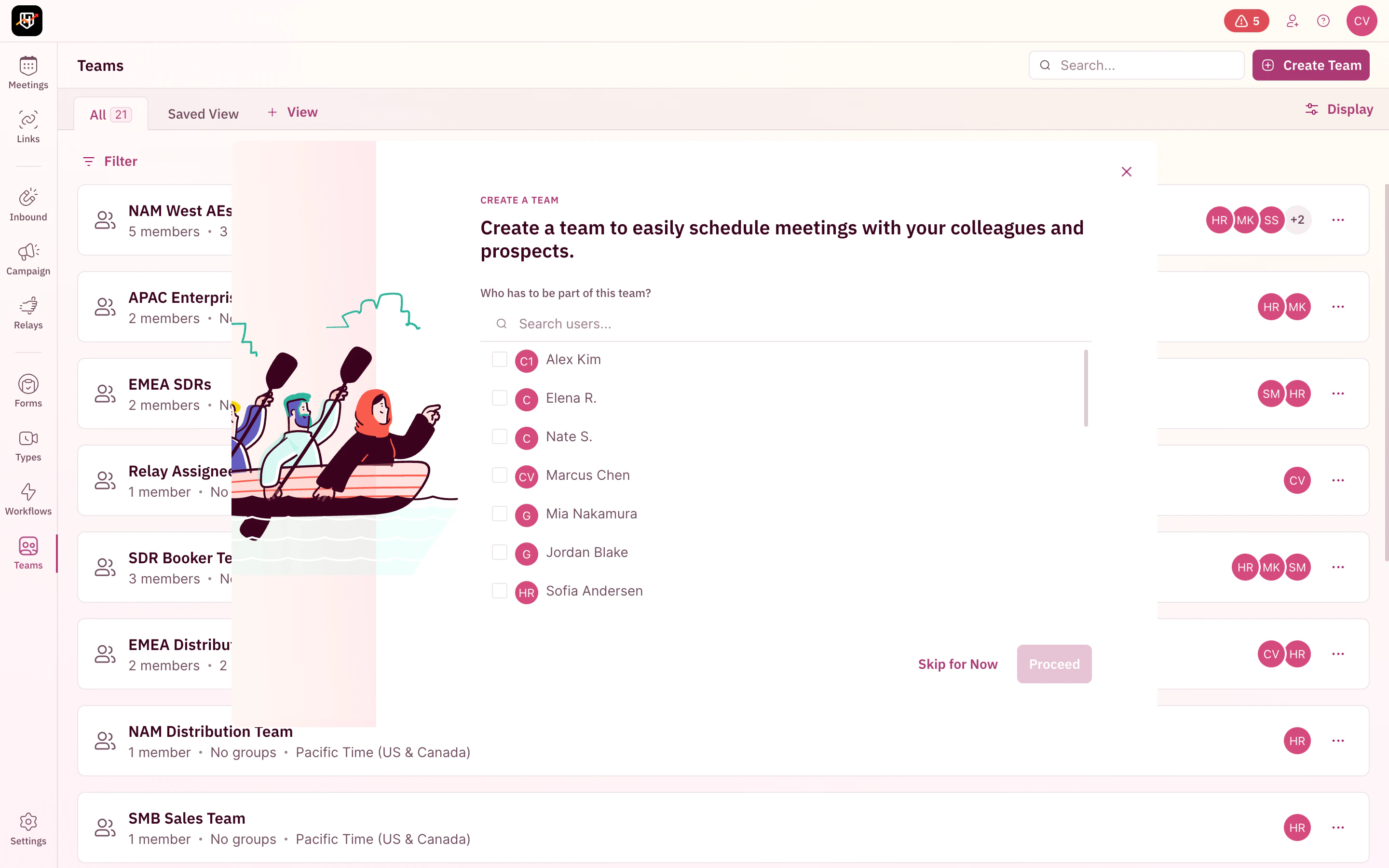 You can add members now or click **Skip for Now** to add them later from the team detail page. Click **Proceed** to continue.
A rep must have their calendar connected before they can receive meetings through round-robin. Adding a rep without a connected calendar means they'll appear in the team but won't get any bookings. This is a common onboarding miss that surfaces as "why isn't this rep getting meetings?" Make sure every rep connects their calendar and conference tool before you go live.
Only add reps who should actually receive meetings from this team. A common mistake is adding yourself (the admin) to a sales team during setup, then wondering why you're getting routed demo calls.
### Step 3: Set the team's availability
Choose when this team can receive meetings. You have three options:
| Option | When to use |
| ---------------------------- | ------------------------------------------------------------------------------------------------------- |
| **Use default availability** | Standard Mon-Fri, 9am-5pm in your account's timezone. Works for most teams. |
| **Use from another team** | Copy availability from an existing team. Useful when creating a second team in the same region. |
| **Use custom availability** | Set specific days and time slots. Use this for teams in different timezones or with non-standard hours. |
You can add members now or click **Skip for Now** to add them later from the team detail page. Click **Proceed** to continue.
A rep must have their calendar connected before they can receive meetings through round-robin. Adding a rep without a connected calendar means they'll appear in the team but won't get any bookings. This is a common onboarding miss that surfaces as "why isn't this rep getting meetings?" Make sure every rep connects their calendar and conference tool before you go live.
Only add reps who should actually receive meetings from this team. A common mistake is adding yourself (the admin) to a sales team during setup, then wondering why you're getting routed demo calls.
### Step 3: Set the team's availability
Choose when this team can receive meetings. You have three options:
| Option | When to use |
| ---------------------------- | ------------------------------------------------------------------------------------------------------- |
| **Use default availability** | Standard Mon-Fri, 9am-5pm in your account's timezone. Works for most teams. |
| **Use from another team** | Copy availability from an existing team. Useful when creating a second team in the same region. |
| **Use custom availability** | Set specific days and time slots. Use this for teams in different timezones or with non-standard hours. |
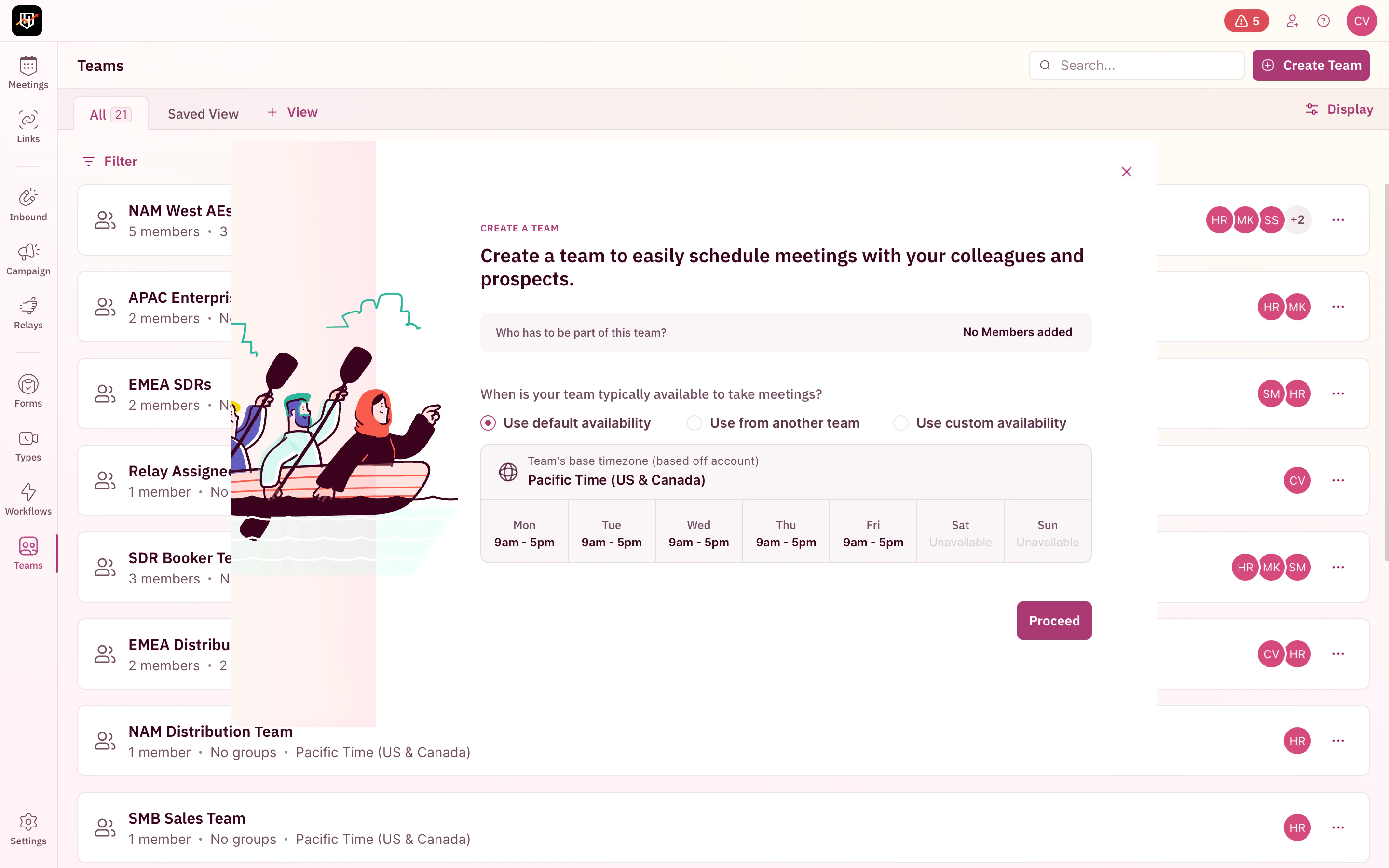 The timezone shown is your account's base timezone. You can change the team's timezone later from the team settings.
If you have reps across regions, create separate teams with region-appropriate availability. For example, your EU reps might work 9am-5pm CET, but if they're on a US-facing team, set their custom availability to match the overlap window (e.g., 2pm-10pm CET / 8am-4pm ET). This prevents prospects from seeing irrelevant time slots outside their business hours.
Click **Proceed** to create your team.
## The team detail page
Once your team is created, you land on the team detail page. This is your central view for managing the team.
The timezone shown is your account's base timezone. You can change the team's timezone later from the team settings.
If you have reps across regions, create separate teams with region-appropriate availability. For example, your EU reps might work 9am-5pm CET, but if they're on a US-facing team, set their custom availability to match the overlap window (e.g., 2pm-10pm CET / 8am-4pm ET). This prevents prospects from seeing irrelevant time slots outside their business hours.
Click **Proceed** to create your team.
## The team detail page
Once your team is created, you land on the team detail page. This is your central view for managing the team.
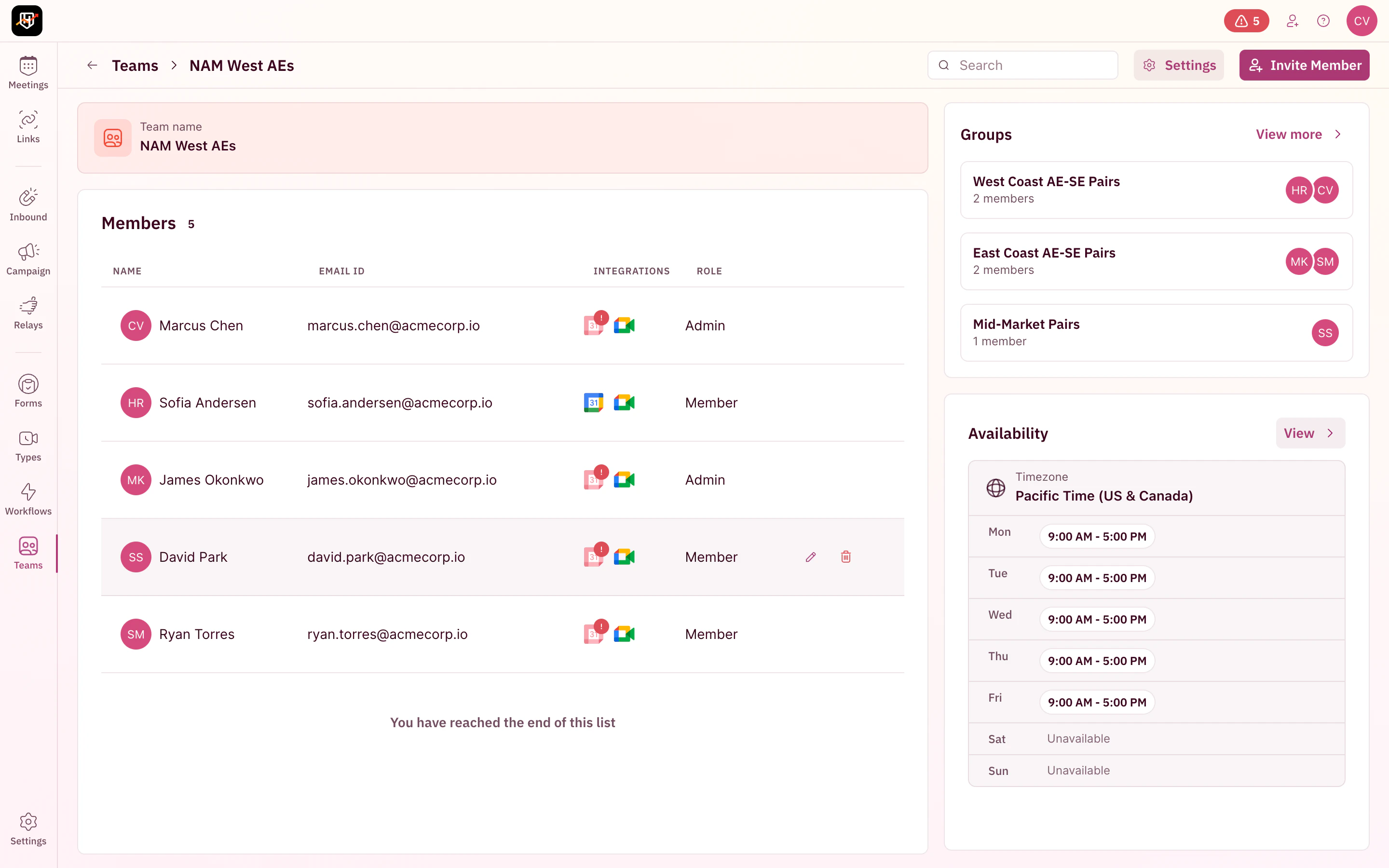 The page has three sections:
* **Members** (left): All reps on this team with their email, calendar integration status, and role (Admin, Manager, Member). Hover over a member to see edit and remove actions.
* **Groups** (top right): Sub-groups for collective round-robin pairings (e.g., AE + SE pairs). Click **View more** to manage groups.
* **Availability** (bottom right): The team's working hours grid. Click **View** to edit.
From here you can:
* Click **Invite Member** to add new reps
* Click **Settings** to rename the team or change its timezone
* Create groups for collective round-robin setups
## How teams connect to routing
Teams become active when you reference them in your routing setup. The full chain looks like this:
1. **Create a team** (this article) to define who can receive meetings
2. **Create a distribution rule** that points to this team and specifies the assignment logic (all members, selected members, or single rep) and any conditions (company size, region, product)
3. **Attach the distribution rule** to an inbound router, campaign router, or relay
You can create multiple distribution rules that point to the same team, each with different conditions and different selected members. For example, with one "Sales" team of 10 reps:
* **Rule 1**: Leads with fewer than 500 employees go to Evan (single selected member)
* **Rule 2**: Leads with 500 or more employees round-robin among the other 9 AEs (selected members)
* **Rule 3**: Fallback rule round-robins across all 10 members
This is how you build territory or segment-based routing without creating dozens of teams. The team stays simple; the distribution rules handle the logic.
You can also use the same team across multiple distribution rules, routers, and relays. Your "NAM AEs" team might be referenced by your inbound router's distribution rule, your campaign router, and your relay's distribution pod. The round-robin queue is shared across all of them.
## One team or many?
This is the first structural decision you'll make. There's no universal answer, but here's how customers typically approach it:
| Scenario | Recommended structure | Why |
| -------------------------------------------------------------- | ------------------------------------------------------------------------------------------------- | -------------------------------------------------------------------------------------------------------------- |
| 5 AEs, all US, same working hours | One team: "US AEs" | Simple. One distribution rule handles everything. |
| AEs in US + AEs in EMEA | Two teams: "NAM AEs" and "EMEA AEs" | Different availability windows per region. Prevents prospects from seeing 3am time slots. |
| AEs split by segment (Enterprise vs Commercial) across regions | Four teams: "US Enterprise", "US Commercial", "EMEA Enterprise", "EMEA Commercial" | Region x segment matrix gives you clean routing and accurate availability per group. |
| SDRs who hand off to AEs via relay | Two teams: "SDRs" (relay bookers) and "AEs" (relay assignees) | Relays need separate teams for the booker and assignee side. |
| One AE owns a specific territory | One team, but use a distribution rule with a condition that routes to that single selected member | You don't need a separate team for one person. Put them on the main team and use distribution rule conditions. |
| AE + SE on every call | One team with groups: create an "AE-SE Pairs" group using collective round-robin | Groups within a team handle multi-rep meetings without needing separate teams. |
Resist the urge to create a separate team for every distribution rule condition. If 10 reps are on the same schedule and in the same region, they belong on one team. Use distribution rule conditions and selected members to control who gets what. Creating too many small teams makes round-robin queues shallow and team management harder.
***
Your team is ready. Next, create a distribution rule to define how meetings get assigned to the reps on this team. 🎉🎉🎉
Add or invite new reps to an existing team.
Set up round-robin to assign meetings to your team.
Individual reps can customize their personal availability within the team schedule.
Safely remove reps from a team with rule reassignment.
The page has three sections:
* **Members** (left): All reps on this team with their email, calendar integration status, and role (Admin, Manager, Member). Hover over a member to see edit and remove actions.
* **Groups** (top right): Sub-groups for collective round-robin pairings (e.g., AE + SE pairs). Click **View more** to manage groups.
* **Availability** (bottom right): The team's working hours grid. Click **View** to edit.
From here you can:
* Click **Invite Member** to add new reps
* Click **Settings** to rename the team or change its timezone
* Create groups for collective round-robin setups
## How teams connect to routing
Teams become active when you reference them in your routing setup. The full chain looks like this:
1. **Create a team** (this article) to define who can receive meetings
2. **Create a distribution rule** that points to this team and specifies the assignment logic (all members, selected members, or single rep) and any conditions (company size, region, product)
3. **Attach the distribution rule** to an inbound router, campaign router, or relay
You can create multiple distribution rules that point to the same team, each with different conditions and different selected members. For example, with one "Sales" team of 10 reps:
* **Rule 1**: Leads with fewer than 500 employees go to Evan (single selected member)
* **Rule 2**: Leads with 500 or more employees round-robin among the other 9 AEs (selected members)
* **Rule 3**: Fallback rule round-robins across all 10 members
This is how you build territory or segment-based routing without creating dozens of teams. The team stays simple; the distribution rules handle the logic.
You can also use the same team across multiple distribution rules, routers, and relays. Your "NAM AEs" team might be referenced by your inbound router's distribution rule, your campaign router, and your relay's distribution pod. The round-robin queue is shared across all of them.
## One team or many?
This is the first structural decision you'll make. There's no universal answer, but here's how customers typically approach it:
| Scenario | Recommended structure | Why |
| -------------------------------------------------------------- | ------------------------------------------------------------------------------------------------- | -------------------------------------------------------------------------------------------------------------- |
| 5 AEs, all US, same working hours | One team: "US AEs" | Simple. One distribution rule handles everything. |
| AEs in US + AEs in EMEA | Two teams: "NAM AEs" and "EMEA AEs" | Different availability windows per region. Prevents prospects from seeing 3am time slots. |
| AEs split by segment (Enterprise vs Commercial) across regions | Four teams: "US Enterprise", "US Commercial", "EMEA Enterprise", "EMEA Commercial" | Region x segment matrix gives you clean routing and accurate availability per group. |
| SDRs who hand off to AEs via relay | Two teams: "SDRs" (relay bookers) and "AEs" (relay assignees) | Relays need separate teams for the booker and assignee side. |
| One AE owns a specific territory | One team, but use a distribution rule with a condition that routes to that single selected member | You don't need a separate team for one person. Put them on the main team and use distribution rule conditions. |
| AE + SE on every call | One team with groups: create an "AE-SE Pairs" group using collective round-robin | Groups within a team handle multi-rep meetings without needing separate teams. |
Resist the urge to create a separate team for every distribution rule condition. If 10 reps are on the same schedule and in the same region, they belong on one team. Use distribution rule conditions and selected members to control who gets what. Creating too many small teams makes round-robin queues shallow and team management harder.
***
Your team is ready. Next, create a distribution rule to define how meetings get assigned to the reps on this team. 🎉🎉🎉
Add or invite new reps to an existing team.
Set up round-robin to assign meetings to your team.
Individual reps can customize their personal availability within the team schedule.
Safely remove reps from a team with rule reassignment.