> ## Documentation Index
> Fetch the complete documentation index at: https://help.revenuehero.io/llms.txt
> Use this file to discover all available pages before exploring further.
# How to create a meeting type for events?
> Customize your meeting configuration like duration, buffers and invite texts for your meetings in a few simple steps
Meeting types allow you to define the different types of meetings you want your customers to be able to schedule with your sales team.
## Steps to Create a Meeting Type for Events
### Navigating to Meeting Type
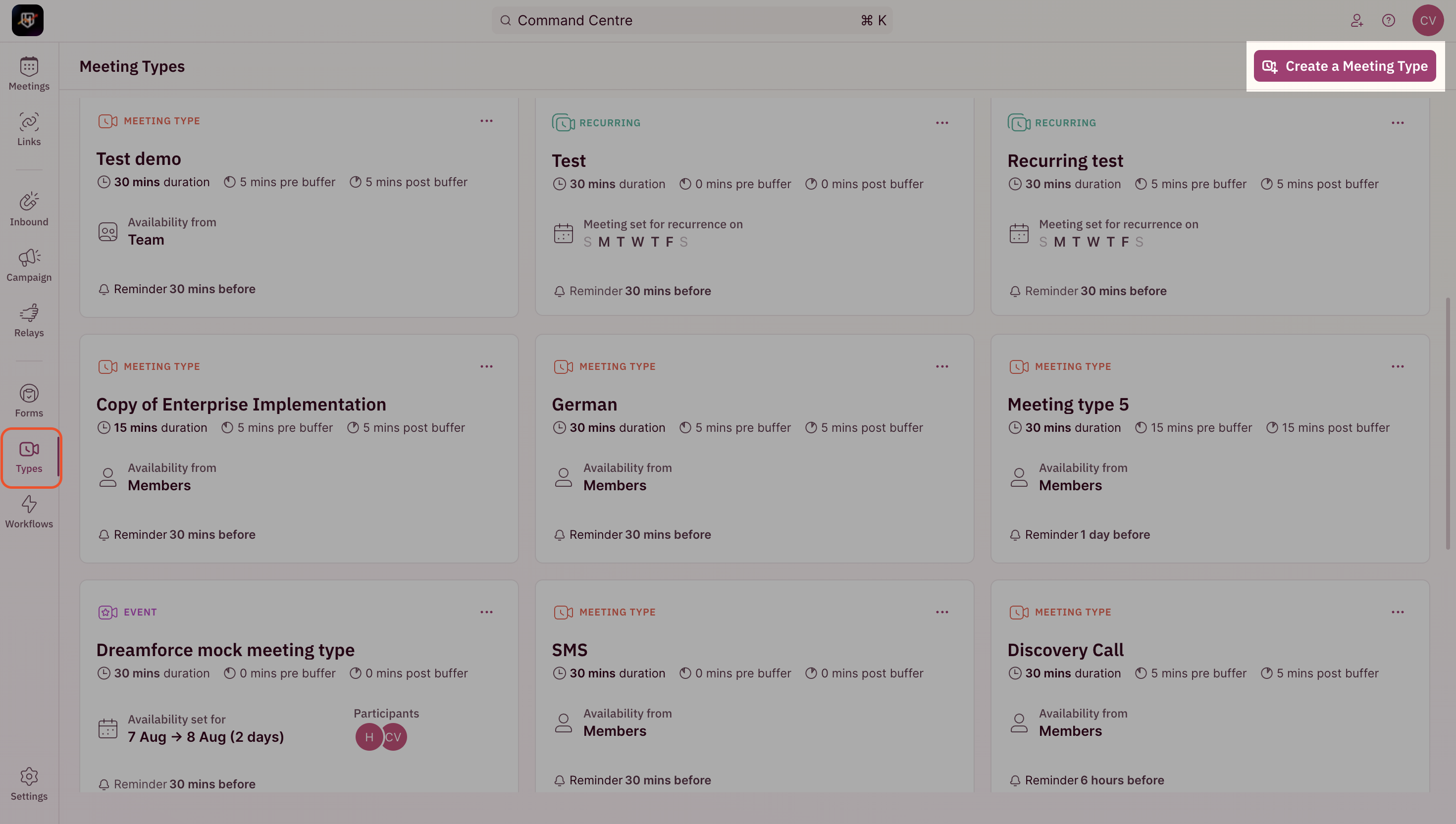
1. To create a Meeting Type for an event, use the side nav bar and click on **Types** -> ”**Create a Meeting Type**” button.
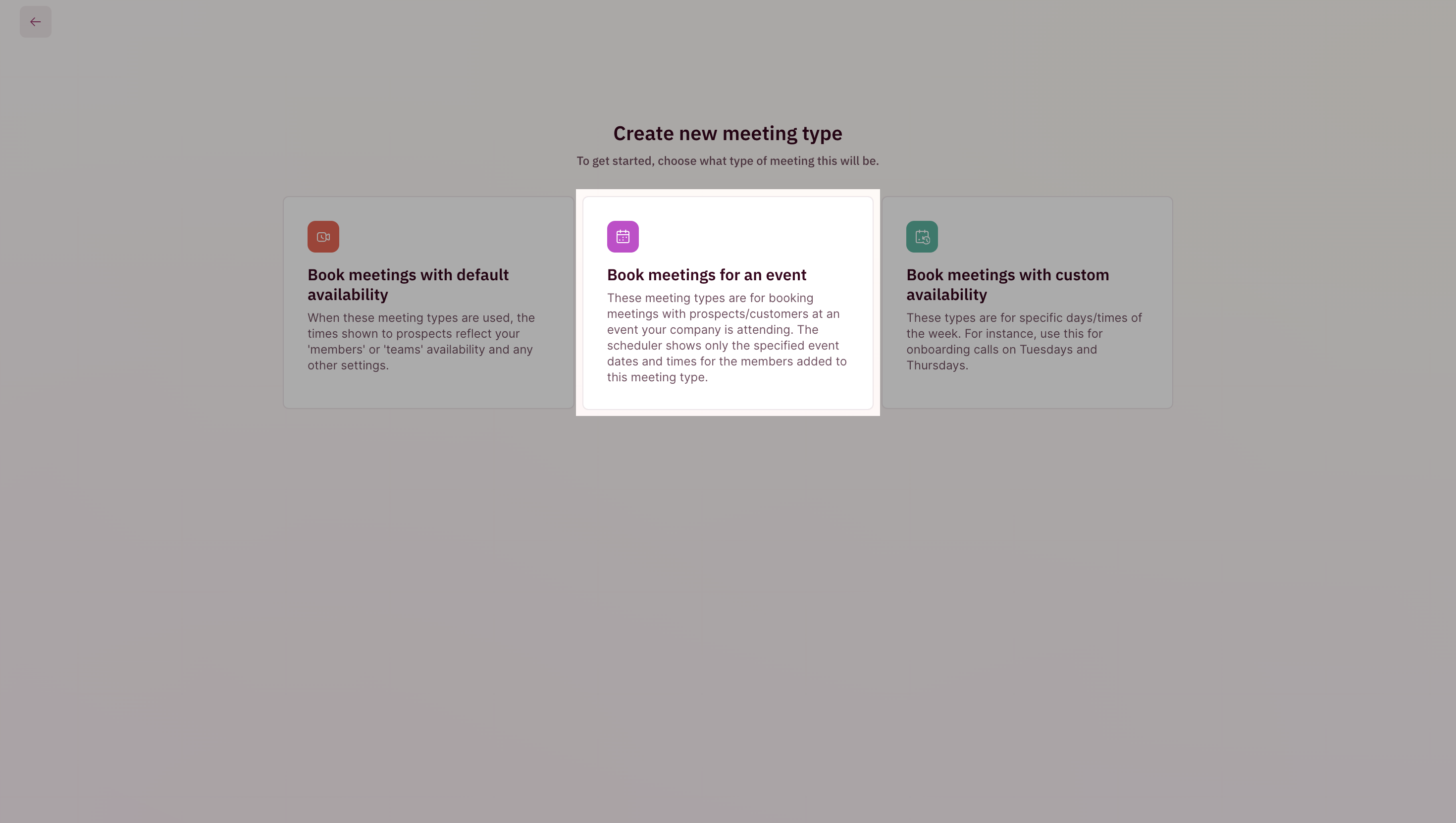
 2. Select “**Book meetings for an event**” to begin the creation of the meeting type
 ***
### Set the Event Schedule
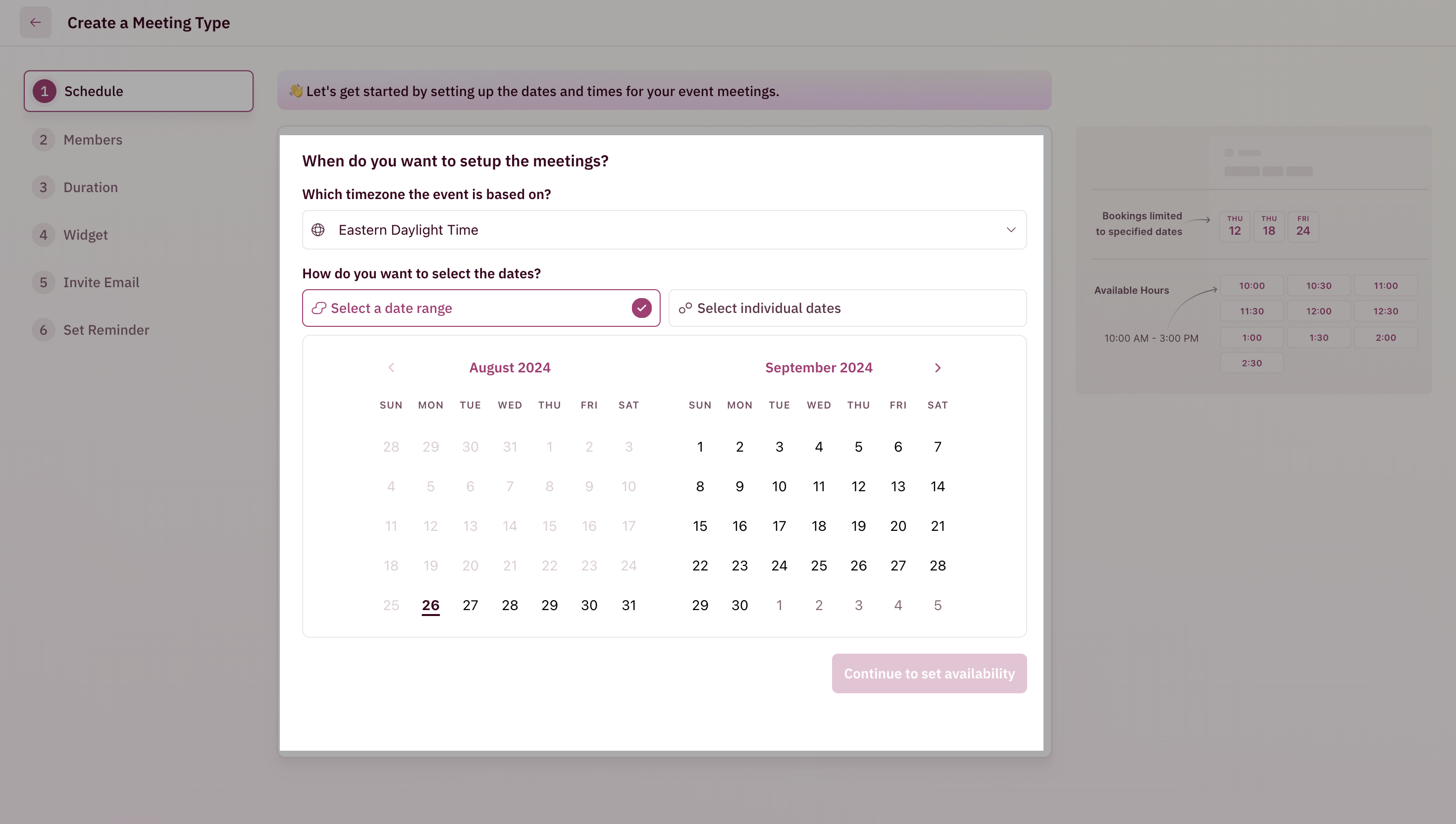
1. Select the timezone and the dates for your event. You can choose specific days or a specific range of days for the event. (This tells RevenueHero that only these days are available for the event.)
***
### Set the Event Schedule
1. Select the timezone and the dates for your event. You can choose specific days or a specific range of days for the event. (This tells RevenueHero that only these days are available for the event.)
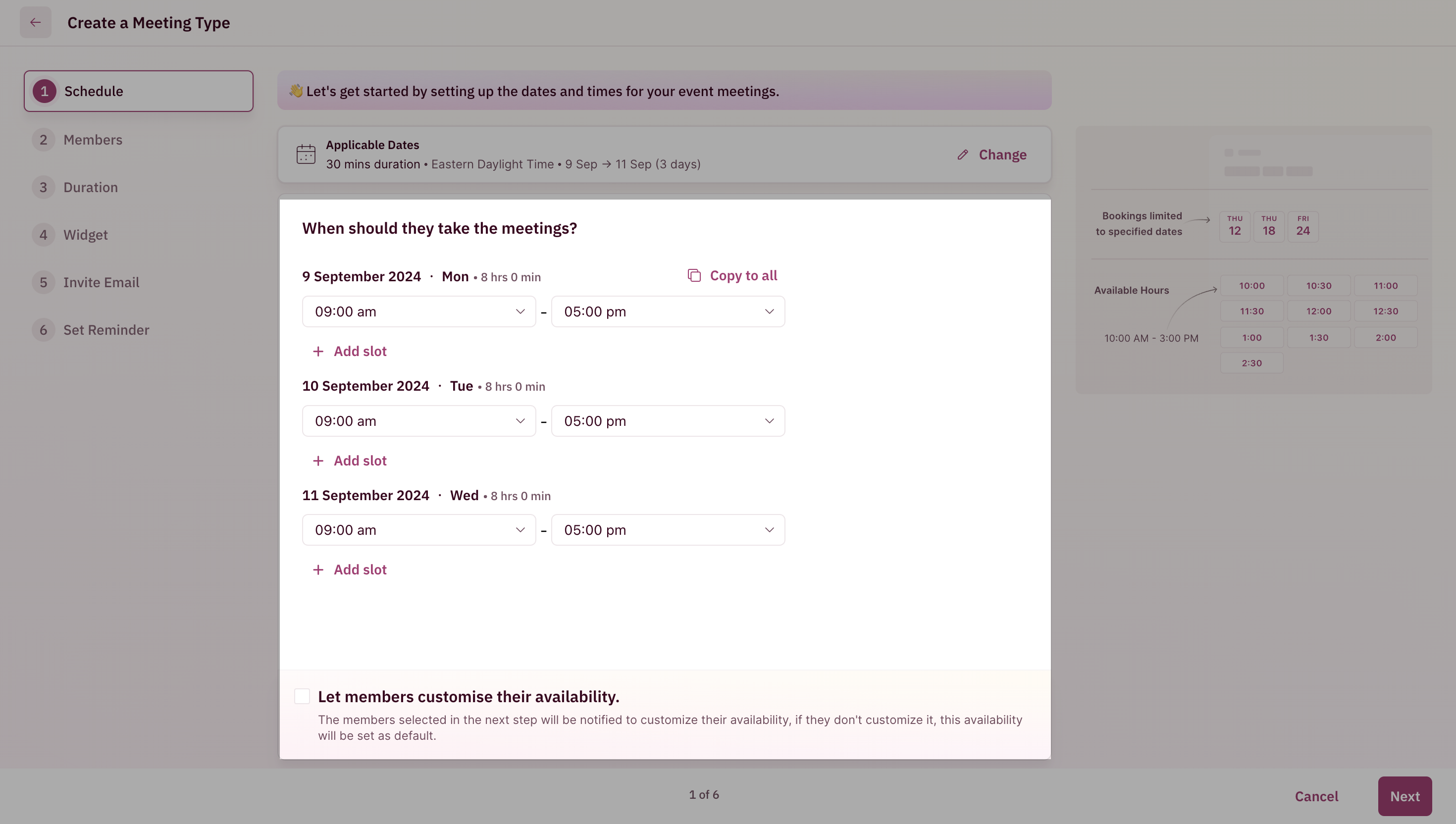
 2. After setting the event dates, you can specify the availability for those days. Alternatively, you can also allow participants to set their availability for the event by checking the box.
 ### Adding Members and Configuring the Ability to Block Other Meetings
1. Add the members who will be attending the event by clicking on “**Add members**"
### Adding Members and Configuring the Ability to Block Other Meetings
1. Add the members who will be attending the event by clicking on “**Add members**"
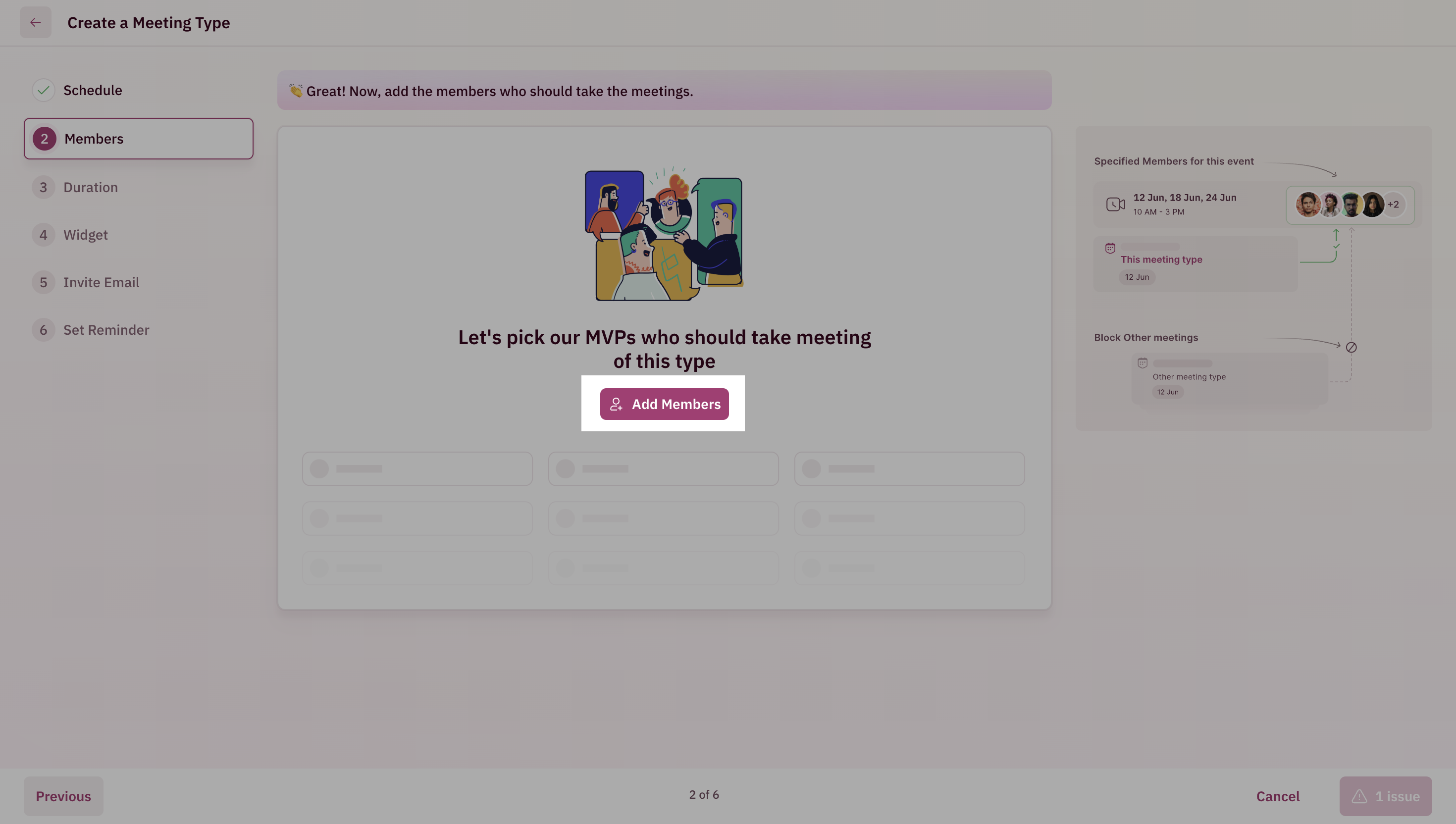 2. After adding the members, there will be two options: block other meetings for the members on the dates you have selected or allow other types of meetings. Based on your requirement pick one.
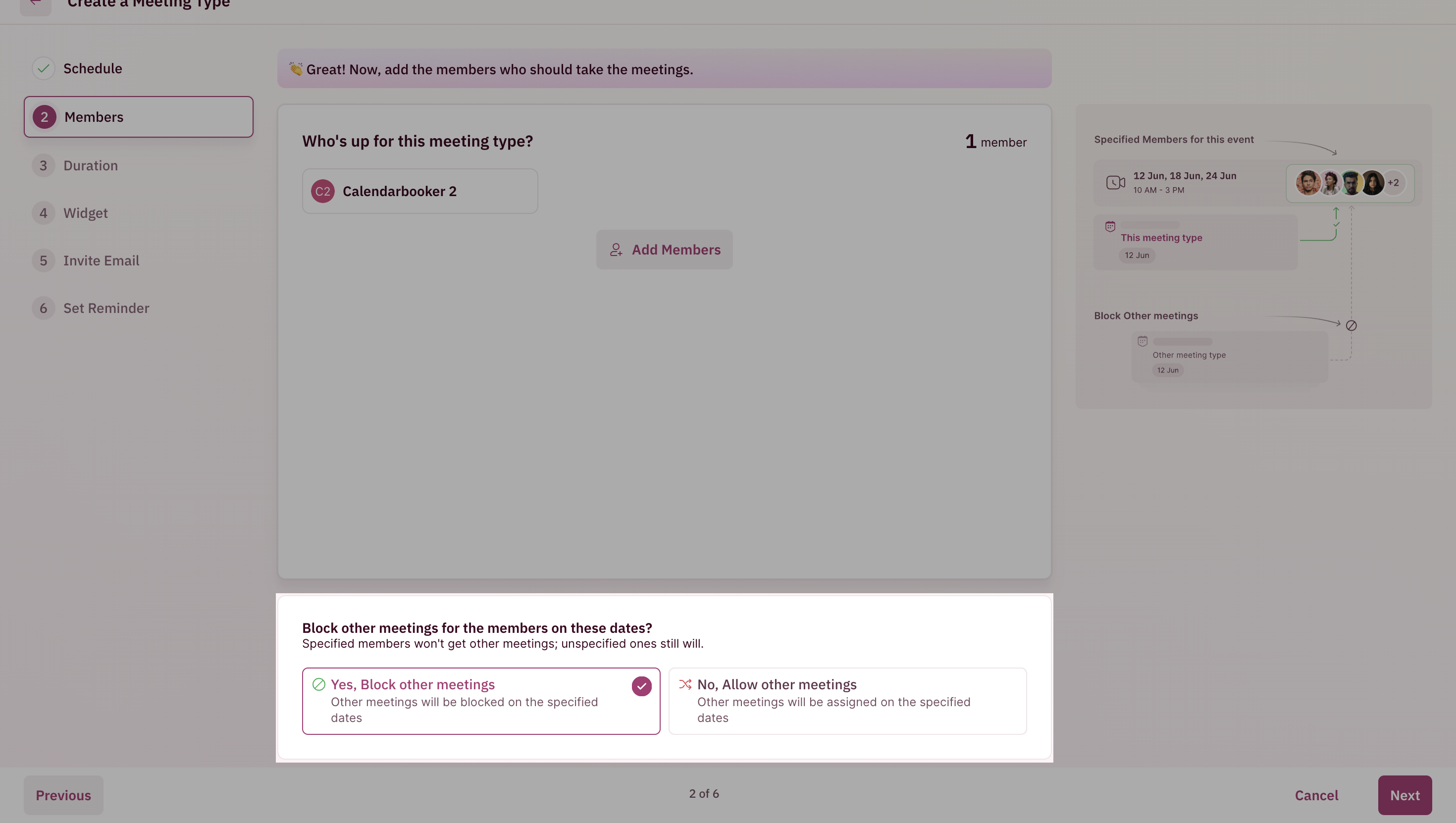 For example, if you picked to allow other meetings, then during the event they can also get meetings booked through your website booking page. If you choose to not allow other meetings, as the name suggests it will prevent meetings from other sources from getting booked during the event days for the members added to the event.
### Set Duration
Duration defines how long your meeting will last.
Under the ”**How long will this meeting last?**” section, use the dropdown to set your meeting duration. Your meeting duration can range between 15 minutes to 2 hours.
For example, if you picked to allow other meetings, then during the event they can also get meetings booked through your website booking page. If you choose to not allow other meetings, as the name suggests it will prevent meetings from other sources from getting booked during the event days for the members added to the event.
### Set Duration
Duration defines how long your meeting will last.
Under the ”**How long will this meeting last?**” section, use the dropdown to set your meeting duration. Your meeting duration can range between 15 minutes to 2 hours.
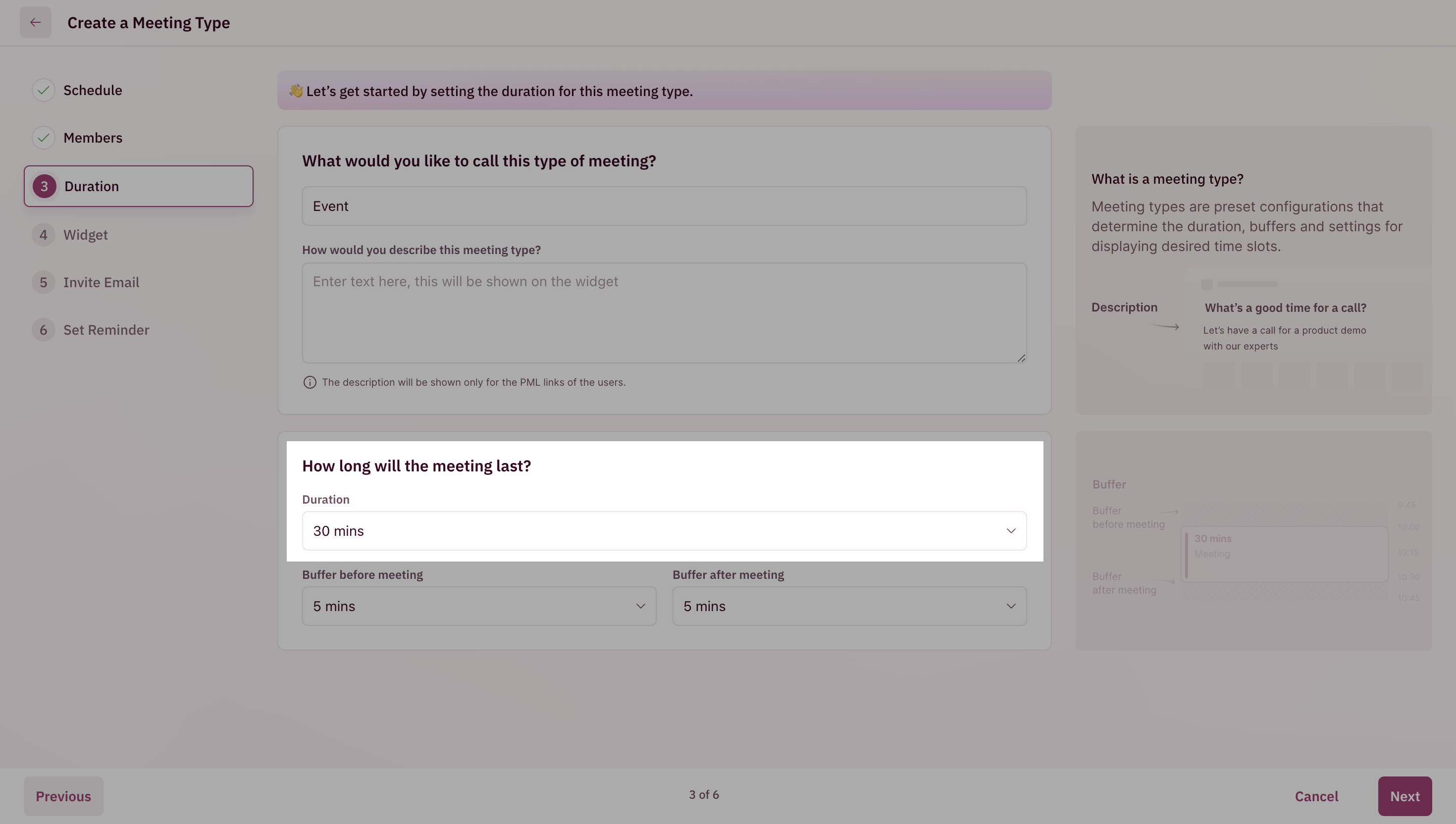 This tells RevenueHero to send a meeting invite to your prospects for the duration you set.
### Set Buffer Times
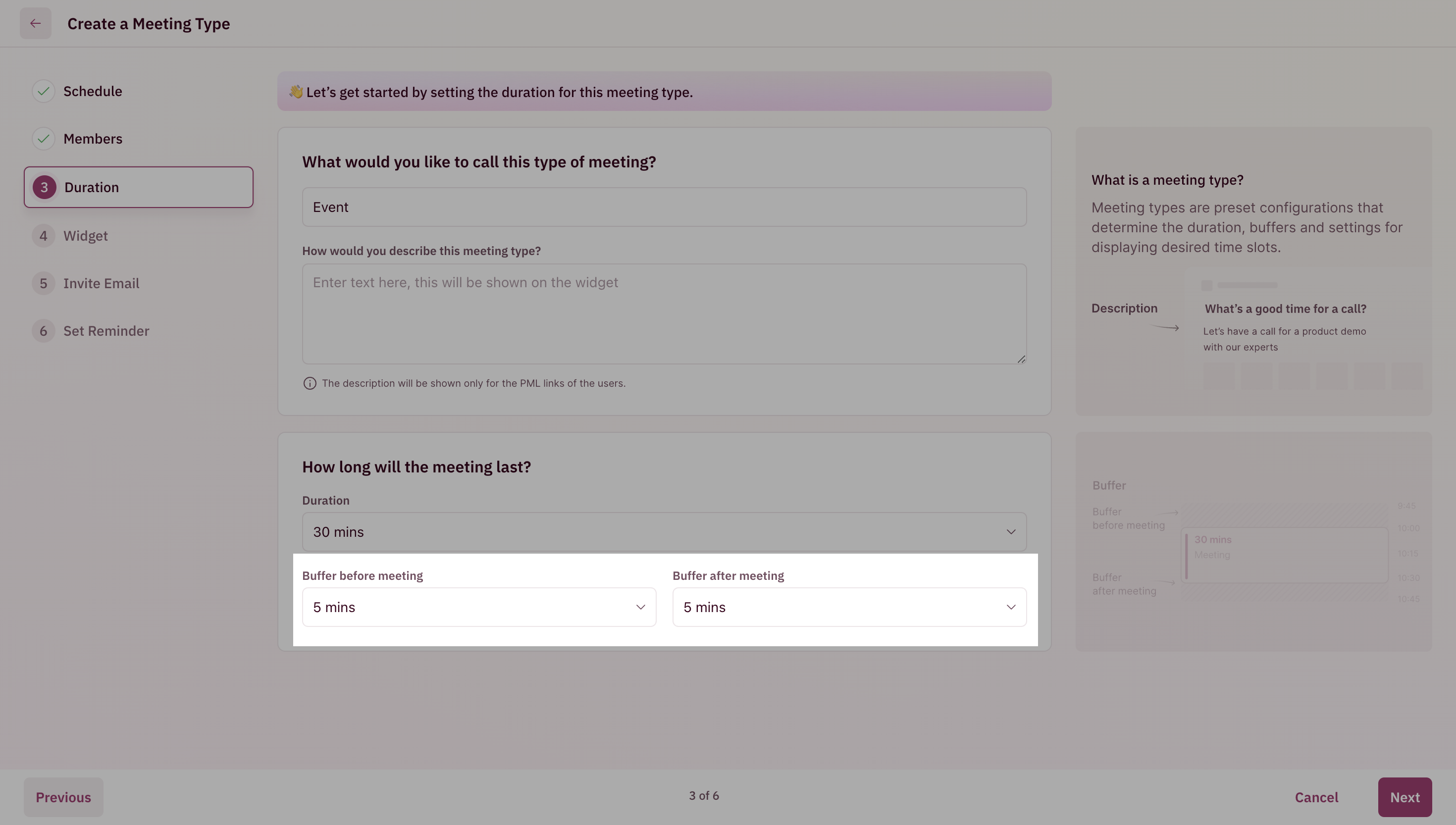
Buffer time is the time gap that you can give your reps before two meetings.
RevenueHero can automatically block this extra time before and after a meeting. This way, reps have enough time to usually wrap up, prepare, or just take a breather before/after a meeting.
This tells RevenueHero to send a meeting invite to your prospects for the duration you set.
### Set Buffer Times
Buffer time is the time gap that you can give your reps before two meetings.
RevenueHero can automatically block this extra time before and after a meeting. This way, reps have enough time to usually wrap up, prepare, or just take a breather before/after a meeting.
 ### Configure greeting message
You can change what text prospects see on the scheduler when they try to book a demo with you.
Use the text field under the ”Greeting Text” field to change how you’d like to greet your prospects.
### Configure greeting message
You can change what text prospects see on the scheduler when they try to book a demo with you.
Use the text field under the ”Greeting Text” field to change how you’d like to greet your prospects.
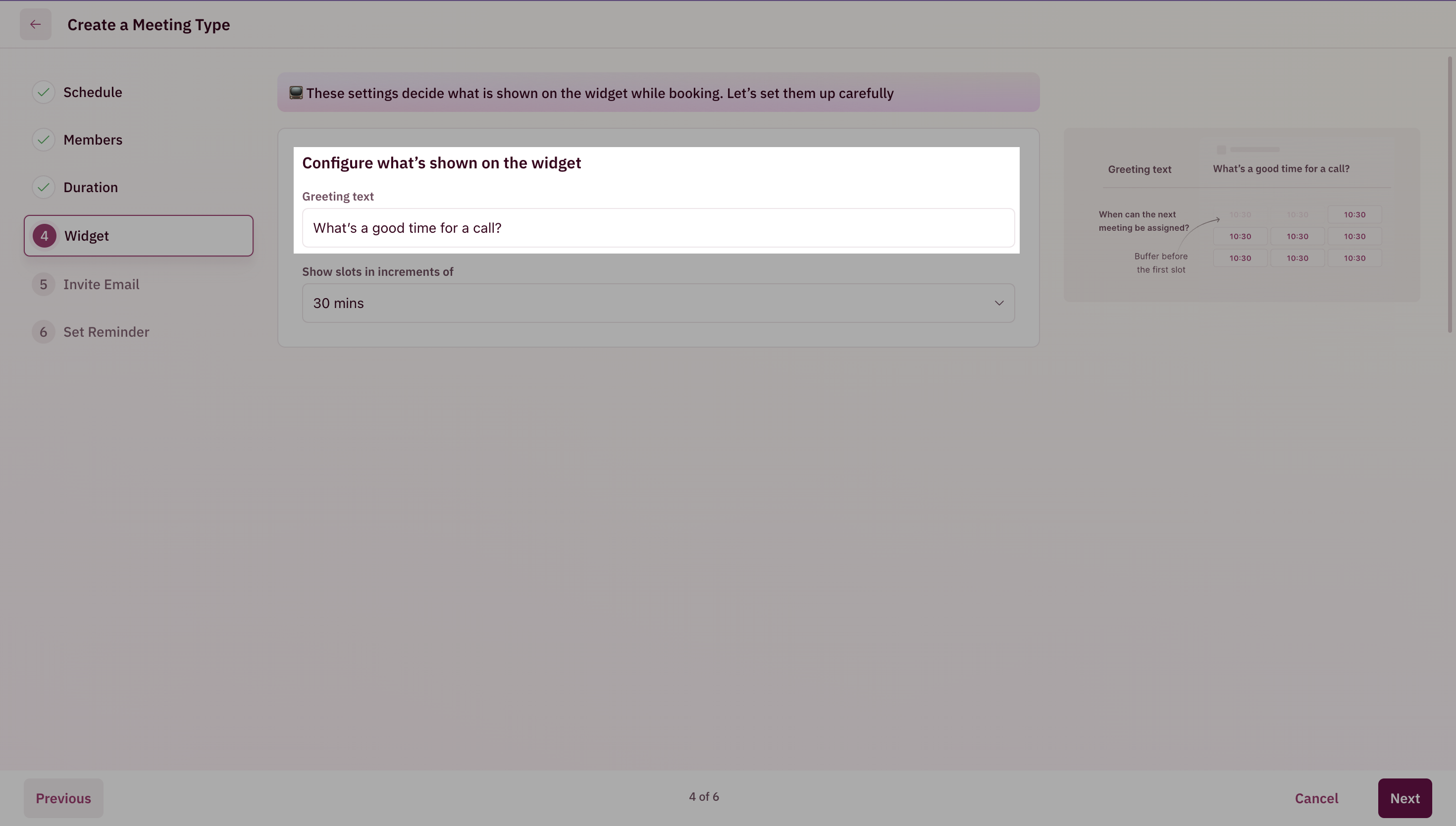 ### Choose how time slots should be shown
Time slots displayed to your prospects can be shown in increments of 15 minutes, 30 minutes, or 60 minutes.
### Choose how time slots should be shown
Time slots displayed to your prospects can be shown in increments of 15 minutes, 30 minutes, or 60 minutes.
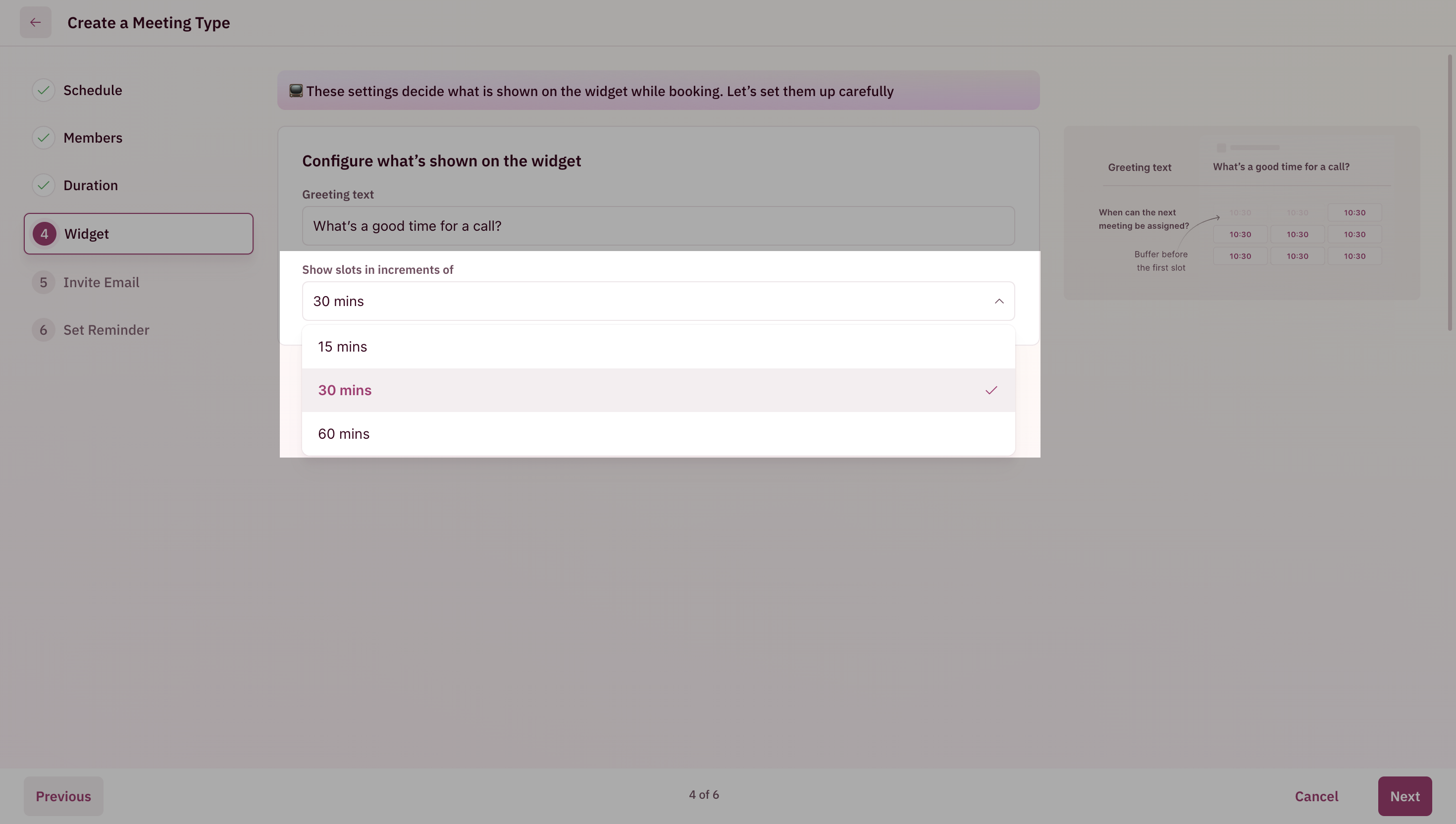 For example, if you choose increments of 15 minutes, your prospects will see the following time slots:
1. 9:00 am
2. 9:15 am
3. 9:30 am
4. 9:40 am
and so on.
### Customize invite email
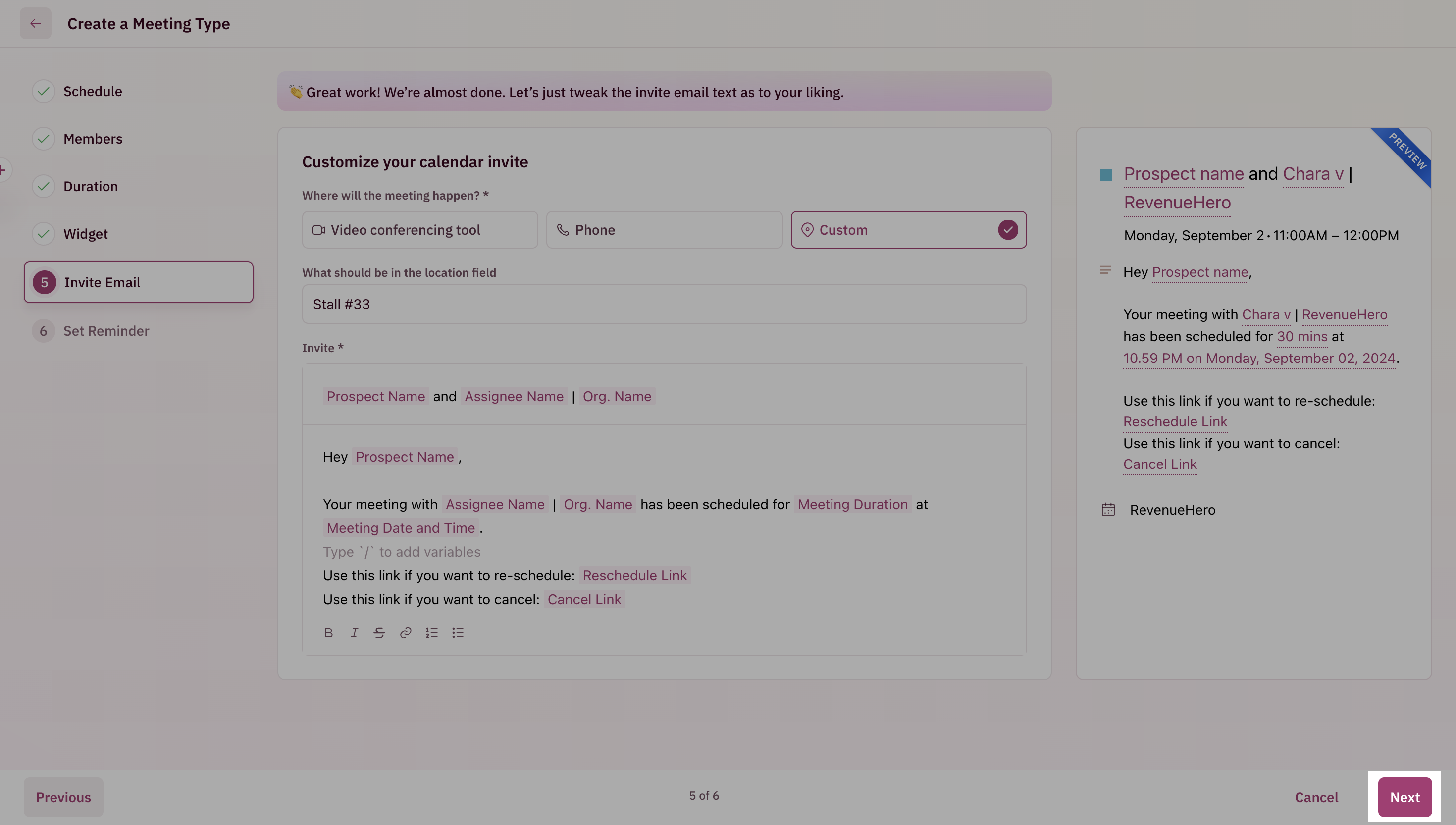
1. You can customize the content of the calendar invitation that gets sent to the customer based on your company’s branding and communication style.
For example, if you choose increments of 15 minutes, your prospects will see the following time slots:
1. 9:00 am
2. 9:15 am
3. 9:30 am
4. 9:40 am
and so on.
### Customize invite email
1. You can customize the content of the calendar invitation that gets sent to the customer based on your company’s branding and communication style.
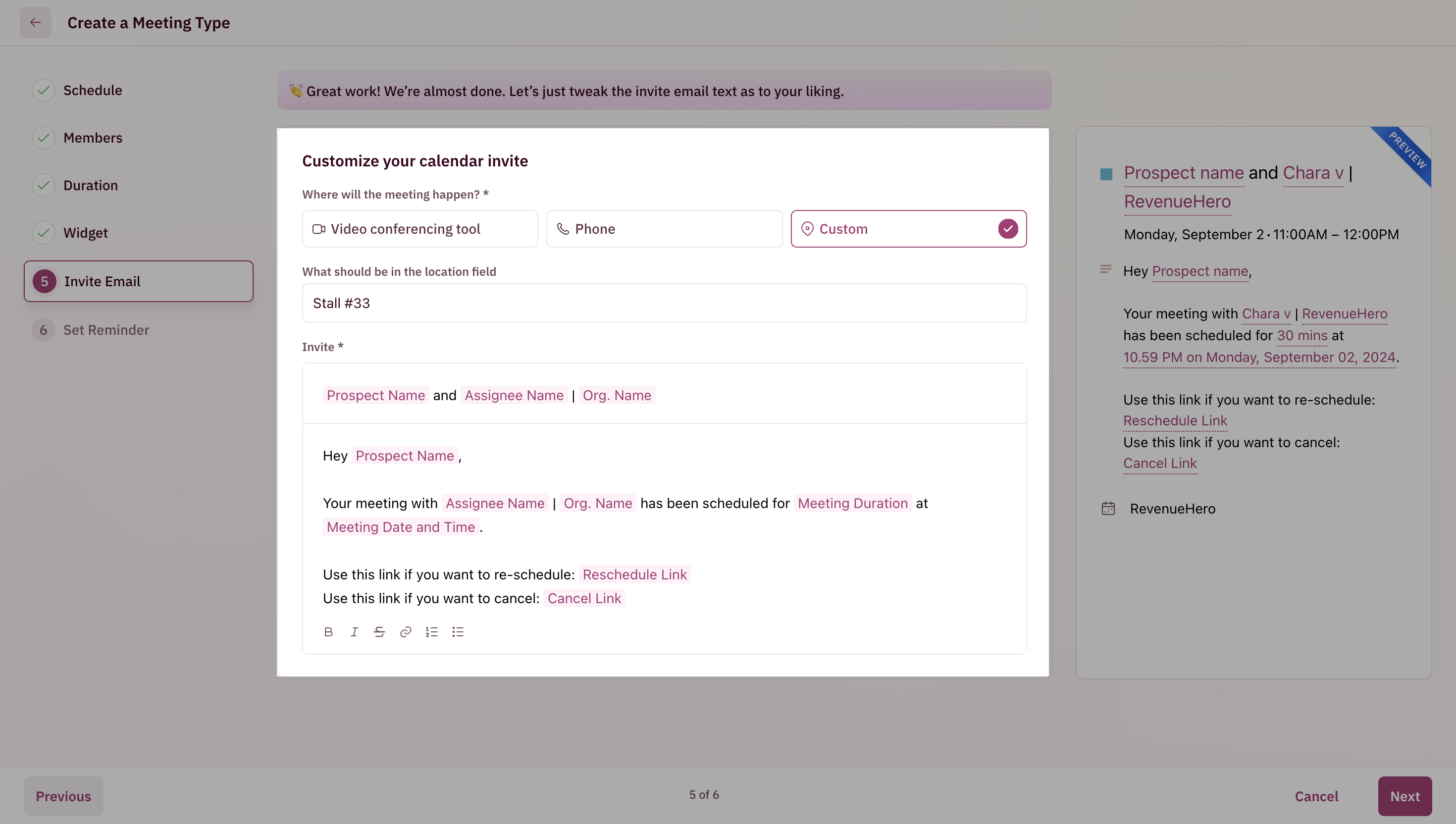 2. You can include tokens in the invite to make the invitation email more suited to the prospect who booked the meeting.
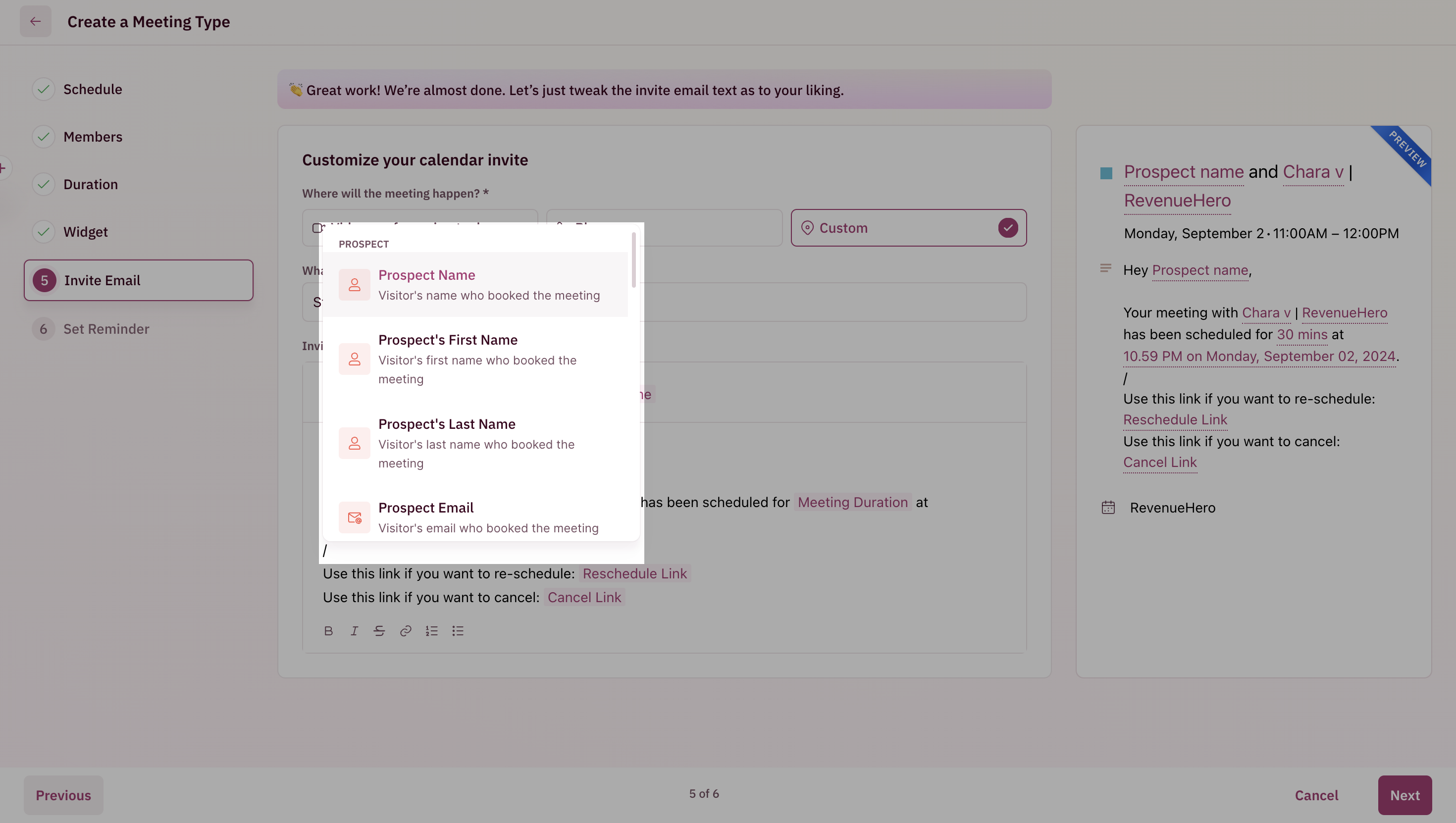 3. Click the ”Next” button after you’ve customized your invite email.
 \###Customize reminder email
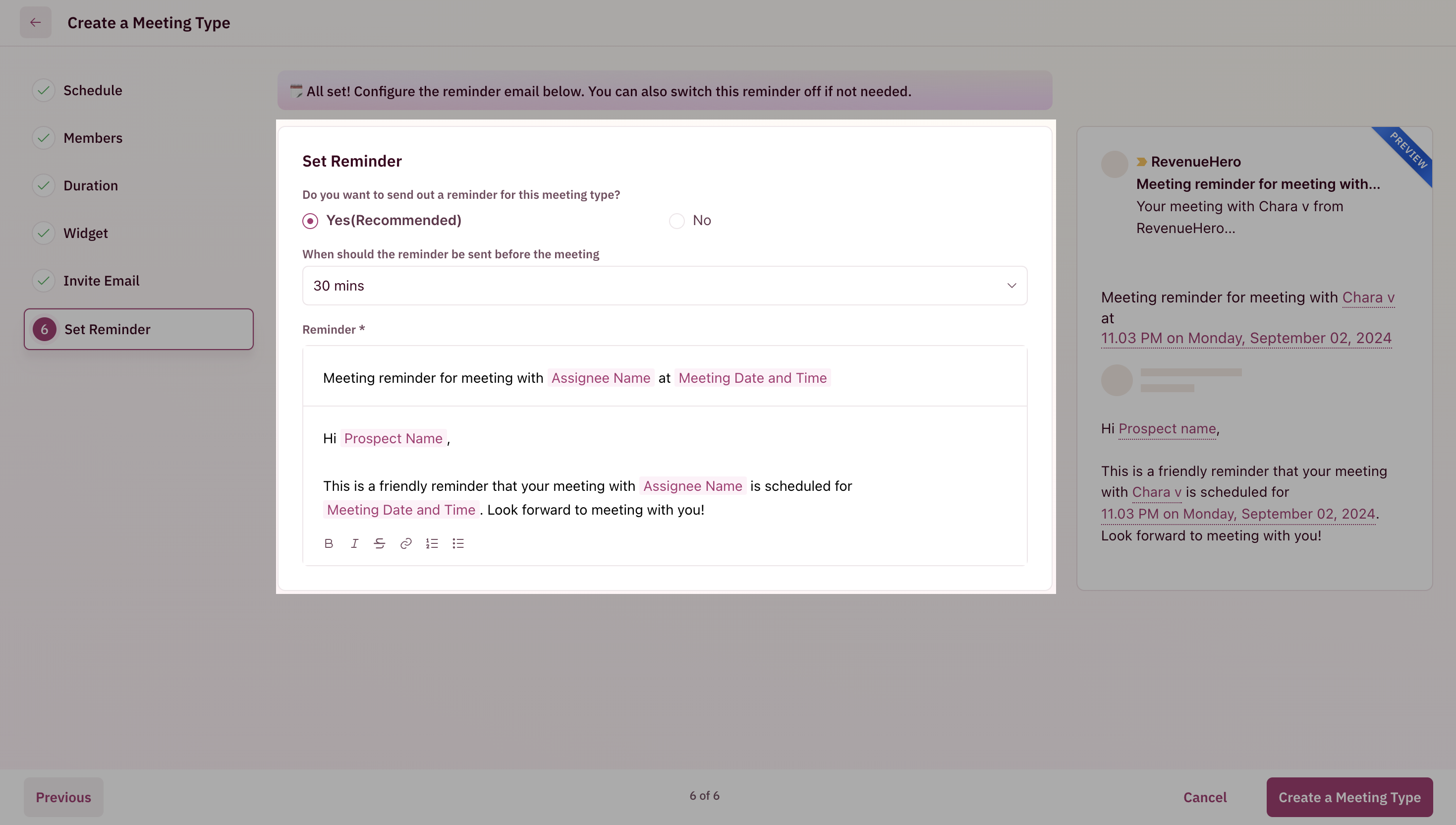
You can choose to send one reminder email (or not send it) before your call begins. You can customize its contents and ensure you have higher chances of people showing up for your demo calls.
\###Customize reminder email
You can choose to send one reminder email (or not send it) before your call begins. You can customize its contents and ensure you have higher chances of people showing up for your demo calls.
 **NOTE**
You can create multiple reminders using RevenueHero’s workflows.
Click the ”Create a Meeting Type” button after you’ve customized your reminders.
That’s it! You’ve successfully created a new Meeting Type. 🎉🎉🎉
**NOTE**
You can create multiple reminders using RevenueHero’s workflows.
Click the ”Create a Meeting Type” button after you’ve customized your reminders.
That’s it! You’ve successfully created a new Meeting Type. 🎉🎉🎉