> ## Documentation Index
> Fetch the complete documentation index at: https://help.revenuehero.io/llms.txt
> Use this file to discover all available pages before exploring further.
# How to map your web form in RevenueHero?
> Mapping your web form allows RevenueHero to use each field in your form as routing conditions.
Mapping your lead intake form is the first step in setting up your distribution workflows in RevenueHero. The mapping allows RevenueHero to use each one of your form input fields (visible and hidden) as conditions in routing rules.
**NOTE**
RevenueHero only listens to the form submission to trigger the scheduling widget. It does not interfere with any of your existing data or current form functions.
To map your form:
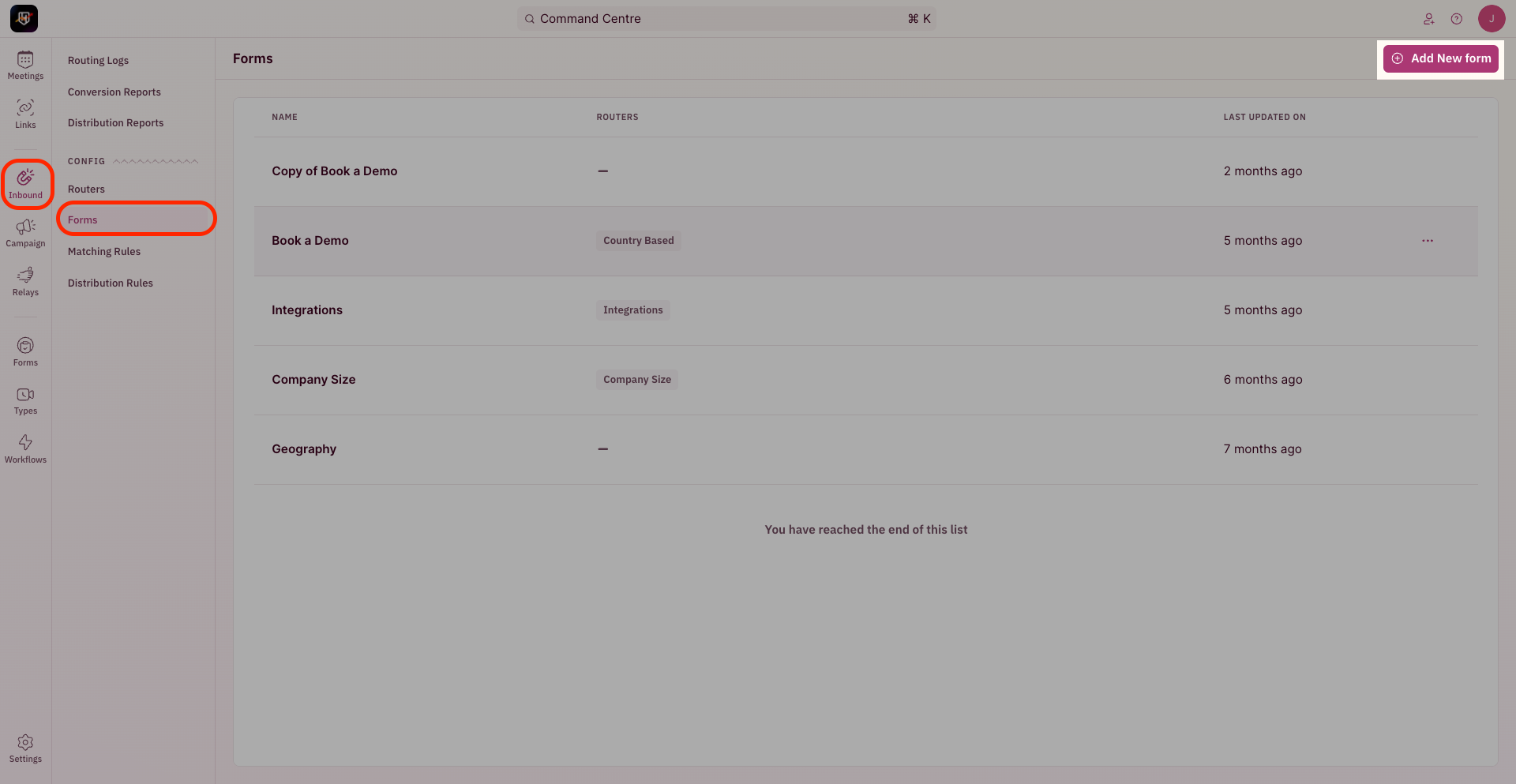
1. In the navigation panel, click on **Inbound → Forms**.
2. Click on Add new form
 3. Name your form mapping to ensure that you’re able to recollect which form was mapped
4. In the form selector field add the selector ID of your form. (This can be found by inspecting your form on the page and looking up the form id associated with it). This is required for RevenueHero to know which form submission to listen to, before triggering the scheduling widget.
For specific instructions for your webform, here are some form providers that we work with:
Contact us at [support@revenuehero.io](mailto:support@revenuehero.io) if you don't find your form provider on this list.
RevenueHero is form agnostic and can work with any form - we'll be quick to add help documentation for your provider.
Click here to understand how to work with a custom form.
3. Name your form mapping to ensure that you’re able to recollect which form was mapped
4. In the form selector field add the selector ID of your form. (This can be found by inspecting your form on the page and looking up the form id associated with it). This is required for RevenueHero to know which form submission to listen to, before triggering the scheduling widget.
For specific instructions for your webform, here are some form providers that we work with:
Contact us at [support@revenuehero.io](mailto:support@revenuehero.io) if you don't find your form provider on this list.
RevenueHero is form agnostic and can work with any form - we'll be quick to add help documentation for your provider.
Click here to understand how to work with a custom form.