> ## Documentation Index
> Fetch the complete documentation index at: https://help.revenuehero.io/llms.txt
> Use this file to discover all available pages before exploring further.
# Slack notification for Meeting completion
> Learn how to set up a workflow to receive Slack messages when a RevenueHero meeting ends
One can set up a Slack notification to be received in your channel of choice when a RevenueHero meeting ends. This is commonly set up to take quick action from inside Slack like marking a meeting as No-Show.
## Set up workflow
A workflow in RevenueHero can be quickly [set up in 4 simple steps](/workflows/create-workflows). In this case, we'll go over what trigger and action to choose to set up a **Mark No-Show** workflow and that can be applied to the above workflow creation guide.
#### Choose Trigger
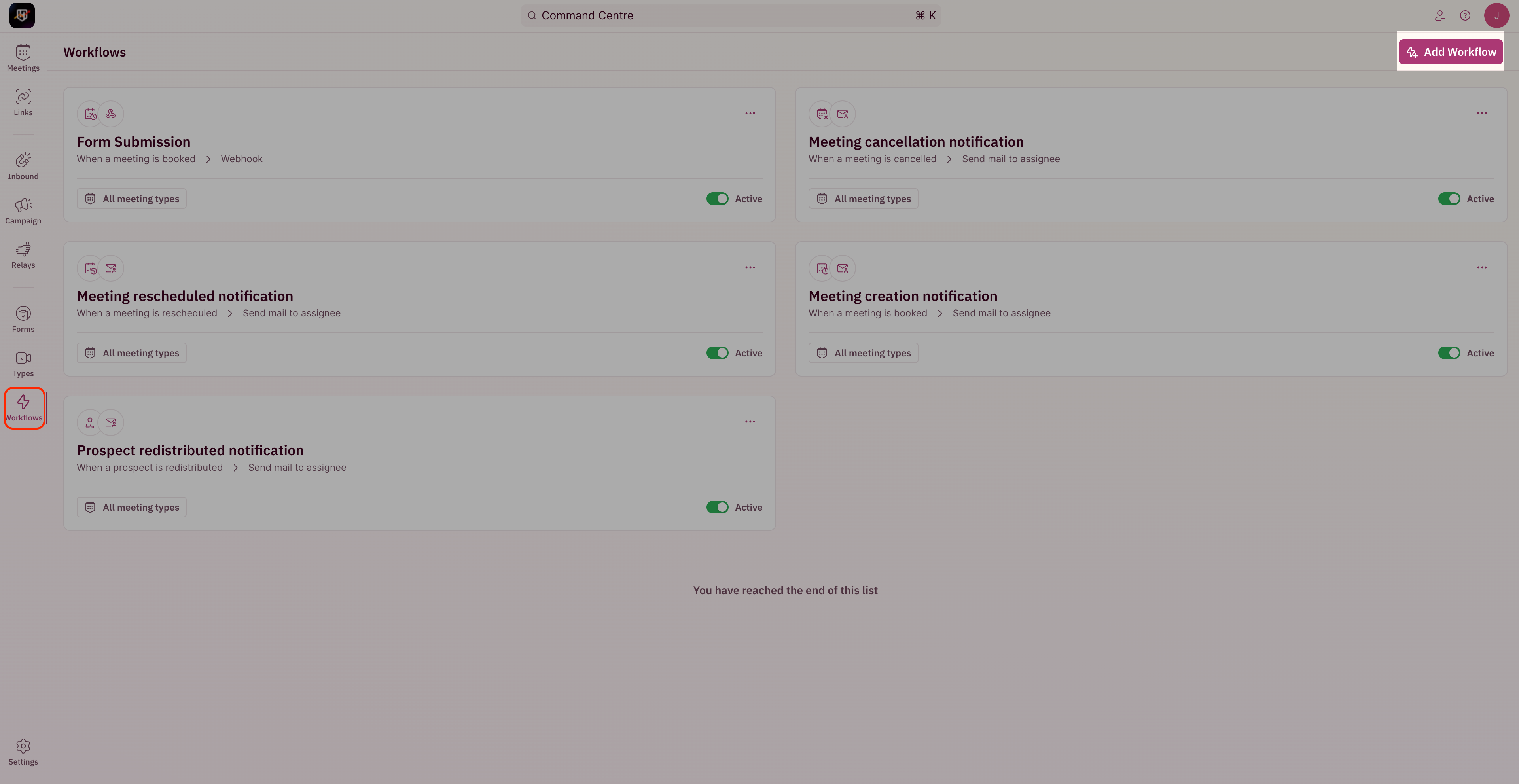
Navigate to Workflows by going to **Sidebar** -> **Workflows** -> **Add Workflow** in the top-right corner.
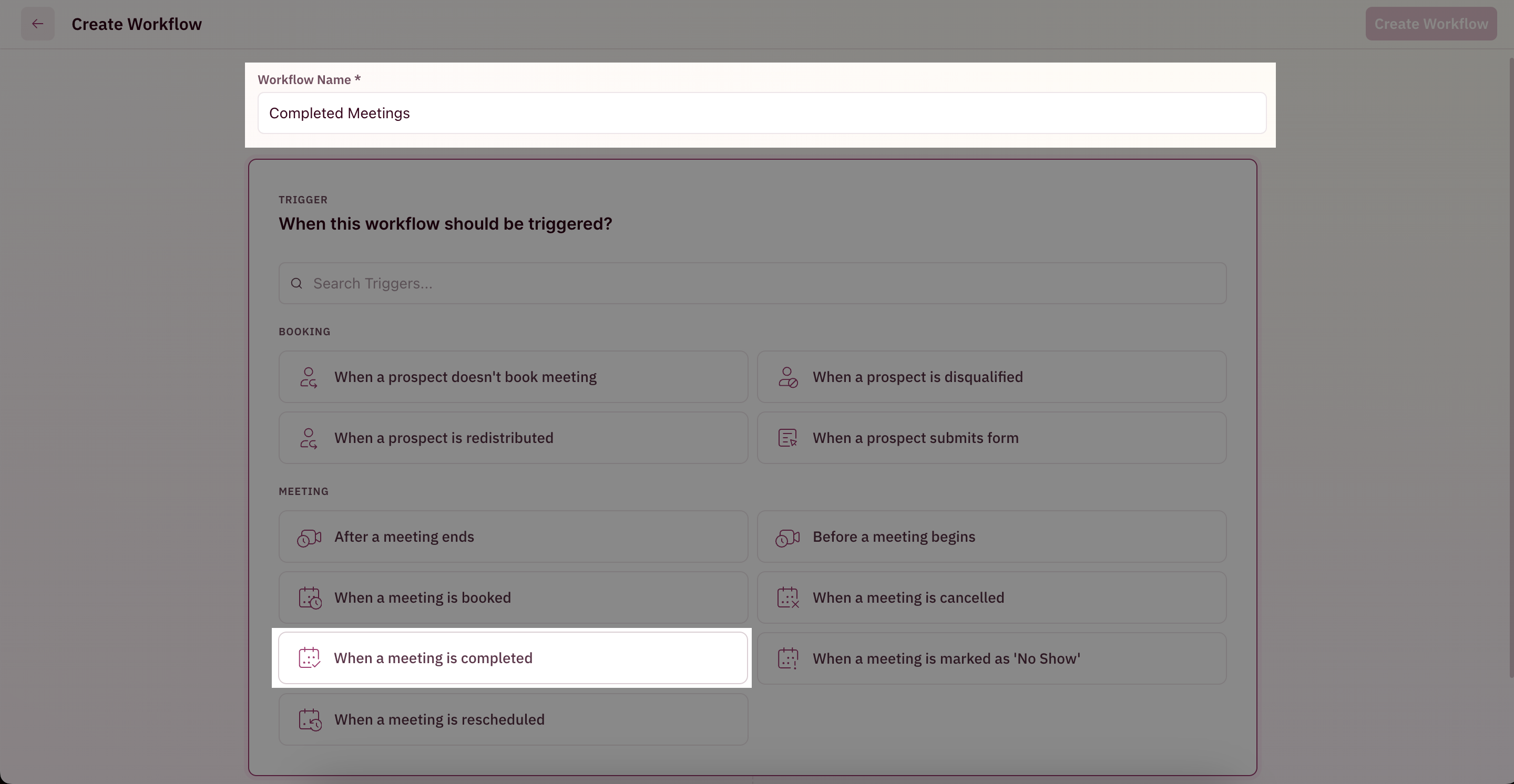
 Choose **When a meeting is completed** as the trigger. RevenueHero sets a meeting as **Completed** when the meeting ends. The meeting can be marked for No-Show only after the meeting is completed.
 #### Choose Meeting Types
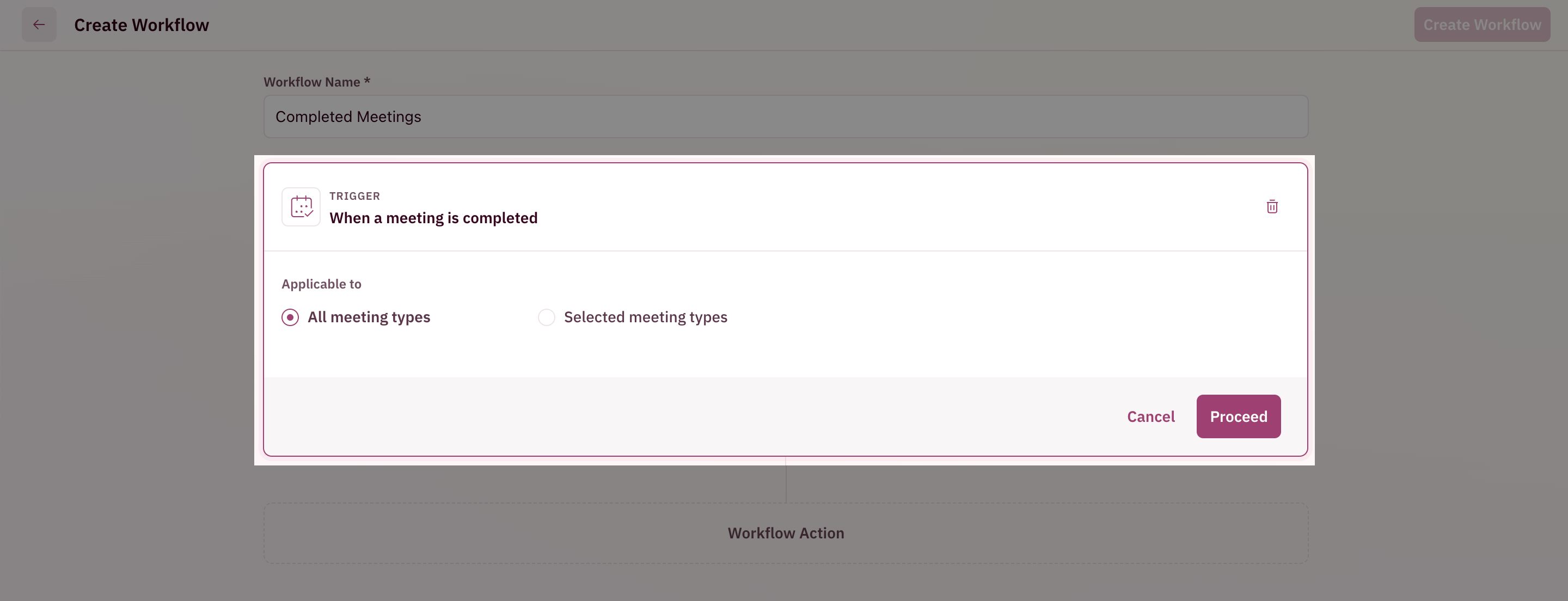
You can restrict the workflow to notify meetings originating from specific Meeting Types or it can be configured to notify if any meeting is completed.
#### Choose Meeting Types
You can restrict the workflow to notify meetings originating from specific Meeting Types or it can be configured to notify if any meeting is completed.
 #### Choose Action
Since we want to mark a meeting as a No-Show from inside Slack, we'll be choosing **Send message to Slack** as the action.
#### Choose Action
Since we want to mark a meeting as a No-Show from inside Slack, we'll be choosing **Send message to Slack** as the action.
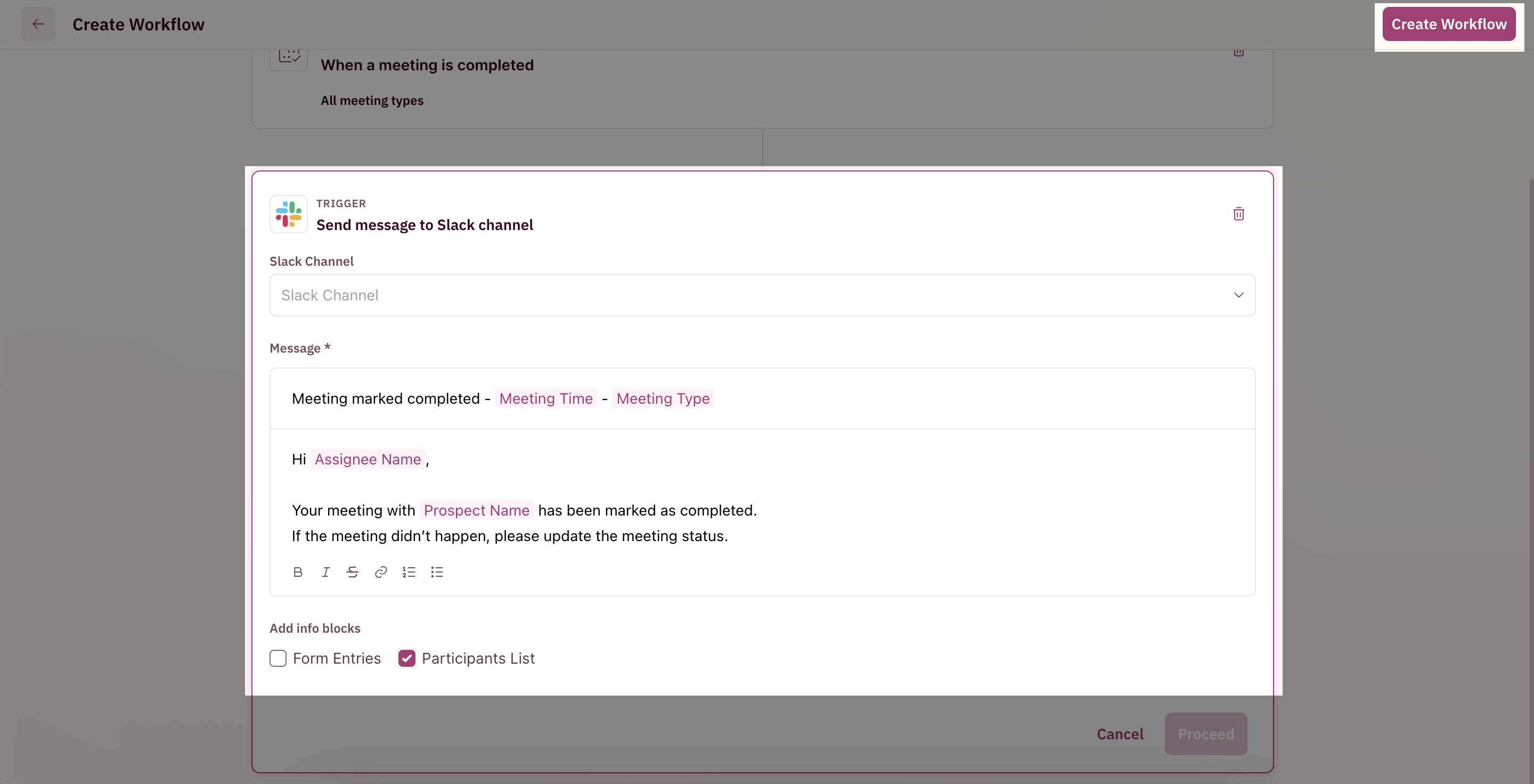
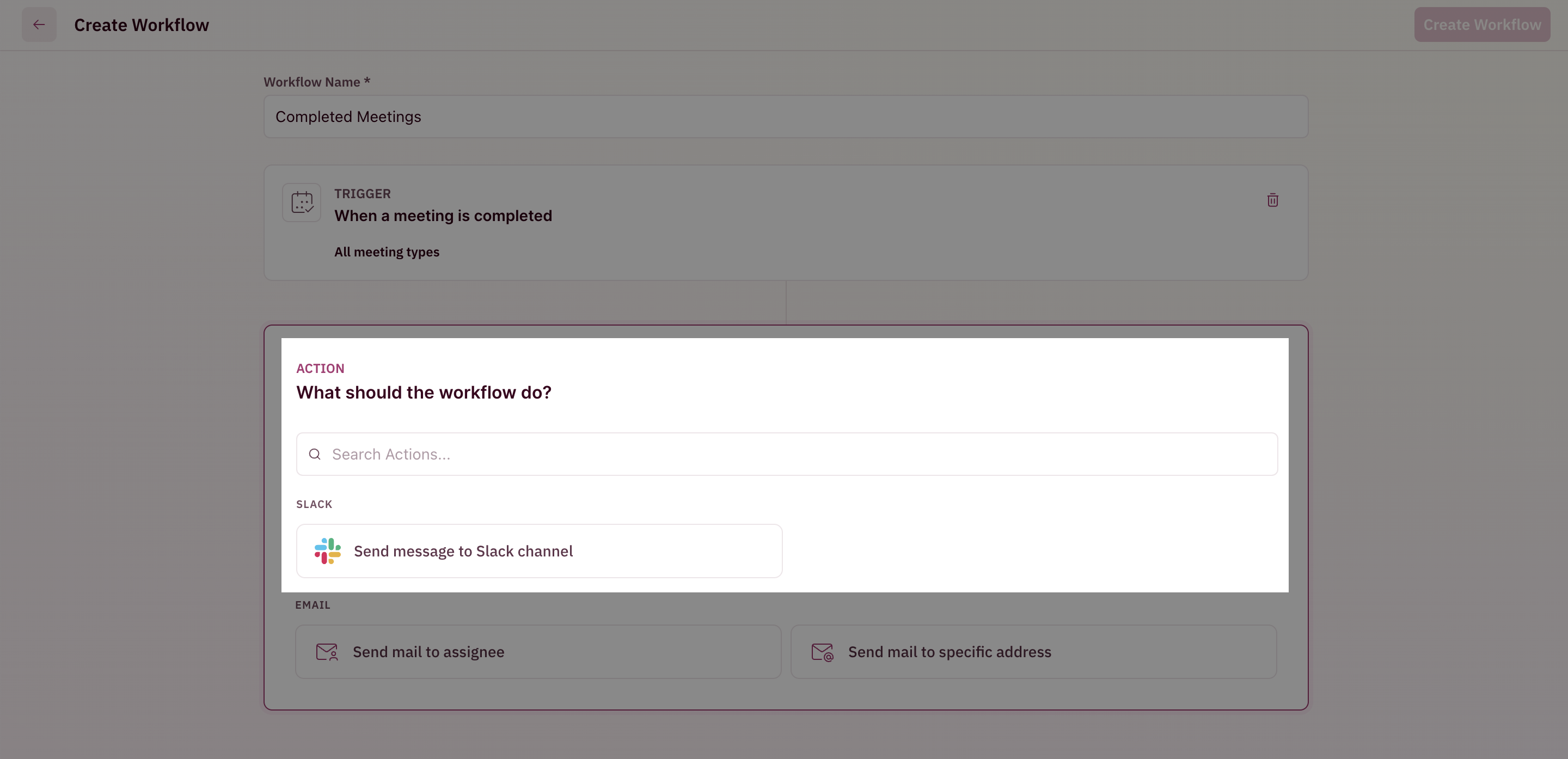 Once you choose the action, you can customize the message you want to receive in the Slack message with appropriate placeholders. Once it looks good, you can save it with a name to activate the workflow.
Once active, you should be receiving the Slack messages for your completed meetings in the configured Slack channel 🎉
Once you choose the action, you can customize the message you want to receive in the Slack message with appropriate placeholders. Once it looks good, you can save it with a name to activate the workflow.
Once active, you should be receiving the Slack messages for your completed meetings in the configured Slack channel 🎉
 ## Mark as No-Show in Slack
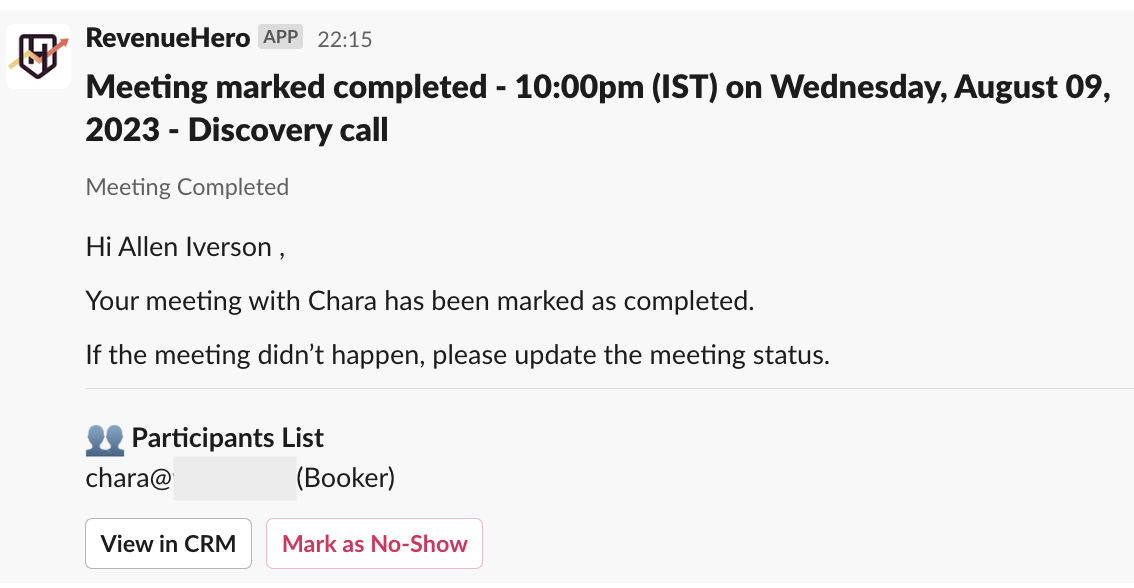
An example Slack message for your meeting completion notification will look something like this. To mark the meeting as a No-Show all one has to do is click the button at the bottom of the message that reads **Mark as No-Show**, and it'll be marked as a No-Show in RevenueHero which will in turn be synced into your CRM in the prospect's properties.
## Mark as No-Show in Slack
An example Slack message for your meeting completion notification will look something like this. To mark the meeting as a No-Show all one has to do is click the button at the bottom of the message that reads **Mark as No-Show**, and it'll be marked as a No-Show in RevenueHero which will in turn be synced into your CRM in the prospect's properties.