> ## Documentation Index
> Fetch the complete documentation index at: https://help.revenuehero.io/llms.txt
> Use this file to discover all available pages before exploring further.
# Overview of Workflows in RevenueHero
> Workflows in RevenueHero help configure notifications when certain events occur
A workflow in RevenueHero helps set up notifications when certain events occur within the product. A workflow comprises three parts --
1. Choose your [Trigger](/workflows/overview#workflow-trigger)
2. Choose [Meeting Types](/workflows/overview#meeting-type-restriction) to take actions for
3. Choose your [Action](/workflows/overview#workflow-action)
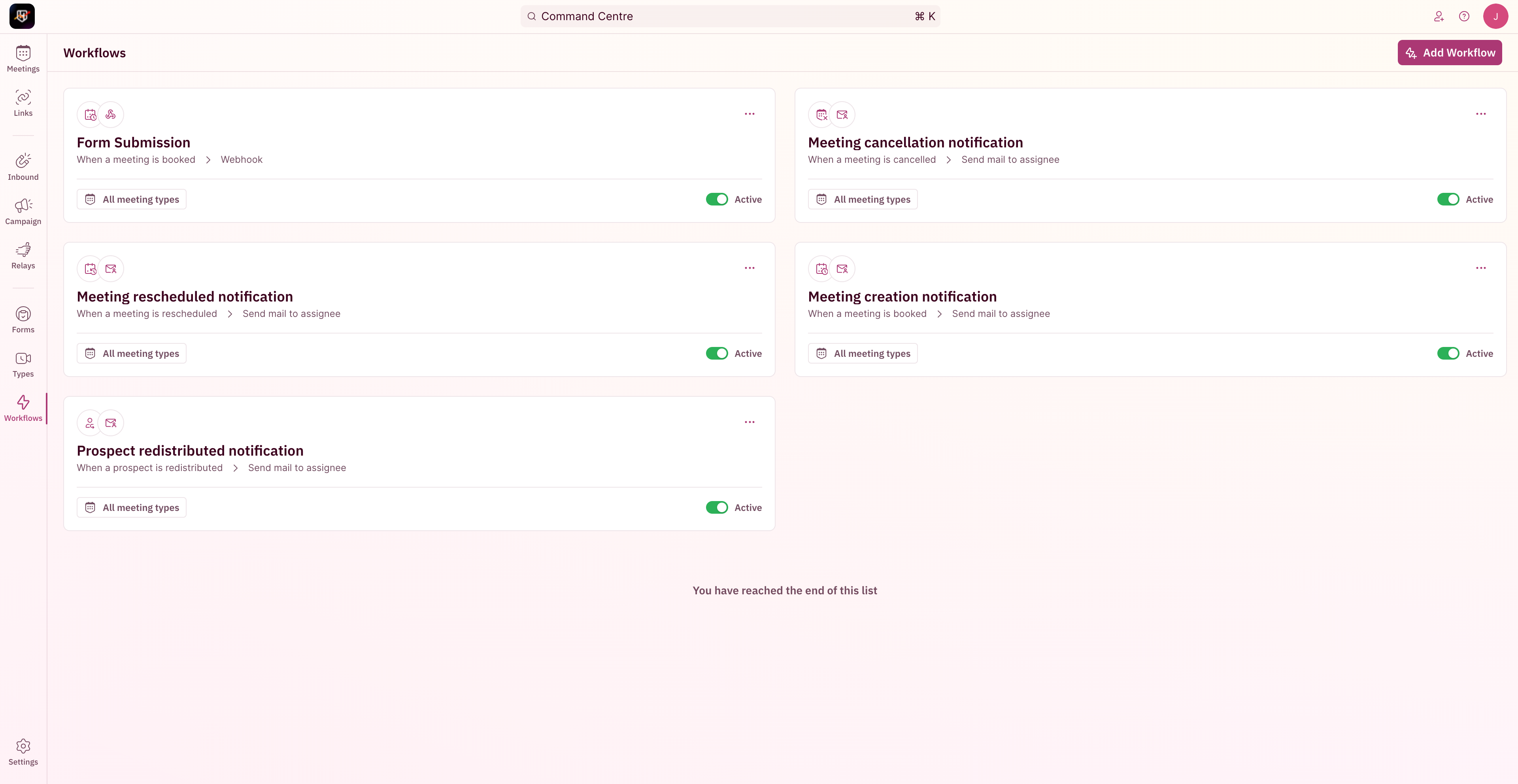 Here's a detailed step-by-step [guide to creating a new Workflow](/workflows/create-workflows).
***
## Workflow Trigger
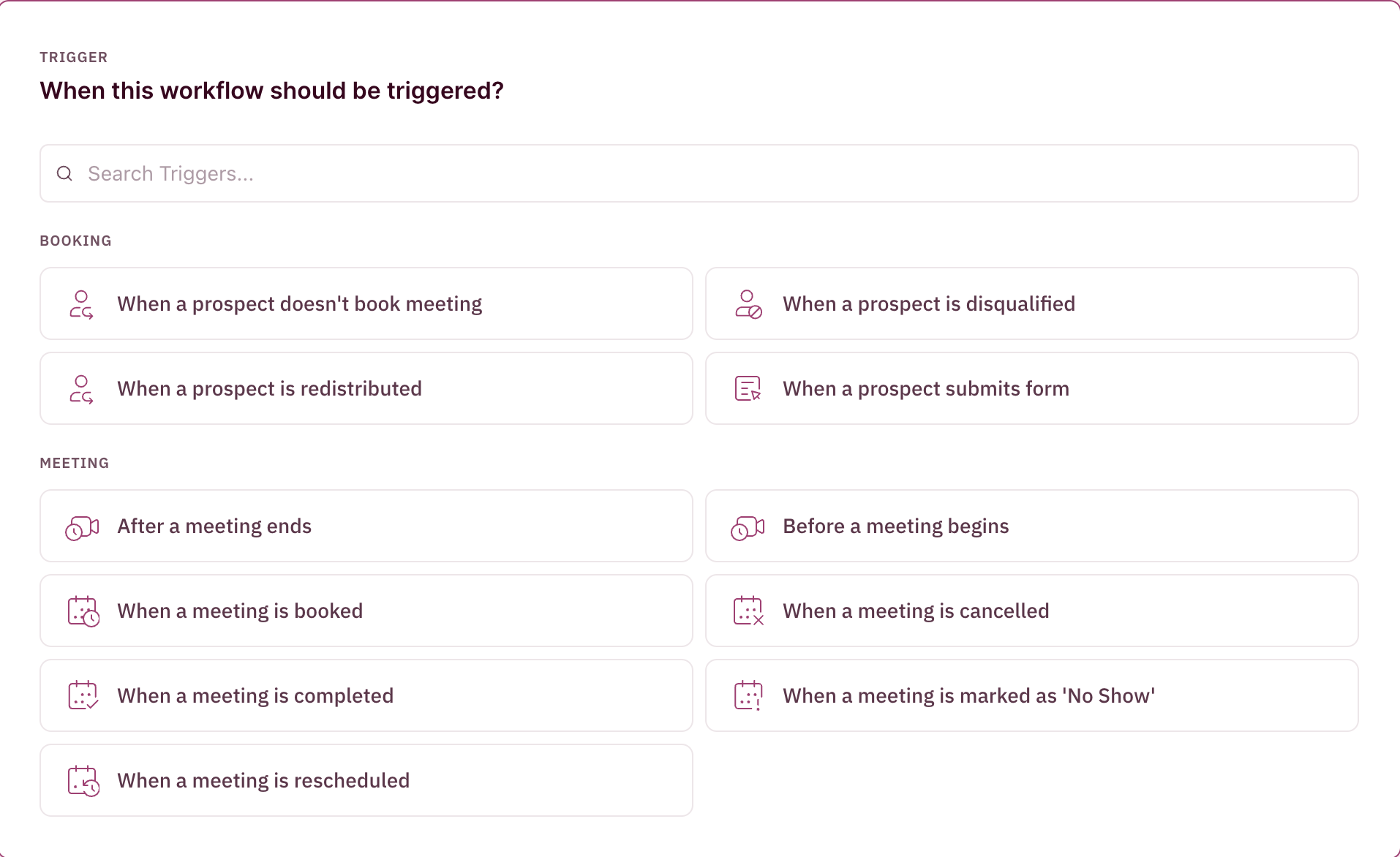
Triggers are the starting point for a workflow to run. Configured workflows are run when the event specific in the Trigger happens in the product.
**NOTE**
The supported triggers cover the lifecycle of a meeting from before it's created when it's created to when it's done. So you can configure multiple workflows to track progress across stages.
1. When a prospect doesn't book a meeting
2. When a prospect is disqualified
3. When a prospect is redistributed
4. When a prospect submits the form
5. After a meeting ends
6. Before a meeting begins
7. When a meeting is booked
8. When a meeting is canceled
9. When a meeting is completed
10. When a meeting is marked as '**No Show**'
11. When a meeting is rescheduled
Here's a detailed step-by-step [guide to creating a new Workflow](/workflows/create-workflows).
***
## Workflow Trigger
Triggers are the starting point for a workflow to run. Configured workflows are run when the event specific in the Trigger happens in the product.
**NOTE**
The supported triggers cover the lifecycle of a meeting from before it's created when it's created to when it's done. So you can configure multiple workflows to track progress across stages.
1. When a prospect doesn't book a meeting
2. When a prospect is disqualified
3. When a prospect is redistributed
4. When a prospect submits the form
5. After a meeting ends
6. Before a meeting begins
7. When a meeting is booked
8. When a meeting is canceled
9. When a meeting is completed
10. When a meeting is marked as '**No Show**'
11. When a meeting is rescheduled
 ## Meeting Type restriction
A workflow can be configured to run for all triggers or for triggers that originate from certain sources having specific Meeting Types.
## Meeting Type restriction
A workflow can be configured to run for all triggers or for triggers that originate from certain sources having specific Meeting Types.
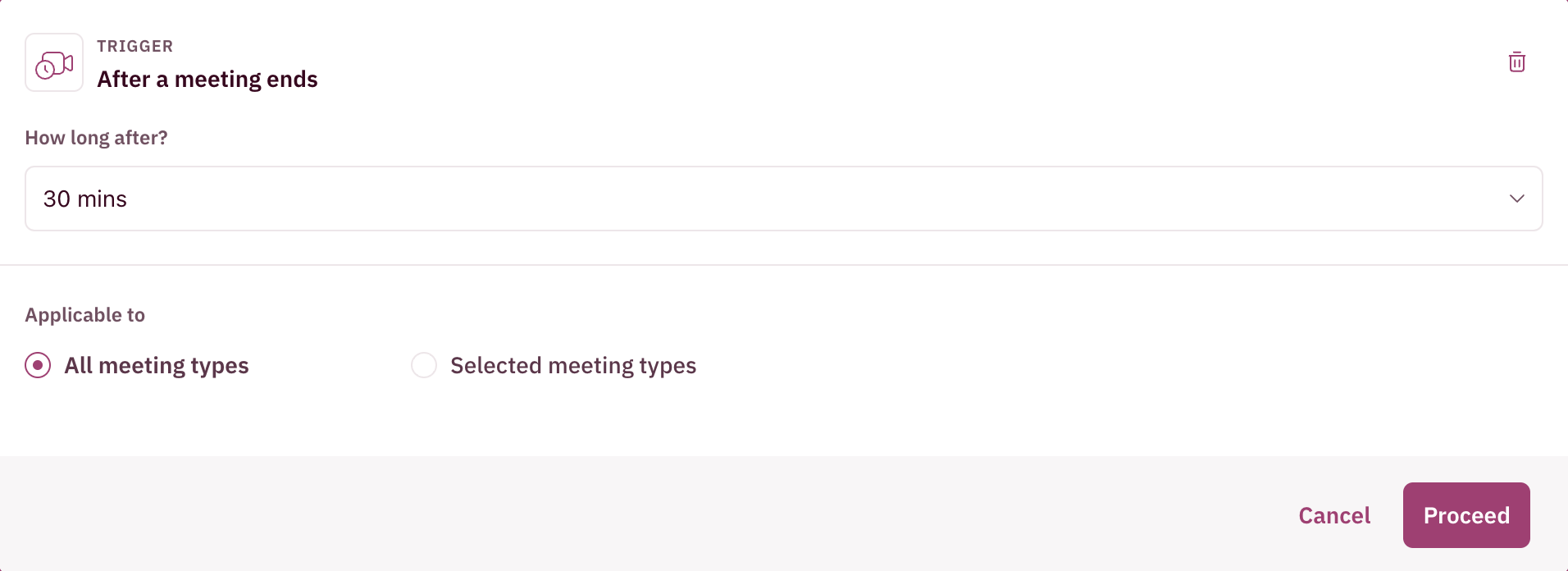 1. When **All Meeting Types** is chosen, the workflow will run for configured triggers for any meeting from any Meeting Type sources.
2. When **Selected Meeting Types** is chosen, the workflow will run for configured triggers from any meeting from selected Meeting Type sources.
## Workflow Action
Actions are the notification unit that sends messages to the specified destinations based on configuration. Certain actions are not available for certain triggers due to the nature of the trigger. Unsupported triggers for each action have been listed under the action.
There are four destinations that one can send a notification to based on the chosen trigger:
1. Send a message to Slack Channel
Configurable for all triggers
2. Send mail to Assignee
Configurable for all triggers except **When a prospect submits form** and **When a prospect is disqualified**
3. Send mail to a specific address
Configurable for all triggers
4. Send a webhook
Configurable for all triggers
1. When **All Meeting Types** is chosen, the workflow will run for configured triggers for any meeting from any Meeting Type sources.
2. When **Selected Meeting Types** is chosen, the workflow will run for configured triggers from any meeting from selected Meeting Type sources.
## Workflow Action
Actions are the notification unit that sends messages to the specified destinations based on configuration. Certain actions are not available for certain triggers due to the nature of the trigger. Unsupported triggers for each action have been listed under the action.
There are four destinations that one can send a notification to based on the chosen trigger:
1. Send a message to Slack Channel
Configurable for all triggers
2. Send mail to Assignee
Configurable for all triggers except **When a prospect submits form** and **When a prospect is disqualified**
3. Send mail to a specific address
Configurable for all triggers
4. Send a webhook
Configurable for all triggers
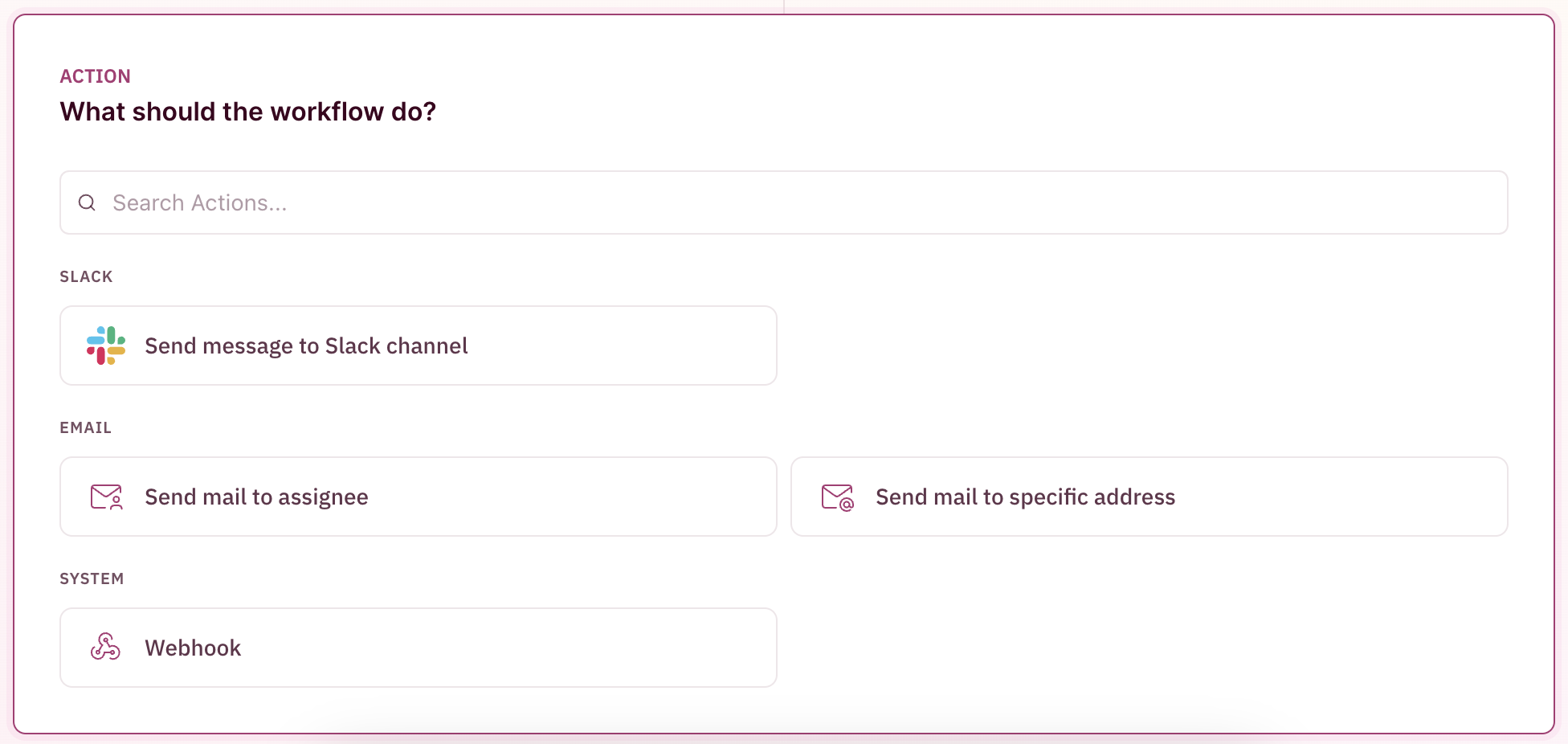
Once the preferred action is chosen, one can configure the **Title** and **Description** of the message that goes out in **Slack**/**Email**. While drafting the content, one can also use available **placeholders** whose values will be dynamically replaced.
## Placeholders and Info Blocks
Placeholders are single-valued dynamic blocks that can be inserted in between your text to insert dynamic values like Booker name, Assignee Name, etc.
1. **Company Name**
The booker's company name.
For example, `Secret Services Inc.`
2. **Account Name**
The assignee's company name.
For example, `RevenueHero`
3. **Booker Name**
The name of the booker.
For example, `Dr. No`
4. **Assignee Name**
The name of the assignee.
For example, `James Bond`
5. **Team Name**
The name of the team assignee belongs to.
For example, `Mi5 Field Agents`
6. **Duration**
The humanized text of the meeting duration.
For example, `30 minutes`
7. **Time**
The humanized meeting time.
For example, `Tuesday, March 07, 2023, at 01:00 am (India, Sri Lanka Time)`
8. **Meeting Link**
The link to the public meeting page in RevenueHero.
For example, `https://customer.revenuehero.io/meetings/abc1234`
9. **Conference Link**
The conference link for the meeting from Zoom, Google Meet, etc.
For example, `https://customer.revenuehero.io/meetings/abc1234/conference`
10. **Reschedule Link**
The rescheduling link for the meeting in RevenueHero.
For example, `https://customer.revenuehero.io/meetings/abc1234/reschedule`
11. **Cancel Link**
The cancellation link for the meeting in RevenueHero.
For example, `https://customer.revenuehero.io/meetings/abc1234/cancel`
12. **Meeting name**
The name of the meeting from RevenueHero.
For example, `Dr. No <> James Bond | Mi5 Demo`
13. **Meeting type name**
the name of the meeting type configuration in RevenueHero.
For example, `Mi5 Demo`
14. **Booker Email**
The email address of the booker of the meeting.
For example, `drno@evilvillainverse.com`
15. **Cancellation Reason**
The reason for cancellation that's entered when a meeting is canceled.
For example, `Conflicting date with another meeting`
16. **Form name**
The form in RevenueHero from which the meeting or submission originated
For example, `US Demo Form`
17. **Previous booking time**
The original meeting time when it is rescheduled. This is used in meeting time change notifications
For example, `Tuesday, March 05, 2023, at 01:00 am (India, Sri Lanka Time)`
***
Info Blocks are multi-valued dynamic blocks that can be chosen to be appended at the end of your notifications to get more context.
1. **Form Entries**
The list of mapped form fields and their values from a form submission
```
Email: drno@evilvillainverse.com
Company size: 0-10
```
2. **Participants list**
```
drno@evilvillainverse.com
professordent@evilvillainverse.com
jamesbond@mi5.com
```