

Why inboxes get flagged
RevenueHero sends internal notifications to your team members, things like meeting assignments, booking alerts, and meeting status updates. When these emails repeatedly bounce or get rejected by a team member’s email id, we automatically flag that inbox and stop sending to it.This happens to keep notifications flowing reliably to your entire team. If we continued sending to addresses that consistently reject our emails, it could affect our ability to deliver notifications to everyone.
Common reasons an inbox gets flagged:
- The user’s email account was deactivated or suspended
- The user left the company and their inbox was closed
- The user’s email password was changed, causing authentication issues
- The inbox is full and rejecting new messages
- Temporary email server issues at the user’s email provider
This is an automatic safety check. RevenueHero doesn’t disable inboxes manually, only bounced emails trigger the flag.
What gets affected
When an inbox is flagged, that specific user stops receiving internal notifications from RevenueHero until their inbox is reactivated.What continues working normally:
- Meeting reminder emails to prospects - Reminders reach prospects as expected
- Calendar invitations - Calendar invites are sent from the sales rep’s email inbox
- Meeting bookings - Prospects can still book meetings normally
- CRM sync - Operates without interruption
- Scheduler functionality - Works as expected
- Other team members - Are not affected
How to fix it
Only admins can reactivate flagged inboxes. Here’s how:1
Identify which user needs attention
Check the email notification you received. It will show the affected user’s name and email address:“Email addresses inactive for John Smith — john.smith@yourcompany.com”
2
Reactivate the inbox
To resume internal notifications to the user:
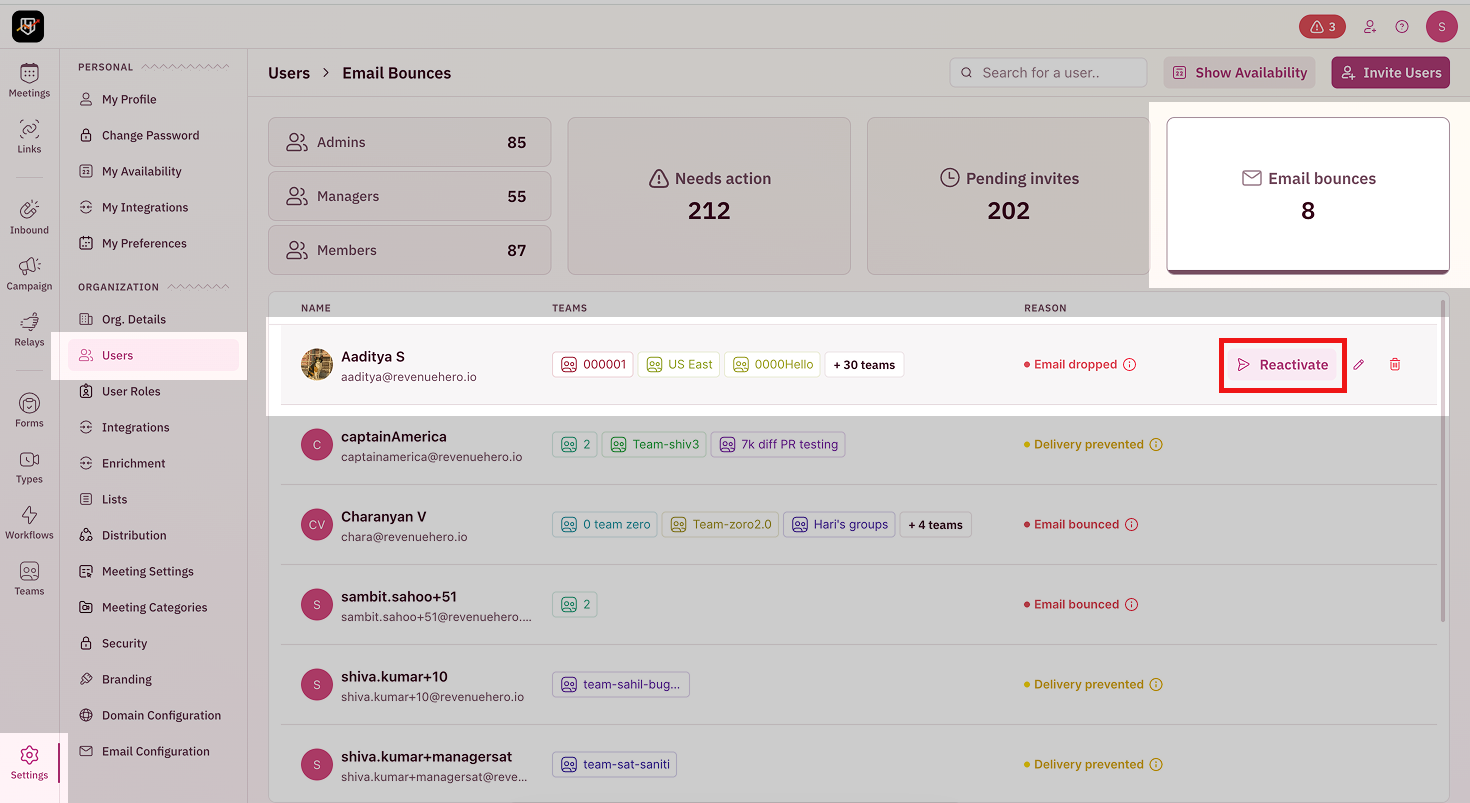
- Navigate to Settings → Users
- Click on the Email bounce tab
- Find the flagged user in the list
-
Click Reactivate next to their name
Who gets notified
When an inbox is flagged, all admins receive an email notification immediately. The affected user is not automatically notified by RevenueHero. We recommend that admins inform the user that:- Their inbox was flagged due to email delivery issues
- They won’t receive internal RevenueHero notifications until the issue is resolved
- Prospect communications are unaffected and continue normally
Prevent inbox flags
Here are some best practices to minimize inbox flagging:When users leave the company
- Update their status in RevenueHero Settings → Users
- Remove them from active teams
- Reassign any upcoming meetings to active team members
When users change passwords
- Remind them to reconnect their calendar in RevenueHero if needed
- Verify they can receive test emails
Regular maintenance
- Review the Email bounce tab periodically
- Remove or update inactive user accounts
- Ensure team members’ email addresses in RevenueHero are current
Common questions
Why did I receive 10+ notifications at once?
Why did I receive 10+ notifications at once?
If multiple users’ email addresses bounced around the same time, you’ll receive a separate notification for each one. This can happen if:
- Your company’s email server had an outage
- A password reset policy affected multiple accounts
- Your email provider (Google, Microsoft) had temporary issues
Will prospects know there's an issue?
Will prospects know there's an issue?
No. From the prospect’s perspective, everything continues normally. They’ll still receive:
- Workflow emails
- Meeting reminders
- Calendar invitations
How long does an inbox stay flagged?
How long does an inbox stay flagged?
Until an admin manually reactivates it. Inboxes don’t automatically reactivate, even if the underlying email issue is resolved. This ensures admins are aware of the issue and can verify it’s fixed.
Can I prevent some users from getting flagged?
Can I prevent some users from getting flagged?
No. This automatic protection applies to all email addresses equally to ensure reliable notification delivery for all users. However, you can minimize flags by maintaining active email accounts and promptly updating RevenueHero when employees leave the company.