

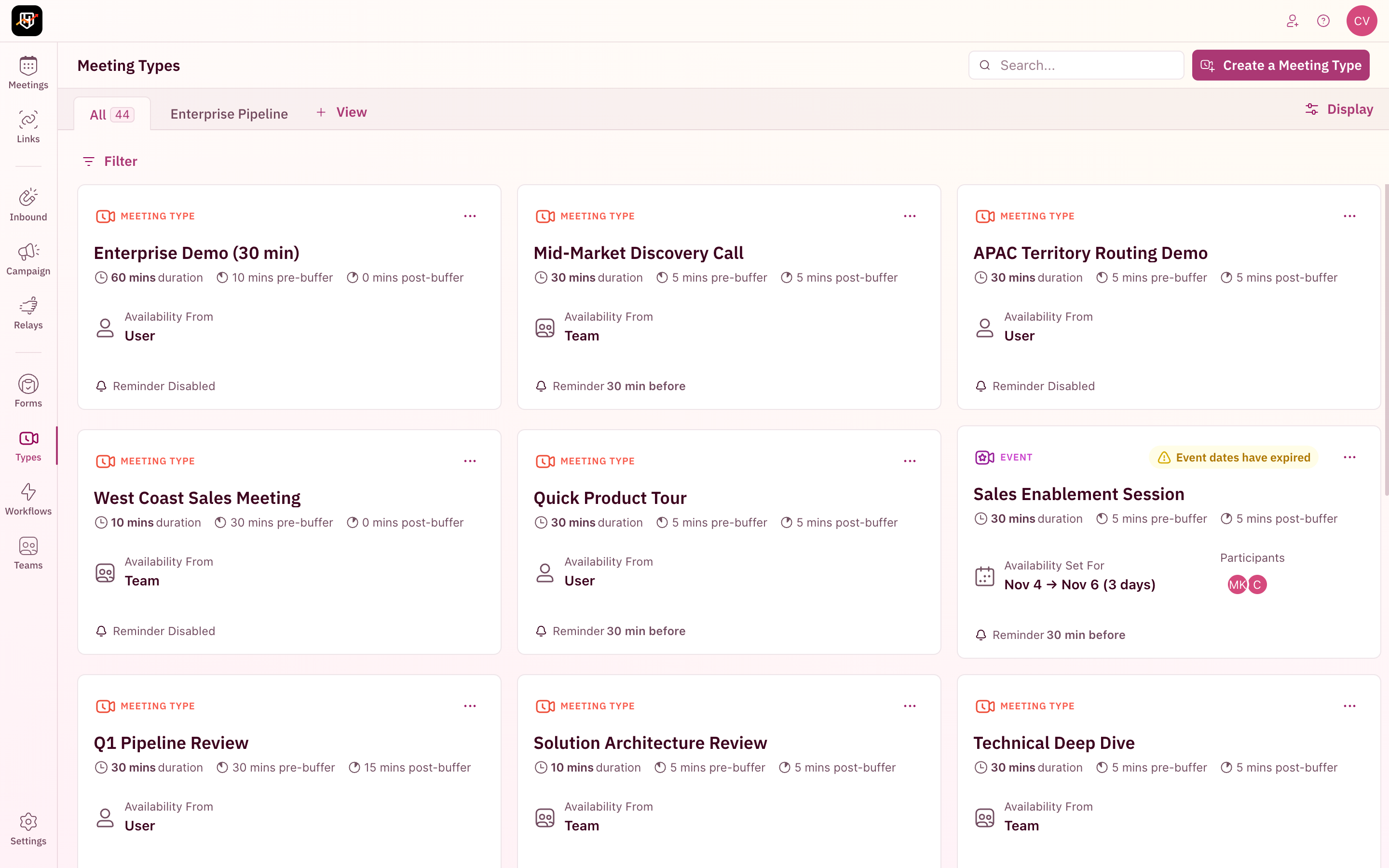
Resource filters are available on every resource page in RevenueHero: Meeting Types, Inbound Routers, Inbound Forms, Matching Rules, Distribution Rules, Redirect Rules, Campaign Routers, Handoff Routers, Distribution Pods, Handoff Matching Rules, Marketing Forms, Routing Workflows, Teams, and Lists.
How it works
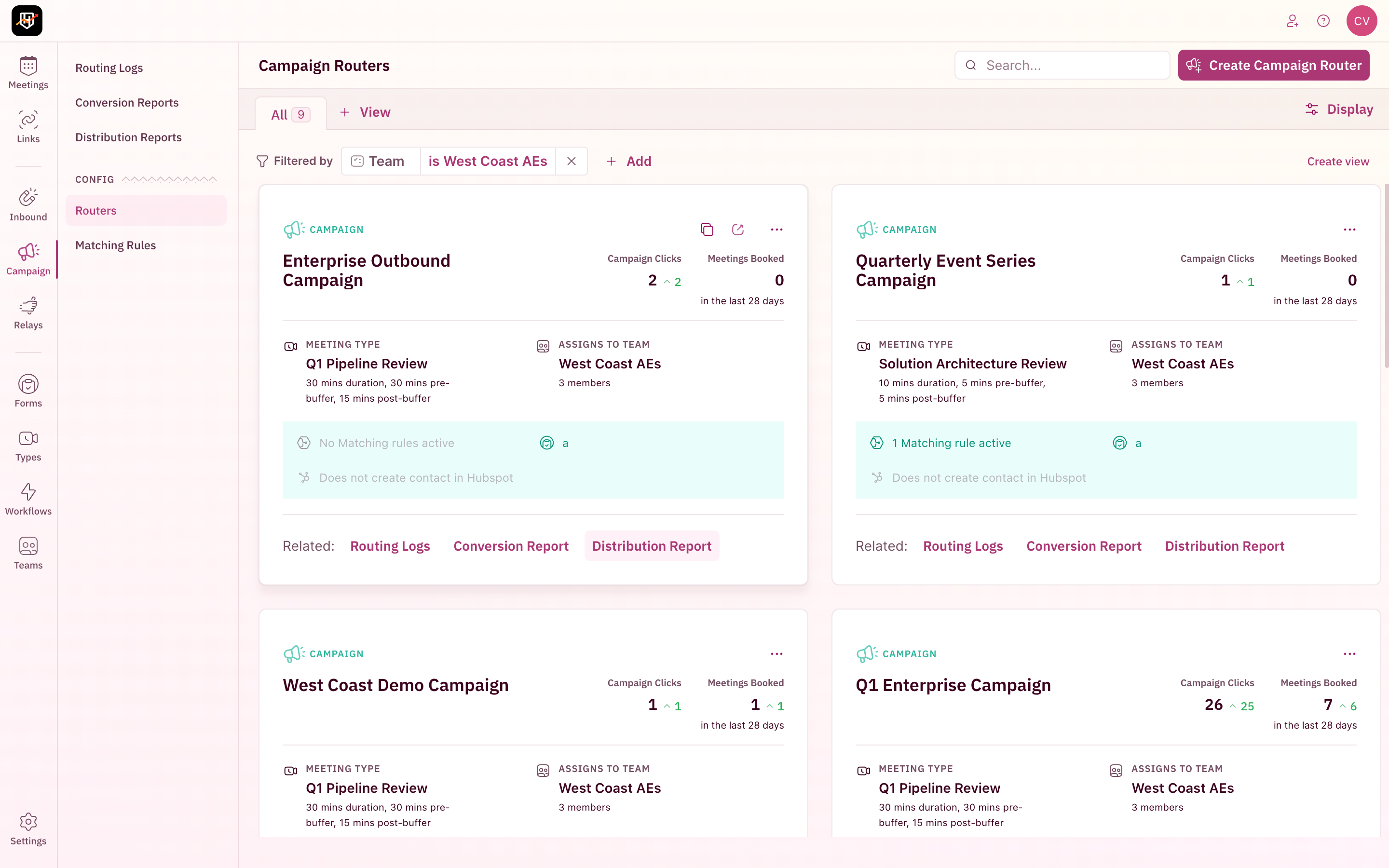
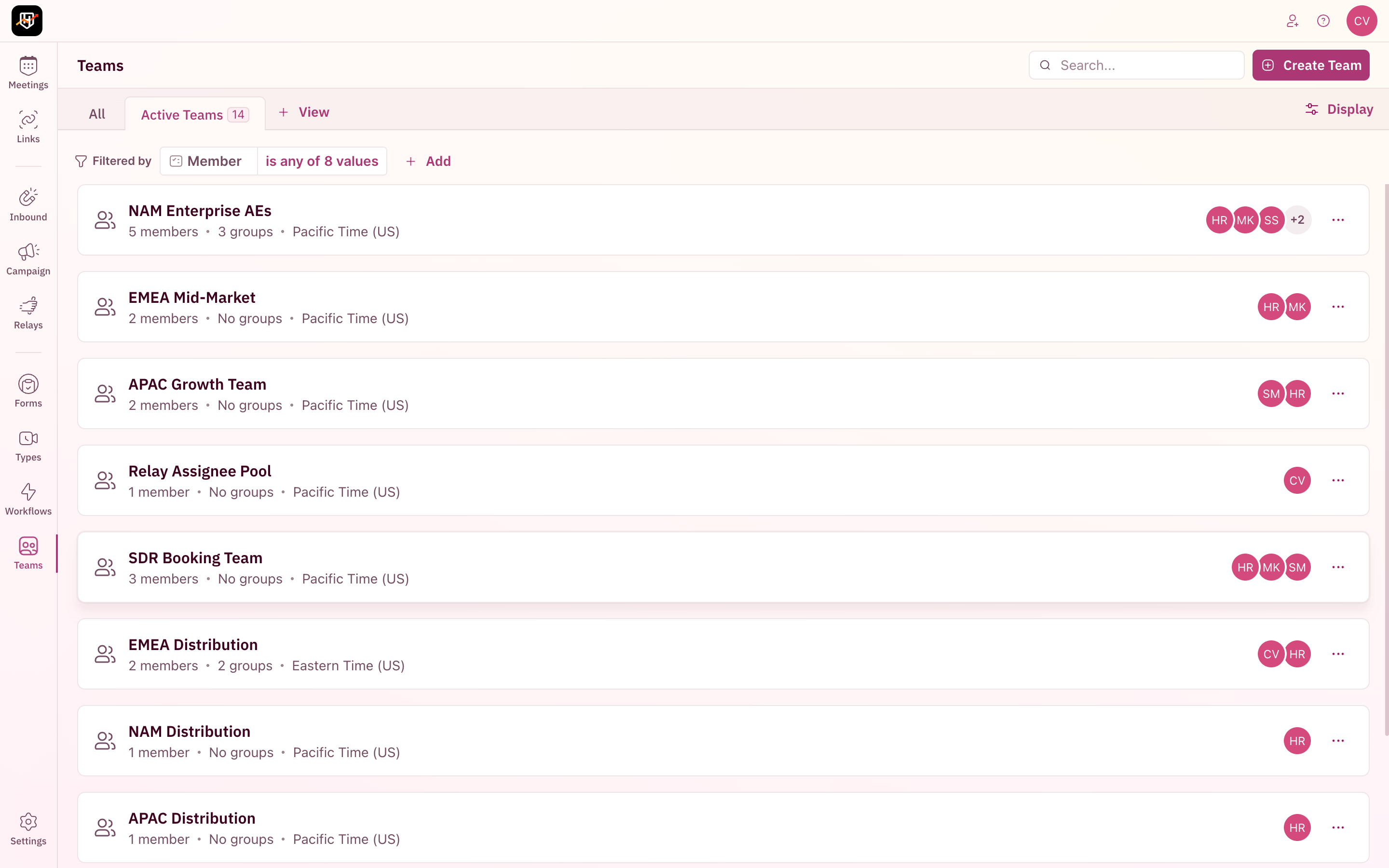
Every resource page has a unified toolbar with four capabilities:- Search — The search bar (top right) instantly narrows results as you type
- Filter — The Filter button (below the tabs) opens a property-based filter panel
- Display — The Display button (top right) controls sort order
- Views — Tabs let you save and switch between different filter/display combinations
Search for a resource
The Search… bar sits in the top right of every resource page. Start typing and results narrow in real-time. Search matches against the resource name, so typing “Enterprise” instantly surfaces only the meeting types with that term.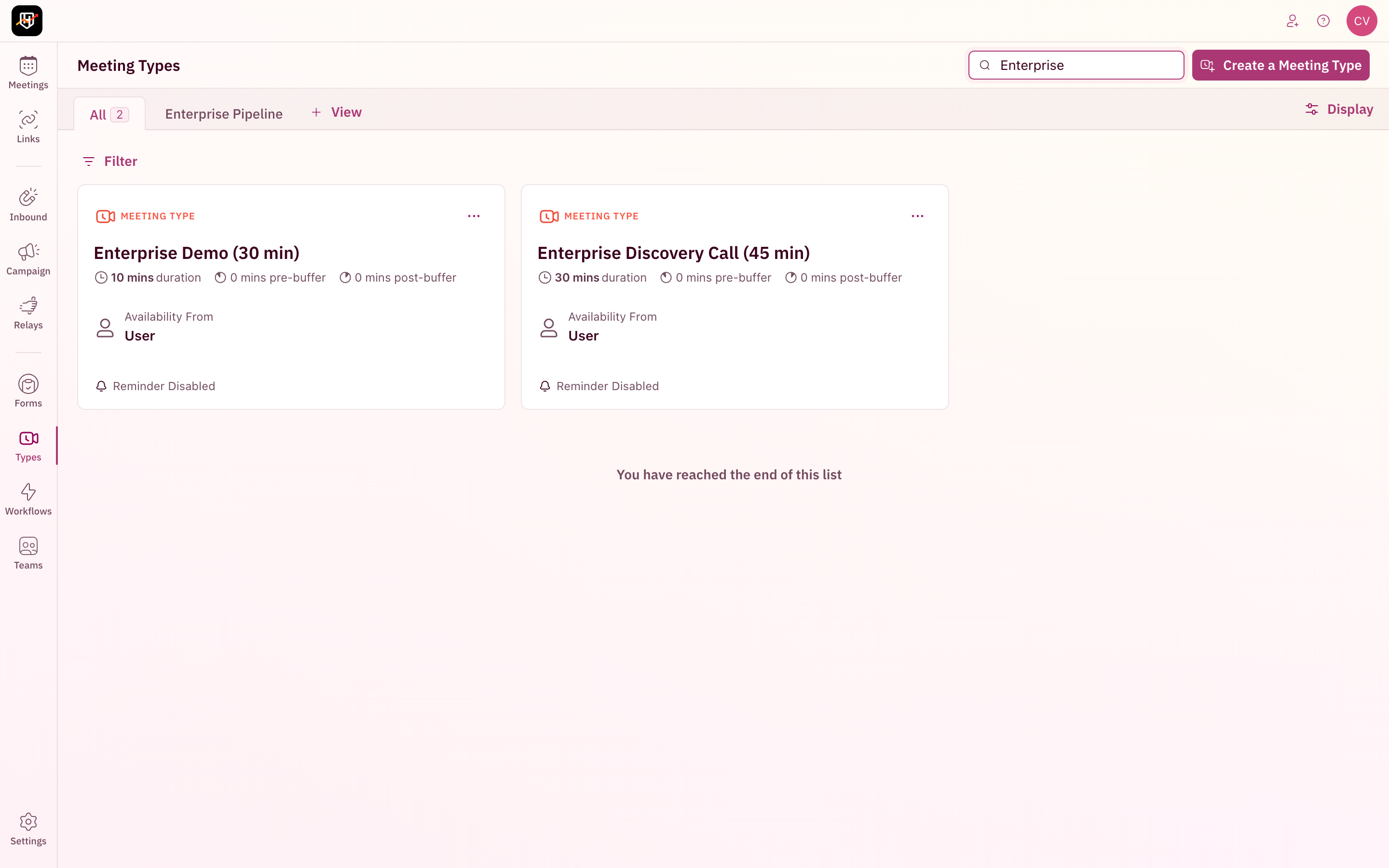
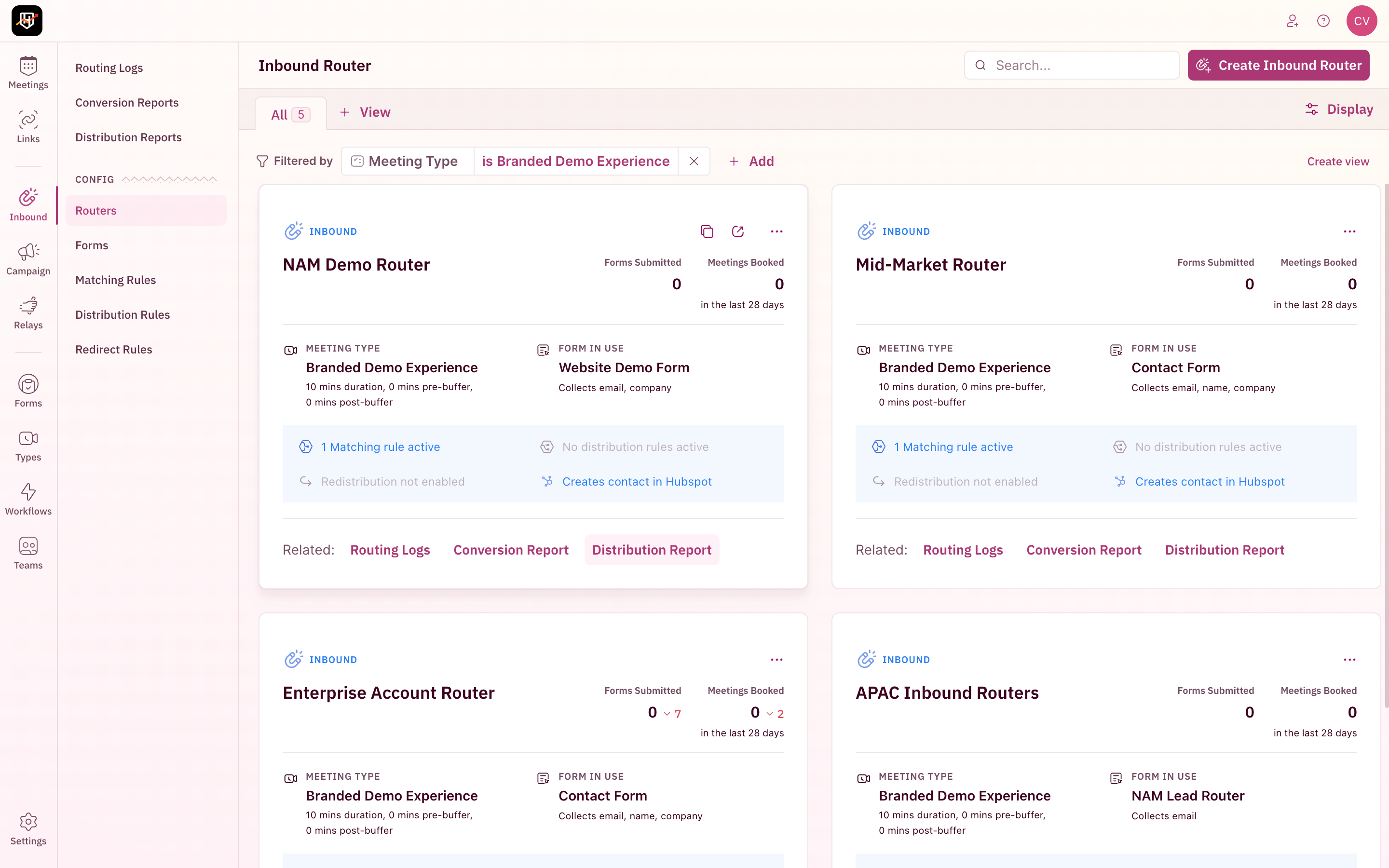
Filter resources
Click Filter (below the tabs, left side) to open the filter panel. Each page offers filter properties specific to its resource type.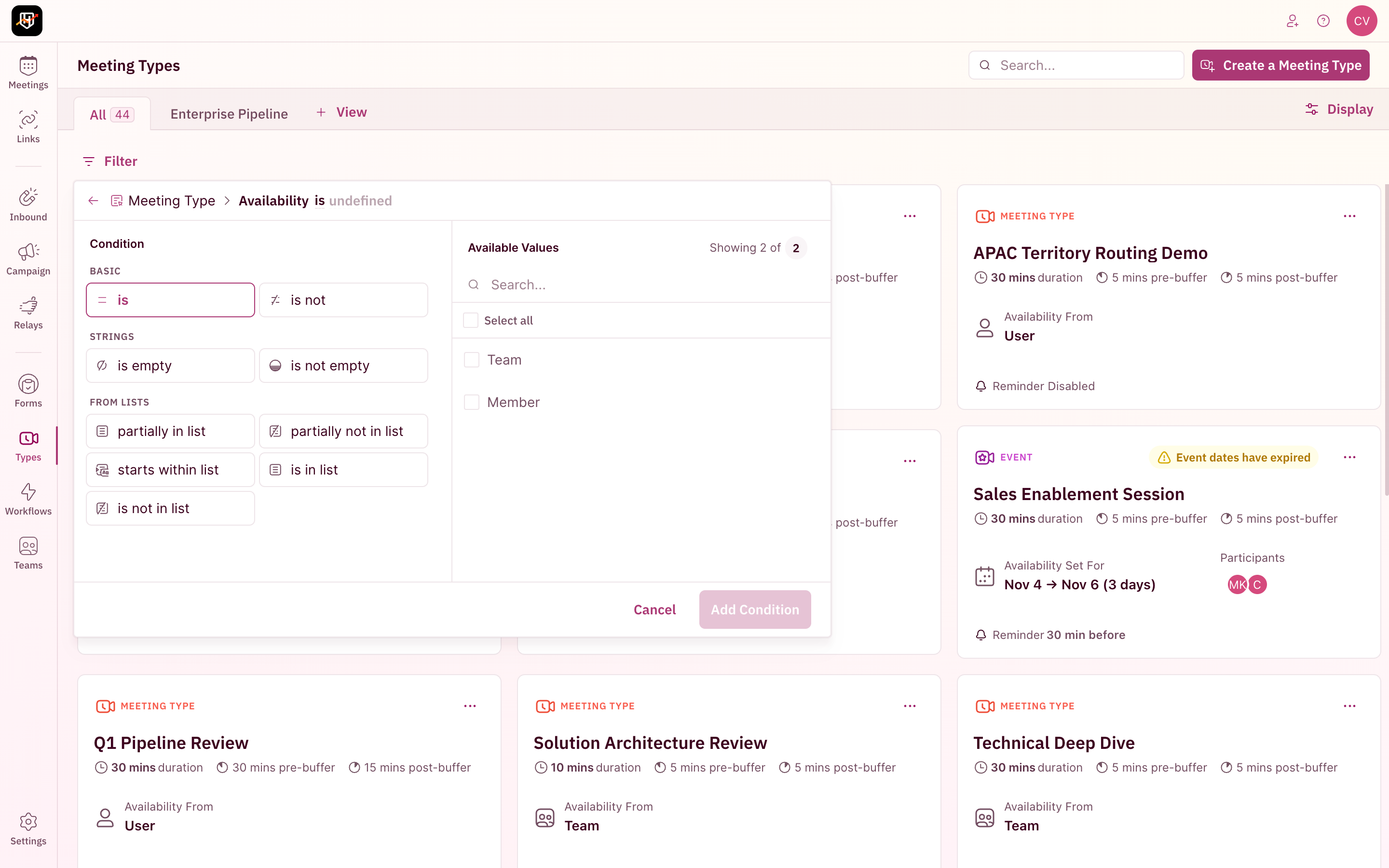
How to apply a filter
- Click Filter to open the dropdown
- Select a property from the list (e.g., Duration, Assigned User, Meeting Category)
- Choose a value or condition
- The results update immediately
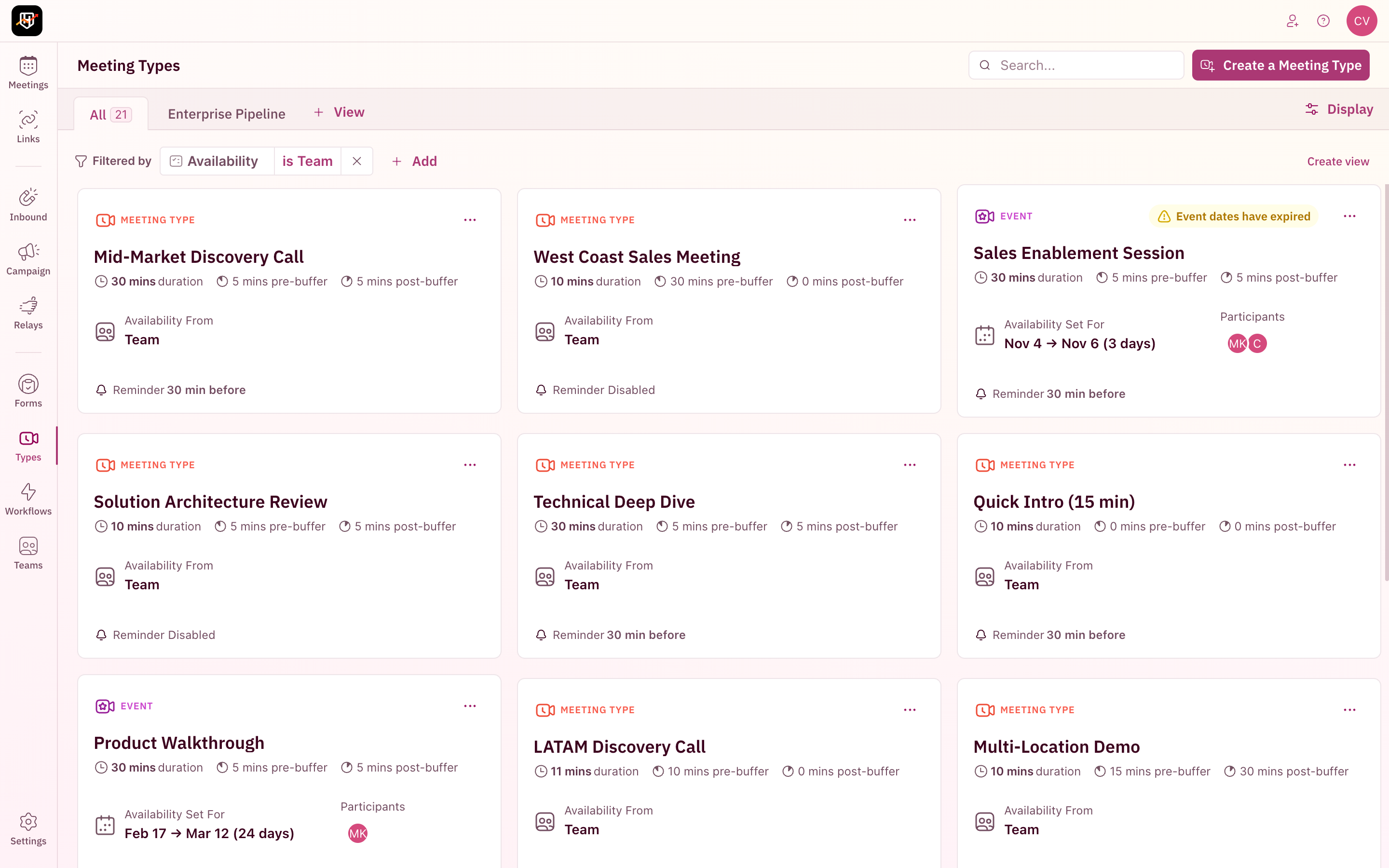
Filter properties by page
The filter dropdown shows different properties depending on which page you’re on:
Every page also supports sorting by Updated At, Created At, and Name.
Sort your resources
Click the Display button (top right) to open the sort configuration.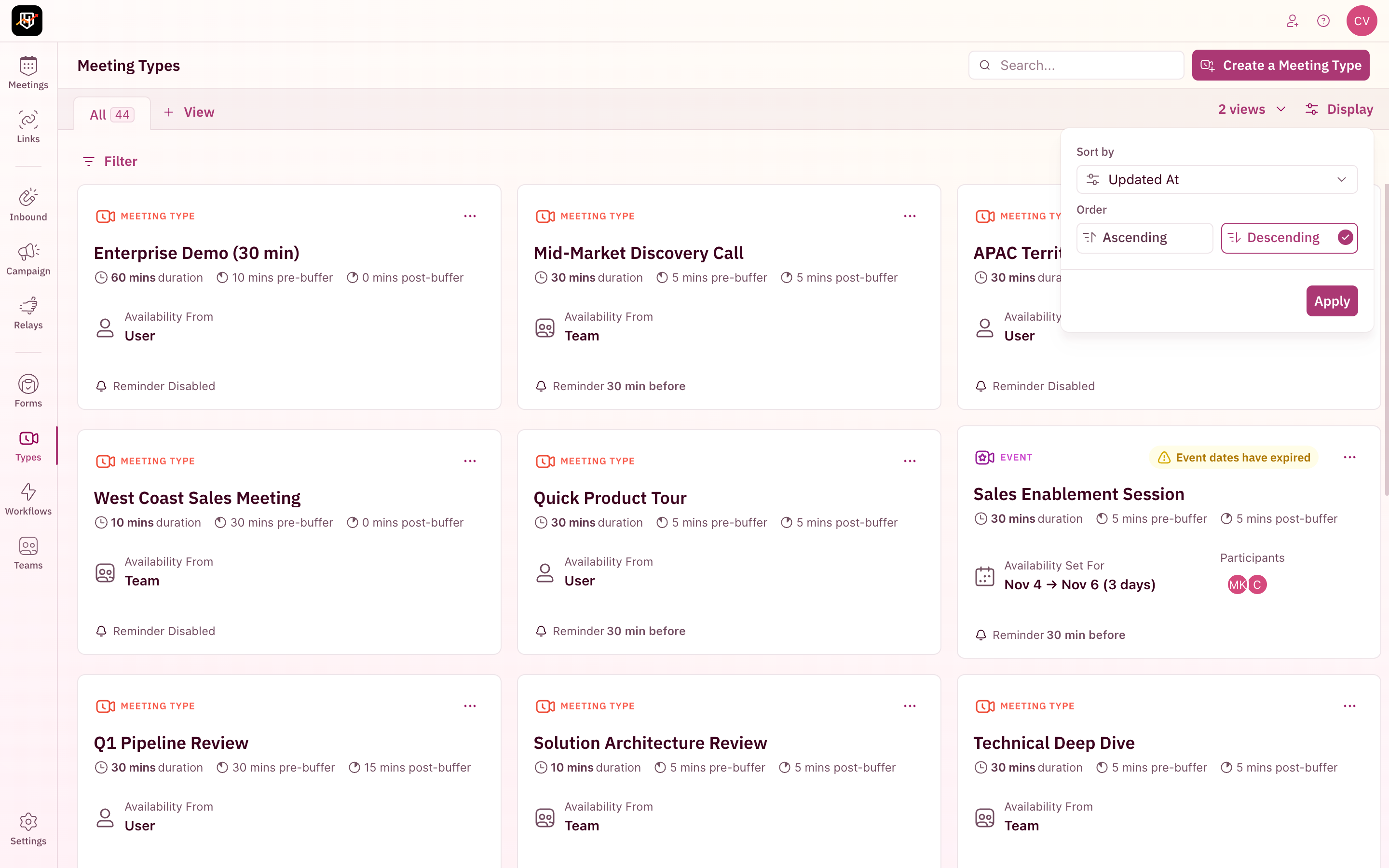
- Choose a Sort by property from the dropdown (e.g., Updated At, Name)
- Select an Order: Ascending or Descending
- Click Apply
Save custom views
The tab bar at the top of each page lets you save different filter and display combinations as named views. Instead of re-applying the same filters every time, save them once and switch back with a single click.How to create a view
- Apply the filters and sort order you want
- Click Create view (on the right side of the filter bar) or + View (next to the existing tabs)
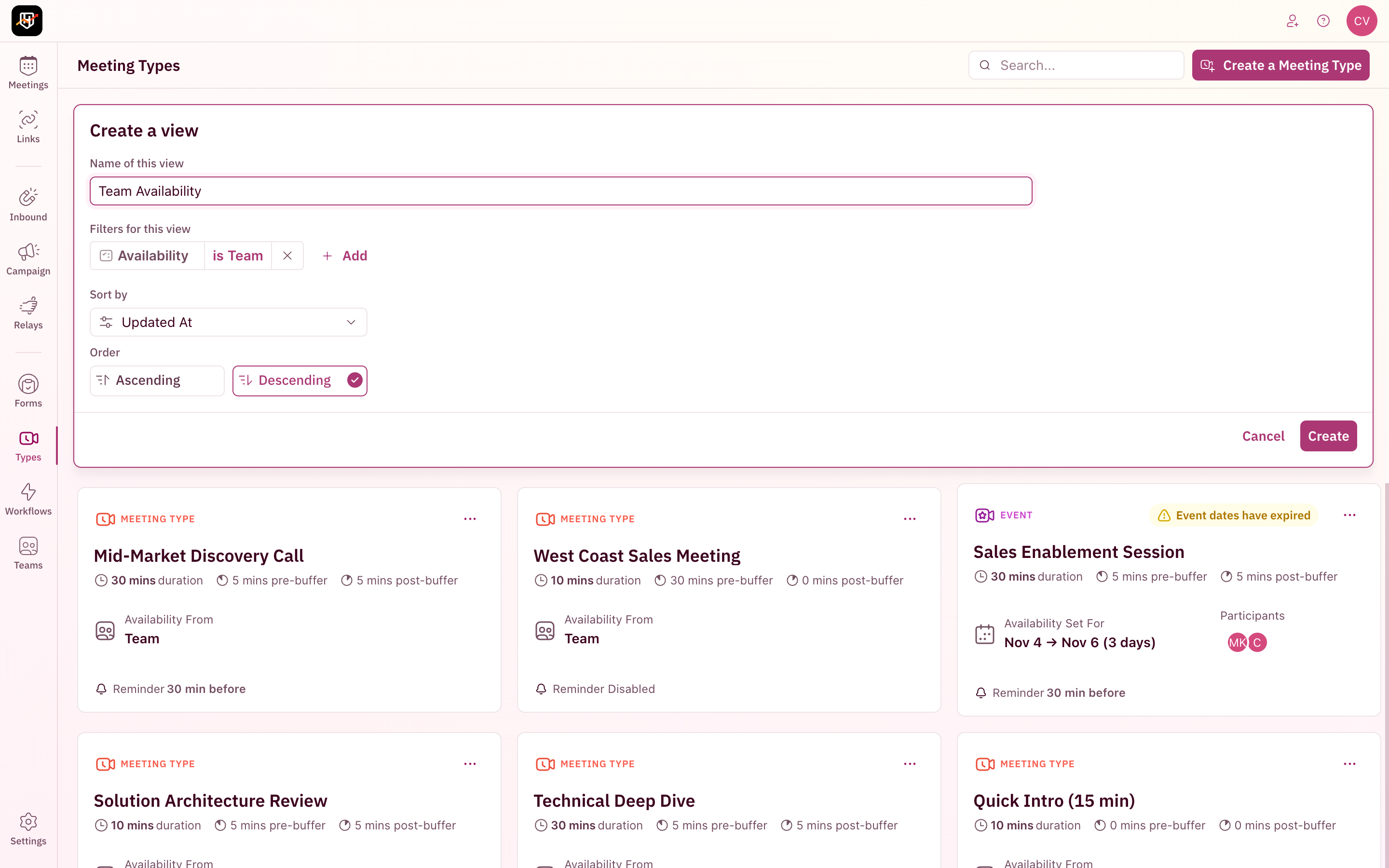
- The Create a view form opens with your current filters and sort order pre-filled
- Enter a Name for your view (e.g., “Team Availability” or “EMEA Routers”)
- Adjust the filters or sort order if needed
- Click Create
Share filtered views via URL
Every filter, search term, and display setting is reflected in the page URL. Copy the URL from your browser’s address bar to share your exact view with a teammate. If you filter Meeting Types by a specific category and sort by name, the URL encodes that state. Anyone who opens that URL sees the same filtered, sorted view. Useful for sharing specific views in Slack or bookmarking commonly used filter combinations.Your resources are organized. No more scrolling through dozens of items to find the one rule you need to edit. Search, filter, and view your way. 🎉🎉🎉
Create a Meeting Type
Set up meeting types with custom durations, availability, and branding.
Create a Distribution Rule
Route meetings to the right reps based on territory, segment, or custom conditions.
Create Teams
Organize your reps into teams for distribution and management.
Create an Inbound Router
Connect your web form to RevenueHero for instant scheduling.