

Where to find workflow logs
There are two places to read them, depending on the question you’re asking.Check the workflows that ran for a meeting
Step 1: Open the meeting
In the left sidebar, click Meetings and open the meeting. The Activities timeline shows workflow entries such as Webhook sent, Webhook failed, Slack notification sent, SMS skipped and Meeting reminder sent, each with the time it happened and the name of the workflow.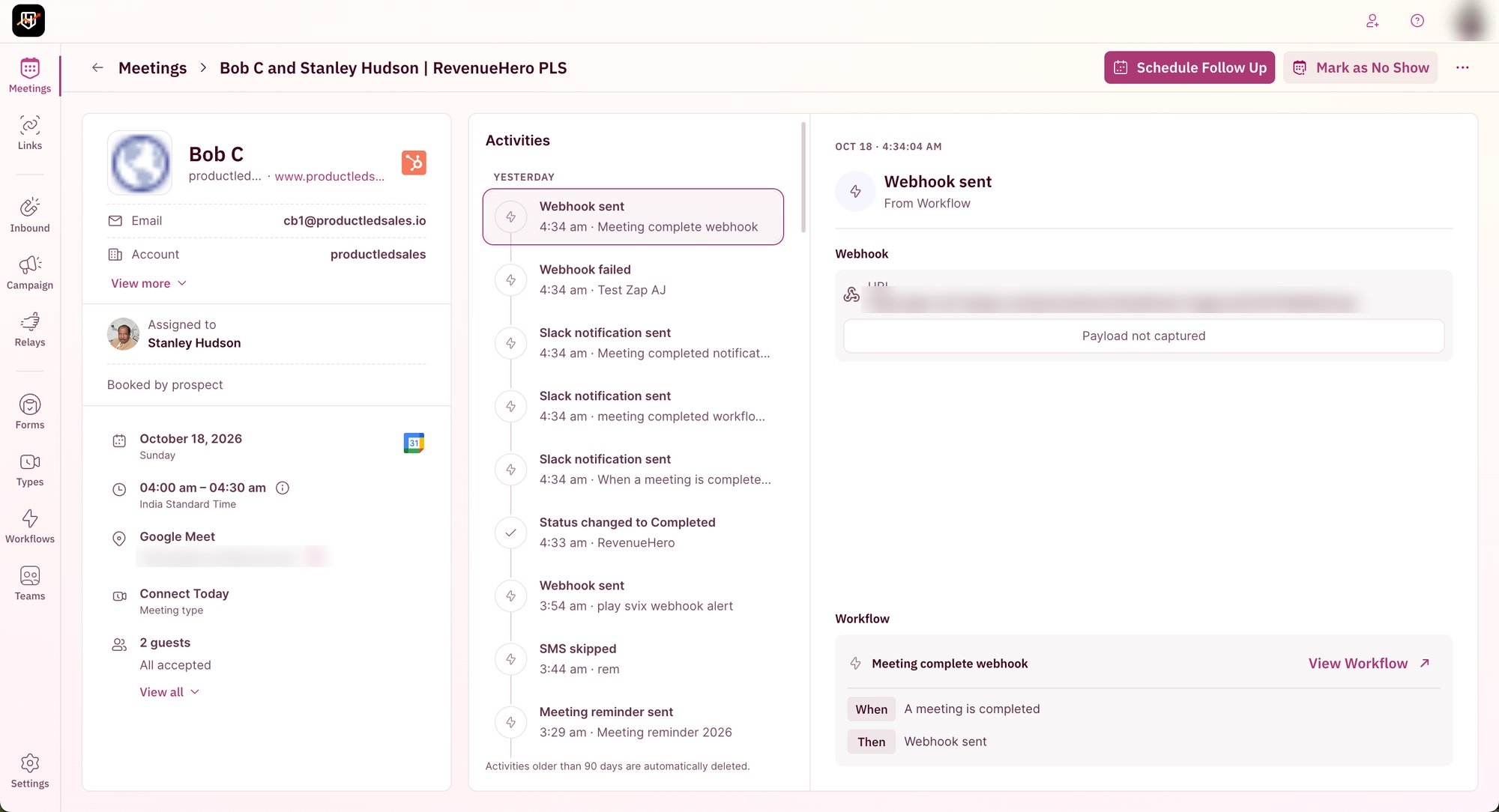
Step 2: Open an entry
Click an entry to see its details. For a webhook, you see the URL it was sent to. The Workflow card shows the workflow’s When (trigger) and Then (action), and View Workflow takes you straight to it if you need to change something.Check every run of a workflow
Step 1: Open the workflow
In the left sidebar, click Workflows and open the workflow you want to check. Click Workflow Logs in the top-right corner.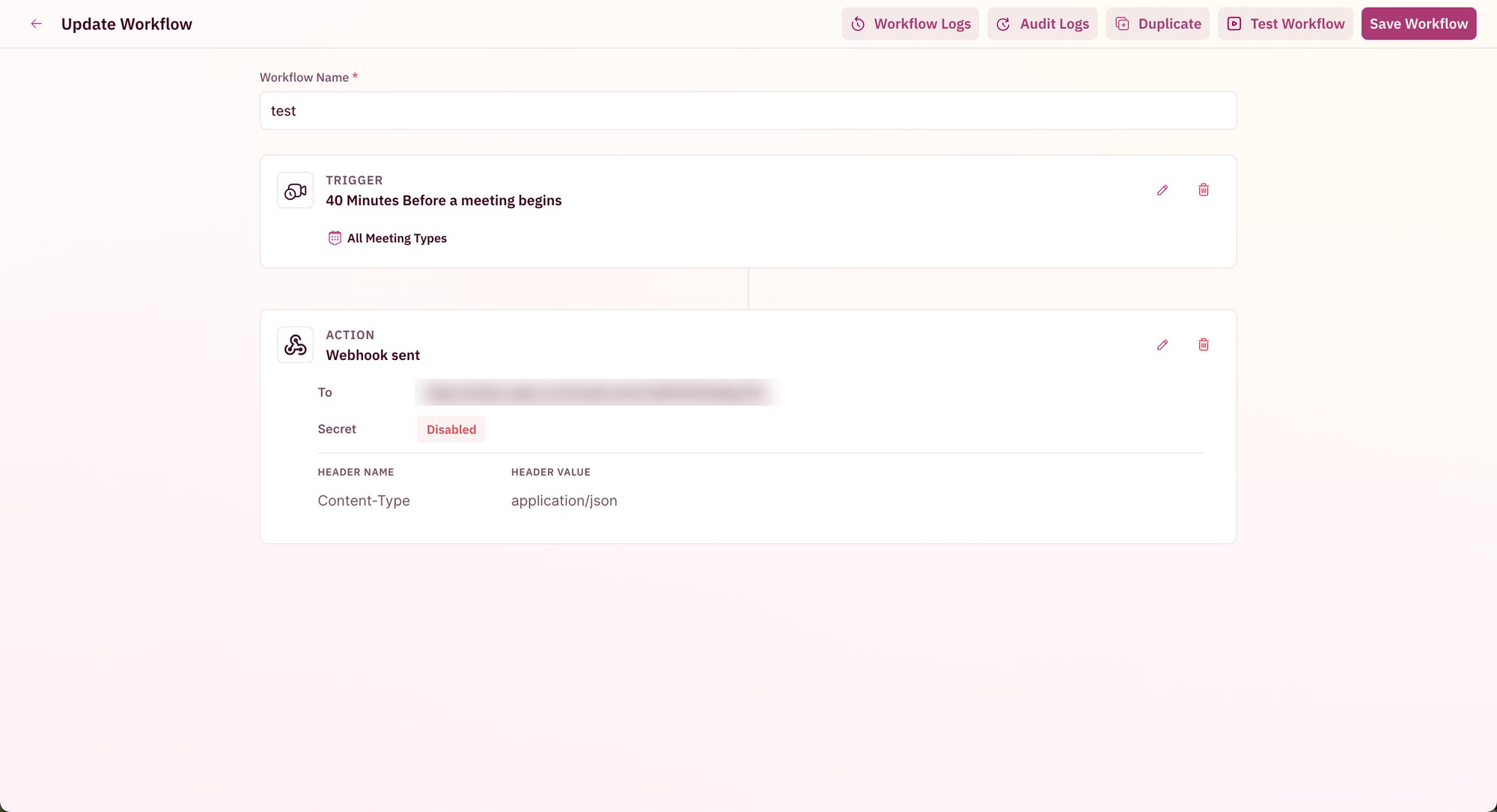
Step 2: Filter the runs
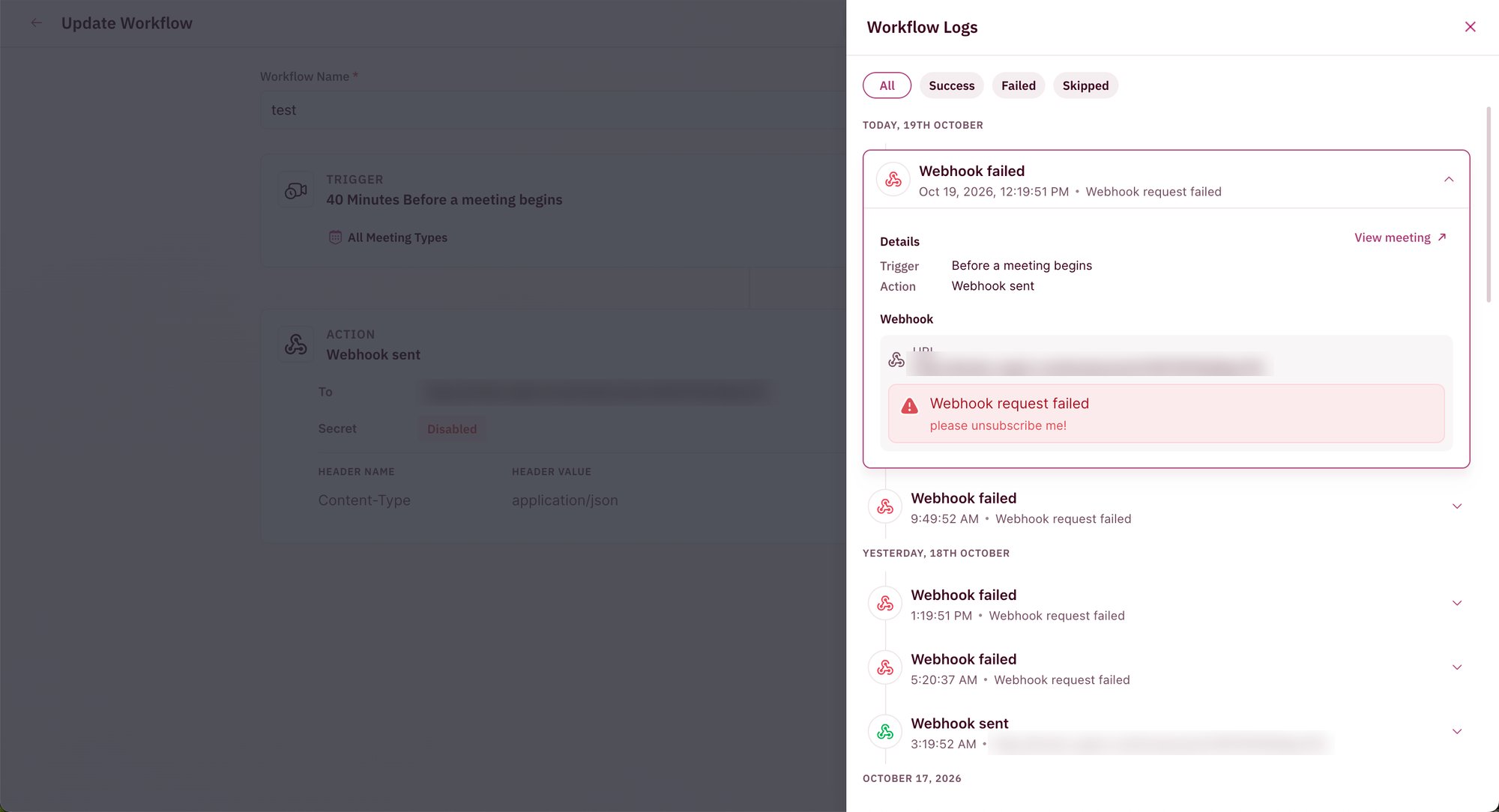
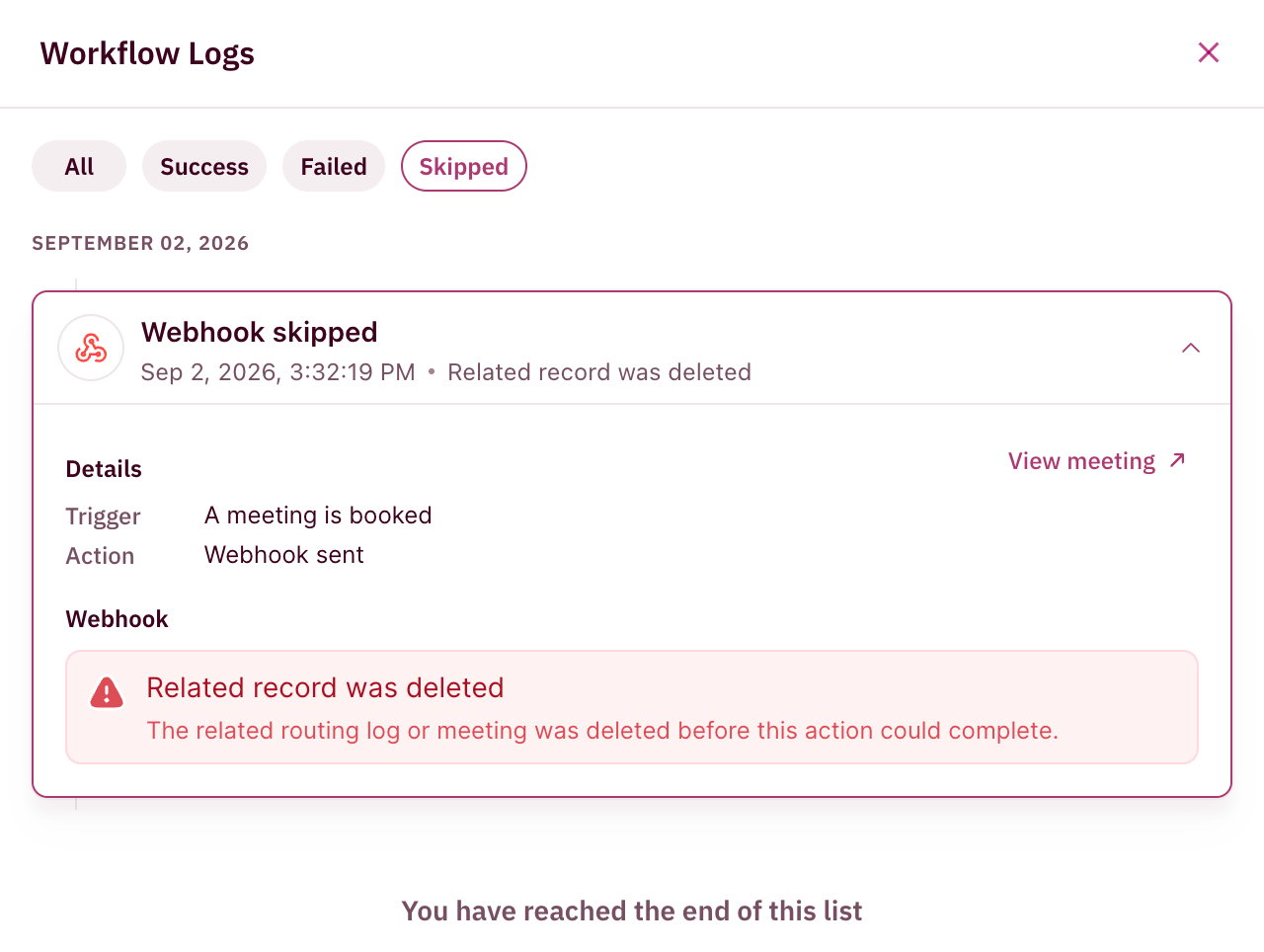
The Workflow Logs panel lists every run, newest first, grouped by date. Use the filters at the top to narrow the list:- All: every run
- Success: the action ran
- Failed: the action ran but the destination rejected it
- Skipped: the action didn’t run, with the reason
Step 3: Read an entry
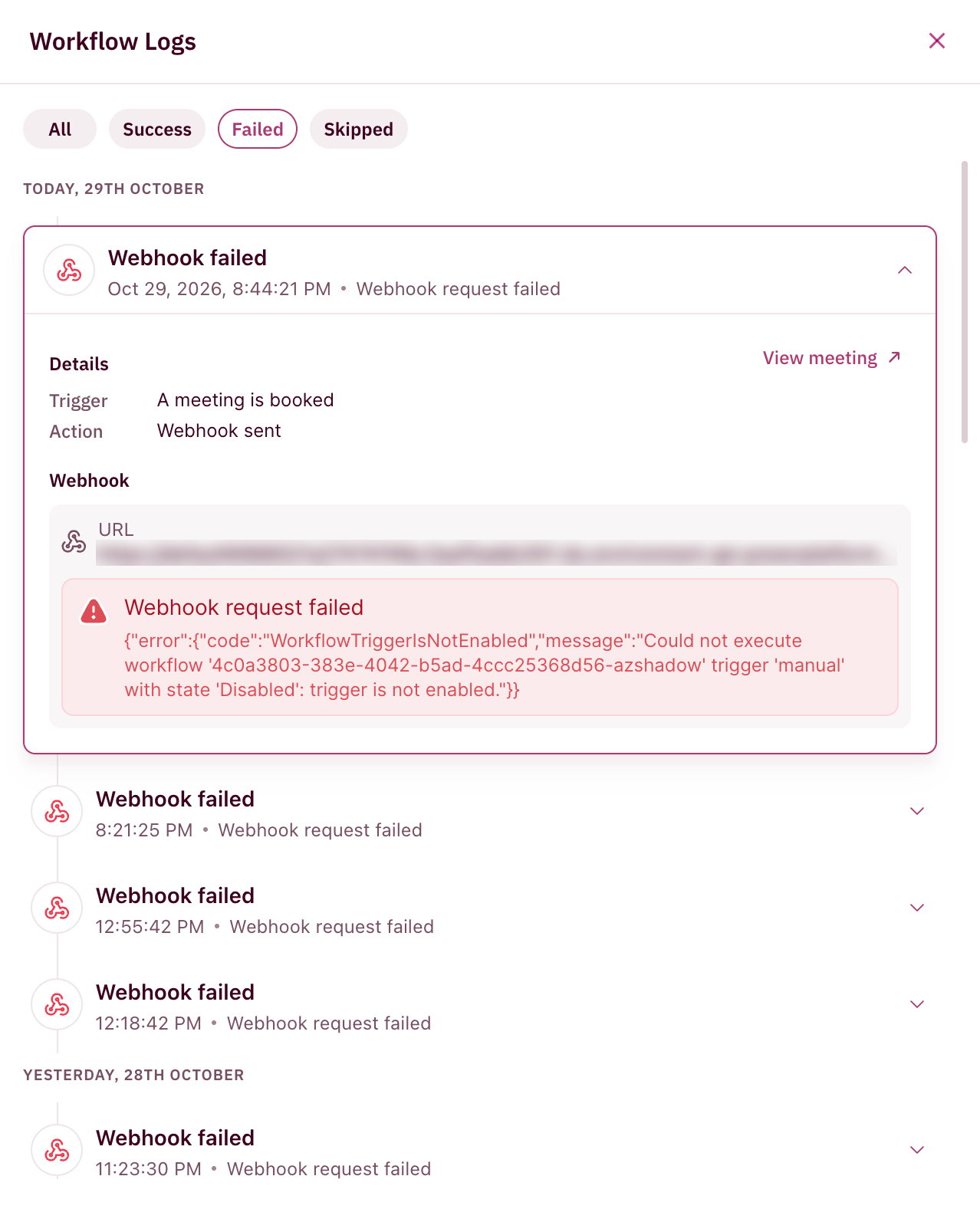
Click a run to expand it. You see:- Details: the workflow’s Trigger and Action
- Webhook: the URL the webhook was sent to
- The error message returned by the receiving app, for failed webhooks
- View meeting, which opens the meeting the run belongs to
Fix a failed webhook
The error message on a failed run comes from the app that received the webhook, so start there.- Read the error message on the failed run. It usually names the problem, such as an endpoint that’s been turned off.
- Compare the URL in the log with the one the receiving app expects. A changed or deleted endpoint is a common cause.
- Check that the receiving app is switched on and accepting requests.
- If you use a secret or custom headers, confirm they match what the receiving app is set up to validate. You set these in the workflow’s Send a webhook action.
Good to know
- Workflow logs are available to admins only.
- Workflow logs show what your workflows did. To see who changed a workflow’s setup, open Audit Logs on the workflow.
You can now confirm that every reminder, alert and webhook did its job, and find the cause when one didn’t.
Create a Workflow
Set up triggers and actions for your meetings.
Webhook Payload
See the data RevenueHero sends with each webhook.
Overview of Workflows
Triggers, actions and placeholders explained.
Audit Logs
See who changed your setup and when.