

What audit logs cover
Every resource below has its own audit log.Open an audit log
Step 1: Open the resource
Go to the resource you want to check and open it for editing. For example, to see changes to a meeting type, click Types in the left sidebar and open the meeting type.Step 2: Click Audit Logs
Click Audit Logs in the top-right corner of the page.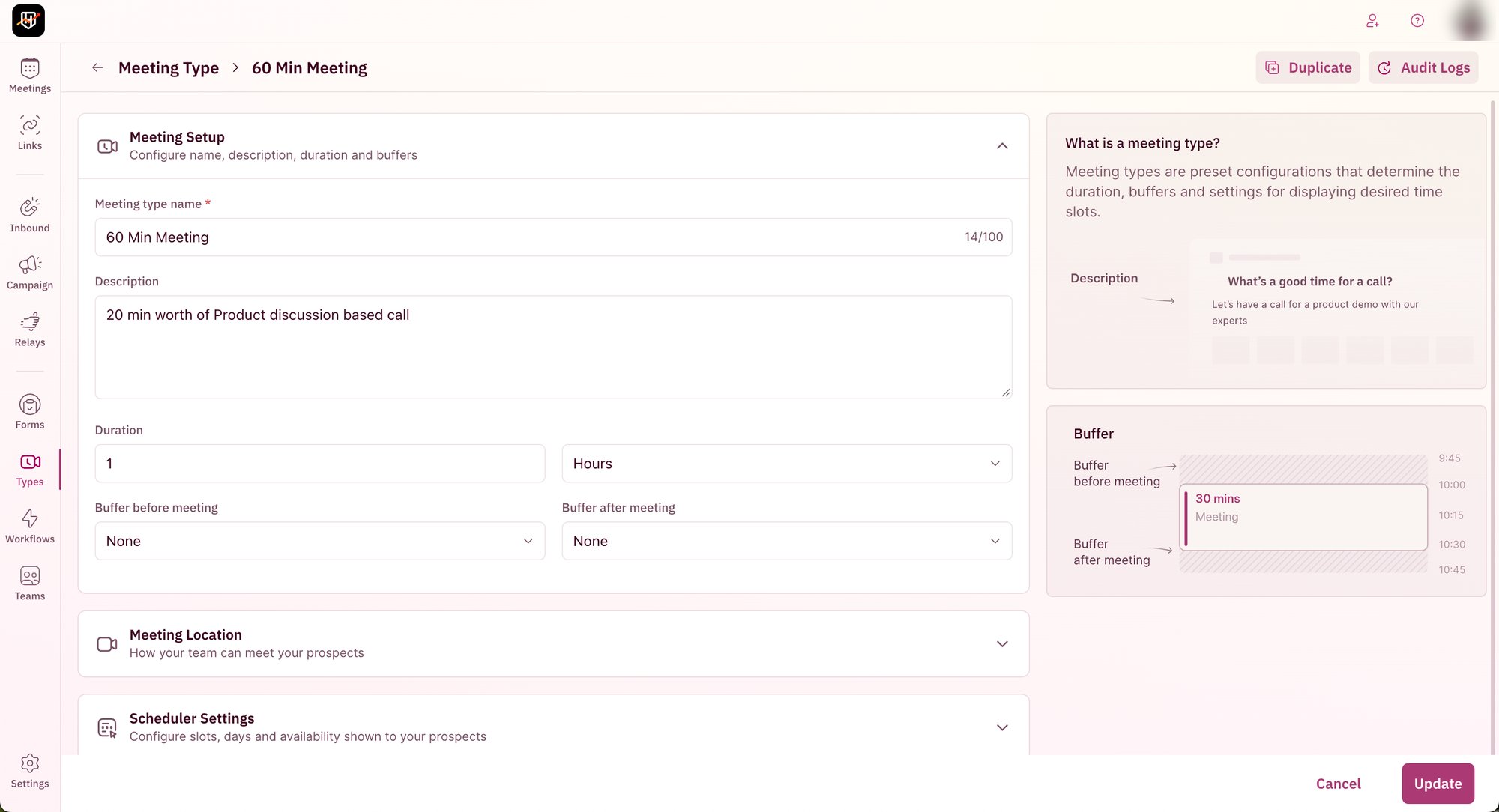
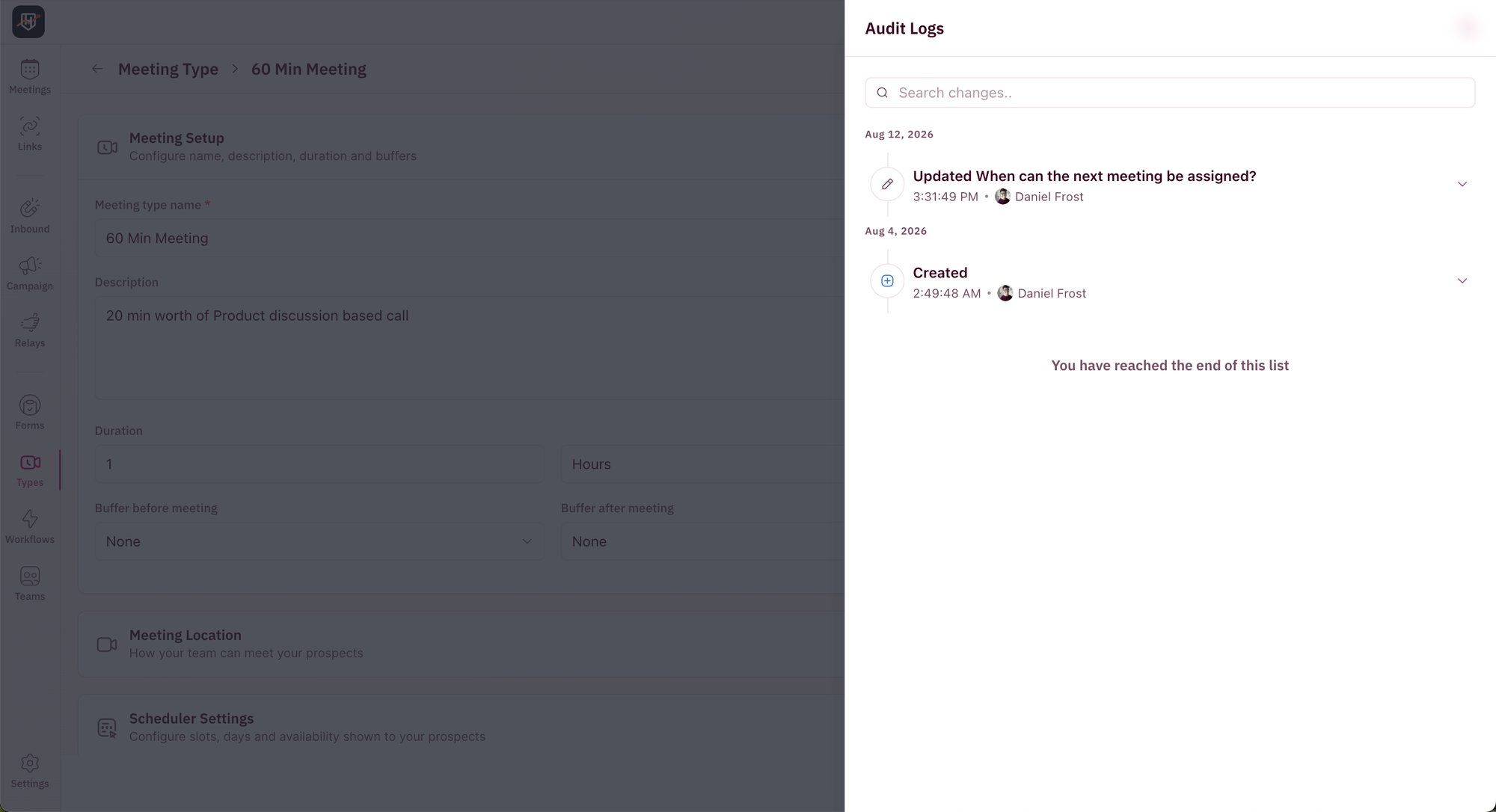
Read an entry
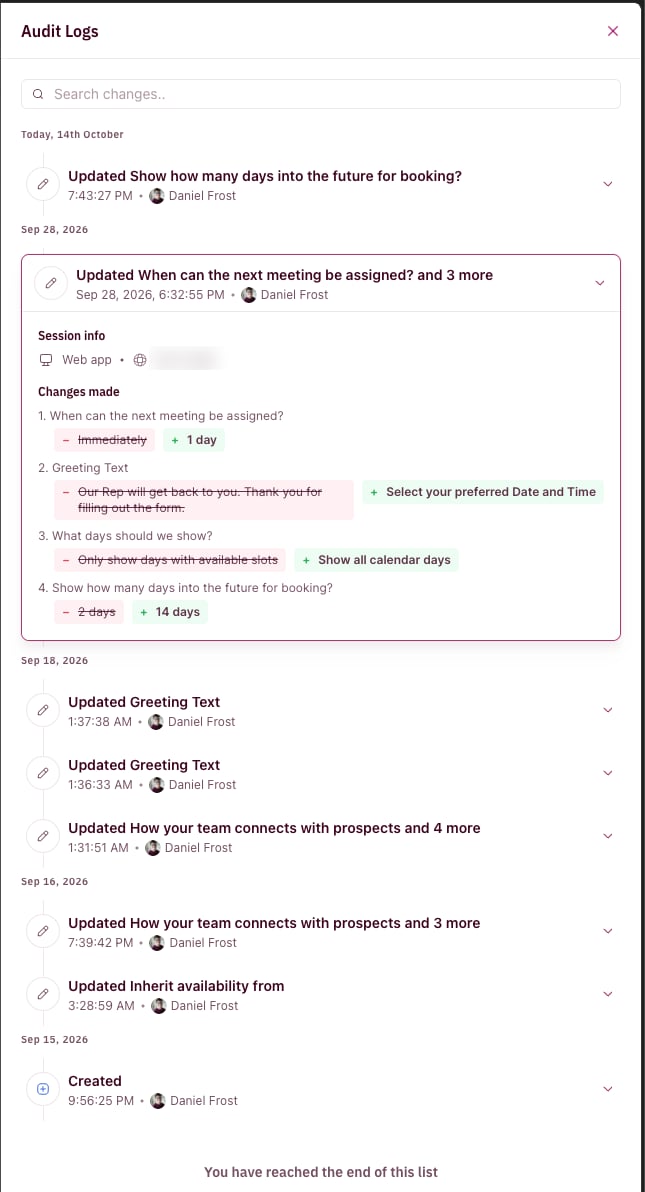
Click an entry to expand it.- Session info shows where the change came from, such as the web app, and the IP address it was made from.
- Changes made lists every field that changed in that save. The old value is struck through and the new value sits beside it.
Find a specific change
Type in the Search changes. box at the top of the panel to narrow the list. This is quicker than scrolling when a resource has a long history.Good to know
- Audit logs are available to admins only.
- Audit logs show changes to your setup. To see what happened to a specific meeting, use the meeting’s Activities timeline. To see whether a workflow ran, use Workflow Logs.
You can now trace any change in your setup back to who made it and when.
Workflow Logs
See every time a workflow ran, and why one failed.
Routing Logs
Trace a single form submission from form to CRM.
All Users
Manage who has admin access to your account.
Create a Matching Rule
Route meetings to existing CRM owners.