Documentation Index

Fetch the complete documentation index at: https://help.revenuehero.io/llms.txt

Use this file to discover all available pages before exploring further.

When a rep goes on vacation, their calendar quietly stops generating slots. Forty percent of no-book sessions trace back to owners with overloaded or empty calendars. The manual fix is painful: pull the rep out of pods, reassign upcoming meetings, hope nobody forgets to put them back. Nominees automate the swap. A nominee is a backup rep you designate per user. While the original rep is unavailable, the scheduler shows the nominee’s availability in their place. The original rep still owns the lead in your CRM. Round-robin credits still belong to them. Only the calendar swaps.
BEFORE YOU BEGINNominees only kick in when the original rep is genuinely unavailable. Make sure your team’s out-of-office is reflected in one of these places:
  1. Holidays for account-level dates the admin assigns
  2. Exceptions for multi-day unavailability blocks
  3. A real out-of-office event on the connected calendar
If the rep is technically available, the scheduler still books with them, not the nominee.

How nominees work

When a prospect lands on the scheduler and the assigned rep is out:
  1. RevenueHero detects the rep is unavailable for the requested time
  2. The scheduler pulls the nominee’s availability instead
  3. The meeting is booked on the nominee’s calendar
  4. The original rep stays the CRM owner and the round-robin assignee
  5. The nominee receives the calendar invite and runs the meeting
This is different from reassignment. With reassignment, ownership transfers. With nominees, only the calendar transfers. When the original rep returns, future bookings go straight back to them with no cleanup.
BehaviorNominee coversReassignment
CRM ownerOriginal repNew rep
Round-robin creditOriginal repNew rep
Calendar inviteNominee’s calendarNew rep’s calendar
Reverts automaticallyYes, when original rep is backNo, manual change

Assign a nominee to one user

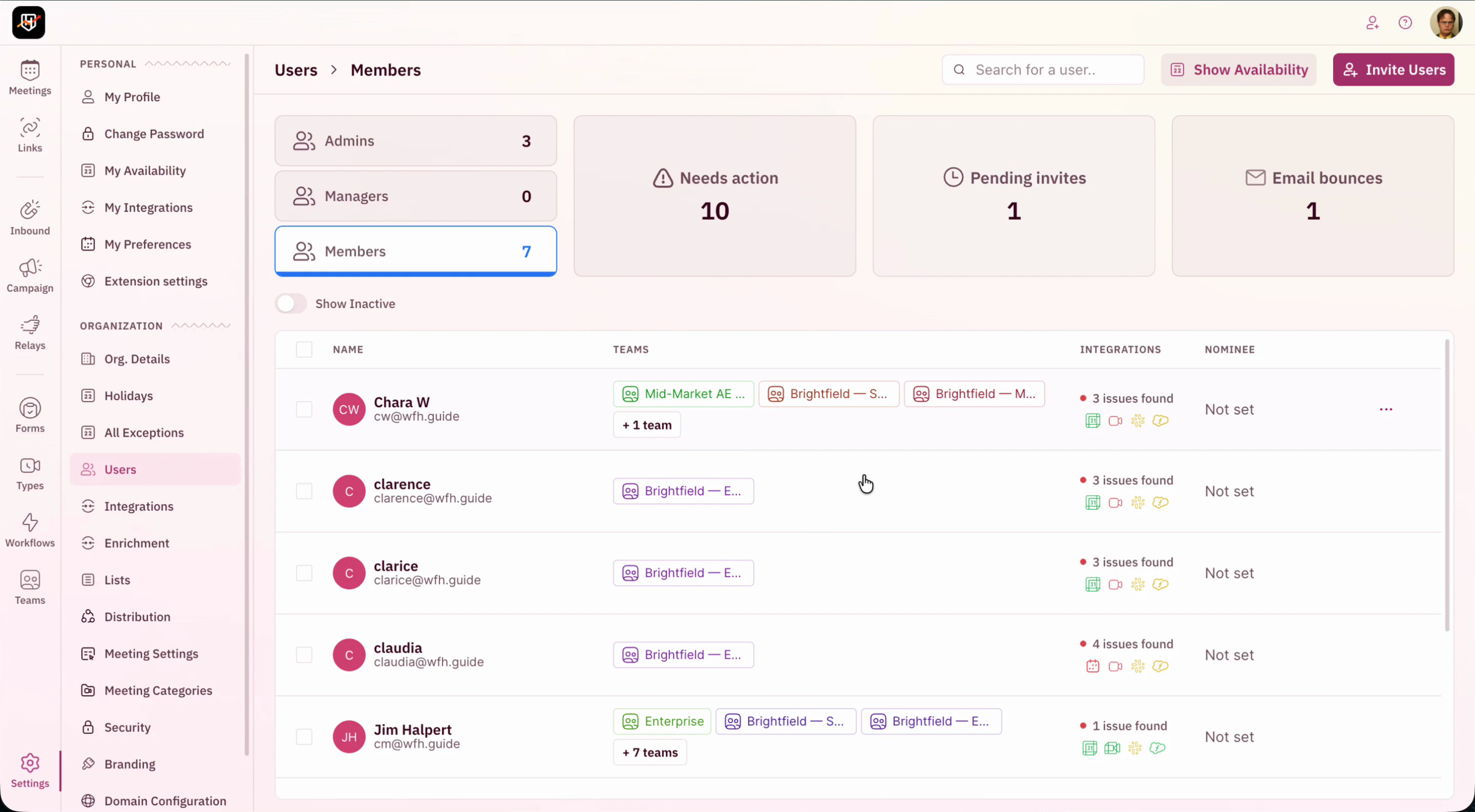
Step 1: Open the Users page

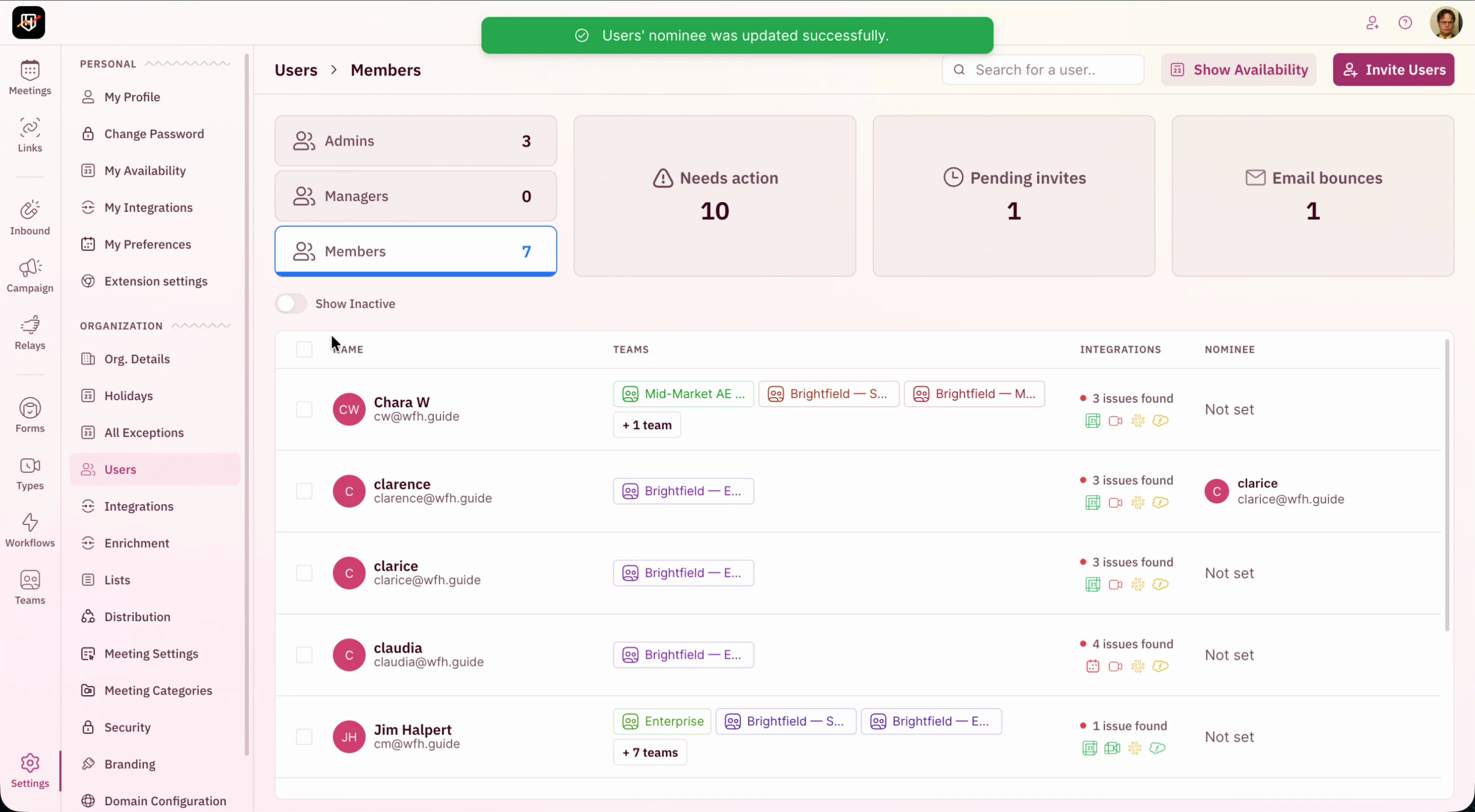
In the left sidebar, click Settings -> Users. You’ll see your full team grouped by role (Admins, Managers, Members) with a Nominee column. Anyone without coverage shows ā€œNot set.ā€

Step 2: Select the user with the row checkbox

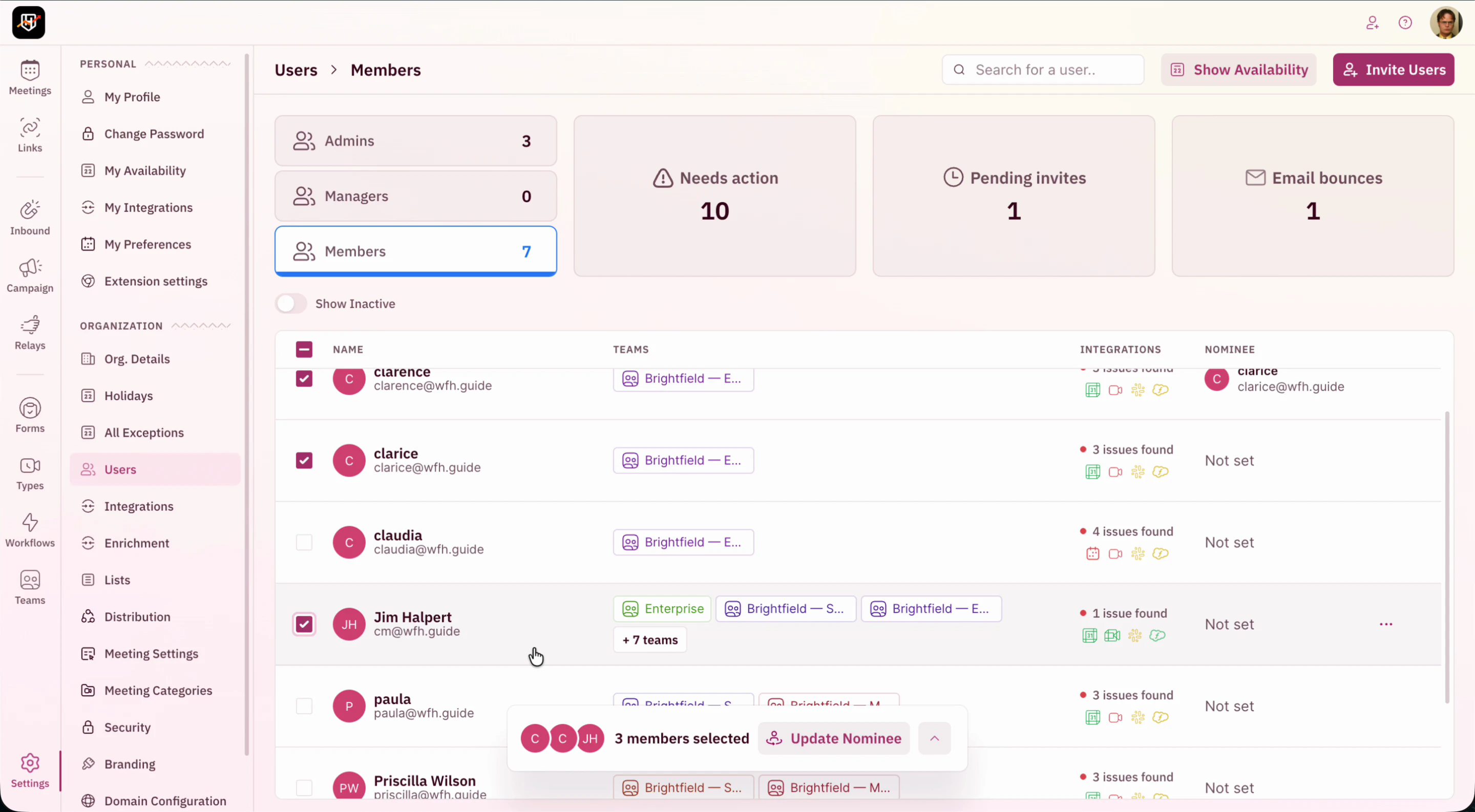
Find the rep you want to set a nominee for and click the checkbox at the start of their row. A floating bar appears at the bottom of the page showing the selected user and an Update Nominee button.
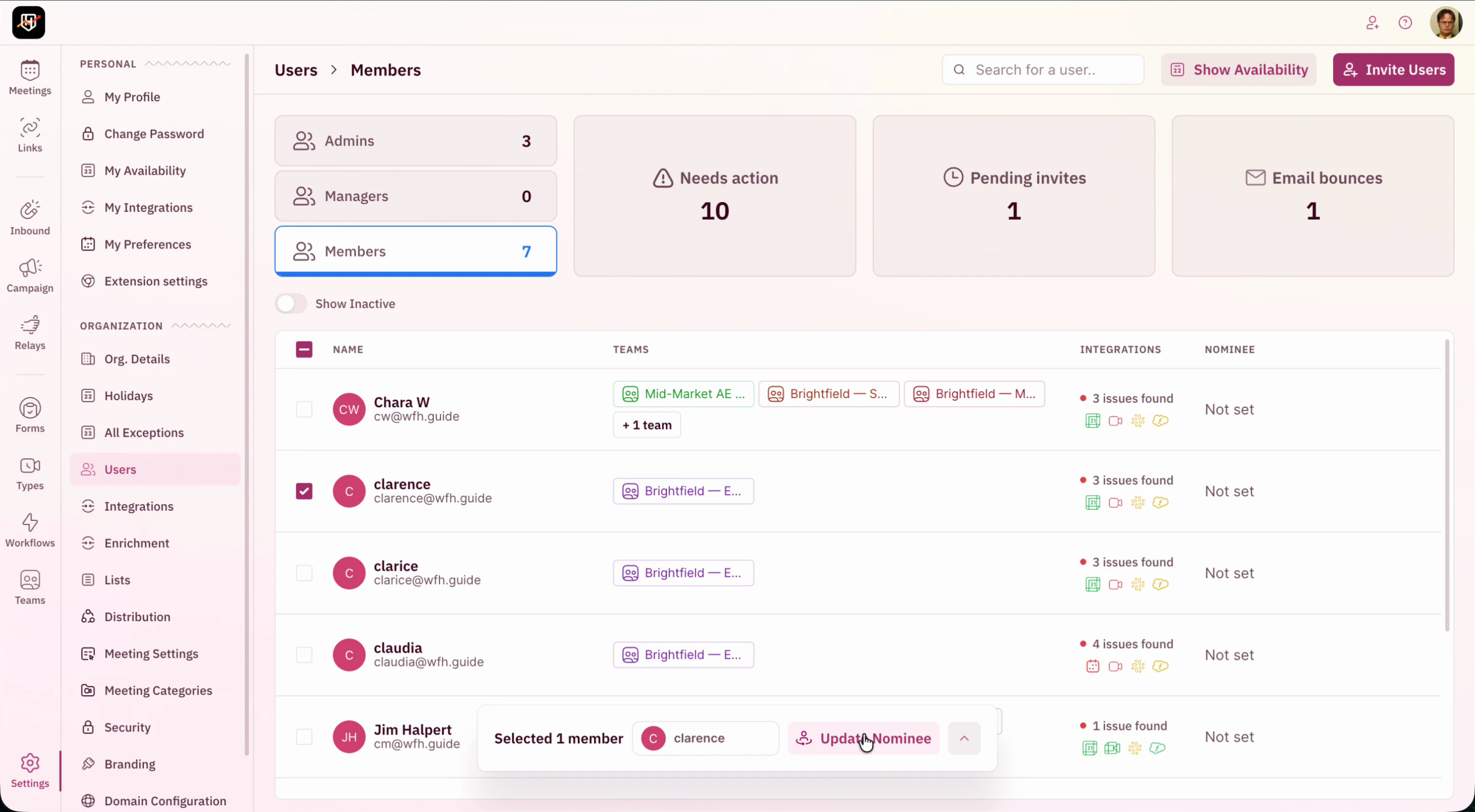
The checkbox flow is the fastest path. You don’t need to drill into the user’s detail page first — selecting the row is enough.

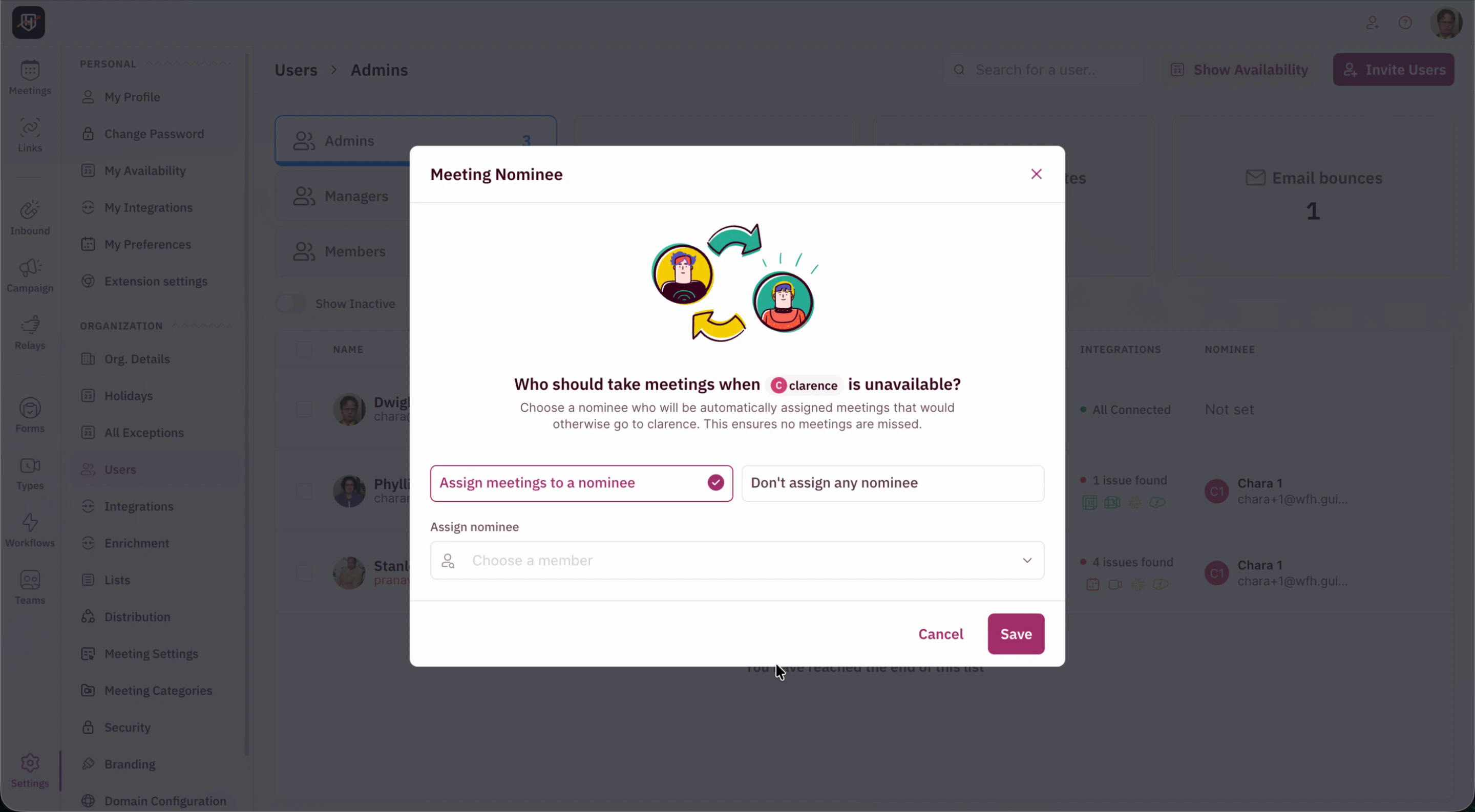
Step 3: Open the Meeting Nominee modal

Click Update Nominee in the floating bar. The Meeting Nominee modal opens with the question ā€œWho should take meetings when [user] is unavailable?ā€ The Assign meetings to a nominee option is selected by default.
Step 4: Pick a nominee

Click the Choose a member dropdown. The list shows every active teammate, sorted alphabetically. Select the rep who’ll cover.
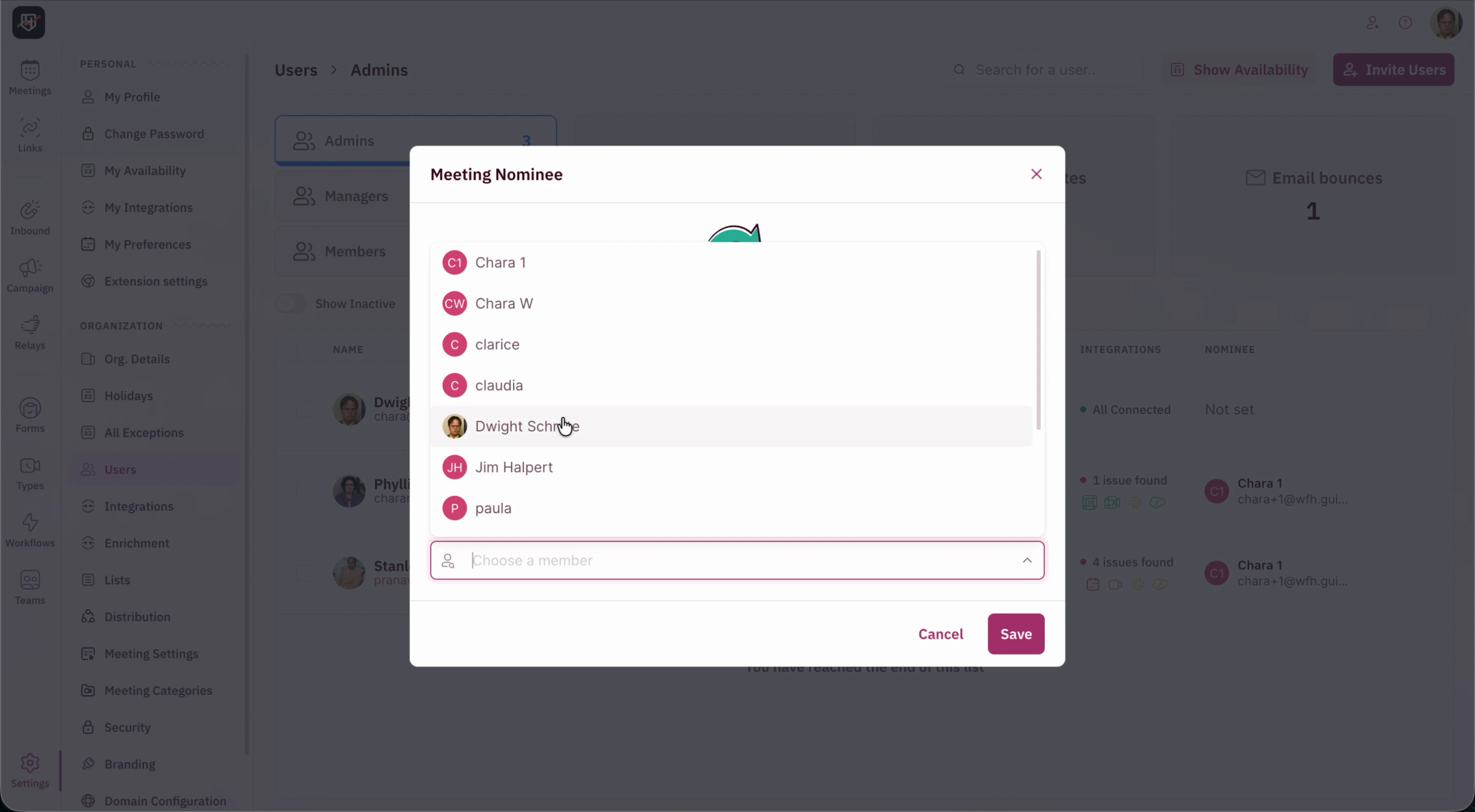
Pick a nominee whose territory and meeting style match the original rep. If your EMEA AE goes out, their nominee should also be EMEA-comfortable. The prospect doesn’t see the swap, so the conversation should still feel relevant.

Step 5: Save and confirm

Click Save. A green toast confirms ā€œUsers’ nominee was updated successfully.ā€ The Users list now shows the nominee’s avatar and email in the Nominee column for that row.
Bulk-assign nominees

Setting nominees one rep at a time is fine for a small team. For a 50-person team, the same flow works in bulk: just check more rows before clicking Update Nominee.

Step 1: Select multiple rows

Tick the checkbox on each rep you want to update. The floating bar at the bottom updates with each selection: ā€œ1 member selectedā€, ā€œ2 members selectedā€, and so on, with avatars stacked next to the count.
Step 2: Open the modal in bulk mode

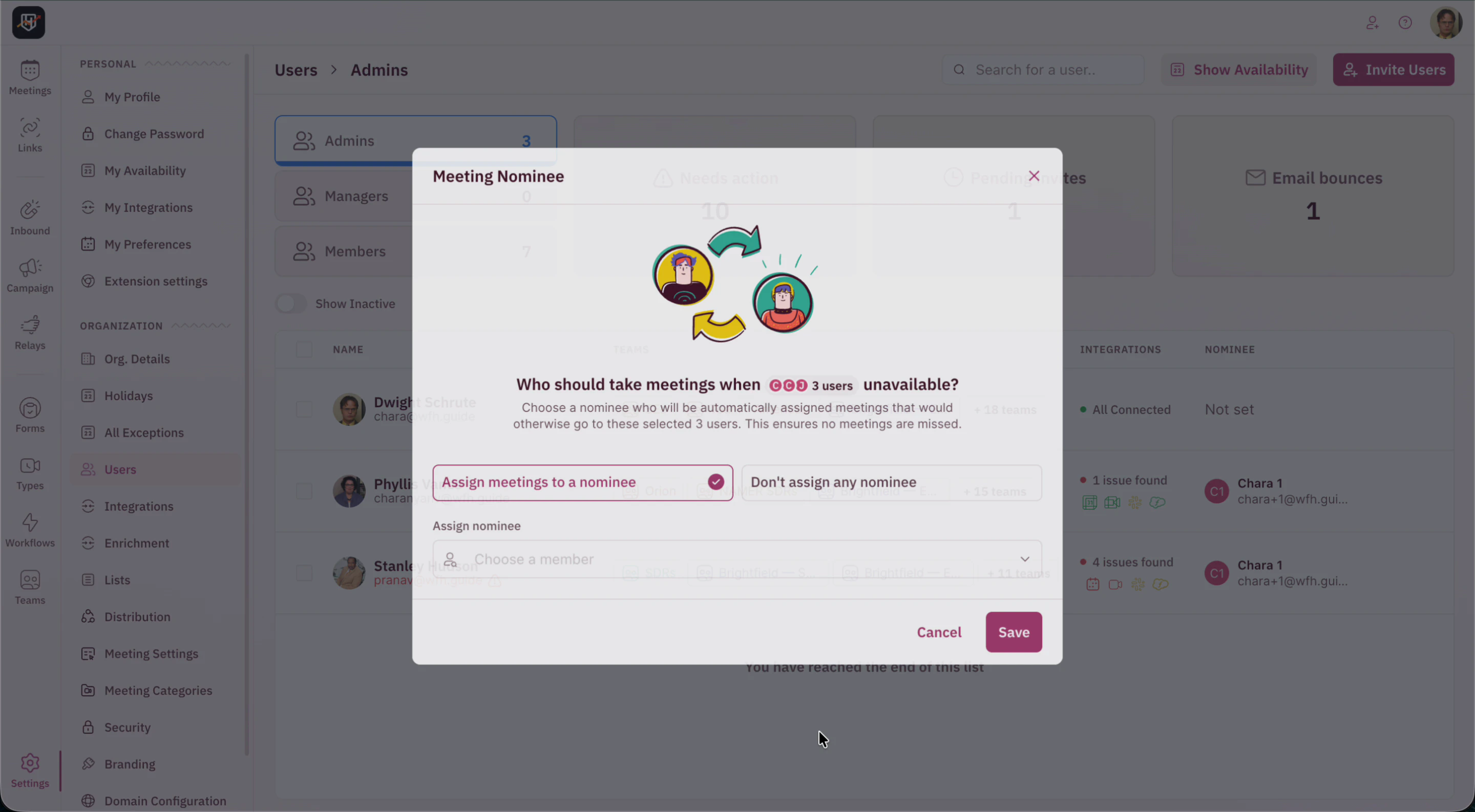
Click Update Nominee. The same Meeting Nominee modal opens, but now the question reads ā€œWho should take meetings when 3 users unavailable?ā€ with the selected reps’ avatars stacked. The dropdown automatically excludes everyone in the selection so you can’t pick someone as their own backup.
Step 3: Pick one nominee for everyone selected, then Save

Choose a single teammate to cover the entire selection and click Save. The same success toast appears, and every selected row now shows that nominee in the Nominee column.
A ā€œgo-toā€ nominee model also works. Some teams designate one or two senior reps as the universal nominee for everyone else. It simplifies coverage decisions and keeps the meeting bar consistent.

How nominees interact with other availability rules

Nominees are checked late in the availability flow. Earlier rules (meeting limits, holidays) still apply. The full order:
StepCheckResult
1Meeting limit reached for the original rep?Blocked (no nominee swap)
2Holiday assigned to the original rep?Use nominee’s availability
3Unavailability block on the original rep?Use nominee’s availability
4Real OOO event on the connected calendar?Use nominee’s availability
5Original rep available?Book with original rep
Existing bookings stay where they are. Nominees only cover new bookings made while the rep is out. Meetings already on the original rep’s calendar do not auto-reassign. Use the Reassign action on each meeting if you want them moved to the nominee.
Round-robin credits stay with the original rep. When a nominee covers a meeting, the credit counts toward the original rep’s queue position, not the nominee’s. This protects fairness, but it means the nominee’s actual workload (real meetings on their calendar) won’t show up in distribution reports for the original rep’s pod.

When the nominee is also unavailable

If the original rep is out and the nominee is also out (vacation overlap, both attending the same offsite), the scheduler skips both and falls back to standard round-robin behavior within the pod or rule. The lead won’t sit in limbo, but coverage is only as deep as the chain you set up.
For high-stakes inbound (enterprise, expansion), set nominees on the nominees too. If your top AE is out and their nominee is on PTO the same week, you don’t want the lead falling to whoever happens to be next in queue.

Remove a nominee

  1. On the Users page, check the row of the rep whose nominee you want to clear (or select multiple rows for bulk removal)
  2. Click Update Nominee in the floating bar
  3. In the modal, choose the Don’t assign any nominee radio
  4. Click Save
A red warning confirms what you’re about to do: ā€œYou’re removing the nominee for [user]. When the user takes time off, their meetings won’t be assigned to any backup.ā€ The Nominee column reverts to ā€œNot set,ā€ and the scheduler will skip that rep with no coverage from this point forward.
Your team has automatic backup coverage. Vacations stop being a manual scramble, and prospects keep seeing slots while ownership stays clean. šŸŽ‰šŸŽ‰šŸŽ‰

Holidays

Block whole-team availability on company-wide dates without manual calendar work.

Exceptions

Create one-off availability and unavailability blocks for individual users.

Distribution Rules

Configure how meetings are distributed across your team’s round-robin queue.

User Management

Invite, manage, and assign roles to users in your RevenueHero account.