

BEFORE YOU BEGINFor Video conference locations, the conferencing tool comes from the assigned rep’s integrations. Make sure your team has connected at least one of these before they own a meeting type:
How meeting locations work
A meeting location is a reusable account-level record. Each location has one of three modes:- Video conference: the rep’s connected tool (Zoom, Google Meet, or Teams) generates a unique link per booking.
- Phone: the rep calls the prospect directly. No conferencing link is sent.
- In-person meeting: a fixed address goes into the calendar invite.
Set up a meeting location
Step 1: Open the Meeting Locations settings
- In the left sidebar, click Settings → Meeting Settings.
- On the Meeting Locations card at the top of the page, click View Locations.
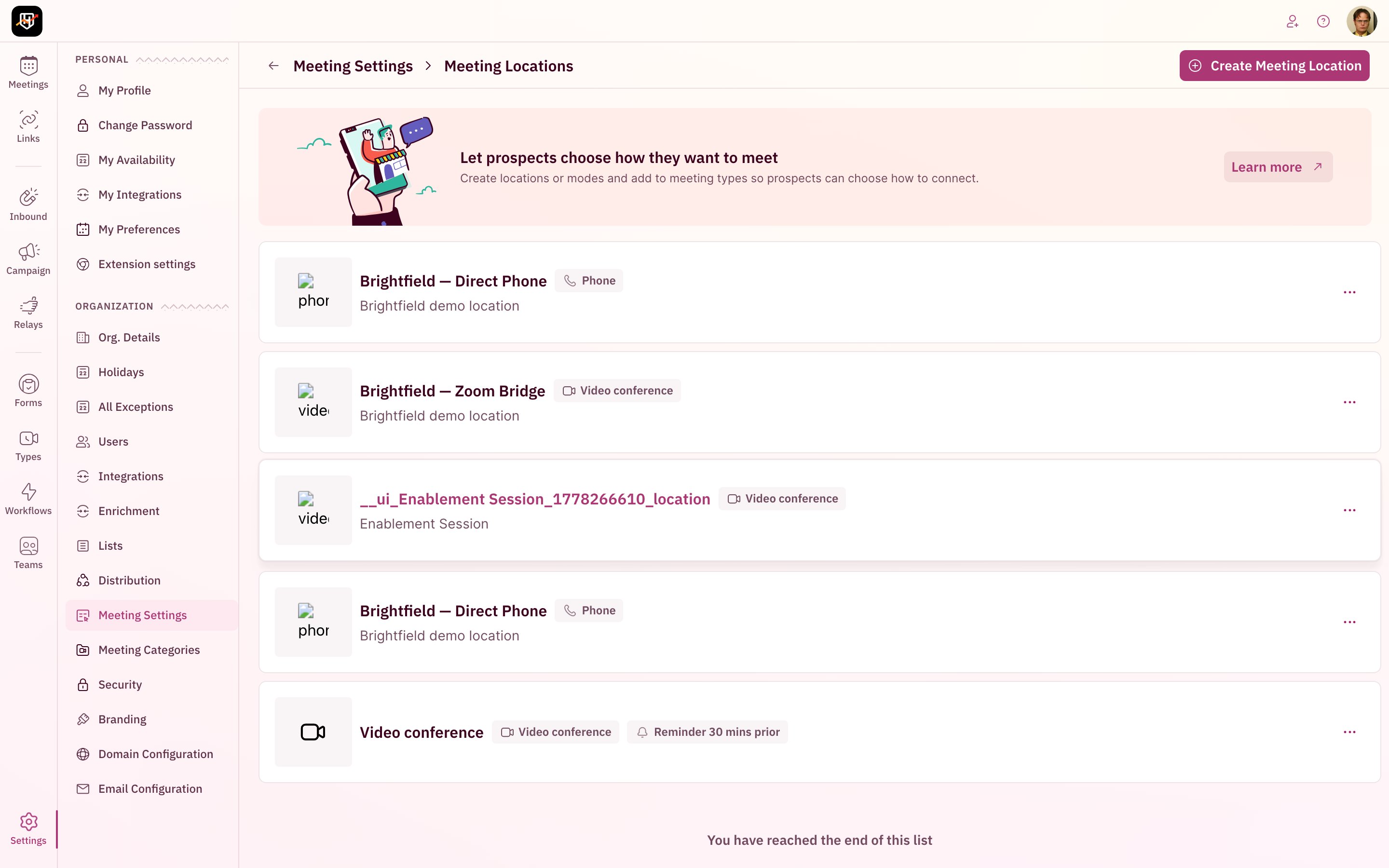
Step 2: Start a new location
Click Create Meeting Location in the top-right corner. This opens the type picker, where you decide how this meeting will happen.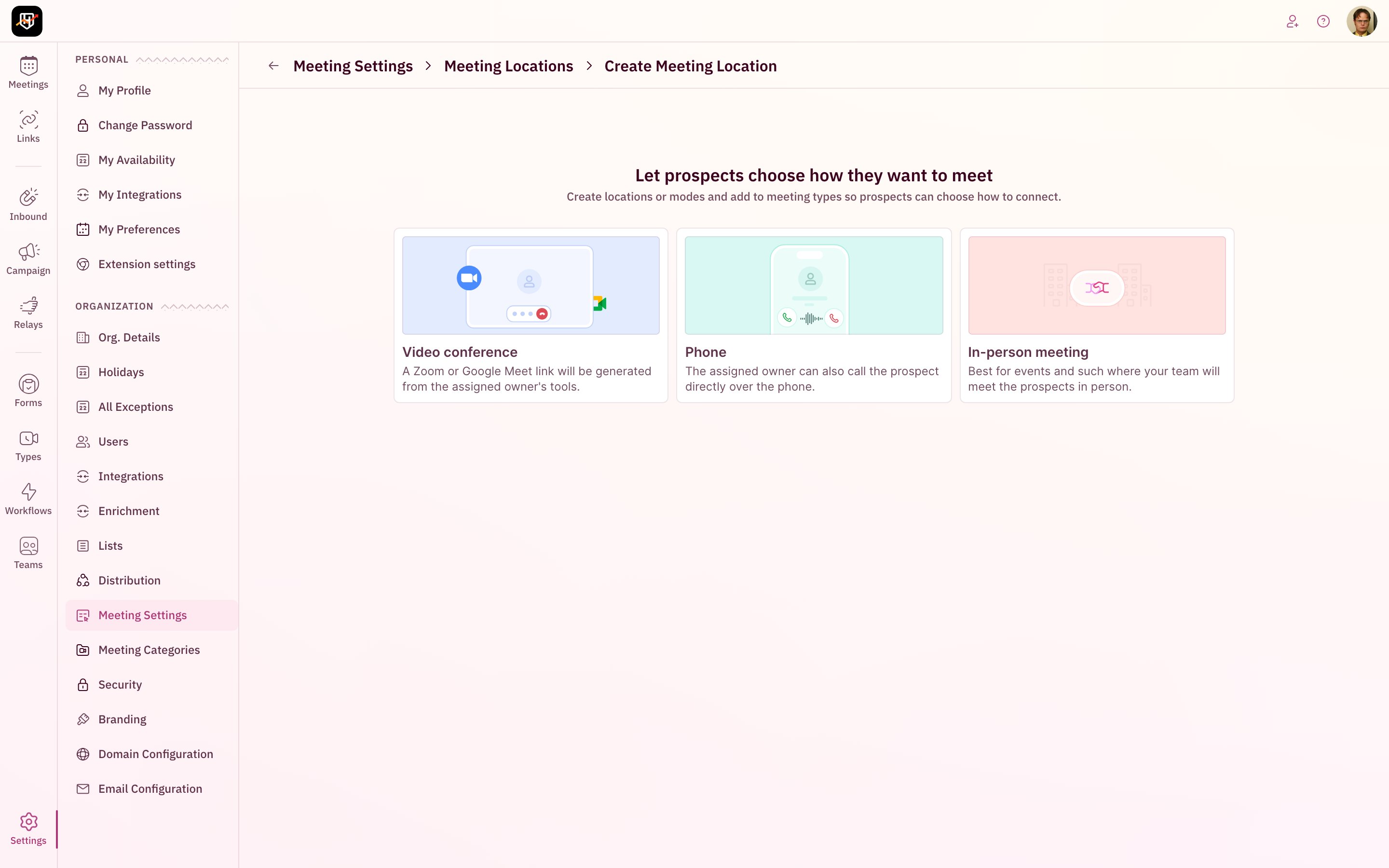
Step 3: Pick the meeting type
Click the card that matches how you want this meeting to take place, then click Proceed.- Video conference: picks up Zoom, Google Meet, or Teams from the assigned rep’s integrations. Use this for product demos, customer success calls, and most discovery meetings.
- Phone: the rep calls the prospect at the number captured on the form. Use this for SDR qualification calls or when the prospect skips a webcam.
- In-person meeting: a static address you set yourself. Use this for office visits, trade-show booths, or branch appointments.
Step 4: Fill in the basic details
Give the location a name and a short description. The name shows up on the scheduler card the prospect sees, so write it from their perspective: “30-min video call”, “Quick phone call”, “Visit our SF office”.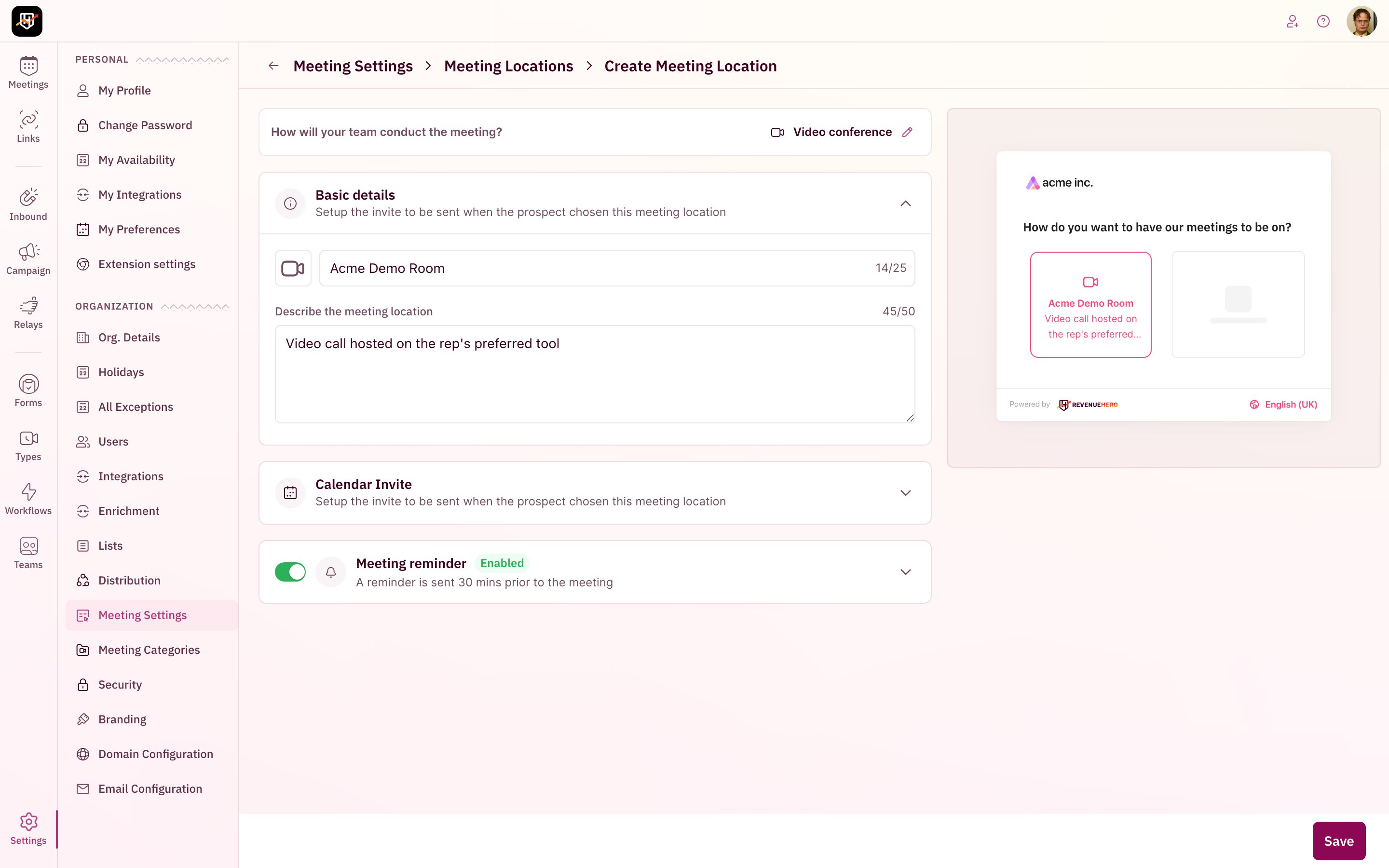
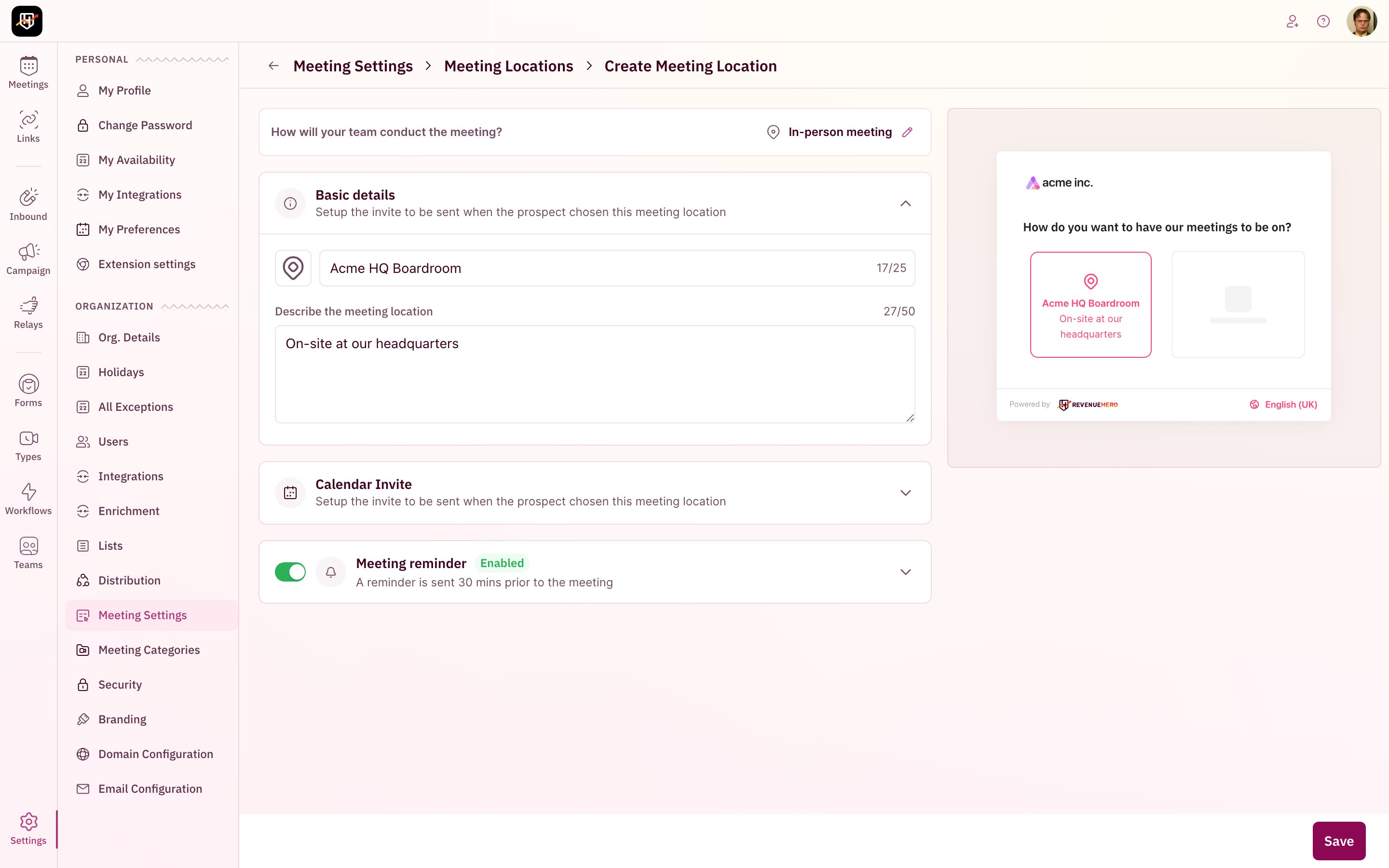
Step 5: Customize the invite and reminder
Two collapsible sections sit below the basic details:- Calendar Invite: the subject and body of the calendar invite that goes to the prospect when they book. Dynamic placeholders like
{{prospect_name}}and{{meeting_time}}are supported. - Meeting reminder: toggled on by default, sends a reminder email 30 minutes before the meeting. Turn it off if your meeting type already has its own reminder workflow.
Attach a location to a meeting type
A meeting location does nothing until you wire it into a meeting type.- Go to Meeting Types in the left sidebar and click into the type you want to update.
- Open the Meeting Location accordion section.
- Choose how to apply locations:
- Single Method: pick one location that applies to every booking.
- Let the prospect choose: select two or more locations and the scheduler will show the prospect each option as a card.
- Click Use a Meeting Location to open the picker, select your locations, and save the meeting type.
Edit or delete a location
From the Meeting Locations list, click the three-dot menu on any location card. The same accordion form opens with Update in the bottom-right instead of Save.How meeting locations interact with the rest of RevenueHero
Your meeting locations are set up and ready to attach to meeting types. 🎉🎉🎉
Create a meeting type
Wire your new locations into a meeting type so prospects can book them.
Integrate Zoom
Connect Zoom so Video conference locations generate links automatically.
Integrate Microsoft Teams
Connect Teams as the conferencing tool for reps on the Microsoft stack.
Integrate Google Meet
Connect Google Meet so booked meetings come with a Meet link.