

Why email mismatches happen
RevenueHero identifies users by their login email. Your CRM identifies users by the email in their user record. When these don’t match, meetings can’t attribute correctly. Common scenarios:- Rep logs into RevenueHero with firstname.lastname@company.com but uses firstname@company.com in the CRM
- Company uses different email formats for tools vs. CRM (e.g., Google Workspace vs. Salesforce)
- Rep changed their email in one system but not the other
What gets affected
When emails don’t match between RevenueHero and your CRM:- ❌ Meetings sync to the wrong CRM user (or don’t sync)
- ❌ Activity tracking breaks
- ❌ Reports show incorrect meeting attribution
- ❌ Round robin assignment works, but CRM attribution fails
- ✓ Prospects can book meetings normally
- ✓ Calendar invites go out correctly
- ✓ The scheduler functions as expected
- ✓ Team assignment in RevenueHero is accurate
How to sync CRM IDs
1
Navigate to Users → Needs Action
Go to Settings → Users, then click the Needs Action tab at the top.This view shows all users with CRM sync issues in one place.
If you have multiple new users in your CRM who aren’t yet synced to RevenueHero, click the Sync Users button at the top right. RevenueHero will automatically fetch and match users from your CRM based on email addresses.This works best when emails match exactly between systems. If emails don’t match, you’ll need to link those users using the steps below.
2
Click Sync
Look for users with the status “User not found in [CRM Name]” in the STATUS column and click on the Sync button. 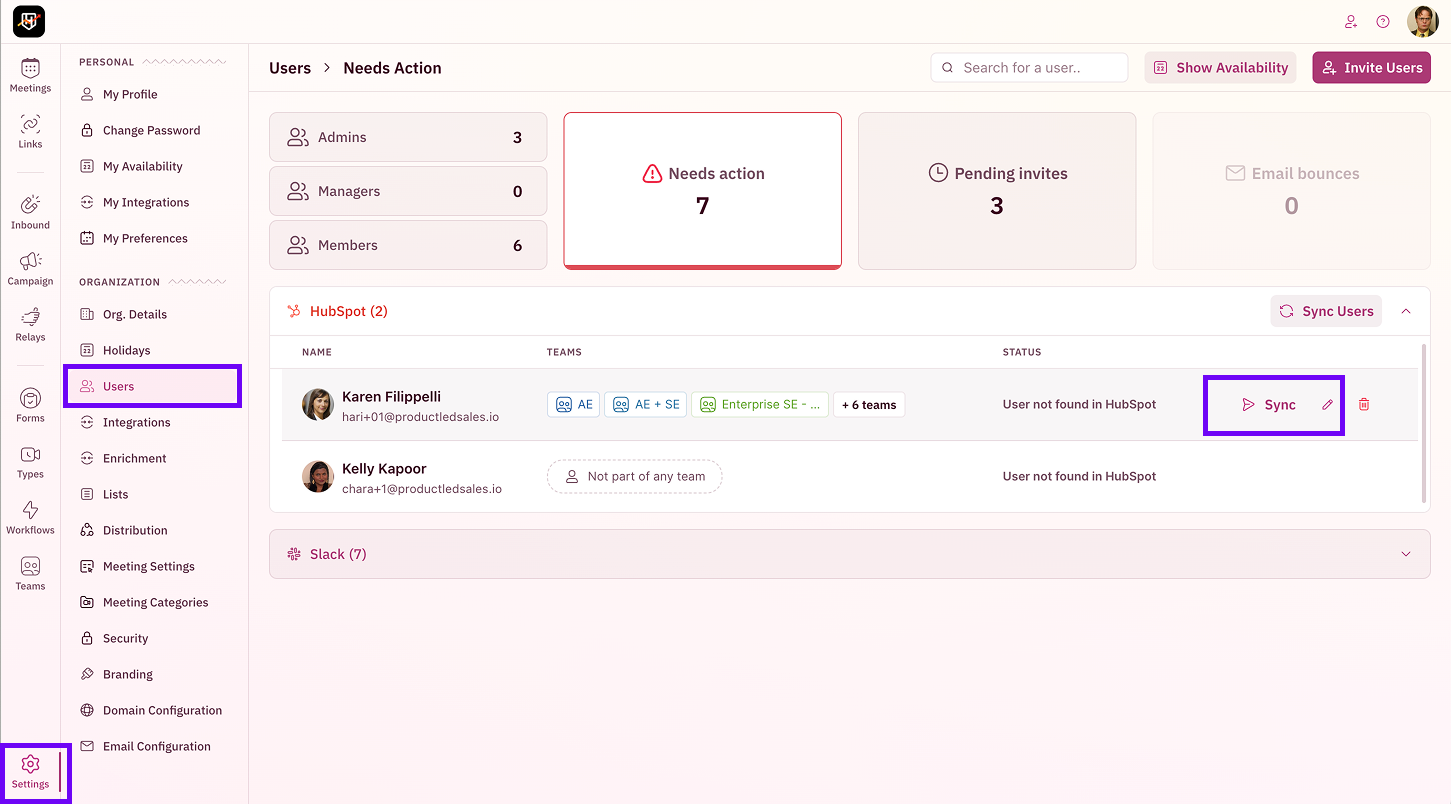
3
Search for and select the correct CRM user
A modal titled “Re-link the user” will appear showing: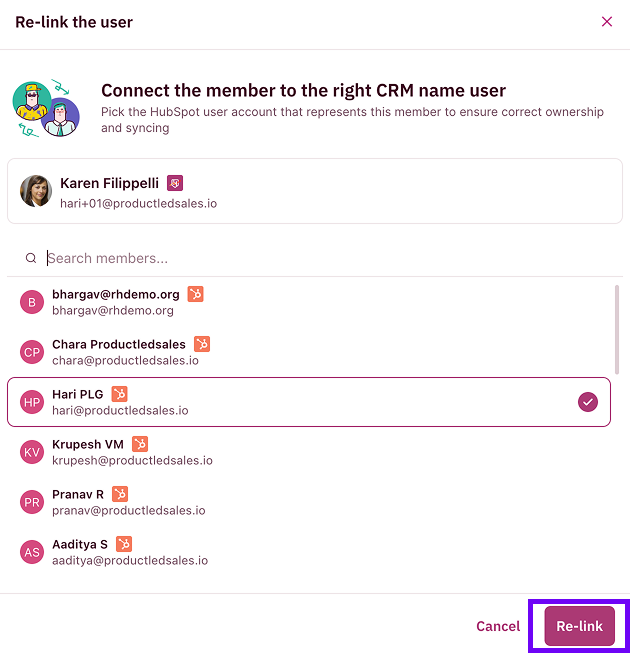
- The RevenueHero member at the top
- A searchable list of CRM users below
4
Click Re-link
Once you’ve selected the correct CRM user, click the Re-link button at the bottom right.The user will be linked to the selected CRM record, and their status will update immediately. Future meetings for this user will sync to the correct CRM record.
This only affects future meetings. Past meetings will remain under the original CRM user unless you manually reassign them in your CRM.
Verify the sync worked
After syncing, test the connection:- Have the user book a test meeting
- Check your CRM to confirm the meeting appears under the correct user
- Verify the meeting owner and activity record are accurate
Prevent email mismatches
Here’s how to avoid this issue in the first place:During onboarding:
- Ask new users which email they use in your CRM before inviting them to RevenueHero
- Send RevenueHero invites to the same email address they use in the CRM
- Document your email conventions (firstname@company vs firstname.lastname@company)
For existing users:
- Audit your user list quarterly to catch mismatches early
- When someone changes their email, update it in both systems simultaneously
- Set up a process for IT to notify admins of email changes
Common questions
Can users sync their own CRM IDs?
Can users sync their own CRM IDs?
No, only admins can sync CRM IDs. Users don’t have access to this feature in their personal settings.
Does this work for all CRMs?
Does this work for all CRMs?
Yes, the Sync CRM ID feature works with HubSpot, Salesforce, Attio, and Zoho CRM.
I synced the user but meetings still go to the wrong place. What's wrong?
I synced the user but meetings still go to the wrong place. What's wrong?
Check these:
- Did you sync to the correct CRM user? Verify the email in the CRM record matches what you expected
- Is the CRM user active? Inactive CRM users can cause sync issues
- Are there multiple CRM records with similar emails? Make sure you selected the right one