
Documentation Index

Fetch the complete documentation index at: https://help.revenuehero.io/llms.txt

Use this file to discover all available pages before exploring further.

When a prospect fills out your form, some answers help your AE prep (use case, current tool, team size). Others exist only to route the lead (country, industry, lifecycle stage). Sending all of them into the calendar invite buries the prep-relevant answers and echoes internal segmentation fields back to the prospect in their own calendar. You control this in two layers: a global toggle that turns the feature on, and a per-form selector that picks exactly which answers land in the invite body.
A prerequisite for including form entries in the meeting invite is having a form setup. You must have either your own web form (such as HubSpot, Intercom, Pardot, or any other) embedded on your landing page and mapped to a RevenueHero router or a RevenueHero form configured and associated with the router link you share with the prospect.

How form entries in invites work

SettingWhereControls
Master toggleOrganization Settings → Meeting SettingsWhether any form data appears in invites org-wide
Per-form selectorMarketing form → Edit settingsWhich specific answers from that form appear in the invite
The master toggle has to be on for any answers to appear. The per-form selector then narrows the list to only the answers worth showing the rep.

How to add form entries to meeting invites?

Enabling this feature is an extremely straightforward process.
This is an organization-wide setting. Admins can enable or disable the option to include form entries in the meeting invitations being sent out.
1

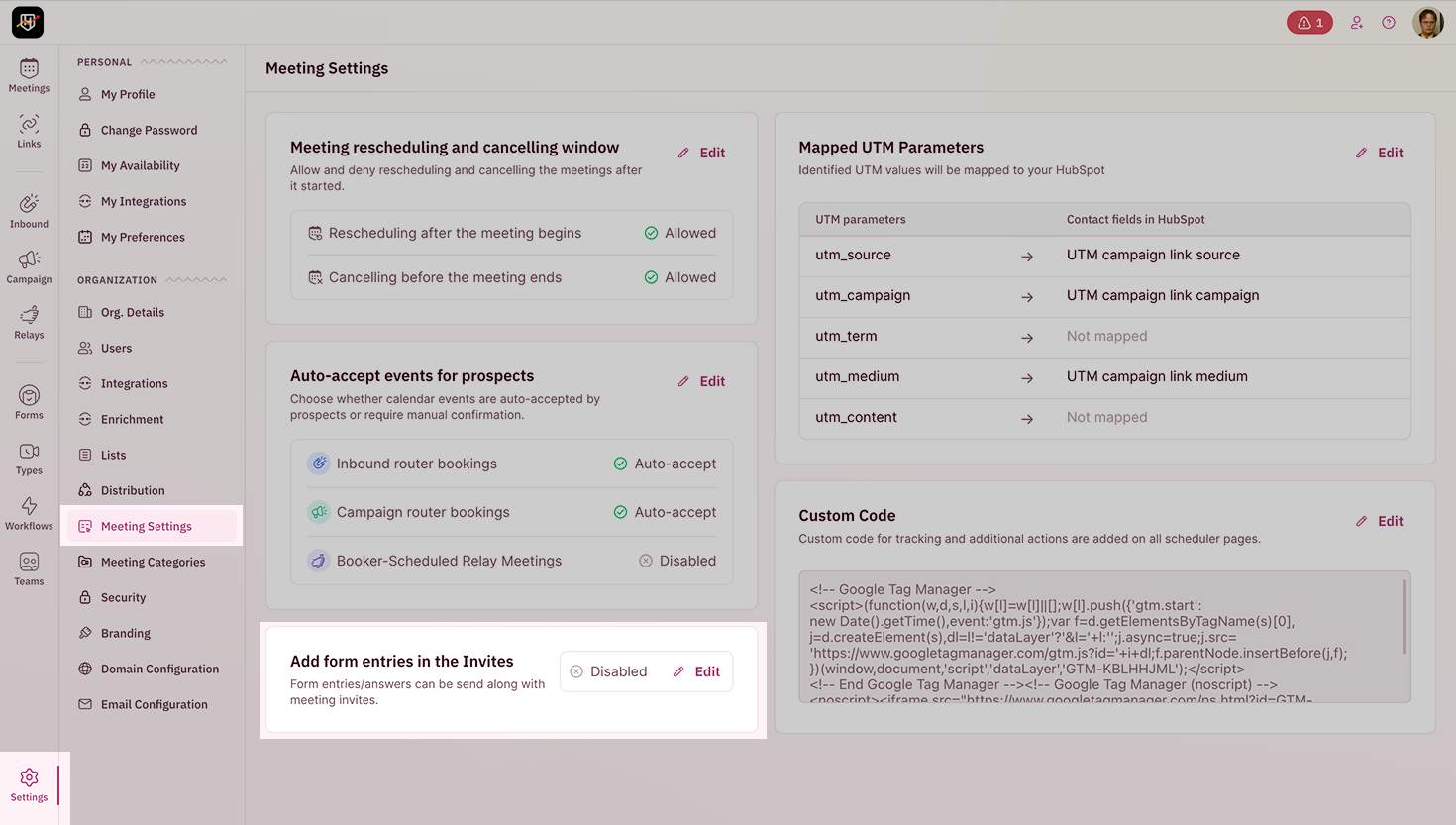
Open Meeting Settings

In your RevenueHero dashboard, go to Settings. Under Organization Settings, click on Meeting Settings and locate Add form entries in the Invites.Settings panel showing Add form entries in the Invites
2

Enable Add form entries in the Invites

Click Edit, toggle Enable Add Form Entries in Invites, and then hit Save.Enable Add Form Entries in Invites
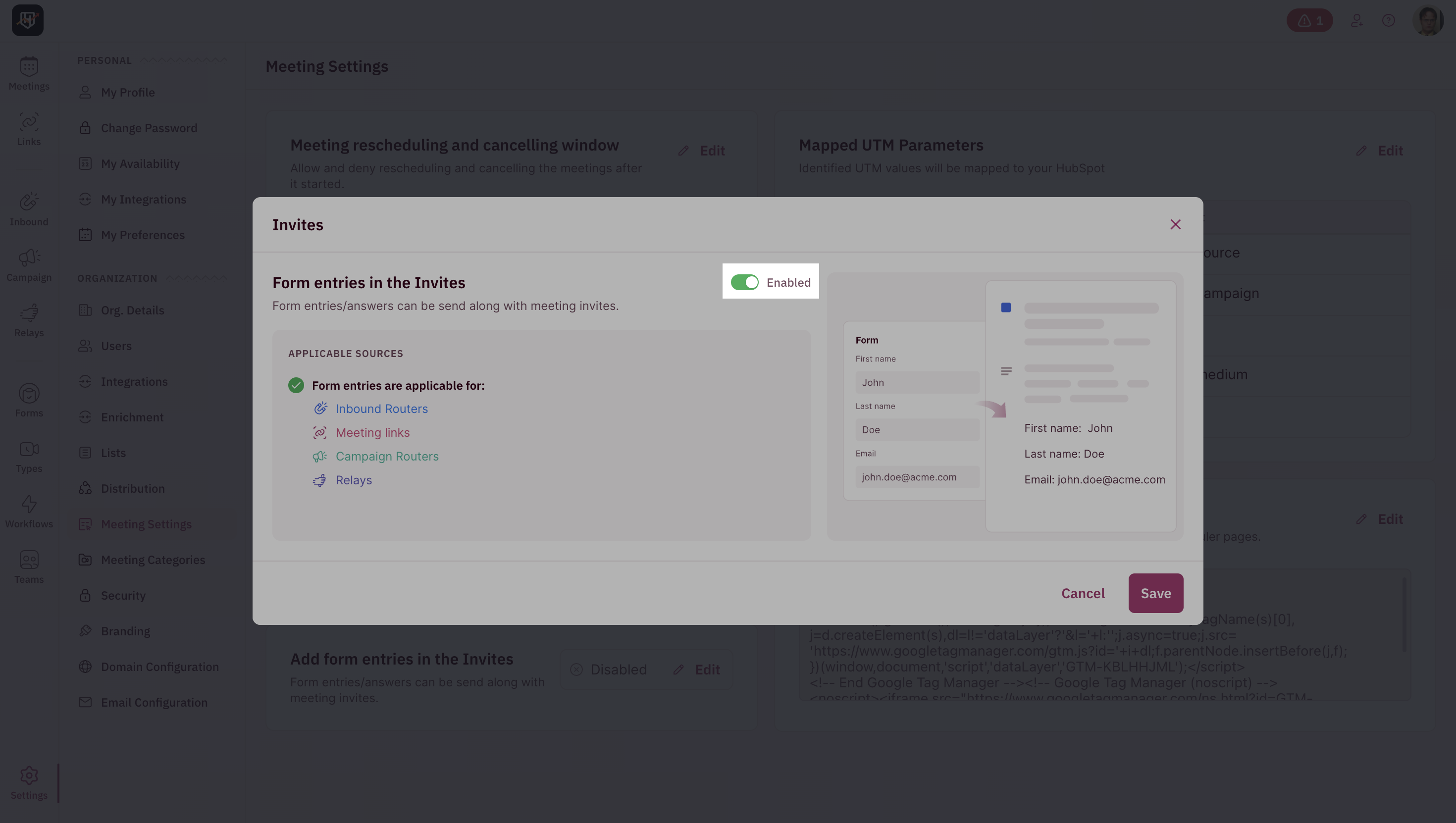
Form answers now flow into invites for meetings booked through any router. To control which specific fields appear per form, continue below.

Choose which form answers appear in the invite

Once the org toggle is on, open each marketing form’s edit settings to decide which fields are worth including. This is where you keep prep-relevant answers in and leave routing-only fields out.

Step 1: Open the form’s edit settings

  1. Go to Forms in the left sidebar.
  2. Click the marketing form you want to configure.
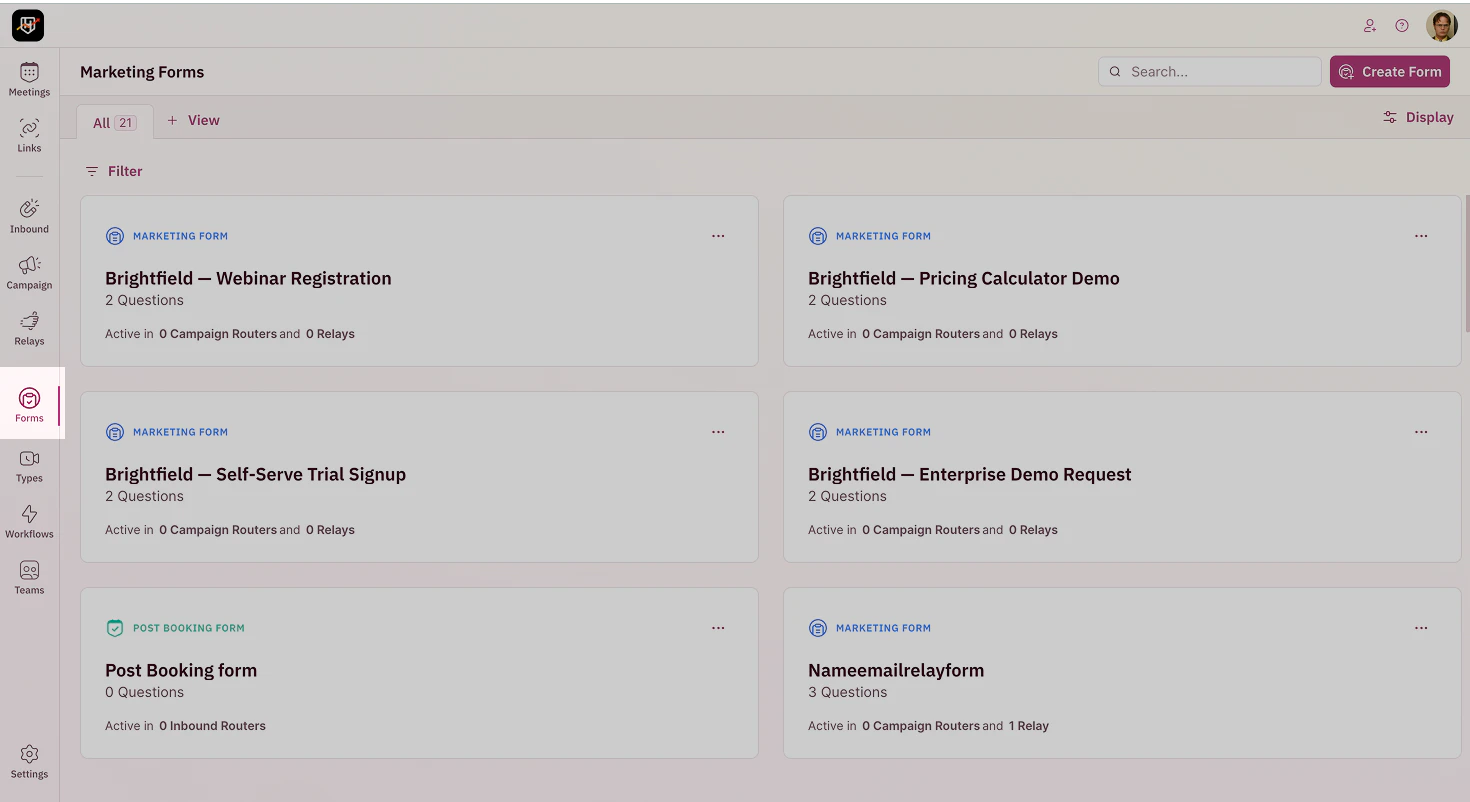
    Select Required Form

Step 2: Select the fields to include in the invite

  1. Open the form’s Settings screen.
  2. For each field on the form, choose whether it should appear in the calendar invite body.
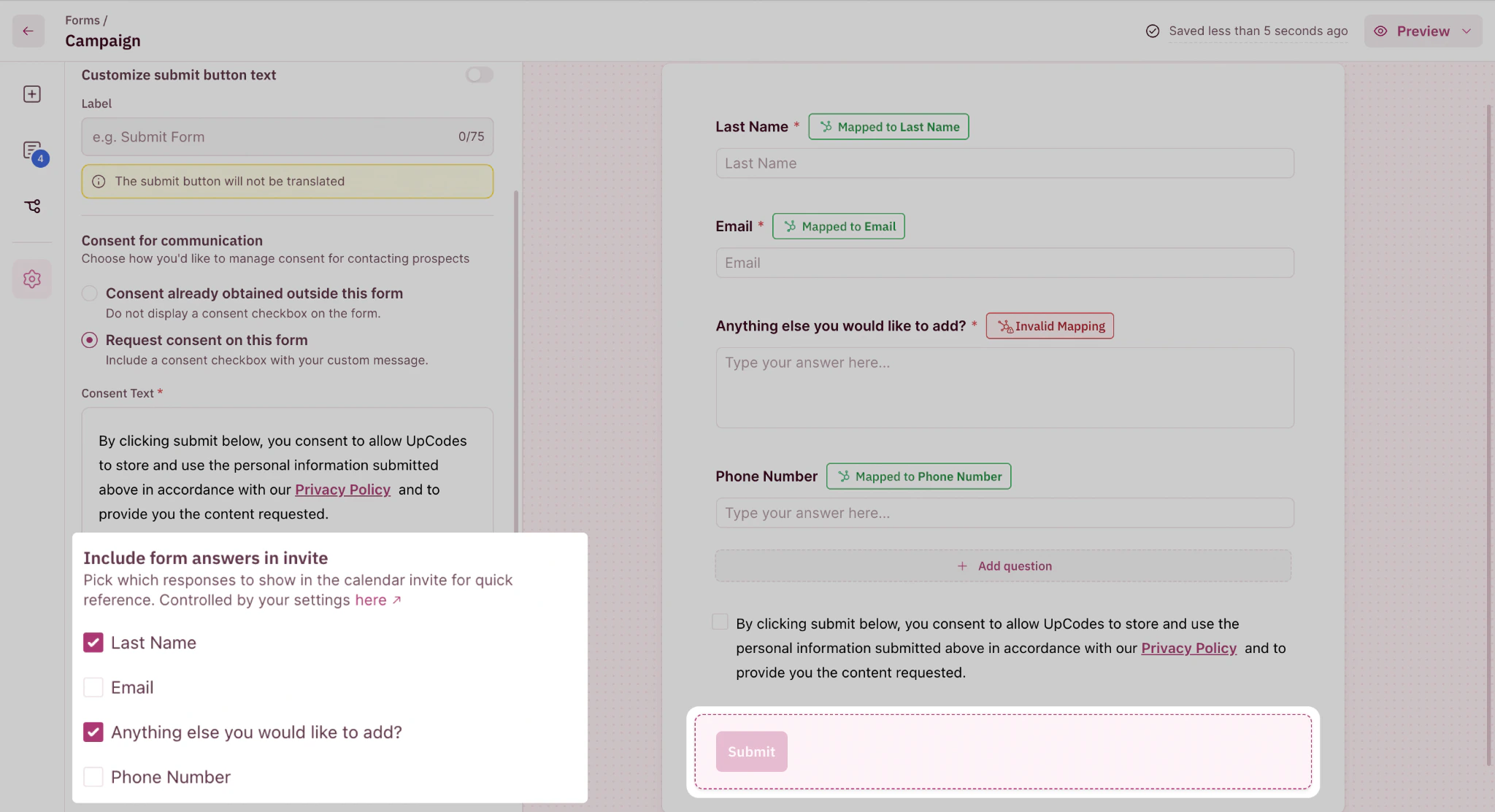
    Select Form Fields To Be Included

Step 3: Save the form

Click Submit. The next meeting booked through this form uses the new selection.
The per-form selection applies only to meetings booked from that specific form. If you have multiple forms feeding the same router, configure each form separately. They do not inherit settings from each other.
Your form answers now land in invites with the precision you want. Reps get the prep context. Prospects do not see your internal plumbing. 🎉🎉🎉