

BEFORE YOU BEGINExceptions build on top of your team’s existing availability setup:
- Set up working hours for each user
- Create meeting types and group them into meeting categories if you want to scope blocks to specific meeting types
How exceptions work
There are two types of exceptions:
Both types can be created for a single day or across multiple days. Each block is scoped to a date, a time range, and one or more users.
Key behaviors:
- Blocks are applied in each user’s local timezone. If you create a block for 2-5 PM and assign it to reps in New York and London, each rep is blocked 2-5 PM in their own timezone.
- Admins can create blocks for any user in the organization. Individual users can only create blocks for themselves.
- Blocks can optionally be scoped to specific meeting categories. A block scoped to “Enterprise Demos” won’t affect “SDR Screening Calls.”
How to create an exception
1
Navigate to All Exceptions
Go to Settings, under Organization Settings, find and click on All Exceptions
2
Click Create an exception
On the top right corner, you’ll find Create an exception button. Click on it.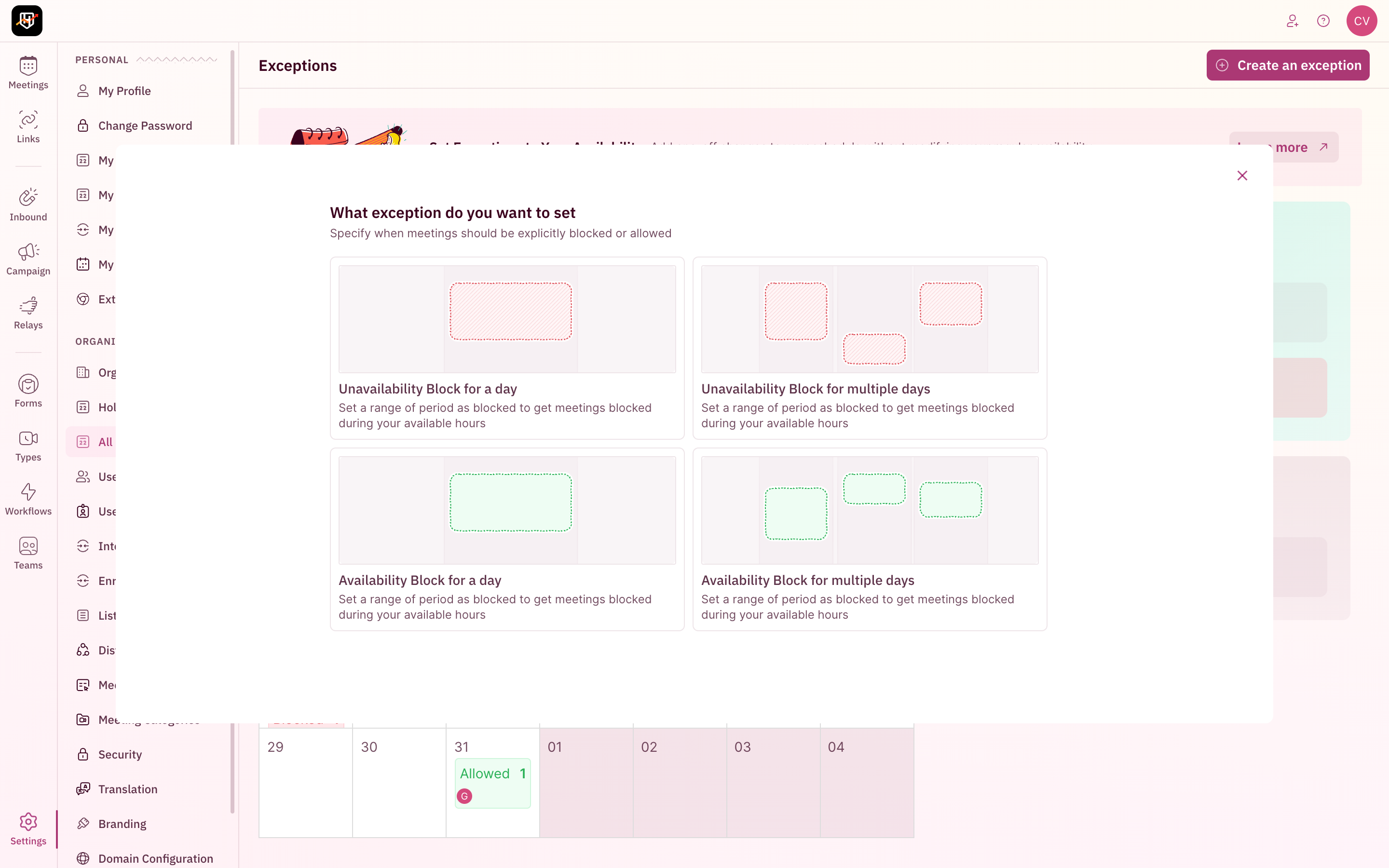
- Unavailability Block for a day: Block specific hours on a single date
- Unavailability Block for multiple days: Block across a date range
- Availability Block for a day: Override hours on a single date
- Availability Block for multiple days: Override across a date range
3
Proceed to configuration form
Once you select the exception type you want to set up, click on Proceed.
4
Pick the exception duration
Pick the date (or date range for multi-day blocks) for which you want to set up blocks.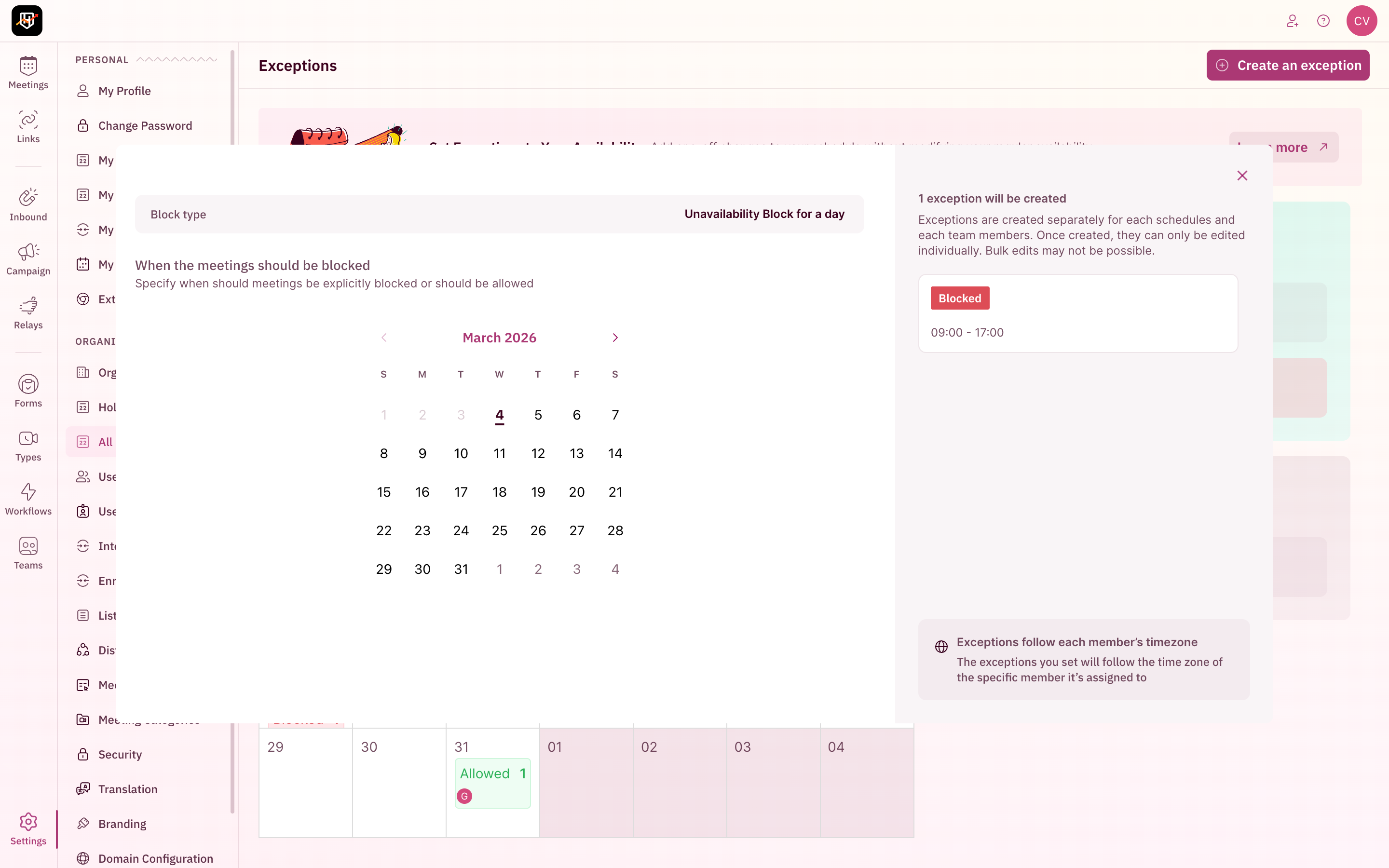
5
Select time
Set the required time range (e.g., 2:00 PM to 5:00 PM) you want to create the exception for. Add a note that help you easily identify the purpose of the block and click Proceed.
6
Select the Meeting Categories
Select all the Meeting Categories that you want to be included in this exception and Proceed.
7
Select Users
Once you have included the meeting categories, select all the users that this exception block must apply to.
If you assigned the block to multiple users, RevenueHero creates individual per-user blocks internally, each applied in the user’s own timezone.
8
Complete Setup
Click on Submit and your exception block is now succesfully created.
Admin vs. Personal views
There are two places to manage exceptions:
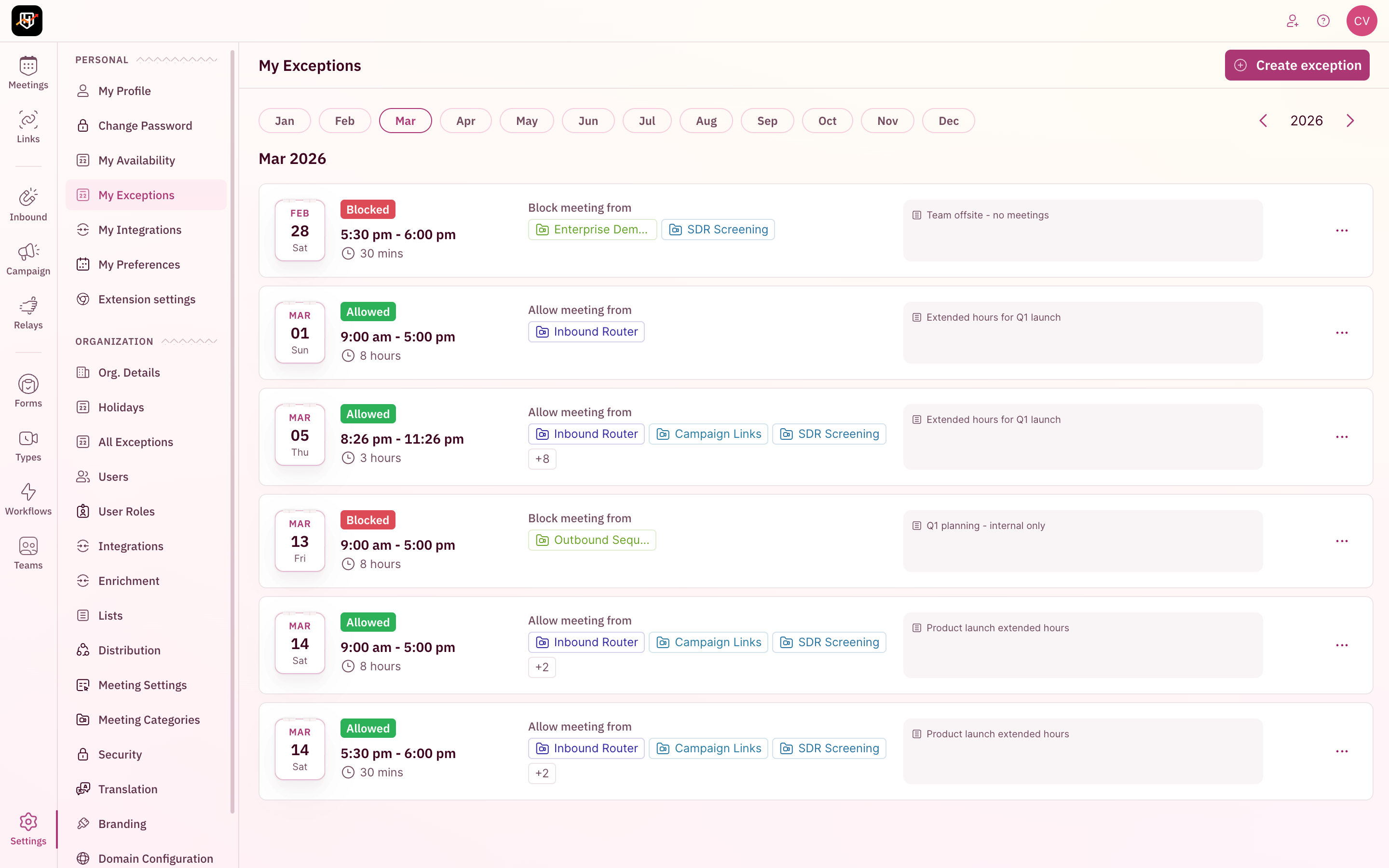
Admins see the full calendar with all user blocks, user avatars, and aggregate counts. Individual users see a list of their own blocks in the My Exceptions view, organized by month.
- Admin View
- Individual User View
Navigate to Settings -> Organization -> All Exceptions in the sidebar to see the organization-wide calendar view.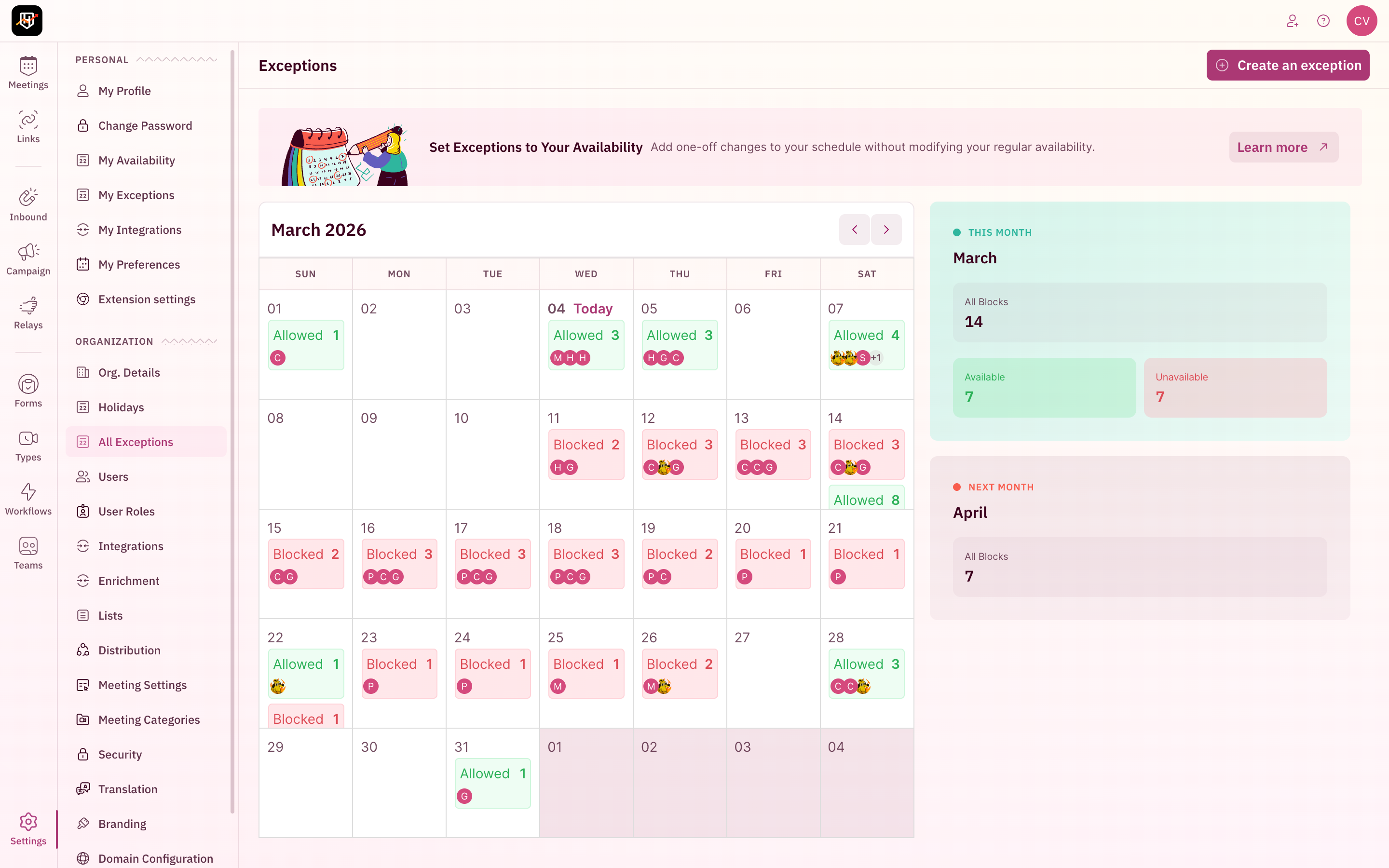
- Blocked (red): Unavailability blocks. The number shows how many users are blocked on that day.
- Allowed (green): Availability override blocks. The number shows how many users have extended availability.
- User avatars: Hover to see which specific users are affected.
Conflict detection
When creating or editing a block, RevenueHero checks for conflicts with existing blocks, holidays, and schedules. There are two severity levels:Error conflicts (block creation fails)
These prevent you from saving the block:
- Block overlap: Another block already exists for the same user on the same date and overlapping time range
- Holiday overlap: The user is assigned to a holiday on that date. You cannot create a block over a holiday.
- Schedule overlap with event meeting type: The block conflicts with a scheduled event-type meeting
Warning conflicts (block saves with a warning)
These let you proceed but flag a potential issue:
- Redundant unavailability: You’re creating an unavailability block during hours the user is already unavailable (outside their working hours)
- Redundant availability: You’re creating an availability override during hours the user is already available (within their working hours)
How exceptions interact with other availability controls
Exceptions sit in the middle of the availability priority chain. When RevenueHero checks whether a user is bookable for a specific slot, it evaluates these rules in order:
The key takeaway: Availability overrides can bypass working hours and unavailability blocks, but they cannot override holidays or meeting limits. Holidays and meeting limits are absolute.
Holidays can be created over existing blocks (the holiday takes precedence), but blocks cannot be created over existing holidays. If you need to block a date that has a holiday, remove the holiday first.
How to delete or edit an exception
- Navigate to Settings → Organization → All Exceptions
- Click on the day in the calendar that has the block you want to modify
- Click the block entry to open the edit view
- Make your changes and click Save, or click Delete to remove the block