

BEFORE YOU BEGINYou need admin access to your organization’s settings. The blocklist lives under organization-level Meeting Settings, so the domains you add apply across your whole account.
How the blocklist works
Think of it as one guest list of people who are turned away, checked on every form submission.- You add entries in Meeting Settings as either a full domain (
competitor.com) or a single address (repeat-noshow@testing.com). - When someone submits a form, RevenueHero checks the email they entered against your blocklist.
- If it matches, they’re disqualified and never shown a scheduler.
- This applies everywhere automatically once the entry is saved. Every RevenueHero link and every Relay Quick Book (magic slots) honors the list. There is no per-form or per-link switch to flip.
Add entries to your blocklist
Step 1: Open Meeting Settings
In the left sidebar, click Settings → Meeting Settings, then scroll to the Custom Email Blocklist section near the bottom of the page.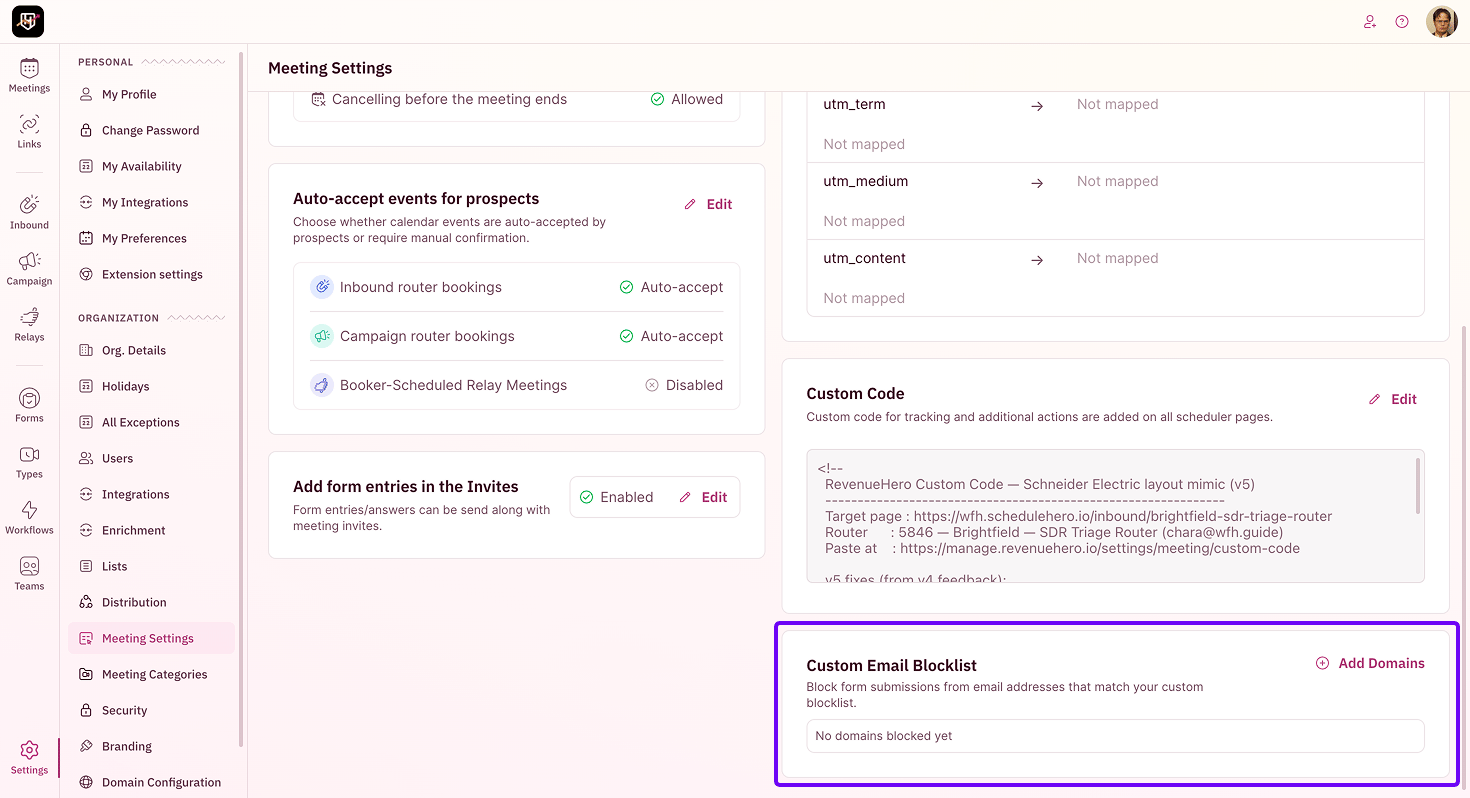
Step 2: Add a domain or address
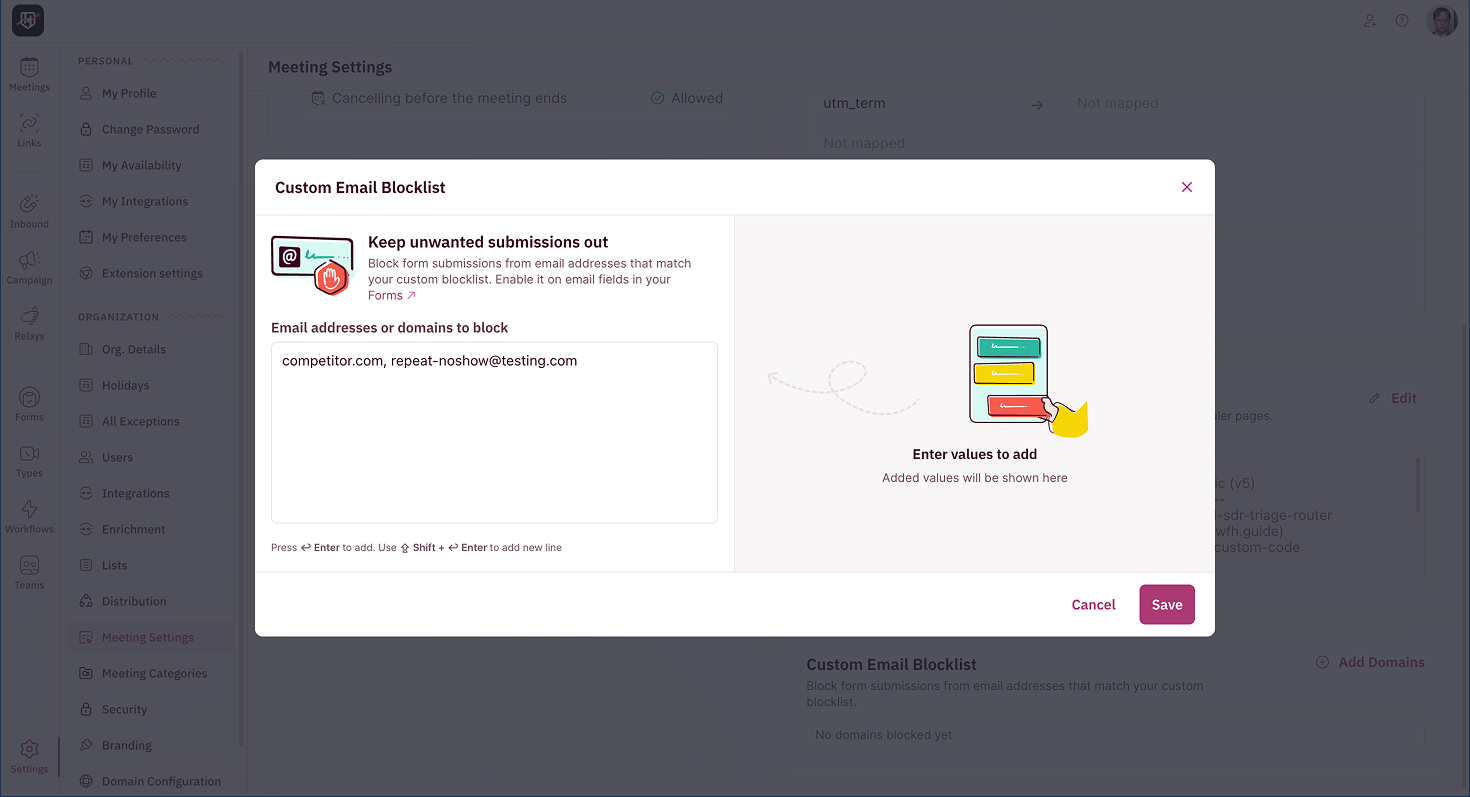
Click Add Domains, then enter what you want to block. You have two levels of precision:- A full domain, like
acme-competitor.com. This blocks every address at that company. Use it for competitors and known spam sources, where you want the whole organization shut out, not one inbox. - A single address, like
serial-rescheduler@gmail.com. This blocks one person while leaving everyone else at that domain free to book. Use it for an individual time-waster on a shared consumer domain like Gmail or Outlook, where blocking the whole domain would also block real prospects.
Step 3: Save
Save your entries. The block is live immediately, across every link and Relay Quick Book in your account. There is nothing to enable on individual forms.What matching looks like
A domain entry matches anyone whose email ends in that domain. An address entry matches only that exact email. Soacme.com turns away jane@acme.com and sales@acme.com alike, while jane@acme.com turns away only Jane.
Your blocklist is set. The people you never wanted on your calendar are turned away before they can book, and your reps get their time back. 🎉🎉🎉
ZeroBounce Enrichment
Filter spam and invalid emails at submission with real-time email validation, on top of your blocklist.
Map Your Form
Connect each form field, including the email field the blocklist checks, to your router.
Distribution Rules
Route the leads you keep to the right rep, now that rules no longer carry your blocking logic.
Meeting Link Settings
Control CRM sync, base assets, and themes across your booking links.