

BEFORE YOU BEGIN
- You need Salesforce admin access to Setup → Object Manager and Lightning App Builder.
- Your RevenueHero Relay router should already be configured, so the popup has routing rules to act on.
- Confirm your Salesforce CRM integration is connected.
How the booking button works
Two pieces work together. Miss either one and the popup won’t open correctly.- The Salesforce button (admin sets this up once). A custom Detail Page button on the Contact layout opens the RevenueHero booking interface and passes the contact’s email as a merge field. That email is what keeps Relay routing and booking attribution accurate.
- The Chrome Extension (each rep installs it once). The button hands off to the extension, which authenticates the rep and renders the Relay booking experience inside Salesforce. If a rep hasn’t installed the extension and isn’t logged in to RevenueHero, the popup can’t initialize.
RevenueHero works out of the box on standard Salesforce layouts. If your org uses custom layouts to match how your team works, set up the RevenueHero button described in this guide so reps can book and hand off meetings directly from those records.
Part 1: Set up the Salesforce button
Step 1: Create the custom button
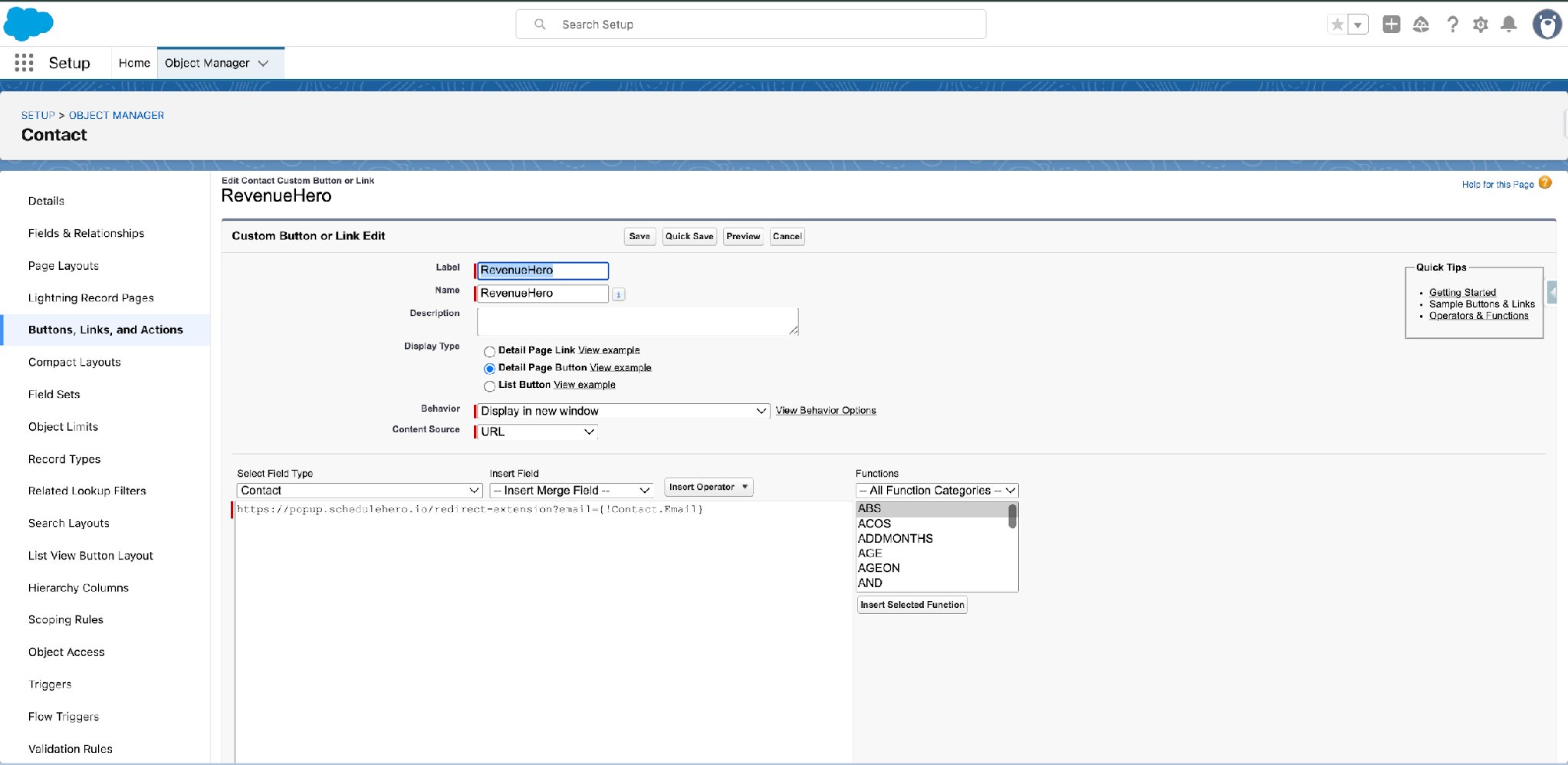
- In Salesforce, go to Setup → Object Manager → Contact → Buttons, Links, and Actions.
- Click New Button or Link.
- Configure it as follows:
- Label:
RevenueHero(orBook a Meeting) - Display Type: Detail Page Button
- Behavior: Display in new window
- Content Source: URL
- Label:
- Enter this URL as the content source:
{!Contact.Email} merge field passes the contact’s email into the booking flow at click time. This is what lets Relay match the right rep and keep booking attribution tied to the correct contact, so don’t remove it.
Step 2: Add the button to the page layout
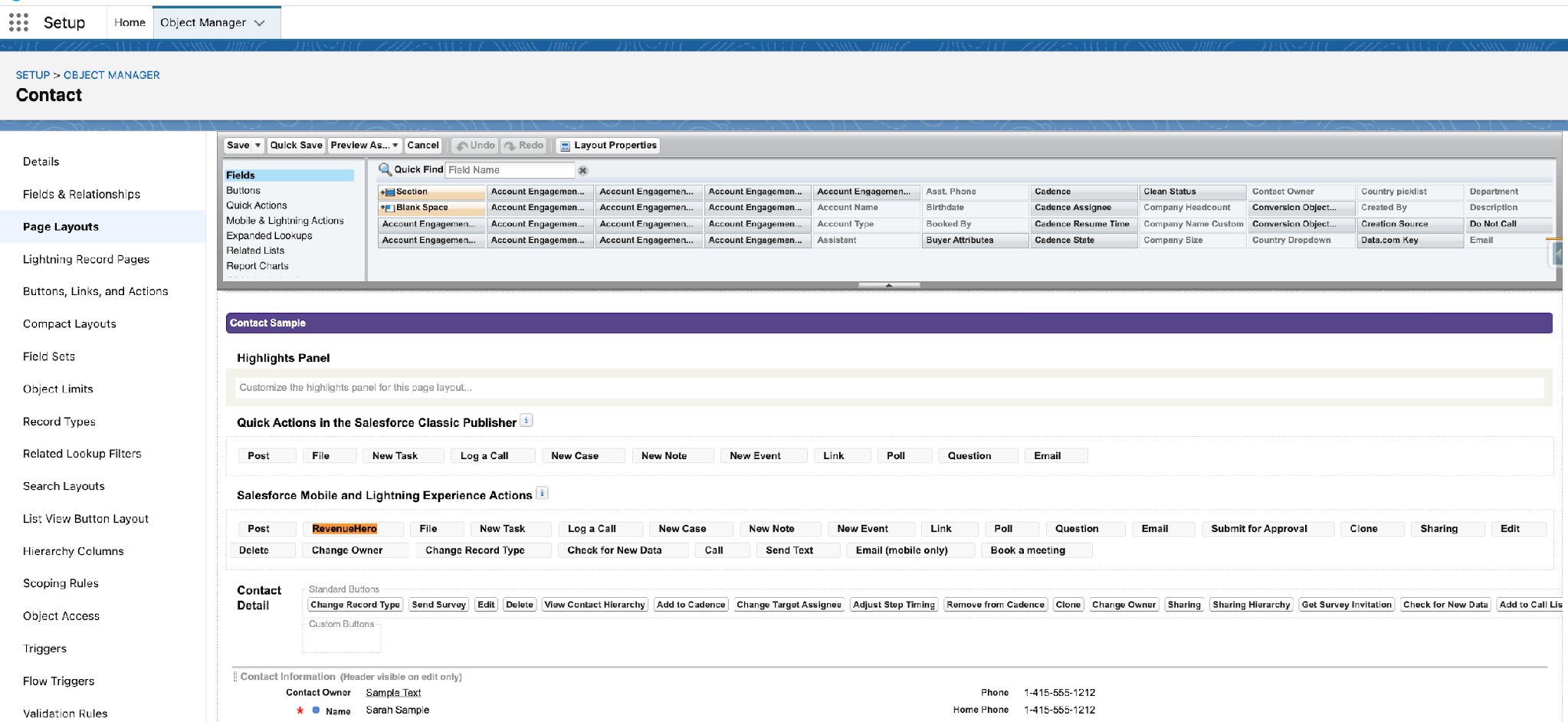
A button that exists but isn’t on the layout never shows up on the record. Place it where reps will see it.- Go to Setup → Object Manager → Contact → Page Layouts.
- Open your active layout.
- Scroll to the Contact Detail section.
- Drag the RevenueHero button into Salesforce Mobile and Lightning Experience Actions.
- Click Save.
Step 3: Point the Lightning record page at the page layout
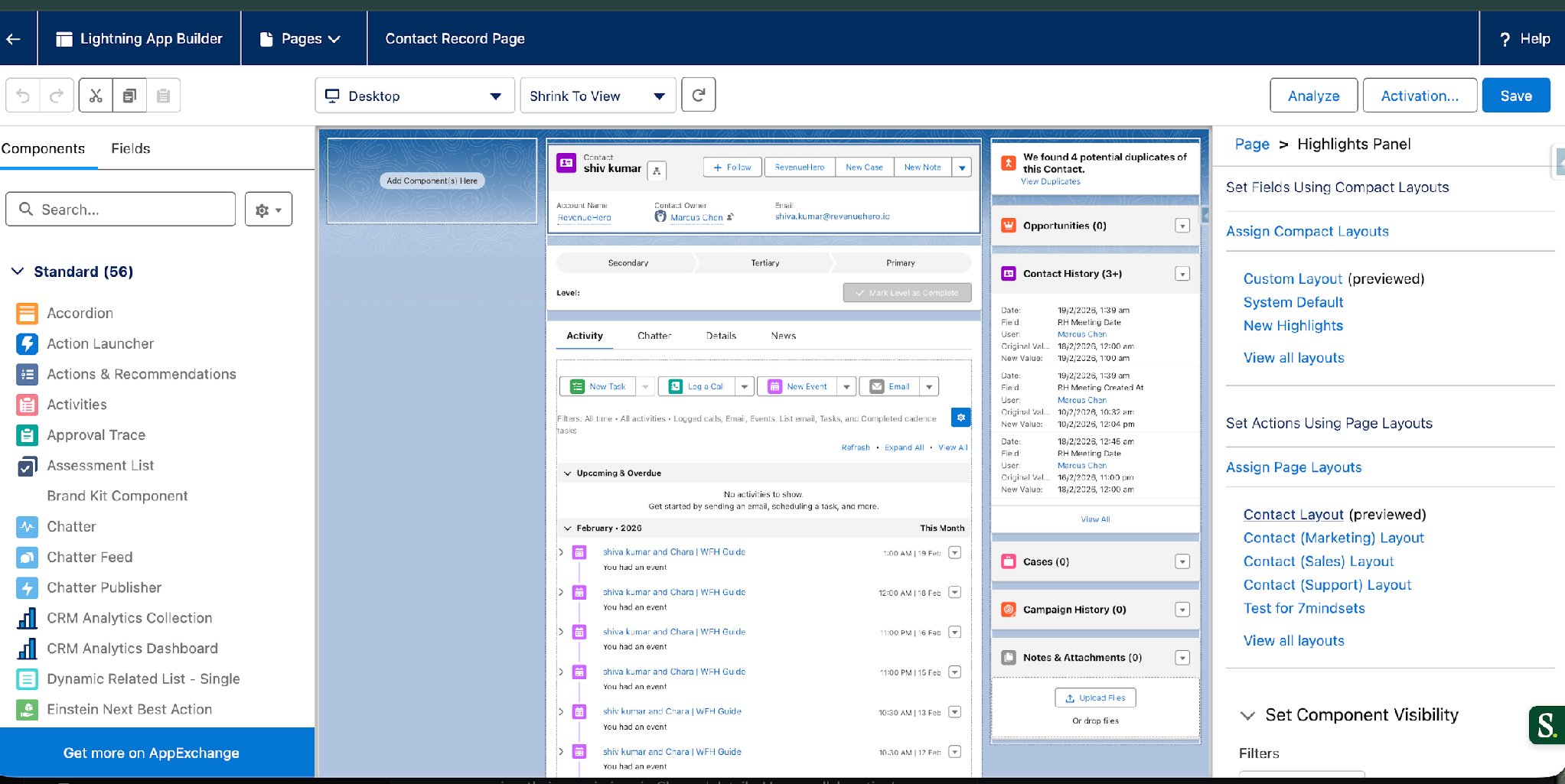
Lightning record pages can override the layout’s action area. If they do, your new button won’t appear. This step makes the Lightning page use the layout you just edited.- Go to Setup → Lightning App Builder → Contact Record Page.
- Click the Highlights Panel.
- Set it to Use Page Layout.
- Click Save & Activate.
Part 2: Each rep installs the Chrome Extension
The button opens the booking popup, but the RevenueHero Chrome Extension is what authenticates the rep and runs the Relay experience inside Salesforce. Every rep who will book from Salesforce does this once.- Install the RevenueHero Chrome Extension from the Chrome Web Store.
- Log in to RevenueHero. The extension uses your RevenueHero login to authenticate you.
- Refresh Salesforce so the extension picks up your session.
Validation checklist
Before you tell the team it’s live, confirm:- Button created with the correct URL
{!Contact.Email}merge field present in the URL- Button visible on the Contact record
- Lightning record page set to Use Page Layout
- Extension installed and the rep logged in to RevenueHero
- Booking popup launches from a Contact record
- The contact’s email auto-populates in the booking flow
- Relay routing assigns the meeting as expected
Your Salesforce booking button is live. Reps can now hand off and book straight from a Contact record. 🎉🎉🎉
Using the Chrome Extension
What the extension does across Gmail, Salesforce, and HubSpot.
Book a Relay meeting from your CRM
How reps book and hand off meetings inside the CRM.
Create Relays
Set up the routing rules the booking button uses.
Integrate Salesforce CRM
Connect Salesforce so bookings sync back correctly.