

BEFORE YOU BEGINInstall and set up the Chrome extension.
Share a meeting link
From any page, with Search
Press Cmd + K (Ctrl + K on Windows) on any page to open Search. It finds your Quick Links, your meeting links and group meeting links, your team’s Relay, campaign and inbound links, and your teammates.- Type part of a link’s name or its length (“30 min”) to narrow the results. Type “relay”, “campaign” or “inbound” to see only that kind of link.
- To share a teammate’s link, type their name. They appear under Users. Press Enter to see their links.
- With a link highlighted, press Enter to copy it. A message confirms the link was copied. Paste it anywhere with Cmd + V.
- To offer times from a link, press Shift + Enter. See Suggest times in an email.
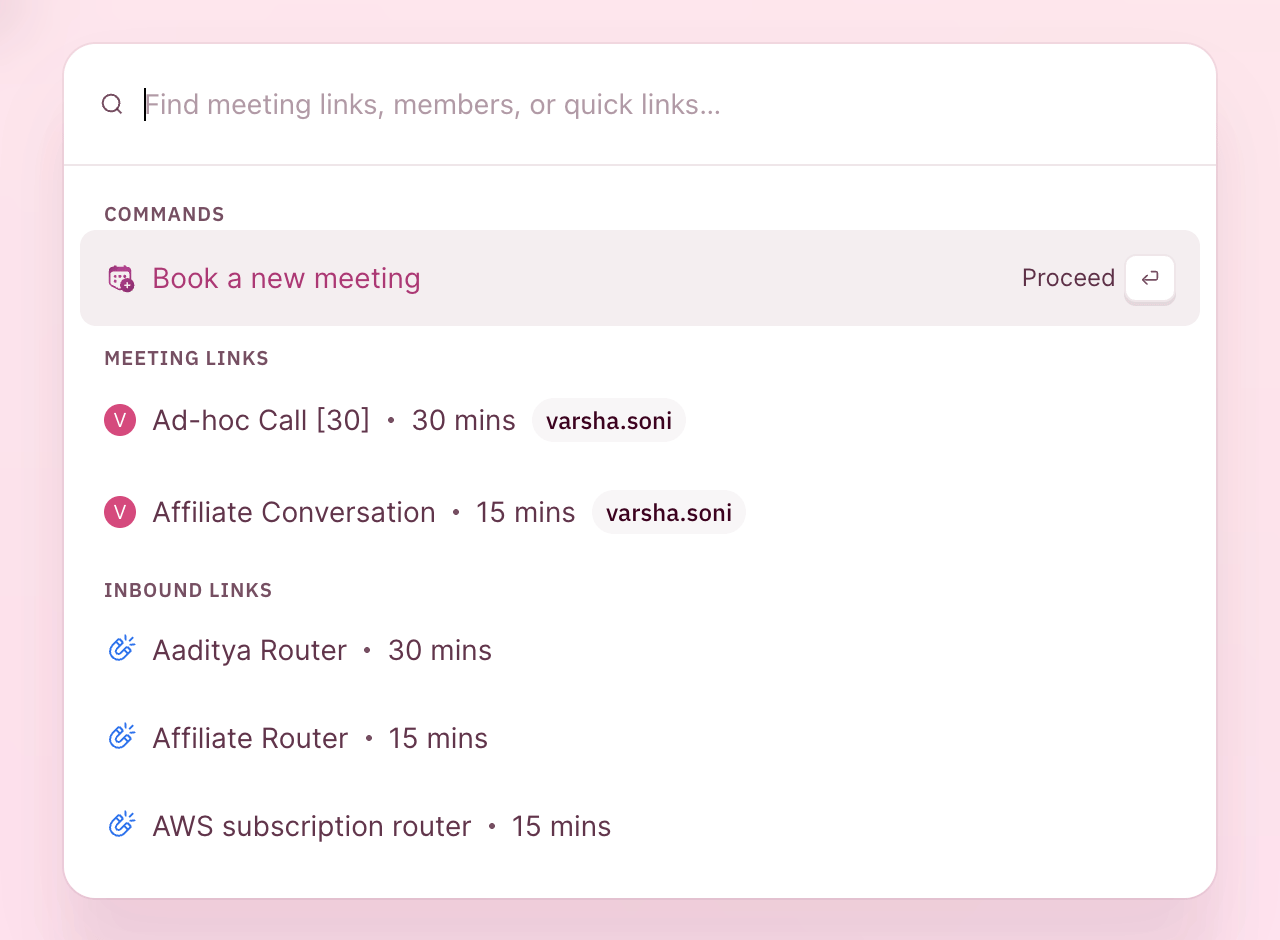
Search lists commands first, then your links by type.
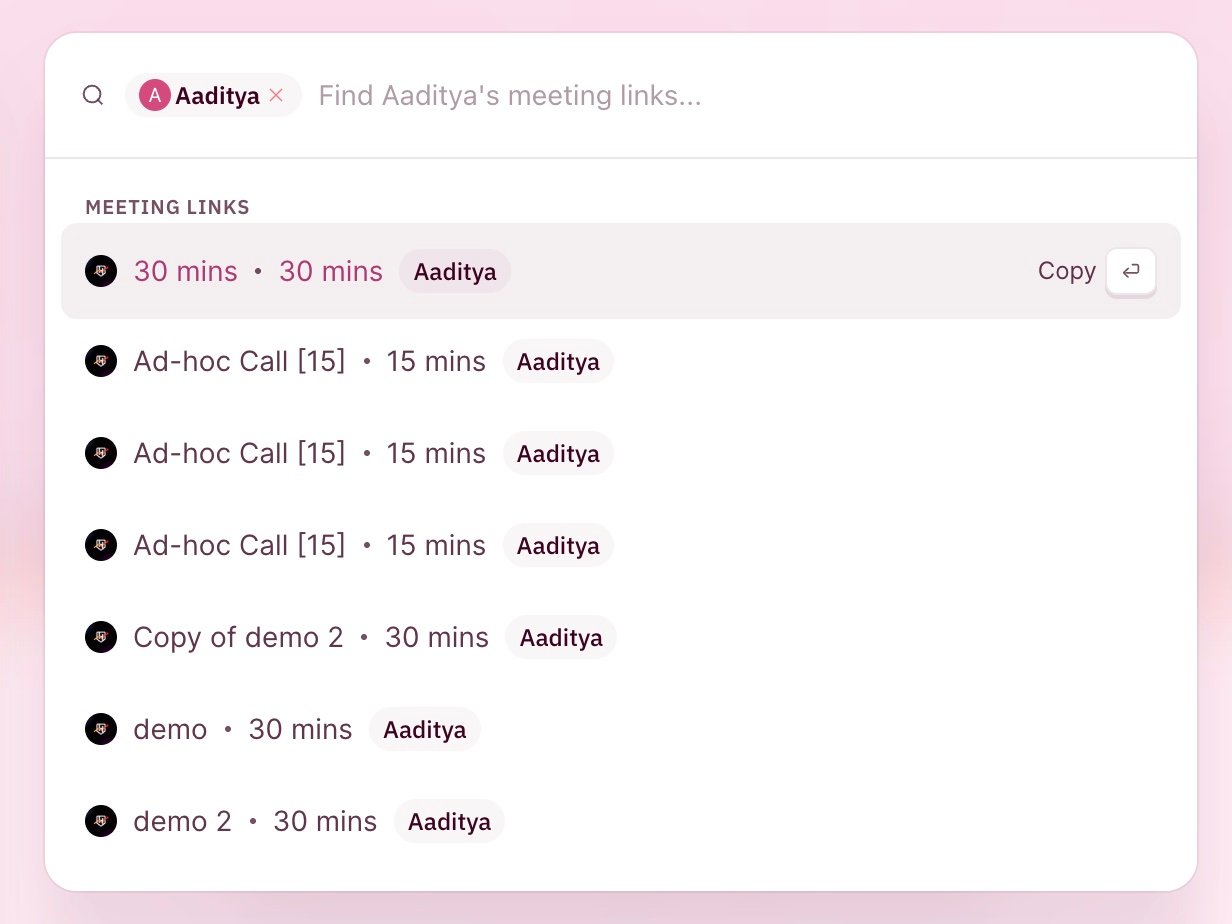
A teammate's links. Press Enter to copy the highlighted one.
In an email, with rh/
Type rh/ in an email compose box to open the RevenueHero menu without leaving your email. It works in Gmail (new emails and replies) and in the email composers in HubSpot, Salesforce, Outreach, Salesloft and Gong.- Keep typing to search. For example, rh/campaign shows your campaign links.
- Press Enter on a link to insert it into the email.
- Click slots next to a link to suggest times from it.
- For a Relay, add the prospect to the To field, then choose Magic Slots. The booking window opens with the prospect filled in, so you can share times from the rep who will take the meeting.
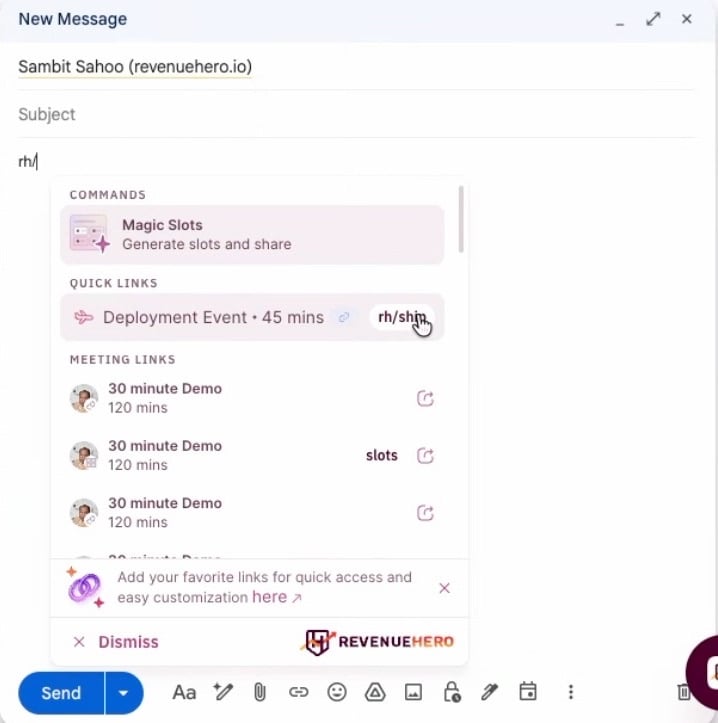
Suggest times in an email
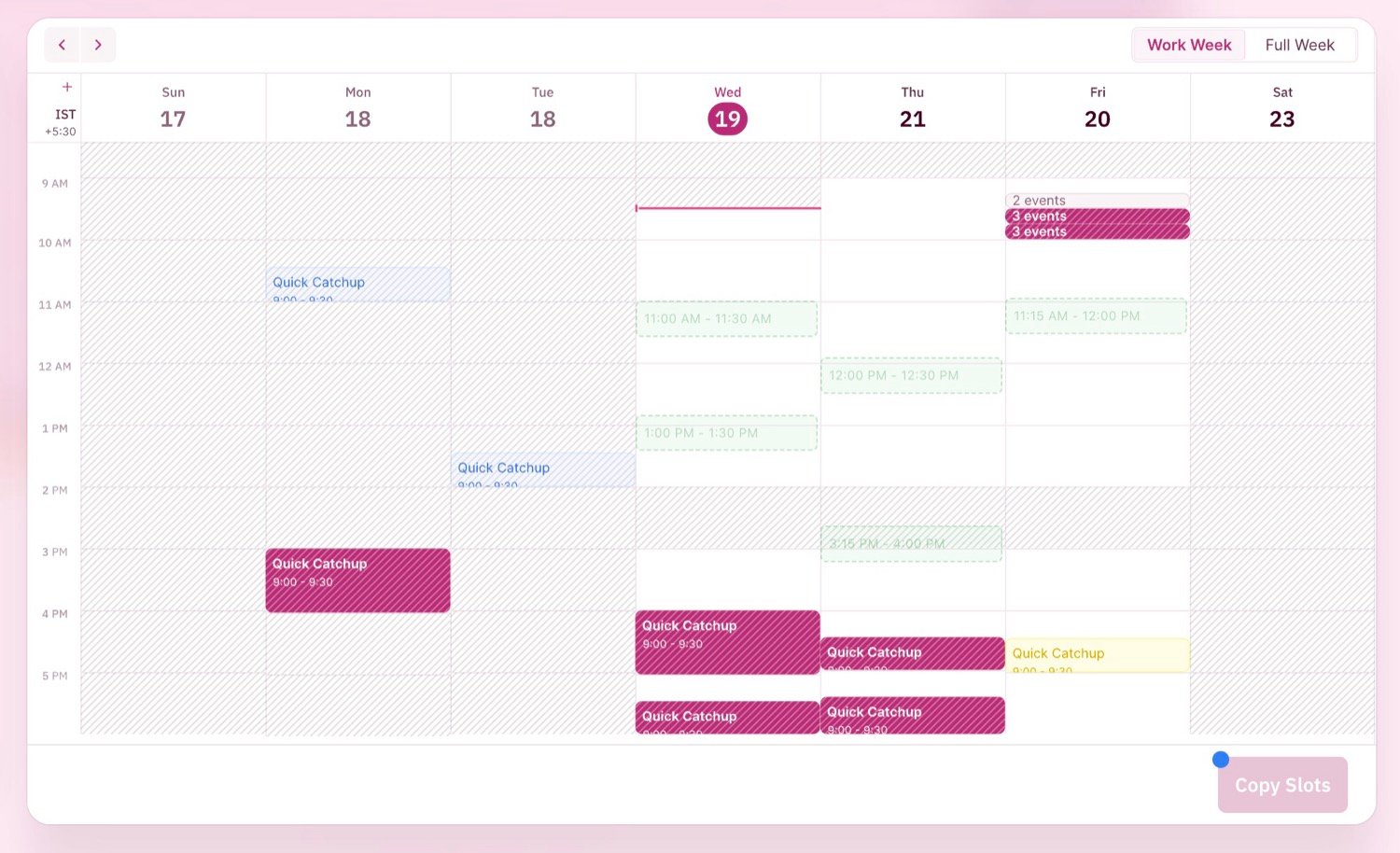
Time slots are clickable times placed in the body of your email. The prospect clicks one to book, with no back-and-forth. A Find more times link under the times opens the full calendar.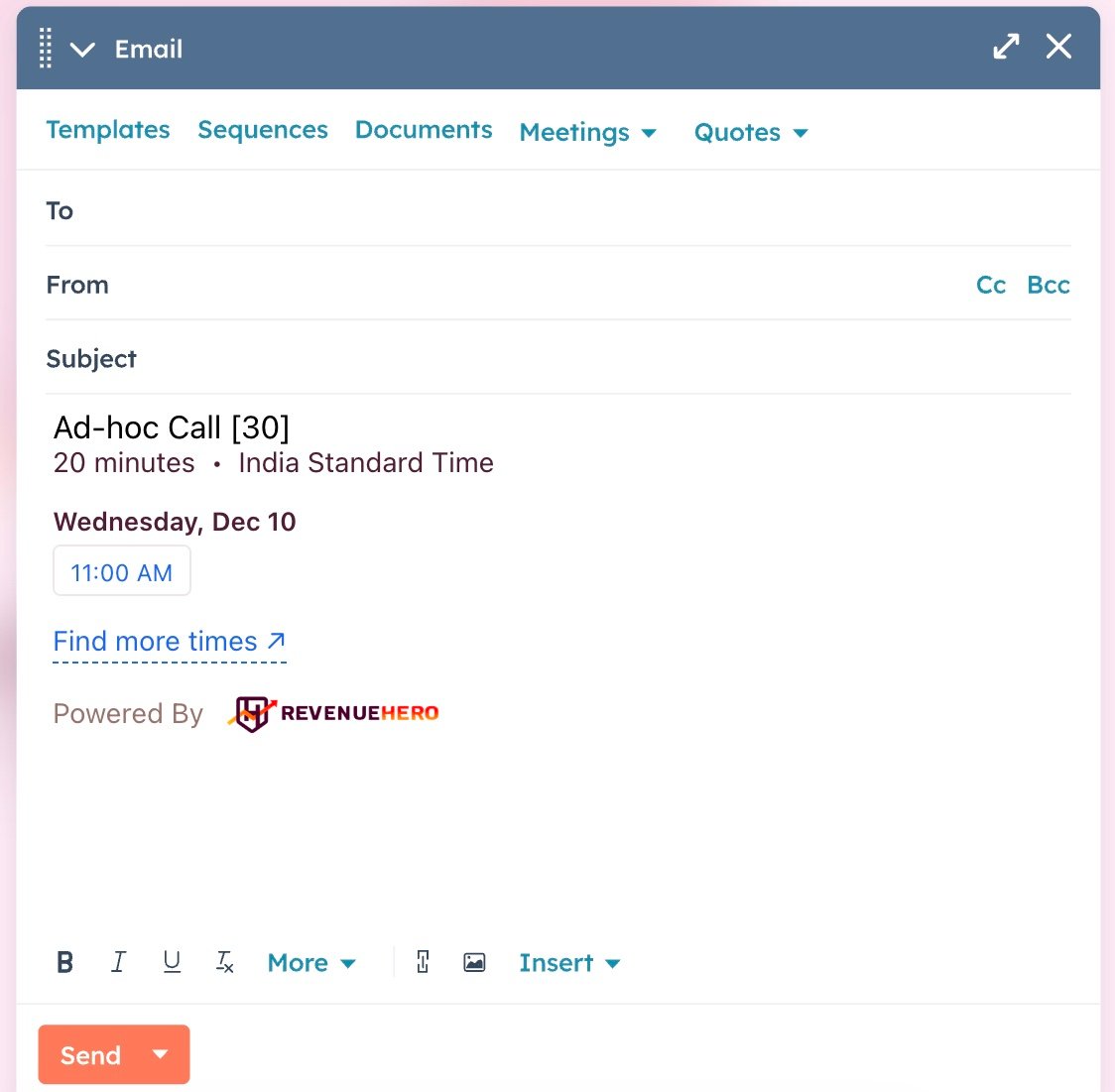
From any page, with Search
- Press Cmd + K, highlight a meeting link and press Shift + Enter.
- On the calendar, select the times you want to offer.
- Click Copy Slots. The slots are copied to your clipboard.
- Paste them into your email with Cmd + V.
In an email, with rh/
- Type rh/ and click slots next to a link.
- Click or drag on the calendar to select the times you want to offer, then click Generate.
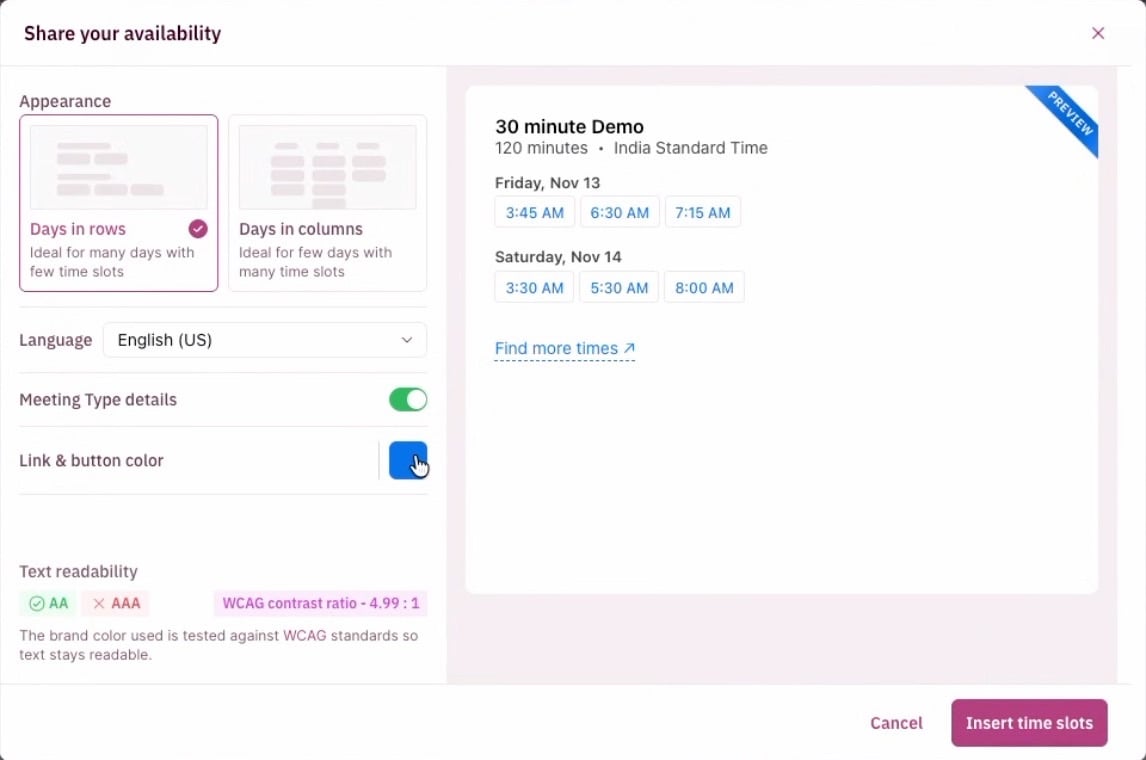
- In Share your availability, choose the layout (Days in rows or Days in columns), the language, and the link color. A readability check shows whether the color passes WCAG contrast standards.
- Click Insert time slots. The times appear in your email, and the prospect clicks one to book.
Save the links you send most as Quick Links
A Quick Link is a saved link with its own rh/ shortcut. Use one for a link you send many times a day, a teammate’s link you often share, or a campaign link that needs UTM parameters.Step 1: Add a Quick Link
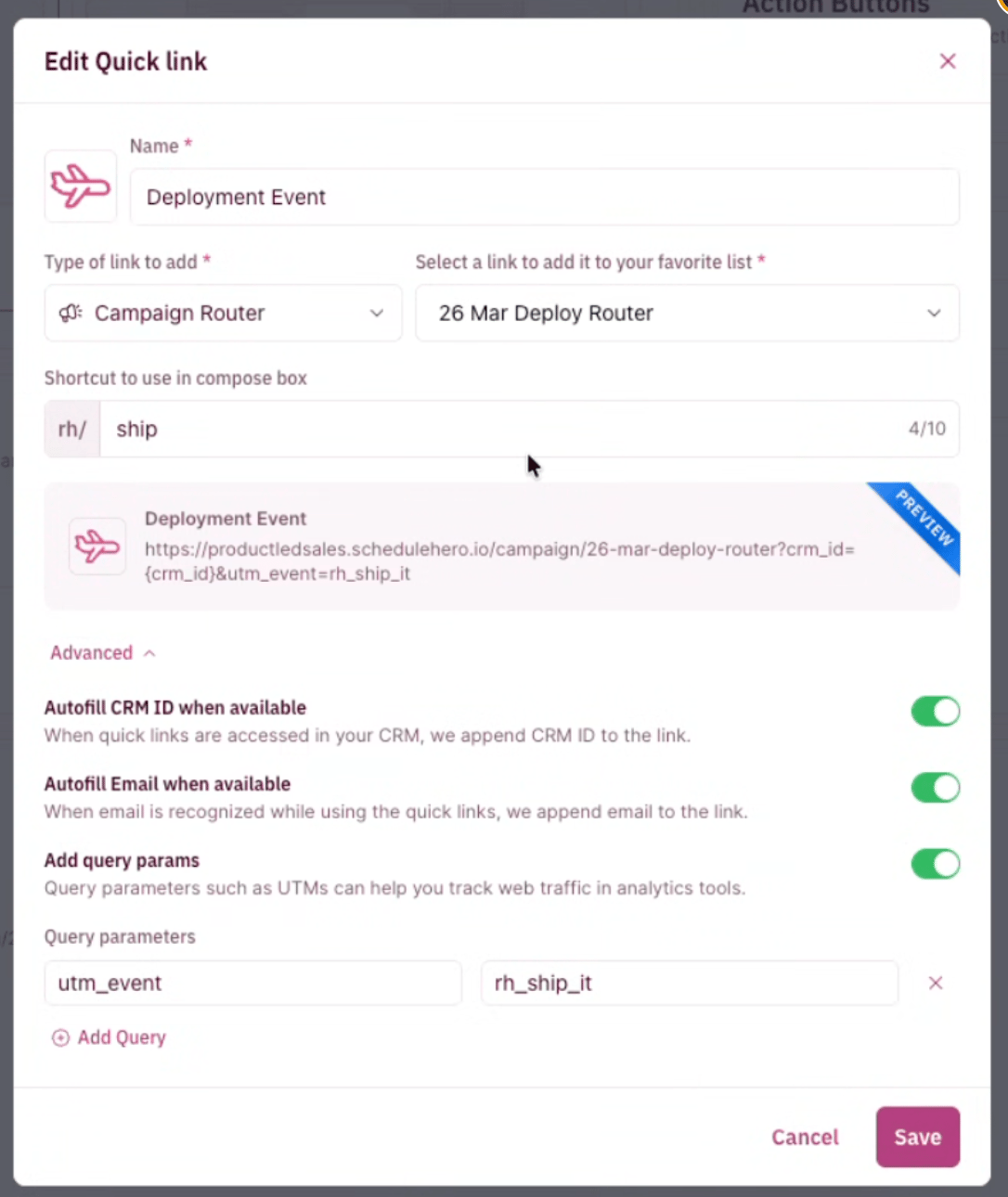
In the RevenueHero app, go to Settings → Extension settings and click Add a Quick Link. Give it a name and an icon.Step 2: Pick the link
Choose the type of link (Meeting Link, Group Meeting Link, Form Router, Campaign Router or Handoff Router) and pick the link.Step 3: Set a shortcut
Type a shortcut of up to 10 characters. Typing rh/ and the shortcut finds this link first.Step 4: Add autofill and parameters
Under Advanced, switch on what you need:- Autofill CRM ID when available adds the record’s ID when you use the link on a CRM record.
- Autofill Email when available adds the recipient’s email when the extension can see it, for example in the To field.
- Add query params adds parameters such as UTMs.
Your links are now a shortcut away in every tab and every email you write.
Booking Meetings from the Chrome Extension
Book on your calendar or hand a prospect to a colleague.
Chrome Extension Setup
Change your buttons, dock and Search shortcut.