

BEFORE YOU BEGIN
- Install and set up the Chrome extension.
- To book for colleagues, your admin needs to add you as a booker on a Relay.
Book a meeting
Step 1: Open the booking window
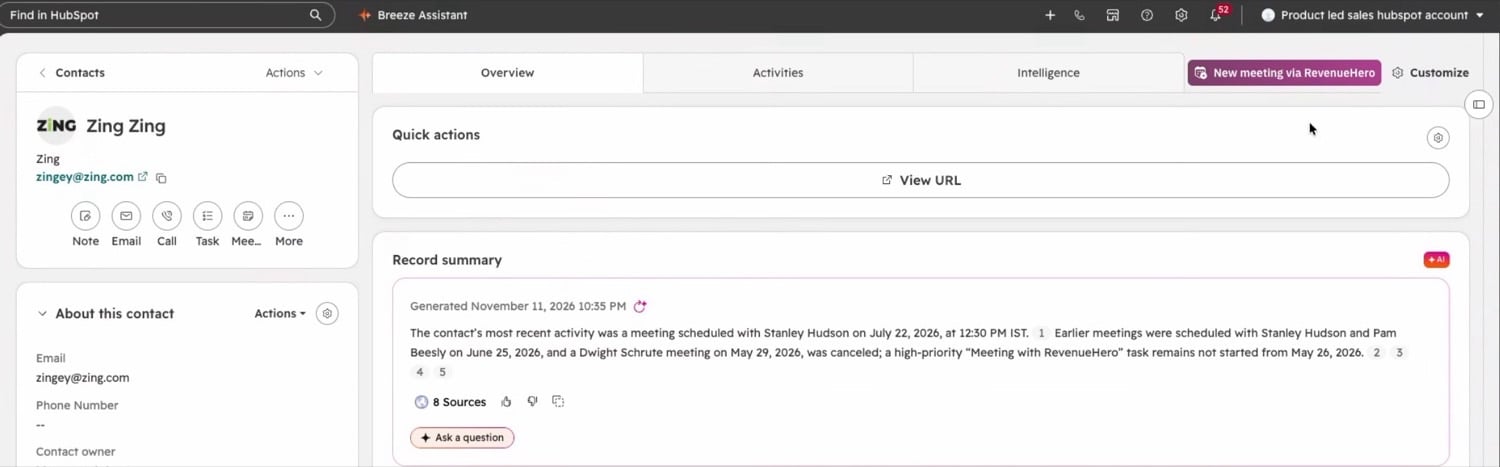
Start from wherever you are:- On a HubSpot, Salesforce or Zoho record, click the RevenueHero button. In HubSpot it reads New meeting via RevenueHero.
- On an email in Gmail, click the RevenueHero button in the email header or next to the sender’s address.
- Anywhere else, press Cmd + K (Ctrl + K on Windows) and choose Book a new meeting. On a page that lists contacts, choose Book a meeting for a contact on this page and pick one of the email addresses it finds.
Step 2: Fill in the booking window
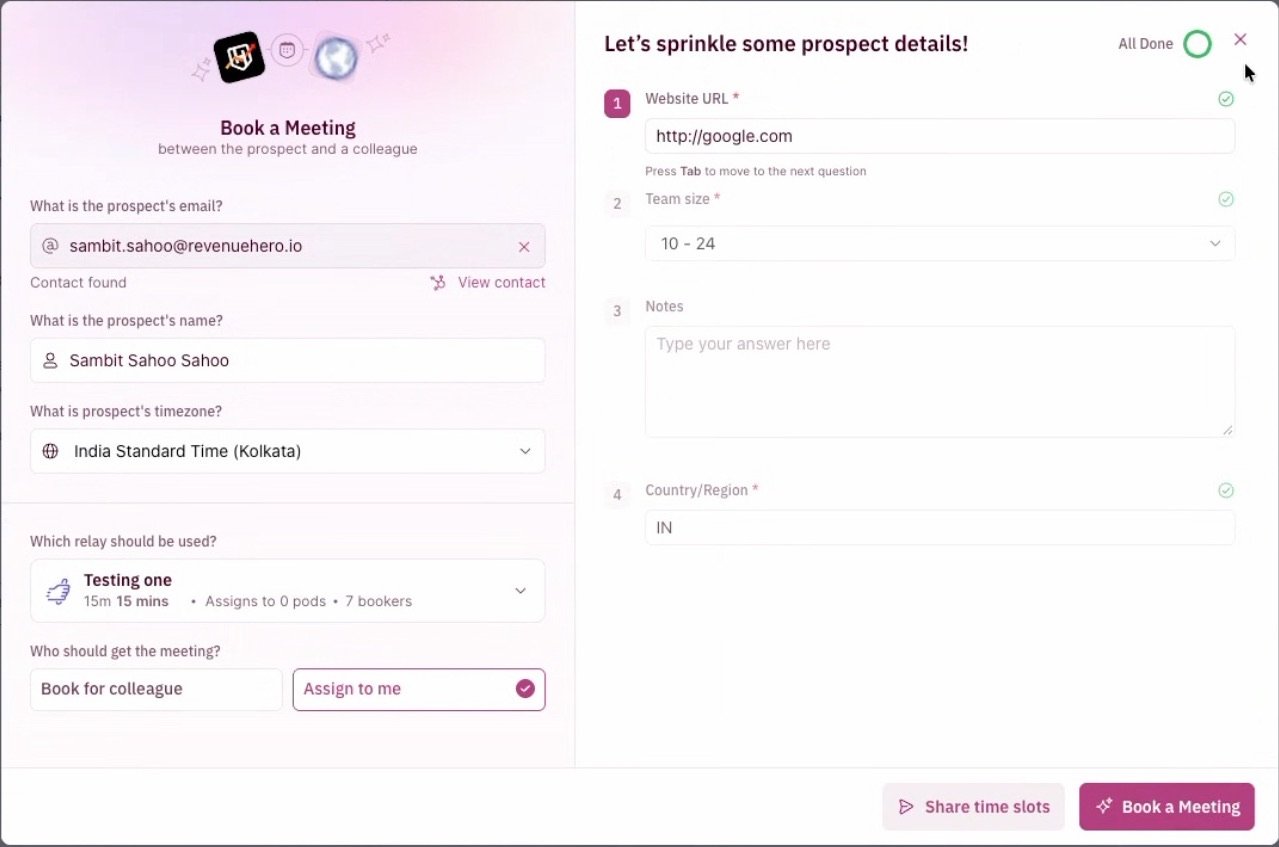
- Check the prospect’s email, or type it in. If the prospect is in your CRM you’ll see Contact found. If not, you’ll see Looks like a new contact.
- Under Which relay should be used?, pick a Relay and click Continue.
- Check the prospect’s name and time zone.
- Under Who should get the meeting?, choose Assign to me to book on your own calendar, or Book for colleague to let the Relay choose the rep.
- Answer the Relay’s questions on the right. Questions with an asterisk are required.
- Click Book a Meeting to choose a time now, or Share time slots to send the prospect times to choose from.
Step 3: Pick a time and book
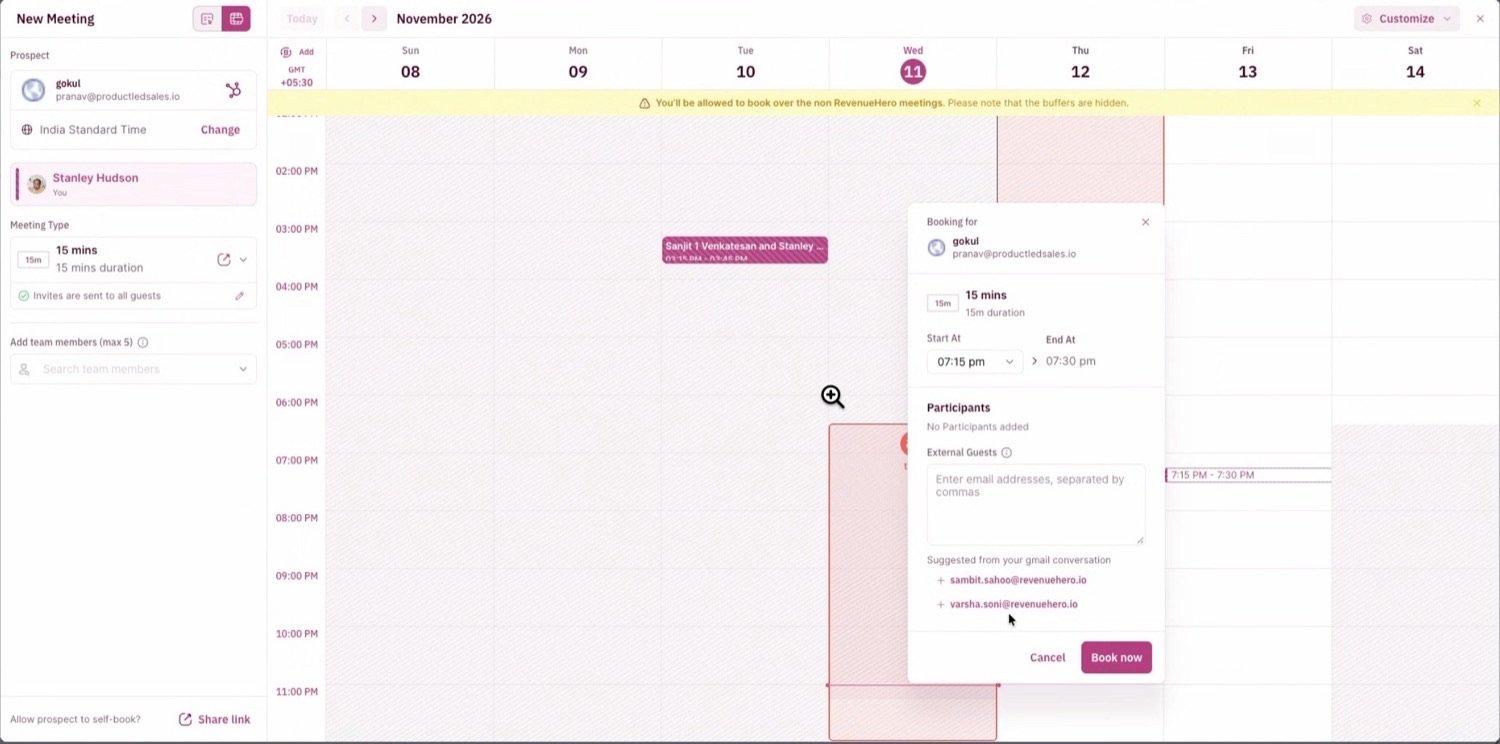
- On the calendar, click an open time in the rep’s availability. You can add up to 5 team members and any external guests. If you started from a Gmail thread, the people on that thread, including anyone in CC, are suggested as guests.
- Click Book now. Everyone gets a calendar invite, and the meeting is logged in your CRM.
Manage meetings from Google Calendar
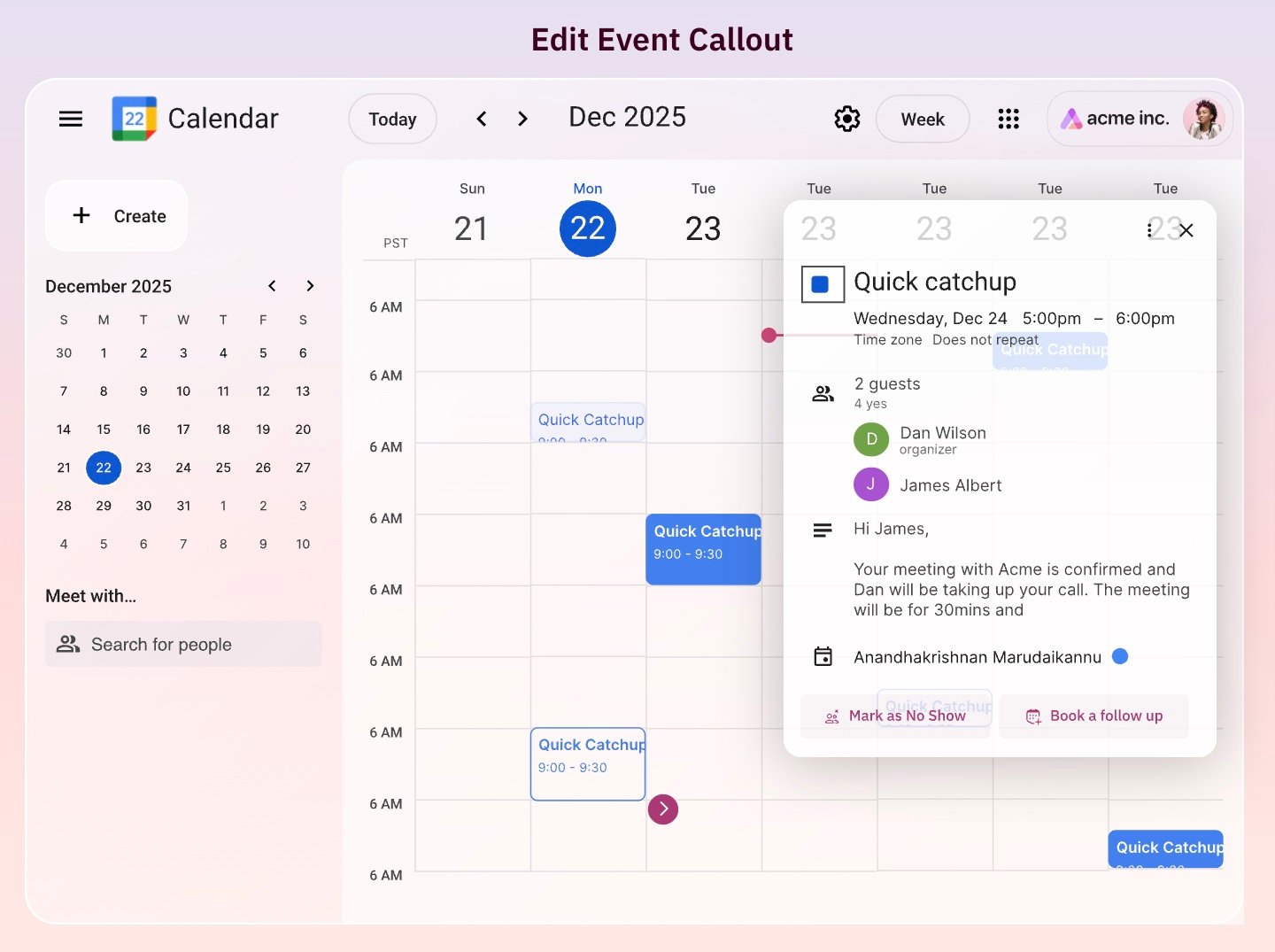
In Google Calendar, open a meeting booked through RevenueHero to act on it:- Mark as ‘No Show’ on a past meeting records the no-show in RevenueHero and updates your CRM. Super admins see it. On accounts with custom roles, anyone with the meeting modify or meeting team modify permission sees it.
- Reassign the meeting on an upcoming meeting moves it to another rep.
- Book a Follow Up opens the booking window with the guest’s details filled in.
- The CRM icon next to a guest opens their record in your CRM.
Open the booking window from a custom button
You can open the booking window from a custom button in your CRM or from another app your team uses. Point the button at this link, and add the prospect’s details as parameters to fill them in: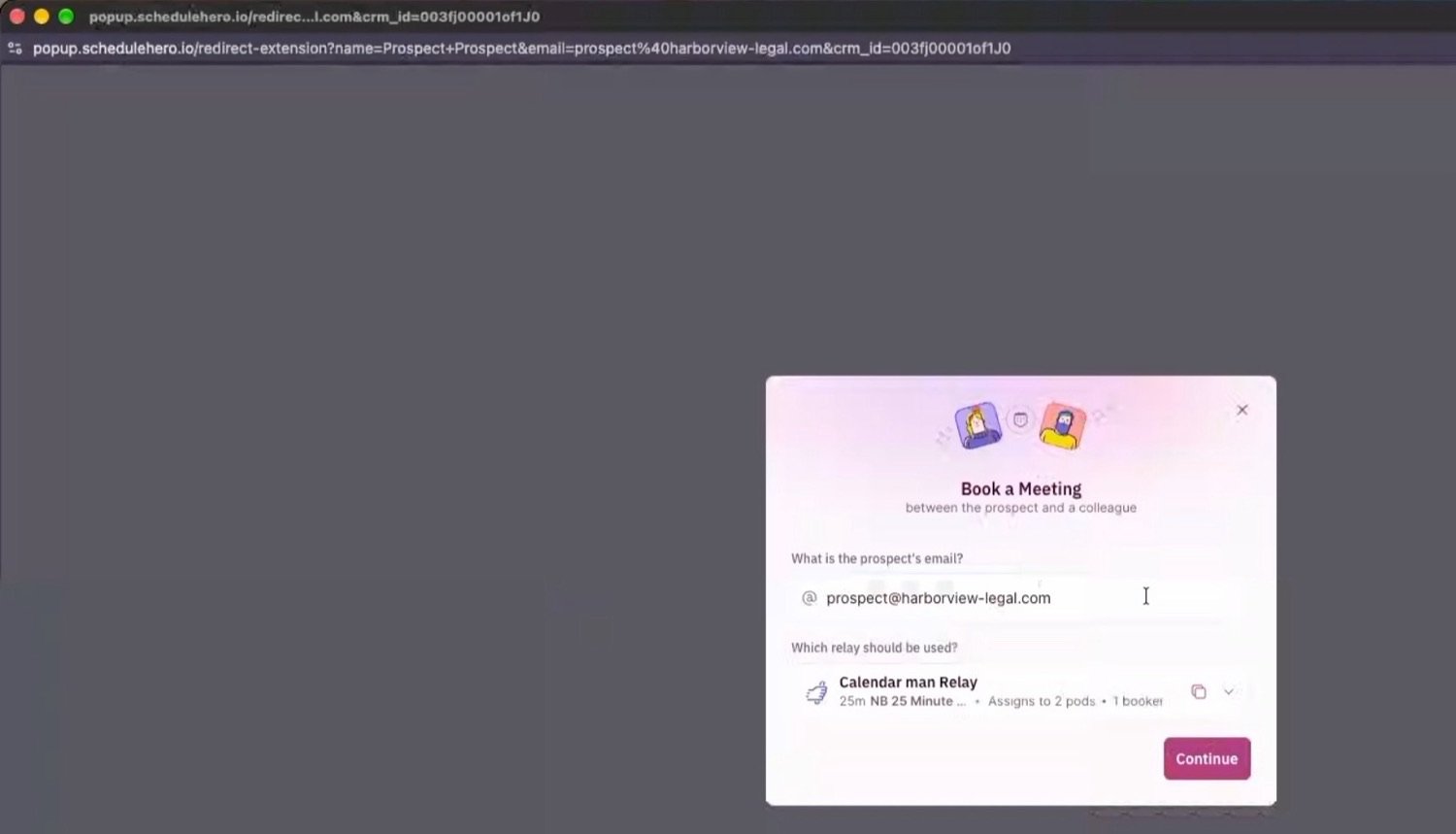
You can now book and manage meetings from wherever you work, without switching to the RevenueHero app.
How to create Relays?
Set up the Relays your team books through.
Setting Your Booking Preferences
Preselect a Relay and set your booking defaults.